


A small white cube sits beside a frightening heat map while an emotional story promises relief without a hose, window, or expensive installation.
For anyone facing a brutal summer, the offer seems practical. The details become less convincing when the invention story and cooling claims are examined together.
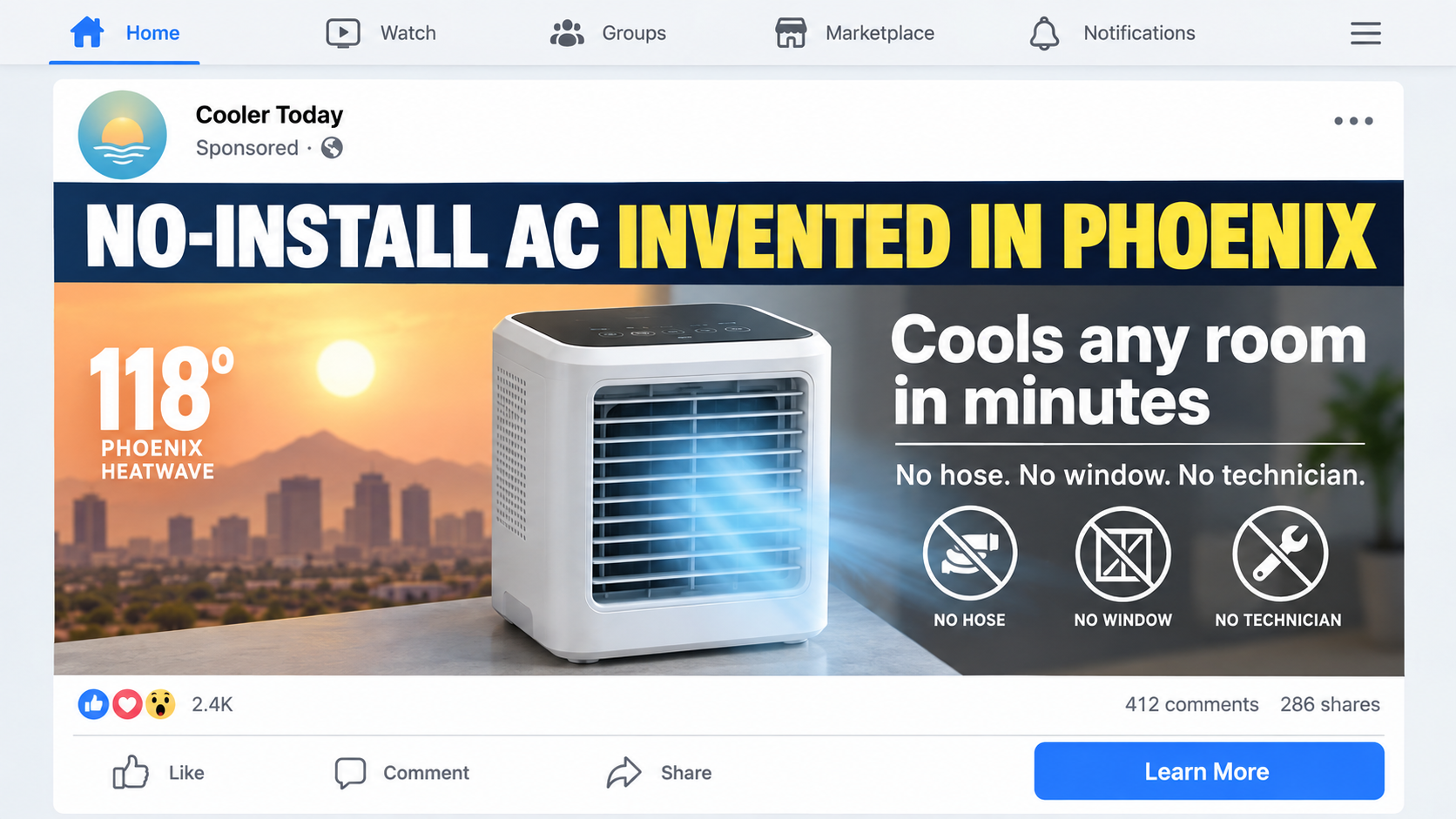
Overview
The Phoenix engineer story is sales fiction
The advertisement describes an engineer, often called Daniel R., who supposedly created the device to protect his 78-year-old mother during a heatwave.
That character supplies a human reason to trust the product. The campaign offers no verifiable engineering history, patent, employer, or independent reporting.
AI-generated imagery can produce the inventor, blueprints, workshop, news interview, and grieving family narrative without any underlying event.
The product is not a room air conditioner
Vital Cooling Breeze and similar devices are compact fans or evaporative coolers. They do not contain the compressor system used by conventional air conditioners.
A fan moves existing air. An evaporative unit passes air across moisture, which may cool a small nearby stream under favorable conditions.
Neither process supports claims that a desktop cube can rapidly lower an entire room by dramatic amounts in every climate.
The checkout can be riskier than the gadget
Advertisements may show the product at Target or imply nationwide retail demand. A retailer-style graphic does not prove a real store partnership.
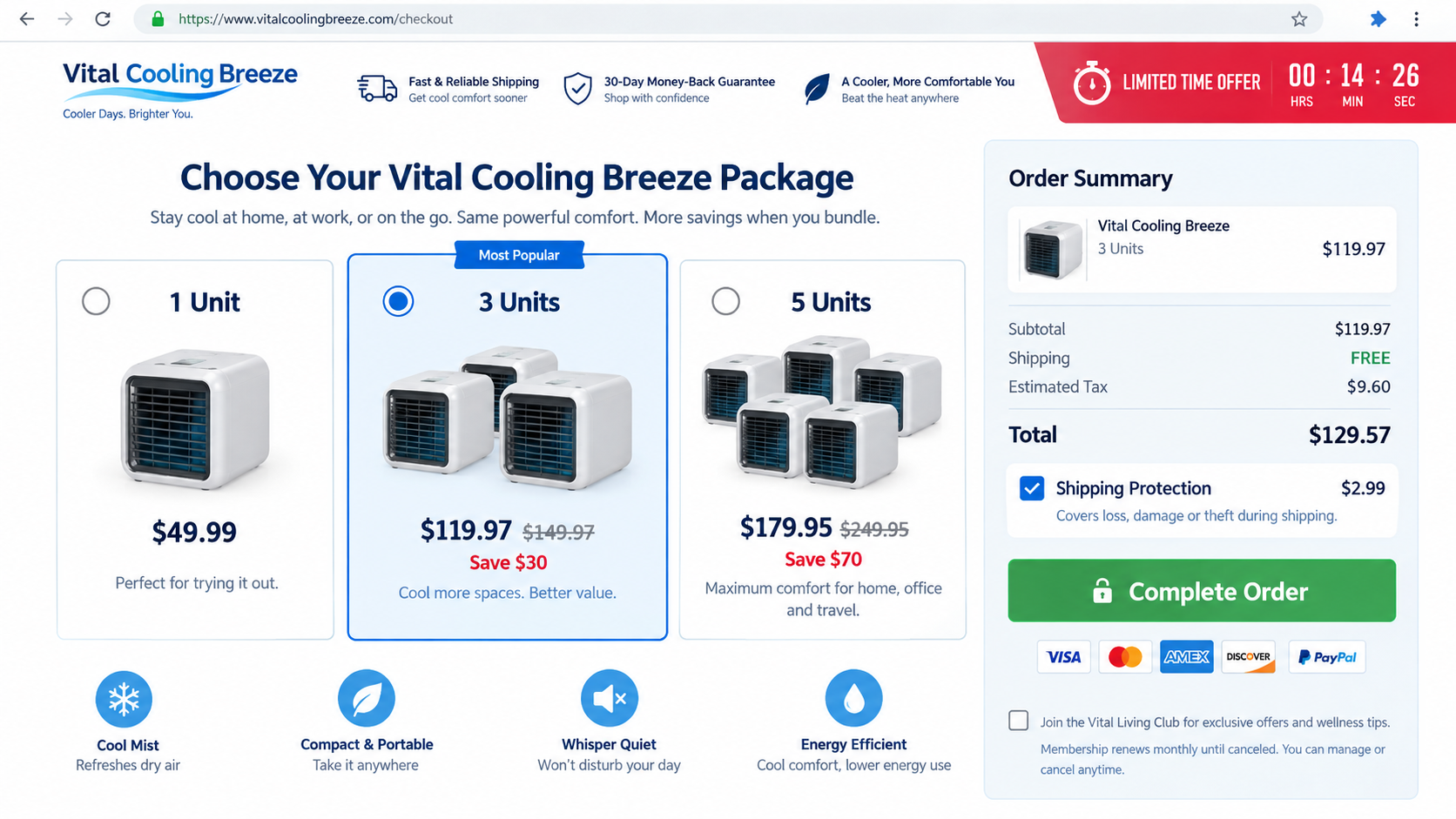
The page encourages three-unit or five-unit bundles, adds shipping protection, and may present membership language near the payment controls.
- The named inventor cannot be independently verified.
- The device lacks the hardware of a compressor air conditioner.
- Heatwave urgency discourages comparison shopping.
- Retailer association may exist only inside the advertisement.
- Return and recurring-payment terms deserve close review.
The cube may produce a personal breeze. The scam is presenting that limited function as a revolutionary whole-room air conditioner backed by an invented origin.
Air Conditioner, Evaporative Cooler, or Fan?
A compressor air conditioner moves heat from indoors to outdoors. It uses refrigerant, coils, a compressor, and a path for releasing collected heat.
That process also removes moisture from indoor air. Window units vent outside, while portable models require an exhaust hose.
A small cube without an outdoor exhaust cannot make room heat disappear. Any electricity it consumes eventually adds heat to the same space.
Evaporative coolers use water. Evaporation can lower air temperature, especially when outside air is hot and dry.
The Department of Energy explains that evaporative cooling works best in low humidity and normally requires airflow through the building.
A desktop device has limited water area and airflow. Its effect is usually local, similar to a cool breeze directed toward one person.
In humid conditions, evaporation slows and the unit adds moisture. That can make the room feel clammy without producing meaningful cooling.
Calling every fan an air conditioner erases these differences. Buyers should look for cooling capacity, compressor details, exhaust requirements, and test conditions.
How the No-Install AC Engineer Scam Works
Step 1: The ad opens with dangerous heat
A map shows Phoenix above 110 degrees, while captions mention vulnerable older adults, high electricity bills, and unavailable technicians.
The threat is real, which gives the advertisement emotional force. Extreme heat can become life-threatening, especially for older adults and people with medical conditions.
The campaign then implies one inexpensive cube offers the same protection as real air conditioning. That leap is never demonstrated under controlled conditions.
Step 2: An invented engineer supplies the origin story
Daniel supposedly watches his mother suffer through a power bill or broken system. He builds a prototype from advanced cooling principles and attracts immediate attention.
The details feel specific but remain unverifiable. There is no full identity, patent number, technical paper, company history, or independent local news coverage.
AI visuals make the story appear documented. A generated workshop photograph is still advertising artwork, not proof that an inventor or event existed.
Step 3: A fake news page launders the claims
The click opens a page styled like local reporting. Weather graphics, bylines, comments, and community language create the impression of editorial review.
Look for sponsored disclosures, unfamiliar domains, and buttons repeated throughout the article. Real reporting does not normally funnel every paragraph into one checkout.
The page may display retailer colors or shelves. Unless the product appears on the retailer’s official domain, that image proves no relationship.
Step 4: Demonstrations confuse personal airflow with room cooling
Videos show mist, ice, blue lighting, or a thermometer placed directly beside the outlet. That measures a narrow air stream, not the whole room.
Camera edits can switch between different times, locations, and thermometers. Missing room size, humidity, starting temperature, and duration make the demonstration meaningless.
A credible test measures temperature throughout a defined space and explains heat load, airflow, water consumption, and ambient humidity.

Step 5: The landing page invents performance numbers
Claims may promise a 20-degree drop in minutes, cooling for hundreds of square feet, whisper-quiet operation, and pennies of energy use.
Those numbers rarely include a recognized test method. One outlet temperature reading cannot establish room capacity or safety during extreme heat.
Terms such as hydro-chill, rapid freeze, or advanced ceramic core sound proprietary. The pictured device often contains a small fan, water reservoir, and absorbent pad.
Step 6: Bundle pricing expands a one-unit order
The sales page says one device covers only a personal area, then recommends several for bedrooms, kitchens, offices, pets, and travel.
A three-unit package may be highlighted automatically. The low advertised price can represent each unit inside the largest bundle, not the payable total.
Shipping protection, priority handling, and club memberships can appear beside the button. Review the final summary instead of relying on the headline price.
Step 7: Refund obstacles appear after delivery
Buyers may receive a lightweight fan that matches the photograph but not the promised performance. That distinction becomes the center of the refund dispute.
Support may argue the unit works because air moves, even though the advertisement called it an air conditioner capable of cooling a room.
Returns can require international postage, original packaging, video proof, or unopened condition. Those terms undermine the practical value of a satisfaction guarantee.
Why Blue Mist and Ice Videos Are Misleading
Blue light visually signals coldness but does not measure temperature. Mist makes the output look powerful while revealing only that water is present.
Some demonstrations add ice to the reservoir. Melting ice temporarily cools nearby air because energy was already used elsewhere to freeze it.
That does not create free air conditioning. The refrigerator released more heat into the home while producing the ice.
A thermometer placed inches from wet media can show a drop. The relevant question is whether the occupied room becomes safer and more comfortable.
Room performance changes with humidity. Evaporation is much less effective when the air already contains substantial moisture.
Open doors or windows may be necessary for a larger evaporative cooler. A closed, humid bedroom creates very different conditions from an edited desert demonstration.
Small reservoirs also need cleaning. Standing water and wet pads can develop odors or microbial growth when maintenance is ignored.
The seller should explain water replacement, cleaning intervals, filter availability, power supply, noise, and electrical protection. Many viral pages focus only on miracle results.
Heat Safety Matters More Than the Sales Pitch
Do not rely on an untested personal cooler during a heat emergency. A pleasant breeze can mask continued heat exposure without lowering dangerous room conditions.
Watch local heat alerts and use a reliably air-conditioned location when available. Community cooling centers may offer safer relief during outages or extreme temperatures.
Older adults, infants, outdoor workers, and people with chronic conditions can become ill quickly. Confusion, fainting, or very high body temperature needs emergency attention.
Hydration helps, but it does not make every environment safe. Some medical conditions also require individualized fluid guidance.
A real room air conditioner should be sized for the space and installed safely. Electrical circuits, ventilation, and condensate management all matter.
If using an evaporative cooler, follow manufacturer guidance and understand local humidity. Treat a desktop model as personal comfort equipment, not life-safety protection.
Never place water-filled electronics where they can tip onto outlets, power strips, bedding, or children. Stop after leaks, overheating, burning odor, or damaged cables.
How to Compare a Small Cooler Before Buying
Ignore the product’s invented category and compare like with like. Search for compact evaporative coolers with similar dimensions, reservoir size, wattage, and controls.
Measure the available desk space and ask who will sit within the airflow. A personal cooler should be evaluated as a personal device.
Read verified retailer reviews for noise, leaks, replacement filters, cleaning, and durability. Claims about whole-room cooling need instrumented testing, not star ratings.
Check whether replacement pads are available after the campaign ends. A proprietary filter can make a cheap device unusable within one season.
Calculate the complete delivered price. Bundles, protection, and overseas return postage can make an apparently discounted cube more expensive than a local alternative.
A reputable seller describes limitations clearly. Honest specifications are more valuable than an invented engineer, fake news layout, or emotionally perfect origin story.
What Honest Cooling Documentation Would Include
A legitimate product page distinguishes fan mode, evaporative cooling, and compressor air conditioning. Each mechanism produces different expectations and maintenance needs.
Specifications should name airflow, reservoir capacity, electrical consumption, noise measurement, dimensions, weight, and replacement-pad model without hiding behind branded terminology.
Room-cooling claims need a defined space, starting temperature, outside temperature, humidity, heat load, test duration, and measurement locations.
An evaporative device should state suitable humidity ranges. Promising identical performance in Phoenix and coastal Florida ignores how evaporation works.
Safety instructions must explain filling, cleaning, approved power adapters, tip hazards, storage, and separation between water and electrical components.
A warranty should identify its provider and jurisdiction. Money-back language means little without an accessible return address and realistic postage.
Replacement consumables should remain available independently. A seller that vanishes can leave customers with dirty pads and no compatible parts.
Missing documentation does not make the fan more innovative. It prevents buyers from comparing performance, cost, maintenance, and risk.
Red Flags in the Fake Engineer Campaign
- The inventor is identified only by a first name and initial.
- A heartwarming family story replaces technical documentation.
- The page resembles news but every button opens the same store.
- A tiny cube is called an air conditioner without a compressor.
- Cooling claims omit room size, humidity, and test duration.
- Retailer images appear without an official product listing.
- Stock counters and sale timers restart repeatedly.
- The same housing appears under unrelated product names.
- Multi-unit packages receive the default selection.
- The guarantee hides return postage and condition requirements.
The most revealing question is simple: where does the room’s heat go? If the seller cannot answer that, the air-conditioner claim is marketing theater.
Company, Address, and Fulfillment Checks
Find who accepted the payment
Vital Cooling Breeze is a product name. Compare the seller listed in the footer, policies, checkout, receipt, package, and card statement.
One reviewed funnel has used the buyevergreen.co domain, support@buyevergreen.co, and (877) 375-4479. These details can change and require fresh verification.
Do not confuse a warehouse with headquarters
Search the return address before mailing. It may be a third-party fulfillment center handling packages for many unrelated storefronts.
A warehouse cannot answer whether the Phoenix story is true or whether the device met advertised cooling tests. It only receives inventory and returns.
Call before ordering, not after trouble begins
Ask for compressor type, BTU rating, covered room size, humidity limits, manufacturer, warranty provider, renewal terms, and exact return costs.
If support calls it personal cooling while the advertisement says whole-room AC, save that contradiction. It directly concerns the purchasing decision.
Trace the device and its safety information
Inspect the adapter label, model number, water-care instructions, electrical markings, and importer. Missing documentation makes both safe use and accountability harder.
Generic products can be mass-produced overseas and relabeled by several sellers. That is not automatically unsafe, but unsupported claims and poor traceability increase risk.
What to Do if You Have Fallen Victim to This Scam
- Do not depend on the unit for heat safety. Move to reliable cooling if conditions are dangerous or anyone develops heat-illness symptoms.
- Photograph everything. Save the ad, inventor story, retailer claim, performance promises, checkout, receipt, packaging, label, and the device you received.
- Check quantity and add-ons. Confirm whether the order includes extra units, shipping protection, priority processing, or a continuing membership.
- Test only under safe conditions. Keep water away from outlets and stop using the device after leaks, heat, odor, noise, or cable damage.
- Request a refund in writing. Explain the difference between promised whole-room air conditioning and the fan or evaporative cooler delivered.
- Get return instructions first. Ask about postage, tracking, restocking, deadlines, packaging, and the legal company receiving the parcel.
- Challenge unauthorized billing. Contact the card issuer about unwanted quantities, memberships, or a refund the seller failed to honor.
- Report the misleading campaign. Send evidence to the ad platform, FTC, state consumer office, and any retailer falsely shown.
- Clean the digital aftermath. Run Malwarebytes after suspicious downloads or redirects. AdGuard can reduce repeat malicious ads and tracking.
- Warn other household members. Explain that the same cube can return under a new brand, inventor, store, or heatwave story.
Is Your Device Infected? Run a Free Malware Scan
Slow performance, constant pop-ups, or strange behavior? These are classic signs of a malware infection. The fastest way to find out is to scan your device with Malwarebytes Free — one of the most trusted malware removal tools available.
The free version detects and removes the most common threats, including:
- Adware — the cause of those annoying pop-ups
- Browser hijackers — unwanted redirects and changed homepages
- Trojans and spyware — hidden programs stealing your data
- Potentially unwanted programs (PUPs) — software you never asked for
👉 Select your device below — Windows, Mac, or Android — then follow the simple steps to download Malwarebytes, scan your system, and remove any threats it finds. The scan usually takes 5 to 20 minutes.
Run a Malware Scan with Malwarebytes for Windows
Malwarebytes is one of the most popular and trusted anti-malware tools for Windows — and it’s completely free for removing infections. It catches threats that many antivirus programs miss, including adware, browser hijackers, and trojans. Follow the steps below to scan and clean your PC in just a few minutes.
Download Malwarebytes
Click the button below to download the latest version of Malwarebytes for Windows from the official source. The free version is all you need — it will scan your computer and remove adware, browser hijackers, and other malicious software at no cost.
Download MalwarebytesOfficial installer for Windows 11 and 10. Your download starts right away.Want real-time protection? See Malwarebytes Premium Malwarebytes Free for WindowsScans and removes malware at no cost
-
Install Malwarebytes
When the download finishes, open your Downloads folder and double-click the MBSetup file. If Windows shows a User Account Control pop-up, click “Yes” to allow the installation.

Follow the On-Screen Prompts to Install Malwarebytes
The setup wizard will walk you through a few quick screens:
-
Choose where you’re installing the program — “Personal Computer” or “Work Computer” — then click Next.

-
Malwarebytes will now install on your device. This usually takes under a minute.

-
When installation is complete, the “Welcome to Malwarebytes” screen will open automatically.

-
On the final screen, click Open Malwarebytes to launch the program.

-
Enable “Scan for Rootkits”
Before scanning, turn on rootkit detection so Malwarebytes can find even the most hidden threats. Click the Settings gear icon on the left side of the screen.

In the settings menu, find “Scan for rootkits” and click the toggle so it turns blue.

Done? Click “Dashboard” in the left pane to return to the main screen.
Start the Scan
Click the blue Scan button. Malwarebytes will automatically update its virus database and start checking your computer for malware.

-
Wait for the Scan to Finish
The scan checks your entire system for browser hijackers and other malicious programs, so it can take 5 to 20 minutes depending on your computer. Feel free to do something else — just check back occasionally to see the progress.

-
Quarantine the Detected Threats
When the scan is done, you’ll see a list of everything Malwarebytes found — malware, adware, and potentially unwanted programs. Click the “Quarantine” button to remove all of them at once.

Malwarebytes will now remove the malicious files and registry entries and move them safely into quarantine.

-
Restart Your Computer
Some threats can only be fully removed after a reboot. If Malwarebytes asks you to restart, click Yes. Once you’re logged back in, Malwarebytes has finished removing the threats it found.

That’s it — your Windows PC is now clean of trojans, adware, and other malware, and should be back to running smoothly.
If you are still having problems with your computer after completing these instructions, then please follow one of the steps:
- Run a computer scan with ESET Online Scanner
- Ask for help in our Windows Malware Removal Help & Support forum.
Run a Malware Scan with Malwarebytes for Mac
Malwarebytes for Mac is a free on-demand scanner that removes the malware other security software tends to miss — adware, browser hijackers, and unwanted programs included. Cleaning an infected Mac with Malwarebytes has always been completely free, and it’s our go-to recommendation. Follow the steps below to scan and clean your Mac in just a few minutes.
-
Download Malwarebytes for Mac
Click the button below to download the latest version of Malwarebytes for Mac.
Download MalwarebytesOfficial installer for macOS. Your download starts right away.Want real-time protection? See Malwarebytes PremiumMalwarebytes Free for MacScans and removes malware at no cost -
Open the Malwarebytes setup file
When the download finishes, open your Downloads folder and double-click the setup file to begin the installation.

-
Follow the On-Screen Prompts to Install Malwarebytes
The Malwarebytes for Mac Installer will guide you through a few quick screens. Click “Continue” and keep following the prompts until the installation completes.



When the installation is complete, Malwarebytes opens to the Welcome to Malwarebytes screen. Click “Get started“.
-
Select “Personal Computer” or “Work Computer”
Malwarebytes will ask what type of computer you’re installing it on. Click either Personal Computer or Work Computer, whichever applies.

-
Start the Scan
Click the “Scan” button. Malwarebytes will automatically update its detection database and begin checking your Mac for malware.

-
Wait for the Scan to Finish
Malwarebytes will scan your Mac for adware, browser hijackers, and other malicious programs. This can take a few minutes, so feel free to do something else — just check back occasionally to see the progress.

-
Quarantine the Detected Threats
When the scan is done, you’ll see a list of everything Malwarebytes found. Click the “Quarantine” button to remove all the threats at once.

-
Restart Your Mac
Malwarebytes will now remove all the malicious files it found. Some threats can only be fully removed after a reboot — if Malwarebytes asks you to restart, allow it. Once you’re logged back in, your Mac is clean.

That’s it — your Mac is now free of adware, rogue browser extensions, and other potentially harmful software.
If you are still experiencing problems while trying to remove a malicious program from your computer, please ask for help in our Mac Malware Removal Help & Support forum.
Run a Malware Scan with Malwarebytes for Android
Malwarebytes for Android automatically detects and removes dangerous threats like malware and ransomware so you don’t have to worry about your most-used device being compromised. Aggressive detection of adware and potentially unwanted programs keeps your Android phone or tablet running smooth.
-
Download Malwarebytes for Android.
You can download Malwarebytes for Android by clicking the link below.
Get Malwarebytes for AndroidOpens Google Play in a new tab.Want real-time protection? See Malwarebytes Premium for AndroidMalwarebytes for AndroidScans your phone and removes malware at no cost -
Install Malwarebytes for Android on your phone.
In the Google Play Store, tap “Install” to install Malwarebytes for Android on your device.

When the installation process has finished, tap “Open” to begin using Malwarebytes for Android. You can also open Malwarebytes by tapping on its icon in your phone menu or home screen.

-
Follow the on-screen prompts to complete the setup process
When Malwarebytes will open, you will see the Malwarebytes Setup Wizard which will guide you through a series of permissions and other setup options.
This is the first of two screens that explain the difference between the Premium and Free versions. Swipe this screen to continue.
Tap on “Got it” to proceed to the next step.
Malwarebytes for Android will now ask for a set of permissions that are required to scan your device and protect it from malware. Tap on “Give permission” to continue.
Tap on “Allow” to permit Malwarebytes to access the files on your phone.
-
Update database and run a scan with Malwarebytes for Android
You will now be prompted to update the Malwarebytes database and run a full system scan.

Click on “Update database” to update the Malwarebytes for Android definitions to the latest version, then click on “Run full scan” to perform a system scan.

-
Wait for the Malwarebytes scan to complete.
Malwarebytes will now start scanning your phone for adware and other malicious apps. This process can take a few minutes, so we suggest you do something else and periodically check on the status of the scan to see when it is finished.

-
Click on “Remove Selected”.
When the scan has been completed, you will be presented with a screen showing the malware infections that Malwarebytes for Android has detected. To remove the malicious apps that Malwarebytes has found, tap on the “Remove Selected” button.

-
Restart your phone.
Malwarebytes for Android will now remove all the malicious apps that it has found. To complete the malware removal process, Malwarebytes may ask you to restart your device.
That’s it — your Android phone is now clean — no more malicious apps, adware, or browser redirects.
If you are still having problems with your phone after completing these instructions, then please follow one of the steps:
- Restore your phone to factory settings by going to Settings > General management > Reset > Factory data reset.
- Ask for help in our Mobile Malware Removal Help & Support forum.
Stay Protected: Block Ads and Malicious Sites
Now that your device is clean, keep it that way. Most infections start with a malicious ad or a fake download button — so blocking them at the source is your best defense.
We recommend AdGuard, which blocks malicious ads, phishing pages, and dangerous redirects before they can reach you.
👉 Download AdGuard and browse safely
Frequently Asked Questions
Is Vital Cooling Breeze a real air conditioner?
The pictured device is a small fan or evaporative cooler, not a compressor air conditioner capable of moving room heat outdoors.
Can it cool an entire room?
A desktop unit may cool a narrow nearby air stream. Dramatic whole-room claims require independent testing under stated temperature and humidity conditions.
Was it invented by a Phoenix engineer for his mother?
No verifiable evidence supports that emotional origin story. It appears to be a fictional marketing device.
Does Target sell or endorse the product?
A Target-style image is not proof. Verify any retailer relationship directly on the retailer’s official website or through its official customer service.
Do evaporative coolers work?
Larger properly designed units can work in hot, dry climates. Small personal models have limited output and perform poorly in high humidity.
What if the seller sent three units instead of one?
Document the selection and confirmation, request correction in writing, and dispute quantities you did not authorize if the seller refuses.
The Bottom Line
The no-install AC campaign combines a fabricated engineer, heatwave fear, and misleading terminology to sell a small personal cooler as something far more capable.
Use verified cooling for dangerous heat. Evaluate the device by its actual mechanism, not blue mist, invented family stories, or a restarting countdown.

Join the discussion
0 commentsShare your experience or ask a question about this article.
Discussion
Start the conversation
Have a question or something useful to share? Add the first comment.