


A dramatic technology demonstration appears to reveal the accessory that phone manufacturers supposedly never wanted ordinary users to discover.
The presentation looks futuristic, urgent, and just believable enough to make an aging battery feel like proof that the secret must be real.
Overview
The technology expo story is manufactured
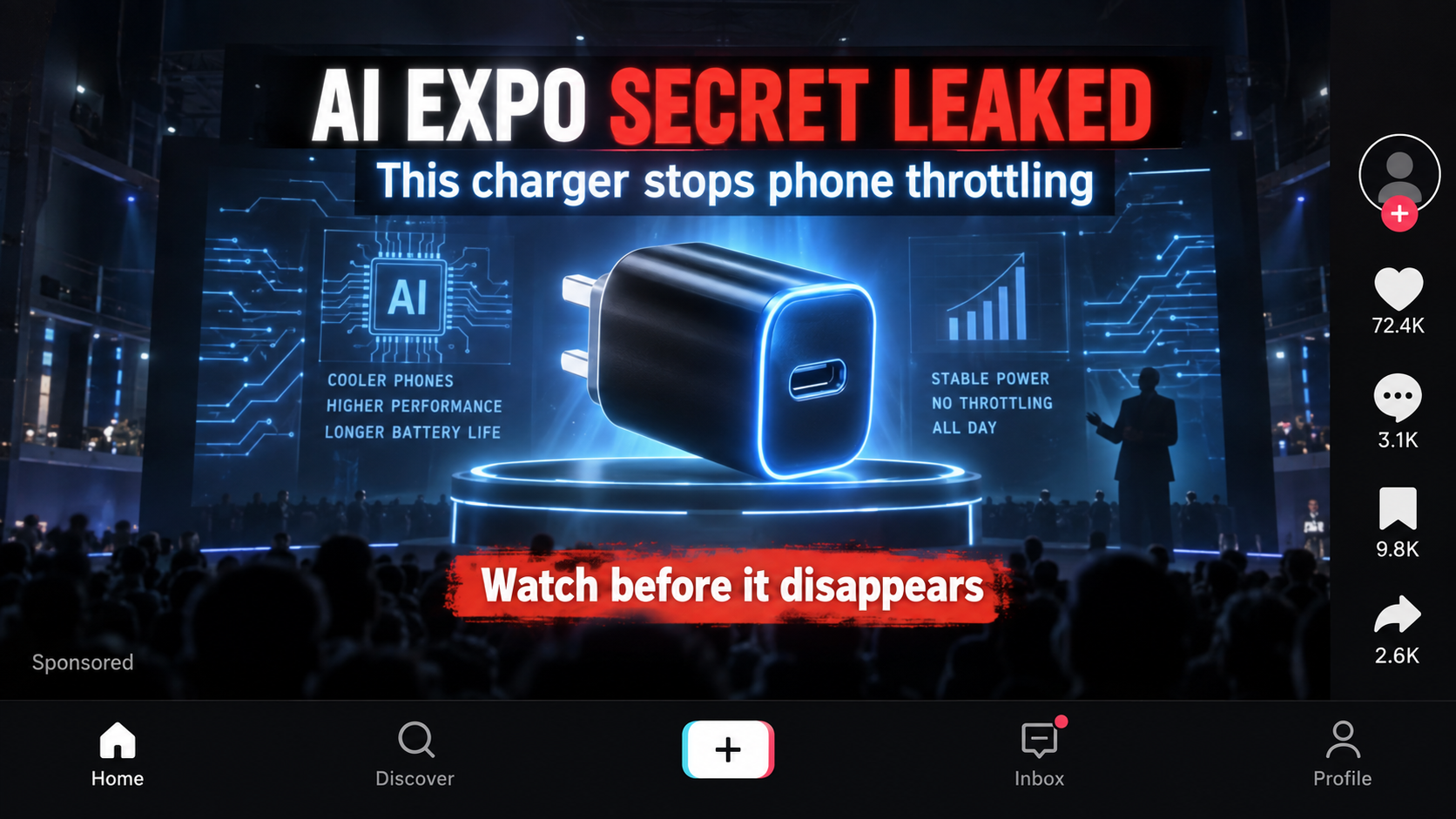
Viral advertisements show a presenter exposing a secret charger at a fictional AI Expo. Some clips suggest security removed the speaker after the demonstration.
The stage, audience, dialogue, and product reveal can be AI-generated or heavily edited. There is no verifiable conference record behind the dramatic scene.
Names such as Hyper Charge Pro, Quick Charge Pro, and Fast Charge Pro rotate between storefronts. The hidden-technology narrative stays largely unchanged.
A charger cannot perform the advertised software miracle
A legitimate charger supplies negotiated electrical power. It cannot override an operating system, remove processor throttling, reverse chemical aging, or restore lost battery capacity.
Charging speed depends on the phone, cable, adapter, supported protocol, temperature, and battery condition. The slowest component limits the result.
A different adapter may improve speed when the old one is underpowered. That ordinary improvement does not prove an AI chip repaired the phone.
The funnel sells a generic accessory at a premium
The landing page presents a commodity charger as a restricted invention. Technical graphics and invented features make the markup look like payment for exclusive technology.
Checkout often favors multi-unit bundles and optional processing fees. Similar-looking products may be available through established sellers with clearer specifications and returns.
- No credible AI Expo demonstration supports the story.
- The charger cannot bypass phone software controls.
- Battery chemistry cannot be restored by an adapter.
- Product names and domains can change quickly.
- Electrical safety matters more than promotional jargon.
The concern is not that every inexpensive charger is fraudulent. It is the combination of fabricated provenance, impossible claims, unclear certification, and aggressive ordering tactics.
What a Real Phone Charger Can and Cannot Do
Modern phones communicate with compatible adapters before drawing higher power. USB Power Delivery and proprietary systems use defined voltage, current, and thermal limits.
The phone decides how much power to accept. A 100-watt label does not force a handset to charge at 100 watts.
Charging normally slows near full capacity and when the device becomes warm. That protects the battery rather than proving a manufacturer deliberately crippled the phone.
Operating systems may manage charging schedules, performance, and temperature. An external wall adapter has no authority to rewrite those controls.
Lithium-ion batteries lose capacity through chemical aging. A charger can replenish available charge, but it cannot recreate material already degraded inside the cell.
A worn cable, weak adapter, dirty port, background activity, or heat can produce slow charging. Each problem requires a different diagnosis.
Certified fast charging is useful when the phone supports it. The meaningful specifications are output profiles, protocol compatibility, testing, manufacturer, and protective circuitry.
Words such as adaptive, quantum, AI-powered, or anti-throttling reveal nothing unless the seller explains measurable behavior and identifies recognized testing.
How the Fake TikTok AI Expo Charger Scam Works
Step 1: A spectacular expo clip creates borrowed credibility
The video resembles a vertical recording from a crowded technology event. Glowing screens, applause, and security imagery make it feel accidentally leaked.
The presenter claims large phone companies suppress the invention. This turns missing coverage into supposed evidence that the technology is being hidden.
AI generation can invent the venue, audience, captions, and speaker. Rapid edits prevent viewers from studying inconsistent faces, signs, cables, and reflections.
Step 2: The ad names a frustration everyone recognizes
Battery life declines, charging can feel slower, and software updates sometimes coincide with performance changes. The campaign combines those separate experiences into one accusation.
It says manufacturers intentionally throttle older phones to force upgrades. The secret charger is positioned as a rebellious solution rather than a normal accessory.
That emotional framing is powerful because it begins with a real annoyance. The invented explanation arrives only after the viewer agrees something feels wrong.
Step 3: Technical theater replaces a real specification sheet
An animated chip may scan the battery, unlock hidden power, clean electricity, stabilize voltage, or communicate with every phone through proprietary intelligence.
These phrases sound technical but do not identify supported protocols, tested output profiles, thermal protection, efficiency, leakage current, or recognized certification.
A legitimate manufacturer can provide model numbers and compliance evidence. A glowing chip animation is not a laboratory report.
Step 4: The landing page turns skepticism into urgency
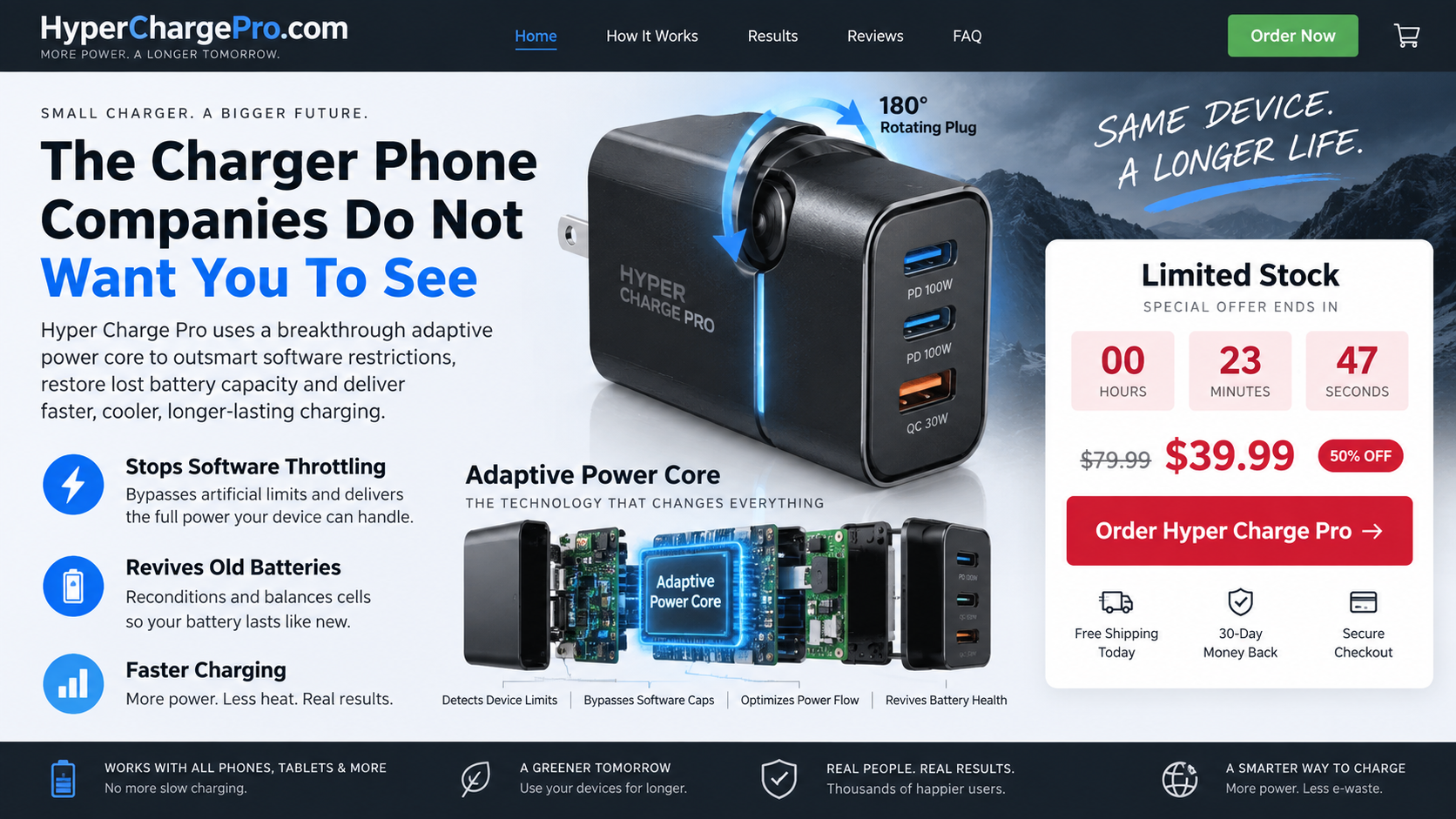
The viewer reaches an advertorial claiming the invention sold out after television exposure or an industry ban. Countdown timers imply remaining stock is disappearing.
The page may compare a $79.99 crossed-out price with a temporary $39.99 offer. Refreshing often restarts the same deadline.
Reviews describe revived phones and dramatically longer battery life. Without verified purchasers and independent testing, those testimonials cannot establish the claims.
Step 5: An ordinary adapter becomes a proprietary invention
The product image may resemble generic multiport chargers sold under many labels. Cosmetic differences do not prove that the internal components match advertised specifications.
Campaign investigators have described visually similar adapters available for under $5 through bulk marketplaces. Exact cost still requires model-specific verification.
Reselling a generic product is not automatically a scam. The deception lies in invented demonstrations, impossible functions, and unsupported claims of exclusive engineering.
Step 6: The checkout pushes more units than requested
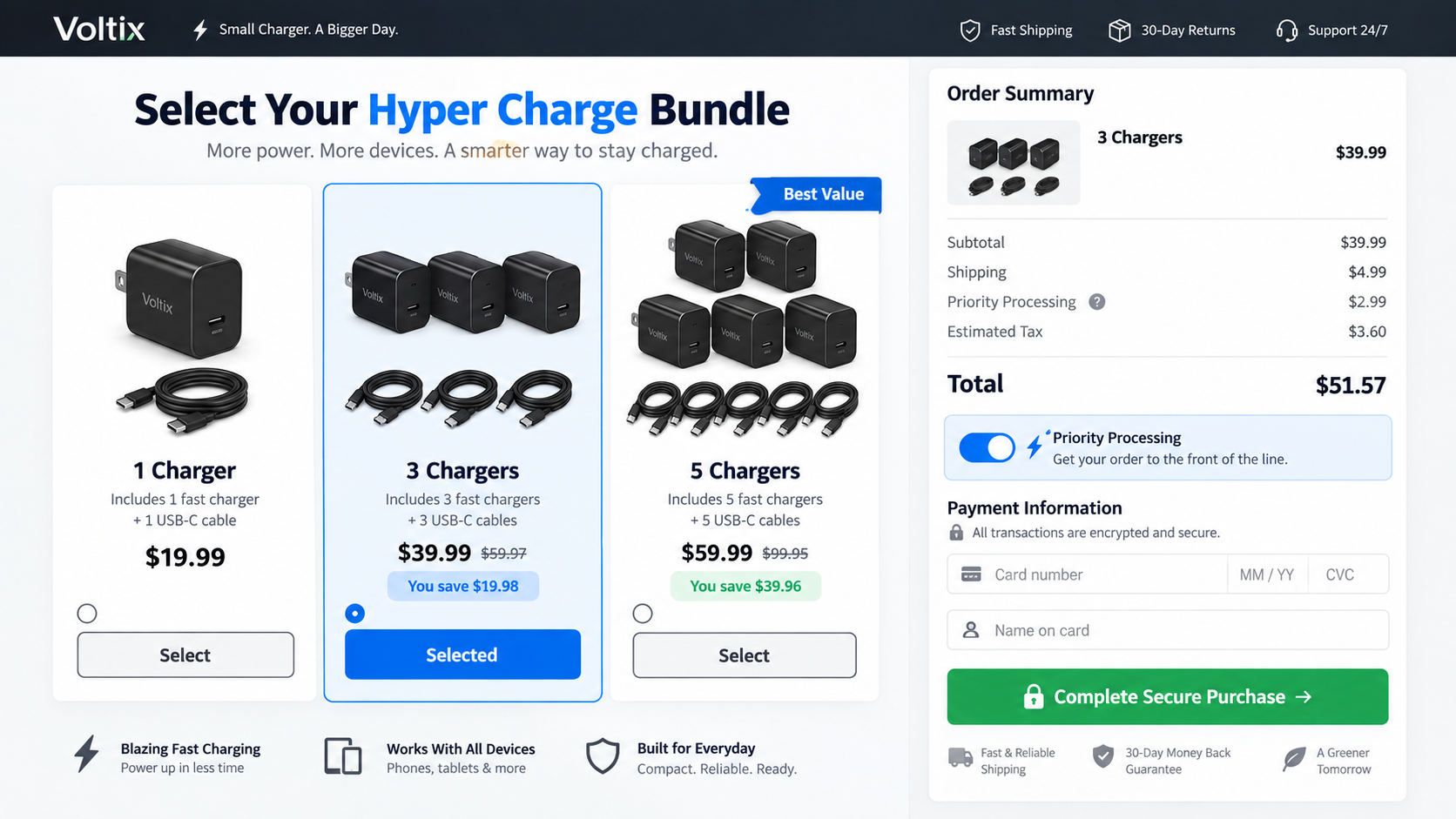
Bundle cards encourage buyers to protect every room or family member. The three-unit option can be selected by default while the advertisement emphasizes one low price.
Shipping protection, priority processing, extended warranties, and extra cables may be preselected. Each small addition raises the final total.
Read the order summary after every click. The amount beside the button should match the quantity and options you consciously chose.
Step 7: Returns become harder than the purchase
A 30-day badge may coexist with return postage, restocking deductions, unopened-item requirements, or a deadline measured from purchase rather than delivery.
Support can route complaints through retention scripts offering partial refunds. Sending products internationally may cost enough to discourage the return.
If a seller cannot provide a stable legal name and return address before payment, the guarantee has little practical value.
How to Check the Hardware Claims
Start with the phone manufacturer’s charging specification. Identify the maximum wired input and the exact protocol required to reach it.
Then read the adapter label. It should list input range and output combinations using volts, amps, and watts, not only one oversized marketing number.
Confirm whether a multiport charger divides power when several devices connect. A 100-watt total can provide far less to each port.
Look for a traceable model number and manufacturer. Search recognized certification databases rather than trusting a logo printed in a product photograph.
USB-IF certification uses testing and a Test ID for listed products. An unfamiliar brand without a listing requires extra caution, especially at high power.
Check whether the cable supports the required current and protocol. Replacing only the wall adapter cannot fix an incompatible or damaged cable.
Compare independent electrical testing when available. Useful reviews measure negotiated profiles, sustained output, heat, efficiency, and protections under abnormal conditions.
Never test a questionable adapter unattended, beneath bedding, or near flammable material. Stop using it after unusual heat, odor, buzzing, sparking, or discoloration.
Why the Battery May Still Seem Better at First
A buyer replacing a weak five-watt adapter with a functional fast charger may genuinely notice shorter charging time. The improvement has a straightforward explanation.
A new cable can also resolve intermittent connections. Neither result demonstrates that the accessory removed throttling or repaired the battery.
People may change behavior after purchasing. They close applications, clean the port, restart the phone, or stop using it while charging.
Battery percentage estimates can recalibrate after software updates or complete cycles. A changed number does not mean lost chemical capacity returned.
Marketing exploits this ambiguity. Any improvement is credited to the secret chip, while disappointing results are blamed on the user’s cable or charging habits.
Objective testing compares charging curves under identical conditions. It records battery temperature, starting percentage, power, time, and phone model.
Anecdotes without controls cannot separate the adapter from ordinary variation. That is why a page full of five-star comments is not sufficient evidence.
Why the Brand Name Keeps Changing
A direct-response seller can rename a generic accessory without redesigning the campaign. New packaging gives old advertisements another chance to reach fresh audiences.
Hyper Charge Pro may become Quick Charge Pro or Fast Charge Pro while the expo stage, secret chip, and anti-throttling claims remain recognizable.
Changing the label also disrupts searches. Complaints, reviews, and warnings tied to yesterday’s name may not appear beside tomorrow’s advertisement.
The underlying merchant can change as well. Affiliates may send identical traffic to several storefronts depending on commission, geography, or available inventory.
Search by image, unusual claim, company name, phone number, and card descriptor. Product-name searches alone miss much of the connected operation.
This is why the article focuses on the secret-expo story. That narrative remains useful even after one bottle, box, domain, or checkout disappears.
How to Compare the Offer With a Legitimate Charger
Choose the phone first, then identify its supported charging standard. Buying the largest advertised wattage does not guarantee faster results.
Compare established adapters with the same number of ports and output profiles. Include a suitable cable, warranty, taxes, and shipping in the calculation.
A credible listing names the manufacturer and model consistently across packaging, instructions, support, and certification records. Rotating names deserve extra scrutiny.
Read the warranty process before purchase. Local replacement through an established retailer can be more valuable than a distant money-back promise.
Search for teardown or load-test reviews from electronics specialists. Reviews that only repeat the sales page add no independent evidence.
Consider the device’s replacement cost. Saving a small amount on an unknown high-power adapter may expose a far more valuable phone to unnecessary risk.
GaN technology can make legitimate chargers smaller and efficient, but the material does not grant battery repair or operating-system control.
If the seller refuses ordinary specifications while emphasizing secrecy, walk away. Useful engineering becomes clearer under inspection, not less explainable.
Red Flags in the Secret Charger Story
- The event name cannot be matched to a real schedule or organizer.
- The presenter has no verifiable identity or professional history.
- Security supposedly removes the speaker immediately after the revelation.
- The charger claims to change phone software without installing anything.
- A product page uses chip graphics but omits electrical specifications.
- Multiple brand names reuse the same video and product render.
- A countdown restarts when the browser reloads.
- Reviews make identical claims with unusually polished language.
- The checkout highlights bundles instead of one clearly priced unit.
- Return conditions appear only after several policy links.
One weak detail may reflect poor marketing. A complete pattern of fabricated history, impossible functionality, and opaque commerce points to deliberate deception.
Company, Address, and Fulfillment Checks
Separate the campaign name from the merchant
Hyper Charge Pro may be a temporary label. Find the legal entity in the terms, privacy policy, checkout, receipt, and card statement.
If those locations name different companies, capture them all. A rotating brand can disappear while the billing entity continues operating other funnels.
Investigate the address before ordering
Map the full address and search its occupants. It may be a mailbox provider, residence, registered agent, unrelated company, or returns warehouse.
A fulfillment center can mail generic chargers for many sellers. It does not prove where the adapter was designed, manufactured, tested, or supported.
Ask support questions that scripts cannot dodge
Request the manufacturer, model number, output profiles, certification Test ID, warranty provider, return destination, and exact refund deductions.
Unanswered email or agents unable to identify basic electrical specifications are serious warnings. Save the conversation before the website changes.
Inspect safety markings and construction
When the parcel arrives, compare the label with the order page. Missing ratings, mismatched model numbers, loose pins, or poor casing justify immediate caution.
Do not open the adapter casing. Photograph defects, stop using the product, and follow safe return or disposal guidance.
What to Do if You Have Fallen Victim to This Scam
- Unplug a suspicious charger. Stop using it after excessive heat, odor, noise, sparking, cracked plastic, or unstable charging.
- Save the sales evidence. Capture the expo video, landing page, claims, checkout, confirmation, packaging, model label, and card descriptor.
- Review the order total. Check quantities, priority processing, shipping protection, warranties, and any charge you did not deliberately select.
- Request cancellation and a return address. Communicate in writing and ask for every condition, deduction, and deadline before mailing anything.
- Use tracked shipping when returning. Photograph the packed item and label. Keep proof that the return reached the designated address.
- Dispute unauthorized charges. Contact the card issuer when the seller added units, ignored cancellation, or failed to issue a promised refund.
- Check the phone separately. Use the manufacturer’s battery-health tools or qualified repair support rather than relying on the seller’s diagnosis.
- Report misleading advertising. Notify the platform and consumer-protection authorities with the impossible software and battery-restoration claims.
- Protect your device. Run Malwarebytes after suspicious downloads or redirects. AdGuard can block many repeat ads and known malicious landing pages.
- Watch for copycat offers. Your contact details may trigger new pitches using different charger names but the same expo story.
Is Your Device Infected? Run a Free Malware Scan
Slow performance, constant pop-ups, or strange behavior? These are classic signs of a malware infection. The fastest way to find out is to scan your device with Malwarebytes Free — one of the most trusted malware removal tools available.
The free version detects and removes the most common threats, including:
- Adware — the cause of those annoying pop-ups
- Browser hijackers — unwanted redirects and changed homepages
- Trojans and spyware — hidden programs stealing your data
- Potentially unwanted programs (PUPs) — software you never asked for
👉 Select your device below — Windows, Mac, or Android — then follow the simple steps to download Malwarebytes, scan your system, and remove any threats it finds. The scan usually takes 5 to 20 minutes.
Run a Malware Scan with Malwarebytes for Windows
Malwarebytes is one of the most popular and trusted anti-malware tools for Windows — and it’s completely free for removing infections. It catches threats that many antivirus programs miss, including adware, browser hijackers, and trojans. Follow the steps below to scan and clean your PC in just a few minutes.
Download Malwarebytes
Click the button below to download the latest version of Malwarebytes for Windows from the official source. The free version is all you need — it will scan your computer and remove adware, browser hijackers, and other malicious software at no cost.
Download MalwarebytesOfficial installer for Windows 11 and 10. Your download starts right away.Want real-time protection? See Malwarebytes Premium Malwarebytes Free for WindowsScans and removes malware at no cost
-
Install Malwarebytes
When the download finishes, open your Downloads folder and double-click the MBSetup file. If Windows shows a User Account Control pop-up, click “Yes” to allow the installation.

Follow the On-Screen Prompts to Install Malwarebytes
The setup wizard will walk you through a few quick screens:
-
Choose where you’re installing the program — “Personal Computer” or “Work Computer” — then click Next.

-
Malwarebytes will now install on your device. This usually takes under a minute.

-
When installation is complete, the “Welcome to Malwarebytes” screen will open automatically.

-
On the final screen, click Open Malwarebytes to launch the program.

-
Enable “Scan for Rootkits”
Before scanning, turn on rootkit detection so Malwarebytes can find even the most hidden threats. Click the Settings gear icon on the left side of the screen.

In the settings menu, find “Scan for rootkits” and click the toggle so it turns blue.

Done? Click “Dashboard” in the left pane to return to the main screen.
Start the Scan
Click the blue Scan button. Malwarebytes will automatically update its virus database and start checking your computer for malware.

-
Wait for the Scan to Finish
The scan checks your entire system for browser hijackers and other malicious programs, so it can take 5 to 20 minutes depending on your computer. Feel free to do something else — just check back occasionally to see the progress.

-
Quarantine the Detected Threats
When the scan is done, you’ll see a list of everything Malwarebytes found — malware, adware, and potentially unwanted programs. Click the “Quarantine” button to remove all of them at once.

Malwarebytes will now remove the malicious files and registry entries and move them safely into quarantine.

-
Restart Your Computer
Some threats can only be fully removed after a reboot. If Malwarebytes asks you to restart, click Yes. Once you’re logged back in, Malwarebytes has finished removing the threats it found.

That’s it — your Windows PC is now clean of trojans, adware, and other malware, and should be back to running smoothly.
If you are still having problems with your computer after completing these instructions, then please follow one of the steps:
- Run a computer scan with ESET Online Scanner
- Ask for help in our Windows Malware Removal Help & Support forum.
Run a Malware Scan with Malwarebytes for Mac
Malwarebytes for Mac is a free on-demand scanner that removes the malware other security software tends to miss — adware, browser hijackers, and unwanted programs included. Cleaning an infected Mac with Malwarebytes has always been completely free, and it’s our go-to recommendation. Follow the steps below to scan and clean your Mac in just a few minutes.
-
Download Malwarebytes for Mac
Click the button below to download the latest version of Malwarebytes for Mac.
Download MalwarebytesOfficial installer for macOS. Your download starts right away.Want real-time protection? See Malwarebytes PremiumMalwarebytes Free for MacScans and removes malware at no cost -
Open the Malwarebytes setup file
When the download finishes, open your Downloads folder and double-click the setup file to begin the installation.

-
Follow the On-Screen Prompts to Install Malwarebytes
The Malwarebytes for Mac Installer will guide you through a few quick screens. Click “Continue” and keep following the prompts until the installation completes.



When the installation is complete, Malwarebytes opens to the Welcome to Malwarebytes screen. Click “Get started“.
-
Select “Personal Computer” or “Work Computer”
Malwarebytes will ask what type of computer you’re installing it on. Click either Personal Computer or Work Computer, whichever applies.

-
Start the Scan
Click the “Scan” button. Malwarebytes will automatically update its detection database and begin checking your Mac for malware.

-
Wait for the Scan to Finish
Malwarebytes will scan your Mac for adware, browser hijackers, and other malicious programs. This can take a few minutes, so feel free to do something else — just check back occasionally to see the progress.

-
Quarantine the Detected Threats
When the scan is done, you’ll see a list of everything Malwarebytes found. Click the “Quarantine” button to remove all the threats at once.

-
Restart Your Mac
Malwarebytes will now remove all the malicious files it found. Some threats can only be fully removed after a reboot — if Malwarebytes asks you to restart, allow it. Once you’re logged back in, your Mac is clean.

That’s it — your Mac is now free of adware, rogue browser extensions, and other potentially harmful software.
If you are still experiencing problems while trying to remove a malicious program from your computer, please ask for help in our Mac Malware Removal Help & Support forum.
Run a Malware Scan with Malwarebytes for Android
Malwarebytes for Android automatically detects and removes dangerous threats like malware and ransomware so you don’t have to worry about your most-used device being compromised. Aggressive detection of adware and potentially unwanted programs keeps your Android phone or tablet running smooth.
-
Download Malwarebytes for Android.
You can download Malwarebytes for Android by clicking the link below.
Get Malwarebytes for AndroidOpens Google Play in a new tab.Want real-time protection? See Malwarebytes Premium for AndroidMalwarebytes for AndroidScans your phone and removes malware at no cost -
Install Malwarebytes for Android on your phone.
In the Google Play Store, tap “Install” to install Malwarebytes for Android on your device.

When the installation process has finished, tap “Open” to begin using Malwarebytes for Android. You can also open Malwarebytes by tapping on its icon in your phone menu or home screen.

-
Follow the on-screen prompts to complete the setup process
When Malwarebytes will open, you will see the Malwarebytes Setup Wizard which will guide you through a series of permissions and other setup options.
This is the first of two screens that explain the difference between the Premium and Free versions. Swipe this screen to continue.
Tap on “Got it” to proceed to the next step.
Malwarebytes for Android will now ask for a set of permissions that are required to scan your device and protect it from malware. Tap on “Give permission” to continue.
Tap on “Allow” to permit Malwarebytes to access the files on your phone.
-
Update database and run a scan with Malwarebytes for Android
You will now be prompted to update the Malwarebytes database and run a full system scan.

Click on “Update database” to update the Malwarebytes for Android definitions to the latest version, then click on “Run full scan” to perform a system scan.

-
Wait for the Malwarebytes scan to complete.
Malwarebytes will now start scanning your phone for adware and other malicious apps. This process can take a few minutes, so we suggest you do something else and periodically check on the status of the scan to see when it is finished.

-
Click on “Remove Selected”.
When the scan has been completed, you will be presented with a screen showing the malware infections that Malwarebytes for Android has detected. To remove the malicious apps that Malwarebytes has found, tap on the “Remove Selected” button.

-
Restart your phone.
Malwarebytes for Android will now remove all the malicious apps that it has found. To complete the malware removal process, Malwarebytes may ask you to restart your device.
That’s it — your Android phone is now clean — no more malicious apps, adware, or browser redirects.
If you are still having problems with your phone after completing these instructions, then please follow one of the steps:
- Restore your phone to factory settings by going to Settings > General management > Reset > Factory data reset.
- Ask for help in our Mobile Malware Removal Help & Support forum.
Stay Protected: Block Ads and Malicious Sites
Now that your device is clean, keep it that way. Most infections start with a malicious ad or a fake download button — so blocking them at the source is your best defense.
We recommend AdGuard, which blocks malicious ads, phishing pages, and dangerous redirects before they can reach you.
👉 Download AdGuard and browse safely
Frequently Asked Questions
Was the secret charger really demonstrated at TikTok AI Expo?
No verifiable event record supports the viral scene. The campaign uses AI-generated or edited expo imagery to manufacture a dramatic origin.
Can a charger stop smartphone throttling?
No ordinary charger can override operating-system performance controls. It supplies negotiated power within limits set by the device.
Can Hyper Charge Pro restore battery health?
A charger can replenish remaining capacity, not reverse chemical aging. A degraded battery may require service or replacement.
Why might it charge faster than my old adapter?
Your old adapter or cable may be underpowered or damaged. Faster charging does not validate claims about AI chips or software bypasses.
Are generic chargers always unsafe?
No. Some inexpensive chargers are competently designed. Buyers should verify specifications, traceability, certification, and independent electrical testing.
What should I do if several chargers arrived?
Keep the packaging, document what you selected, request a written return, and dispute quantities you never authorized if the seller refuses correction.
The Bottom Line
The TikTok AI Expo charger story turns common battery frustration into a fictional technology leak, then uses that spectacle to sell a replaceable generic accessory.
Judge any charger by verified electrical specifications and safety testing. A dramatic video cannot override physics, phone software, or a worn battery.

Join the discussion
0 commentsShare your experience or ask a question about this article.
Discussion
Start the conversation
Have a question or something useful to share? Add the first comment.