

OtShot is a potentially unwanted program, which is promoted via other free downloads, and while this program itself is not a virus, during its setup process users will be prompted to install adware and browser hijackers on their computers.
OtShot is a photo editing application that is typically added when you install another free software (video recording/streaming, download-managers or PDF creators) that had bundled into their installation this program. Very often users have no idea where did it come from, so it’s not surprising at all that most of them assume that OtShot is a virus. This program is also bundled within the custom installer on many reputable download sites, so if you have downloaded a software from these websites, chances are that OtShot was installed during the software setup process.
![[Image: Otshot virus]](https://malwaretips.com/blogs/wp-content/uploads/mwt-media/c8/c838a4e7bc994b701c2f5c4cf3ed99ad9dfaf3bf812f971f897173c72f068e83/7636ea1e352310dd12acdb8fb423f924c82949f398c1a8e80c0ace7ad3c76805-936.webp "Otshot")
OtShot it’s technically not a virus, but it does exhibit plenty of malicious traits, such as rootkit capabilities to hook deep into the operating system, browser hijacking, and in general just interfering with the user experience. The industry generally refers to it as a “PUP,” or potentially unwanted program.
The OtShot installer is packed with JollyWallet, Conduit Search, Value Apps, FindLyrics, LyricsPal and other malicious or unwanted programs.
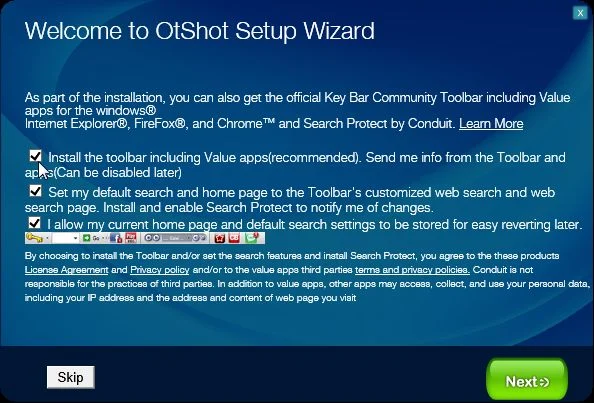
If you agree to install this adware programs, your browser homepage and default search engine will be changed, and you will see advertising banners and adware pop-ups on the webpages that you are visiting.
When you uninstall OtShot from your computer, your web browser’s default settings will not be restored, and this malicious programs will not be removed.
Besides, this application may cause problems, for example, it may display pop-ups saying “Unable to load skin” and “Would you like to import your contacts from Outlook” every time you turn on your computer.
You should always pay attention when installing software because often, a software installer includes optional installs, such as this OtShot. Be very careful what you agree to install.
Always opt for the custom installation and deselect anything that is not familiar, especially optional software that you never wanted to download and install in the first place. It goes without saying that you should not install software that you don’t trust.
How to remove OtShot redirect (Removal Guide)
This page is a comprehensive guide, which will remove “OtShot” virus from your computer and any other adware program that may have been installed during the setup process.
Please perform all the steps in the correct order. If you have any questions or doubt at any point, STOP and ask for our assistance.
STEP 1: Uninstall OtShot from Windows
STEP 2: Remove OtShot redirect with AdwCleaner
STEP 3: Remove OtShot with Malwarebytes Anti-Malware Free
STEP 4: Double-check for the OtShot malware with HitmanPro
STEP 1 : Uninstall OtShot from Windows
In this first step, we will try to identify and remove any malicious program that might be installed on your computer.
- Go to the uninstall menu.
Windows 10 or Windows 8
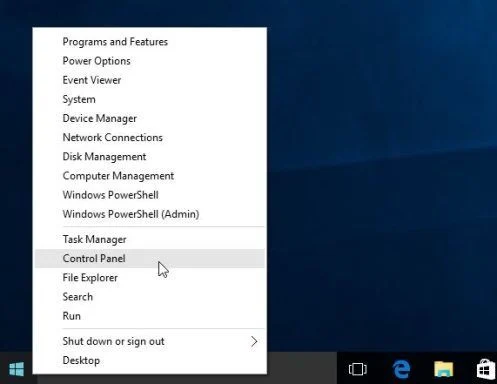
- To uninstall a program on Windows 10 or Windows 8, right-click on the Windows Start button and choose “Control Panel” from the pop-up menu.
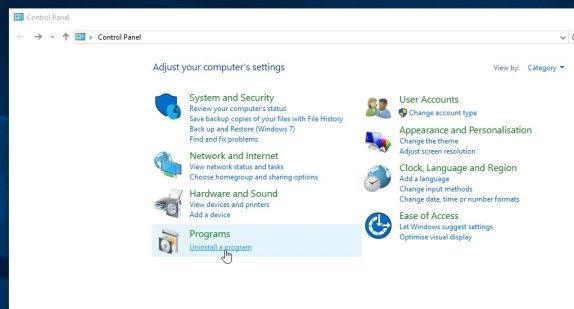
- When the “Control Panel” window opens click on the “Uninstall a program” option under “Programs” category.
Windows 7 or Windows Vista
- If you are using Windows XP, Windows Vista or Windows 7, click the “Start” button, then click on the “Control Panel” menu option.
![[Image: Control Panel in Windows Start Menu]](https://malwaretips.com/blogs/wp-content/uploads/mwt-media/56/56ac005bf149366d33075df70182d7933c19b066be2e500869e031cc9cac279b/273fcfd76a87bfc0fcd3b6b019be9066a9342174ed0b81f9002efcb804ca5be8-346.webp "Control Panel in Windows Start Menu")
- When the “Control Panel” window opens click on the “Uninstall a program” option under “Programs” category.
![[Image: Uninstall a program]](https://malwaretips.com/blogs/wp-content/uploads/mwt-media/2a/2a46a9e643eeeb764fb164177551c571817a8b4d4fe8141504dca801f8abc8cc/f2a64da5c9bbae588b1c04059e9f6a1e9a413554048666c6db3aa65196a7b99a-557.webp "Click on Uninstall a program")
- To uninstall a program on Windows 10 or Windows 8, right-click on the Windows Start button and choose “Control Panel” from the pop-up menu.
- When the “Programs and Features” screen is displayed, scroll through the list of currently installed programs and uninstall “OtShot“.
The malicious program may have a different name on your computer. To view the most recently installed programs, you can click on the “Installed On” column to sort your program by the installation date. Scroll through the list, and uninstall any unwanted or unknown programs.If you are having issues while trying to uninstall the OtShot program, you can use Revo Uninstaller to completely remove this unwanted program from your machine.![[Image: Uninstall OtShot program from Windows]](https://malwaretips.com/blogs/wp-content/uploads/mwt-media/7a/7a24d5d8280a599fdc95913fda28427222e25ba0c5250cd54ed5a46e521e29af/507822805d80698e9d6bacf8ff158ab3d8d11539ea24f2f1e4b88eaf902cc715-853.webp "Uninstall OtShot program from Windows")
Some users have reported that they cannot find the OtShot program using Control Panel because it’s not listed there. If this happens, search in your tray icon lists (lower right corner) for the OtShot icon, then right-click it and select Exit. Next, navigate to C:\Program Files\OtShot\ or C:\Program Files (x86)\OtShot\, and delete the Otshot folder.
If you cannot find any unwanted or unknown programs on your machine, then you can proceed with the next step.
STEP 2: Remove OtShot redirect with AdwCleaner
The AdwCleaner utility will scan your computer and web browser for the adware and unwanted browser extensions, that may have been installed on your computer without your knowledge.
- You can download AdwCleaner from the below link.
Download AdwCleanerFree official download. Nothing to install. - Before starting AdwCleaner, close your web browser, then double-click on the AdwCleaner icon.
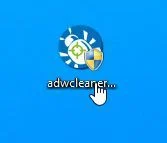
 If Windows prompts you as to whether or not you wish to run AdwCleaner, please allow it to run.
 - When the AdwCleaner program will open, click on the “Scan” button as shown below.
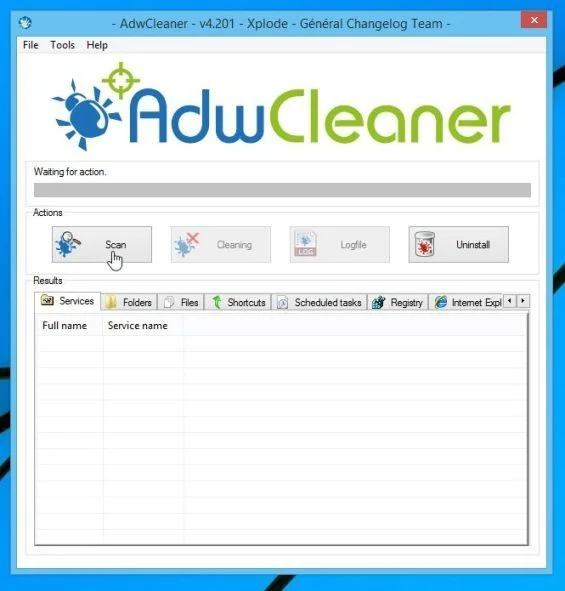
AdwCleaner will now start to search for adware and other malicious files that may be installed on your computer. - To remove the malicious files that were detected in the previous step, please click on the “Cleaning” button.
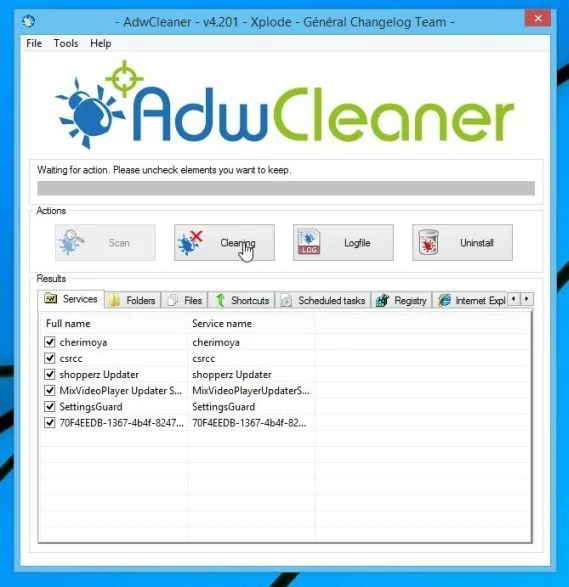
- AdwCleaner will prompt you to save any open files or documents, as the program will need to reboot the computer to complete the cleaning process. Please do so, and then click on the “OK” button.
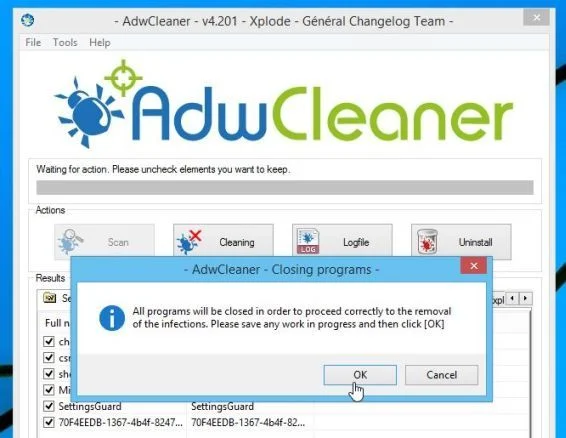
When your computer reboots and you are logged in, AdwCleaner will automatically open a log file that contains the files, registry keys, and programs that were removed from your computer.
STEP 3: Remove OtShot with Malwarebytes Anti-Malware
Malwarebytes Anti-Malware Free uses industry-leading technology to detect and remove all traces of malware, including worms, Trojans, rootkits, rogues, dialers, spyware, and more.
It is important to note that Malwarebytes Anti-Malware works well and should run alongside antivirus software without conflicts.
- You can download download Malwarebytes Anti-Malware from the below link.
Download MalwarebytesFree official installer. Your download starts right away. - Once downloaded, close all programs, then double-click on the icon on your desktop named “mbam-setup” to start the installation of Malwarebytes Anti-Malware.
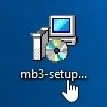
You may be presented with a User Account Control dialog asking you if you want to run this file. If this happens, you should click “Yes” to continue with the installation. - When the installation begins, you will see the Malwarebytes Anti-Malware Setup Wizard which will guide you through the installation process.
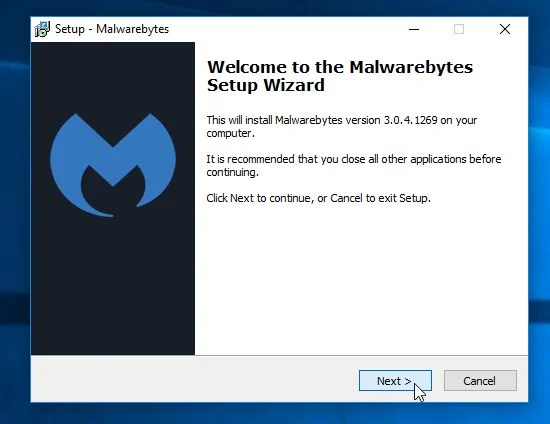
To install Malwarebytes Anti-Malware on your machine, keep following the prompts by clicking the “Next” button.
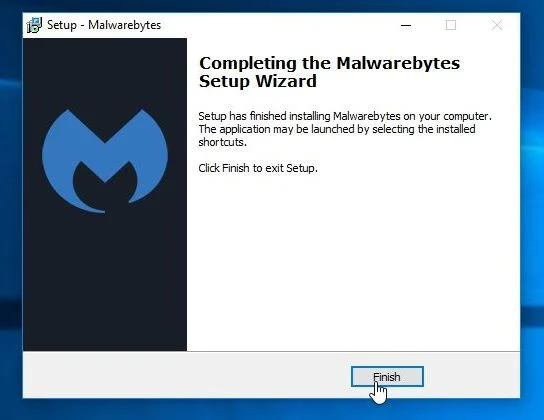
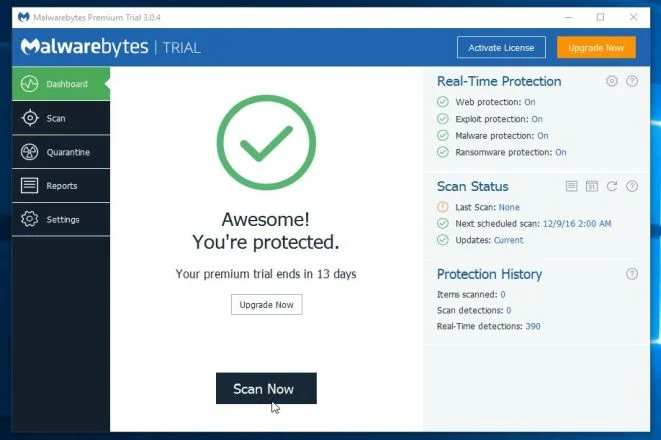
- Once installed, Malwarebytes Anti-Malware will automatically start and you will see a message stating that you should update the program, and that a scan has never been run on your system. To start a system scan you can click on the “Scan Now” button.
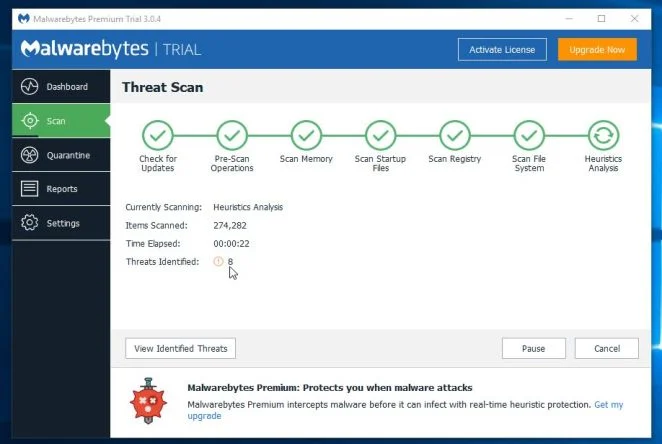
- Malwarebytes Anti-Malware will now start scanning your computer for malware. When Malwarebytes Anti-Malware is scanning it will look like the image below.
- When the scan has completed, you will be presented with a screen showing the malware infections that Malwarebytes Anti-Malware has detected. To remove the malicious programs that Malwarebytes Anti-malware has found, click on the “Remove Selected” button.
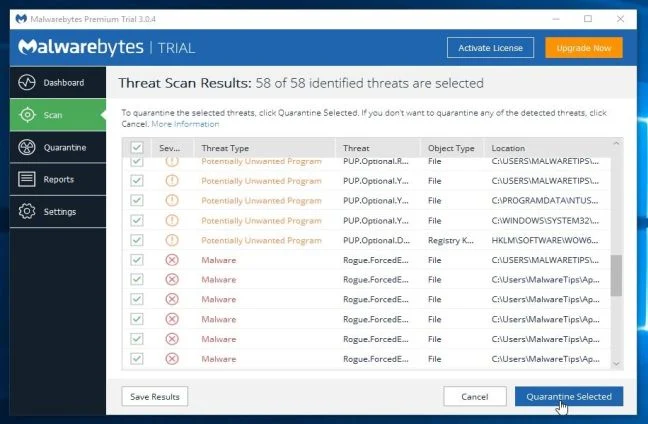
Please note that the infections found may be different than what is shown in the image. - Malwarebytes Anti-Malware will now quarantine all the malicious files and registry keys that it has found. When removing the files, Malwarebytes Anti-Malware may require a reboot in order to remove some of them. If it displays a message stating that it needs to reboot your computer, please allow it to do so.
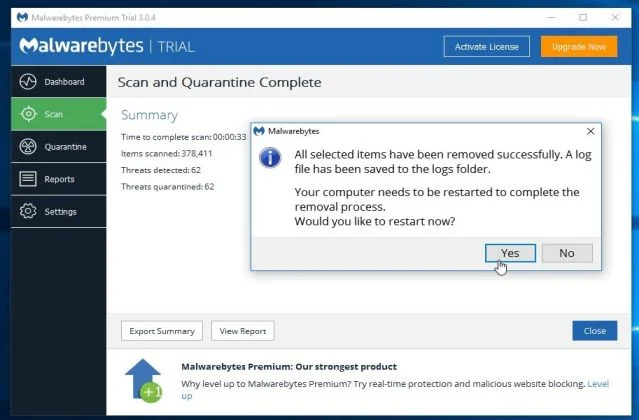
After your computer will restart, you should open Malwarebytes Anti-Malware and perform another “Threat Scan” scan to verify that there are no remaining threats
STEP 4: Double-check for the OtShot malware with HitmanPro
HitmanPro is a second opinion scanner, designed to rescue your computer from malware (viruses, trojans, rootkits, etc.) that have infected your computer despite all the security measures you have taken (such as anti-virus software, firewalls, etc.). HitmanPro is designed to work alongside existing security programs without any conflicts. It scans the computer quickly (less than 5 minutes) and does not slow down the computer.
- You can download HitmanPro from the below link:
Download HitmanProOfficial Sophos download. Free scan, free 30-day trial to remove threats. - Double-click on the file named “HitmanPro.exe” (for 32-bit versions of Windows) or “HitmanPro_x64.exe” (for 64-bit versions of Windows). When the program starts you will be presented with the start screen as shown below.
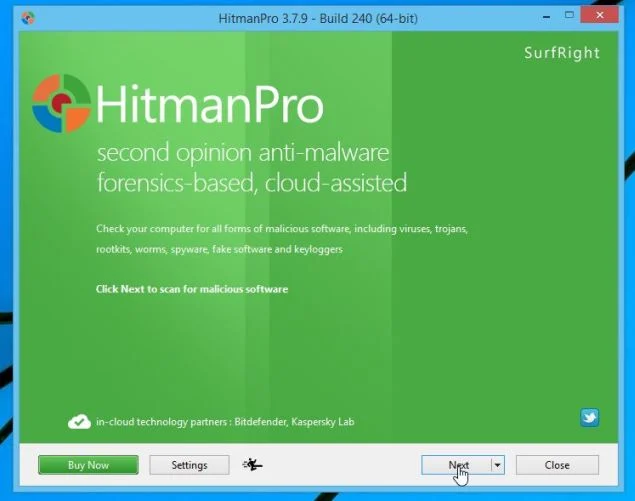
Click on the “Next” button, to install HitmanPro on your computer.
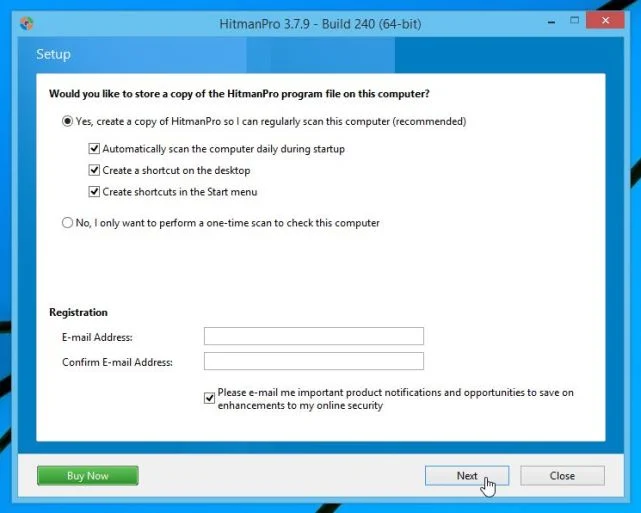
- HitmanPro will now begin to scan your computer for malicious files.
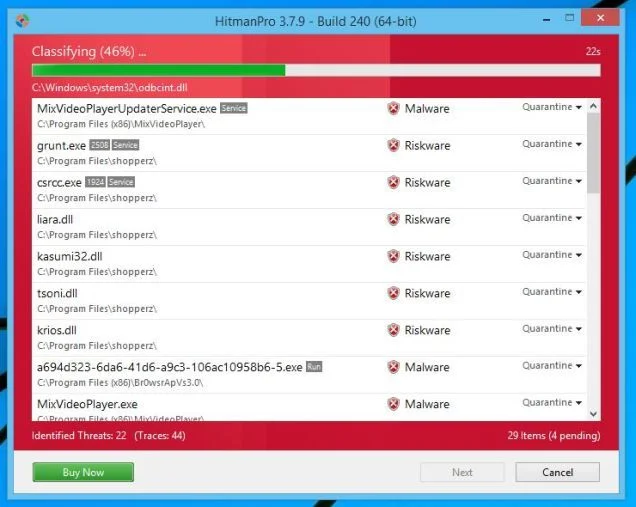
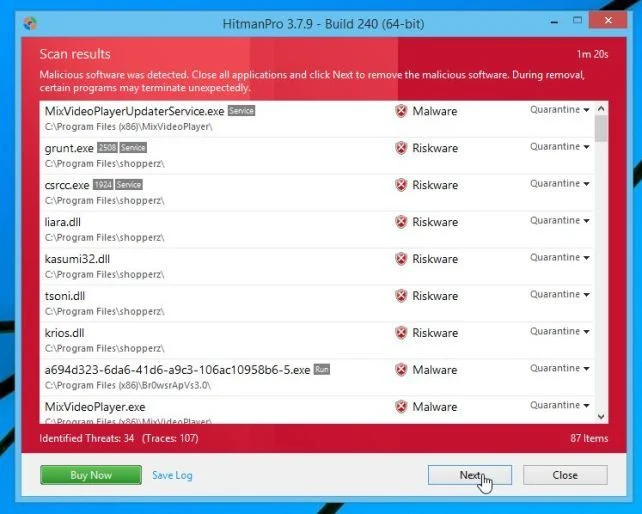
- When it has finished it will display a list of all the malware that the program found as shown in the image below. Click on the “Next” button, to remove malware.
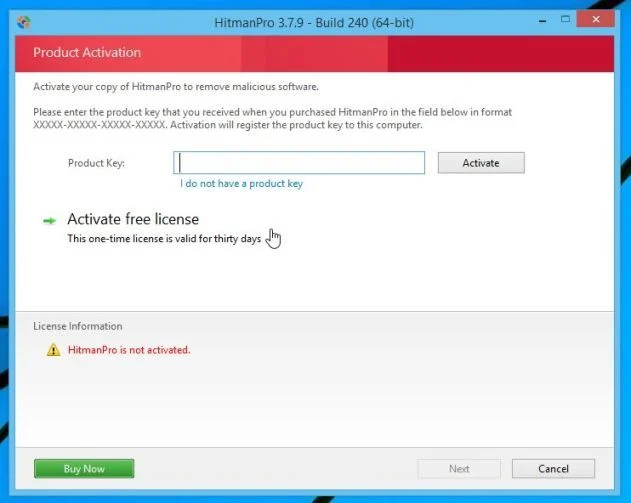
- Click on the “Activate free license” button to begin the free 30 days trial, and remove all the malicious files from your computer.
If you are still experiencing problems while trying to remove OtShot redirect from your machine, please do one of the following:
- Run a system scan with Zemana AntiMalware.
- Start a new thread in our Malware Removal Assistance forum.

Join the discussion
30 commentsShare your experience or ask a question about this article.
Discussion
Thanks Stelian! After months of “Otshot being unable to load skin, and wanting to import contacts” it’s so great to not see that anymore!
Thanks for the advice. I have had that annoying startup popup for probably a year now and have tried to uninstall it. Never would have thought about the hidden cache files. Not finished yet but know it will work fine as it has already restarted and popups wernt there. Thanks again
Thanks Stelian for generously sharing your wealth of knowledge. I don’t know much about computers and I was so frustrated.
Following yours and Paul’s advice I used Step 3, which I highly recommend. In just a few minutes JRT efficiently removed not only annoying OtShot, but much more crap that was significantly slowing down my computer, It works like a new now!
Great, honest job! I’ll gladly make a donation. Thanks again:)
Many thanks for the tips. I used step 3 (Junk Removal Tool) which successfully deleted OtShot and several other malwares that I didn’t know that I had. A regular anti-virus program (I have webroot) is not able to evict these programs. Again, thanks. Paul
Wow, I am so glad I found you on Google search! Your instructions complete with links has saved my sanity! I will be making a donation to you. Thanks! Joe
Great help… Thanx
Really Excellent. I used the Step 3. In addition to the otShot problem, my Toshiba Lap top , had trouble in restarting whenever there is re-boot needed. JRT done an excellent job. Thanks. – K K Yoganathan.
OMG, Thanks Sooooooooooo MUCH! You saved me hours of frustration! I owe you one lad!
thank you. it appears all is right with the world. I had also used mcafee before
and super antivirus which got rid of lots of stuff.
In reply to Undead Soulz
Stay safe!
Thank you so much!! I cannot explain how happy I am to see that pop up gone!! This approach is very effective.
~best regards – Bethoney
I am fixing my Grandma’s laptop, after she accidentally downloaded OtShot, amongst other awful things, while playing games online. Thanks for this page! STEP THREE (Junkware Removal Tool) worked for me. I had also tried HijackThis, Malwarebytes & ADW Cleaner but JRT was the one. It did take a while, I kept thinking, “Is it done yet??” but it was worth it. Grandma will be pleased. Thanks again.
Great tips! I think I downloaded it when I downloaded a fake version of iTunes. Grrrrr! Thank you so much!
It took one moment to get the OtShot PUP and weeks to figure out that this was one of the processes that helped remove perfectly in short timeframe. I would recommend this to anyone.
Great, it did it. Thanks a lot.
Cheers brother!!!! Worked like a charm. My laptop is 5 years old and I generally keep it fairly clean. I thought this was the end for this old gateway. I couldn’t get rid of this one but you saved me. Thanks.
Hello,
Search in your tray icon lists (lower right corner) for the OtShot icon, then right-click it and select Exit.
Next, navigate to C:Program FilesOtShot or C:Program Files (x86)OtShot, and delete the Otshot folder.
Next, run the tools from this guide, starting with STEP 2.
Stay safe!
Success! I’m Donating to your cause! Thanks for these excellent tips.
In reply to Pam
Thank you! Stay safe!
THANK YOU, truly helpful. I make sure the whole reads and learns from this, cause It was done by them. I’m so thankful I took the time to learn from this.
Thank you so much for posting this article, I just got rid of that otshot. I can now go to bed without worrying about it, thank you very much. God Bless you
Posted to FB, excellent teacher, the right amount of info & screen shots to know I was doing it right, but not too much to overload my limited techie mind. Well done!!