

OtShot is a potentially unwanted program, which is promoted via other free downloads, and while this program itself is not a virus, during its setup process users will be prompted to install adware and browser hijackers on their computers.
OtShot is a photo editing application that is typically added when you install another free software (video recording/streaming, download-managers or PDF creators) that had bundled into their installation this program. Very often users have no idea where did it come from, so it’s not surprising at all that most of them assume that OtShot is a virus. This program is also bundled within the custom installer on many reputable download sites, so if you have downloaded a software from these websites, chances are that OtShot was installed during the software setup process.
![[Image: Otshot virus]](https://malwaretips.com/blogs/wp-content/uploads/mwt-media/c8/c838a4e7bc994b701c2f5c4cf3ed99ad9dfaf3bf812f971f897173c72f068e83/7636ea1e352310dd12acdb8fb423f924c82949f398c1a8e80c0ace7ad3c76805-936.webp "Otshot")
OtShot it’s technically not a virus, but it does exhibit plenty of malicious traits, such as rootkit capabilities to hook deep into the operating system, browser hijacking, and in general just interfering with the user experience. The industry generally refers to it as a “PUP,” or potentially unwanted program.
The OtShot installer is packed with JollyWallet, Conduit Search, Value Apps, FindLyrics, LyricsPal and other malicious or unwanted programs.
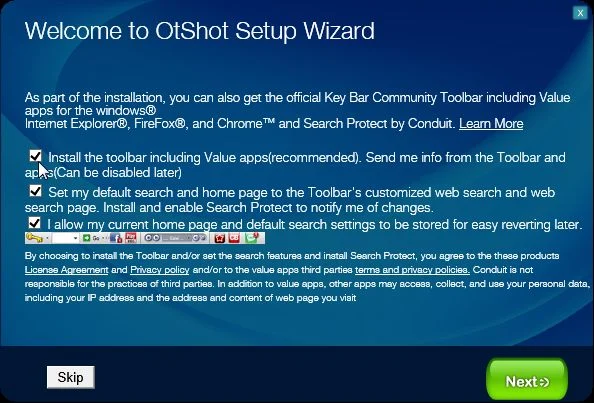
If you agree to install this adware programs, your browser homepage and default search engine will be changed, and you will see advertising banners and adware pop-ups on the webpages that you are visiting.
When you uninstall OtShot from your computer, your web browser’s default settings will not be restored, and this malicious programs will not be removed.
Besides, this application may cause problems, for example, it may display pop-ups saying “Unable to load skin” and “Would you like to import your contacts from Outlook” every time you turn on your computer.
You should always pay attention when installing software because often, a software installer includes optional installs, such as this OtShot. Be very careful what you agree to install.
Always opt for the custom installation and deselect anything that is not familiar, especially optional software that you never wanted to download and install in the first place. It goes without saying that you should not install software that you don’t trust.
How to remove OtShot redirect (Removal Guide)
This page is a comprehensive guide, which will remove “OtShot” virus from your computer and any other adware program that may have been installed during the setup process.
Please perform all the steps in the correct order. If you have any questions or doubt at any point, STOP and ask for our assistance.
STEP 1: Uninstall OtShot from Windows
STEP 2: Remove OtShot redirect with AdwCleaner
STEP 3: Remove OtShot with Malwarebytes Anti-Malware Free
STEP 4: Double-check for the OtShot malware with HitmanPro
STEP 1 : Uninstall OtShot from Windows
In this first step, we will try to identify and remove any malicious program that might be installed on your computer.
- Go to the uninstall menu.
Windows 10 or Windows 8
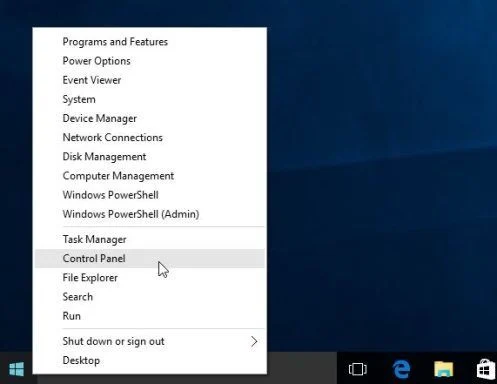
- To uninstall a program on Windows 10 or Windows 8, right-click on the Windows Start button and choose “Control Panel” from the pop-up menu.
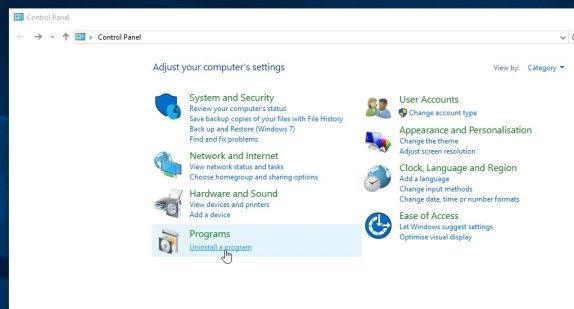
- When the “Control Panel” window opens click on the “Uninstall a program” option under “Programs” category.
Windows 7 or Windows Vista
- If you are using Windows XP, Windows Vista or Windows 7, click the “Start” button, then click on the “Control Panel” menu option.
![[Image: Control Panel in Windows Start Menu]](https://malwaretips.com/blogs/wp-content/uploads/mwt-media/56/56ac005bf149366d33075df70182d7933c19b066be2e500869e031cc9cac279b/273fcfd76a87bfc0fcd3b6b019be9066a9342174ed0b81f9002efcb804ca5be8-346.webp "Control Panel in Windows Start Menu")
- When the “Control Panel” window opens click on the “Uninstall a program” option under “Programs” category.
![[Image: Uninstall a program]](https://malwaretips.com/blogs/wp-content/uploads/mwt-media/2a/2a46a9e643eeeb764fb164177551c571817a8b4d4fe8141504dca801f8abc8cc/f2a64da5c9bbae588b1c04059e9f6a1e9a413554048666c6db3aa65196a7b99a-557.webp "Click on Uninstall a program")
- To uninstall a program on Windows 10 or Windows 8, right-click on the Windows Start button and choose “Control Panel” from the pop-up menu.
- When the “Programs and Features” screen is displayed, scroll through the list of currently installed programs and uninstall “OtShot“.
The malicious program may have a different name on your computer. To view the most recently installed programs, you can click on the “Installed On” column to sort your program by the installation date. Scroll through the list, and uninstall any unwanted or unknown programs.If you are having issues while trying to uninstall the OtShot program, you can use Revo Uninstaller to completely remove this unwanted program from your machine.![[Image: Uninstall OtShot program from Windows]](https://malwaretips.com/blogs/wp-content/uploads/mwt-media/7a/7a24d5d8280a599fdc95913fda28427222e25ba0c5250cd54ed5a46e521e29af/507822805d80698e9d6bacf8ff158ab3d8d11539ea24f2f1e4b88eaf902cc715-853.webp "Uninstall OtShot program from Windows")
Some users have reported that they cannot find the OtShot program using Control Panel because it’s not listed there. If this happens, search in your tray icon lists (lower right corner) for the OtShot icon, then right-click it and select Exit. Next, navigate to C:\Program Files\OtShot\ or C:\Program Files (x86)\OtShot\, and delete the Otshot folder.
If you cannot find any unwanted or unknown programs on your machine, then you can proceed with the next step.
STEP 2: Remove OtShot redirect with AdwCleaner
The AdwCleaner utility will scan your computer and web browser for the adware and unwanted browser extensions, that may have been installed on your computer without your knowledge.
- You can download AdwCleaner from the below link.
Download AdwCleanerFree official download. Nothing to install. - Before starting AdwCleaner, close your web browser, then double-click on the AdwCleaner icon.
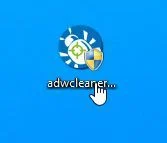
 If Windows prompts you as to whether or not you wish to run AdwCleaner, please allow it to run.
 - When the AdwCleaner program will open, click on the “Scan” button as shown below.
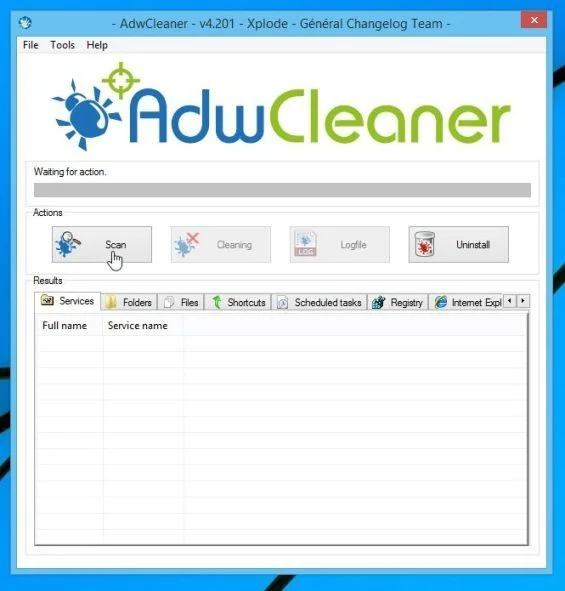
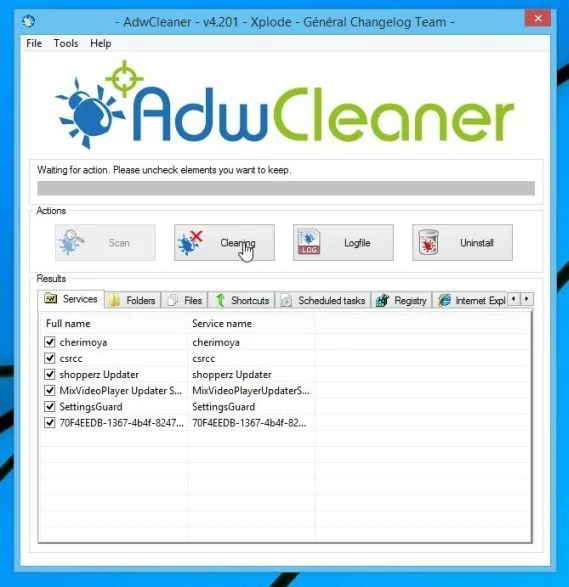
AdwCleaner will now start to search for adware and other malicious files that may be installed on your computer. - To remove the malicious files that were detected in the previous step, please click on the “Cleaning” button.
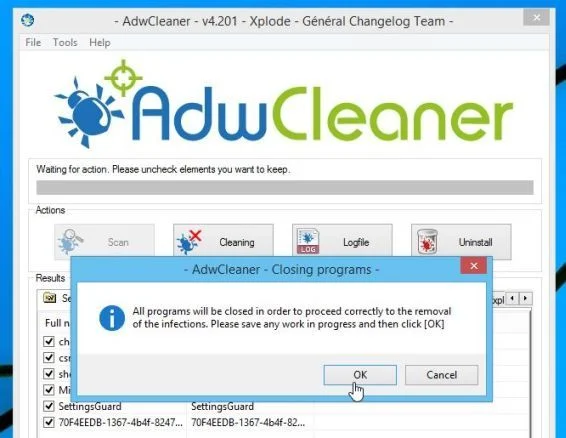
- AdwCleaner will prompt you to save any open files or documents, as the program will need to reboot the computer to complete the cleaning process. Please do so, and then click on the “OK” button.
When your computer reboots and you are logged in, AdwCleaner will automatically open a log file that contains the files, registry keys, and programs that were removed from your computer.
STEP 3: Remove OtShot with Malwarebytes Anti-Malware
Malwarebytes Anti-Malware Free uses industry-leading technology to detect and remove all traces of malware, including worms, Trojans, rootkits, rogues, dialers, spyware, and more.
It is important to note that Malwarebytes Anti-Malware works well and should run alongside antivirus software without conflicts.
- You can download download Malwarebytes Anti-Malware from the below link.
Download MalwarebytesFree official installer. Your download starts right away. - Once downloaded, close all programs, then double-click on the icon on your desktop named “mbam-setup” to start the installation of Malwarebytes Anti-Malware.
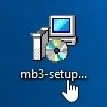
You may be presented with a User Account Control dialog asking you if you want to run this file. If this happens, you should click “Yes” to continue with the installation. - When the installation begins, you will see the Malwarebytes Anti-Malware Setup Wizard which will guide you through the installation process.
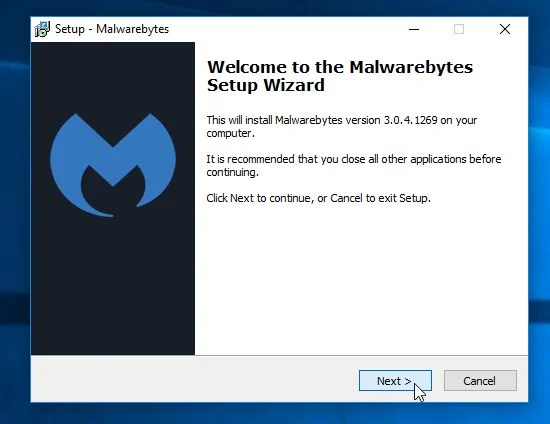
To install Malwarebytes Anti-Malware on your machine, keep following the prompts by clicking the “Next” button.
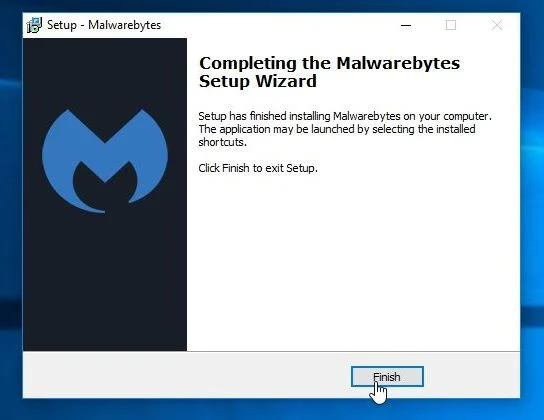
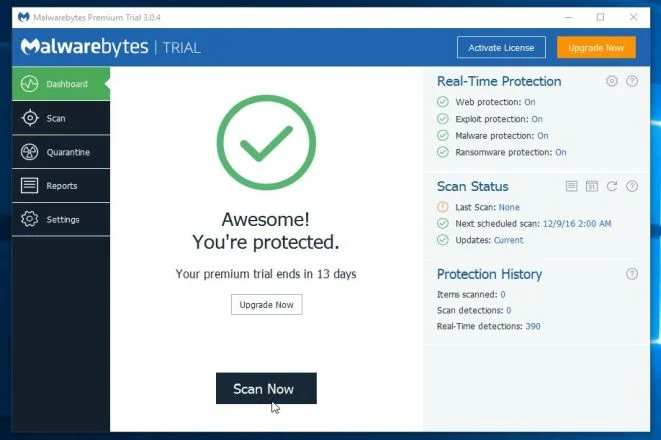
- Once installed, Malwarebytes Anti-Malware will automatically start and you will see a message stating that you should update the program, and that a scan has never been run on your system. To start a system scan you can click on the “Scan Now” button.
- Malwarebytes Anti-Malware will now start scanning your computer for malware. When Malwarebytes Anti-Malware is scanning it will look like the image below.
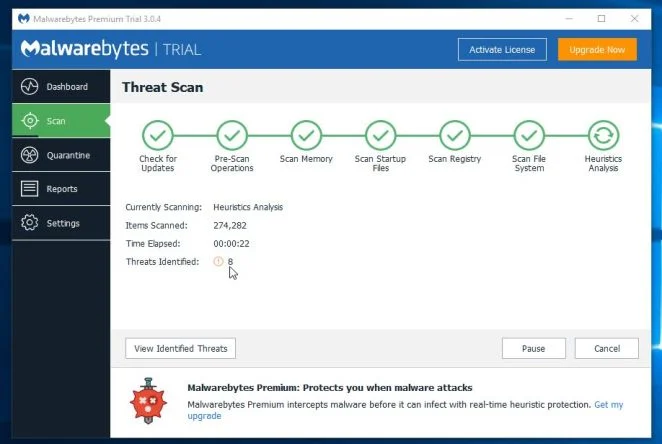
- When the scan has completed, you will be presented with a screen showing the malware infections that Malwarebytes Anti-Malware has detected. To remove the malicious programs that Malwarebytes Anti-malware has found, click on the “Remove Selected” button.
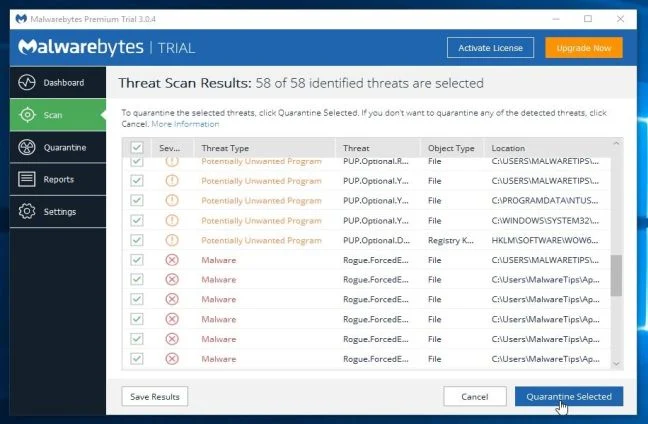
Please note that the infections found may be different than what is shown in the image. - Malwarebytes Anti-Malware will now quarantine all the malicious files and registry keys that it has found. When removing the files, Malwarebytes Anti-Malware may require a reboot in order to remove some of them. If it displays a message stating that it needs to reboot your computer, please allow it to do so.
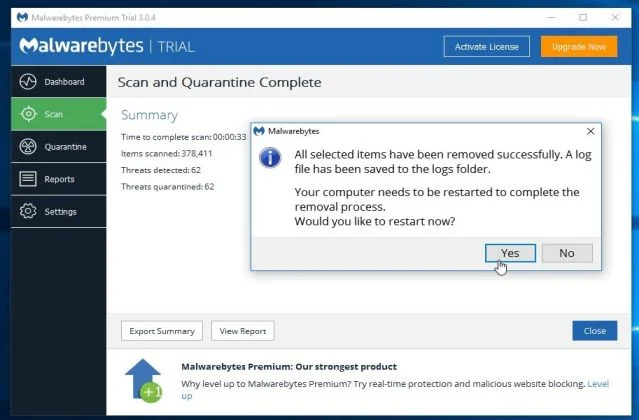
After your computer will restart, you should open Malwarebytes Anti-Malware and perform another “Threat Scan” scan to verify that there are no remaining threats
STEP 4: Double-check for the OtShot malware with HitmanPro
HitmanPro is a second opinion scanner, designed to rescue your computer from malware (viruses, trojans, rootkits, etc.) that have infected your computer despite all the security measures you have taken (such as anti-virus software, firewalls, etc.). HitmanPro is designed to work alongside existing security programs without any conflicts. It scans the computer quickly (less than 5 minutes) and does not slow down the computer.
- You can download HitmanPro from the below link:
Download HitmanProOfficial Sophos download. Free scan, free 30-day trial to remove threats. - Double-click on the file named “HitmanPro.exe” (for 32-bit versions of Windows) or “HitmanPro_x64.exe” (for 64-bit versions of Windows). When the program starts you will be presented with the start screen as shown below.
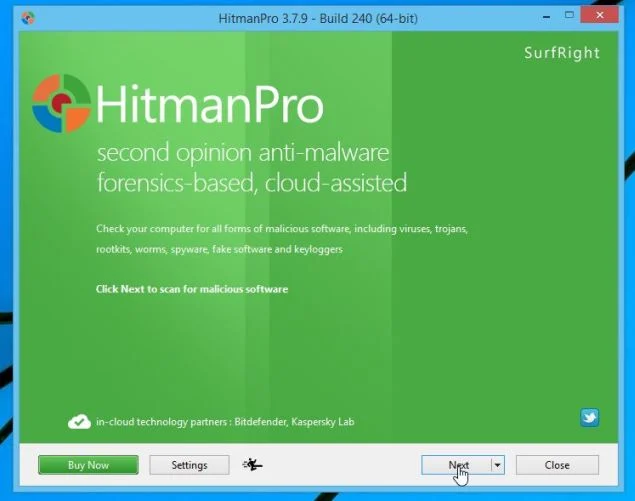
Click on the “Next” button, to install HitmanPro on your computer.
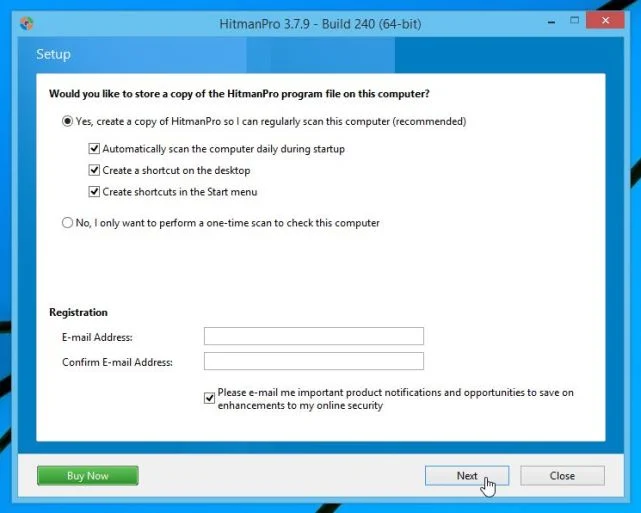
- HitmanPro will now begin to scan your computer for malicious files.
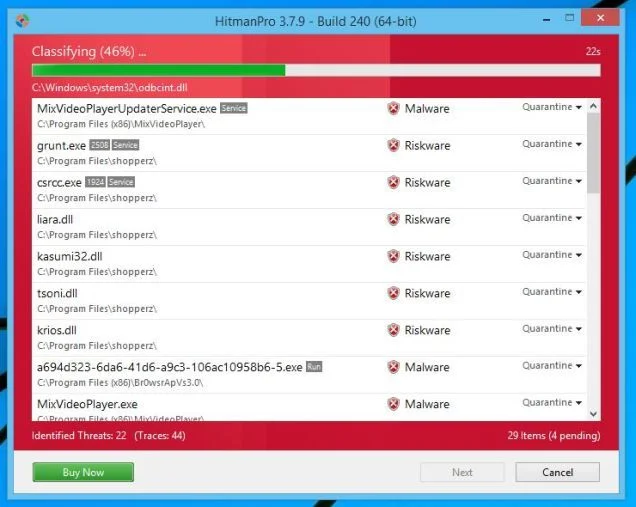
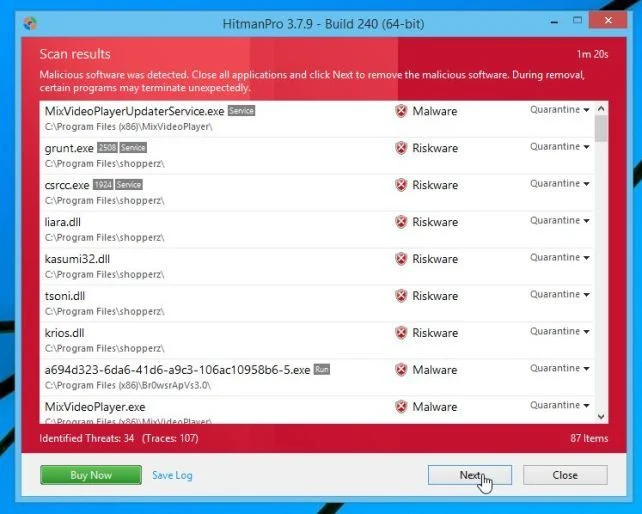
- When it has finished it will display a list of all the malware that the program found as shown in the image below. Click on the “Next” button, to remove malware.
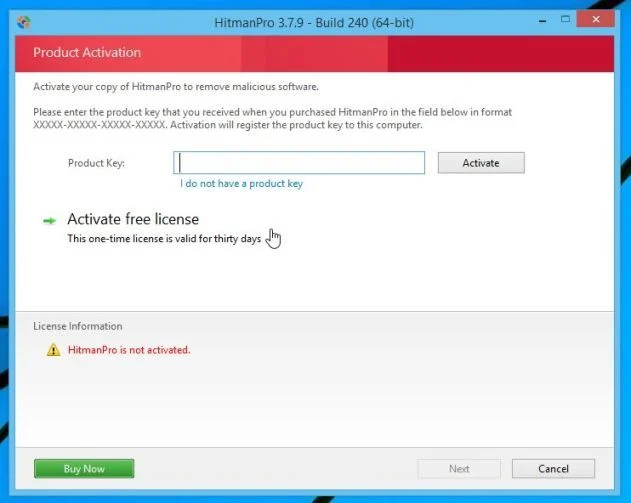
- Click on the “Activate free license” button to begin the free 30 days trial, and remove all the malicious files from your computer.
If you are still experiencing problems while trying to remove OtShot redirect from your machine, please do one of the following:
- Run a system scan with Zemana AntiMalware.
- Start a new thread in our Malware Removal Assistance forum.

Join the discussion
30 commentsShare your experience or ask a question about this article.
Discussion
Nicely done…easy to follow directions and most of all…IT WORKS. Thanks!!
kick ass tips
Hello,
Lets run a scan with these tools:
STEP 1: Run a scan with ESET Online Scanner
1.Download ESET Online Scanner utility.
ESET Online Scanner Download Link : http://download.eset.com/special/eos/esetsmartinstaller_enu.exe
2. Double click on the Eset installer program (esetsmartinstaller_enu.exe).
3.Check Yes, I accept the Terms of Use, then click the Start button.
4.Check Scan archives and push the Start button.
5. ESET will then download updates for itself, install itself, and begin scanning your computer. Please be patient as this can take some time.
6. When the scan completes, click on the Finish button.
STEP 2: Run a scan with Kaspersky Virus Removal Tool:
1. You can download from Kaspersky Virus Removal Tool from here : http://www.kaspersky.com/antivirus-removal-tool?form=1
2. Double click the setup file to run it, then follow the onscreen prompts until it is installed
Click the Options button (the ‘Gear’ icon), then make sure only the following are ticked:
System Memory
Hidden startup objects
Disk boot sectors
Local Disk (C:)
Also any other drives (Removable that you may have)
3. Then click on Actions on the left hand side
4. Click Select Action, then make sure both Disinfect and Delete if disinfection fails are ticked
5. Click on Automatic Scan, then click the Start Scanning button, to run the scan.
Stay safe!
This is glorious. I thought I was going to have to take my laptop into the shop and have them remove everything. Thanks for this tutorial. I’m probably going to keep a couple of these programs on my computer for good in case something like this ever happens again.
My darling father “accidentally” downloaded some streaming TV thing toolbar and when I turned the computer on, this OtShot thing came up. Needless to say, I’m enabling parental control on his sign on because this is not the first time he’s done this sort of thing. I can’t afford him or anyone else in the family to ruin this new computer we just got. So, thank you for this, I truly appreciate it.
With the instructions from you people, I was able to get rid of this OTSHOT.
I’m very grateful and many thanks you…..Fern
In reply to Fern Moreau
Great job u down with ur instruction for OtShot, once i down all the steps u mentioned in ur instruction after that also i found application in c:\programe filex86 otShot w file as otshot application (exe) and uninstall file and shot cut icon. i deleted using regedit find the folder, deleted manually, then delete above c:………../orshot folder as well
Big help… Absolutely freed up disk space and remove Otshot and even more. Thanks to you my pc is running its normal speed again AND I don’t experience those annoying popups anymore.