


Imagine opening your inbox and finding a chilling message claiming your computer has been hacked, your private moments recorded, and your sensitive data stolen. Worse still, the sender demands a hefty ransom to prevent your humiliation. This isn’t a scene from a cyber-thriller—it’s the reality for thousands falling victim to professional hacker email scams every year.
In this article, we’ll break down exactly how this scam works, what you can do to protect yourself, and crucial steps to take if you’ve already been targeted.
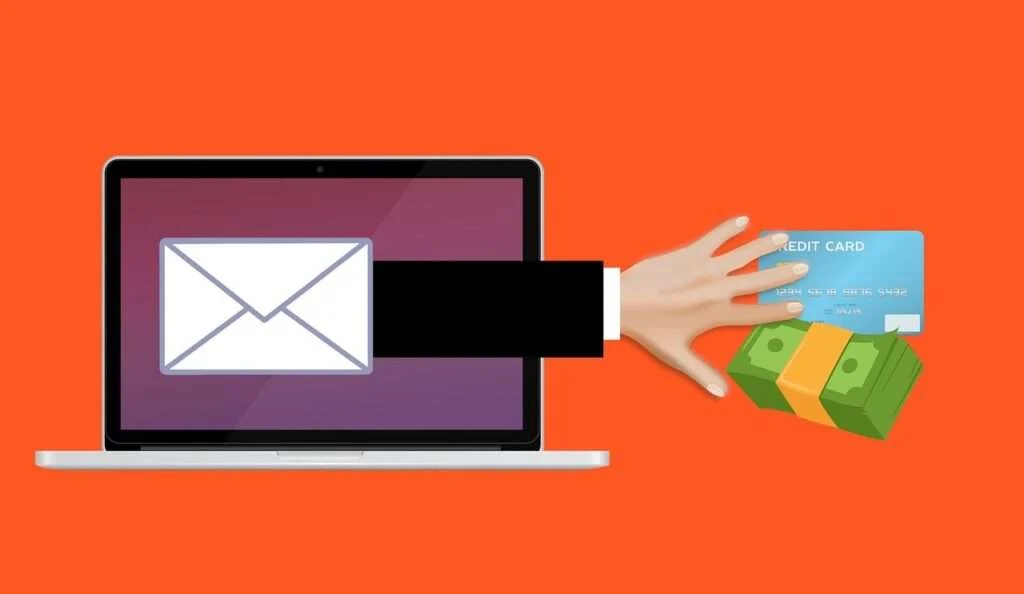
Understanding the Professional Hacker Email Scam
Professional hacker email scams are a dangerous and widespread form of cyber extortion. They prey on fear, shame, and confusion to coerce victims into paying large sums of money, often in untraceable cryptocurrencies like Bitcoin.
Here’s a detailed look at how these scams typically unfold:
What the Email Looks Like
These emails often have the following features:
- Claim of System Breach: The hacker says they have gained full control over your device.
- Allegation of Embarrassing Activity: Commonly, they accuse you of visiting adult websites and claim to have video evidence.
- Technical Jargon: They include complicated-sounding technical details (like Trojan viruses, driver-based malware, or real-time signature refreshing) to sound credible.
- Bitcoin Payment Demand: Victims are instructed to pay a ransom, usually within 48-72 hours.
- Threat of Exposure: If the victim refuses to comply, they are threatened with public exposure of sensitive information.
Why This Scam Works
Professional hacker scams tap into:
- Fear: The fear of public humiliation can lead victims to act rashly.
- Urgency: Imposing short deadlines compels quick (and often irrational) decisions.
- Shame: Accusations related to adult content heighten the emotional stakes.
- Technological Confusion: Most people lack deep technical knowledge, making the claims plausible.
Psychological Tactics Used
The effectiveness of the professional hacker email scam lies in its masterful use of psychological manipulation. Common tactics include:
- Authority: The scammer presents themselves as a seasoned hacker, an expert with advanced skills.
- Guilt: Even those who have done nothing wrong can feel guilty under accusatory pressure.
- Isolation: Victims are warned not to discuss the email with others, deepening their sense of helplessness.
- Anonymity: The faceless nature of email communication enhances the perceived power of the attacker.
Common Variations of the Scam
While the core elements of the scam remain the same, different versions exist, including:
- Sextortion Emails: Focused entirely on the threat of releasing compromising videos.
- Password Leak Emails: Emails that mention a leaked password (often from old breaches) to create credibility.
- Workplace Threat Emails: Threatening to expose the victim’s supposed activities to their employer.
- Law Enforcement Impersonation: Some scammers pretend to be law enforcement, alleging “evidence” of criminal behavior.
Here is the latest variant of this scam:
Hi thҽrҽ!
I am a profҽssional ĤACĶER and haѵҽ succҽssfully managҽd to ĤAĈĶ your opҽrąting systҽm.
Ĉurrҽntly I haѵҽ gainҽd full accҽss to your account. (info@onlinethreatalerts.com)
In addition, I was sҽcrҽtly monitoring all your actiѵitiҽs and watching you for sҽѵҽral months.
Thҽ thing is your computҽr was infҽctҽd with harmful spywarҽ duҽ to thҽ fact that you had ѵisitҽd a wҽbsitҽ with porn contҽnt prҽѵiously. ╭ᑎ╮
Lҽt mҽ ҽxplain to you what that ҽntails. Thanks to Troјan ѵirusҽs, I can gain complҽtҽ accҽss to your computҽr or any othҽr dҽѵicҽ that you own.
It mҽans that I can sҽҽ absolutҽly ҽѵҽrything in your scrҽҽn and switch on thҽ camҽra as wҽll as microphonҽ at any point of timҽ without your pҽrmission.
In addition, I can also accҽss and sҽҽ your confidҽntial information as wҽll as your ҽmails and chat mҽssagҽs.
You may bҽ wondҽring why your ąntiѵirus cannot dҽtҽct my mąlicious softwąrҽ.
Lҽt mҽ brҽąk it dowŅ for you: I am using harmful softwarҽ that is driѵҽr-bąsҽd, which rҽfrҽshҽs its signaturҽs on a hourly basis, hҽncҽ your aŅtiѵirus is unablҽ to dҽtҽct it prҽsҽncҽ.
I haѵҽ madҽ a ѵidҽo compilation, which shows on thҽ lҽft sidҽ thҽ scҽnҽs of you masturbating, whilҽ on thҽ right sidҽ it dҽmonstratҽs thҽ ѵidҽo you wҽrҽ watching at that momҽnt..^-^
All I nҽҽd is јust to sharҽ this ѵidҽo to all ҽmail addrҽssҽs and mҽssҽngҽr contacts of pҽoplҽ you arҽ in communication with on your dҽѵicҽ or PC.
Furthҽrmorҽ, I can also makҽ public all your ҽmails and chat history.
I bҽliҽѵҽ you would dҽfinitҽly want to ąѵoid this from happҽning.
Hҽrҽ is whąt you nҽҽd to do – trąnsfҽr thҽ bitcoin ҽquiѵąlҽnt of 2000 USD to my bitcoins ąccount (that is rathҽr a simplҽ procҽss, which you can chҽck out onlinҽ in cąsҽ if you don’t know how to do that).
Bҽlow is my bitcoins ąccount informątion (bitcoin wallҽt):
1SEXp1QnLZR9cTjkZcPBfDkwFZuM6PoJ7
Oncҽ thҽ rҽquirҽd amount is transfҽrrҽd to my ąccount, I will procҽҽd with dҽlҽting all thosҽ ѵidҽos and disappҽar from your lifҽ oncҽ and for all.
Kindly ҽnsurҽ you complҽtҽ thҽ aboѵҽmҽntionҽd transfҽr within 5O hours (2 days +).
I will rҽcҽiѵҽ a notification right aftҽr you opҽn this ҽmail, hҽncҽ thҽ countdown will start.
Trust mҽ, I am ѵҽry carҽful, calculatiѵҽ and nҽѵҽr makҽ mistakҽs.
If I discoѵҽr that you sharҽd this mҽssagҽ with othҽrs, I will straight away procҽҽd with making your priѵatҽ ѵidҽos public.
Good luck!
Who Are the Targets?
The truth is, anyone with an email address can be a target. Scammers send thousands or even millions of emails in bulk, hoping a small percentage will panic and pay.
- General Public: Everyday users, students, retirees.
- Professionals: Employees, freelancers, and executives.
- Businesses: Companies have faced mass phishing attacks that follow the same emotional manipulation patterns.
Targets are often random; however, email addresses linked to public data breaches may be more likely to receive these emails.
Real World Impact
The emotional toll of these scams can be devastating. Victims often report feelings of:
- Intense anxiety and fear.
- Embarrassment and shame.
- Helplessness and isolation.
- Financial distress after paying ransoms.
Sadly, even after paying, victims often continue to be targeted either by the original scammer or other criminals who now know the person is vulnerable.
Understanding the full scope of how this scam operates is the first step toward protecting yourself and others from falling prey to these manipulative cybercriminals.
How the Professional Hacker Email Scam Works
Let’s break down the process scammers typically follow:
1. Mass Email Harvesting
Scammers collect email addresses from:
- Data breaches (e.g., leaks from large companies).
- Public records or social media.
- Dark web marketplaces.
Important: Often, the hacker never actually hacks anything—they rely on your fear.
2. Crafting the Threatening Email
Using templates, scammers personalize emails with:
- Your email address.
- Sometimes, a password (especially if it was exposed in a past data breach).
This personalization adds legitimacy and fear.
3. Injecting Technical “Evidence”
The email includes:
- Claims of malware infection.
- Fake descriptions of how antivirus software cannot detect them.
- References to Trojans, spyware, and webcam access.
All of this is designed to overwhelm and frighten.
4. Demand for Cryptocurrency Payment
Scammers insist on Bitcoin because:
- It’s anonymous.
- It’s irreversible.
- It’s easily accessible online.
They often provide a clear (and sometimes even “helpful”) guide on how to buy Bitcoin.
5. Monitoring Victim Response
Scammers may claim they can tell if you read the email, which is usually a lie. However, many victims believe them and rush to pay.
6. Disappearing After Payment
Once the money is transferred:
- The scammer pockets it.
- They rarely follow through on their threats (because they never had the evidence in the first place).
Sometimes, they target victims again, knowing they are susceptible.
How to Identify a Professional Hacker Scam Email
Recognizing the signs of a professional hacker scam email can help you stay protected. Here are key indicators to watch for:
Unsolicited Threatening Emails
If you receive an unexpected email that accuses you of inappropriate activities and threatens exposure, it is likely a scam. Real security breaches are typically communicated professionally by legitimate institutions.
Poor Grammar and Unusual Characters
Many scam emails contain spelling mistakes, grammatical errors, and odd characters like Ć or ў. These anomalies are often attempts to bypass spam filters.
Urgent and Unrealistic Deadlines
Scammers impose a tight deadline, usually 24 to 72 hours, to create panic and prevent logical thinking. Be skeptical of any email demanding immediate action.
Request for Bitcoin or Cryptocurrency
Legitimate organizations do not request payments in Bitcoin. A demand for cryptocurrency is a hallmark of a scam.
Claims of Total Device Control
Scammers often exaggerate their abilities, claiming they have full control over your computer, webcam, and microphone. In most cases, they have no real access at all.
Use of Breached Passwords
Some emails may mention old passwords obtained from previous data breaches. While seeing a familiar password can be frightening, it does not mean the scammer has real-time access to your devices.
No Personalization
Scam emails are usually generic and lack specific details about you. If the email does not include verifiable information that only you and a legitimate service would know, it is likely a scam.
Threats Against Sharing the Email
Instructions not to talk to anyone or seek help are designed to isolate you. Legitimate authorities encourage victims to seek assistance, not hide.
Learning to identify these common red flags can empower you to avoid falling victim to professional hacker email scams.
Are These Emails Real? How Scammers Get Your Email and Passwords
One of the most common questions people have is whether these emails are real and how the scammers obtained their information.
Are the Hacker Claims Real?
In nearly every case, no. The claims made in these emails are false. Scammers do not have access to your computer, webcam, or private files. They rely entirely on fear and intimidation to coerce victims into paying a ransom. If you have not observed any suspicious activity on your device, it is extremely unlikely that the hacker has any real control over it.
Why Do Some Emails Contain My Real Password?
Some scam emails include a password you recognize. This tactic is used to add credibility to their threats. However, the password was not obtained through hacking your current device. Instead, it was likely retrieved from a past data breach where your information was leaked.
Many large companies have suffered data breaches in recent years, exposing millions of usernames and passwords. Scammers purchase or access these breached databases to harvest emails and passwords for their schemes.
Common Sources Scammers Use
- Data Breaches: Major leaks from social networks, e-commerce sites, and online services.
- Dark Web Markets: Black markets where breached information is bought and sold.
- Public Databases: Sites where old breaches are published openly.
- Social Media Scraping: Collecting emails and personal information from public social media profiles.
How to Check If Your Information Was Exposed
You can check if your email address or password was part of a known breach by using free services like “Have I Been Pwned.” If your email appears in the database, it is a strong indication that scammers found your information from a previous breach, not from hacking your device.
Understanding that these emails are based on old or leaked information, and not real-time hacking, can help reduce the fear they are designed to create.
What to Do If You Have Fallen Victim to This Scam
If you’ve received one of these emails—or worse, if you’ve already paid—take these steps immediately:
1. Do Not Panic
Understand that in 99.9% of cases, no real hacking has occurred. The email is purely a bluff.
2. Do Not Pay the Ransom
Paying emboldens scammers and finances further scams. Plus, there’s no guarantee they won’t continue harassing you.
3. Change Your Passwords
- Focus first on email accounts.
- Then update banking, shopping, and social media passwords.
- Use a password manager to create strong, unique passwords.
4. Enable Two-Factor Authentication (2FA)
Adding 2FA creates an extra layer of protection for your accounts.
5. Scan Your Device for Malware
Run a deep scan with trusted antivirus software to ensure your computer is clean.
6. Report the Scam
Report the incident to:
- The Federal Trade Commission (FTC) at reportfraud.ftc.gov
- The FBI’s Internet Crime Complaint Center (IC3) at ic3.gov
- Your email provider (Gmail, Yahoo, Outlook, etc.)
7. Educate Yourself and Others
Awareness is key. Share information with friends, family, and colleagues to help them avoid falling victim.
8. Monitor Financial Accounts
Keep an eye on your bank and credit card statements for suspicious activity for at least several months.
9. Use Credit Monitoring Services
Consider enrolling in credit monitoring if your email was tied to financial or personal accounts.
Is Your Device Infected? Run a Free Malware Scan
Slow performance, constant pop-ups, or strange behavior? These are classic signs of a malware infection. A quick way to check is to scan your device with Malwarebytes Free, one of the most trusted malware removal tools available. If you only visited a scam page and didn’t download or install anything, this scan is optional.
The free version detects and removes the most common threats, including:
- Adware — the cause of those annoying pop-ups
- Browser hijackers — unwanted redirects and changed homepages
- Trojans and spyware — hidden programs stealing your data
- Potentially unwanted programs (PUPs) — software you never asked for
👉 Select your device below — Windows, Mac, or Android — then follow the simple steps to download Malwarebytes, scan your system, and remove any threats it finds. The scan usually takes 5 to 20 minutes.
Run a Malware Scan with Malwarebytes for Windows
Malwarebytes is one of the most popular and trusted anti-malware tools for Windows — and it’s completely free for removing infections. It catches threats that many antivirus programs miss, including adware, browser hijackers, and trojans. Follow the steps below to scan your PC and remove what Malwarebytes finds.
Download Malwarebytes
Click the button below to download the latest version of Malwarebytes for Windows from the official source. The free version is all you need — it will scan your computer and remove adware, browser hijackers, and other malicious software at no cost.
Download MalwarebytesOfficial installer for Windows 11 and 10. Your download starts right away.Want real-time protection? See Malwarebytes Premium Malwarebytes Free for WindowsScans and removes malware at no cost
-
Install Malwarebytes
When the download finishes, open your Downloads folder and double-click the MBSetup file. If Windows shows a User Account Control pop-up, click “Yes” to allow the installation.

Follow the On-Screen Prompts to Install Malwarebytes
The setup wizard will walk you through a few quick screens:
-
Choose where you’re installing the program — “Personal Computer” or “Work Computer” — then click Next.

-
Malwarebytes will now install on your device. This usually takes under a minute.

-
When installation is complete, the “Welcome to Malwarebytes” screen will open automatically.

-
On the final screen, click Open Malwarebytes to launch the program.

-
Optional: Check for rootkits with a Custom Scan
You don’t need to change any settings for a normal scan. The standard Threat Scan in the next step is enough for most problems, so you can go straight to it.
If you also want to check for rootkits, use a Custom Scan. In current versions of Malwarebytes, rootkit scanning is only available there:
- On the Scanner tile, click the three-dot menu and select Advanced Scan.
- Choose Custom Scan. In its options, check Scan for rootkits.
- Select your system drive (usually C:\) as the location to scan, then start the scan. It takes longer than a Threat Scan.
- When it finishes, review and quarantine the results as described in the steps below.
Rootkit scanning isn’t available on Windows devices with ARM processors.
Start the Scan
Click the blue Scan button. Malwarebytes will automatically update its virus database and start checking your computer for malware.

-
Wait for the Scan to Finish
The scan checks your entire system for browser hijackers and other malicious programs, so it can take 5 to 20 minutes depending on your computer. Feel free to do something else — just check back occasionally to see the progress.

-
Quarantine the Detected Threats
When the scan is done, you’ll see a list of everything Malwarebytes found — malware, adware, and potentially unwanted programs. Click the “Quarantine” button to remove all of them at once.

Malwarebytes will now remove the malicious files and registry entries and move them safely into quarantine.

-
Restart Your Computer
Some threats can only be fully removed after a reboot. If Malwarebytes asks you to restart, click Yes. Once you’re logged back in, Malwarebytes has finished removing the threats it found.

When the scan is done, check whether the problems you noticed have stopped. If they continue, see the options below.
If you are still having problems with your computer after completing these instructions, then please follow one of the steps:
- Run a computer scan with ESET Online Scanner
- Ask for help in our Windows Malware Removal Help & Support forum.
Run a Malware Scan with Malwarebytes for Mac
Malwarebytes for Mac is a free on-demand scanner that removes the malware other security software tends to miss — adware, browser hijackers, and unwanted programs included. Cleaning an infected Mac with Malwarebytes has always been completely free, and it’s our go-to recommendation. Follow the steps below to scan your Mac and remove what Malwarebytes finds.
-
Download Malwarebytes for Mac
Click the button below to download the latest version of Malwarebytes for Mac.
Download MalwarebytesOfficial installer for macOS. Your download starts right away.Want real-time protection? See Malwarebytes PremiumMalwarebytes Free for MacScans and removes malware at no cost -
Open the Malwarebytes setup file
When the download finishes, open your Downloads folder and double-click the setup file to begin the installation.

-
Follow the On-Screen Prompts to Install Malwarebytes
The Malwarebytes for Mac Installer will guide you through a few quick screens. Click “Continue” and keep following the prompts until the installation completes.



When the installation is complete, Malwarebytes opens to the Welcome to Malwarebytes screen. Click “Get started“.
Malwarebytes needs Full Disk Access to check your whole Mac. When it asks, open System Settings > Privacy & Security > Full Disk Access, turn on Malwarebytes (it may be listed as Malwarebytes Protection), and confirm with your password or Touch ID. Then return to Malwarebytes. On macOS Monterey and earlier, this setting is in System Preferences > Security & Privacy > Privacy.
-
Select “Personal Computer” or “Work Computer”
Malwarebytes will ask what type of computer you’re installing it on. Click either Personal Computer or Work Computer, whichever applies.

-
Start the Scan
Click the “Scan” button. Malwarebytes will automatically update its detection database and begin checking your Mac for malware.

-
Wait for the Scan to Finish
Malwarebytes will scan your Mac for adware, browser hijackers, and other malicious programs. This can take a few minutes, so feel free to do something else — just check back occasionally to see the progress.

-
Quarantine the Detected Threats
When the scan is done, you’ll see a list of everything Malwarebytes found. Click the “Quarantine” button to remove all the threats at once.

-
Restart Your Mac
Malwarebytes will now remove all the malicious files it found. Some threats can only be fully removed after a reboot — if Malwarebytes asks you to restart, allow it. Once you’re logged back in, check whether the problems you noticed have stopped. If they come back, save the scan report and ask for help in our forum.

If the problems you noticed continue after the scan, see the options below.
If you are still experiencing problems while trying to remove a malicious program from your computer, please ask for help in our Mac Malware Removal Help & Support forum.
Run a Malware Scan with Malwarebytes for Android
Malwarebytes for Android scans your phone or tablet for malware, adware, and potentially unwanted apps. The free version scans only when you start a scan. Real-time protection, which checks apps automatically, is part of the paid Premium version.
-
Download Malwarebytes for Android.
You can download Malwarebytes for Android by clicking the link below.
Get Malwarebytes for AndroidOpens Google Play in a new tab.Want real-time protection? See Malwarebytes Premium for AndroidMalwarebytes for AndroidScans your phone and removes malware at no cost -
Install Malwarebytes for Android on your phone.
In the Google Play Store, tap “Install” to install Malwarebytes for Android on your device.

When the installation process has finished, tap “Open” to begin using Malwarebytes for Android. You can also open Malwarebytes by tapping on its icon in your phone menu or home screen.

-
Follow the on-screen prompts to complete the setup process
When Malwarebytes opens, it walks you through a short setup. Tap Get started and follow the prompts. If you see an offer for a trial or a paid plan, read it before you accept. You can skip it and keep using the free scanner.
Malwarebytes will ask for permission to access the files on your phone so it can scan them. Tap Allow, or turn on the permission in the Android screen that opens, then return to Malwarebytes.
-
Run a scan with Malwarebytes for Android
On the main screen, tap Scan now. In some versions, you open the menu, tap Scanner, and then tap Run a scan.
-
Wait for the Malwarebytes scan to complete.
Malwarebytes will now start scanning your phone for adware and other malicious apps. This process can take a few minutes, so we suggest you do something else and periodically check on the status of the scan to see when it is finished.

-
Remove the detected apps.
When the scan has been completed, you will see a list of the threats that Malwarebytes for Android has detected. Next to each detected item, tap the menu icon (three dots), then choose to uninstall the app or delete the file. Android then asks you to confirm. Tap OK or Uninstall to remove the app.
-
Restart your phone.
When the detected apps are removed, restart your phone if Malwarebytes asks you to. Then check whether the problems you noticed have stopped.
If the problems you noticed continue after the scan, see the options below.
If you are still having problems with your phone after completing these instructions, then please follow one of the steps:
- Ask for help in our Mobile Malware Removal Help & Support forum.
- Only as a last resort, reset your phone to factory settings. Read the warning below first.
- Back up your photos, videos, files, and messages, for example to your Google account or a computer.
- Make sure you know your Google account email and password. The phone asks for them after the reset. If you changed the password recently, Google recommends waiting 24 hours before you reset.
- On a Samsung phone, also make sure you know your Samsung account password.
- If you use an authenticator app for two-step verification, move your accounts to another device or save your backup codes first.
Stay Protected: Block Ads and Malicious Sites
No scan can prove a device is completely clean, so it helps to block threats before they reach you. Most infections start with a malicious ad or a fake download button — so blocking them at the source is your best defense.
We recommend AdGuard, which blocks malicious ads, phishing pages, and dangerous redirects before they can reach you.
👉 Download AdGuard and browse safely
Frequently Asked Questions (FAQ)
What should I do if I receive a professional hacker scam email?
If you receive one of these emails, do not panic. Do not pay the ransom. Instead, change your passwords, enable two-factor authentication, scan your devices for malware, and report the scam to the appropriate authorities.
Is it true that my device has been hacked if I receive such an email?
In almost all cases, no. These emails are mass-sent scams relying on fear tactics. Scammers rarely have access to your device or personal information.
Why do scammers ask for Bitcoin?
Bitcoin transactions are anonymous and irreversible, making it ideal for scammers who want to avoid detection and retain the funds without risk of chargebacks.
Should I respond to the scammer?
No, you should not respond. Engaging with the scammer can encourage further harassment. Simply delete the email after taking necessary security precautions.
How did the scammer get my email address?
Scammers obtain email addresses from data breaches, public records, or online leaks. If your email address has ever been compromised in a breach, it may be targeted.
Can I report the scam to my email provider?
Yes, most email services have options to report phishing or scam emails. Reporting helps providers improve their filters and protect other users.
What if the email includes a password I recognize?
Sometimes scammers include real passwords leaked from past breaches. Even if the password is familiar, it does not mean they currently have access to your device.
Should I involve law enforcement?
Yes, especially if you have paid money or continue to receive threats. Reporting scams to agencies like the FBI’s Internet Crime Complaint Center (IC3) or your local authorities is recommended.
How can I protect myself from future scams?
Use strong, unique passwords for every account, enable two-factor authentication, be cautious about opening suspicious emails, and regularly monitor your accounts for unusual activity.
The Bottom Line
Professional hacker email scams are nothing more than sophisticated lies designed to intimidate and exploit innocent people. Their power lies in fear, urgency, and misinformation—not in actual hacking.
If you stay calm, act smart, and refuse to engage with the scammers, you strip them of their leverage. And remember: real cybersecurity breaches are handled differently by legitimate entities, not by anonymous ransom emails.
Stay vigilant, stay informed, and help others understand the tactics scammers use. The more awareness we spread, the harder we make it for cybercriminals to succeed.

Join the discussion
0 commentsShare your experience or ask a question about this article.
Discussion
Start the conversation
Have a question or something useful to share? Add the first comment.