

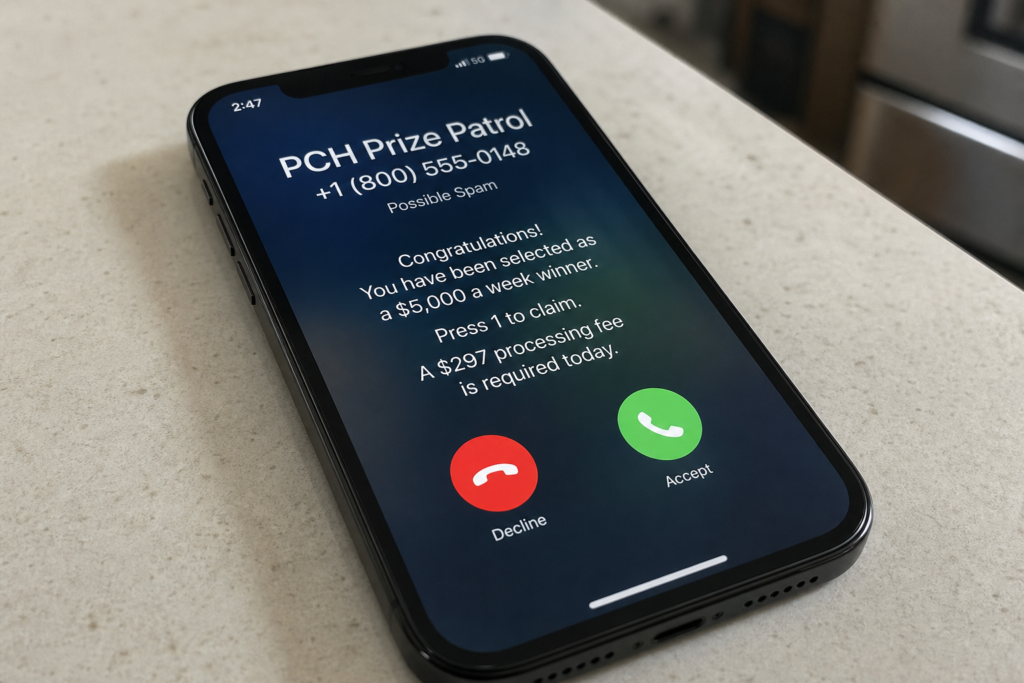
Publishers Clearing House scam calls are designed to feel exciting, urgent, and official. You get a call, text, or voicemail claiming you have won a major PCH prize. The caller sounds confident. They may use case numbers, “verification steps,” and official-sounding language.
Then comes the real point of the call: they push you to pay a fee or share sensitive information.
Real prizes do not require upfront payment. If someone says you must pay to receive winnings, it is a scam.
Scam Overview
The quick takeaway
A PCH scam call almost always includes one or more of these:
- You are told you won, even though you did not expect it
- You are told to press a button, call back, or stay on the line
- You are told to pay a fee first (tax, shipping, insurance, activation)
- You are told to pay using gift cards, wire transfer, crypto, or a payment app
- You are pressured to act today and keep it secret
If you hear any of that, stop the conversation and verify independently.
What this scam really is
This is not a sweepstakes problem. It is an impersonation scam.
Criminals borrow the Publishers Clearing House name because it is widely recognized. The brand’s reputation helps scammers sound believable fast, especially to someone who has entered sweepstakes before or simply wants the call to be true.
The goal is always one of two things:
- Get your money
- Get your personal and financial information so they can steal more later
Why these calls feel convincing
Scammers do not rely on one “big lie.” They rely on a series of small pressures that push you forward.
They commonly use:
- Authority language: “claims department,” “processing center,” “final verification”
- Artificial urgency: “You must claim today”
- Confidence: fast answers, no hesitation, constant reassurance
- Familiar details: references to “Prize Patrol,” big checks, delivery stories
- Fake paperwork: images of checks, badges, letters, “clearance forms”
None of this proves anything. It is staged credibility.
The core lie that defines the scam
The defining feature is simple:
They say you must pay something to receive your prize.
They may call it a tax, a fee, a bond, or insurance. The name does not matter. The moment payment is required, it is no longer a prize. It is a shakedown.
Common fee stories you will hear
Scammers rotate explanations until they find one that sounds “normal.”
These are the most common:
- “Taxes must be paid before delivery”
- “Insurance is required to release the check”
- “A processing fee is needed to finalize the claim”
- “Delivery costs must be covered today”
- “A lawyer must file paperwork, there is a fee”
- “Your prize is on hold at a bank, you must pay a release charge”
Sometimes they add a scary element:
- “The IRS requires this immediately”
- “Your prize will be forfeited if you delay”
- “You are under a confidentiality requirement”
That pressure is intentional. It is used to stop you from checking with someone else.
Payment methods that are a dead giveaway
Real companies do not tell winners to pay using methods that are difficult to trace or reverse.
Scammers often demand:
- Gift cards (the most common)
- Wire transfers
- Cash pickups by courier
- Crypto
- Payment apps
If a caller wants gift card codes read over the phone, treat that as confirmed fraud.
What real PCH contact normally looks like
Scammers want you to believe PCH runs like a bank transfer department.
It does not.
Real prize processes do not require you to pay a “release fee” or “tax” to an unknown person on the phone. If someone says you need to pay to get the prize, that is the end of the debate.
Who gets targeted most often
These scams often focus on people who:
- Answer unknown calls
- Live alone or do not have someone nearby to sanity-check the situation
- Have entered sweepstakes before
- Are under stress and want a positive surprise
But anyone can be targeted. Scammers use robocalls and mass dialing. They only need a small number of people to engage.
The most common red flags, in plain English
If you want a simple checklist, use this:
- They contacted you first and immediately said you won
- They want you to act fast, today, right now
- They tell you not to tell your family
- They demand payment before you receive anything
- They want gift cards or wire transfer
- They refuse to let you verify through official channels
- They ask for bank details, card numbers, or login codes
- They become aggressive when you hesitate
Even one of these is enough to end the call.
How The Scam Works
Step 1: First contact (robocall, live call, or voicemail)
Many victims first hear an automated message:
- “Congratulations, you have won. Press 1 to claim your prize.”
Other times it is a live caller from the start, using a friendly, confident tone. They may leave a voicemail that sounds urgent and official, pushing you to call back.
The goal is the same: get you into a conversation.
Step 2: They create legitimacy in the first 60 seconds
Once you engage, they push credibility hard.
You may hear:
- A “claim number” or “case ID”
- A badge number
- A department name
- A supervisor name
- References to PCH Prize Patrol
They may also send a text while you are on the phone, including:
- A logo
- A photo of a check
- “Winner documents”
- A fake confirmation email
This is not proof. It is a prop.
Step 3: They ask harmless questions that are not harmless
Before asking for money, many scammers gather details.
They may ask:
- Your full name and address
- Your age
- Who you bank with
- Whether you are alone
- Whether you have entered sweepstakes before
These questions serve two purposes:
- They help the scammer tailor the pressure
- They build a file they can reuse or sell
Step 4: They introduce “verification” to lower your defenses
Next, they frame the situation as routine paperwork.
They will say something like:
- “We need to verify you before release.”
- “This is a standard security step.”
- “We just need to confirm a few details.”
Then they move in one of two directions:
- Information theft
They ask for sensitive details, such as banking info, card numbers, or personal identifiers. - Payment extraction
They claim a fee must be paid before delivery.
Either way, “verification” is a bridge. It moves the call from exciting to controlling.
Step 5: The fee demand arrives, dressed up as normal
This is where the scam turns into a transaction.
They may say:
- “You need to pay the taxes first.”
- “There is an insurance fee before the check can be delivered.”
- “Your prize is ready, we just need the processing charge.”
They will often use round, believable amounts at first, like $199, $299, or $499.
If you pay, the amounts usually grow quickly.
Step 6: They guide you into an irreversible payment method
Once you hesitate, they do not debate. They redirect.
They tell you exactly how to pay:
- Buy gift cards and read the codes
- Send a wire transfer to a “processor”
- Use a payment app
- Deposit cash into an account
- Hand cash to a courier
A common tactic is keeping you on the phone while you do it. That prevents you from asking for advice.
Step 7: They isolate you and tighten urgency
If you slow down, they apply pressure.
You might hear:
- “If you hang up, the prize is forfeited.”
- “This must be handled today.”
- “Do not tell anyone, it is a surprise.”
- “Do not talk to your bank, it will delay delivery.”
This is psychological control. It is designed to shut down your judgment.
Step 8: The escalation loop starts (the real money is in repeat payments)
If you paid once, you are now a high-value target.
Scammers often return with “one more step”:
- “A second tax amount is required”
- “The delivery team needs an additional permit”
- “The insurance amount changed”
- “Your prize is held, pay a release fee”
This can continue until you run out of money or finally cut contact.
Step 9: The second wave: identity theft and “recovery” scams
If you shared personal information, scammers may use it to:
- Take over accounts
- Open new accounts
- Social-engineer your bank
- Target your family with related scams
After the scam is exposed, another scam may appear:
- Someone claims they can recover your money, for a fee
That is also a scam. Victims are often targeted again because scammers know they are emotionally invested and want a solution.
What To Do If You Have Fallen Victim to This Scam
- Stop contact immediately
Do not respond to calls, texts, or emails from the scammers. Do not negotiate. Do not “pay the last fee.” - Write down the facts and save evidence
Save everything you can:
- Phone numbers used
- Dates and times of calls
- Names and “badge numbers” they gave
- Screenshots of texts and emails
- Receipts and transaction confirmations
- Call your bank or card issuer right away
Ask for the fraud department. Explain it was a prize scam.
If you used a debit card, wire transfer, or payment app, speed matters. You may still be able to stop a pending transfer.
- If you paid with gift cards, act fast
Keep the receipt. Contact the gift card issuer immediately. In some cases, they can freeze remaining value if the code has not been fully used. - Secure your accounts
At minimum:
- Change your email password first
- Change your banking and payment app passwords
- Turn on two-factor authentication
- Check your email forwarding and recovery settings
If you installed any app because the caller told you to, remove it and scan your device.
- Watch your credit if you shared sensitive personal details
If you gave information like a Social Security number or similar identity data, consider placing a credit freeze and monitoring credit reports for new accounts. - Report it
Reporting helps create a record and can support broader enforcement:
- File a report with the FTC (for scam tracking and guidance)
- If money was lost through online transfers or large amounts, consider reporting to IC3 as well
- Tell one trusted person
This is not about embarrassment. It is protection.
Scammers rely on secrecy. A second set of eyes helps you avoid follow-up scams and make calm decisions.
Is Your Device Infected? Run a Free Malware Scan
Slow performance, constant pop-ups, or strange behavior? These are classic signs of a malware infection. The fastest way to find out is to scan your device with Malwarebytes Free — one of the most trusted malware removal tools available.
The free version detects and removes the most common threats, including:
- Adware — the cause of those annoying pop-ups
- Browser hijackers — unwanted redirects and changed homepages
- Trojans and spyware — hidden programs stealing your data
- Potentially unwanted programs (PUPs) — software you never asked for
👉 Select your device below — Windows, Mac, or Android — then follow the simple steps to download Malwarebytes, scan your system, and remove any threats it finds. The scan usually takes 5 to 20 minutes.
Run a Malware Scan with Malwarebytes for Windows
Malwarebytes is one of the most popular and trusted anti-malware tools for Windows — and it’s completely free for removing infections. It catches threats that many antivirus programs miss, including adware, browser hijackers, and trojans. Follow the steps below to scan and clean your PC in just a few minutes.
Download Malwarebytes
Click the button below to download the latest version of Malwarebytes for Windows from the official source. The free version is all you need — it will scan your computer and remove adware, browser hijackers, and other malicious software at no cost.
Download MalwarebytesOfficial installer for Windows 11 and 10. Your download starts right away.Want real-time protection? See Malwarebytes Premium Malwarebytes Free for WindowsScans and removes malware at no cost
-
Install Malwarebytes
When the download finishes, open your Downloads folder and double-click the MBSetup file. If Windows shows a User Account Control pop-up, click “Yes” to allow the installation.

Follow the On-Screen Prompts to Install Malwarebytes
The setup wizard will walk you through a few quick screens:
-
Choose where you’re installing the program — “Personal Computer” or “Work Computer” — then click Next.

-
Malwarebytes will now install on your device. This usually takes under a minute.

-
When installation is complete, the “Welcome to Malwarebytes” screen will open automatically.

-
On the final screen, click Open Malwarebytes to launch the program.

-
Enable “Scan for Rootkits”
Before scanning, turn on rootkit detection so Malwarebytes can find even the most hidden threats. Click the Settings gear icon on the left side of the screen.

In the settings menu, find “Scan for rootkits” and click the toggle so it turns blue.

Done? Click “Dashboard” in the left pane to return to the main screen.
Start the Scan
Click the blue Scan button. Malwarebytes will automatically update its virus database and start checking your computer for malware.

-
Wait for the Scan to Finish
The scan checks your entire system for browser hijackers and other malicious programs, so it can take 5 to 20 minutes depending on your computer. Feel free to do something else — just check back occasionally to see the progress.

-
Quarantine the Detected Threats
When the scan is done, you’ll see a list of everything Malwarebytes found — malware, adware, and potentially unwanted programs. Click the “Quarantine” button to remove all of them at once.

Malwarebytes will now remove the malicious files and registry entries and move them safely into quarantine.

-
Restart Your Computer
Some threats can only be fully removed after a reboot. If Malwarebytes asks you to restart, click Yes. Once you’re logged back in, Malwarebytes has finished removing the threats it found.

That’s it — your Windows PC is now clean of trojans, adware, and other malware, and should be back to running smoothly.
If you are still having problems with your computer after completing these instructions, then please follow one of the steps:
- Run a computer scan with ESET Online Scanner
- Ask for help in our Windows Malware Removal Help & Support forum.
Run a Malware Scan with Malwarebytes for Mac
Malwarebytes for Mac is a free on-demand scanner that removes the malware other security software tends to miss — adware, browser hijackers, and unwanted programs included. Cleaning an infected Mac with Malwarebytes has always been completely free, and it’s our go-to recommendation. Follow the steps below to scan and clean your Mac in just a few minutes.
-
Download Malwarebytes for Mac
Click the button below to download the latest version of Malwarebytes for Mac.
Download MalwarebytesOfficial installer for macOS. Your download starts right away.Want real-time protection? See Malwarebytes PremiumMalwarebytes Free for MacScans and removes malware at no cost -
Open the Malwarebytes setup file
When the download finishes, open your Downloads folder and double-click the setup file to begin the installation.

-
Follow the On-Screen Prompts to Install Malwarebytes
The Malwarebytes for Mac Installer will guide you through a few quick screens. Click “Continue” and keep following the prompts until the installation completes.



When the installation is complete, Malwarebytes opens to the Welcome to Malwarebytes screen. Click “Get started“.
-
Select “Personal Computer” or “Work Computer”
Malwarebytes will ask what type of computer you’re installing it on. Click either Personal Computer or Work Computer, whichever applies.

-
Start the Scan
Click the “Scan” button. Malwarebytes will automatically update its detection database and begin checking your Mac for malware.

-
Wait for the Scan to Finish
Malwarebytes will scan your Mac for adware, browser hijackers, and other malicious programs. This can take a few minutes, so feel free to do something else — just check back occasionally to see the progress.

-
Quarantine the Detected Threats
When the scan is done, you’ll see a list of everything Malwarebytes found. Click the “Quarantine” button to remove all the threats at once.

-
Restart Your Mac
Malwarebytes will now remove all the malicious files it found. Some threats can only be fully removed after a reboot — if Malwarebytes asks you to restart, allow it. Once you’re logged back in, your Mac is clean.

That’s it — your Mac is now free of adware, rogue browser extensions, and other potentially harmful software.
If you are still experiencing problems while trying to remove a malicious program from your computer, please ask for help in our Mac Malware Removal Help & Support forum.
Run a Malware Scan with Malwarebytes for Android
Malwarebytes for Android automatically detects and removes dangerous threats like malware and ransomware so you don’t have to worry about your most-used device being compromised. Aggressive detection of adware and potentially unwanted programs keeps your Android phone or tablet running smooth.
-
Download Malwarebytes for Android.
You can download Malwarebytes for Android by clicking the link below.
Get Malwarebytes for AndroidOpens Google Play in a new tab.Want real-time protection? See Malwarebytes Premium for AndroidMalwarebytes for AndroidScans your phone and removes malware at no cost -
Install Malwarebytes for Android on your phone.
In the Google Play Store, tap “Install” to install Malwarebytes for Android on your device.

When the installation process has finished, tap “Open” to begin using Malwarebytes for Android. You can also open Malwarebytes by tapping on its icon in your phone menu or home screen.

-
Follow the on-screen prompts to complete the setup process
When Malwarebytes will open, you will see the Malwarebytes Setup Wizard which will guide you through a series of permissions and other setup options.
This is the first of two screens that explain the difference between the Premium and Free versions. Swipe this screen to continue.
Tap on “Got it” to proceed to the next step.
Malwarebytes for Android will now ask for a set of permissions that are required to scan your device and protect it from malware. Tap on “Give permission” to continue.
Tap on “Allow” to permit Malwarebytes to access the files on your phone.
-
Update database and run a scan with Malwarebytes for Android
You will now be prompted to update the Malwarebytes database and run a full system scan.

Click on “Update database” to update the Malwarebytes for Android definitions to the latest version, then click on “Run full scan” to perform a system scan.

-
Wait for the Malwarebytes scan to complete.
Malwarebytes will now start scanning your phone for adware and other malicious apps. This process can take a few minutes, so we suggest you do something else and periodically check on the status of the scan to see when it is finished.

-
Click on “Remove Selected”.
When the scan has been completed, you will be presented with a screen showing the malware infections that Malwarebytes for Android has detected. To remove the malicious apps that Malwarebytes has found, tap on the “Remove Selected” button.

-
Restart your phone.
Malwarebytes for Android will now remove all the malicious apps that it has found. To complete the malware removal process, Malwarebytes may ask you to restart your device.
That’s it — your Android phone is now clean — no more malicious apps, adware, or browser redirects.
If you are still having problems with your phone after completing these instructions, then please follow one of the steps:
- Restore your phone to factory settings by going to Settings > General management > Reset > Factory data reset.
- Ask for help in our Mobile Malware Removal Help & Support forum.
Stay Protected: Block Ads and Malicious Sites
Now that your device is clean, keep it that way. Most infections start with a malicious ad or a fake download button — so blocking them at the source is your best defense.
We recommend AdGuard, which blocks malicious ads, phishing pages, and dangerous redirects before they can reach you.
👉 Download AdGuard and browse safely
The Bottom Line
Publishers Clearing House scam calls are built around one idea: get you to pay or share private information by using a trusted name and a fake prize.
You do not have to solve the mystery on the call. You just need to recognize the pattern.
If someone says you won but you must pay first, it is a scam. Hang up. Verify independently. Protect your accounts. Then move on.
FAQ: Publishers Clearing House Scam Calls
Are Publishers Clearing House scam calls real, or is PCH itself a scam?
Publishers Clearing House is a real company. The scam is criminals pretending to be PCH. They use the PCH name to sound credible and trick people into paying fees or sharing personal information.
Does PCH ever call you to say you won?
Scammers do. If someone calls out of the blue claiming you won, treat it as suspicious and verify through official PCH channels. Legitimate prize notification does not require you to stay on a call or act immediately.
Do real PCH winners have to pay taxes or fees upfront to receive a prize?
No. Any demand that you must pay a fee to receive winnings is a major red flag. Scammers commonly label it “tax,” “insurance,” “processing,” or “delivery,” but it is still a scam.
What if the caller knows my name, address, or other personal details?
That does not prove it is real. Scammers can get personal details from data brokers, public records, leaked databases, or previous scams. They use that info to make the call feel legitimate.
Can caller ID show “Publishers Clearing House” and still be a scam?
Yes. Caller ID can be spoofed, meaning scammers can make the number or name look official. Never trust caller ID alone.
The caller told me to press 1 to claim my prize. Is that safe?
No. “Press 1” is a common tactic to route you to a live scammer quickly. Do not press anything. Hang up.
Why do PCH scammers ask for gift cards?
Gift cards are fast, hard to trace, and usually impossible to reverse once the code is shared. If anyone asks for gift cards to claim a prize, it is a scam.
What are the most common PCH scam payment methods?
The most common are gift cards, wire transfers, cash pickups, payment apps, and cryptocurrency. Real prize claims do not require those methods.
What should I do if I gave my bank info or Social Security number?
Act quickly:
- Call your bank and ask for the fraud department
- Change passwords for email and financial accounts
- Turn on two-factor authentication
- Monitor accounts for unauthorized transactions
- Consider a credit freeze if sensitive identity data was shared
What should I do if I already paid a scammer?
Do this right away:
- Contact your bank, card issuer, or payment app to report fraud
- If gift cards were used, contact the gift card issuer immediately and keep receipts
- Save screenshots, numbers, receipts, and messages as evidence
- Report the scam to the FTC and consider reporting to IC3 for larger losses
How do I verify whether a PCH message or call is legitimate?
Do not use the phone number the caller provides. Instead:
- Hang up
- Look up PCH’s official contact information through its official website
- Ask PCH directly whether your name is associated with a prize claim
Why do scammers tell people to keep the prize “confidential”?
It isolates you. Scammers do not want you to talk to family, your bank, or anyone who might recognize the scam and stop you from paying.
Will scammers keep calling if I respond once?
Often, yes. If you engage or pay, you may be targeted again with “extra fees” or even “recovery scams” claiming they can get your money back for a fee.
What is a “recovery scam” after a PCH scam call?
It is a second scam that targets people who already lost money. Someone contacts you pretending to be a lawyer, investigator, or recovery service and asks for payment to “recover” your funds. Legitimate recovery does not require upfront fees from random callers.
What is the safest response to any surprise “you won” call?
Assume it is a scam until proven otherwise:
Verify using official channels you find yourself
Hang up
Do not pay
Do not share any information









I got a call saying I won the grand prize plus a Lincoln car they sent me pictures of everything and even the Head guys drivers license and they said everything was paid with taxes except for 1% which of 10.5 million was 4300. thats when I knew because he wanted me to the bank same day. When I wouldn’t agree he said they would give my prize to some one else. I just hung up on him This guy name is Andy Goldberg 472 Holdridge Ave. Staten Island, NY 10312 I just knew it was too good to be true. BEWARE PEOPLE
You handled that correctly, Melba. A real prize does not require a tax, processing payment, or same-day trip to the bank before it can be released, and the license image and address may belong to an innocent person or be entirely fabricated. Do not contact the caller again; preserve the messages and report the number and payment request through the official fraud-reporting channel in your country.
this is very good information. Im in the middle of a scam right now. I knew it was a scam but if I didnt better I would think it was for real. The man says he is a claims patrol agent from PCH. He said I won money and a new chevy tahoe. It was to be delivered the following day. Well he called at 530a.m. Said I needed to go to my bank a buy some kind of card it was for tax purposes for all future payments. I told him I didnt have the 399.17 for this and you never have to pay money to get money. He proceded to tell me how that was nothing and what could I afford. The kicker is my boyfriends phone and my phone rings same time when he keeps calling. plus camera on phone turns on. His fake name comes up and email. Creepy.
Please stop right there – what you’re describing is the scam in progress, and the next step is the one that costs you money. Publishers Clearing House never phones winners, never asks for taxes or fees up front, and never sends anyone to a bank or a shop to buy a prepaid card. Any request for a card, a transfer or a fee means there is no prize. Hang up and don’t answer that number again, even to argue; a 5:30 a.m. call is pressure by design. If you have already bought a card or given the numbers on one, call the card issuer immediately, as some can be frozen if reported quickly. Then report it at reportfraud.ftc.gov and to PCH’s own fraud line. You already sensed it was fake – trust that.