Don’t Fall for the Walmart Gift Card Giveaway Scam Trap – Read This
Written by: Thomas Orsolya
Published on:
Gift card giveaways and sweepstakes are an exciting way for retailers like Walmart to engage customers and promote their brand. However, scammers have been exploiting interest in these promotions to defraud unsuspecting victims out of money and personal information.
This article will take an in-depth look at how the Walmart Gift Card Giveaway Scam works, provide tips on how to identify it, and outline steps you can take if you’ve fallen prey to this insidious fraud.
Overview of the Walmart Gift Card Giveaway Scam
The promise of free gift cards from popular retailers like Walmart seems enticing. But cybercriminals are leveraging that appeal to defraud countless victims through an insidious scam involving fake Walmart gift card giveaways.
This fraud has been circulating since at least 2015 and has claimed victims across the United States, Canada, the United Kingdom, Australia, and other countries. The Walmart name and branding lends legitimacy to the ruse, tricking even savvy users into believing they have a chance to win a $100, $500 or even $1000 gift card.
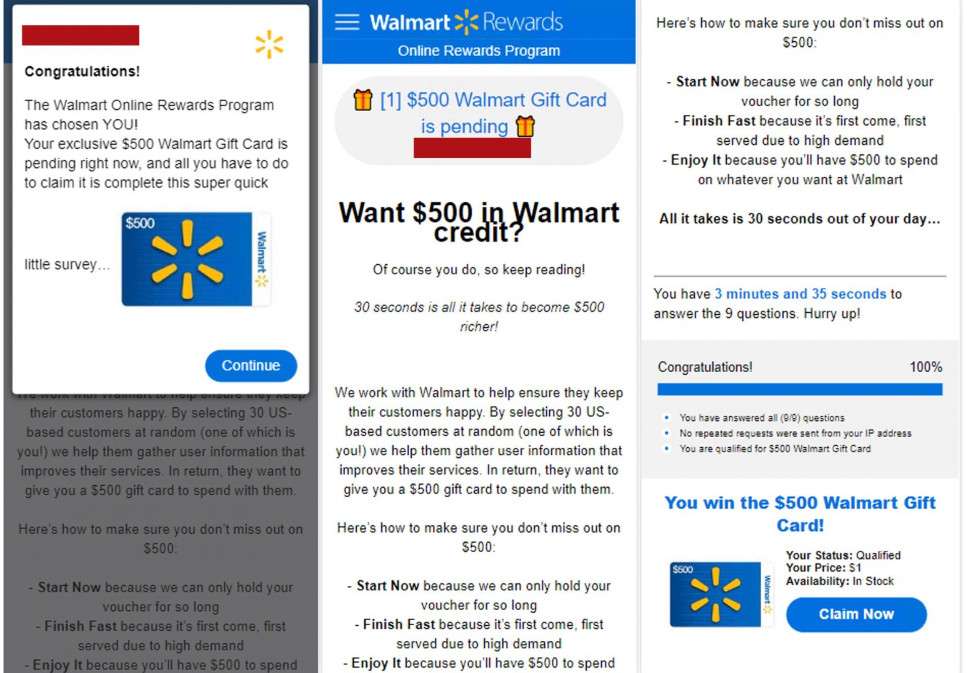
The scam works like this – users will come across online advertisements promoting a too-good-to-be-true giveaway for Walmart gift cards. The ads are designed to look like official promotions from the company. They incorporate the familiar Walmart logo, fonts, colors and other brand elements to look authentic.
Potential victims are lured in by tantalizing headlines like “Claim Your $500 Walmart Gift Card Now!” or “You’ve Been Selected For a $1000 Walmart Gift Card Prize!” Scammers know that gift card winnings of this amount will entice people to click for more information.
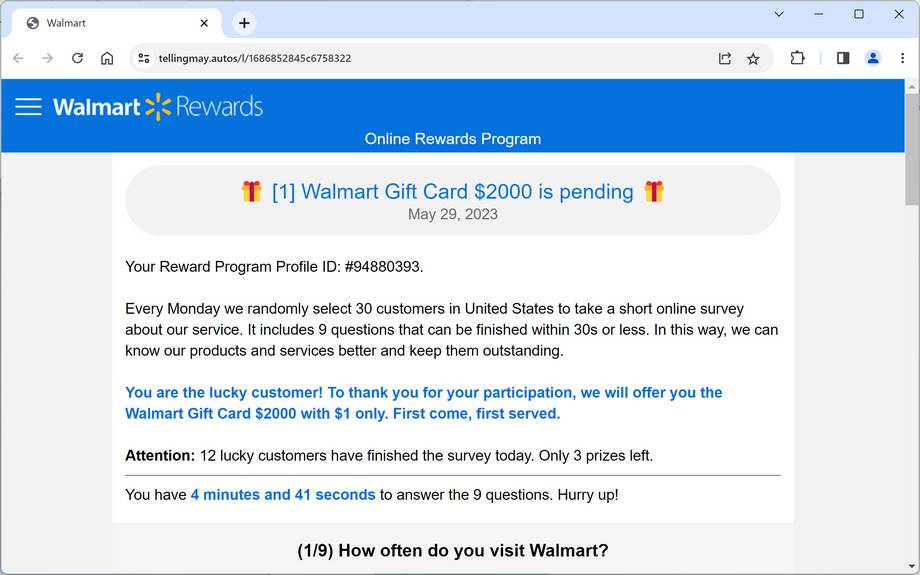
If recipients engage with the fraudulent ads or links, they are taken to convincing replica Walmart websites that reinforce the giveaway offer. These scam landing pages continue the ruse by congratulating visitors and informing them they have been “specially selected” to win a gift card worth $100, $500 or even $1000 at Walmart.
To fully clinch the illusion, the fake Walmart websites feature store imagery, promotions for real products, and further use of official logos and branding elements. At first glance, it looks like a legitimate affiliated website.
The scam pages prompt visitors to take a short survey to “claim their prize.” The questions gather personal details such as age, gender, location, and frequency of shopping at Walmart. This helps scammers profile victims for greater success at the next stage.
After answering, visitors are congratulated again and given instructions to click a link or button to redeem their Walmart gift card winnings. However, this click leads unsuspecting users directly into the trap.
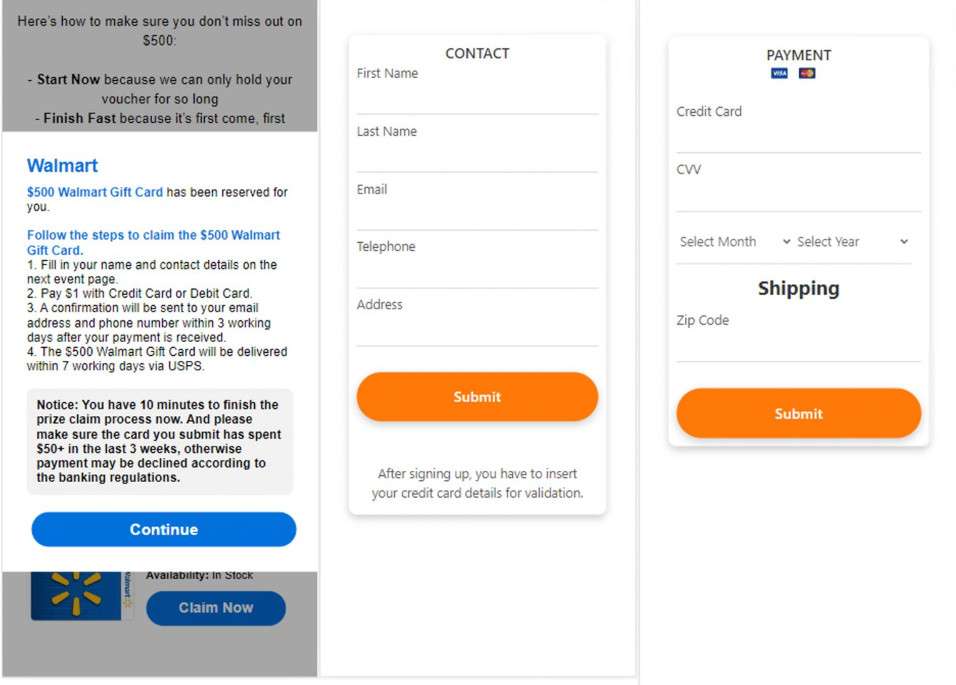
Instead of receiving the promised gift card, visitors are taken to another realistic mock Walmart website. This time, victims are informed they must pay a small “shipping and handling fee” of around $2-$5 to have their prize sent to them. The scammers emphasize that once this fee is paid, they will ship the victim’s $500 (or $1000) Walmart gift card via express courier.
Victims are so focused on the massive payoff of a $500 or $1000 gift card, that paying a small $2-$5 shipping cost seems reasonable and worth it.
However, this is where the real scam occurs. Victims must enter credit or debit card details into an online form to pay the shipping fee. This captures the financial information thieves need to make fraudulent purchases and drain funds. Personal details like names, emails and physical addresses are also harvested.
Within hours or days, victims start seeing mystery monthly subscription charges in amounts like $29, $39 or $99 hit their cards. By this point, the scammers have already gotten what they wanted. Even if victims are eventually able to cancel the cards, the damage is already done.
This highly effective online scam demonstrates how cybercriminals leverage human nature and psychology against victims. The tantalizing chance at a $500 or $1000 Walmart gift card clouds judgement and leads to overlooked red flags.
Sadly, once credit card information is entered, you won’t receive the promised gift card prize. And fraudulent monthly subscription charges can quickly snowball to hundreds or thousands in losses.
Read on to learn more about how this scam actually works and how to avoid becoming a victim.
How the Walmart Gift Card Scam Works Step-by-Step
While the specifics may vary slightly, the Walmart Gift Card Giveaway Scam generally follows this sequence of events to defraud victims:
Step 1 – Baiting Victims with Fraudulent Ads and Websites
The first step involves scammers baiting potential victims into engaging with the scam offer. As outlined above, they’ll create online ads and spoofed websites promoting free Walmart gift cards worth hundreds of dollars.
Common places these ads appear include:
Facebook and Instagram ads or sponsored posts
YouTube video ads
TikTok promoted video ads
Malvertising – Fake ads embedded within legitimate websites
Spam emails
Fraudulent pop-up ads and redirects
The advertisements are designed to look authentic and will incorporate official Walmart branding. Headlines like “Click Here to Claim Your $500 Walmart Gift Card!” entice people to click and learn more.
Step 2 – Completing a Survey on the Scam Website
Once on the landing page, victims will be congratulated for being selected and informed they must complete a short survey to receive their “prize.” The promised gift card values usually range from $100 up to $1000.
The survey contains around 3-5 questions about basic personal details including:
Gender
Age
Location
Frequency of shopping at Walmart
This information allows scammers to better target their victims. Those who regularly shop at Walmart are more likely to fall for the fake giveaway.
After submitting the survey, visitors are told they are eligible and must click a button to claim their gift card. In reality, this button leads to the next stage of the scam.
Step 3 – Clicking to Redeem the Gift Card
Upon completing the survey, a message will appear saying something like “Congratulations! You’ve won a $500 Walmart Gift Card!” It will instruct the victim to click a button or link to redeem their prize.
Scam websites will use terms like “Claim Your Reward,” “Collect Your Prize,” or “Click Here to Get Your Walmart Gift Card” to get people to the next step. This is where the real fraud begins.
Step 4 – Paying a Small Shipping Fee
After clicking to claim their gift card, victims will be taken to a page asking them to cover a small “shipping and handling” fee. This is usually $2-5, payable only by credit or debit card.
The page will be branded to look like a legitimate Walmart website. Scammers use the real Walmart logo and familiar design elements to reassure victims the offer is authentic.
Targeted individuals will be eager to pay the minimal fee if they think they’re getting a $500 gift card in return. However, this is the trap that leads to escalating fraud and financial loss.
Step 5 – Capturing Credit Card Details and Personal Info
To pay the shipping fee, victims must enter their credit card number, expiration date, CVV code, and billing address into an online form.
Scammers will capture this financial information to make fraudulent purchases and resell on the dark web. Victims’ personal details like name, email, and address are also collected during this process.
Once submitted, the credit card is approved and charged the small shipping fee. At this point, the victim assumes the transaction is complete and they will receive their gift card prize in a few days.
Step 6 – Unexpected Subscription Fees
But the small upfront charge is just the beginning of the financial fraud. Within hours or days of paying the shipping fee, victims will start to see additional monthly subscription charges appear on their credit card statements.
These recurring fees will range from $29 up to $99 and continue each month until the victim realizes what is happening and has their card canceled. The subscriptions are for services the person never signed up for or authorized.
Burying fine print on the scam websites indicates users are automatically enrolled in “trial memberships” for products like ebooks, video streaming services, horoscope apps, and other digital consumables. These fraudulent monthly fees can quickly add up to hundreds or thousands of dollars if left unchecked.
Step 7 – Difficulty Canceling Fraudulent Charges
Once the victim discovers the fraudulent charges on their card, they will naturally call to have them stopped and refunded.
However, scammers purposely make it difficult to cancel the bogus subscriptions. Some victims reported spending hours on the phone trying to close accounts they never even knew they had.
Others were unable to get charges reversed at all. Any refund claims submitted were denied under the pretense that the user knowingly signed up for recurring memberships.
In reality, the monthly fees were never agreed to or clearly disclosed before victims entered their credit card information under the false promise of a Walmart gift card giveaway prize.
This cascade of fraud stemming from an initial $2 payment is how scammers maximize their profits from each person who gets hooked into the gift card scam. Losses can quickly multiply into the hundreds or thousands of dollars.
Spotting the Telltale Signs of a Walmart Gift Card Scam
While scam artists are working hard to make their websites and promotions appear legitimate, there are a few key signs that can help consumers avoid getting reeled into this fraud:
Spelling and Grammatical Errors – Scam websites often contain typos, bad grammar, and other linguistic red flags.
Requests for Personal Info – Walmart would never ask for sensitive details like credit cards as part of a gift card giveaway.
Incorrect Logos and Branding – Subtle differences in fonts, colors, and branding elements can indicate a fake site.
Pop-up Ads or Suspicious Links – Savvy internet users know to avoid clicking on pop-ups or random links promoting free prizes.
Upfront Payment Requests – Having to pay any type of fee before receiving a promised reward is a clear warning sign.
Monthly Subscriptions – Carefully read all fine print before entering payment information to ensure you won’t be unwittingly charged recurring fees.
Consumers should trust their instincts – if an offer seems too good to be true, it very likely is. Stick to Walmart’s official website and social media pages for valid promotions and contests.
What to Do If You’ve Already Fallen Victim to the Scam
If you entered your information, paid the shipping fee, and are now seeing mysterious monthly charges on your credit or debit card statements, don’t panic. Here are the steps to take to stop the fraud, recover losses, and protect your identity:
1. Act Quickly to Cancel Your Credit or Debit Card
As soon as you suspect fraud, call your bank or card issuer and request that they immediately cancel your account. This is the fastest way to prevent additional fraudulent charges. Most card providers will rush a replacement debit or credit card within 1-2 business days.
2. Place a Fraud Alert on Your Credit Report
Since scammers now have your personal details, also consider placing an initial fraud alert with one of the three major credit bureaus – Equifax, Experian, or TransUnion. This makes it harder for someone to open new accounts in your name. The alert will last for one year and can be renewed if identity theft is confirmed.
3. Review Monthly Statements and Report Fraudulent Charges
Carefully review your monthly account statements and mark any unknown or unauthorized transactions. Report these to your bank and request they reverse the charges and issue refunds for all fraudulent fees. This may be an uphill battle, but persistently dispute anything you didn’t knowingly purchase.
4. Change Passwords and Enable Two-Factor Authentication
As a precaution, you may want to update passwords and security settings for all of your online accounts that utilize the same username or email/password combination as you used on the scam website. Also turn on two-factor authentication wherever possible to add an extra layer of security.
5. Monitor Your Credit Reports
Be proactive and check your credit reports frequently for any accounts or inquiries you don’t recognize for the next few months. Unfamiliar activity could indicate identity theft. You can obtain free credit reports from www.annualcreditreport.com. Consider signing up for credit monitoring services as well to track your reports and scores.
6. Report the Scam
To help authorities identify and shutdown scam operations, file reports with the following agencies:
The Federal Trade Commission (FTC) at reportfraud.ftc.gov
Your state attorney general office
The Internet Crime Complaint Center at www.ic3.gov
Walmart directly via email at ethics@wal-mart.com
Also contact the social media site or ad network that promoted the fraudulent offer and ask them to remove the scam ads immediately.
How to Remove Unwanted Apps and Malware
If a pop-up scam tricked you into downloading an unwanted program — or you suspect your device is infected — follow the free, step-by-step removal guide below to clean it completely.
Before you start: this guide may look long, but that’s only because we’ve broken everything down into clear, detailed steps that anyone can follow — no technical skills needed, and every tool we use is free. Please follow the steps in order. If you get stuck or have doubts at any point, stop and ask for help in our free support forum — our team will guide you personally.
Choose your device to get started. Browser hijackers, unwanted apps, and adware can infect Windows, Mac, Android, and iOS devices alike — click your operating system below to jump straight to the right instructions.
In this first step, we will manually check if any unknown or malicious programs are installed on the computer. Sometimes adware and browser hijackers can have a usable Uninstall entry that can be used to remove them.
Windows 11Windows 10Windows 8Windows 7
Open the Settings app
Press Windows + I on your keyboard to open Settings. Alternatively, right-click the Start button and select “Settings” from the menu.
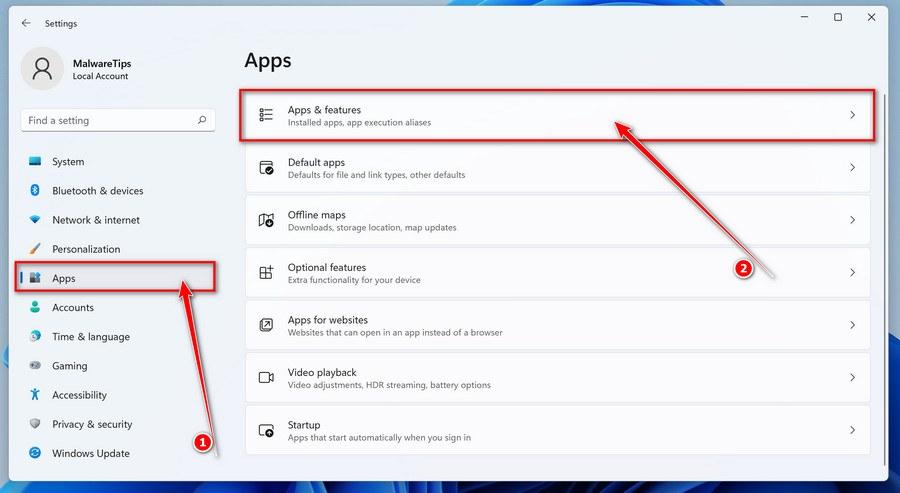
Go to “Apps & Features”
In the Settings window, click “Apps” in the sidebar, then select “Apps & Features“.
Find and uninstall the malicious program
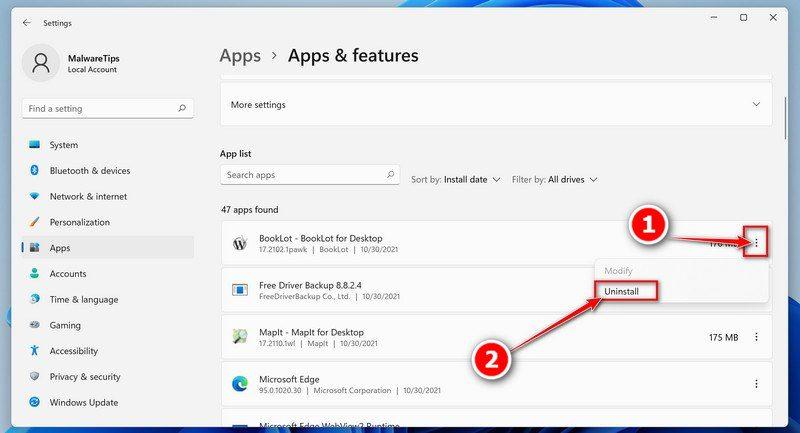
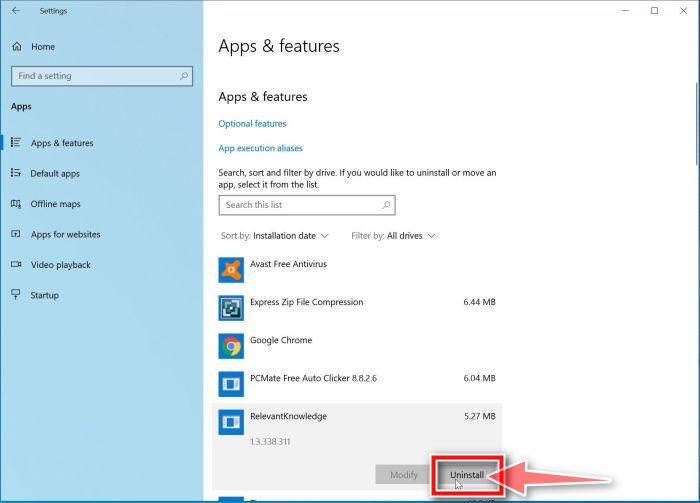
Scroll through the list of installed apps and look for anything suspicious — a program you don’t remember installing, or one with a strange or generic name. Quick tip: click “Sort by” and choose “Install date“. Malware is usually one of the most recently installed programs, so it will appear near the top.
When you find the malicious program, click the three dots next to it and select “Uninstall“.
Didn’t find any suspicious programs? That’s fine — not all infections install visible apps. Just continue with the next step in this guide.
Complete the uninstall
Confirm by clicking Uninstall in the message box, then follow the remaining prompts. Read each prompt carefully — some malicious programs use confusing wording or pre-ticked boxes hoping you’ll click through without looking.
Open the Settings app
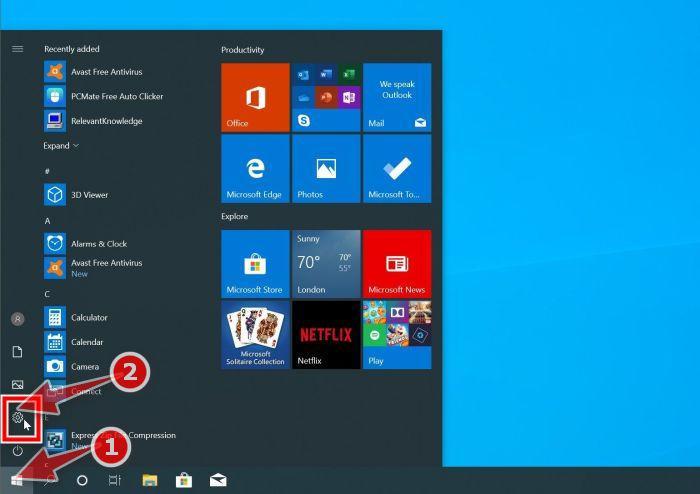
Press Windows + I on your keyboard to open Settings. Alternatively, click the Start button on the taskbar and select “Settings” (the gear icon).
Click on “Apps”
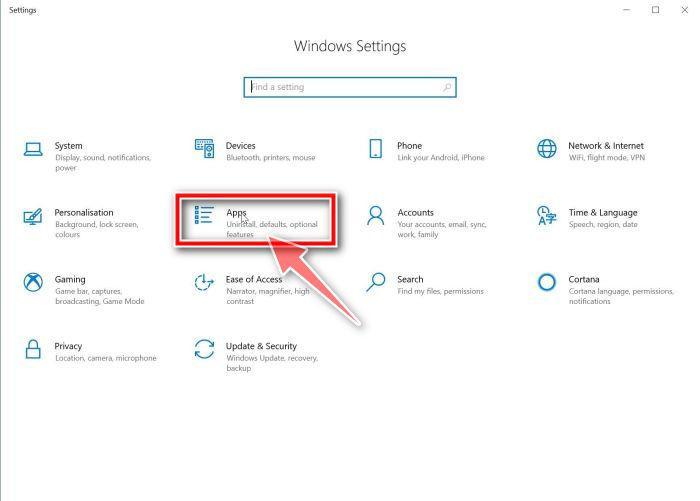
In the “Windows Settings” window, click “Apps“. The “Apps & Features” section should open by default — if it doesn’t, select it from the list on the left.
Find and uninstall the malicious program
Scroll through the list of installed apps and look for anything suspicious — a program you don’t remember installing, or one with a strange or generic name. Quick tip: click “Sort by” and choose “Install date“. Malware is usually one of the most recently installed programs, so it will appear near the top.
When you find the malicious program, click on it and select “Uninstall“.
Didn’t find any suspicious programs? That’s fine — not all infections install visible apps. Just continue with the next step in this guide.
Complete the uninstall
Confirm by clicking Uninstall in the message box, then follow the remaining prompts. Read each prompt carefully — some malicious programs use confusing wording or pre-ticked boxes hoping you’ll click through without looking.
Open “Programs and Features”
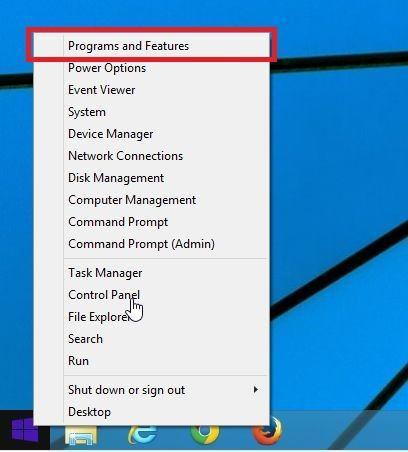
Right-click the Start button in the taskbar, then select “Programs and Features“. This takes you straight to the list of installed programs.
Find and uninstall the malicious program
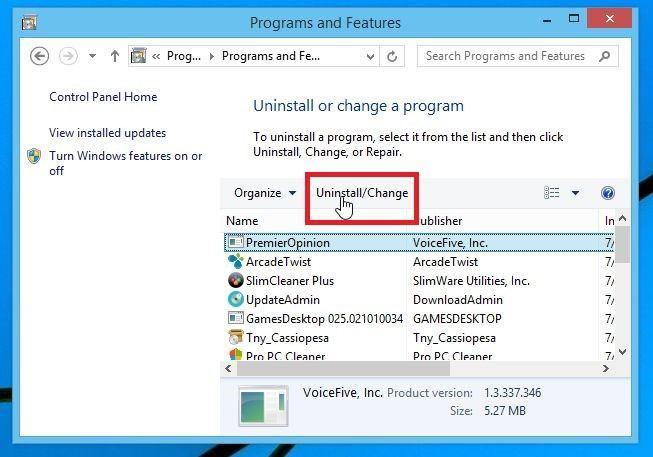
Scroll through the list of installed programs and look for anything suspicious — a program you don’t remember installing, or one with a strange or generic name. Click to highlight it, then click the “Uninstall” button.
Didn’t find any suspicious programs? That’s fine — not all infections install visible apps. Just continue with the next step in this guide.
Complete the uninstall
Confirm by clicking Yes in the message box, then follow the remaining prompts. Read each prompt carefully — some malicious programs use confusing wording or pre-ticked boxes hoping you’ll click through without looking.
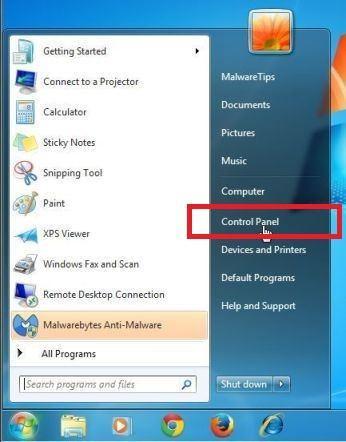
Open the Control Panel
Click the “Start” button, then click “Control Panel“.
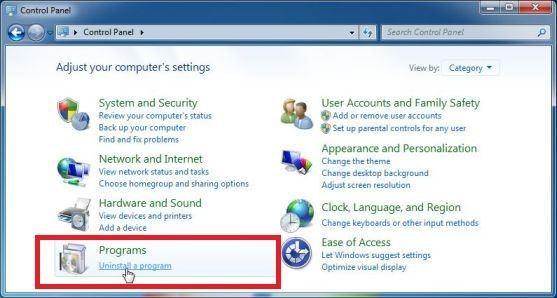
Click on “Uninstall a Program”
In the Control Panel, click “Uninstall a Program” under the Programs category.
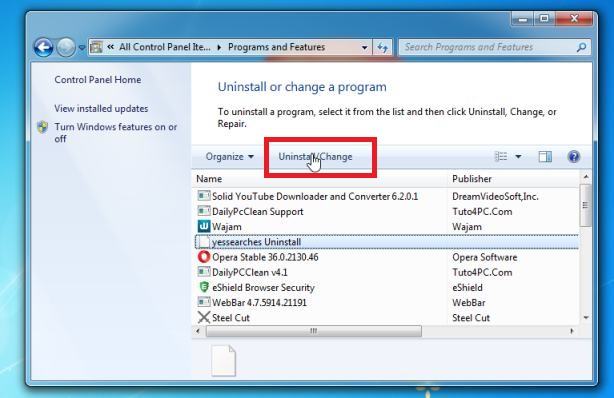
Find and uninstall the malicious program
Scroll through the list of installed programs and look for anything suspicious — a program you don’t remember installing, or one with a strange or generic name. Click to highlight it, then click the “Uninstall” button.
Didn’t find any suspicious programs? That’s fine — not all infections install visible apps. Just continue with the next step in this guide.
Complete the uninstall
Confirm by clicking Yes in the message box, then follow the remaining prompts. Read each prompt carefully — some malicious programs use confusing wording or pre-ticked boxes hoping you’ll click through without looking.
Is a stubborn program refusing to uninstall? Use Revo Uninstaller to force-remove it completely, including leftover files and registry entries.
With the malicious programs removed, you’re ready for the next step in this guide.
STEP 2: Reset browsers back to default settings
In this step, we will remove spam notifications, malicious extensions, and change to default any settings that might have been changed by malware. Please note that this method will remove all extensions, toolbars, and other customizations but will leave your bookmarks and favorites intact. For each browser that you have installed on your computer, please click on the browsers tab below and follow the displayed steps to reset that browser.
ChromeFirefoxMicrosoft EdgeInternet Explorer
Reset Chrome for Windows to default settings
We will now reset your Chrome browser settings to their original defaults. This will reset your startup page, new tab page, search engine, and pinned tabs. It will also disable all extensions and clear temporary data like cookies. Your favorites, history, and saved passwords will not be cleared.
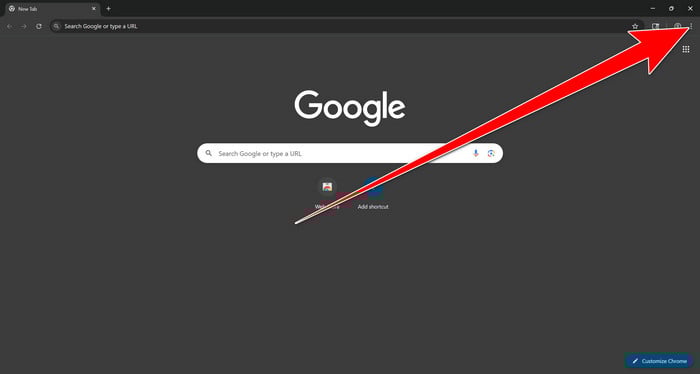
Open the Chrome menu
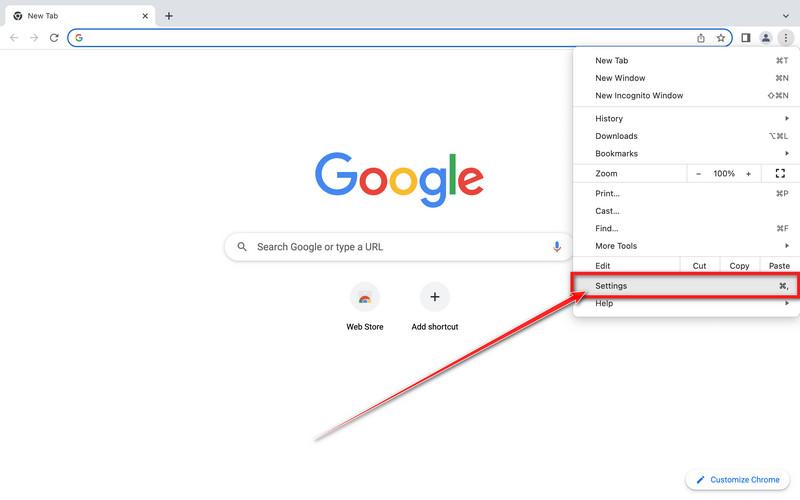
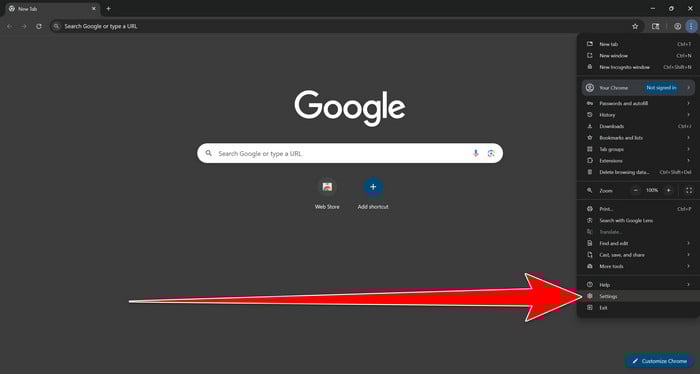
Open Google Chrome and click the three-dot (⋮) icon in the top-right corner.
Open Chrome Settings
Select Settings from the Chrome menu.
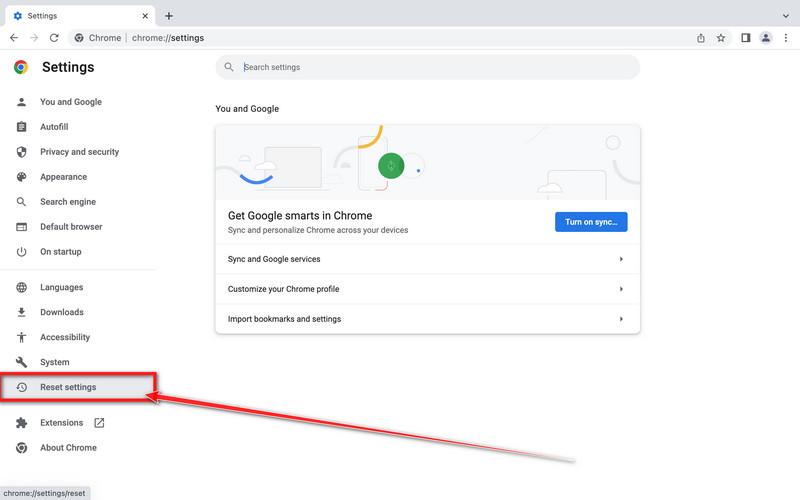
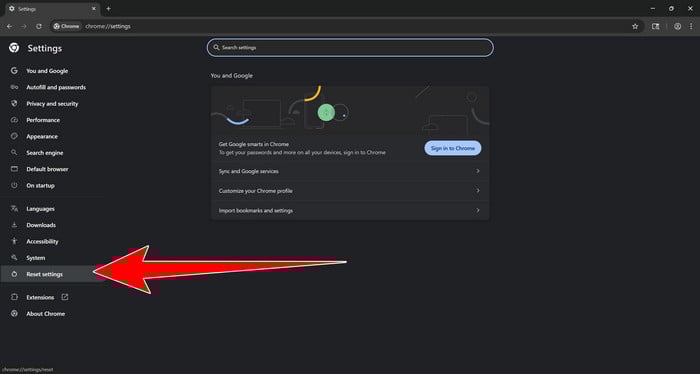
Select “Reset settings”
Look at the menu on the left side of the Settings page. Scroll down and click Reset settings.
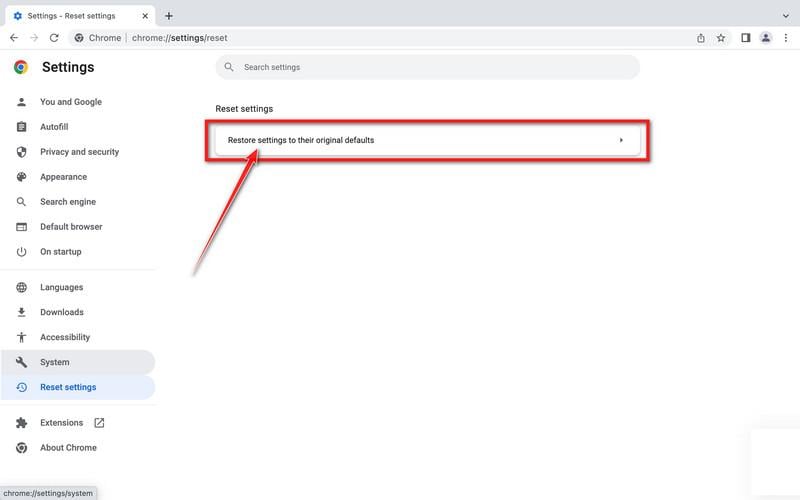
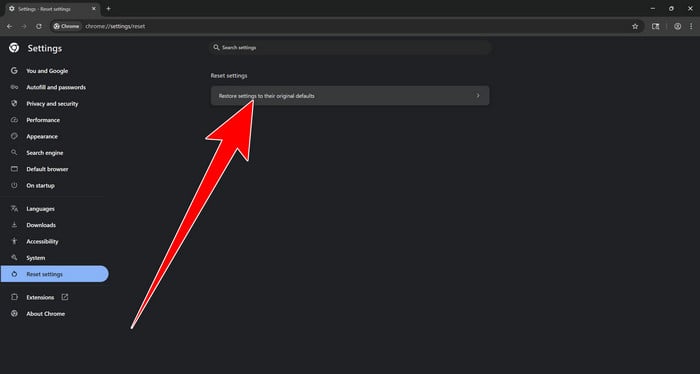
Restore Chrome’s original settings
Click Restore settings to their original defaults.
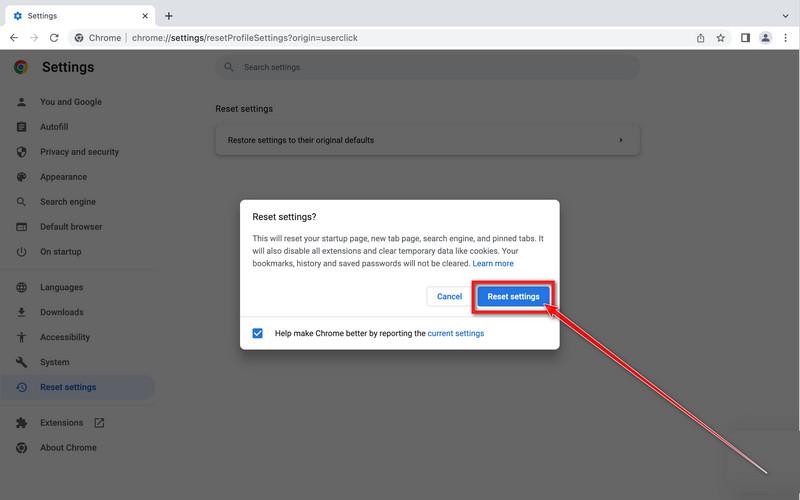
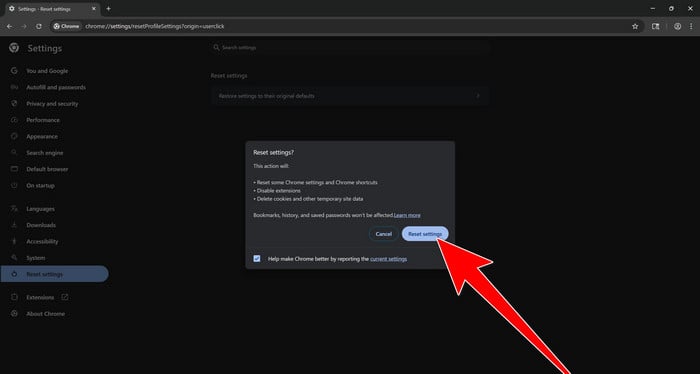
Confirm the Chrome reset
A confirmation window will appear. Click Reset settings.
This will:
Restore the default search engine, homepage, and new tab page
Reset startup pages and pinned tabs
Disable installed extensions
Clear temporary cookies and website data
Don’t worry: Chrome will not delete your bookmarks, browsing history, or saved passwords.
Restart Chrome and perform a test search. If your searches now open normally in Google, you can stop here.
If searches are still redirected through shady domains complete the additional step below.
Remove persistent search hijacker data
Only complete this step if the redirect continues after resetting Chrome.
Some browser hijackers hide inside Chrome’s local search-engine database. A standard Chrome reset may not remove this database, which is why searches can continue to pass through shady sites.
The following procedure creates a backup of the affected database and allows Chrome to build a new, clean version. This is safer and less disruptive than deleting the entire Chrome profile.
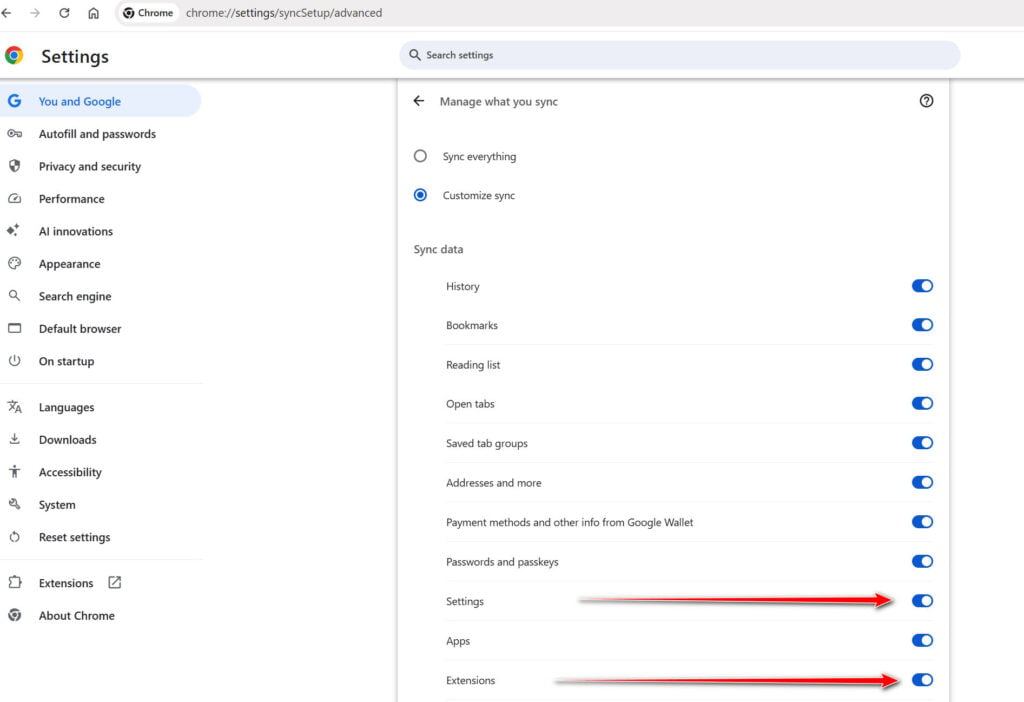
First, prevent Chrome Sync from restoring the hijacked settings:
Open a new Chrome tab.
Copy the following address, paste it into Chrome’s address bar, and press Enter:
chrome://settings/syncSetup/advanced
Under Manage what you sync, select Customize sync.
Turn off Settings and Extensions.
You can leave Bookmarks and Passwords enabled so your important data remains synchronized.
Note: Some newer Chrome versions may automatically redirect this address to the Google Account settings page. If that happens, locate the list of synchronized Chrome data and turn off Settings and Extensions there.
Now save anything you are working on and close every Chrome window.
Run the cleanup command:
Press the Windows key on your keyboard.
Type PowerShell.
Open Windows PowerShell. Administrator access is not required.
Copy the entire command shown below.
Right-click inside the PowerShell window to paste the command, then press Enter.
If Windows warns you about pasting multiple lines, select the option to continue.
Write-Host "" Write-Host "Chrome search data has been cleaned." Write-Host "You can now reopen Chrome."
Wait until PowerShell displays the following message:
Chrome search data has been cleaned.
You can now reopen Chrome.
Close PowerShell and reopen Google Chrome. Chrome will automatically create a clean search database for every local profile.
Next, copy the following address, paste it into Chrome’s address bar, and press Enter:
chrome://settings/searchEngines
Make sure Google is selected as the default search engine. Test several searches from the address bar and confirm that they no longer pass through shady search engines.
Your important Chrome data is protected: the PowerShell cleanup does not remove bookmarks, saved passwords, browsing history, cookies, or installed extensions. However, it may reset locally stored Autofill addresses and form suggestions.
The original search database is not deleted. PowerShell renames it and adds search-hijacker-backup to its filename so it can be recovered if necessary.
Keep Settings and Extensions synchronization disabled while testing Chrome. Do not enable every extension at once. Enable only the extensions you recognize, one at a time, and test Chrome after each one.
If the redirect returns after enabling a particular extension, remove that extension immediately.
Reset Firefox for Windows to default settings
We will now reset your Firefox browser settings to their default. The reset feature fixes many issues by restoring Firefox to its factory default state while saving your essential information like bookmarks, passwords, web form auto-fill information, browsing history, and open tabs.
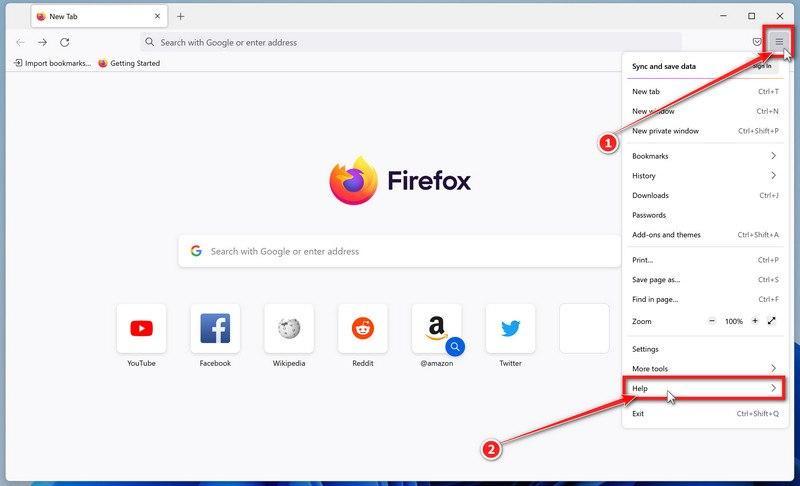
Open the Firefox menu and click “Help”
Click the three horizontal lines in the top-right corner of Firefox to open the main menu, then select “Help“.
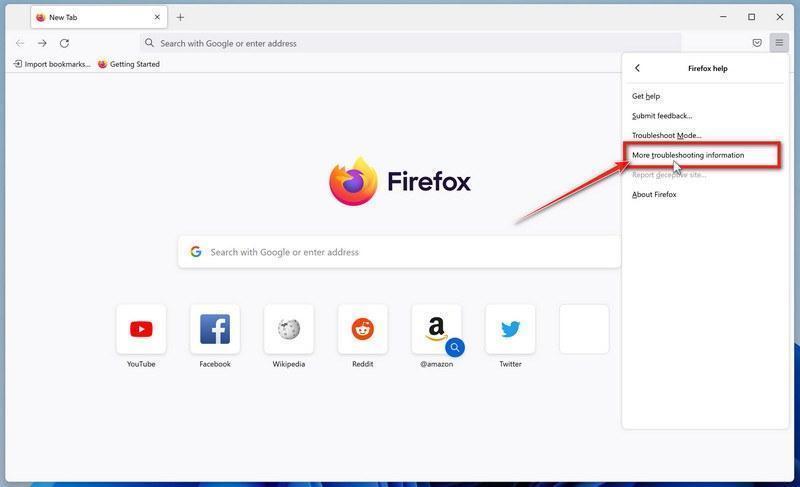
Click “More troubleshooting information”
In the Help menu, click “More troubleshooting information“.
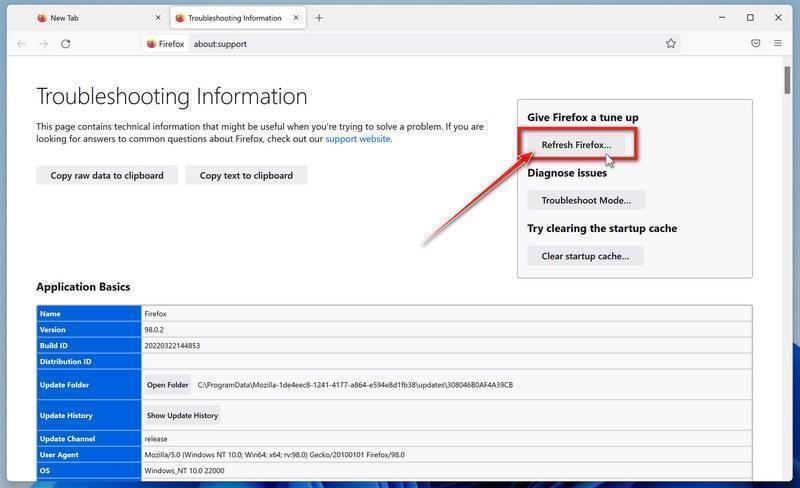
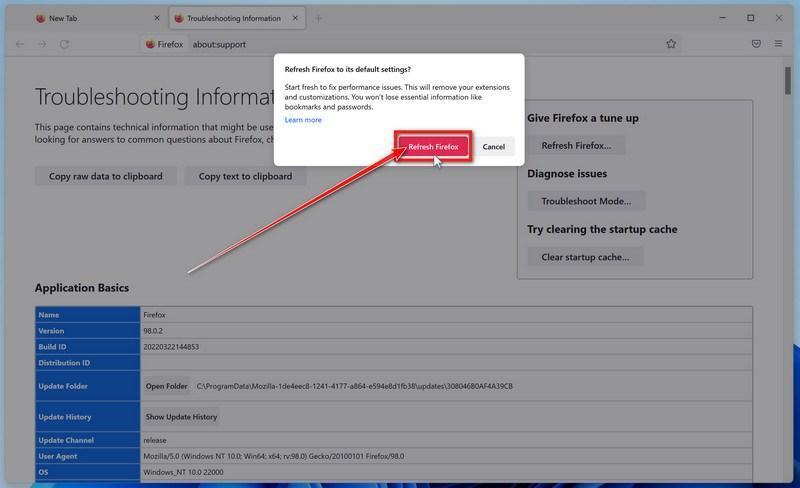
Click “Refresh Firefox”
On the “Troubleshooting Information” page, click the “Refresh Firefox” button in the top-right area of the page.
Confirm the refresh
In the confirmation window, click “Refresh Firefox” again. This removes extensions, themes, and customized settings — the usual hiding places for browser hijackers — while keeping your bookmarks, history, and saved passwords safe.
Click “Finish”
Firefox will close, reset itself to default settings, and reopen with a window listing the information that was restored. Click “Finish” — your Firefox is now clean.
About the “Old Firefox Data” folder: Firefox saves a copy of your old profile on your desktop. If something you need is missing after the reset, you can recover it from this folder. Otherwise, delete the folder — it contains sensitive data like passwords and cookies, and may also still hold the malicious files you just removed.
Reset Microsoft Edge to default settings
We will now reset your Microsoft Edge browser settings to their default. This will reset your startup page, new tab page, search engine, and pinned tabs. It will also disable all extensions and clear temporary data like cookies. Your favorites, history, and saved passwords will not be cleared.
Updated for Microsoft Edge on Windows 10 and Windows 11 — July 2026.
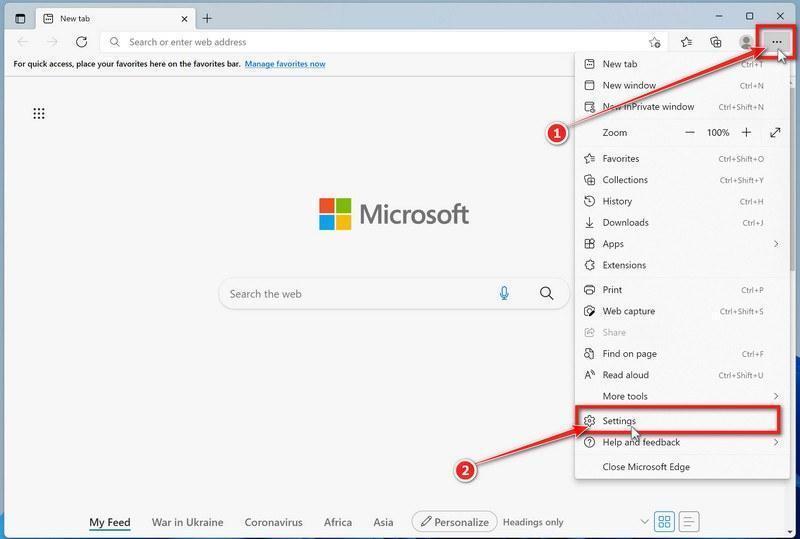
Open the Edge menu and click “Settings”
Open Microsoft Edge. In the top-right corner, click the three-dot (…) icon, then click Settings.
Prevent the unwanted settings from returning through Edge Sync
If you are signed in to Microsoft Edge, a bad setting or extension may be stored in your Microsoft account and return after the reset.
Copy the following address, paste it into the Edge address bar, and press Enter:
edge://settings/profiles/sync
On the Sync page, turn off these two options:
Settings
Extensions
You can leave Favorites and Passwords turned on.
If Edge says that sync is already off, simply continue to the next step.
Important: Edge Sync settings are separate for each profile. If you use more than one Edge profile, switch to each affected profile and repeat this step.
You do not need to sign out of your Microsoft account or delete the Edge profile.
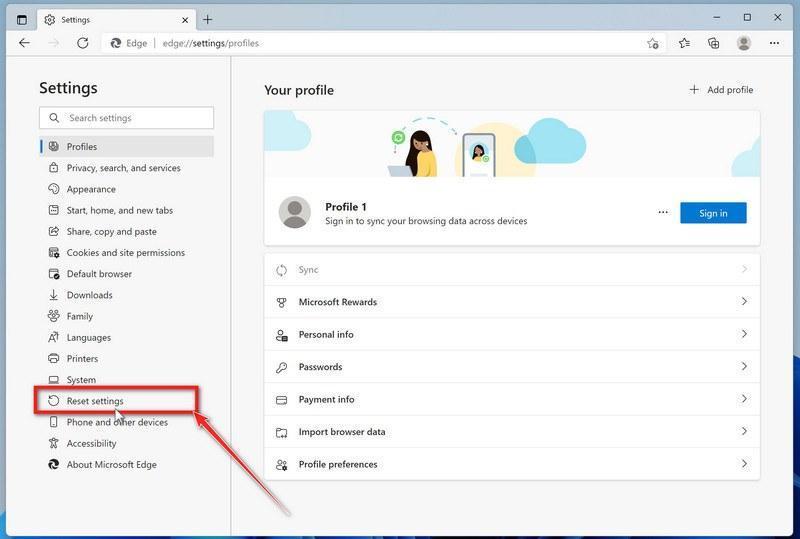
Open “Reset settings”
In the left sidebar, click Reset settings.
You can also open the reset page directly. Copy the following address, paste it into the Edge address bar, and press Enter:
edge://settings/reset
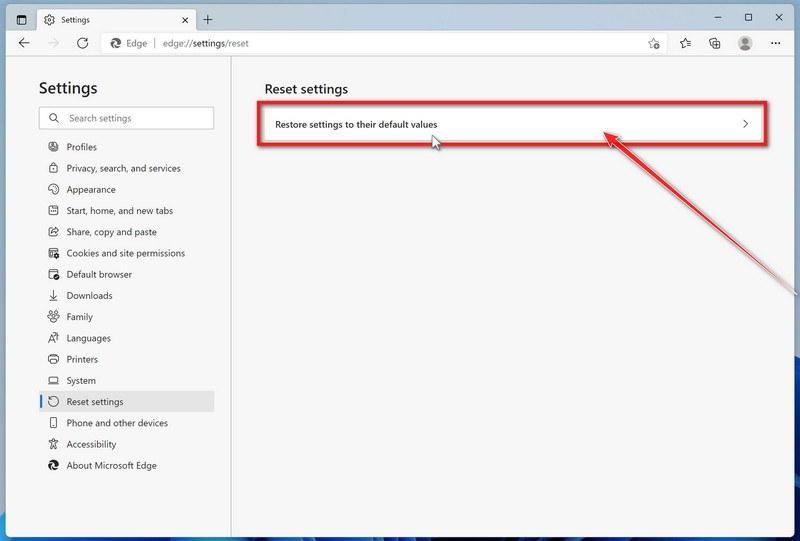
Click “Restore settings to their default values”
Click Restore settings to their default values.
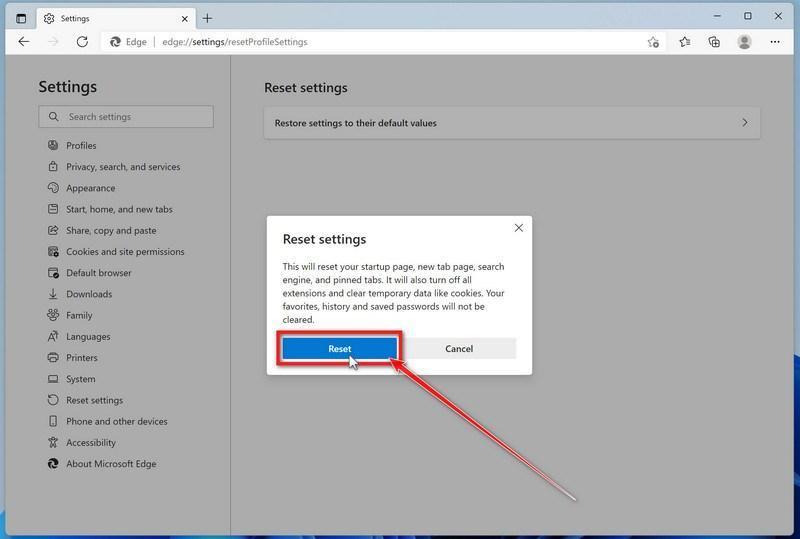
Confirm the reset
In the confirmation dialog, click Reset.
This resets the startup page, new tab page, search engine, and pinned tabs. It also disables all extensions and clears temporary site data, such as cookies.
Don’t worry: your favorites, browsing history, and saved passwords will not be deleted.
Check your extensions before turning them back on
Copy the following address, paste it into the Edge address bar, and press Enter:
edge://extensions
Remove any extension you do not recognize or no longer use. Pay particular attention to extensions related to search, coupons, shopping, PDF conversion, browser protection, new tabs, or video downloading.
Do not turn all extensions back on at the same time. Enable only the extensions you recognize and trust.
Select a trusted search engine
Copy the following address, paste it into the Edge address bar, and press Enter:
edge://settings/searchEngines
Select Bing, Google, DuckDuckGo, or another search provider you trust and make it the default.
Remove any unknown search engines, especially providers with strange names or addresses that you did not add yourself.
Restart Edge and perform a search from the address bar. If searches are no longer redirected, you can stop here.
If the redirect remains, clean the corrupted search data without deleting the Edge profile
Use this additional step only if Edge continues to redirect searches after the normal reset.
This command cleans the search-engine database from every local Edge profile while keeping your favorites, saved passwords, browsing history, cookies, and profiles.
Before continuing: save anything you are working on because the command will close Microsoft Edge.
Open the Windows Start menu.
Type PowerShell.
Open Windows PowerShell. Administrator access is not required.
Copy the entire command below.
Paste it into PowerShell and press Enter.
$stamp = Get-Date -Format "yyyyMMdd-HHmmss"
$root = Join-Path $env:LOCALAPPDATA "Microsoft\Edge\User Data"

Get-Process -Name msedge -ErrorAction SilentlyContinue |
    Stop-Process -Force -ErrorAction SilentlyContinue

Start-Sleep -Seconds 2

if (-not (Test-Path -LiteralPath $root)) {
    Write-Host "The Microsoft Edge profile folder was not found:"
    Write-Host $root
    return
}

$profiles = Get-ChildItem -LiteralPath $root -Directory |
    Where-Object {
        $_.Name -eq "Default" -or
        $_.Name -match "^Profile \d+$"
    }

$movedFiles = 0

foreach ($profile in $profiles) {
    foreach ($name in @(
        "Web Data",
        "Web Data-journal",
        "Web Data-wal",
        "Web Data-shm"
    )) {
        $file = Join-Path $profile.FullName $name

        if (Test-Path -LiteralPath $file) {
            $backup = "$file.search-reset-backup-$stamp"

            try {
                Move-Item -LiteralPath $file -Destination $backup -ErrorAction Stop
                Write-Host "Cleaned: $($profile.Name)\$name"
                $movedFiles++
            }
            catch {
                Write-Warning "Could not clean: $file"
            }
        }
    }
}

Write-Host ""

if ($movedFiles -gt 0) {
    Write-Host "Microsoft Edge search data has been cleaned." -ForegroundColor Green
    Write-Host "You can now reopen Microsoft Edge."
}
else {
    Write-Host "No Edge search database files were found." -ForegroundColor Yellow
}
The command does not permanently delete the original files. It renames them as backup files, and Edge creates a clean search database when it starts again.
Note: this additional cleanup may also reset saved form-fill suggestions, saved addresses, and manually added search engines. It does not delete favorites, passwords, or browsing history.
Reopen Edge and test the browser
Open Microsoft Edge again, visit edge://settings/searchEngines, and select your preferred search engine.
Perform several searches from the address bar to confirm that the redirect is gone.
Keep synchronization for Settings and Extensions turned off until you are certain that the computer and extensions are clean. If you enable them again, turn them on one at a time and test Edge after each change.
If Edge still redirects your searches
Open edge://policy. If this is your personal computer and Edge displays unknown policies such as ExtensionInstallForcelist or DefaultSearchProvider, the hijacker may be installed outside the browser profile.
In that situation, continue with the next malware-removal steps and run a complete antivirus scan. If the computer belongs to a company or school, contact its IT administrator before changing any policies.
Reset Internet Explorer to default settings
We will now reset your Internet Explorer browser settings to their default. You can reset Internet Explorer settings to return them to the state they were in when Internet Explorer was first installed on your computer.
Go to “Internet Options”.
Open Internet Explorer, click on the gear icon in the upper-right part of your browser, then select “Internet Options“.
Select the “Advanced” tab, then click “Reset”
In the “Internet Options” dialog box, select the “Advanced” tab, then click on the “Reset” button.
Click on “Reset”.
In the “Reset Internet Explorer settings” section, select the “Delete personal settings” checkbox, then click on the “Reset” button.
Click on “Close”.
When Internet Explorer has completed its task, click on the “Close” button in the confirmation dialogue box. Close your browser and then you can open Internet Explorer again.
STEP 3: Use Malwarebytes Anti-Malware to remove malware and unwanted programs
In this third step, we will install Malwarebytes to scan and remove any infections, adware, or potentially unwanted programs that may be present on your computer.
Malwarebytes is one of the most popular and trusted anti-malware tools for Windows — and it’s completely free for removing infections. It catches threats that many antivirus programs miss, including adware, browser hijackers, and trojans. Follow the steps below to scan and clean your PC in just a few minutes.
Download Malwarebytes
Click the button below to download the latest version of Malwarebytes for Windows from the official source. The free version is all you need — it will scan your computer and remove adware, browser hijackers, and other malicious software at no cost.
(The link opens in a new page where your download will start)
Install Malwarebytes
When the download finishes, open your Downloads folder and double-click the MBSetup file. If Windows shows a User Account Control pop-up, click “Yes” to allow the installation.
Follow the On-Screen Prompts to Install Malwarebytes
The setup wizard will walk you through a few quick screens:
Choose where you’re installing the program — “Personal Computer” or “Work Computer” — then click Next.
Malwarebytes will now install on your device. This usually takes under a minute.
When installation is complete, the “Welcome to Malwarebytes” screen will open automatically.
On the final screen, click Open Malwarebytes to launch the program.
Enable “Scan for Rootkits”
Before scanning, turn on rootkit detection so Malwarebytes can find even the most hidden threats. Click the Settings gear icon on the left side of the screen.
In the settings menu, find “Scan for rootkits” and click the toggle so it turns blue.
Done? Click “Dashboard” in the left pane to return to the main screen.
Start the Scan
Click the blue Scan button. Malwarebytes will automatically update its virus database and start checking your computer for malware.
Wait for the Scan to Finish
The scan checks your entire system for browser hijackers and other malicious programs, so it can take several minutes. Feel free to do something else — just check back occasionally to see the progress.
Quarantine the Detected Threats
When the scan is done, you’ll see a list of everything Malwarebytes found — malware, adware, and potentially unwanted programs. Click the “Quarantine” button to remove all of them at once.
Malwarebytes will now remove the malicious files and registry entries and move them safely into quarantine.
Restart Your Computer
Some threats can only be fully removed after a reboot. If Malwarebytes asks you to restart, click Yes. Once you’re logged back in, your PC is clean and you can continue with the next steps in this guide.
STEP 4: Use HitmanPro to scan your computer for badware
In this next step, we will scan the computer with HitmanPro to ensure that no other malicious programs are installed on your device.
HitmanPro is a second-opinion scanner — it’s designed to catch what your main antivirus might have missed. Instead of relying on a single detection engine, it checks the behavior of files in the locations where malware usually hides. Anything suspicious gets sent to the cloud, where it’s analyzed by two of the best antivirus engines available: Bitdefender and Kaspersky.
Good news: scanning is completely free, with no limits. You only need a license when it’s time to remove what was found — and even then, you can activate a free one-time 30-day trial to clean your PC at no cost. (A full license is $24.95 per year for 1 PC.)
Download HitmanPro
Click the button below to download HitmanPro. Remember — the scan is free, so you have nothing to lose by checking your PC.
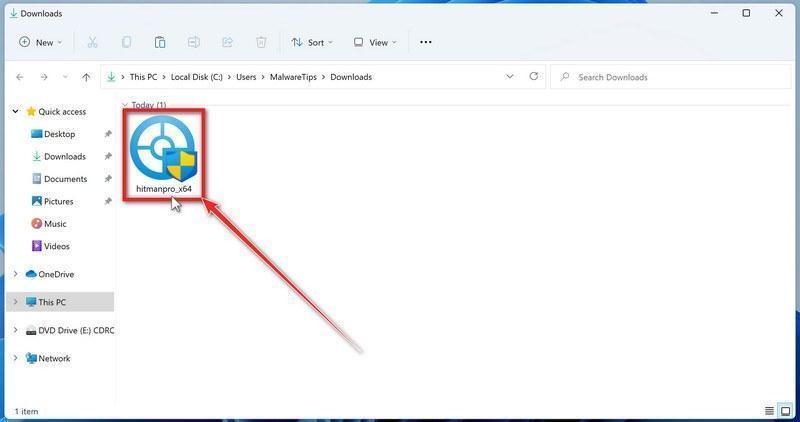
When the download finishes, open your Downloads folder and double-click the file: “hitmanpro.exe” on 32-bit Windows, or “hitmanpro_x64.exe” on 64-bit Windows.
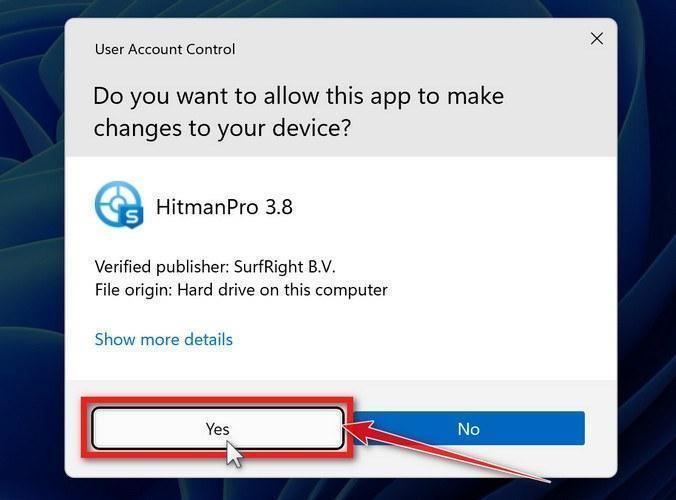
If a User Account Control pop-up asks whether HitmanPro can make changes to your device, click “Yes” to continue.
Follow the On-Screen Prompts
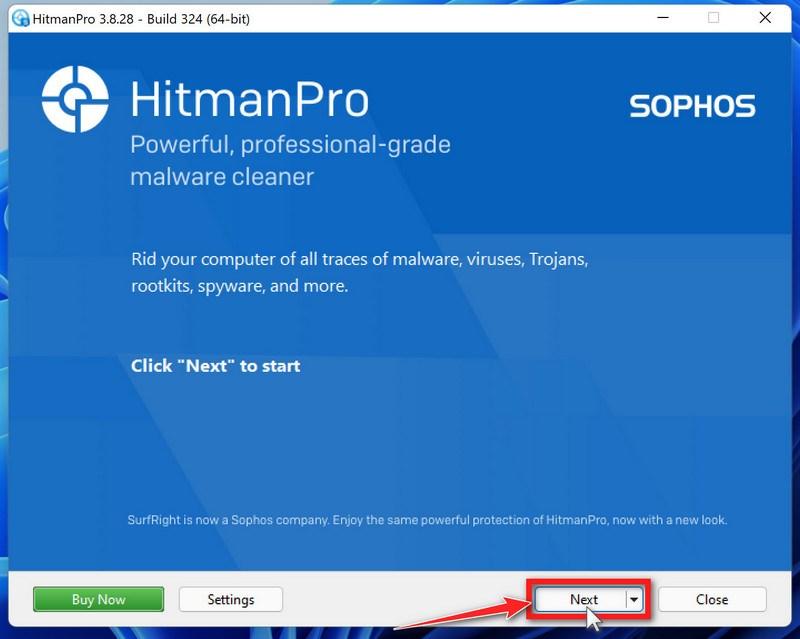
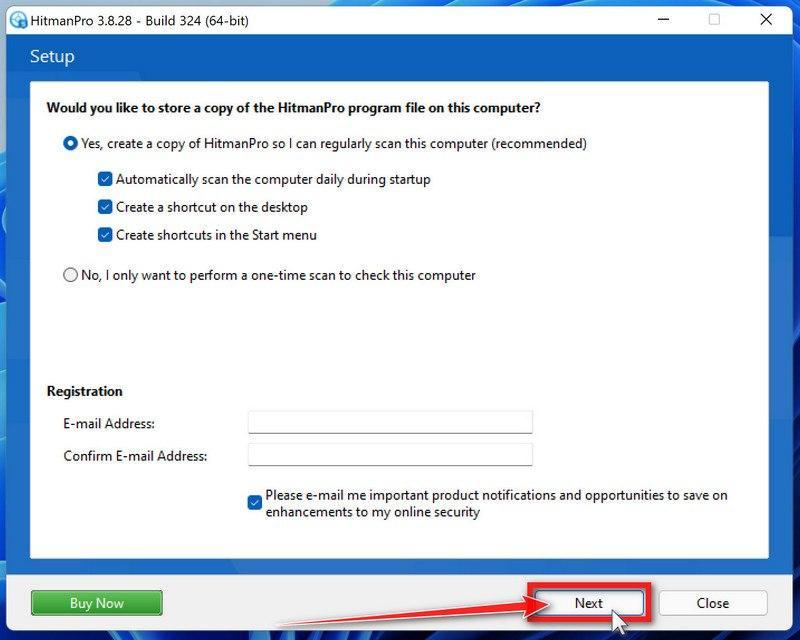
On the HitmanPro start screen, click “Next” to begin the system scan. No lengthy setup required — it goes straight to work.
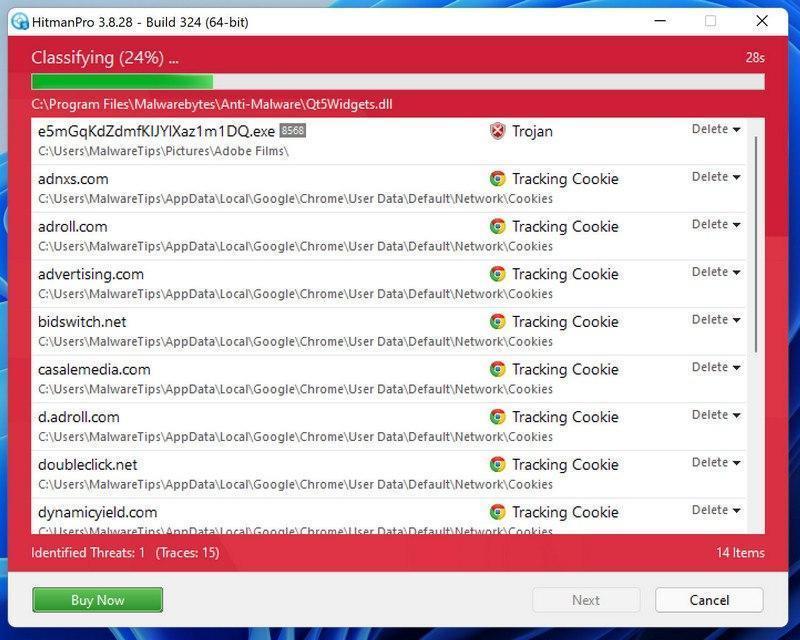
Wait for the Scan to Finish
HitmanPro will now check your computer for malicious programs. This usually takes just a few minutes thanks to its cloud-based scanning.
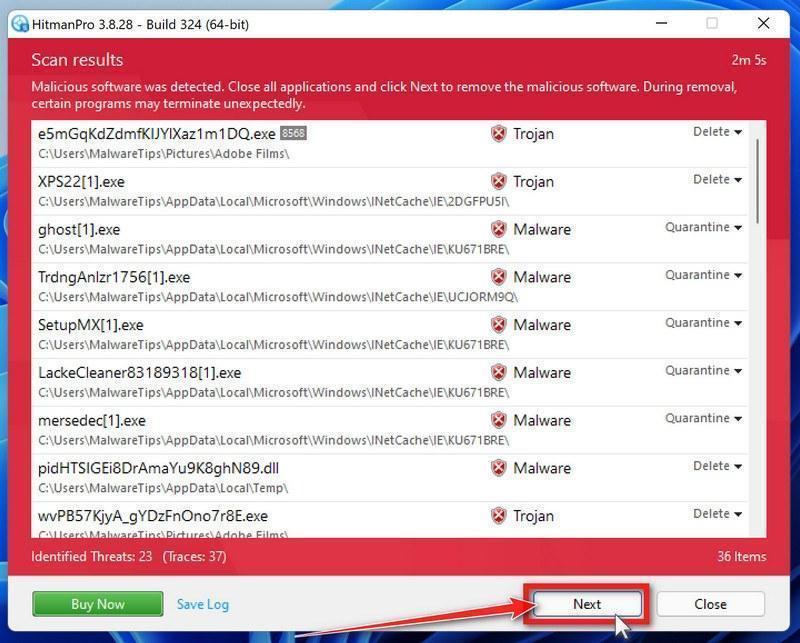
Review the Results and Click “Next”
When the scan is done, HitmanPro will show you everything it found. Click “Next” to remove the detected threats.
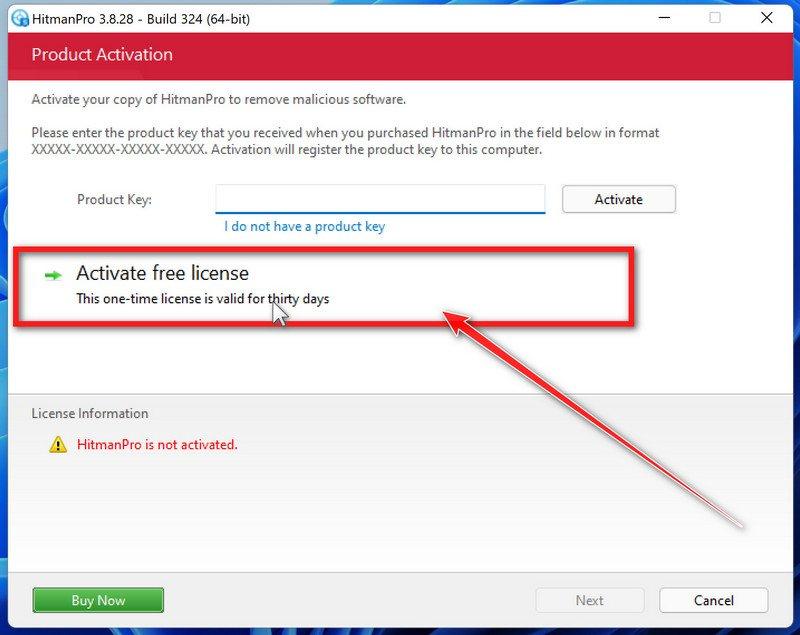
Click “Activate Free License”
To remove the malicious files, click the “Activate free license” button. This starts your free 30-day trial — no payment details needed — and unlocks the full cleanup.
When the removal is complete, HitmanPro will show a summary of everything it cleaned. Click Next, then click Reboot if prompted. If there’s no reboot prompt, just click Close — your PC is clean.
STEP 5: Use AdwCleaner to remove adware and malicious browser policies
In this final step, we will use AdwCleaner to remove the malicious browser policies that were set by browser hijackers on your computer and delete malicious browser extensions.
AdwCleaner is a free on-demand scanner that specializes in adware, browser hijackers, and unwanted toolbars — the exact threats that mainstream antivirus programs often miss. It also includes tools that repair the damage malware leaves behind, like hijacked browser settings and malicious policies. It’s a quick scan that’s well worth running.
Download AdwCleaner
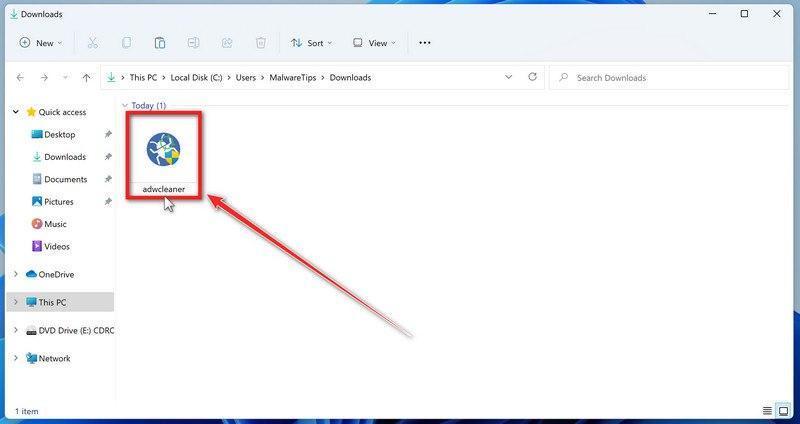
Click the button below to download AdwCleaner — it’s free, portable, and requires no installation.
Open your Downloads folder and double-click the file named “adwcleaner_x.x.x.exe“. There’s no installation — the program starts right away.
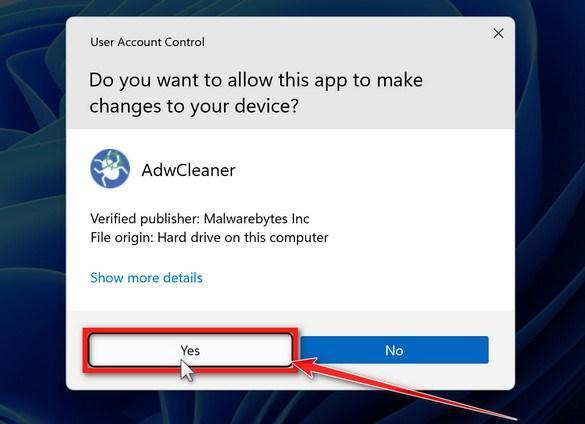
If Windows asks whether you want to allow AdwCleaner to run, click “Yes“. When the license agreement appears, click I agree to continue.
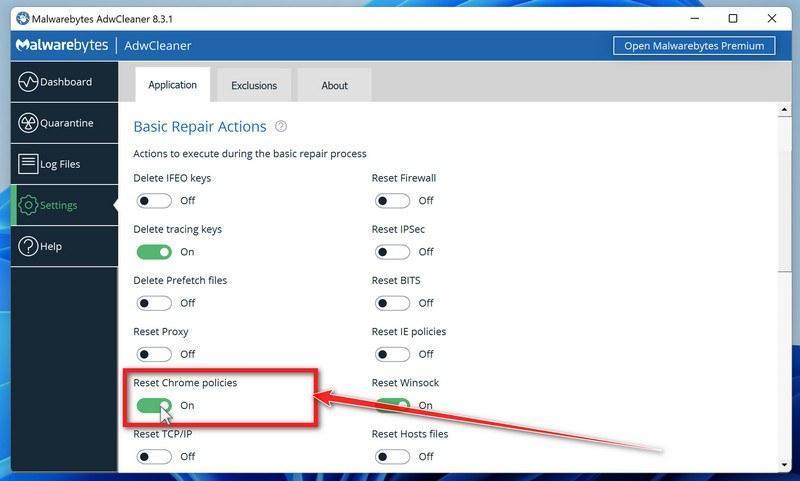
Enable “Reset Chrome policies”
This setting removes malicious browser policies — a trick malware uses to lock your browser settings so you can’t change them back. Click “Settings” on the left side of the window, then turn on “Reset Chrome policies“.
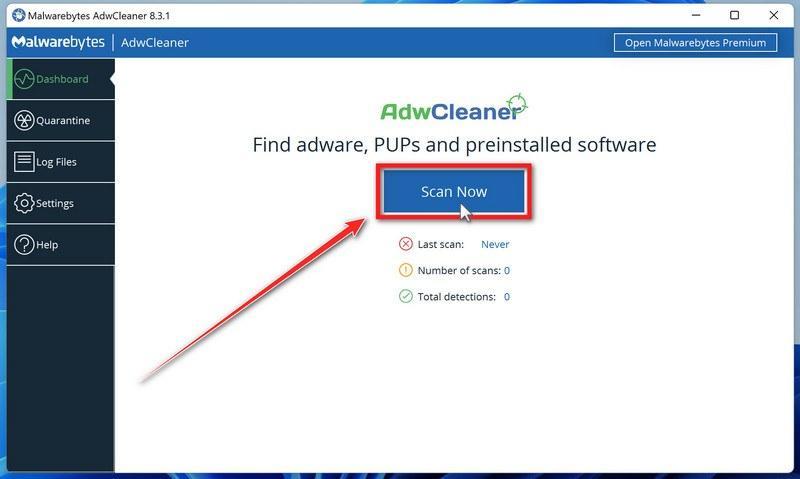
Start the Scan
Click “Dashboard” on the left side of the window, then click the “Scan” button.
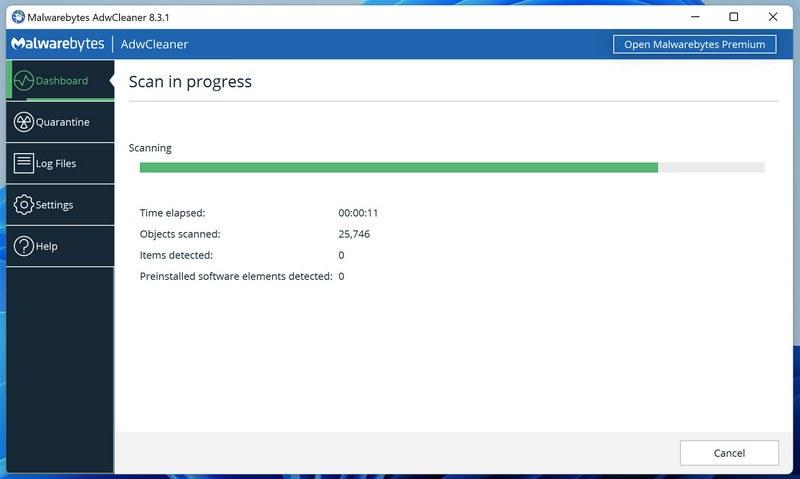
Wait for the Scan to Finish
AdwCleaner will now check your computer for adware and other malware. This usually takes only a few minutes — it’s one of the fastest scanners around.
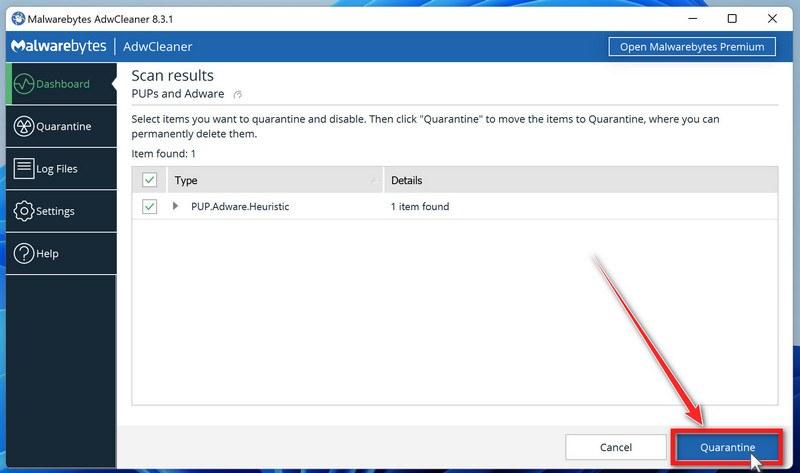
Quarantine the Detected Threats
When the scan finishes, AdwCleaner will list everything it found. Click the “Quarantine” button to remove all the malicious items at once.
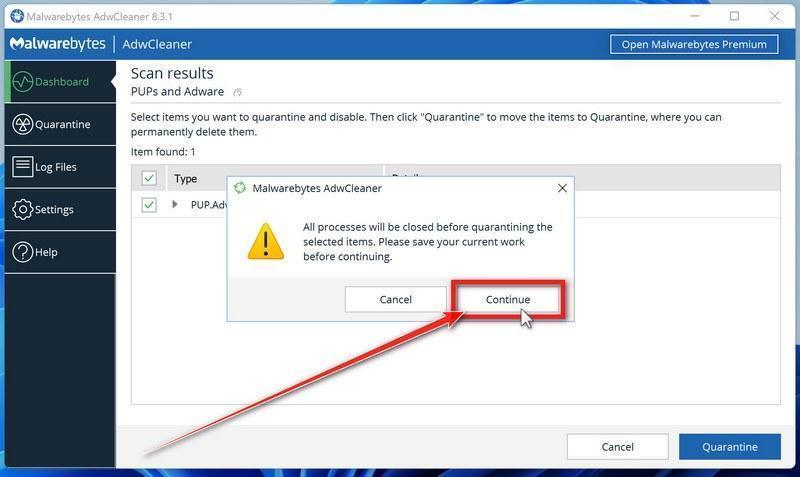
Click “Continue” to Finish the Cleanup
Save any open work first — AdwCleaner needs to close your open programs before it can clean. When you’re ready, click the “Continue” button.
AdwCleaner will now delete all detected malware from your computer. If it asks you to restart your PC, allow it — your computer will be clean when you log back in.
That’s it — your Windows computer is now clean. The unwanted apps, adware, and any other malware have been removed.
If your current antivirus allowed this malicious program on your computer, you may want to consider purchasing Malwarebytes Premium to protect against these types of threats in the future. If you are still having problems with your computer after completing these instructions, then please follow one of the steps:
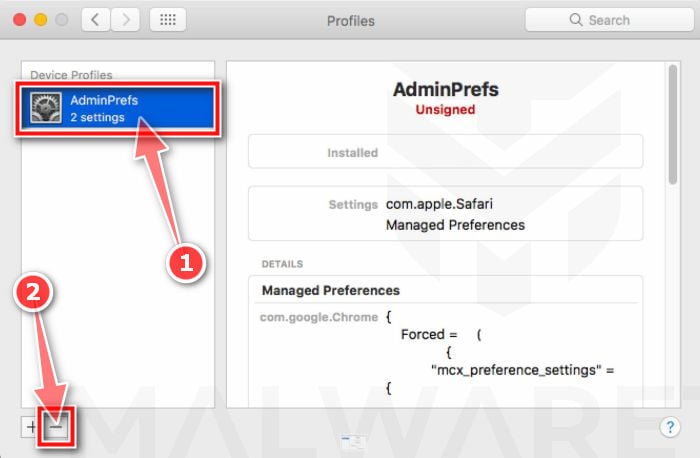
Profiles are used by IT admins in businesses to control the behavior of their Macs. These profiles can configure a Mac to do many different things, some of which are not otherwise possible. When it comes to home users, adware and browser hijackers are using the configuration profile to prevent users from removing malicious programs from the computer. This also prevents the user from changing that behavior in the browser’s settings.
In this first step, we will check your computer to see if any configuration profiles are installed. To do this, follow the below steps:
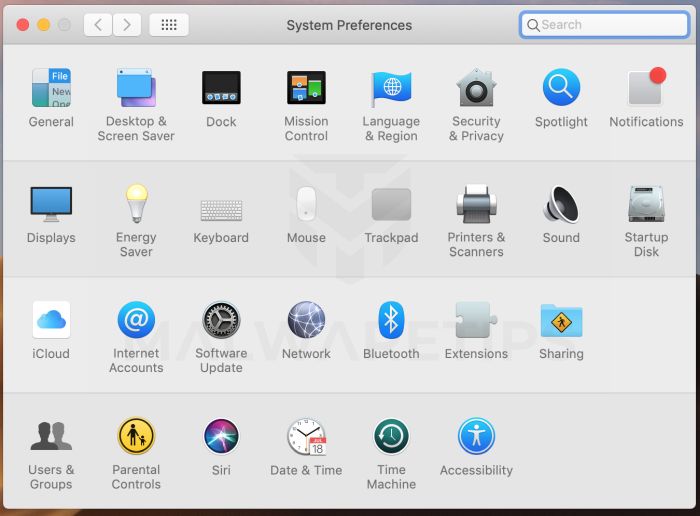
Open “System Settings”
From the Apple menu () in the top-left corner of the screen, select System Settings. (On macOS Monterey and earlier, this is called System Preferences.)
Look for “Profiles”
In the System Settings window, search for Profiles — on newer macOS versions you’ll find it under Privacy & Security, or you can type “Profiles” in the search box.
No Profiles section? Good news — that means no profiles are installed on your Mac, which is completely normal. Skip ahead to the next step of this guide.
Remove the malicious profiles
Malware uses configuration profiles to lock your browser settings — forcing a fake search engine or homepage on you and preventing you from changing it back. If you see a profile you don’t recognize (and your Mac isn’t managed by your workplace or school), select it, press the − (minus) button, and click Remove to confirm.
STEP 2: Delete malicious apps
In this second step, we will try to identify and remove any malicious apps and files that might be installed on your computer. Sometimes redirects or adware programs can have usable Uninstall entries that can be used to remove these programs.
Quit the malicious programs
Check the Apple menu bar in the top-right corner of your screen. If you see an icon you don’t recognize, click it and select Quit. This stops the malware from running so it can’t interfere while we remove it.
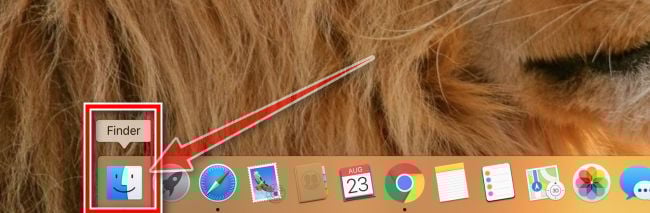
Open “Finder”
Click the Finder icon in your dock.
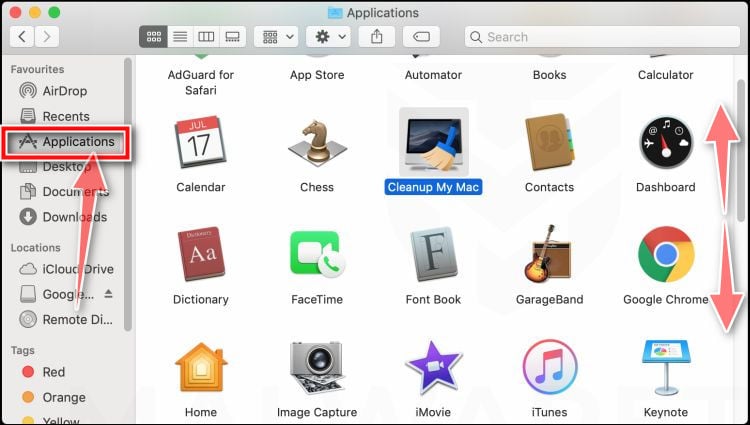
Click on “Applications”
In the Finder sidebar, click “Applications“.
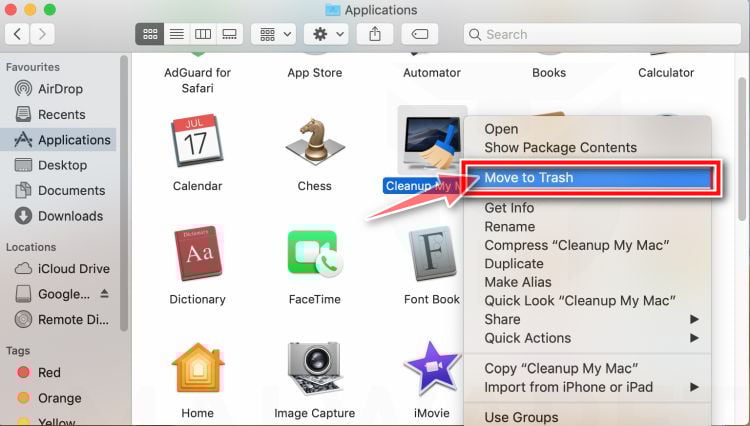
Find and remove the malicious app
Scroll through the list of installed apps and look for anything suspicious — an app you don’t remember installing, or one with a strange or generic name. When you find it, right-click it and select “Move to Trash“.
Some known malicious programs to look for: SearchMine, TakeFresh, TopResults, FeedBack, ApplicationEvents, GeneralOpen, PowerLog, MessengerNow, ImagePrime, GeneralNetSearch, Reading Cursors, GlobalTechSearch, PDFOnline-express, See Scenic Elf, MatchKnowledge, Easy Speedtest, and WebDiscover. The names change constantly, though — so treat any app you can’t account for as suspect.
Empty the Trash
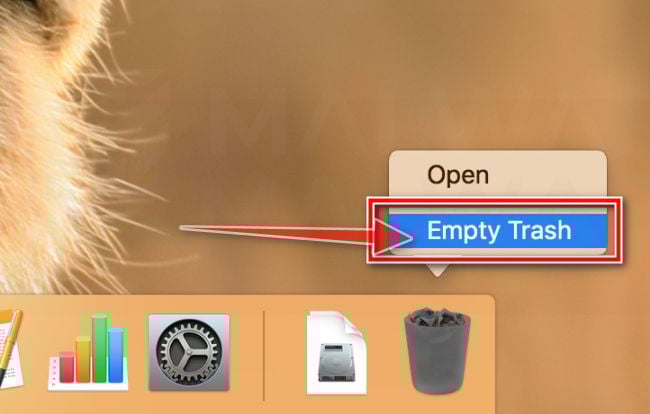
Right-click the Trash icon in your dock and select “Empty Trash“. This permanently deletes the malicious app you just removed — until you do this, the malware is still on your Mac.
Find and remove the malicious files
Malware on Mac uses launch agents and launch daemons — small files that automatically restart the malware every time you boot your Mac. We’ll check the four folders where they hide:
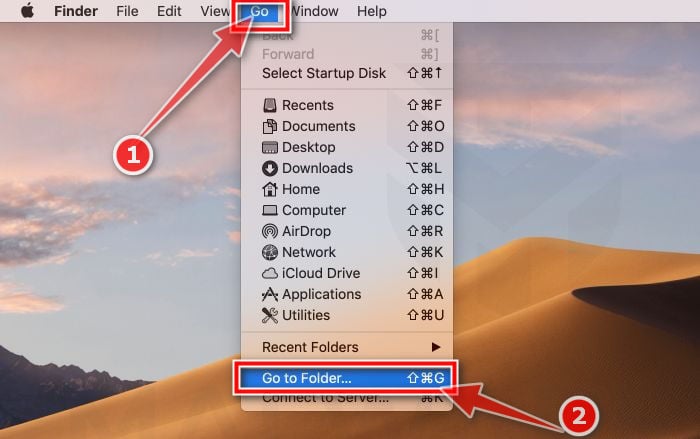
Click the desktop to make sure you’re in Finder, then open the “Go” menu and click “Go to Folder“.
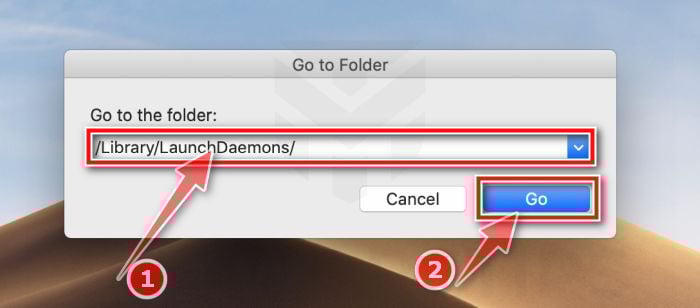
Copy and paste each of the paths below into the window, one at a time, and click Go after each:
/Library/LaunchAgents
~/Library/LaunchAgents
/Library/Application Support
/Library/LaunchDaemons
In each folder, look for suspicious .plist files — typically named after the malware or with odd, random-looking names. Some known examples: “com.adobe.fpsaud.plist”, “installmac.AppRemoval.plist”, “myppes.download.plist”, “mykotlerino.ltvbit.plist”, and “com.myppes.net-preferences.plist”. When you find a malicious file, move it to the Trash — then empty the Trash again when you’re done.
Be careful: these folders also contain files belonging to legitimate apps — especially /Library/Application Support, where programs like Adobe, Google, and Microsoft store their data. Only delete files you’re confident are malicious. If you’re unsure about a file, search its exact name online first — or skip it; the Malwarebytes scan in the next step will catch what you miss.
STEP 3: Reset browsers back to default settings
In this third step, we will remove spam push notifications and malicious extensions, and change to default any settings that might have been changed by malware. For each browser that you have installed on your computer, please click on the tab below and follow the displayed steps to reset that browser.
Safari BrowserChrome for Mac BrowserFirefox for Mac Browser
Remove malicious extensions and settings from Safari
To remove malware from Safari we will check if there are any malicious extensions installed on your browser and what settings have been changed by this malicious program.
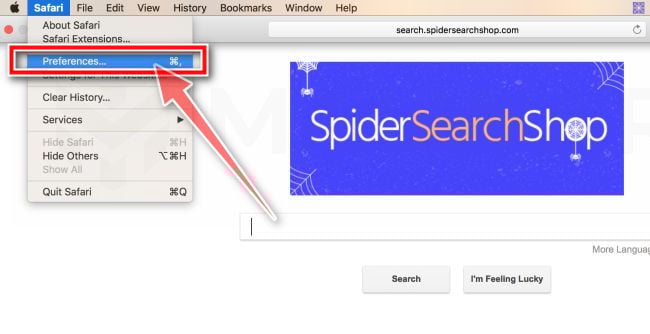
Go to Safari’s “Preferences”.
On the menu bar, click the “Safari” menu and select “Preferences”.
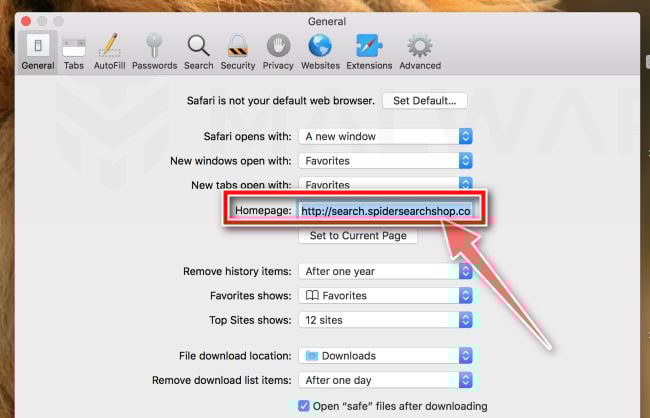
Check Homepage.
This will open a new window with your Safari preferences, opened to the “General” tab. Some browser hijackers may change your default homepage, so in the Homepage field make sure it’s a web page you want to use as your start-up page.
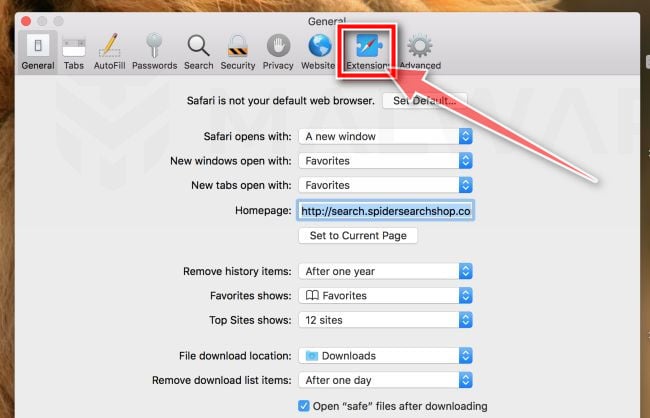
Click “Extensions”
Next, click on the “Extensions” tab.
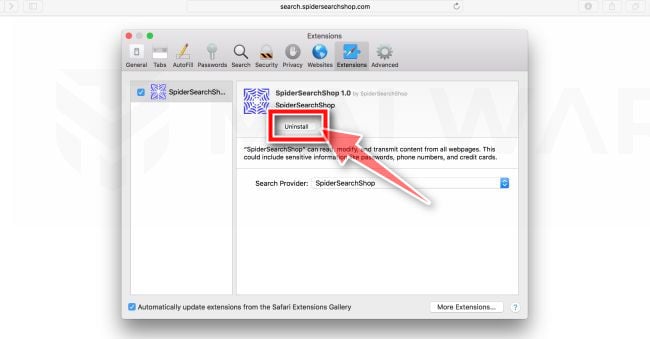
Find and uninstall malicious extensions.
The “Extensions” screen will be displayed with a list of all the extensions installed on Safari. Look out for any suspicious browser extension that could be behind all the drama – anything you don’t remember downloading or that doesn’t sound like a genuine extension. By default, there are no extensions installed on Safari so it’s safe to remove an extension
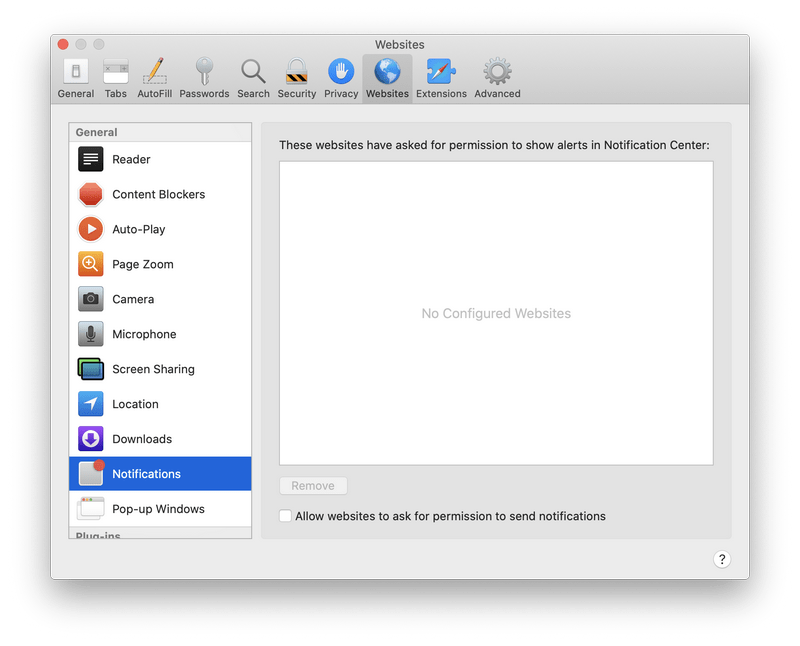
Remove spam notifications ads
Click Preferences, click Websites, then click Notifications. Deselect “Allow websites to ask for permission to send push notifications”.
Remove all data stored by websites on your computer.
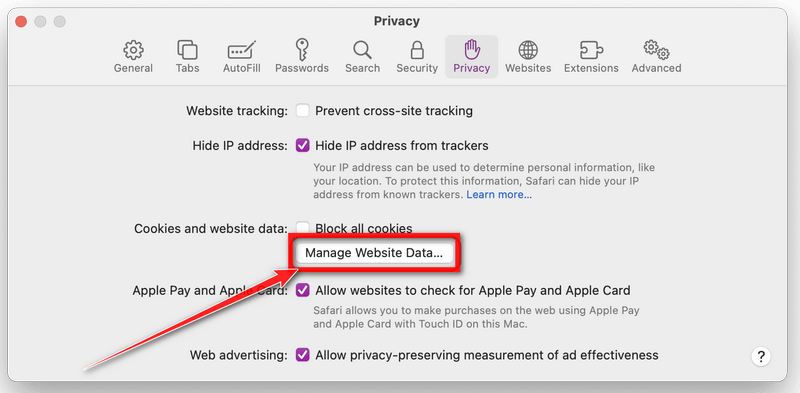
In the Safari menu, choose “Preferences…”, select “Privacy” at the top of the new window that appears, and then click the “Manage Website Data” button.
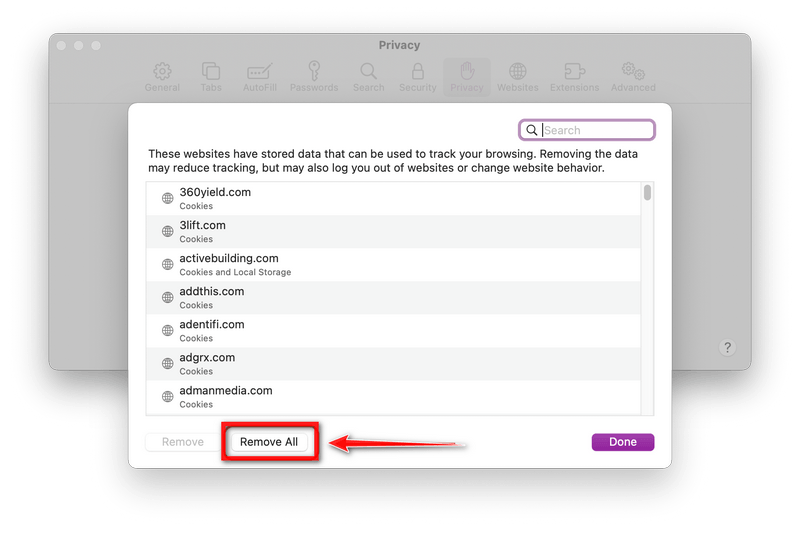
In the next dialog box, click “Remove All“. It will ask you if you are sure you want to remove all data stored by websites on your computer. Select “Remove Now” to clear data that could be used to track your browsing.
Empty Safari Caches.
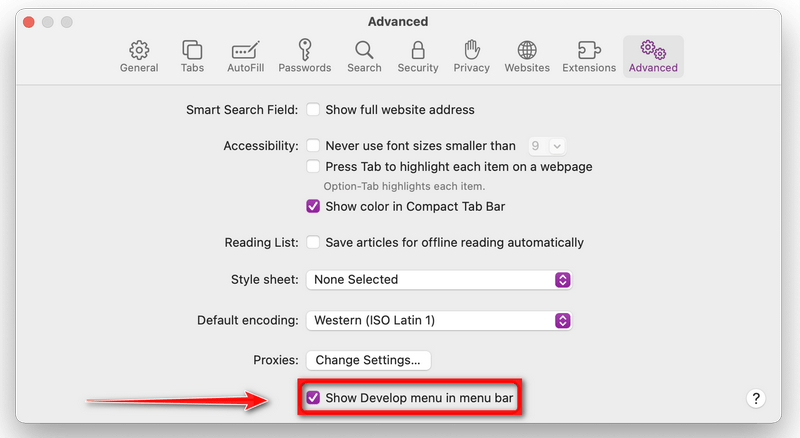
From your Safari menu bar, click Safari and select Preferences, then select the Advanced tab. Enable the checkbox to “Show Develop menu in menu bar“.
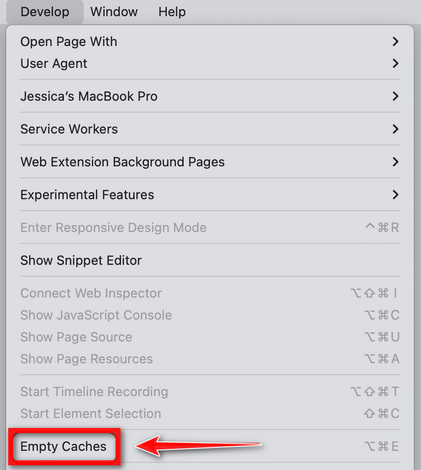
From the menu bar select Develop, then click on Empty Caches as seen in the image below.
Remove malware from Chrome for Mac
To remove malware from Chrome for Mac we will reset the browser settings to their default. Doing these steps will erase all configuration information from Chrome such as your home page, tab settings, saved form information, browsing history, and cookies. This process will also disable any installed extensions. All of your bookmarks, though, will be preserved.
Click on the three dots at the top right and go to Settings.
Click on Chrome’s main menu button, represented by three dots at the top right corner. Now click on the menu option labeled Settings as shown by the arrow in the picture below, which will open the basic settings screen.
In the left sidebar, click on the “Reset and Cleanup” option.
In the left sidebar, click on “Reset and clean up“.
Click “Reset settings to their original defaults”.
Now click on the “Reset settings to their original defaults”. link as shown in the image below.
Click “Reset Settings” button.
A confirmation dialog should now be displayed, detailing the components that will be restored to their default state should you continue with the reset process. To complete the restoration process, click on the “Reset Settings” button.
(Optional) Reset Chrome Data Sync.
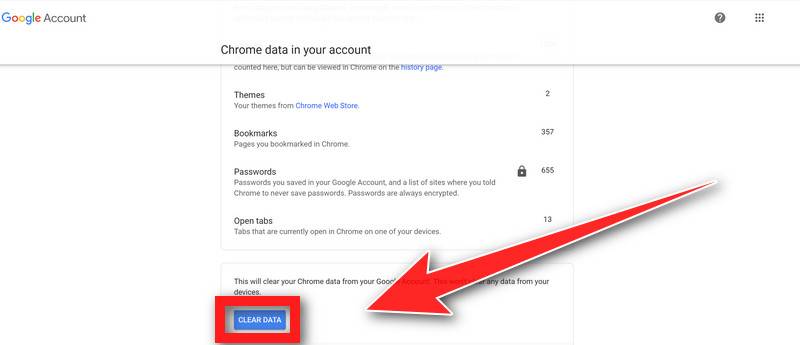
In case a malicious extension reinstalls itself even after performing a browser reset, you have an additional option to reset the data sync for your browser. To do this, navigate to chrome.google.com/sync and click on the Clear Data button.
Remove malware from Firefox for Mac
To remove malware from Firefox for Mac we will reset the browser settings to its default. The reset feature fixes many issues by restoring Firefox to its factory default state while saving your essential information like bookmarks, passwords, web form auto-fill information, browsing history, and open tabs.
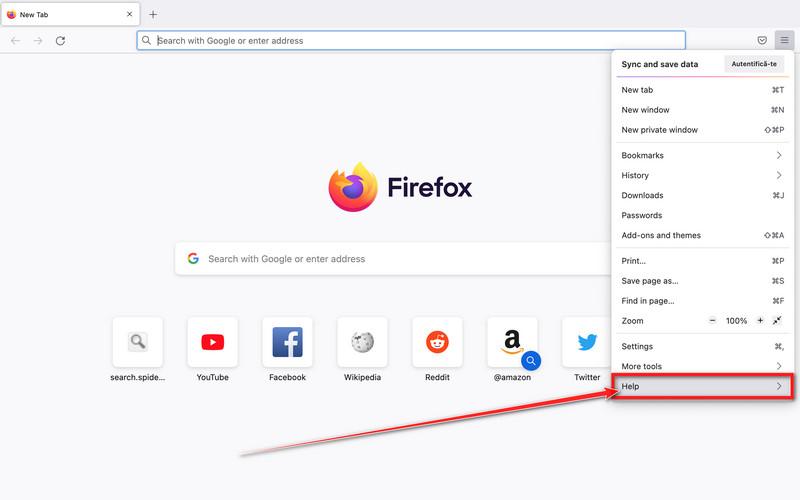
Go to the “Help” menu.
Click on Firefox’s main menu button, represented by three horizontal lines. When the drop-down menu appears, select the option labeled “Help“.
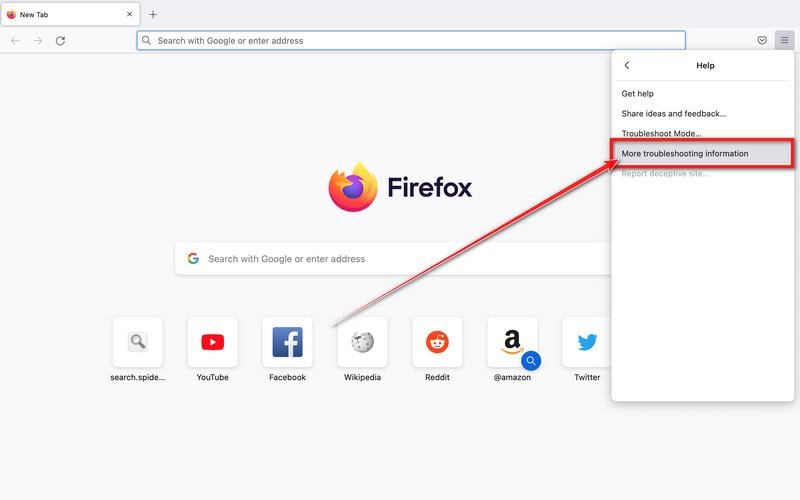
Click “Troubleshooting Information”.
Next click on the “Troubleshooting Information” option as indicated by the arrow in the image below. This will bring you to a Troubleshooting page.
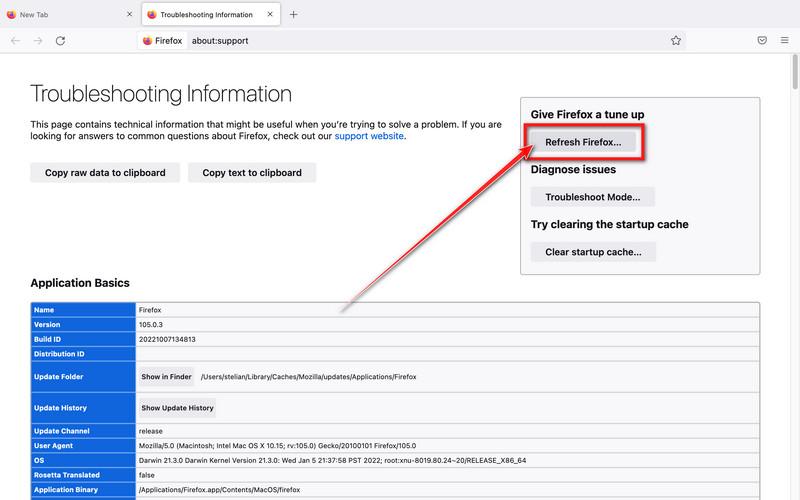
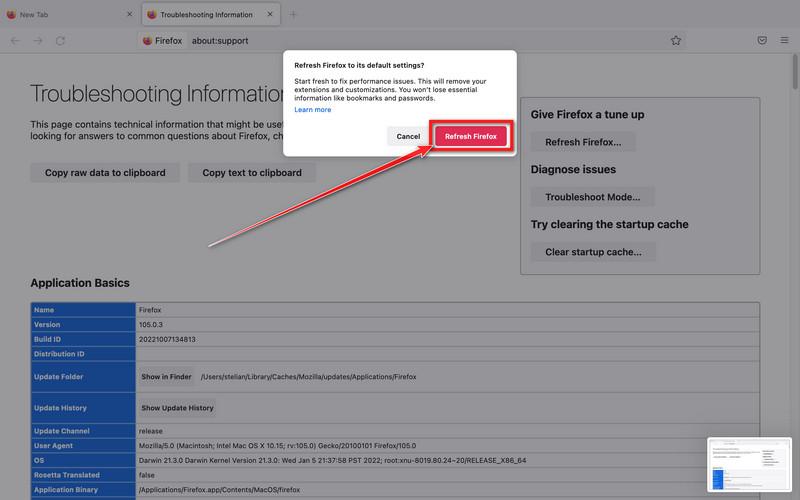
Click on “Refresh Firefox”
Click the “Refresh Firefox” button in the upper-right corner of the “Troubleshooting Information” page.
Confirm.
To continue, click on the “Refresh Firefox” button in the new confirmation window that opens.
Click on “Finish”.
Firefox will close itself and will revert to its default settings. When it’s done, a window will list the information that was imported. Click on the “Finish“.
Your old Firefox profile will be placed on your desktop in a folder named “Old Firefox Data“. If the reset didn’t fix your problem you can restore some of the information not saved by copying files to the new profile that was created. If you don’t need this folder any longer, you should delete it as it contains sensitive information.
STEP 4: Run a scan with Malwarebytes for Mac to remove malware
In this final step, we will scan the computer with Malwarebytes for Mac to find and remove any malicious programs that might be installed on your Mac.
Malwarebytes for Mac is a free on-demand scanner that removes the malware other security software tends to miss — adware, browser hijackers, and unwanted programs included. Cleaning an infected Mac with Malwarebytes has always been completely free, and it’s our go-to recommendation. Follow the steps below to scan and clean your Mac in just a few minutes.
Download Malwarebytes for Mac
Click the button below to download the latest version of Malwarebytes for Mac.
When the download finishes, open your Downloads folder and double-click the setup file to begin the installation.
Follow the On-Screen Prompts to Install Malwarebytes
The Malwarebytes for Mac Installer will guide you through a few quick screens. Click “Continue” and keep following the prompts until the installation completes.
When the installation is complete, Malwarebytes opens to the Welcome to Malwarebytes screen. Click “Get started“.
Select “Personal Computer” or “Work Computer”
Malwarebytes will ask what type of computer you’re installing it on. Click either Personal Computer or Work Computer, whichever applies.
Start the Scan
Click the “Scan” button. Malwarebytes will automatically update its detection database and begin checking your Mac for malware.
Wait for the Scan to Finish
Malwarebytes will scan your Mac for adware, browser hijackers, and other malicious programs. This can take a few minutes, so feel free to do something else — just check back occasionally to see the progress.
Quarantine the Detected Threats
When the scan is done, you’ll see a list of everything Malwarebytes found. Click the “Quarantine” button to remove all the threats at once.
Restart Your Mac
Malwarebytes will now remove all the malicious files it found. Some threats can only be fully removed after a reboot — if Malwarebytes asks you to restart, allow it. Once you’re logged back in, your Mac is clean.
That’s it — your Mac is now clean. The unwanted apps, adware, and any other malware have been removed.
If your current antivirus allowed a malicious program on your computer, you might want to consider purchasing the full-featured version of Malwarebytes Anti-Malware to protect against these types of threats in the future. If you are still experiencing problems while trying to remove a malicious program from your computer, please ask for help in our Mac Malware Removal Help & Support forum.
Remove Unwanted Apps and Malware from Android
Remove Unwanted Apps and Malware from Android
To remove unwanted apps and malware from your Android phone or tablet, follow these steps:
In this first step, we will check if any malicious apps are installed on your phone. Sometimes browser hijackers or adware apps can have usable Uninstall entries that can be used to remove these apps.
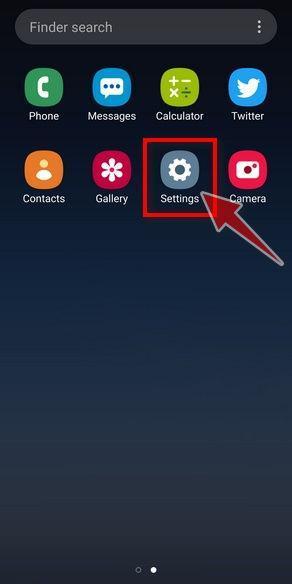
Open the “Settings” menu.
Tap on the “Settings” app from your phone menu or home screen.
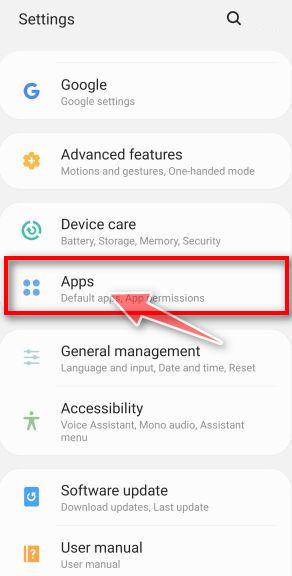
Tap on “Apps”.
When the “Settings” menu opens, tap on “Apps” (or “App Manager”) to see all the installed applications on your phone.
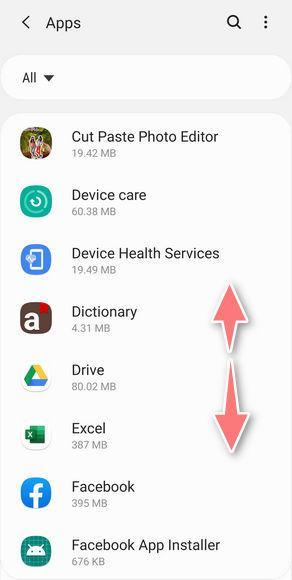
Find the malicious app.
The “Apps” screen will be displayed with a list of all the applications that are installed on your phone. Scroll through the list and look out for any suspicious app that could be behind all the drama – anything you don’t remember downloading or that doesn’t sound like a genuine program. Most often, cyber criminals hide malware inside video or photo editing apps, weather apps, and camera apps.
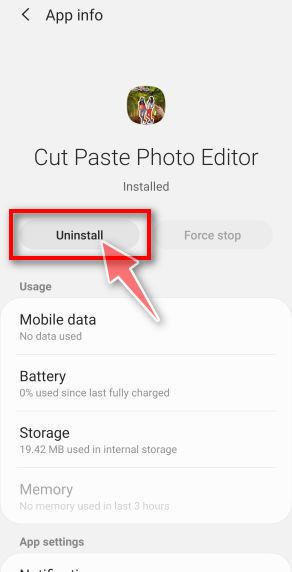
Uninstall the malicious app
When you find a suspicious or malicious app, tap on it to uninstall it. This won’t start the app but will open up the app details screen. If the app is currently running press the “Force stop” button, then tap on “Uninstall”.
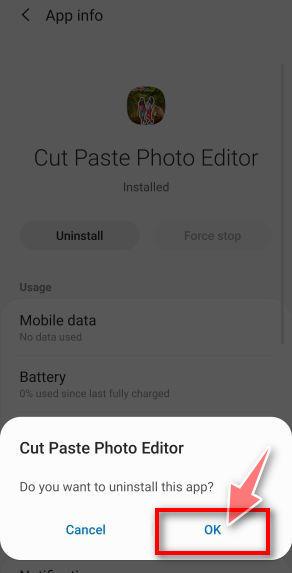
A confirmation dialog should be displayed to confirm you want to uninstall the app, tap on “OK” to remove the malicious app from your phone.
STEP 2: Reset browsers back to default settings
In this second step, we will reset your browser to its default settings to remove spam notifications, unwated search redirects, and restore its factory settings
Resetting the browser settings to their default it’s an easy task on Windows or Mac computers; however, when it comes to Android, this can’t be done directly because it’s not an option built-in into the browser settings. Restoring the browser settings on Android can be done by clearing the application data. This will remove all the cookies, cache, and other site settings that may have been saved. So let’s see how we can restore your browser to its factory settings.
Chrome for AndroidFirefoxOperaSamsung Internet BrowserMicrosoft Edge
Remove malware from Chrome for Android
To reset Chrome for Android to its default settings, follow the below steps:
Open the “Settings” menu.
Tap on the “Settings” app from your phone menu or home screen.
Tap on “Apps”.
When the “Settings” menu opens, tap on “Apps” (or “App Manager”) to see all the installed applications on your phone.
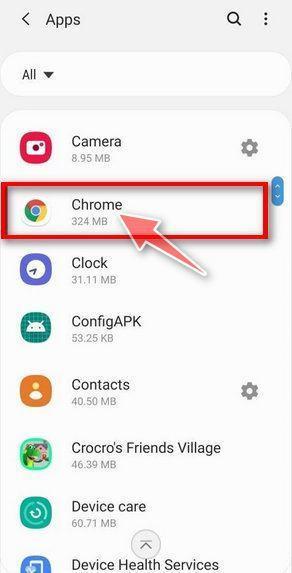
Find and tap on Chrome.
The “Apps” screen will be displayed with a list of all the apps installed on your phone. Scroll through the list until you find the Chrome app, then tap on it to open the app’s details.
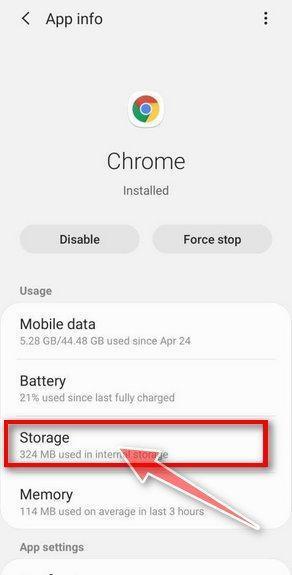
Tap “Storage”.
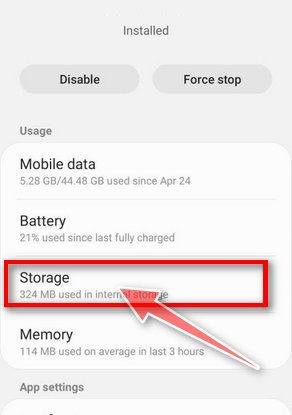
When Chrome’s app info menu is displayed, tap on “Storage“.
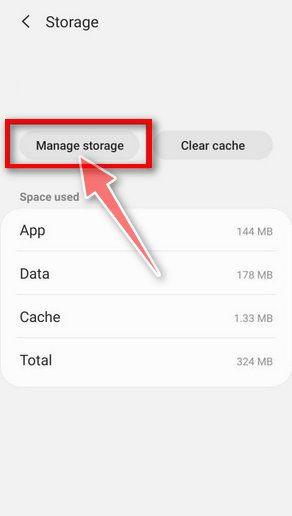
Tap “Manage Space”.
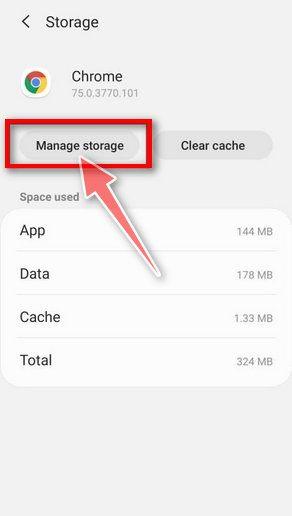
Under the storage settings, you will get two options — Manage Space and Clear Cache. Tap on “Manage Space“.
Tap “Clear all data”.
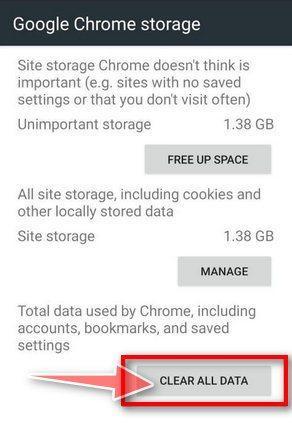
Tap “Clear all data” to delete all Chrome’s data including accounts, bookmarks, and your settings to reset the default settings.
Confirm by tapping “Ok”.
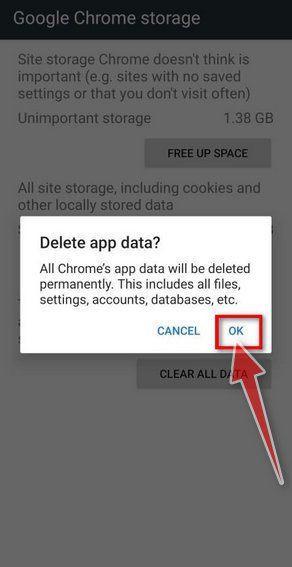
A confirmation dialog should now be displayed, detailing the components that will be restored to their default state should you continue with the reset process. To complete the restoration process, tap “Ok“.
Remove malware from Firefox for Android
To reset Firefox for Android to its default settings, follow the below steps:
Open the “Settings” menu.
Tap on the “Settings” app from your phone menu or home screen.
Tap on “Apps”.
When the “Settings” menu opens, tap on “Apps” (or “App Manager”) to see all the installed applications on your phone.
Find and tap on Firefox.
The “Apps” screen will be displayed with a list of all the apps installed on your phone. Scroll through the list until you find the Firefox app, then tap on it to open the app’s details.
Tap “Storage”.
When Firefox’s app info menu is displayed, tap on “Storage“.
Tap “Manage Space”.
Under the storage settings, you will get two options — Manage Space and Clear Cache. Tap on “Manage Space“.
Tap “Clear all data”.
Tap “Clear all data” to delete all Firefox data including accounts, bookmarks, and your settings to reset the default settings.
Confirm by tapping “Ok”.
A confirmation dialog should now be displayed, detailing the components that will be restored to their default state should you continue with the reset process. To complete the restoration process, tap “Ok“.
Remove malware from the Opera browser
To reset the Opera browser to its default settings, follow the below steps:
Open the “Settings” menu.
Tap on the “Settings” app from your phone menu or home screen.
Tap on “Apps”.
When the “Settings” menu opens, tap on “Apps” (or “App Manager”) to see all the installed applications on your phone.
Find and tap on Opera.
The “Apps” screen will be displayed with a list of all the apps installed on your phone. Scroll through the list until you find the Opera app, then tap on it to open the app’s details.
Tap “Storage”.
When Opera’s app info menu is displayed, tap on “Storage“.
Tap “Manage Space”.
Under the storage settings, you will get two options — Manage Space and Clear Cache. Tap on “Manage Space“.
Tap “Clear all data”.
Tap “Clear all data” to delete all Opera’s data including accounts, bookmarks, and your settings to reset the default settings.
Confirm by tapping “Ok”.
A confirmation dialog should now be displayed, detailing the components that will be restored to their default state should you continue with the reset process. To complete the restoration process, tap “Ok“.
Remove malware from Samsung Internet Browser
To reset the Samsung Internet Browser to its default settings, follow the below steps:
Open the “Settings” menu.
Tap on the “Settings” app from your phone menu or home screen.
Tap on “Apps”.
When the “Settings” menu opens, tap on “Apps” (or “App Manager”) to see all the installed applications on your phone.
Find and tap on Samsung Internet Browser.
The “Apps” screen will be displayed with a list of all the apps installed on your phone. Scroll through the list until you find the Samsung Internet Browser app, then tap on it to open the app’s details.
Tap “Storage”.
When the Samsung Internet Browser’s app info menu is displayed, tap on “Storage“.
Tap “Manage Space”.
Under the storage settings, you will get two options — Manage Space and Clear Cache. Tap on “Manage Space“.
Tap “Clear all data”.
Tap “Clear all data” to delete all Samsung Internet Browser’s data including accounts, bookmarks, and your settings to reset the default settings.
Confirm by tapping “Ok”.
A confirmation dialog should now be displayed, detailing the components that will be restored to their default state should you continue with the reset process. To complete the restoration process, tap “Ok“.
Remove malware from Microsoft Edge for Android
To reset the Microsoft Edge for Android to its default settings, follow the below steps:
Open the “Settings” menu.
Tap on the “Settings” app from your phone menu or home screen.
Tap on “Apps”.
When the “Settings” menu opens, tap on “Apps” (or “App Manager”) to see all the installed applications on your phone.
Find and tap on Microsoft Edge.
The “Apps” screen will be displayed with a list of all the apps installed on your phone. Scroll through the list until you find the Microsoft Edge app, then tap on it to open the app’s details.
Tap “Storage”.
When the Microsoft Edge’s app info menu is displayed, tap on “Storage“.
Tap “Manage Space”.
Under the storage settings, you will get two options — Manage Space and Clear Cache. Tap on “Manage Space“.
Tap “Clear all data”.
Tap “Clear all data” to delete all Microsoft Edge’s data including accounts, bookmarks, and your settings to reset the default settings.
Confirm by tapping “Ok”.
A confirmation dialog should now be displayed, detailing the components that will be restored to their default state should you continue with the reset process. To complete the restoration process, tap “Ok“.
STEP 3: Use Malwarebytes for Android to remove malicious apps
In this final step, we will install Malwarebytes for Android to scan and remove malicious apps from your phone or tablet.
Malwarebytes for Android automatically detects and removes dangerous threats like malware and ransomware so you don’t have to worry about your most-used device being compromised. Aggressive detection of adware and potentially unwanted programs keeps your Android phone or tablet running smooth.
Download Malwarebytes for Android.
You can download Malwarebytes for Android by clicking the link below.
In the Google Play Store, tap “Install” to install Malwarebytes for Android on your device.
When the installation process has finished, tap “Open” to begin using Malwarebytes for Android. You can also open Malwarebytes by tapping on its icon in your phone menu or home screen.
Follow the on-screen prompts to complete the setup process
When Malwarebytes will open, you will see the Malwarebytes Setup Wizard which will guide you through a series of permissions and other setup options. This is the first of two screens that explain the difference between the Premium and Free versions. Swipe this screen to continue. Tap on “Got it” to proceed to the next step. Malwarebytes for Android will now ask for a set of permissions that are required to scan your device and protect it from malware. Tap on “Give permission” to continue. Tap on “Allow” to permit Malwarebytes to access the files on your phone.
Update database and run a scan with Malwarebytes for Android
You will now be prompted to update the Malwarebytes database and run a full system scan.
Click on “Update database” to update the Malwarebytes for Android definitions to the latest version, then click on “Run full scan” to perform a system scan.
Wait for the Malwarebytes scan to complete.
Malwarebytes will now start scanning your phone for adware and other malicious apps. This process can take a few minutes, so we suggest you do something else and periodically check on the status of the scan to see when it is finished.
Click on “Remove Selected”.
When the scan has been completed, you will be presented with a screen showing the malware infections that Malwarebytes for Android has detected. To remove the malicious apps that Malwarebytes has found, tap on the “Remove Selected” button.
Restart your phone.
Malwarebytes for Android will now remove all the malicious apps that it has found. To complete the malware removal process, Malwarebytes may ask you to restart your device.
That’s it — your Android device is now clean. The malicious apps, adware, and browser redirects have been removed.
If your current antivirus allowed a malicious app on your phone, you may want to consider purchasing the full-featured version of Malwarebytes to protect against these types of threats in the future. If you are still having problems with your phone after completing these instructions, then please follow one of the steps:
Restore your phone to factory settings by going to Settings > General management > Reset > Factory data reset.
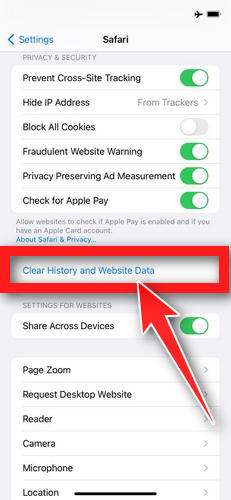
First, we’ll clean Safari using the built-in “Clear History and Website Data” feature. This removes your browsing history, cookies, and cached data — including the stored data that scam sites use to keep showing you pop-ups and redirects. Don’t worry: this won’t delete your photos, apps, or saved passwords.
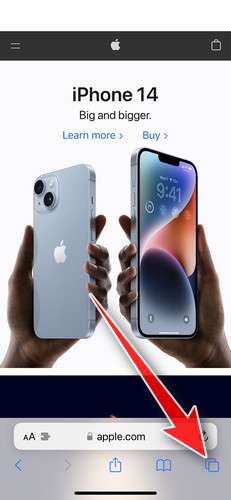
Don’t tap anything inside the scam page or pop-up — the buttons are designed to trick you. Instead, tap the tabs icon in the lower-right corner of Safari, as shown below.
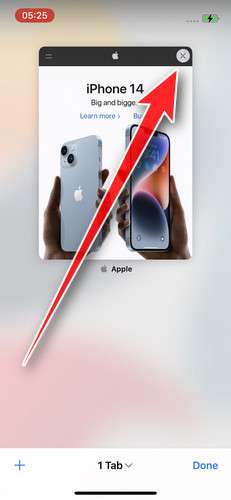
Tap the X on the malicious tab (or swipe it up) to close it safely.
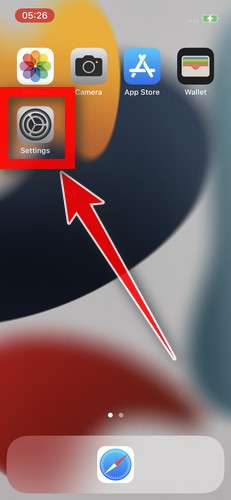
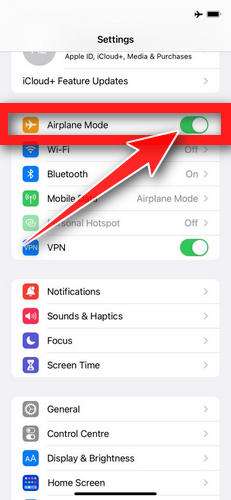
Open the Settings app.
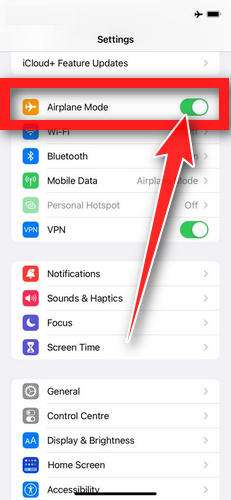
Turn on Airplane Mode. This temporarily disconnects your iPhone from the internet, so the scam site can’t load anything while we clean up. We’ll turn it back off at the end.
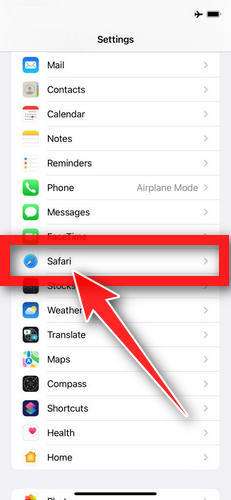
Scroll down and tap Safari.
Tap Clear History and Website Data.
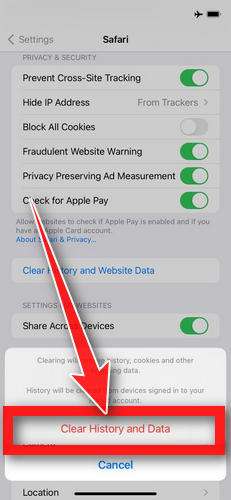
Confirm by tapping “Clear History and Data” in the pop-up.
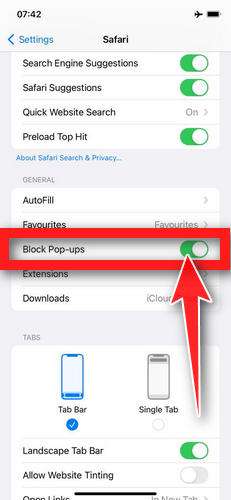
While you’re still in Safari settings, turn on Block Pop-ups and Fraudulent Website Warning. These two switches stop most scam pages before they can even load.
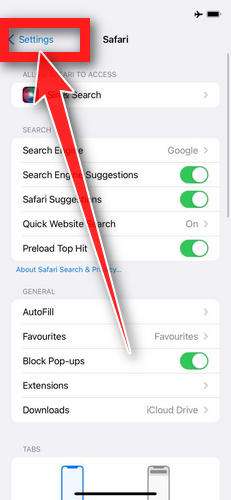
Tap Settings in the upper-left corner to return to the main Settings menu.
Turn Airplane Mode back off to reconnect your iPhone to the internet.
STEP 2: Delete unwanted apps
Next, we’ll remove any suspicious apps from your iPhone. If a shady website redirected you to the App Store and you installed an app — or you spot an app you don’t remember downloading — delete it now:
On the home screen, tap and hold the unwanted app’s icon until the icons start to wiggle.
Tap the minus (–) badge in the corner of the app icon, then tap Delete App. (On older iOS versions, this badge appears as an “X”.)
Confirm by tapping “Delete“.
That’s it — your iPhone is now clean and safe to use.
To stop these scam pages from coming back, we recommend installing an ad blocker like AdGuard. It blocks the malicious ads and redirects that cause these pop-ups in the first place.
Still having issues after completing these steps? Try one of the following:
Frequently Asked Questions about the Walmart Gift Card Scam
The Walmart gift card scam is a prevalent fraud that has victimized many online shoppers. If you’ve heard about this scam or want to learn how to avoid it, this FAQ will provide answers to the most common questions asked.
What exactly is the Walmart gift card scam?
The Walmart gift card scam is a fraud where scammers create fake websites and online ads promoting a gift card giveaway. The ads promise users the chance to win free Walmart gift cards worth hundreds of dollars. However, it is all a ploy to steal personal information and money from victims. There is no actual gift card giveaway.
How do scammers carry out the Walmart gift card scam?
Scammers create online ads and spoofed websites mimicking Walmart’s branding. The fake pages promise visitors they can win gift cards by completing a short survey. After entering personal details, victims are told to pay a small “shipping fee” to collect their prize. But it’s a trap to capture credit card information and enroll victims in unwanted subscription plans.
What techniques do scammers use to promote the fake Walmart gift card giveaway?
Scammers rely on social media ads, YouTube videos, SMS texts, pop-up ads, and spam emails to spread links to their fraudulent Walmart domains. They tailor the ads with eye-catching graphics and urgent messaging, trying to trick users into clicking through to the phishing sites.
What are some common flags that indicate a Walmart gift card offer is a scam?
Look for poor spelling and grammar, non-secure web addresses, requests for personal data, logos or branding that appears off, mandatory upfront fees, and monthly subscription plans buried in fine print. These are signs of a scam.
Will Walmart ever contact you demanding personal information or payment to receive a gift card prize?
No, legitimate contests from Walmart will never require your credit card or sensitive data to award prizes. Disregard any fake promotions that seem suspicious or ask for payments upfront. Only provide information through Walmart’s official website and social media accounts.
What should you do if you already entered your information on a Walmart gift card scam website?
Immediately contact your bank and card issuer to cancel your account if you submitted any financial information. Place fraud alerts, check your credit reports, and change compromised passwords. File complaints with the FTC, state attorney general, and Walmart to report the fraud.
Am I able to get my money back if I paid the shipping fees or unauthorized subscription charges?
While difficult, it is possible to dispute the charges and receive refunds from your bank if you are persistent. Call to explain it was fraudulent and provide evidence that the gift card offer was a scam. Many victims find success by continuously pressing their claims.
How can I spot the difference between legitimate and scam Walmart gift card promotions?
To identify real versus fake offers, go directly to Walmart’s website or official social media pages. Walmart will never request sensitive data for a chance to win a gift card. Be wary of third-party ads directing you offsite that look suspicious or too good to be true.
What steps can I take to avoid the Walmart gift card scam in the future?
Avoid clicking random online ads or text links. Use ad blockers to reduce malicious pop-ups. Don’t give personal or financial data for prize offers. Check URL spellings and branding closely. Only enter payment info on Walmart’s verified website when making actual purchases.
Hopefully this FAQ helps clarify how the Walmart gift card scam works and provides some best practices to avoid becoming a victim. Let me know if you need any clarification or have additional questions!
The Bottom Line on Avoiding the Walmart Gift Card Scam
Like many online scams, the Walmart Gift Card Giveaway fraud exploits people’s inherent desires to get something for nothing. By posing as legitimate giveaways or contests, these scammers trick users into handing over financial information and unknowingly signing up for recurring monthly fees.
Protect yourself by recognizing common red flags, using healthy skepticism when dealing with promotions that seem too good to be true, and taking steps to limit losses and undo damages if you do get caught in this fraud.
Walmart does award prizes to loyal customers, but will never ask you to pay money upfront or provide credit card details before sending a gift card prize. Be vigilant to avoid this years-long scam as you search for real giveaways and deals online and across social media platforms.
Stay safe! Let me know if you need me to expand on any part of this article or have additional questions about the Walmart gift card scam.
10 Rules to Avoid Online Scams
Here are 10 practical safety rules to help you avoid malware, online shopping scams, crypto scams, and other online fraud. Each tip includes a quick “if you already got hit” action.
Stop and verify before you click, log in, download, or pay.
Most scams win by creating urgency. Verify using a trusted method: type the website address yourself, use the official app, or call a known number (not the one in the message).
If you already clicked: close the page, do not enter passwords, and run a malware scan.
Keep your operating system, browser, and apps updated.
Updates patch security holes used by malware and malicious ads. Turn on automatic updates where possible.
If you saw a scary “update now” pop-up: close it and update only through your device settings or the official app store.
Use layered protection: antivirus plus an ad blocker.
Antivirus helps block malware. An ad blocker reduces scam redirects, phishing pages, and malvertising.
If your browser is acting weird: remove unknown extensions, reset the browser, then run a full scan.
Install apps, software, and extensions only from official sources.
Avoid cracked software, “keygens,” and random downloads. During installs, choose Custom/Advanced and decline bundled offers you do not recognize.
If you already installed something suspicious: uninstall it, restart, and scan again.
Treat links and attachments as untrusted by default.
Phishing often impersonates delivery services, banks, and popular brands. If it is unexpected, do not open attachments or log in through the message.
If you entered credentials: change the password immediately and enable 2FA.
Shop safely: research the store, then pay with protection.
Be cautious with brand-new stores, “closing sale” stories, and prices that make no sense. Prefer credit cards or PayPal for dispute options. Avoid wire transfers, gift cards, and crypto payments.
If you already paid: contact your card issuer or PayPal quickly to dispute the transaction.
Crypto rule: never pay a “fee” to withdraw or recover money.
Common patterns include fake profits, then “tax,” “gas,” or “verification” fees. Another is a “recovery agent” who demands upfront crypto.
If you already sent crypto: stop paying, save evidence (wallet addresses, TXIDs, chats), and report the scam to the platform used.
Secure your accounts with unique passwords and 2FA (start with email).
Use a password manager and unique passwords for every account. Enable 2FA using an authenticator app when possible.
If you suspect an account takeover: change passwords, sign out of all devices, and review recent logins and recovery settings.
Back up important files and keep one backup offline.
Backups protect you from ransomware and device failure. Keep at least one backup on an external drive that is not always connected.
If you suspect infection: do not connect backup drives until the system is clean.
If you think you are a victim: stop losses, document evidence, and escalate fast.
Move quickly. Speed matters for disputes, account recovery, and limiting damage.
Stop payments and contact: do not send more money or respond to the scammer.
Call your bank or card issuer: block transactions, replace the card if needed, and start a dispute or chargeback.
Secure your email first: change the email password, enable 2FA, and remove unfamiliar recovery options.
Secure other accounts: change passwords, enable 2FA, and log out of all sessions.
Scan your device: remove suspicious apps or extensions, then run a full malware scan.
Save evidence: screenshots, emails, order pages, tracking pages, wallet addresses, TXIDs, and chat logs.
Report it: to the payment provider, marketplace, social platform, exchange, or wallet service involved.
These rules are intentionally simple. Most online losses happen when decisions are rushed. Slow down, verify independently, and use payment methods and account controls that give you recourse.
Thomas is an expert at uncovering scams and providing in-depth reporting on cyber threats and online fraud. As an editor, he is dedicated to keeping readers informed on the latest developments in cybersecurity and tech.



 Remove Unwanted Apps and Malware from Windows
 Remove Unwanted Apps and Malware from Mac
 Remove Unwanted Apps and Malware from Android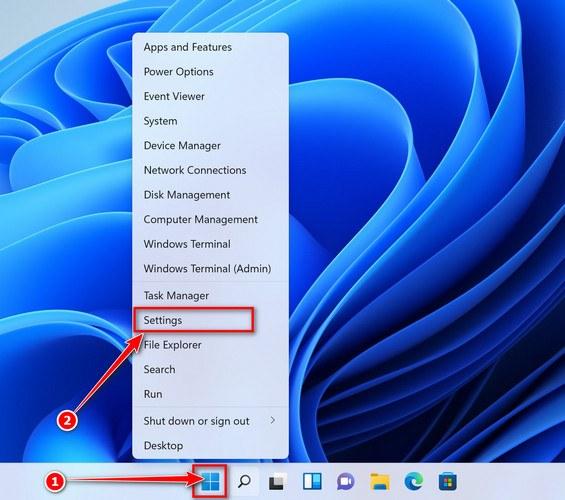
 Didn’t find any suspicious programs? That’s fine — not all infections install visible apps. Just continue with the next step in this guide.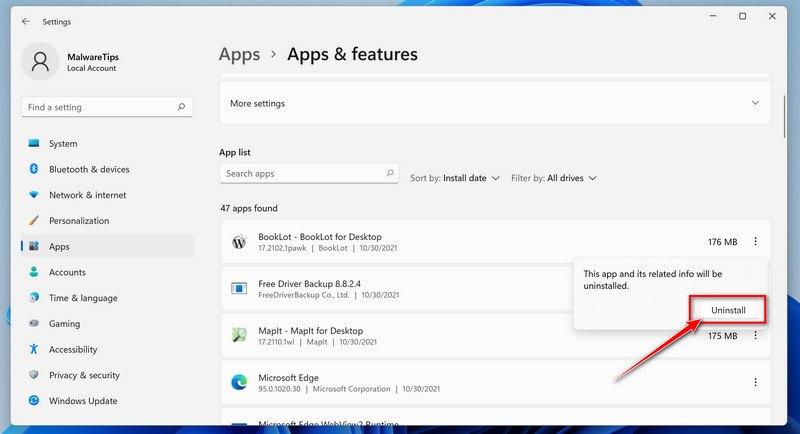
 Didn’t find any suspicious programs? That’s fine — not all infections install visible apps. Just continue with the next step in this guide.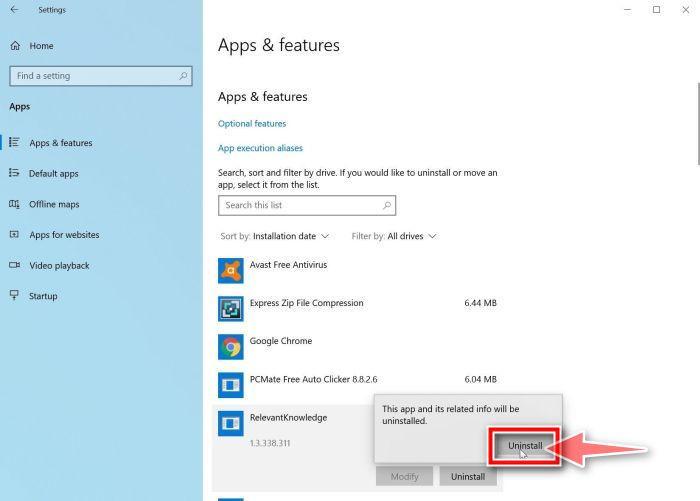
















 No Profiles section? Good news — that means no profiles are installed on your Mac, which is completely normal. Skip ahead to the next step of this guide.