

Babylon is an adware program that has changed your browser home page and default search engine to search.babylon.com.
Apart from this changes, Babylon has added a useless toolbar on your browser and whenever your are doing a search,it will display on the first search results their own ads.
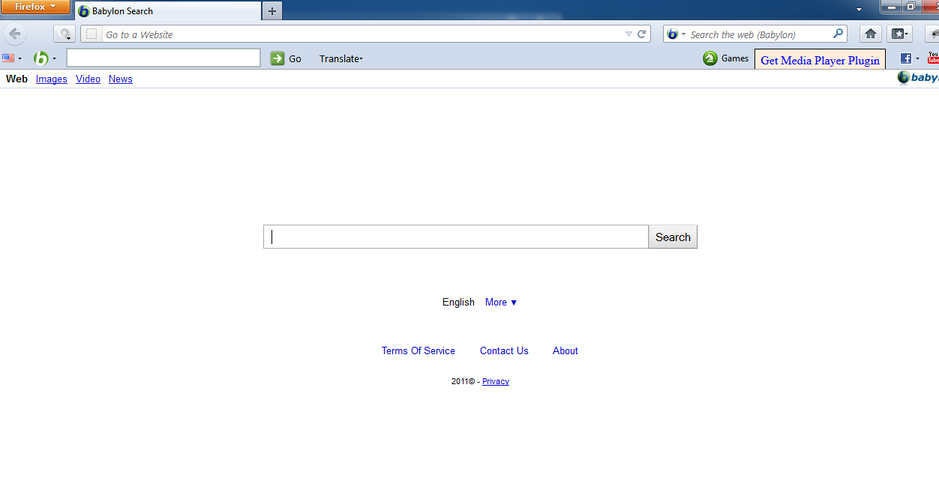
Babylon got on your computer after you have installed another program that had bundled in their installer the Babylon toolbar.Recently CNET has stared to bundled into some programs installer this unwanted application so this might be one of the sources of this program.
You should always pay attention when installing software because often, a software installer includes optional installs, such as this Babylon Toolbar. Be very careful what you agree to install. Always opt for the custom installation and deselect anything that is not familiar, especially optional software that you never wanted to download and install in the first place. It goes without saying that you should not install software that you don’t trust.
Removal Instructions for Babylon Toolbar
STEP 1 : Uninstall Babylon Search from your computer
- To uninstall Babylon Search program from your computer, click the Start button, then select Control Panel, and click on Uninstall a program.
If you are a Windows 8 user, you can right-click on a bottom left hot corner (formerly known as the Start button) and select Control panel from there, then select Uninstall a program. - Seach and uninstall Babylon, Babylon toolbar on IE, Yontoo, BrowserProtect and any other programs related to Babylon LTD.
![[Image: Uninstall Search Babylon ]](data:image/gif;base64,R0lGODlhAQABAAAAACH5BAEKAAEALAAAAAABAAEAAAICTAEAOw== "Remove Babylon Toolbar and \"Search the web (Babylon)\" 1")
![[Image: Uninstall Search Babylon ]](http://malwaretips.com/blogs/wp-content/uploads/2013/02/search-babylon-uninstall.png "Remove Babylon Toolbar and \"Search the web (Babylon)\" 1")
Please note that on some computers these programs might be renamed or missing, search for any program developed by Babylon LTD, and uninstall it from your computer.
STEP 2 : Remove the Babylon Search residual damage from your browser
Babylon has installed a browser extension, has changed your homepage to isearch.babylon.com/, and has changed your default search engine.
Remove Babylon Search from Internet Explorer
- Remove Babylon Search add-ons from Internet Explorer.
Open Internet Explorer,then click on the gear icon (Tools for Windows XP users) at the top (far right) and then select Manage add-ons.
From the Toolbars and Extensions tab, select Babylon toolbar, Babylon toolbar helper, Babylon IE plugin, babylonToolbar.com and everything related to Babylon Ltd, and click on Disable.
- Set Internet Explorer default search engine from isearch.babylon.com/ to Bing.
To change your default search engine, click on the gear icon , select Manage Add-ons, and then, under Add-on Types, click Search Providers.
Select Bing, and click Set Default, then click on Search the Web (Babylon) in the list and click on Remove.
- Change your Internet Explorer home page from http://isearch.babylon.com/ to its default
To change your home page, click on the gear icon , select Internet Explore options, and in the General tab,under the Home page section, click on Use default to restore Internet Explorer default home page.
![[Image: Internet Explorer gear icon]](http://malwaretips.com/blogs/wp-content/uploads/2013/01/icongear.jpg "Internet Explorer gear icon") (Tools for Windows XP users) at the top (far right) and then select Manage add-ons.
(Tools for Windows XP users) at the top (far right) and then select Manage add-ons.![[Image: Manage Add-ons in Internet Explorer]](http://malwaretips.com/blogs/wp-content/uploads/2013/03/Internet-Explorer-Manage-Add-ons.jpg "Select Manage Add-ons in Internet Explorer")
![[Image: Babylon Internet Explorer add-ons]](http://malwaretips.com/blogs/wp-content/uploads/2013/02/Babylon-Internet-Explorer-add-ons.png "Babylon Internet Explorer add-ons")
![[Image: Babylon Search Internet Explorer hijack]](http://malwaretips.com/blogs/wp-content/uploads/2013/02/Babylon-Search-Internet-Explorer-hijack.png "Change Internet Explorer search engine from Babylon to Bing")
![[Image: Remove Babylon Search from Internet Explorer]](http://malwaretips.com/blogs/wp-content/uploads/2013/02/Babylon-Search-Internet-Explorer-removal.png "Remove Search the Web (Babylon) from Search Providers list")
![[Image: Set Internet Explorer to its default homepage]](http://malwaretips.com/blogs/wp-content/uploads/2013/01/default-home-page-internet-explorer.jpg "Set Internet Explorer to its default homepage")
Remove Babylon Search from Mozilla Firefox
- Remove Babylon Search extension from Internet Explorer.
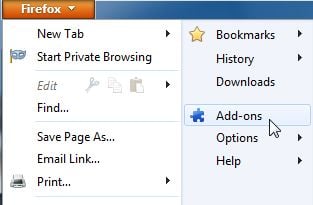
At the top of the Firefox window, click the orange Firefox button, then select Add-ons.
Select the Extensions tab, then remove Babylon toolbar, Yontoo, Babylon OCR, babylonToolbar.com and any other extensions related to Babylon Ltd from Mozilla Firefox.
- Reset your default search engine and home page from Babylon Search to their default.
To reset your search engine and homepage to their default, we will use the SearchReset extension.This add-on is very simple: on installation, it backs up and then resets your search preferences and home page to their default values, and then uninstalls itself. This affects the search bar, URL bar searches, and the home page.
You can download SearchReset from the below link, and then we will just need to install it to revert Firefox to its default settings.
SEARCHRESET DOWNLOAD LINK (This link will open another web page from where you can download the SearchReset Firefox extension)
![[Image: Babylon Firefox extensions]](http://malwaretips.com/blogs/wp-content/uploads/2013/02/Babylon-Firefox-extensions.png "Babylon Firefox extensions")
![[Image: SearchReset extension]](http://malwaretips.com/blogs/wp-content/uploads/2013/03/searchreset-firefox-extension.jpg "Install SearchReset extension to restore Firefox to its default settings")
Remove Babylon Search from Google Chrome
- Remove Babylon extensions from Google Chrome.
- Click the Chrome menu button on the browser toolbar, select Tools and then click on Extensions.
In the Extensions tab, remove (by clicking on the Recycle Bin) Babylon toolbar, Yontoo, Babylon OCR, babylonToolbar.com and any other extensions related to Babylon Ltd from your Google Chrome.
- Set Google Chrome default search engine from isearch.babylon.com to google.com .
Click the Chrome menu button, then select Settings and click on Manage search engines in the Search section.
In the Search Engines dialog that appears, select Google and click the Make Default button that appears in the row.
Search for Search the web (Babylon) in the Search Engines list, and click the X that appears at the end of the row.
- Change Google Chrome homepage from search.Babylon.com to its default.
The Babylon Toolbar has modified your Google settings to open their webpage whenever you start your browser, so we will need to revert this change.
Click the Chrome menu button, then select Settings and click on One the New Tab page in the On Startup section.
 button on the browser toolbar, select Tools and then click on Extensions.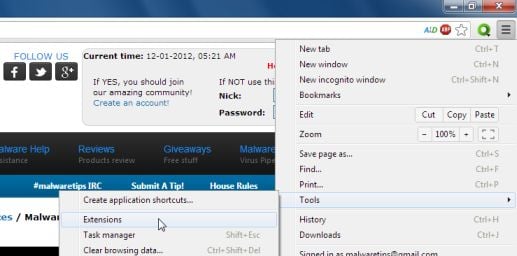
![[Image: Babylon Chrome extensions]](http://malwaretips.com/blogs/wp-content/uploads/2013/02/Babylon-Chrome-extensions.png "Babylon Chrome extensions")
![[Image: Set Chrome search engine from Search the web (Babylon) to Google]](http://malwaretips.com/blogs/wp-content/uploads/2013/02/Babylon-Search-Chrome-hijack.jpg "Set Chrome search engine from Search the web (Babylon) to Google")
![[Image: Change Google Chrome homepage to its default]](http://malwaretips.com/blogs/wp-content/uploads/2013/01/on-startup-Chrome-default.jpg "Change Google Chrome homepage to its default")
STEP 3: Remove Babylon Toolbar registry keys with AdwCleaner.
- You can download AdwCleaner from the below link. ADWCLEANER DOWNLOAD LINK (This link will automatically download AdwCleaner on your computer)
- Before starting this utility, close all open programs and internet browsers.
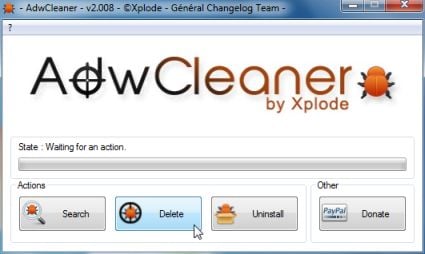
- Double click on adwcleaner.exe to run the tool.
- Click on Delete, then confirm each time with Ok.
- Your computer will be rebooted automatically. A text file will open after the restart.
- NEXT, double click on adwcleaner.exe to run the tool.
- Click on Uninstall, then confirm with yes to remove this utility from your computer.
STEP 4: Run a computer scan with Malwarebytes Anti-Malware
- You can download Malwarebytes Anti-Malware Free from the below link, then double click on it to install this program. MALWAREBYTES ANTI-MALWARE DOWNLOAD LINK (This link will open a download page in a new window from where you can download Malwarebytes Anti-Malware Free)
- When the installation begins, keep following the prompts in order to continue with the setup process. DO NOT make any changes to default settings and when the program has finished installing, make sure you leave both the Update Malwarebytes’ Anti-Malware and Launch Malwarebytes’ Anti-Malware checked, then click on the Finish button.
- On the Scanner tab, select Perform quick scan and then click on the Scan button to start scanning your computer.
- Malwarebytes’ Anti-Malware will now start scanning your computer as shown below.
- When the Malwarebytes scan will be completed, click on Show Result.
- You will now be presented with a screen showing you the malware infections that Malwarebytes’ Anti-Malware has detected.Please note that the infections found may be different than what is shown in the image. Make sure that everything is Checked (ticked) and click on the Remove Selected button.
![[Image: Malwarebytes Anti-Malware final installation screen]](http://malwaretips.com/blogs/wp-content/uploads/2013/01/malwarebytes-installation.jpg "Malwarebytes Anti-Malware final installation screen")
![[Image: Malwarebytes Anti-Malware Quick Scan]](http://malwaretips.com/blogs/wp-content/uploads/2013/01/malwarebytes-quick-scan.jpg "Run a Quick Scan with Malwarebytes Anti-Malware")
![[Image: Malwarebytes Anti-Malware scanning for Babylon Toolbar]](http://malwaretips.com/blogs/wp-content/uploads/2013/01/malwarebytes-scan.jpg "Malwarebytes Anti-Malware scanning for Babylon Toolbar")
![[Image: Malwarebytes Anti-Malware scan results]](http://malwaretips.com/blogs/wp-content/uploads/2013/01/malwarebytes-scan-results.jpg "Malwarebytes when the system scan has completed")
![[Image:Malwarebytes removing malware]](http://malwaretips.com/blogs/wp-content/uploads/2013/01/malwarebytes-virus-removal.jpg "Click on Remove Selected to get rid of Babylon Toolbar")
STEP 5: Run a computer scan with HitmanPro
- Download HitmanPro from the below link, then double click on it to start this program.
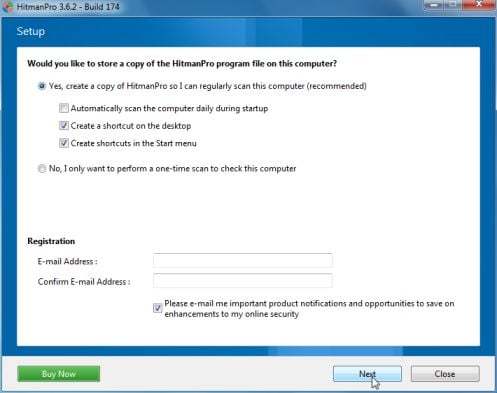
HITMANPRO DOWNLOAD LINK (This link will open a new web page from where you can download HitmanPro) - HitmanPro will start and you’ll need to follow the prompts (by clicking on the Next button) to start a system scan with this program.
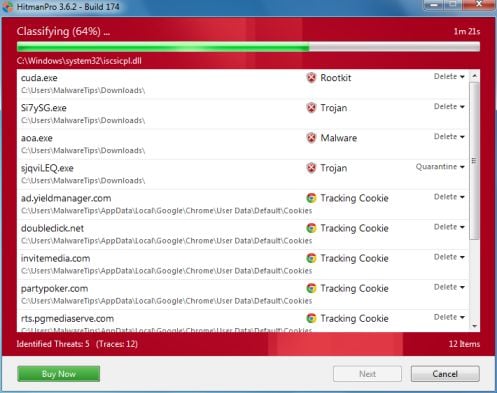
- HitmanPro will start scanning your computer for malware, as seen in the image below.
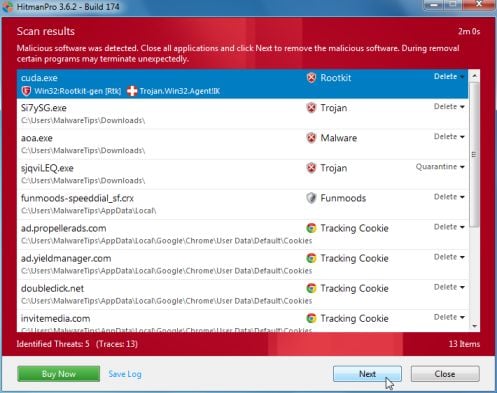
- Once the scan is complete,you’ll see a screen which will display all the infected files that this utility has detected, and you’ll need to click on Next to remove these malicious files.
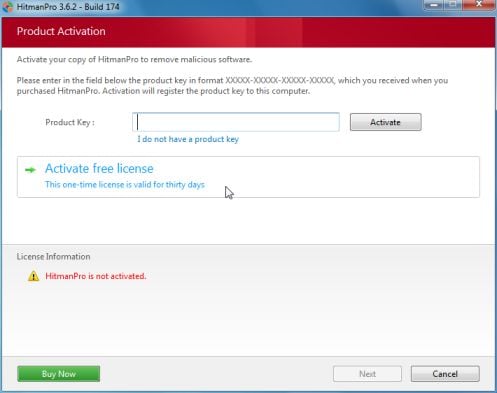
- Click Activate free license to start the free 30 days trial and remove all the malicious files from your computer.









thanks for your help!! Completely removed all that junk!!!
thanks for your help.
thank you for kindly instruction. it helps a lot.
Thanks for providing this step by step guide. I have been p.o.’ed at the babylon search malware for a year, but have not yet been able to get rid of it.
I think that this will work.
Thanks very much for this info BUT I cannot access the link you provide in step3.
Is it still operational?
Hello Josh,
Yes,it is…however you can also follow this instructions:
STEP 1: Run a scan with Malwarebytes Anti-Malware in Chameleon Mode in Norman mode:
STEP 2: Run a scan with RogueKiller
RogueKiller Download Link (This link will automatically download RogueKiller on your computer)
STEP 3 Please perform a scan with HitmanPro as seen on the guide.
If you are having problems starting this program please use the ForceBreach mode as described in the guide.
STEP 4: Run a scan with ESET Online Scanner:
ESET Online Scanner Download Link (This link will automatically download ESET Online Scanner on your computer.)
Waiting for your reply to tell me how everything is running!
Good luck…
Brilliant…Babylon gone!
Hitmanpro was a bit alarming though – it discovered all sorts of stuff, particularly tracking cookies from deleted programmes, even though I have been using other Malware programmes for the past three years.
Thank you very much for this.
Graham
thank you!!
Thanks for your help. Your instructions helped to remove Babylon as default IE/MFF search engine. Scanning now with Malwarebytes…so far, nothing.
Thank you so very much. The Hitmanpro worked.
Thank you so much. Great Info. I tried everything and it didn’t work (not even Malwarebytes. The damn Babylon was still there. But the Hitmanpro eventually did the job and remove this stupid Babylon.
I am really upset. I was on majorgeek and tried to install reimage, thats how I got this dang browser. I am having issues posting on their forums, so I contacted them via fb. I am really mad. I heard they were reputable, not like cnet. They review good and bad software, and this one was highly recommended by them (reimage).. getting a massive headache with all this. I am currently scanning with your malware link.
Your instructions were easy to follow. Thank you. I hope I get rid of it soon. sigh.
You my friend, are the Greatest!
All of my issues are solved with your posts. And I’m finding unwanted issues I didn’t even know I had in my Laptop. Thanks for making my life a little easier.
Thankfully, I’ve gotten rid of much of babylon – I have firefox (through I.E.) and followed the instructions, but if I try to open a new tab, it opens up with babylon – please help if you can.
Hello,
Please perform the below steps:
Please download and run a scan with Emsisoft Anti-Malware:
EMSISOFT EMERGENCY KIT DOWNLOAD LINK (This link will open a download page in a new window from where you can download Emsisoft Emergency Kit)
Next,please run a scan with ESET Online Scanner.
ESET Online Scanner Download Link (This link will automatically download ESET Online Scanner on your computer.)
Next,reply to this comment and tell me how things are running!
oh, and I was trying to remove the “Babylon search” when you open a 2nd window in IE8. Didn’t go to the standard “What do you want to do” that comes up in the new window. Am I still following the correct procedure or is their another one? Many thanks for any help provided.
I tried these instructions along with additional instructions elsewhere that instructed me to run the Kaspersky TDSSKiller.exe and also Kaspersky Virus Rremoval Tool. All to no avail. I did manage to eliminate some Malware but it wasn’t “Spyware Online” as pictured above. I appreicate the help if some has another way to get rid of this annoying Malware.
Thanks! Nice easy-to-follow instructions.
Graphics…icing on the cake.
Thank you very much.
Thanks
Follow the guide and you should not have any problems removing this unwanted program!
I have installed free malabyte trial and want to get rid of babylon.