


If Firefox redirects to Bing on Mac every time you search, even though you chose Google, you aren’t imagining it. Something is overriding your choice.
This guide shows how to set your search engine back, remove the add-on or profile pushing Bing, and confirm the fix survives a restart.
Overview
Why Firefox redirects to Bing on Mac
Bing is Microsoft’s search engine. It’s built into Firefox’s own search list and it’s the default in Microsoft Edge, so seeing Bing isn’t proof of malware.
The trouble starts when Bing replaces your pick. Firefox asks before an add-on makes its search engine your default, so one quick yes during an install can do it.
On a Mac, a configuration profile can also set Firefox’s default search engine. Mozilla built that for IT departments, but a profile you never installed can use it too.
One easy mix-up: Firefox’s search menu lets you send a single search to another engine. Picking Bing there by mistake looks like a redirect but leaves your default alone.
Quick fix: get Bing out of Firefox in four steps
Do these in order and run a test search after each one. Stop as soon as Bing is gone.
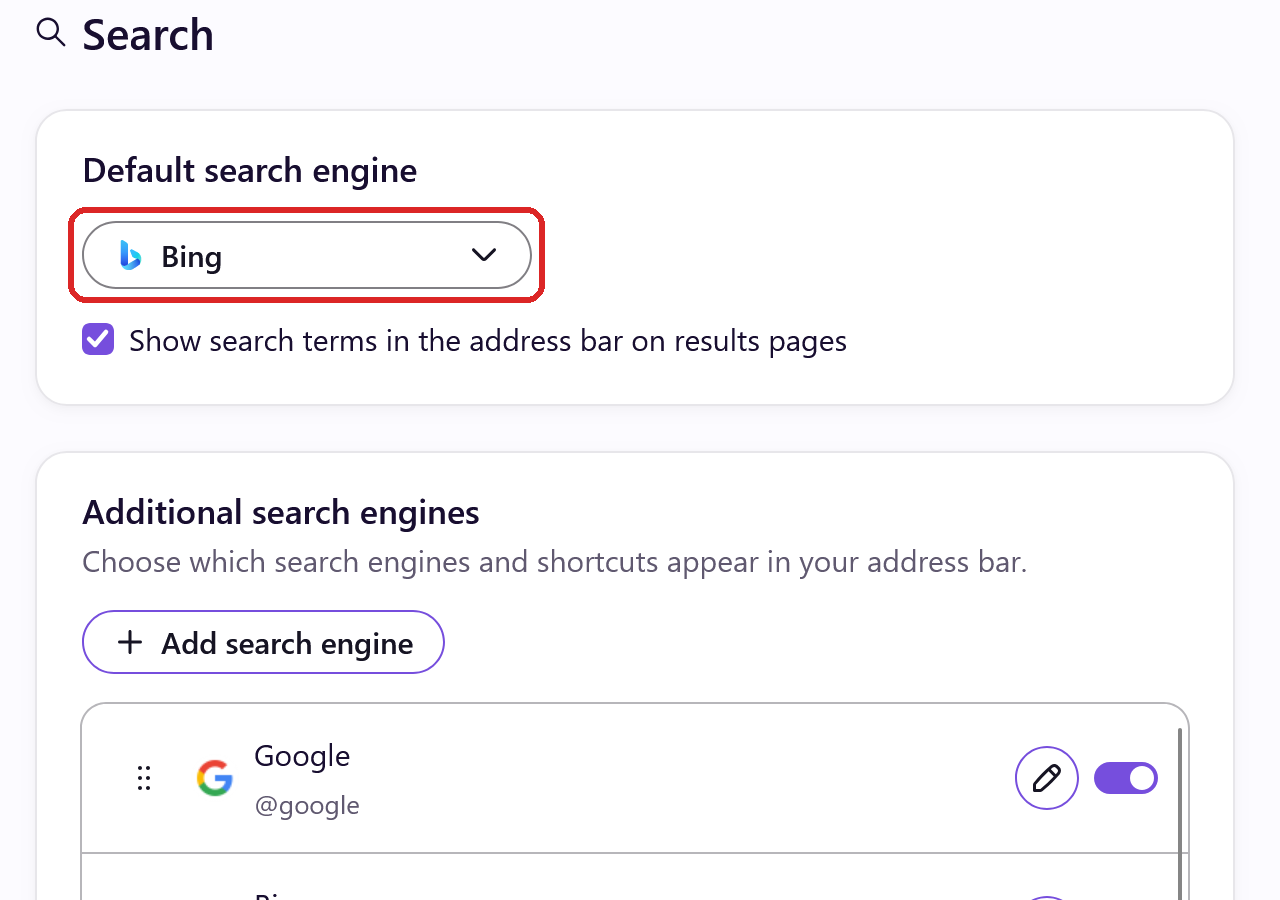
- Open Firefox > Settings > Search and pick Google or another engine under Default search engine.
- On the same page, under Additional search engines, switch off the toggle next to Bing so Firefox stops offering it.
- Type about:addons, click Extensions and remove anything you don’t recognize, especially search or new-tab add-ons.
- Quit Firefox with Command+Q, reopen it and search again. If Settings says Firefox is managed by your organization, open about:policies next.
What to do if Bing comes back
If Bing returns after a restart or login, the cause sits outside Firefox’s normal settings. Check about:policies, Device Management in System Settings, and your login items.
You may read that Microsoft 365 switched browsers to Bing. That add-on targeted Google Chrome, not Firefox, and Microsoft retired it on March 31, 2025.
Follow the five steps below in order. Save the advanced checks for a locked setting or a Bing redirect that keeps returning.
These fixes handle a hijacked search engine, unwanted extensions and Mac adware. They can’t decrypt files or recover an account that someone has already stolen.
How to Get Rid of Bing in Firefox on Mac
Work from the top and test as you go. When Bing is gone, jump to the last step and finish there.
Step 1: Set Firefox’s search engine back from Bing
A few screenshots come from Firefox on Windows. On your Mac the labels match; only the window style looks different.
Replace Bing as Firefox’s default search engine
-
Go to Firefox Settings
Click the menu button (three lines, top right) and choose Settings. Or use the Mac menu bar: Firefox > Settings.

-
Choose Search, then a new default
Select Search on the left. Open the Default search engine drop-down and choose Google, DuckDuckGo or whichever engine you prefer over Bing.
You can jump straight there by typing about:preferences#search. The new choice applies at once.
-
Run a test search
Open a fresh tab and type a search into the address bar. Not on Bing anymore? Run the final check and you’re finished.
Does Firefox say an extension controls this setting? Deal with that add-on next. A setting you can’t change points to a policy, so don’t keep resetting.
Step 2: Find and remove the add-on pushing Bing
Look through Firefox’s add-ons for the one pushing Bing
-
Go to Add-ons Manager > Extensions
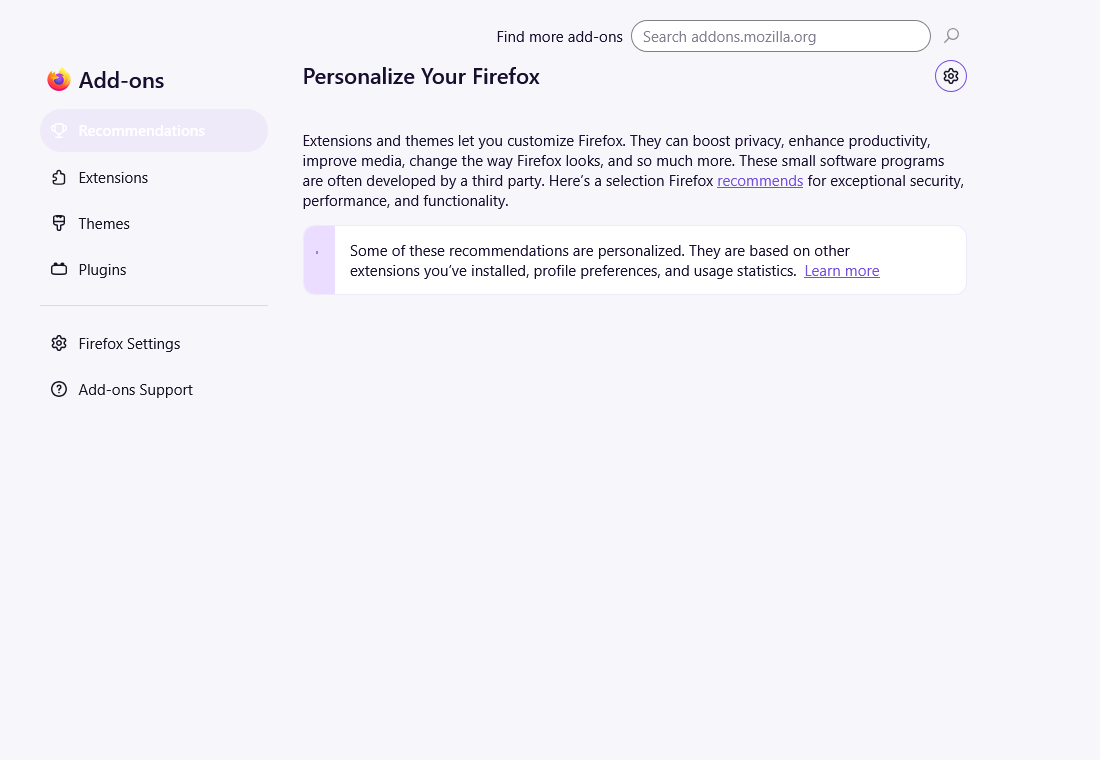
Enter about:addons in the address bar. In the sidebar on the left, click Extensions and skip the suggested add-ons shown first.
-
Switch one add-on off, then search again
Pick an add-on you don’t recognize and flip its toggle off. In a new tab, try the search that landed on Bing.
Search no longer goes to Bing? Open the add-on’s three-dot menu, pick Remove and confirm it. Recheck Search settings afterward in case Bing is still selected.
An empty list means there’s nothing to remove here. An add-on that refuses to go or reappears belongs in the advanced checks.
-
Stop here if the fix holds
Close Firefox, open it again and search once more. If Bing doesn’t return, finish with the final check and skip the refresh.
If website alerts open pages by themselves
This only applies when pop-up alerts appear or pages open on their own. A notification permission is a website setting, not an installed add-on.
-
In Firefox, go to Settings, then Privacy & Security. Next to Notifications under Permissions, click Settings, change the site to Block and click Save Changes.
Ignore any buttons inside the alert itself. If the pop-ups end and searches stay off Bing, there’s no need to scan or reset.
Step 3: Run a Mac scan if Bing returns
Already fixed? Skip ahead. Scan when Bing survives a restart, an add-on keeps reinstalling, or you spot an app you never meant to install.
Check your Mac for adware with Malwarebytes
This scan is for a Bing redirect that keeps coming back. A one-time settings fix doesn’t need it.
We took these installer pictures from our Mac guide. Newer versions can look slightly different.
MalwareTips may receive a commission from optional purchases. You don’t need a paid protection plan to follow the manual browser checks.
-
Get Malwarebytes for Mac
Malwarebytes for MacMac-specific scan and threat reviewMake sure you grab the Mac version. AdwCleaner and the Windows installer won’t run on macOS. Ignore any cleaner pushed by a redirect page.
-
Run the installer package
Go to your Downloads folder in Finder and double-click the Malwarebytes installer. The version number in the file name can differ.

Before going further, confirm the publisher is Malwarebytes. Close the installer if anything looks off.
Click Continue on the welcome screen. Our example is an older release.

Read the software license and continue if you accept it. Accepting it doesn’t sign you up for a subscription.

-
Install and approve the Mac permissions
Step through the remaining screens and click Install once the install location is correct.

macOS will ask for your Mac password or Touch ID. Type it only into that system prompt, never into a web page or for a phone “technician.”
Asked for Full Disk Access? Open System Settings, Privacy & Security, Full Disk Access and switch on Malwarebytes. On older macOS, look in System Preferences.
When Malwarebytes opens, it may offer a trial or a subscription. Say no to anything you don’t want.
Malwarebytes may ask whether this is a personal or work computer. Pick Personal Computer for your own Mac, or ask your IT team about a work one.

-
Choose a scan you can run for free
Click on the Scanner tile, not the Scan button inside it. Go to the Scan tab, then Advanced scans, then Custom scan.
Custom and Quick scans cost nothing. Threat Scan can require a trial or subscription, and the older example further down isn’t a reason to pay.

In the Finder window, choose the app or folder to check and click Open to start the custom scan.
Heads up: the big Scan button on the dashboard can launch a Threat Scan. Stick with Custom scan if you don’t want to pay.
Leave the scan running until it’s done, and don’t quit or remove Malwarebytes mid-scan.
The screenshot below is an older Threat Scan, shown only as an example. Wait for your own scan’s results.

-
Check what it found and quarantine it
Read through the detections and where they live before confirming quarantine. Keep the scan report in case you want help with something.
In this older version, you select items and click Confirm. Newer versions use a similar quarantine or remove control.

Don’t worry if your list differs from this example. Only act on what your scan reports.
-
Restart if Malwarebytes asks
Some removals need a restart. Save open documents, approve it, then open Malwarebytes again and keep the report.

Search in Firefox again afterward. A finished scan can’t promise that every changed setting is repaired, so check add-ons and policies too.
-
Note when Bing reappears
Note when Bing shows up again: at launch, after login, or after Sync. Bring those notes and a redacted scan report when you ask for help.
Resist wiping all profiles or startup folders. Confirm what a specific item does before you change anything at the system level.
Step 4: Refresh Firefox only if Bing is still stuck
Bing gone already? Jump to Step 5. A refresh is only worth it when the targeted fixes failed.
Use Refresh Firefox as a last resort for stuck settings
Refreshing gives Firefox a clean profile while carrying over essentials. Export key bookmarks and check your password recovery options before you start.
Screens can shift a bit between Firefox releases, so look for the matching button if yours differs.
We captured these examples on Windows. On a Mac the controls are identical, though fonts and the order of buttons may change.
-
Go to the Troubleshooting Information page
Enter about:support in Firefox’s address bar. You’re looking for Refresh Firefox, or the equivalent button in your release.
The page title should read Troubleshooting Information. On the right side, find the box with the tune-up buttons.
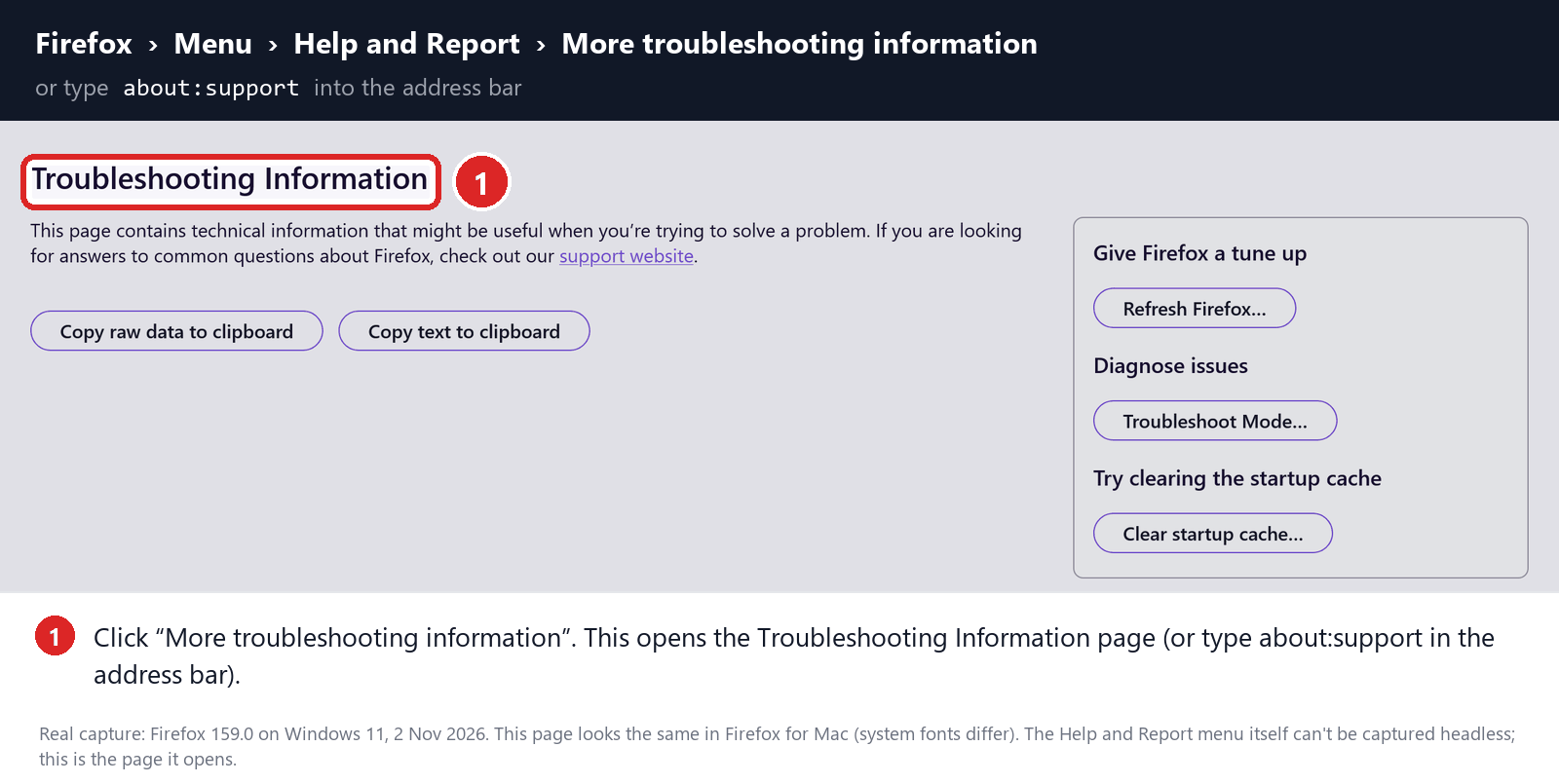
Locate the Refresh Firefox button in that box.
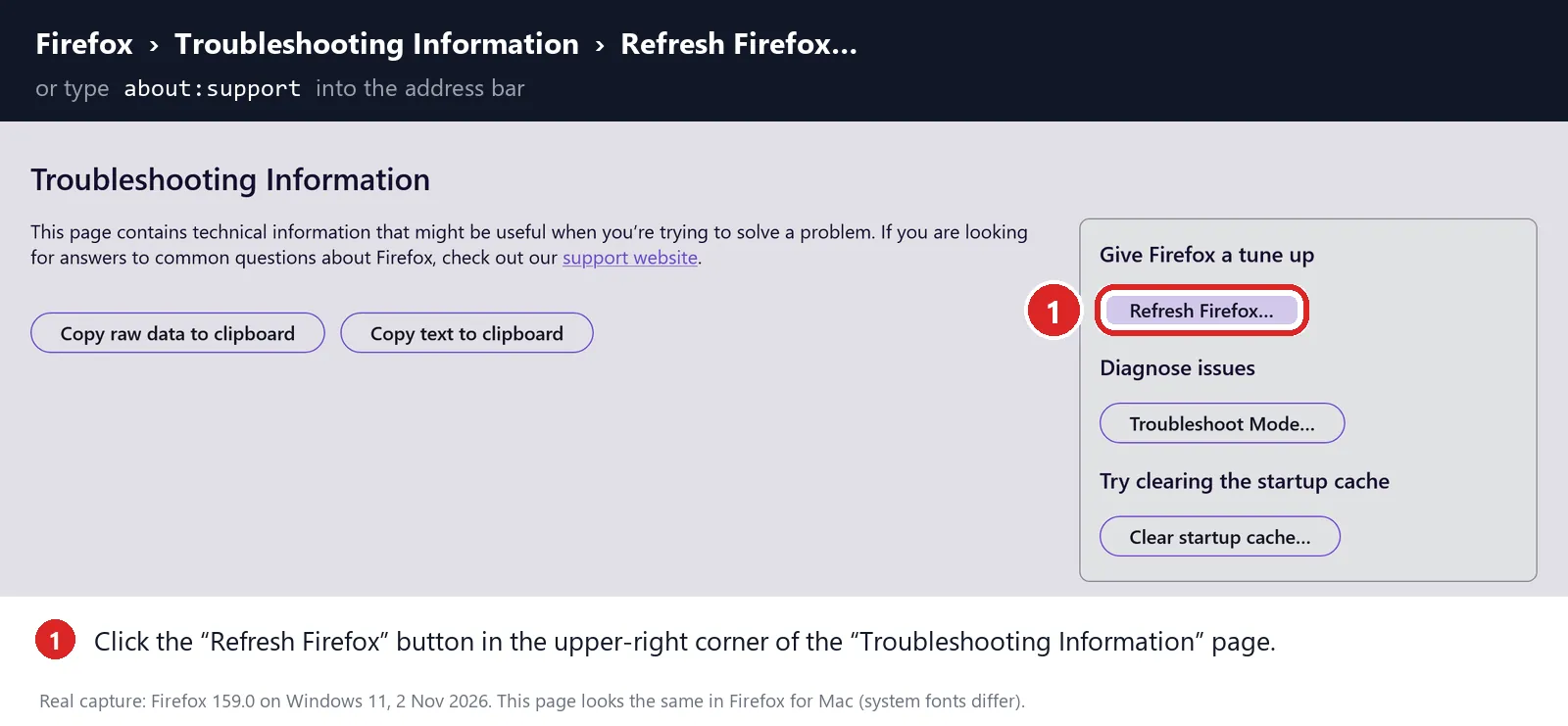
No refresh button? Don’t delete the profile folder as a substitute. Look up Mozilla’s instructions for your version or ask in our forum.
-
Confirm the refresh after reading the warning
The confirmation box explains the trade-off: bookmarks and passwords stay, while extensions, themes, custom preferences and similar changes are removed or reset.
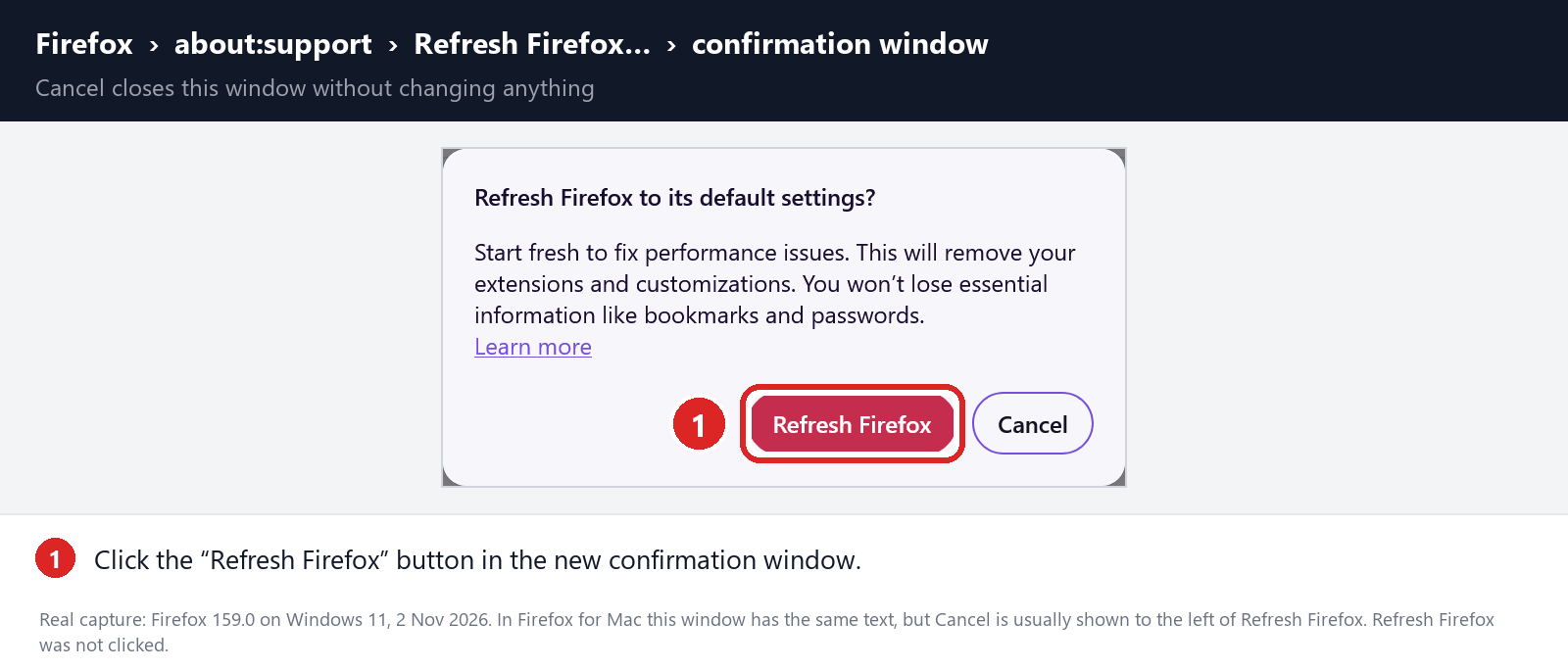
Click Refresh Firefox once your work is saved. The browser closes, rebuilds itself and opens a finishing screen to complete.
Choose your search engine once more and test it before adding extensions back. Policies set outside the profile survive a refresh, so check those separately.
-
Hold on to Old Firefox Data for now
Your former profile may land in an Old Firefox Data folder. Keep it to yourself until the fix has held and you’ve copied anything you need.
Copying the entire folder back can bring Bing back too. Move over only specific items, ideally with guidance.
Step 5: Confirm Bing stays gone, then stop
Run the same search that used to land on Bing. Try the address bar, then any new-tab search box and your start page.
-
Quit Firefox completely with Command+Q, reopen it and confirm Bing hasn’t replaced your choice.
-
If Bing used to reappear after a Mac restart or login, restart now and repeat the search.
-
Turn Sync back on step by step if you paused it. When the search survives the trigger that used to restore Bing, you’re finished.
Passed every test? Then you’re done. Open the advanced checks only for a locked setting, an add-on that won’t uninstall, or Bing that keeps returning.
Bing Still Comes Back? Advanced Mac Checks
Show fixes for locked search settings, Mac profiles and background apps
Only continue if Bing keeps returning. If an employer or school manages this Mac, check with IT before touching profiles or startup settings.
Look for a policy that sets Firefox to Bing
Open about:policies and note the active rules. A search engine rule, an add-on rule or a locked setting can explain why Firefox ignores your choice.
Mozilla says the “managed by your organization” notice can come from an IT administrator, security software or a local policy. It doesn’t automatically mean infection.
On a Mac run by your work or school, ask the IT team about these rules before changing anything.
Firefox can also load rules from a policies.json file. Mozilla lists its Mac location as Firefox.app/Contents/Resources/distribution.
Only open that file if about:policies points there. Keep the original, and don’t edit the app or delete every policy as a routine fix.
A user.js file inside your profile can put Bing back at each launch. Compare what it sets with the setting that keeps reverting.
Find the right profile folder in about:support. Quit Firefox before any change an expert recommends, and keep a backup copy.
Don’t delete prefs.js, user.js and other profile files together to see what happens. You lose the comparison and unrelated settings along with them.
Check Mac profiles and apps that restore Bing
Open System Settings, General, Device Management if it’s there. Look at who issued each profile and what it configures, not just its name.
Mozilla supports configuration profiles for Firefox settings, including the default search engine. A profile you never installed that mentions Firefox deserves a close look.
A Firefox profile and a macOS configuration profile are different things. Removing one never removes the other.
Removing a configuration profile can also take away accounts, VPN access and certificates. Note those settings and remove only a profile you’ve confirmed is unwanted.
If Bing comes back after you log in, check Applications and General, Login Items & Extensions. Look for an app clearly linked to the add-on or setting you found.
Uninstall that app the way its developer documents. A recent or unfamiliar app isn’t automatically the culprit.
LaunchAgents and LaunchDaemons can start helpers at login, but they aren’t folders to empty. Have each item’s program path checked before changing it.
Keep legitimate security, backup and device helpers. When in doubt, gather details for support instead of disabling everything that runs in the background.
Compare with Troubleshoot Mode first
From the Help menu, called Help and Report in some releases, pick Troubleshoot Mode. Firefox asks to restart, so save anything open first.
Try the search that goes to Bing. This temporary mode disables add-ons and some custom settings, but it doesn’t uninstall Mac software or lift enterprise policies.
No Bing in Troubleshoot Mode? An add-on is the likely cause, so test them one by one. Still Bing? Look at policies, the default engine setting and Mac software.
Try a clean test profile
Create a new, clearly labeled profile from about:profiles or Firefox’s profile menu. Leave Sync and imported add-ons switched off for now.
Search from the new profile and open about:policies. Policies set for the whole Mac apply to every profile.
Clean profile works? The old profile holds the cause. Both fail? Something outside Firefox’s profiles is pushing Bing.
Don’t pick Delete Files on your main profile for this comparison. Your data should stay recoverable.
about:support shows the active profile folder if a helper needs it. Quit Firefox fully before copying or editing anything inside.
Once fixed, bring back trusted add-ons and Sync data gradually, and note any step that brings Bing back.
Pin Down Exactly When Bing Appears
Note the first action that lands on Bing. Is it Command+L, an add-on’s page, a saved bookmark, or a homepage that opens by itself?
Search for something harmless and watch the address bar. If a strange site flashes before bing.com, write down its name but not your search terms.
Open your chosen search engine’s website directly and search there. If that works, the problem is in Firefox’s address bar or default setting.
Back up bookmarks and account details before bigger repairs. Keep one working profile untouched so you have something to compare against.
Use Firefox’s built-in pages for this. Installing an unknown add-on to trace redirects adds one more suspect and can expose your browsing.
If Safari or Chrome Also Go to Bing
Test Safari or Chrome separately. Two browsers set to Bing on purpose don’t prove a shared hijacker.
If several browsers pass through the same strange site before Bing, look for a shared app or network setting. Write down that site’s name.
Proxy, DNS or VPN settings may matter then. Record the current values before changing anything.
Don’t reset every network setting on your Mac for a problem limited to one Firefox add-on. You’d lose connection settings without removing the add-on.
If a page or caller asks for remote access to fix your search, say no. Use your IT team or a trusted support channel.
What to Do If Firefox Still Opens Bing
-
Write down the exact search that fails, the Firefox profile, any site that flashes before Bing, and what brings Bing back.
-
Keep your policies, add-on list, scan reports and file backups. Share short, redacted excerpts rather than a full browser profile.
-
Get Mac help in the MalwareTips removal-help forum, or ask IT if your employer or school manages the Mac.
If you typed a password into a page that appeared during the redirect, change it on the real site. Removing Bing doesn’t sign anyone else out of your account.
Using more than one browser? Our complete Bing redirect guide covers Chrome, Edge, Firefox and Safari on Windows and Mac.
Related: Yahoo redirects in Firefox on Mac and Bing in Firefox on Windows.
Frequently Asked Questions
Why does my search engine keep changing to Bing?
Something keeps setting it back. In Firefox on a Mac, the likely causes are an add-on, a policy from a configuration profile, or an app that runs at login.
Changing the setting alone won’t hold until that source is gone. Steps 1 and 2 above handle the add-on case.
Is Bing a virus on my Mac?
No. Bing is Microsoft’s search engine, and Firefox includes it in its built-in list. The thing to remove is whatever forces it on you.
If a strange site flashes before Bing loads, treat that as possible adware and run the scan in Step 3.
Why does Google redirect to Bing in Firefox?
Your default may have been switched, or an add-on may be rewriting searches. Choosing Bing in Firefox’s search menu also sends that one search there.
Set Google again in Settings, Search, then test in Troubleshoot Mode with add-ons off. If Bing disappears there, an add-on is responsible.
How do I get rid of Microsoft Bing on my Mac completely?
In Firefox, choose another default and switch off Bing’s toggle under Additional search engines. That hides it from Firefox’s search options.
Bing stays available as a website. Microsoft Edge also keeps Bing as its default until you change Edge’s own search settings.
Did Microsoft Edge or Microsoft 365 change Firefox to Bing?
Not by design. Edge’s Bing default only applies inside Edge. The Microsoft 365 add-on that set Bing was built for Google Chrome, and Microsoft retired it in March 2025.
If Firefox switched anyway, look for an add-on or configuration profile installed around the same time.
What if the Mac scan finds nothing?
That can be normal. A scanner can remove an adware app, but changed browser settings and profiles may still need fixing by hand.
Keep checking the default search engine, your add-ons and about:policies. A clean scan can’t prove those are set the way you want.
The Bottom Line
When Firefox redirects to Bing on Mac, pick your search engine in Settings, remove the add-on behind it, and switch off Bing’s toggle if you never use it.
If Bing returns after a restart, check about:policies, Device Management and your login items. Remove only what you can link to Bing, and leave work profiles alone.
Still seeing Bing? Bring your notes and a redacted scan report to the MalwareTips forum, where volunteers can help you trace it.

Join the discussion
0 commentsShare your experience or ask a question about this article.
Discussion
Start the conversation
Have a question or something useful to share? Add the first comment.