

Federal Computer Crime Unit is a malicious software (Trojan Ransomware) that has locked your computer, and posing as an official notice from a law enforcement agency, states that your computer has been blocked due to it being involved with the distribution of pornographic material, SPAM and copyrighted content.
In reality, none of what Federal Computer Crime Unit is reporting is real, and the alert is only used to scare you into paying for a non-existing fine and stealing your personal financial information.
We strongly advise you to follow our Federal Computer Crime Unit removal guide and ignore any alerts that this malicious software might generate.Under no circumstance should you send any any money to this cyber criminals as this could lead to identity theft.
If you’ve got a Federal Computer Crime Unit infection , you’ll be seeing this screens :
![[Image: Federal Computer Crime Unit]](http://malwaretips.com/images/fakeav/Federal-Computer-Crime-Unit.png "Federal Computer Crime Unit")
Federal Computer Crime Unit Ukash Ransomware – Virus Removal Guide
STEP 1: Remove Federal Computer Crime Unit lock screen from your computer
The Federal Computer Crime Unit MoneyPak Ransom has modified your Windows registry and added its malicious files to run at start-up, so whenever you’re trying to boot your computer it will launch instead its bogus notification.To remove this malicious changes,we can use any of the below methods :
Method 1: Start your computer in Safe Mode with Networking and scan for malware
Some variants of the Federal Computer Crime Unit virus will allow the users to start the infected computer in Safe Mode with Networking without displaying the bogus lock screen. In this first method, we will try to start the computer in Safe Mode with Networking and then scan for malware to remove the malicious files.
- Remove all floppy disks, CDs, and DVDs from your computer, and then restart your computer.
- Press and hold the F8 key as your computer restarts.Please keep in mind that you need to press the F8 key before the Windows start-up logo appears.
Note: With some computers, if you press and hold a key as the computer is booting you will get a stuck key message. If this occurs, instead of pressing and holding the “F8 key”, tap the “F8 key” continuously until you get the Advanced Boot Options screen. - On the Advanced Boot Options screen, use the arrow keys to highlight Safe Mode with Networking , and then press ENTER.
![[Image: Safe Mode with Networking]](//malwaretips.com/images/removalguide/safemode.jpg "Safe Mode with Networking screen")
- If you computer has started in Safe Mode with Networking, you’ll need to perform a system scan (as seen on STEP 2) with Malwarebytes Anti-Malware and HitmanPro to remove the malicious files from your machine.
![[Image: Safe Mode with Networking]](http://malwaretips.com/images/removalguide/safemode.jpg "Safe Mode with Networking screen")
IF the Federal Computer Crime Unit virus didn’t allow you to start the computer in Safe Mode with Networking,you’ll need to follow Method 2 to get rid its screen lock.
Method 2: Restore Windows to a previous state using System Restore
System Restore can return your computer system files and programs to a time when everything was working fine, so we will try to use this Windows feature to get rid of the Federal Computer Crime Unit lock screen.
- Restart your computer, and then press and hold F8 during the initial startup to start your computer in safe mode with a Command prompt.
Note: With some computers, if you press and hold a key as the computer is booting you will get a stuck key message. If this occurs, instead of pressing and holding the “F8 key”, tap the “F8 key” continuously until you get the Advanced Boot Options screen. - Use the arrow keys to select the Safe mode with a Command prompt option.
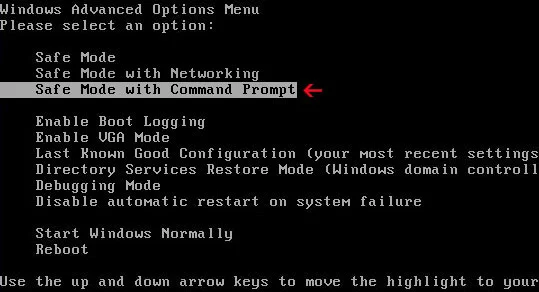
- At the command prompt, type cd restore, and then press ENTER.
Next,we will type rstrui.exe , and then press ENTER

- The System Restore window will start and you’ll need to select a restore point previous to this infection.
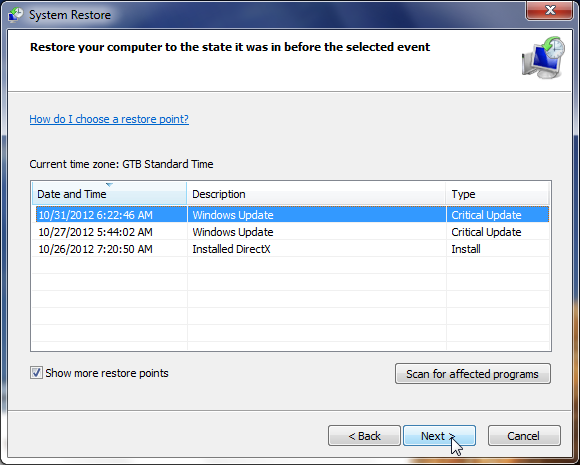
- After System Restore has completed its task,you should be able to boot in Windows normal mode,from there you’ll need to perform a system scan (as seen on STEP 2) with Malwarebytes Anti-Malware and HitmanPro to remove the malicious files from your machine.
IF the Federal Computer Crime Unit virus didn’t allow you to start the computer in Safe Mode with Command Prompt you’ll need to follow Method 3, to get rid its screen lock.
Method 3: Remove Federal Computer Crime Unit virus with HitmanPro Kickstart
IF you couldn’t boot into Safe Mode with Command Prompt or didn’t have a System Restore point on your machine, we can use HitmanPro Kickstart to bypass this infection and access your computer to scan it for malware.
- We will need to create a HitmanPro Kickstart USB flash drive,so while you are using a “clean” (non-infected) computer, download HitmanPro from the below link.
Download HitmanProOfficial Sophos download. Free scan, free 30-day trial to remove threats. - Insert your USB flash drive into your computer and follow the instructions from the below video:
- After you have create the HitmanPro Kickstart USB flash drive, you can insert this USB drive into the infected machine and start your computer.
- Once the computer starts, repeatedly tap the F11 key (on some machines its F10 or F2),which should bring up the Boot Menu, from there you can select to boot from your USB.
Next,you’ll need to perform a system scan with HitmanPro as see in the below video:
- After HitmanPro Kickstart has completed its task,you should be able to boot in Windows normal mode,from there you’ll need to perform a system scan (as seen on STEP 2) with Malwarebytes Anti-Malware and HitmanPro to remove the malicious files from your machine.
STEP 2: Remove Federal Computer Crime Unit malicious files from your computer
No matter what method did you use to get rid of the Federal Computer Crime Unit lock screen, we will need to remove its malicious files from your computer.Please download and run a scan with the following scan to completely remove the Federal Computer Crime Unit virus from your computer.
Run a computer scan with Malwarebytes Anti-Malware Free
- You can download Malwarebytes Anti-Malware Free from the below link,then double click on it to install this program.
Download MalwarebytesFree official installer. Your download starts right away. - When the installation begins, keep following the prompts in order to continue with the setup process.
DO NOT make any changes to default settings and when the program has finished installing, make sure you leave both the Update Malwarebytes’ Anti-Malware and Launch Malwarebytes’ Anti-Malware checked,then click on the Finish button.
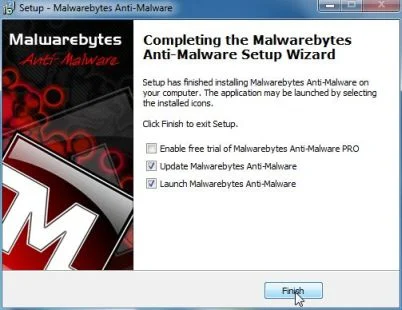
- On the Scanner tab,select Perform quick scan and then click on the Scan button to start scanning your computer.
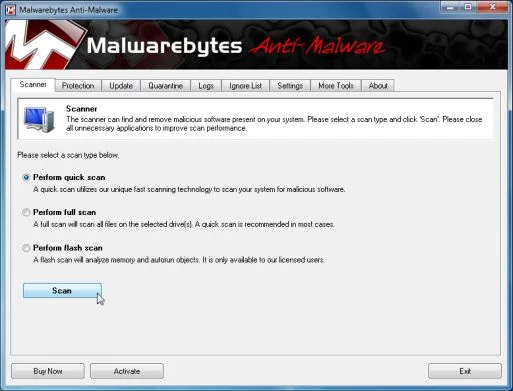
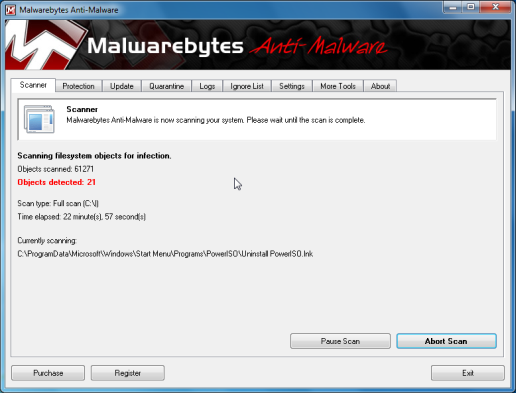
- Malwarebytes’ Anti-Malware will now start scanning your computer for Federal Computer Crime Unit malicious files as shown below.
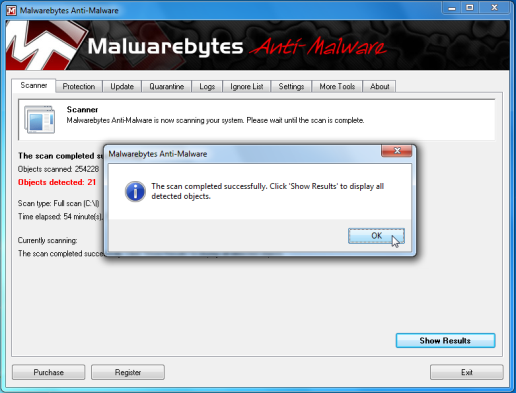
- When the Malwarebytes scan will be completed,click on Show Result.
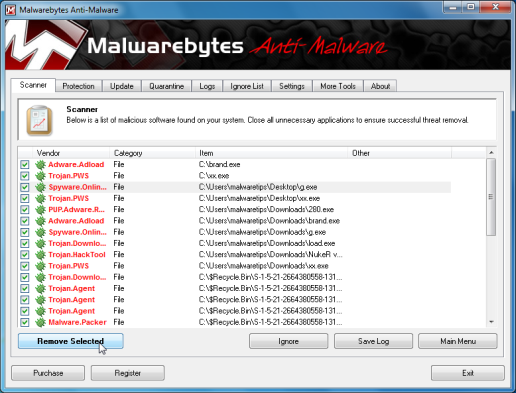
- You will now be presented with a screen showing you the malware infections that Malwarebytes’ Anti-Malware has detected.Please note that the infections found may be different than what is shown in the image.Make sure that everything is Checked (ticked) and click on the Remove Selected button.
- After your computer will restart, open Malwarebytes Anti-Malware and perform a Full System scan to verify that there are no remaining threats
Run a computer scan with HitmanPro
- Download HitmanPro from the below link,then double click on it to start this program.
Download HitmanProOfficial Sophos download. Free scan, free 30-day trial to remove threats.
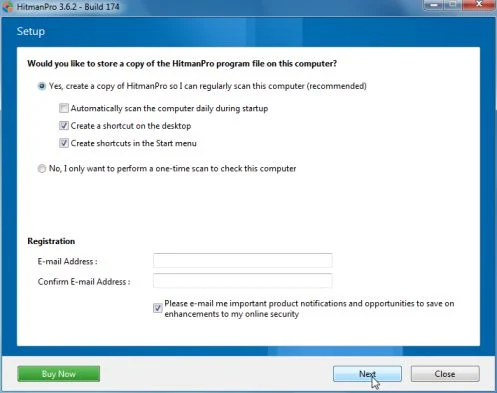
IF you are experiencing problems while trying to start HitmanPro, you can use the Force Breach mode.To start HitmanPro in Force Breach mode, hold down the left CTRL-key when you start HitmanPro and all non-essential processes are terminated, including the malware process. (How to start HitmanPro in Force Breach mode – Video) - HitmanPro will start and you’ll need to follow the prompts (by clicking on the Next button) to start a system scan with this program.
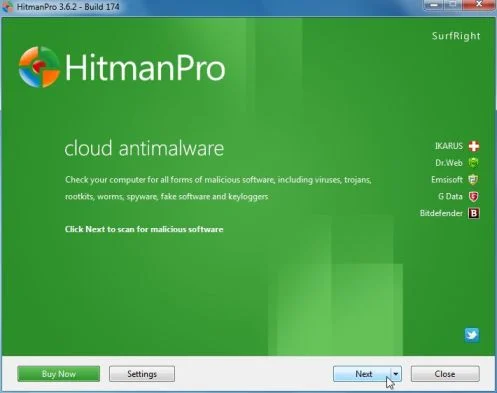
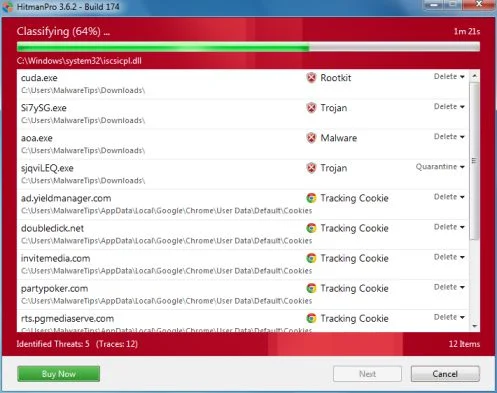
- HitmanPro will start scanning your computer for Federal Computer Crime Unit malicious files as seen in the image below.
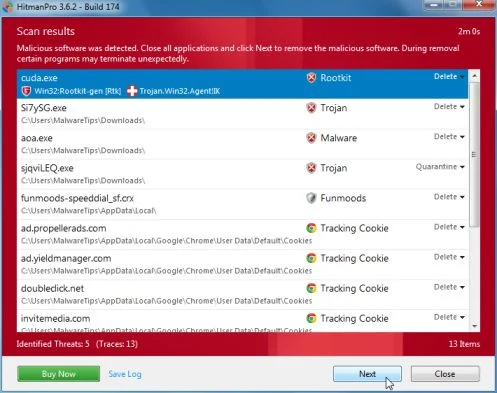
- Once the scan is complete,you’ll see a screen which will display all the infected files that this utility has detected, and you’ll need to click on Next to remove this malicious files.
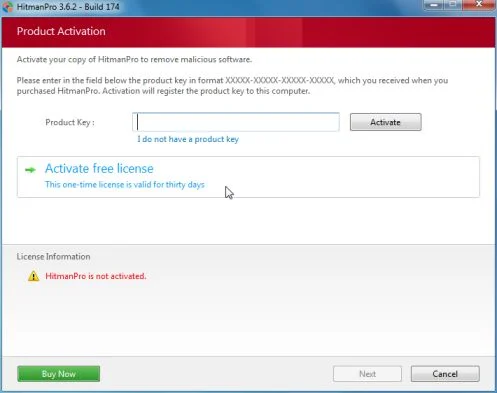
- Click Activate free license to start the free 30 days trial and remove all the malicious files from your computer.

Join the discussion
4 commentsShare your experience or ask a question about this article.
Your progress
Did these steps help?
Let us know how the guide worked for you.
Describe what you see and the step you reached. Keep passwords and other private information out.
Discussion
I had this virus but luckily I had installed Linux Mint a few weeks before so I was able to boot into that and download and burn Kasper that way. The only thing my copy of Kasper did not have is an actual button saying “windows unlocker” – I had to use the terminal but that is no big deal. Thanks for the info. This way is much easier than all the other methods and I now have a kasper recovery disc which is absolutely brilliant :)
to all who have the “politie: federal computer crime unit” virus/pc blocker.
follow these steps to the letter, 100% fixed in my case, did it all by my self. looks hard but its just 123… verry well explained. and i am now, virus free :) thanks malwaretips.com i love you!
would like to know how safe is this.i need to use it as i have the problem with the locked computer from the” Federal Crimes Unit”
In reply to anthony
It’s very safe…. :) .. And should work.. If you don’t want the create the Bootable disk , you can do the removal also manually…
Here are the instructions:
STEP 1 : Start your computer in Safe Mode with Command Prompt
STEP 2: Remove the malicious registry key and file
The Windows Explorer will open, do not close this window.
HKEY_LOCAL_MACHINE\SOFTWARE\Microsoft\Windows NT\CurrentVersion\Winlogon\ and search on the list to the right for an registry entry named Shell.
In our case, the malicious file is running from the Desktop and it’s called “contacts.exe”, but the cyber crimanls may have changed the file name in your case so it might have a different name.