


The “iPhone Locked Due to Illegal Activity” pop-up is a browser-based advertisement that uses fake alerts stating that your device is under attack or infected to trick you into installing unwanted apps or subscribing to unneeded paid services.
What is the “iPhone Locked Due to Illegal Activity” pop-up?
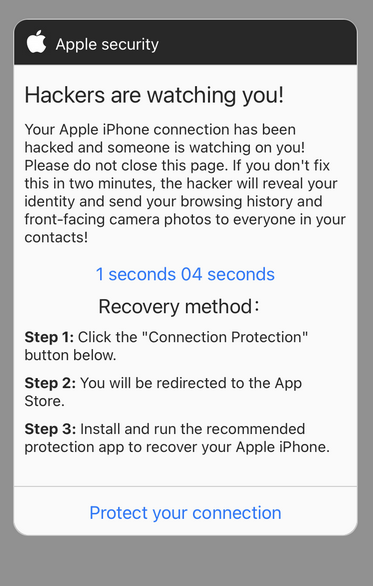
The “iPhone Locked Due to Illegal Activity” pop-up is a scam that claims your iPhone has been hacked and that your Facebook, WhatsApp, and Instagram accounts will be compromised if you don’t take immediate action. The goal of this scam is to trick you into installing unwanted apps or subscribing to unnecessary paid services.
It is important to be aware that Apple will never send a message like this to its users, and that such messages should be ignored. If you are concerned about the security of your device, it is always best to contact Apple directly or visit an Apple store for assistance.
When the “iPhone Locked Due to Illegal Activity” pop-up ad is displayed in your browser it will show this message:
WARNING!
iPhone Locked Due to Illegal Activity by 13 viruses!
We have detected that your Browser is (67.5%) DAMAGED by BROWSER TROJAN VIRUSES picked up while surfing recent corrupted sites.
Immediate action is required to prevent it from spreading and infecting sensitive data like your Facebook account, Whatsapp messages photos and private applications.
Here is how you can solve this in just a few seconds (Step by Step)
Step 1: Tap REMOVE VIRUS to install DotBlock from the App Store.
Step 2: Open the application to activate the latest update and remove any older (Infected) versions.
The “iPhone Locked Due to Illegal Activity” pop-up has nothing to do with Apple and anything it states is just false. If you have been redirected to the “iPhone Locked Due to Illegal Activity” ads, we recommend closing the page and do not enter any personal information.
Why am I seeing the “iPhone Locked Due to Illegal Activity” pop-up ads?
You are seeing the “iPhone Locked Due to Illegal Activity” pop-ups because of spam push notification ads, or a site that you have visited has redirected you to this page.
Less than reputable sites can display malicious ads that redirect your browser to the “iPhone Locked Due to Illegal Activity” fake alert messages to generate advertising revenue. If this happens, you can close the page and install an ad blocker like AdGuard [recommended] to block the malicious ads.
If your computer starts redirecting you to the “iPhone Locked Due to Illegal Activity” sites for no reason then you can reset your browser to its factory settings.
Removal Instructions for “iPhone Locked Due to Illegal Activity” Pop-up
Please perform all the steps in the correct order. If you have any questions or doubt at any point, stop and ask for our assistance.
STEP 1: Clean your browser
First, we’ll clean Safari using the built-in “Clear History and Website Data” feature. This removes your browsing history, cookies, and cached data — including the stored data that scam sites use to keep showing you pop-ups and redirects. Don’t worry: this won’t delete your photos, apps, or saved passwords, but it will sign you out of websites. To keep other sites signed in, you can remove only the scam site’s data instead: go to Settings > Apps > Safari > Advanced > Website Data, swipe left on the site, and tap Delete.
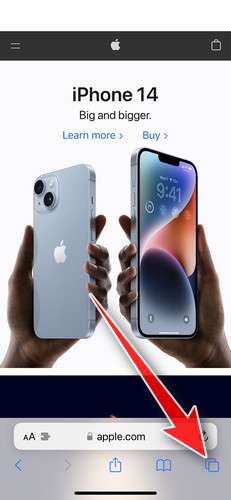
- Don’t tap anything inside the scam page or pop-up — the buttons are designed to trick you. Instead, tap the tabs icon in the lower-right corner of Safari, as shown below.
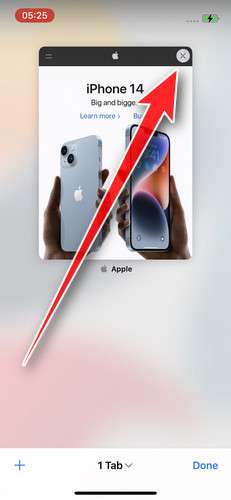
- Tap the X on the malicious tab (or swipe it up) to close it safely.
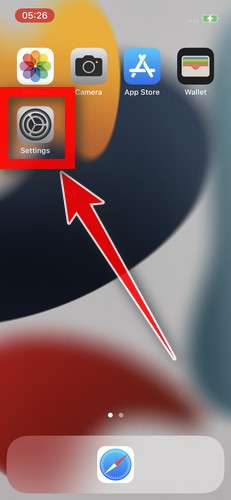
- Open the Settings app.
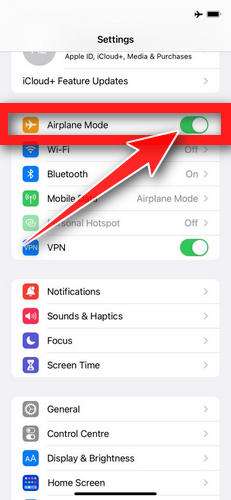
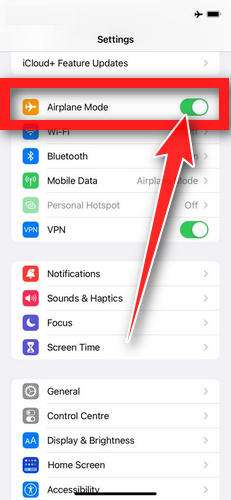
- Turn on Airplane Mode. This temporarily disconnects your iPhone from the internet, so the scam site can’t load anything while we clean up. We’ll turn it back off at the end.
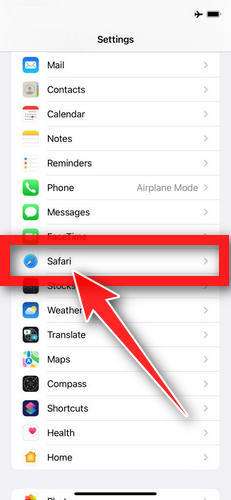
- Scroll down and tap Apps, then tap Safari. On iOS 17 and earlier, Safari is listed directly in Settings.
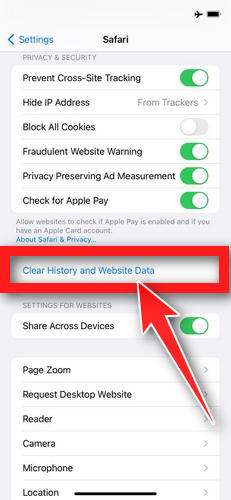
- Tap Clear History and Website Data.
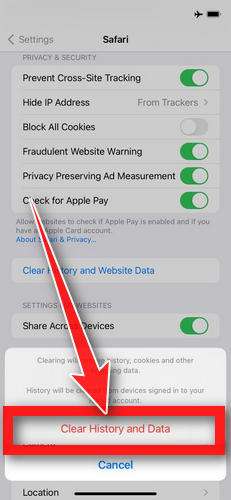
- If you’re asked to choose a timeframe, choose All history, then tap Clear History. On older iOS versions, tap “Clear History and Data” in the pop-up.
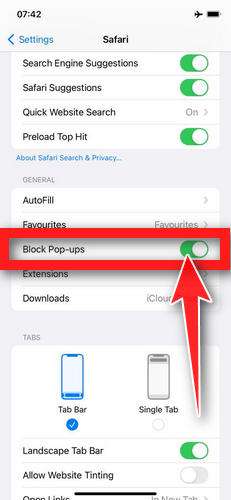
- While you’re still in Safari settings, turn on Block Pop-ups and Fraudulent Website Warning. These two switches stop most scam pages before they can even load.
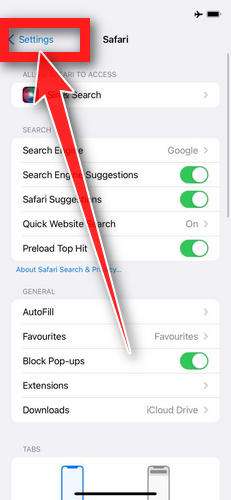
- Tap Settings in the upper-left corner to return to the main Settings menu.
- Turn Airplane Mode back off to reconnect your iPhone to the internet.
STEP 2: Delete unwanted apps
Next, we’ll remove any suspicious apps from your iPhone. If a shady website redirected you to the App Store and you installed an app — or you spot an app you don’t remember downloading — delete it now:
-
On the home screen, tap and hold the unwanted app’s icon until the icons start to wiggle.
-
Tap the minus (–) badge in the corner of the app icon, then tap Delete App. (On older iOS versions, this badge appears as an “X”.)
-
Confirm by tapping “Delete“.
Now reopen Safari and check whether the pop-ups have stopped.
To stop these scam pages from coming back, we recommend installing an ad blocker like AdGuard. It blocks the malicious ads and redirects that cause these pop-ups in the first place.
Still having issues after completing these steps? Try one of the following:
- Run a scan with Malwarebytes for iOS
- Ask for help in our free Mobile Malware Removal Help & Support forum — our team will assist you personally.

Join the discussion
0 commentsShare your experience or ask a question about this article.
Your progress
Did these steps help?
Let us know how the guide worked for you.
Describe what you see and the step you reached. Keep passwords and other private information out.
Discussion
Start the conversation
Have a question or something useful to share? Add the first comment.