

If your documents are encrypted with a [8_random_characters]-[4_random_characters]-[4_random_characters]-[8_random_characters]-[12_random_characters].lukitus extension, then your PC is infected with the Locky ransomware.
Locky is a file-encrypting ransomware, which encrypts the personal documents found on victim’s computer using RSA-2048 key (AES CBC 256-bit encryption algorithm), then displays a message which offers to decrypt the data if a payment of about 0.15 Bitcoins, or approximately $280 is made. The instructions are placed on the victims desktop in three files: Lukitus.html, Lukitus_[4_digit_number].html, and Lukitus.bmp.
There is no decryption tool available for the Locky Lukitus ransomware. However, you can try to search these webpages for updates:
- 1. How did the Locky Lukitus ransomware get on my computer?
- 2. What is Locky Lukitus Ransomware?
- 3. Is my computer infected with *.Lukitus extension?
- 4. Is it possible to decrypt files encrypted by *.Lukitus extension?
- 5. How to remove the Locky Lukitus ransomware (Virus Removal Guide)
- 6. How to prevent your computer from becoming infected by Locky Lukitus ransomware
1. How did the Locky Lukitus ransomware get on my computer?
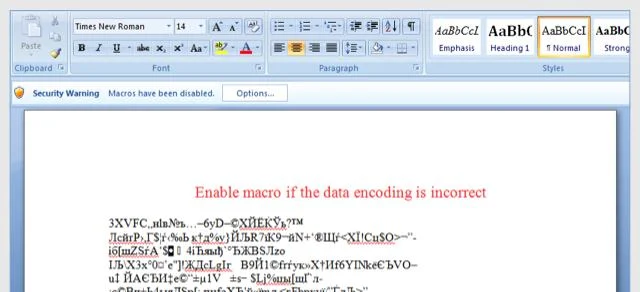
The Locky Lukitus ransomware is distributed via spam email containing infected attachments or links to malicious websites. Cyber-criminals spam out an email, with forged header information, tricking you into believing that it is from a shipping company like DHL or FedEx. The email tells you that they tried to deliver a package to you, but failed for some reason. Sometimes the emails claim to be notifications of a shipment you have made. Either way, you can’t resist being curious as to what the email is referring to – and open the attached file (or click on a link embedded inside the email). And with that, your computer is infected with the Locky Lukitus ransomware.
2. What is Locky Lukitus ransomware?
The Locky Lukitus ransomware restricts access to data by encrypting files. It then attempts to extort money from victims by asking for “ransom”, in form of Bitcoin cryptocurrency, in exchange for access to data.
The Locky Lukitus ransomware targets all versions of Windows including Windows 7, Windows 8.1 and Windows 10. This infection is notable due to how it encrypts the user’s files – namely, it uses AES-265 and RSA encryption method – in order to ensure that the affected user has no choice but to purchase the private key.
When the Locky Lukitus ransomware is first installed on your computer it will create a random named executable in the %AppData% or %LocalAppData% folder. This executable will be launched and begin to scan all the drive letters on your computer for data files to encrypt.
Locky Lukitus ransomware searches for files with certain file extensions to encrypt. The files it encrypts include important productivity documents and files such as .doc, .docx, .xls, .pdf, among others. When these files are detected, this infection will change the extension to .Lukitus, so they are no longer able to be opened.
Locky changes the name of each encrypted file to the following format: Filename .Lukitus.
Files targeted are those commonly found on most PCs today; a list of file extensions for targeted files include:
.sql, .mp4, .7z, .rar, .m4a, .wma, .avi, .wmv, .csv, .d3dbsp, .zip, .sie, .sum, .ibank, .t13, .t12, .qdf, .gdb, .tax, .pkpass, .bc6, .bc7, .bkp, .qic, .bkf, .sidn, .sidd, .mddata, .itl, .itdb, .icxs, .hvpl, .hplg, .hkdb, .mdbackup, .syncdb, .gho, .cas, .svg, .map, .wmo, .itm, .sb, .fos, .mov, .vdf, .ztmp, .sis, .sid, .ncf, .menu, .layout, .dmp, .blob, .esm, .vcf, .vtf, .dazip, .fpk, .mlx, .kf, .iwd, .vpk, .tor, .psk, .rim, .w3x, .fsh, .ntl, .arch00, .lvl, .snx, .cfr, .ff, .vpp_pc, .lrf, .m2, .mcmeta, .vfs0, .mpqge, .kdb, .db0, .dba, .rofl, .hkx, .bar, .upk, .das, .iwi, .litemod, .asset, .forge, .ltx, .bsa, .apk, .re4, .sav, .lbf, .slm, .bik, .epk, .rgss3a, .pak, .big, wallet, .wotreplay, .xxx, .desc, .py, .m3u, .flv, .js, .css, .rb, .png, .jpeg, .txt, .p7c, .p7b, .p12, .pfx, .pem, .crt, .cer, .der, .x3f, .srw, .pef, .ptx, .r3d, .rw2, .rwl, .raw, .raf, .orf, .nrw, .mrwref, .mef, .erf, .kdc, .dcr, .cr2, .crw, .bay, .sr2, .srf, .arw, .3fr, .dng, .jpe, .jpg, .cdr, .indd, .ai, .eps, .pdf, .pdd, .psd, .dbf, .mdf, .wb2, .rtf, .wpd, .dxg, .xf, .dwg, .pst, .accdb, .mdb, .pptm, .pptx, .ppt, .xlk, .xlsb, .xlsm, .xlsx, .xls, .wps, .docm, .docx, .doc, .odb, .odc, .odm, .odp, .ods, .odt
Once your files are encrypted with the .Lukitus extension, the Locky Lukitus ransomware will create the Lukitus.html, Lukitus_[4_digit_number].html, and Lukitus.bmp files ransom note in each folder that a file has been encrypted and on the Windows desktop.
These files are located in every folder that a file was encrypted as well as in the user’s Startup folder so that they are automatically displayed when a user logs in. These files will contain the information on how to access the payment site and get your files back.
When the infection has finished scanning your computer it will also delete all of the Shadow Volume Copies that are on the affected computer. It does this so that you cannot use the shadow volume copies to restore your encrypted files.
3. Is my computer infected with Locky Lukitus Ransomware?
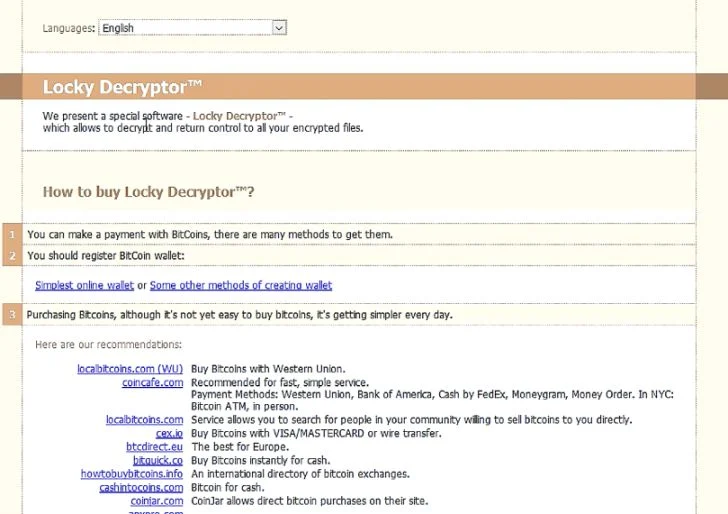
When Locky ransowmare infects your computer it will scan all the drive letters for targeted file types, encrypt them, and then append the .Lukitus extension to them. Once these files are encrypted, they will no longer able to be opened by your normal programs. When Loky ransowmare has finished encrypting the victim’s files, it will change the desktop wallpaper to an image that acts like a ransom note. It will also display a HTML ransom note in your default browser. These ransom notes include instructions on how to connect to the Decrypt Service where you can learn more about what happened to your files and how you can make a payment.
The messages displayed by this ransomware infection can be localized depending on the user’s location, with text written in the appropriate language.
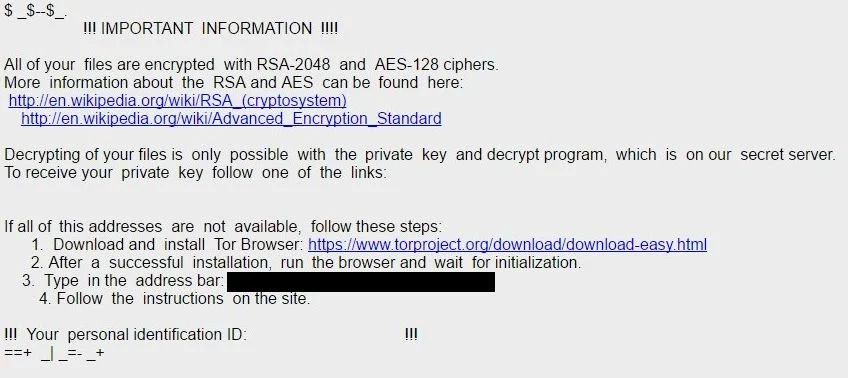
This the message that the Locky ransomware may display:
IMPORTANT INFORMATION !!!!
All of your files are encrypted with RSA-2048 and AES-128 ciphers.
More information about the RSA and AES can be found here:
hxxps://en.wikipedia.org/wiki/RSA_(cryptosystem)
hxxps://en.wikipedia.org/wiki/Advanced_Encryption_StandardDecrypting of your files is only possible with the private key and decrypt program, which is on our secret server.
To receive your private key follow one of the links:
[edited]If all of this addresses are not available, follow these steps:
1. Download and install Tor Browser: hxxps://www.torproject.org/download/download-easy.html
2. After a successful installation, run the browser and wait for initialization.
3. Type in the address bar: [edited]
4. Follow the instructions on the site.
!!! Your personal identification ID: [edited]
4. Is it possible to decrypt files encrypted with the *.Lukitus extension?
No, at this time it’s not possible to recover the files encrypted by the .Lukitus extension.
Locky Lukitus ransomware is notable due to how it encrypts the user’s files – namely, it uses AES-265 and RSA encryption method – in order to ensure that the affected user has no choice but to purchase the private key. The RSA public key can only be decrypted with its corresponding private key. Since the AES key is hidden using RSA encryption and the RSA private key is not available, decrypting the files is not feasible as of this writing.
Brute forcing the decryption key is not realistic due to the length of time required to break an AES encryption key. Unfortunately, once the .Lukitus encryption of the data is complete, decryption is not feasible without paying the ransom.
Because the needed private key to unlock the encrypted file is only available through the cyber criminals, victims may be tempted to purchase it and pay the exorbitant fee. However, doing so may encourage these bad guys to continue and even expand their operations. We strongly suggest that you do not send any money to these cyber criminals, and instead address to the law enforcement agency in your country to report this attack.
5. How to remove the .Lukitus extension (Virus Removal Guide)
This page is a comprehensive guide, which will remove the .Lukitus infection from your computer, however we cannot guarantee that your personal files will be recovered. We cannot be held responsible for losing the documents during this removal process.
Malwarebytes and HitmanPro can detect and remove this infection, but these programs cannot recover your encrypted files.
STEP 1: Scan your computer with Malwarebytes Anti-Malware to remove Locky Lukitus ransomware
Malwarebytes Anti-Malware is a powerful on-demand scanner which will remove the .Lukitus extension from your machine. It is important to note that Malwarebytes Anti-Malware will run alongside antivirus software without conflicts.
- You can download download Malwarebytes Anti-Malware from the below link.
Download MalwarebytesFree official installer. Your download starts right away. - Once downloaded, close all programs, then double-click on the icon on your desktop named “mbam-setup” to start the installation of Malwarebytes Anti-Malware.
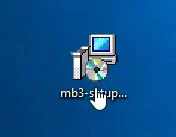
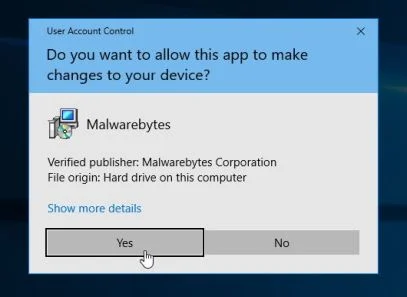
You may be presented with a User Account Control dialog asking you if you want to run this file. If this happens, you should click “Yes” to continue with the installation.
- When the installation begins, you will see the Malwarebytes Anti-Malware Setup Wizard which will guide you through the installation process.
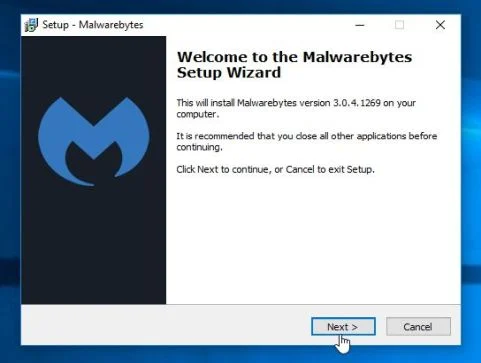
To install Malwarebytes Anti-Malware on your machine, keep following the prompts by clicking the “Next” button.
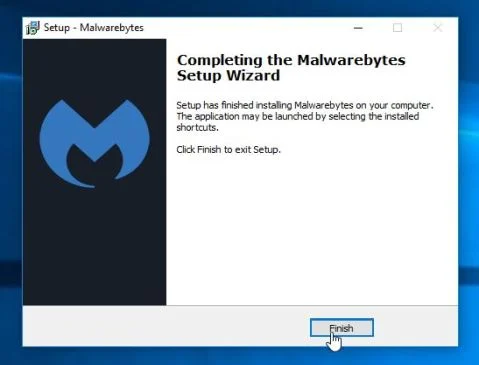
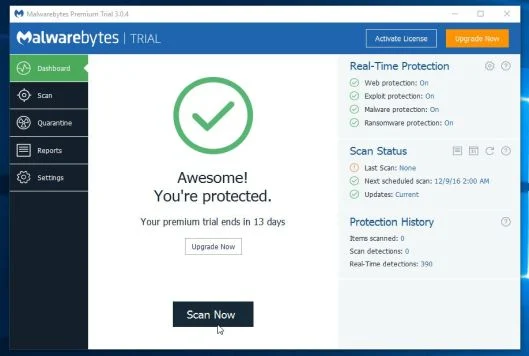
- Once installed, Malwarebytes Anti-Malware will automatically start and will update the antivirus database. To start a system scan you can click on the “Scan Now” button.
- Malwarebytes Anti-Malware will now start scanning your computer for the .Lukitus malware. When Malwarebytes Anti-Malware is scanning it will look like the image below.
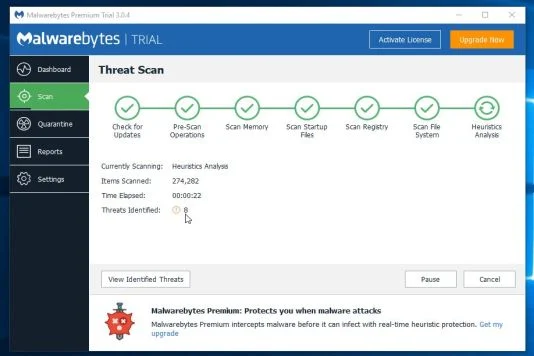
- When the scan has completed, you will be presented with a screen showing the malware infections that Malwarebytes Anti-Malware has detected. To remove the malicious programs that Malwarebytes Anti-malware has found, click on the “Remove Selected” button.
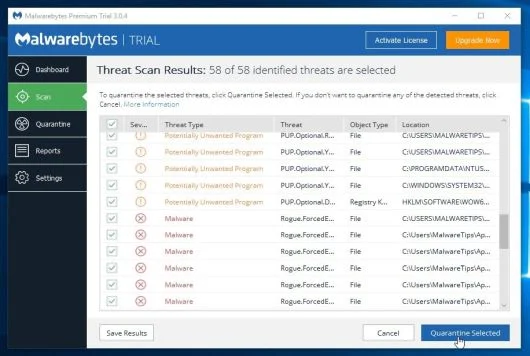
- Malwarebytes Anti-Malware will now quarantine all the malicious files and registry keys that it has found. When removing the files, Malwarebytes Anti-Malware may require a reboot in order to remove some of them. If it displays a message stating that it needs to reboot your computer, please allow it to do so.
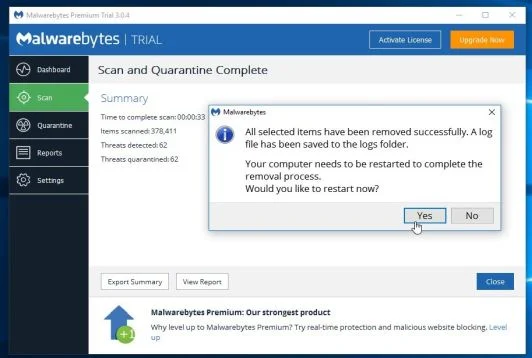
After your computer will restart, you should open Malwarebytes Anti-Malware and perform another scan to verify that there are no remaining threats
STEP 2: Double-check for the Locky ransowmare with HitmanPro
HitmanPro finds and removes malware, adware, bots, and other threats that even the best antivirus suite can oftentimes miss. It’s designed to run alongside your antivirus suite, firewall, and other security tools.
- You can download HitmanPro from the below link:
Download HitmanProOfficial Sophos download. Free scan, free 30-day trial to remove threats. - Double-click on the file named “HitmanPro.exe” (for 32-bit versions of Windows) or “HitmanPro_x64.exe” (for 64-bit versions of Windows).
Click on the “Next” button, to install HitmanPro on your computer.
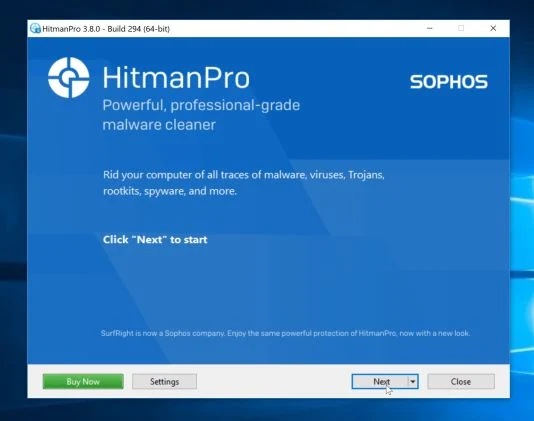
- HitmanPro will now begin to scan your computer for malware.
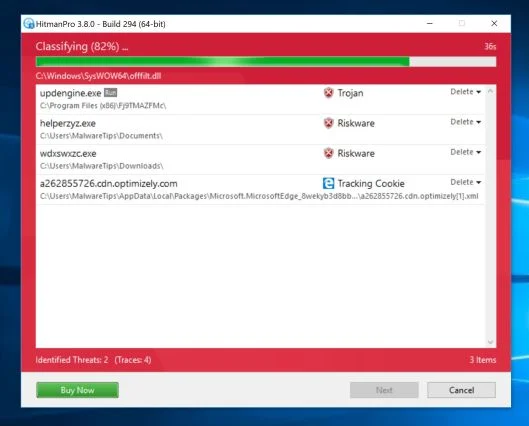
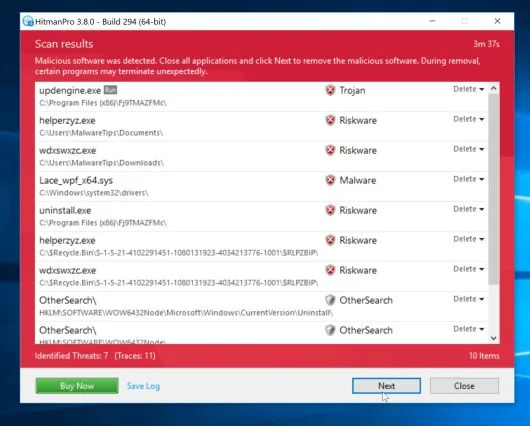
- When it has finished it will display a list of all the malware that the program found as shown in the image below. Click on the “Next” button, to remove malware.
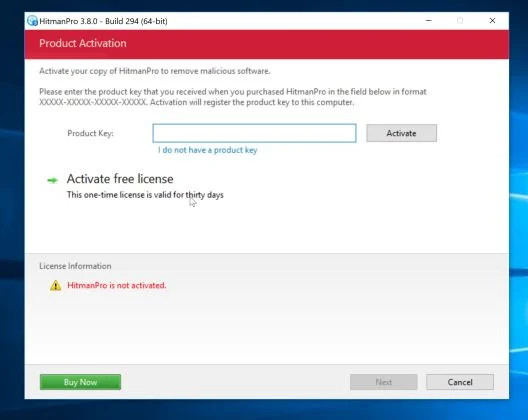
- Click on the “Activate free license” button to begin the free 30 days trial, and remove all the malicious files from your computer.
STEP 3: Restore the files encrypted by Locky Lukitus ransomware with recovery software
Option 1: Restore your files encrypted by Locky Lukitus ransomware with ShadowExplorer
Locky will attempt to delete all shadow copies when you first start any executable on your computer after becoming infected. Thankfully, the infection is not always able to remove the shadow copies, so you should continue to try restoring your files using this method.
- You can download ShadowExplorer from the below link:
Download ShadowExplorerOpens the download page in a new tab. - Once you have downloaded and installed ShadowExplorer, you can follow the below video guide on how to restore your files while using this program.
Option 2: Restore your files encrypted with the .Lukitus extension with File Recovery Software
When the files are encrypted with the .Lukitus, this ransomware first makes a copy of them, encrypts the copy, and then deletes the original. Due to this you can use file recovery software such as:
- Recuva
You can follow the below guide on how to use Recuva:
- EaseUS Data Recovery Wizard Free
- R-Studio
How to prevent your computer from becoming infected by *.Lukitus extension
To protect your computer from the Locky Lukitus ransomware, you should always have an antivirus installed on your computer and always have a backup for your personal documents. As an extra protection method, you can use programs called HitmanPro.Alert which will prevent any file encrypting malware from running.
Your PC should now be free of the Locky Lukitus ransomware infection.
If you are still experiencing problems while trying to remove Locky Lukitus ransowmare from your computer, please do one of the following:
- Run a system scan with Emsisoft Emergency Kit
- Ask for help in our Malware Removal Assistance forum.

Join the discussion
0 commentsShare your experience or ask a question about this article.
Your progress
Did these steps help?
Let us know how the guide worked for you.
Describe what you see and the step you reached. Keep passwords and other private information out.
Discussion
Start the conversation
Have a question or something useful to share? Add the first comment.