

PC Defender Plus is a computer virus,which will report that malware was detected on your machine however if you try to remove these infections, it will state that you need to buy this product before being able to do so.
In reality, none of the reported issues are real, and are only used to scare you into buying PC Defender Plus and stealing your personal financial information.
As part of its self-defense mechanism,PC Defender Plus has installed a rootkit, which has disabled the Windows system utilities, including the Windows Task Manager and Registry Editor,and will block you from running certain programs that could lead to its removal.
PC Defender Plus has also modified your Windows files associations,and now whenever you are trying to run a program with a .exe extension ,PC Defender Plus will display a bogus notification in which will report that malware was detected,in an attempt to scare you.
If your computer is infected with PC Defender Plus,then you are seeing this screens:
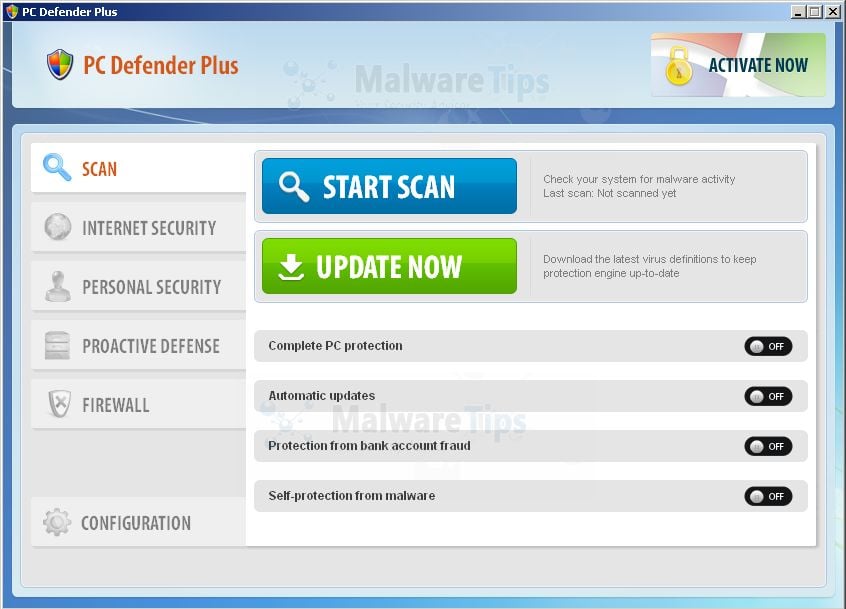
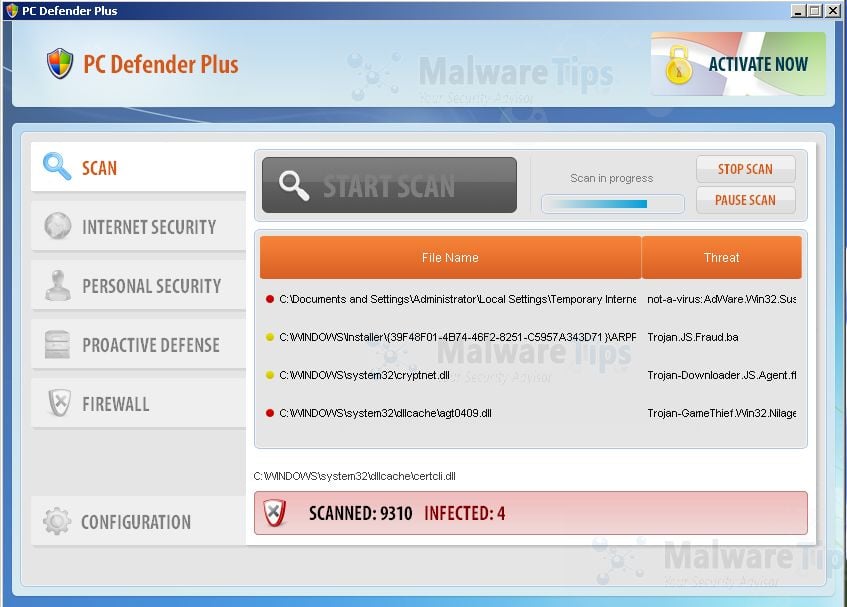
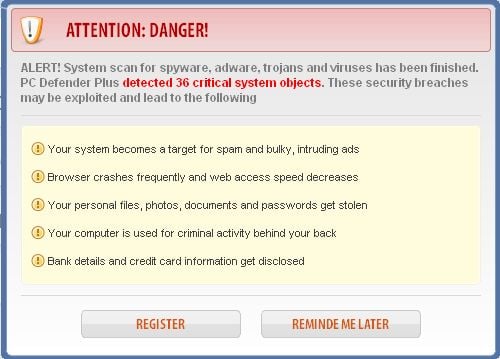
PC Defender Plus is a scam and you should ignore any alerts that this malicious software might generate.
Under no circumstance should you buy PC Defender Plus as this could lead to identity theft,and if you have, you should contact your credit card company and dispute the charge stating that the program is a scam and a computer virus.
PC Defender Plus – Virus Removal Guide
STEP 1 : Start your computer in Safe Mode with Networking
- Remove all floppy disks, CDs, and DVDs from your computer, and then restart your computer.
- Press and hold the F8 key as your computer restarts.Please keep in mind that you need to press the F8 key before the Windows start-up logo appears.
Note: With some computers, if you press and hold a key as the computer is booting you will get a stuck key message. If this occurs, instead of pressing and holding the “F8 key”, tap the “F8 key” continuously until you get the Advanced Boot Options screen. - On the Advanced Boot Options screen, use the arrow keys to highlight Safe Mode with Networking , and then press ENTER.
![[Image: Safemode.jpg]](//malwaretips.com/images/removalguide/safemode.jpg "Safe Mode with Networking screen")
![[Image: Safemode.jpg]](http://malwaretips.com/images/removalguide/safemode.jpg "Safe Mode with Networking screen")
STEP 2: Repair your Windows Registry from PC Defender Plus malicious changes.
Smart Fortress 2012 has changed your Windows registry settings so that when you try to run a executable file (ending with .exe ) , it will instead launch the infection rather than the desired program.
- Download the registryfix.reg file to fix the malicious registry changes from PC Defender Plus.
Download RegistryFix.regOpens the download page in a new tab. - Double-click on registryfix.reg file to run it. Click “Yes” for Registry Editor prompt window,then click OK.
![[Image: fix registry]](https://malwaretips.com/blogs/wp-content/uploads/mwt-media/eb/ebb442be105de3ba699098a7eabfd9a0d16dc8095665c269a2522c8688db35b2/26385b223113f019b2e1203ccb53c22dd9afebee09d707d7218c37072ce252ce-429.webp "Remove PC Defender Plus (Removal Instructions) 1")
STEP 3: Run RKill to terminate known malware processes associated with PC Defender Plus.
RKill is a program that will attempt to terminate all malicious processes associated with PC Defender Plus,so that we will be able to perform the next step without being interrupted by this malicious software.
Because this utility will only stop PC Defender Plus running process, and does not delete any files, after running it you should not reboot your computer as any malware processes that are configured to start automatically will just be started again.
- While your computer is in Safe Mode with Networking ,please download the latest official version of RKill.Please note that we will use a renamed version of RKILL so that PC Defender Plus won’t block this utility from running.
Download RKillYour download starts right away. - Double-click on the iExplore.exe icon in order to automatically attempt to stop any processes associated with PC Defender Plus.
![[Image: run-rkill-1.png]](//malwaretips.com/images/removalguide/rkill1.png "RKILL ICON")
- RKill will now start working in the background, please be patient while the program looks for various malware programs and tries to terminate them.
![[Image: run-rkill-2.png]](//malwaretips.com/images/removalguide/rkill2.png "RKILL Command prompt")
IF you are having problems starting or running RKill, you can download any other renamed versions of RKill from here. - When Rkill has completed its task, it will generate a log. You can then proceed with the rest of the guide.
![[Image: PC Defender Plus rkill3.jpg]](//malwaretips.com/images/removalguide/rkill3.png "RKILL LOG")
![[Image: run-rkill-1.png]](http://malwaretips.com/images/removalguide/rkill1.png "RKILL ICON")
![[Image: run-rkill-2.png]](http://malwaretips.com/images/removalguide/rkill2.png "RKILL Command prompt")
![[Image: PC Defender Plus rkill3.jpg]](http://malwaretips.com/images/removalguide/rkill3.png "RKILL LOG")
WARNING: Do not reboot your computer after running RKill as the malware process will start again , preventing you from properly performing the next step.
STEP 4: Remove PC Defender Plus malicious files with Malwarebytes Anti-Malware FREE
- Download the latest official version of Malwarebytes Anti-Malware FREE.
Download MalwarebytesFree official installer. Your download starts right away. - Start the Malwarebytes’ Anti-Malware installation process by double clicking on mbam-setup file.
![[Image: Malwarebytes Installer]](//malwaretips.com/images/removalguide/malwarebytes-setup.png "Malwarebytes Anti-Malware Installer")
- When the installation begins, keep following the prompts in order to continue with the setup process. Do not make any changes to default settings and when the program has finished installing, make sure you leave both the Update Malwarebytes’ Anti-Malware and Launch Malwarebytes’ Anti-Malware checked. Then click on the Finish button. If Malwarebytes’ prompts you to reboot, please do not do so.
![[Image: Finishing Malwarebytes installation]](//malwaretips.com/images/removalguide/update-malwarebytes.png "Malwarebytes last setup screen")
- Malwarebytes Anti-Malware will now start and you’ll be prompted to start a trial period , please select ‘Decline‘ as we just want to use the on-demand scanner.
![[Image: Decline Malwarebytes trial]](//malwaretips.com/images/removalguide/malwarebytes-trial.png "Decline trial period in Malwarebytes Anti-Malware")
- On the Scanner tab,select Perform quick scan and then click on the Scan button to start scanning your computer.
![[Image: Starting a full system sca]](//malwaretips.com/images/removalguide/start-scan-malwarebytes.png "Perform a Full System Scan with Malwarebytes Anti-Malware")
- Malwarebytes’ Anti-Malware will now start scanning your computer for PC Defender Plus malicious files as shown below.
![[Image: Malwarebytes scanning for malicious files]](//malwaretips.com/images/removalguide/scan-malwarebytes.png "Malwarebytes Anti-Malware scanning for PC Defender Plus")
- When the scan is finished a message box will appear, click OK to continue.
![[Image: Malwarebytes scan results]](//malwaretips.com/images/removalguide/results-malwarebytes.png "Malwarebytes when the system scan has finished")
- You will now be presented with a screen showing you the malware infections that Malwarebytes’ Anti-Malware has detected.Please note that the infections found may be different than what is shown in the image.Make sure that everything is Checked (ticked) and click on the Remove Selected button.
![[Image: Infections found by Malwarebytes]](//malwaretips.com/images/removalguide/detection-malwarebytes.png "Removing the infections found by Malwarebytes")
- Malwarebytes’ Anti-Malware will now start removing the malicious files.After completing this task it will display a message stating that it needs to reboot,please allow this request and then let your machine boot in Normal mode.
![[Image: Malwarebytes Installer]](http://malwaretips.com/images/removalguide/malwarebytes-setup.png "Malwarebytes Anti-Malware Installer")
![[Image: Finishing Malwarebytes installation]](http://malwaretips.com/images/removalguide/update-malwarebytes.png "Malwarebytes last setup screen")
![[Image: Decline Malwarebytes trial]](http://malwaretips.com/images/removalguide/malwarebytes-trial.png "Decline trial period in Malwarebytes Anti-Malware")
![[Image: Starting a full system sca]](http://malwaretips.com/images/removalguide/start-scan-malwarebytes.png "Perform a Full System Scan with Malwarebytes Anti-Malware")
![[Image: Malwarebytes scanning for malicious files]](http://malwaretips.com/images/removalguide/scan-malwarebytes.png "Malwarebytes Anti-Malware scanning for PC Defender Plus")
![[Image: Malwarebytes scan results]](http://malwaretips.com/images/removalguide/results-malwarebytes.png "Malwarebytes when the system scan has finished")
![[Image: Infections found by Malwarebytes]](http://malwaretips.com/images/removalguide/detection-malwarebytes.png "Removing the infections found by Malwarebytes")
STEP 5: Remove PC Defender Plus rootkit with HitmanPro
- This step can be performed in Normal Mode ,so please download the latest official version of HitmanPro.
Download HitmanProOfficial Sophos download. Free scan, free 30-day trial to remove threats. - Double click on the previously downloaded fileto start the HitmanPro installation.
![[Image: HitmanPro Icon]](//malwaretips.com/images/removalguide/hpro1.png "HitmanPro Installer")
IF you are experiencing problems while trying to start HitmanPro, you can use the Force Breach mode.To start HitmanPro in Force Breach mode, hold down the left CTRL-key when you start HitmanPro and all non-essential processes are terminated, including the malware process. (How to start HitmanPro in Force Breach mode – Video) - Click on Next to install HitmanPro on your system.
![[Image: Starting HitmanPro]](//malwaretips.com/images/removalguide/hitmanpro36-start.png "HitmanPro installation process")
- The setup screen is displayed, from which you can decide whether you wish to install HitmanPro on your machine or just perform a one-time scan, select a option then click on Next to start a system scan.
![[Image: HitmanPro installation screen]](//malwaretips.com/images/removalguide/hitmanpro36-installation.png "HitmanPro setup options")
- HitmanPro will start scanning your system for malicious files as seen in the image below.
![[Image: HitmanPron scanning for PC Defender Plus]](//malwaretips.com/images/removalguide/hitmanpro36-scan.png "HitmanPro while scanning for PC Defender Plus virus")
- Once the scan is complete,you’ll see a screen which will display all the malicious files that the program has found.Click on Next to remove this malicious files.
![[Image: HitmanPro scan results]](//malwaretips.com/images/removalguide/hitmanpro36-results.png "HitmanPro displaying scan results")
- Click Activate free license to start the free 30 days trial and remove the malicious files.
![[Image: Activate HitmanPro license]](//malwaretips.com/images/removalguide/hitmanpro36-activation.png "Activate the HitmanPro free 30 days trial to remove any detected infections")
- HitmanPro will now start removing the infected objects.If this program will ask you to restart your computer,please allow this request.
![[Image: HitmanPro Icon]](http://malwaretips.com/images/removalguide/hpro1.png "HitmanPro Installer")
![[Image: Starting HitmanPro]](http://malwaretips.com/images/removalguide/hitmanpro36-start.png "HitmanPro installation process")
![[Image: HitmanPro installation screen]](http://malwaretips.com/images/removalguide/hitmanpro36-installation.png "HitmanPro setup options")
![[Image: HitmanPron scanning for PC Defender Plus]](http://malwaretips.com/images/removalguide/hitmanpro36-scan.png "HitmanPro while scanning for PC Defender Plus virus")
![[Image: HitmanPro scan results]](http://malwaretips.com/images/removalguide/hitmanpro36-results.png "HitmanPro displaying scan results")
![[Image: Activate HitmanPro license]](http://malwaretips.com/images/removalguide/hitmanpro36-activation.png "Activate the HitmanPro free 30 days trial to remove any detected infections")
STEP 6: Double check for any left over infections with Emsisoft Emergency Kit
- You can download Emsisoft Emergency Kit from the below link.
Download Emsisoft Emergency KitOpens the download page in a new tab. - After the download process will finish , you’ll need to unpack EmsisoftEmergencyKit.zip
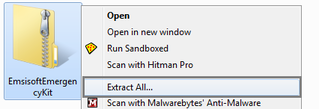
- Open the Emsisoft Emergency Kit folder and double click EmergencyKitScanner.bat.
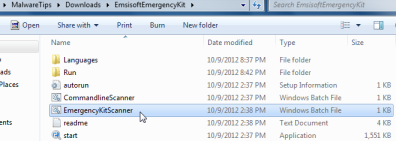
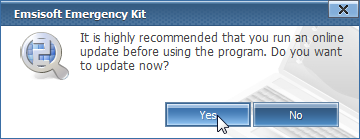
- A pop-up will prompt you to update Emsisoft Emergency Kit,and you’ll need to click the Yes button to allow this request.
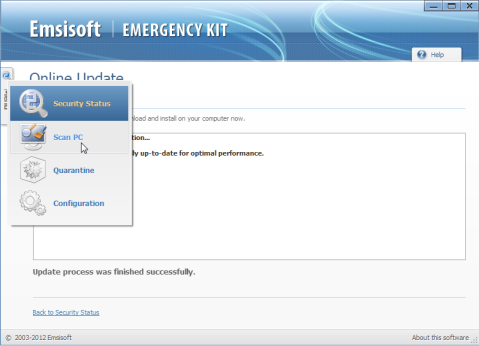
- After the Update process has completed,click on the Menu tab and then select Scan PC.
- Select Smart scan and click on the SCAN button to search for PC Defender Plus malicious files.
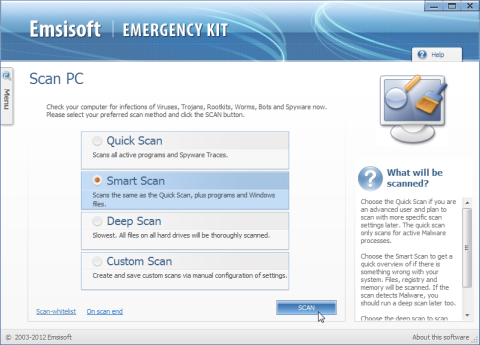
- Emsisoft will now start scanning your computer for malicious files.When the scan will be completed,you will be presented with a screen showing you the infections that Emsisoft has detected.
Make sure that everything is Checked (ticked) and then click on Quarantine selected objects.
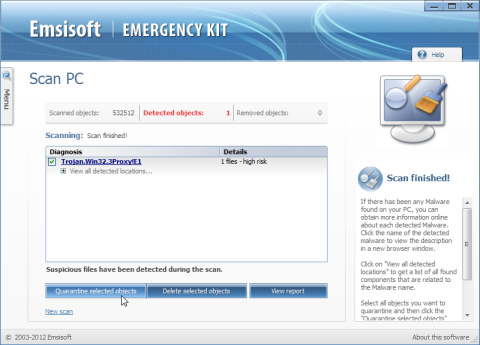
- Emsisoft Emergency Kit will now start removing the malicious files.If during the removal process Emsisoft will display a message stating that it needs to reboot, please allow this request.

Join the discussion
43 commentsShare your experience or ask a question about this article.
Discussion
Thanks a million!! Worked like a charm!!!
Thanks.
Thanks the guide worked well. Thank you
Can i unistall the progams now
In reply to Chris
Hello Chris,
Yes,you can uninstall all the programs that we’ve used to remove this infection.
Stay safe!
a friend’s laptop was infected with this crap and i use your instructions to repair his laptop. works perfectly now. thanks!
Thank you so much for your post, it really helped me out, but there’s one thing! When I was running Rougekiller, it said that I had ZeroAccess. Then I just deleted all the detected files and fixed my shortcuts. Then I ran another scan and it didn’t detect ZeroAccess anymore. But now I am not sure whether I still have it or not. Could you please help me out, I’m so scared! (I’m 16 years old… So… Yeah…)
Thanks anyways!
In reply to Nikie
Hello Nikie,
You can follow our ZeroAccess Rootkit removal guide to get rid of this infection.
Stay safe!
You guys are awesome, this was very helpful
Thank you
thanks it helped a lot
Instruction to rid computer of pc defender plus was a success Thanks and good work it is appricated.
Thank you so much!
Worked like a dream :3
When I restart my computer instead of the Advanced Boot Options screen showing up I get a screen that says to select the boot device. Following, 1st Floppy drive, PM-LITE-ON COMBO SOHC-5235K, PS-HL-DT-ST RW/DVD GCC-4480B, 3M-ST3500418AS, 4M-ST3320620AS. Which one am I suppose to choose?
In reply to Amina
Hello Amina,
Lets try to fix your computer,please run the below tools while in Normal Mode;
STEP 1: Run a scan with Malwarebytes Anti-Malware in Chameleon Mode in Norman mode:
STEP 2: Run a scan with RogueKiller
RogueKiller Download Link (This link will automatically download RogueKiller on your computer)
STEP 3 Please perform a scan with HitmanPro as seen on the guide.
If you are having problems starting this program please use the ForceBreach mode as described in the guide.
STEP 4: Run a scan with ESET Online Scanner:
ESET Online Scanner Download Link (This link will automatically download ESET Online Scanner on your computer.)
Waiting for your reply to tell me how everything is running!
Good luck.
Thanks man, this lovely virus kinda scared me a bit good to know yall geeks got this type of stuff under control
PC Defender Pro won’t let me run Rkill or any other version under a different name. Help!
In reply to SImon
Hello Simon,
Lets try to fix your computer,please run the below tools while in Normal Mode;
STEP 1: Run a scan with Malwarebytes Anti-Malware in Chameleon Mode in Norman mode:
STEP 2: Run a scan with RogueKiller
RogueKiller Download Link (This link will automatically download RogueKiller on your computer)
STEP 3 Please perform a scan with HitmanPro as seen on the guide.
If you are having problems starting this program please use the ForceBreach mode as described in the guide.
STEP 4: Run a scan with ESET Online Scanner:
ESET Online Scanner Download Link (This link will automatically download ESET Online Scanner on your computer.)
Waiting for your reply to tell me how everything is running!
Good luck…
Hi Pals, this is great and helped me a lot, finally based on your step-by-step guide, managed to get rip of the stubborn piece of malware.
Thanks a lot!
PC Defender Plus is blocking every attempt to run RKill.
In reply to ang
Hello Ang,
Lets try to fix your computer,please run the below tools while in Normal Mode;
STEP 1: Run a scan with Malwarebytes Anti-Malware in Chameleon Mode in Norman mode:
STEP 2: Run a scan with RogueKiller
RogueKiller Download Link (This link will automatically download RogueKiller on your computer)
STEP 3 Please perform a scan with HitmanPro as seen on the guide.
If you are having problems starting this program please use the ForceBreach mode as described in the guide.
STEP 4: Run a scan with ESET Online Scanner:
ESET Online Scanner Download Link (This link will automatically download ESET Online Scanner on your computer.)
Waiting for your reply to tell me how everything is running!
Good luck…
Will try this immediately !
Well,that was easy!thanks!