

The “Reminder About Your Dirty Deeds” email is a scam that tries to trick you into thinking that your computer or phone is infected with malware and then threatens to make your personal data public. Contrary to the claims in the email, you haven’t been hacked (or at least, that’s not what prompted this email) and this is nothing more than a scam that tries to trick you into sending Bitcoins to these scammers. This is merely a new variation on an old scam which is popularly being called “sextortion”.
This is the text of the “Reminder About Your Dirty Deeds” blackmail email, including the grammatical and spelling errors:
Subject: Money Transfer Confirmation.
Greetings!This email has nothing good for you. It is a reminder about your dirty deeds!
It has been around 4 months since your device that you use to access the internet, has been infected with spyware.
I have been tracking your online activities for a long time by now.
How it has become possible:
Approximately half a year ago there was a huge leak of personal data (mainly passwords and logins), including your email provider.
Professional hackers have used this data in order to access the operating systems of potential victims (including you as well),
and installed special loaders that can be used to install absolutely anything to the infected devices.I would like to point out that antivirus companies are struggling to deal with such spyware since long time ago,
because Trojan software codes keep continuously updating and hence, not allowing antiviruses to do anything.Likewise, all that personal data has become available at the black market and I have purchased it to install my spyware and start checking out people’s personal information,
hoping to find something interesting.
Some people had a lot of boring documents, some people have basic games, while others play casino… all those devices have been utilized by us in order to do cryptocurrency mining.
However, eventually I have stumbled upon something really special while checking your personal data!You are truly a huge fan of watching kinky videos (it is easy to confirm by checking the activity log of your multimedia players and browser history).
I have been filtering out for some time the most shocking videos with you masturbating, while recording you via your device’s camera and microphone.
As result, I have generated sample videos exposing the way you are pleasing yourself (in really impressive manners sometimes),
while the lower part of the screen plays the video that you were watching at that point of time.I have managed to create a really nice collection for the past few months!
What do you think would happen, if those videos get shared to your colleagues, relatives and friends?
Taking in consideration the “specificity” of the videos you had been watching, the opinion of your friends about your personality will be changed once and for all.
I guess, you might have troubles with law due to certain videos from that collection…
But I don’t want to get you in this kind of troubles, since I have no interest in that.I simply want to get some money from you, since I have spent quite a significant amount of time and effort to get all this done!
Let’s agree like this: 1550$ (USD) of bitcoin equivalent will be good enough for me! If you want to pay more – please, feel free!My BTC wallet for your transaction is:
It is really not that hard to purchase bitcoin and send it to my wallet. Based on the logs, I can say that you are not a stupid person and really known how to use the internet.
Frankly speaking, I can’t imagine where else this kind of videos (with you masturbating) can be found.Once I receive a notification of your transaction, I will immediately delete your kinky videos right away together with the porn that you were watching at that point of time.
Afterwards, I will completely forget about you – don’t worry, you are not the only one like that!By the way, you have no idea how many there are people around the globe that watch porn, while masturbating.
However, those guys don’t watch such kinky videos with nasty models that your like to watch!!!
Likewise, regardless of everything mentioned above, there is no reason for you to panic!Here are several simple rules for you to end it all in the most problem-free manner:
# You have 48 hours to complete the bitcoin transaction. If I don’t receive any money from you after 48 hours,
then I will upload the videoclip exposing you to online resources and forward it to your entire contact list.
Even your closest relatives, colleagues and friends will receive an email or SMS from me.
You’ve got to complete everything necessary within the allocated time – I won’t be waiting any longer that that!
# Timer will start automatically right after you open this email. Please note, that even though the email gets opened by somebody else, the timer will still start.
# There is no point to reply this email. The sender address has been generated – I have merely used a random address from the internet. All you need to do is pay.
# In case if you decide to find me – that is a bad idea, since I am using nodes, same as blockchain system, which are used to carry out bitcoin transactions.
# The idea to reinstall the Operating System would not help either. Even if you burn down your device, it still won’t solve the problem.
All the files have already been encrypted and saved at remote file hosting websites.
# Once the transaction is complete, there is no need to notify me about that. I will be able to see it by myself, since I am monitoring all your online activities.Please keep in mind the most important thing:
Once you complete the transaction, I will delete my Trojan virus from your device as well as all the discrediting videos from remote online resources.
Afterwards, you can forget about me and this unpleasant situation as well. That is the best solution to this problem!One last advice for you: change all the access information to all your online services, since I may be not only one who has the access to all your accounts!
Please be reasonable.
Good luck!
The above email and anything it states is just a scam to try and scare you into paying the ransom. If you have received the “Reminder About Your Dirty Deeds” email, we recommend deleting it and under no circumstances send any money to these cybercriminals.
Is the “Reminder About Your Dirty Deeds” email real?
No, and don’t panic. The “Reminder About Your Dirty Deeds” email is a scam that tries to trick you into thinking that your device or email has been hacked, then demands payment, or else they will send compromising information -such as images of you captured through your web camera or your pornographic browsing history – to all your friends and family. And in classic ransomware fashion, there’s typically a ticking clock. Giving users a short time limit to deliver the payment is social engineering at its finest.
Threats, intimidation, and high-pressure tactics are classic signs of a scam.
As you can imagine, the “Reminder About Your Dirty Deeds” extortion email and anything it states is just a scam to try and scare you into paying the ransom.
They have my password! How did they get my password?
To make the threats more credible, the scammers may include one of your passwords in this email. The scammers have your password from sites that were hacked, and in this case, likely matched up to a database of emails and stolen passwords and sent this scam out to potentially millions of people. You can check if your email or password was compromised in a data breach on Haveibeenpwned.
If the password emailed to you is one that you still use, in any context whatsoever, stop using it and change it NOW. It’s also recommended that you enable two-factor authentication for your email and online accounts whenever that is an option.
Should I pay the ransom?
You should not pay the ransom. If you pay the ransom, you’re not only losing money but you’re encouraging the scammers to continue phishing other people.
Delete the “Reminder About Your Dirty Deeds” email, and under no circumstances pay these cyber criminals a penny/dime/bitcoin.
What should I do now?
We recommend that you ignore the content of the “Reminder About Your Dirty Deeds” email and delete it from your Inbox. However, if you have downloaded any attachments or clicked on any links from this email, or if you suspect that your computer might be infected with malware, you can follow the below guide to and scan your device for malware and remove it for free.
Depending on which operating system is installed on the device you want to scan for malicious programs, follow the removal guide.
 Scan and remove malware from Windows
-
 Scan and remove malware from Mac
  Scan and remove malware from Android
STEP 1: Use Malwarebytes Free to remove malware from Windows
In this first step, we will install and run a scan with Malwarebytes to remove adware, browser hijackers, and potentially unwanted programs that might be installed on your computer.
Malwarebytes Free is one of the most popular and most used anti-malware software for Windows, and for good reasons. It is able to destroy many types of malware that other software tends to miss, without costing you absolutely nothing. When it comes to cleaning up an infected device, Malwarebytes has always been free and we recommend it as an essential tool in the fight against malware.
-
Download Malwarebytes Free.
You can download Malwarebytes by clicking the link below.
 Malwarebytes Free for WindowsScans and removes malware at no cost
Download MalwarebytesOfficial installer for Windows 11 and 10. Your download starts right away.Want real-time protection? See Malwarebytes Premium
-
Double-click on the Malwarebytes setup file.
When Malwarebytes has finished downloading, double-click on the MBSetup file to install Malwarebytes on your computer. In most cases, downloaded files are saved to the Downloads folder.
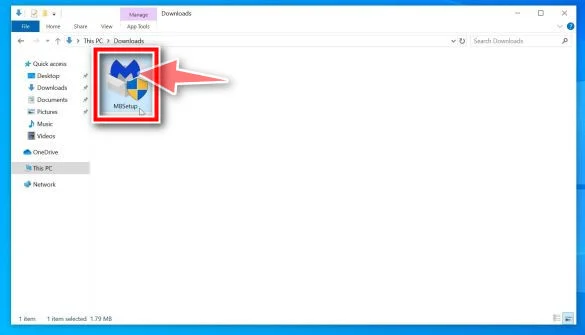
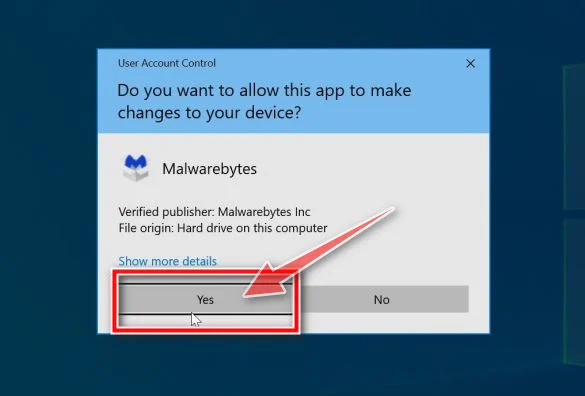
You may be presented with an User Account Control pop-up asking if you want to allow Malwarebytes to make changes to your device. If this happens, you should click “Yes” to continue with the Malwarebytes installation.
-
Follow the on-screen prompts to install Malwarebytes.
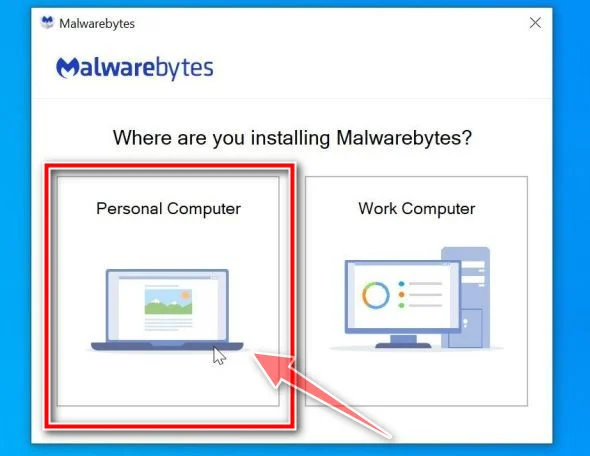
When the Malwarebytes installation begins, you will see the Malwarebytes setup wizard which will guide you through the installation process. The Malwarebytes installer will first ask you on what type of computer are you installing this program, click either Personal Computer or Work Computer.
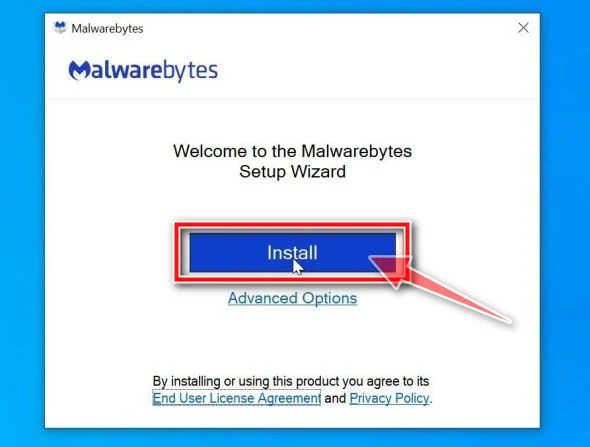
On the next screen, click “Install” to install Malwarebytes on your computer.
When your Malwarebytes installation completes, the program opens to the Welcome to Malwarebytes screen. Click the “Get started” button.
-
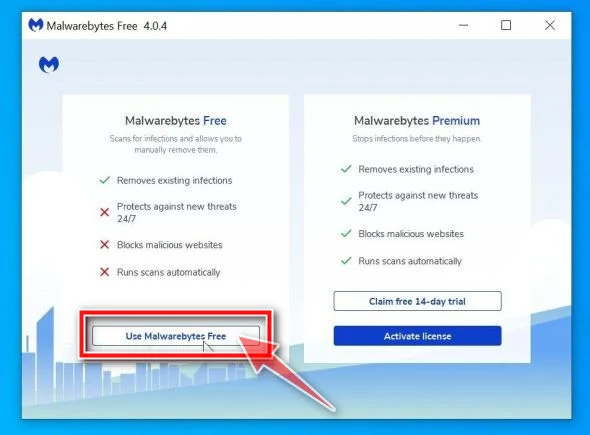
Select “Use Malwarebytes Free”.
After installing Malwarebytes, you’ll be prompted to select between the Free and the Premium version. The Malwarebytes Premium edition includes preventative tools like real-time scanning and ransomware protection, however, we will use the Free version to clean up the computer.
Click on “Use Malwarebytes Free“.
-
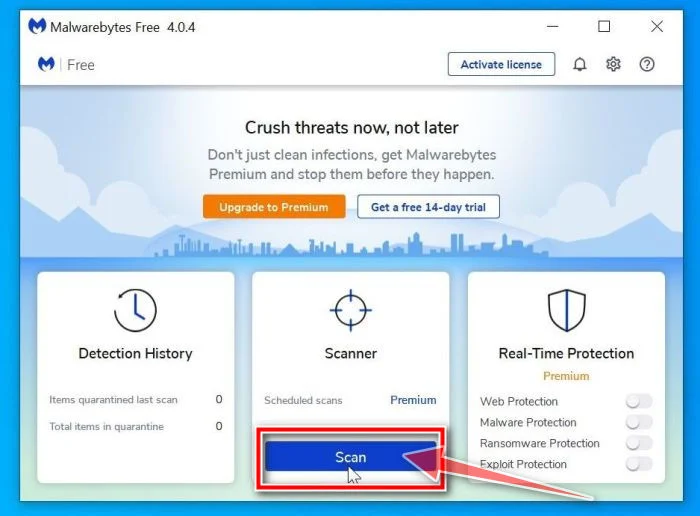
Click on “Scan”.
To scan your computer with Malwarebytes, click on the “Scan” button. Malwarebytes will automatically update the antivirus database and start scanning your computer for malware.
-
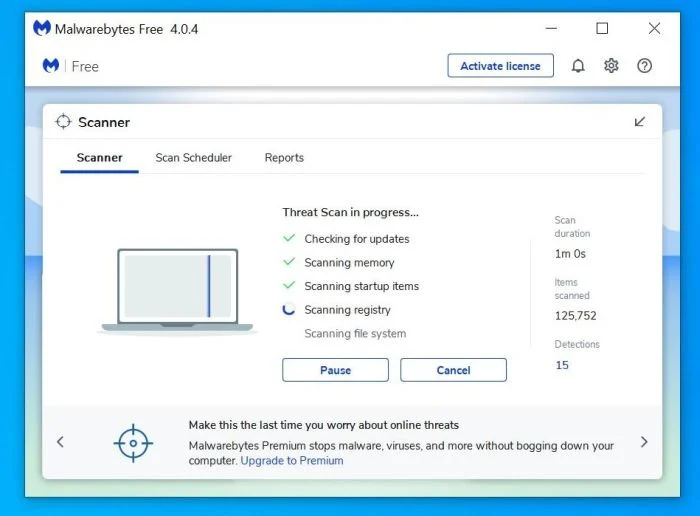
Wait for the Malwarebytes scan to complete.
Malwarebytes will scan your computer for adware and other malicious programs. This process can take a few minutes, so we suggest you do something else and periodically check on the status of the scan to see when it is finished.
-
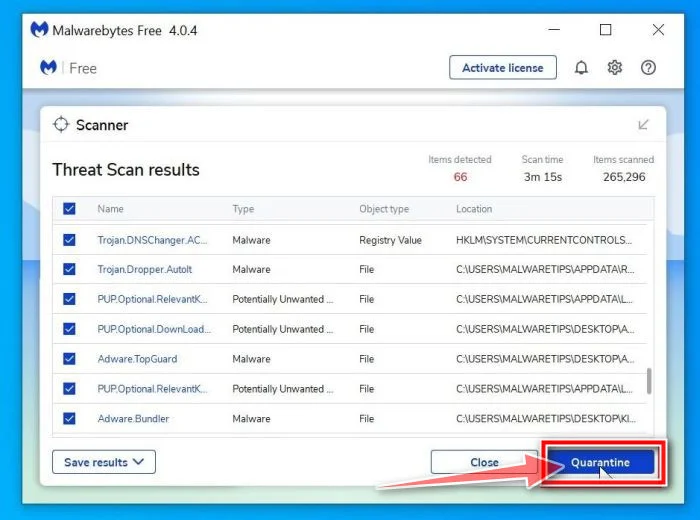
Click on “Quarantine”.
When the scan has completed, you will be presented with a screen showing the malware infections that Malwarebytes has detected. To remove the malicious programs that Malwarebytes has found, click on the “Quarantine” button.
-
Restart computer.
Malwarebytes will now remove all the malicious files and registry keys that it has found. To complete the malware removal process, Malwarebytes may ask you to restart your computer.
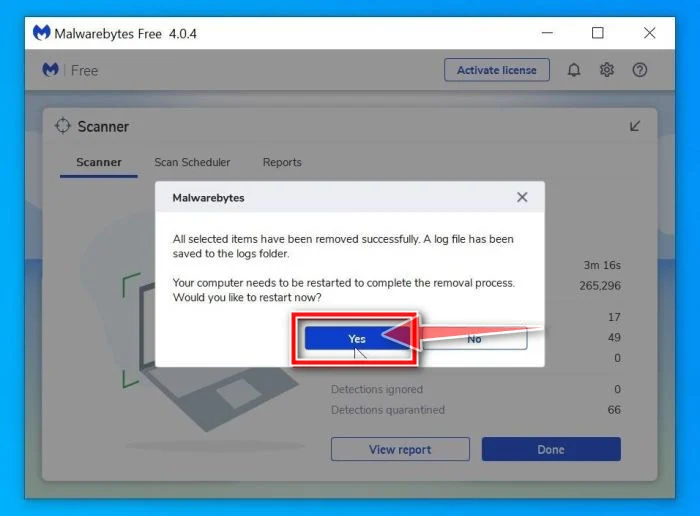
When the malware removal process is complete, you can close Malwarebytes and continue with the rest of the instructions.
STEP 2: Use HitmanPro to scan for malware and unwanted programs
In this second step, we will run a scan with HitmanPro to do a final check for any other malicious programs that may be present on your computer.
HitmanPro is a second opinion scanner that takes a unique cloud-based approach to malware scanning. HitmanPro scans the behavior of active files and also files in locations where malware normally resides for suspicious activity. If it finds a suspicious file that’s not already known, HitmanPro sends it to their clouds to be scanned by two of the best antivirus engines today, which are Bitdefender and Kaspersky.
Although HitmanPro is shareware and costs $24.95 for 1 year on 1 PC, there is actually no limit in scanning. The limitation only kicks in when there is a need to remove or quarantine detected malware by HitmanPro on your system and by then, you can activate the one time 30-days trial to enable the clean up.
-
Download HitmanPro.
You can download HitmanPro by clicking the link below.
 HitmanProSecond-opinion malware scanner from Sophos
Download HitmanProFree scan. Removing threats needs the free 30-day trial. Your download starts right away.
-
Install HitmanPro.
When HitmanPro has finished downloading, double-click on “hitmanpro.exe” (for 32-bit versions of Windows) or “hitmanpro_x64.exe” (for 64-bit versions of Windows) to install this program on your PC. In most cases, downloaded files are saved to the Downloads folder.
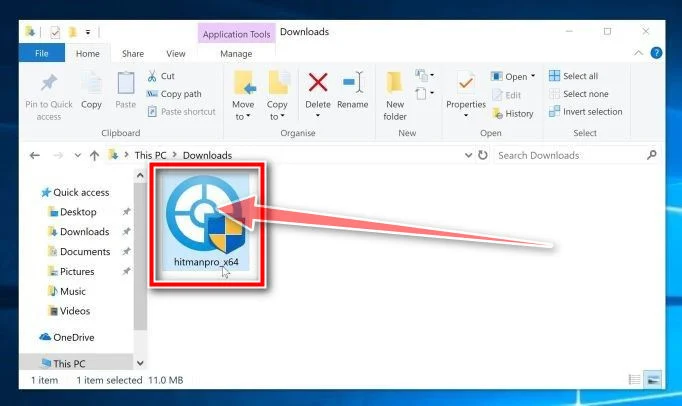
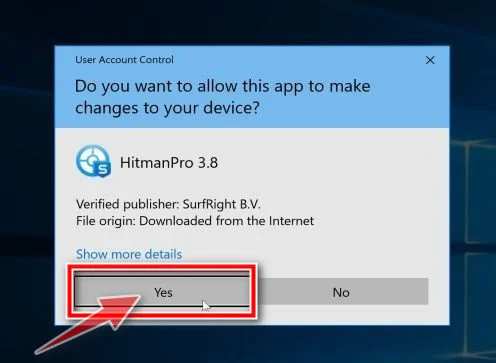
You may be presented with an User Account Control pop-up asking if you want to allow HitmanPro to make changes to your device. If this happens, you should click “Yes” to continue with the installation.
-
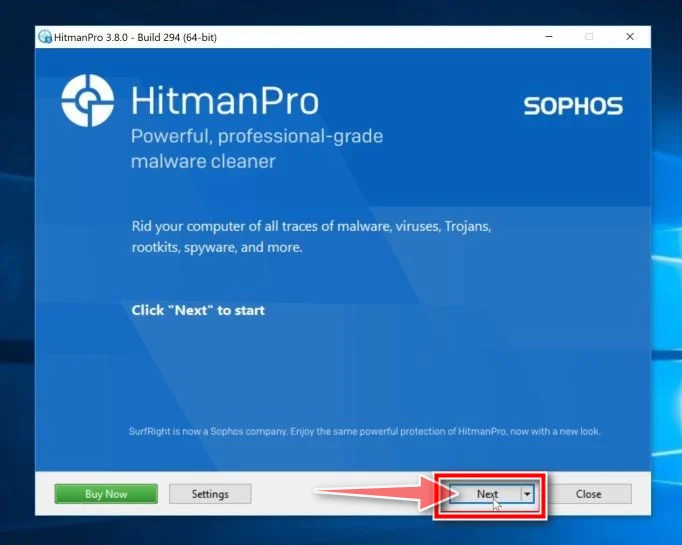
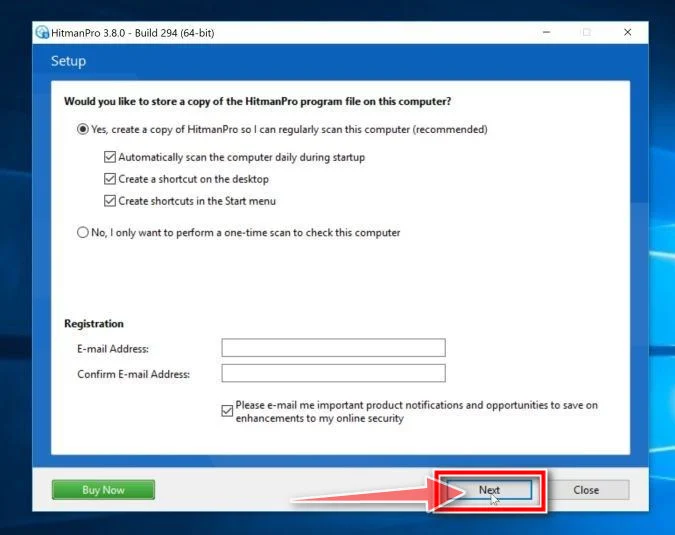
Follow the on-screen prompts.
When HitmanPro starts you will be presented with the start screen as shown below. Click on the “Next” button to perform a system scan.
-
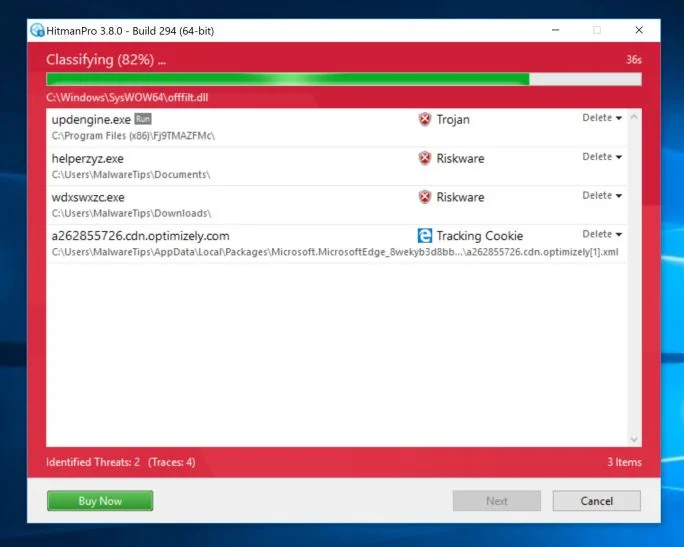
Wait for the HitmanPro scan to complete.
HitmanPro will now begin to scan your computer for malicious programs. This process will take a few minutes.
-
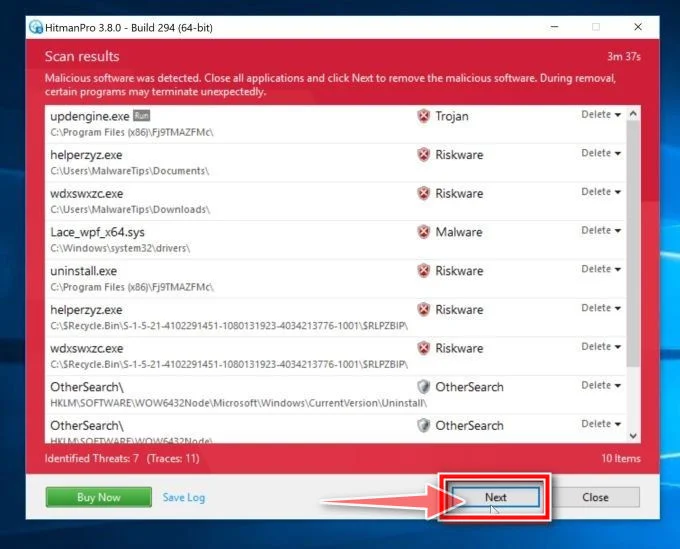
Click on “Next”.
When HitmanPro has finished the scan, it will display a list of all the malware that the program has found. Click on the “Next” button to remove the malicious programs.
-
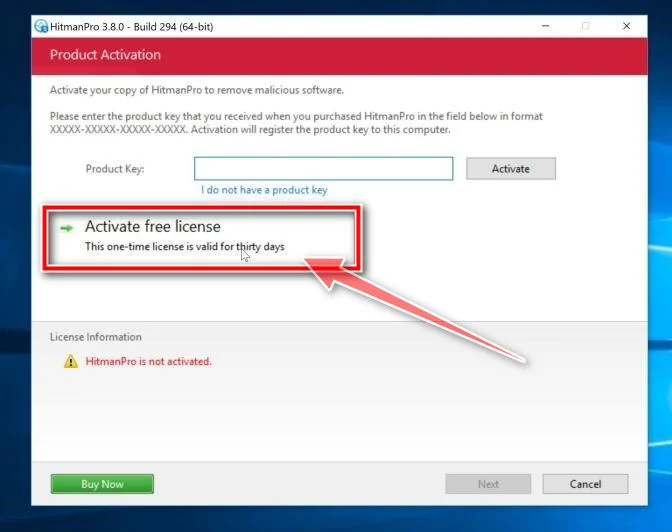
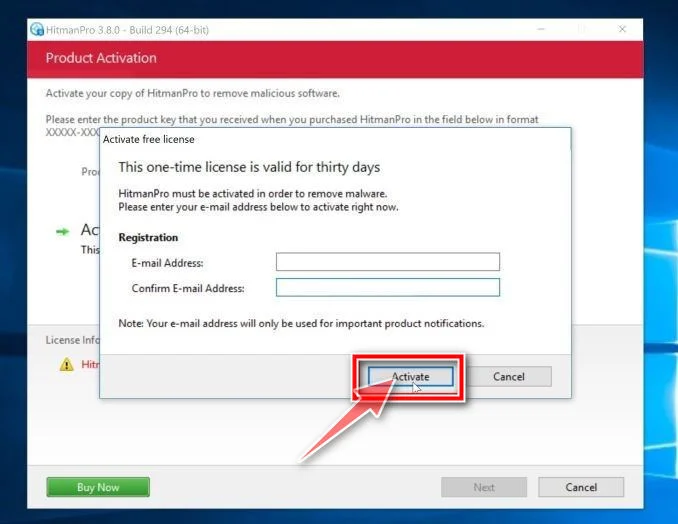
Click on “Activate free license”.
Click on the “Activate free license” button to begin the free 30 days trial and remove all the malicious files from your PC.
Your computer should now be free of the “Reminder About Your Dirty Deeds” malware. If your current antivirus allowed this malicious program on your computer, you may want to consider purchasing the full-featured version of Malwarebytes Anti-Malware to protect against these types of threats in the future.
If you are still having problems with your computer after completing these instructions, then please follow one of the steps:
- Run a computer scan with ESET Online Scanner
- Ask for help in our Windows Malware Removal Help & Support forum.
To check your computer for malware and remove it from a Macbook or iMac, follow these steps:
STEP 1: Use Malwarebytes Free to remove malware from Mac
In this first step, we will install and run a scan with Malwarebytes to remove adware, browser hijackers, and potentially unwanted programs that might be installed on your computer.
Malwarebytes Free is one of the most popular and most used anti-malware software for Windows, and for good reasons. It is able to destroy many types of malware that other software tends to miss, without costing you absolutely nothing. When it comes to cleaning up an infected device, Malwarebytes has always been free and we recommend it as an essential tool in the fight against malware.
-
Download Malwarebytes Free.
You can download Malwarebytes for Mac by clicking the link below.
Malwarebytes Free for MacScans and removes malware at no costDownload MalwarebytesOfficial installer for macOS. Your download starts right away.Want real-time protection? See Malwarebytes Premium
-
Double-click on the Malwarebytes setup file.
When Malwarebytes has finished downloading, double-click on the setup file to install Malwarebytes on your computer. In most cases, downloaded files are saved to the Downloads folder.

-
Follow the on-screen prompts to install Malwarebytes.
When the Malwarebytes installation begins, you will see the Malwarebytes for Mac Installer which will guide you through the installation process. Click “Continue“, then keep following the prompts in order to continue with the installation process.



When your Malwarebytes installation completes, the program opens to the Welcome to Malwarebytes screen. Click the “Get started” button.
-
Select “Personal Computer” or “Work Computer”.
The Malwarebytes Welcome screen will first ask you on what type of computer are you installing this program, click either Personal Computer or Work Computer.

-
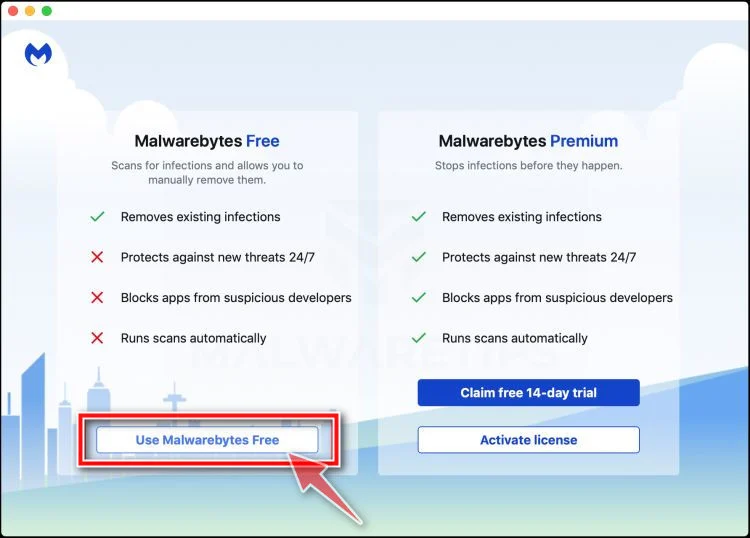
Select “Use Malwarebytes Free”.
You’ll be then prompted to select between the Malwarebytes Free and the Premium version. The Malwarebytes Premium edition includes preventative tools like real-time scanning and ransomware protection, however, we will use the Free version to clean up the computer.
Click on “Use Malwarebytes Free“.
-
Click on “Scan”.
To scan your computer with Malwarebytes, click on the “Scan” button. Malwarebytes will automatically update the antivirus database and start scanning your computer for malware.

-
Wait for the Malwarebytes scan to complete.
Malwarebytes will scan your computer for pop-up adss and other malicious programs. This process can take a few minutes, so we suggest you do something else and periodically check on the status of the scan to see when it is finished.

-
Click on “Quarantine”.
When the scan has completed, you will be presented with a screen showing the malware infections that Malwarebytes has detected. To remove the malicious programs that Malwarebytes has found, click on the “Quarantine” button.

-
Restart computer.
Malwarebytes will now remove all the malicious files that it has found. To complete the malware removal process, Malwarebytes may ask you to restart your computer.

Your computer should now be free of the “Reminder About Your Dirty Deeds” malware. If your current antivirus allowed a malicious program on your computer, you may want to consider purchasing the full-featured version of Malwarebytes Anti-Malware to protect against these types of threats in the future.
If you are still experiencing problems while trying to a malicious program from your computer, please ask for help in our Mac Malware Removal Help & Support forum.
To check your device for malware and remove it from an Android phone or tablet, follow these steps:
STEP 1: Use Malwarebytes Free to remove malware from Android
In this first step, we will install and run a scan with Malwarebytes to remove adware, browser hijackers, and potentially unwanted programs that might be installed on your phone or tablet.
Malwarebytes Free is one of the most popular and most used anti-malware software for Windows, and for good reasons. It is able to destroy many types of malware that other software tends to miss, without costing you absolutely nothing. When it comes to cleaning up an infected phone, Malwarebytes has always been free and we recommend it as an essential tool in the fight against malware.
-
Download Malwarebytes.
You can download Malwarebytes by clicking the button below.
Malwarebytes for AndroidScans your phone and removes malwareGet Malwarebytes for AndroidOpens the download page in a new tab.
-
Install Malwarebytes on your phone
In the Google Play Store, tap “Install” to install Malwarebytes on your device.

When the installation process has finished, tap “Open” to begin using Malwarebytes for Android. You can also open Malwarebytes by tapping on its icon in your phone menu or home screen.

-
Follow the on-screen prompts to complete the setup process
When the Malwarebytes will open, you will see the Malwarebytes Setup Wizard which will guide you through a series of permissions and other setup options.
This is the first of two screens which explain the difference between the Premium and Free version. Swipe this screen to continue.

Tap on “Got it” to proceed to the next step.

Malwarebytes for Android will now ask for a set of permissions that are required to scan your device and protect it from malware. Tap on “Give permission” to continue.

Tap on “Allow” to give permission to Malwarebytes to access the files on your phone.

-
Update database and run a scan with Malwarebytes
You will now be prompted to update the Malwarebytes database and run a full system scan.

Click on “Update database” to update the Malwarebytes definitions to the latest version, then click on “Run full scan” to perform a system scan.

-
Wait for the Malwarebytes scan to complete.
Malwarebytes will now start scanning your phone for adware and other malicious apps. This process can take a few minutes, so we suggest you do something else and periodically check on the status of the scan to see when it is finished.

-
Click on “Remove Selected”.
When the scan has completed, you will be presented with a screen showing the malware infections that Malwarebytes has detected. To remove the malicious apps that Malwarebytes has found, tap on the “Remove Selected” button.

-
Restart your phone.
Your computer should now be free of the “Reminder About Your Dirty Deeds” malware. If your current antivirus allowed a malicious program on your computer, you may want to consider purchasing the full-featured version of Malwarebytes Anti-Malware to protect against these types of threats in the future.
If you are still experiencing problems while trying to a malicious program from your computer, please ask for help in our Mobile Malware Removal Help & Support forum.

Join the discussion
0 commentsShare your experience or ask a question about this article.
Discussion
Start the conversation
Have a question or something useful to share? Add the first comment.