

If you are seeing a fake alert from S.M.A.R.T Check or S.M.A.R.T Repair then you’re probably reading this article so you can understand how to get rid of it.Thankfully we’ve got the instructions to help you get rid of this virus.
First off all , you should know that , S.M.A.R.T Check and S.M.A.R.T Repair are both fake components of Data Recovery or Smart HDD malicious software, this infections will display fake alerts, claiming that several hard drive errors were detected on your computer.In reality, none of the reported issues are real, and are only used to scare you into buying S.M.A.R.T virus and stealing your personal financial information.
The infections has changed your desktop background to a black scren, has hidden your files and shortcuts and it’s causing browsing redirects.
If you’ve got a S.M.A.R.T virus infection , you’ll be seeing this screens :
![[Image: Smart Check.png]](http://malwaretips.com/blogs/wp-content/uploads/2012/05/Data-Recovery-Rogue.png "S.M.A.R.T Check")
![[Image: Smart Repair.png]](http://malwaretips.com/blogs/wp-content/uploads/2012/05/Data-Recovery-fake-alert.png "S.M.A.R.T Repair")
![[Image: Smart alert.png]](http://malwaretips.com/blogs/wp-content/uploads/2012/05/Data-Recovery-Rogue-alert.png "S.M.A.R.T Alert")
Registration codes for S.M.A.R.T virus
As an optional step,you can use the following license key to register S.M.A.R.T virus and stop the fake alerts.
Data Recovery Rogue: 08869246386344953972969146034087
SMART HDD Rogue: 15801587234612645205224631045976
Please keep in mind that entering the above registration code will NOT remove S.M.A.R.T virus from your computer , instead it will just stop the fake alerts so that you’ll be able to complete our removal guide more easily.
Removal guide for S.M.A.R.T virus
STEP 1 : Start your computer in Safe Mode with Networking
- Remove all floppy disks, CDs, and DVDs from your computer, and then restart your computer.
- Press and hold the F8 key as your computer restarts.Please keep in mind that you need to press the F8 key before the Windows start-up logo appears.
- On the Advanced Boot Options screen, use the arrow keys to highlight Safe Mode with Networking , and then press ENTER.
![[Image: Safemode.jpg]](//malwaretips.com/images/removalguide/safemode.jpg "Safe Mode with Networking screen")
- Log on to your computer with a user account that has administrator rights
![[Image: Safemode.jpg]](http://malwaretips.com/images/removalguide/safemode.jpg "Safe Mode with Networking screen")
STEP 2: Remove S.M.A.R.T virus malicious proxy server
S.M.A.R.T virus may add a proxy server which prevents the user from accessing the internet,follow the below instructions to remove the proxy.
- Start Internet Explorer
![[Image: S.M.A.R.T virus- IE]](//malwaretips.com/images/removalguide/Ieicon.png "IE 9") and if you are using Internet Explorer 9 ,click on the gear icon
and if you are using Internet Explorer 9 ,click on the gear icon ![[Image: IE gear icon]](//malwaretips.com/images/removalguide/icongear.jpg "Gear Icon") (Tools for Internet Explorer 8 users) ,then select Internet Options.
(Tools for Internet Explorer 8 users) ,then select Internet Options.
![[Image: Internet-options-IE.png]](//malwaretips.com/images/removalguide/ie1.png "Internet Options in IE")
- Go to the tab Connections.At the bottom, click on LAN settings.
![[Image: Remove-proxy-server2.png]](//malwaretips.com/images/removalguide/ie2.png "Connections tab in Internet Explorer")
- Uncheck the option Use a proxy server for your LAN. This should remove the malicious proxy server and allow you to use the internet again.
![[Image: Remove-proxy-server3.png]](//malwaretips.com/images/removalguide/ie3.png "Uncheck the option Use a proxy server for your LAN")
![[Image: S.M.A.R.T virus- IE]](http://malwaretips.com/images/removalguide/Ieicon.png "IE 9") and if you are using Internet Explorer 9 ,click on the gear icon
and if you are using Internet Explorer 9 ,click on the gear icon ![[Image: IE gear icon]](http://malwaretips.com/images/removalguide/icongear.jpg "Gear Icon") (Tools for Internet Explorer 8 users) ,then select Internet Options.
(Tools for Internet Explorer 8 users) ,then select Internet Options.![[Image: Internet-options-IE.png]](http://malwaretips.com/images/removalguide/ie1.png "Internet Options in IE")
![[Image: Remove-proxy-server2.png]](http://malwaretips.com/images/removalguide/ie2.png "Connections tab in Internet Explorer")
![[Image: Remove-proxy-server3.png]](http://malwaretips.com/images/removalguide/ie3.png "Uncheck the option Use a proxy server for your LAN")
If you are a Firefox users, go to Firefox(upper left corner) → Options → Advanced tab → Network → Settings → Select No Proxy
STEP 3: Run RKill to terminate known malware processes associated with S.M.A.R.T virus.
RKill is a program that attempts to terminate any malicious processes associated with S.M.A.R.T virus ,so that your normal security software can then run and clean your computer of infections.
As RKill only terminates a program’s running process, and does not delete any files, after running it you should not reboot your computer as any malware processes that are configured to start automatically will just be started again.
- While your computer is in Safe Mode with Networking ,please download the latest official version of RKill.

- Double-click on the RKill iconin order to automatically attempt to stop any processes associated with S.M.A.R.T virus.
![[Image: run-rkill-1.png]](//malwaretips.com/images/removalguide/rkill1.png "RKILL ICON")
- RKill will now start working in the background, please be patient while the program looks for various malware programs and tries to terminate them.
![[Image: run-rkill-2.png]](//malwaretips.com/images/removalguide/rkill2.png "RKILL Command prompt")
IF you receive a message that RKill is an infection, that is a fake warning given by the rogue. As a possible solution we advise you to leave the warning on the screen and then try to run RKill again.Run RKill until the fake program is not visible but not more than ten times.
IF you continue having problems running RKill, you can download the other renamed versions of RKill from here. - When Rkill has completed its task, it will generate a log. You can then proceed with the rest of the guide.
![[Image: S.M.A.R.T virus rkill3.jpg]](//malwaretips.com/images/removalguide/rkill3.png "RKILL LOG")
![[Image: run-rkill-1.png]](http://malwaretips.com/images/removalguide/rkill1.png "RKILL ICON")
![[Image: run-rkill-2.png]](http://malwaretips.com/images/removalguide/rkill2.png "RKILL Command prompt")
![[Image: S.M.A.R.T virus rkill3.jpg]](http://malwaretips.com/images/removalguide/rkill3.png "RKILL LOG")
WARNING: Do not reboot your computer after running RKill as the malware process will start again , preventing you from properly performing the next step.
STEP 4: Remove S.M.A.R.T virus malicious files with Malwarebytes Anti-Malware FREE
- Please download the latest official version of Malwarebytes Anti-Malware FREE.
- Install Malwarebytes’ Anti-Malware by double clicking on mbam-setup.
![[Image: malwarebytes-installer.png]](//malwaretips.com/images/removalguide/mbam1.png "Malwarebytes Anti-Malware Installer")
- When the installation begins, keep following the prompts in order to continue with the installation process. Do not make any changes to default settings and when the program has finished installing, make sure you leave both the Update Malwarebytes’ Anti-Malware and Launch Malwarebytes’ Anti-Malware checked. Then click on the Finishbutton. If Malwarebytes’ prompts you to reboot, please do not do so.
![[Image: install-malwarebytes.png]](//malwaretips.com/images/removalguide/mbam2.png "Install Malwarebytes Anti-Malware")
- Malwarebytes Anti-Malware will now start and you’ll be prompted to start a trial period , please select ‘Decline‘ as we just want to use the on-demand scanner.
![[Image: decline-trial-malwarebytes.png]](//malwaretips.com/images/removalguide/mbam3.PNG "Decline trial period in Malwarebytes Anti-Malware")
- On the Scanner tab,please select Perform full scan and then click on the Scan button to start scanning your computer for any possible infections.
![[Image: malwarebytes-full-system-scan.png]](//malwaretips.com/images/removalguide/mbam4.png "Perform a Full System Scan")
- Malwarebytes’ Anti-Malware will now start scanning your computer for S.M.A.R.T virus malicious files as shown below.
![[Image: malwarebytes-scanning.png]](//malwaretips.com/images/removalguide/mbam5.png "Malwarebytes Anti-Malware scanning for S.M.A.R.T virus")
- When the scan is finished a message box will appear, click OK to continue.
![[Image: malwarebytes-scan-finish.png]](//malwaretips.com/images/removalguide/mbam9.png "Malwarebytes when the scan is finished")
- You will now be presented with a screen showing you the malware infections that Malwarebytes’ Anti-Malware has detected.Please note that the infections found may be different than what is shown in the image.Make sure that everything is Checked (ticked) and click on the Remove Selected button.
![[Image: malwarebytes-scan-results.png]](//malwaretips.com/images/removalguide/mbam6.png "S.M.A.R.T virus infection scan results")
- Malwarebytes’ Anti-Malware will now start removing the malicious files.If during the removal process Malwarebytes will display a message stating that it needs to reboot, please allow this request.
![[Image: malwarebytes-reboot-prompt.png]](//malwaretips.com/images/removalguide/mbam10.png "Reboot prompt from Malwarebytes")
![[Image: malwarebytes-installer.png]](http://malwaretips.com/images/removalguide/mbam1.png "Malwarebytes Anti-Malware Installer")
![[Image: install-malwarebytes.png]](http://malwaretips.com/images/removalguide/mbam2.png "Install Malwarebytes Anti-Malware")
![[Image: decline-trial-malwarebytes.png]](http://malwaretips.com/images/removalguide/mbam3.PNG "Decline trial period in Malwarebytes Anti-Malware")
![[Image: malwarebytes-full-system-scan.png]](http://malwaretips.com/images/removalguide/mbam4.png "Perform a Full System Scan")
![[Image: malwarebytes-scanning.png]](http://malwaretips.com/images/removalguide/mbam5.png "Malwarebytes Anti-Malware scanning for S.M.A.R.T virus")
![[Image: malwarebytes-scan-finish.png]](http://malwaretips.com/images/removalguide/mbam9.png "Malwarebytes when the scan is finished")
![[Image: malwarebytes-scan-results.png]](http://malwaretips.com/images/removalguide/mbam6.png "S.M.A.R.T virus infection scan results")
![[Image: malwarebytes-reboot-prompt.png]](http://malwaretips.com/images/removalguide/mbam10.png "Reboot prompt from Malwarebytes")
STEP 5: Double check your system for any left over infections with HitmanPro
- This step can be performed in Normal Mode ,so please download the latest official version of HitmanPro.
- Double click on the previously downloaded file to start the HitmanPro installation.
![[Image: hitmanpro-icon.png]](//malwaretips.com/images/removalguide/hpro1.png "HitmanPro Installer")
NOTE : If you have problems starting HitmanPro, use the “Force Breach” mode. Hold down the left CTRL-key when you start HitmanPro and all non-essential processes are terminated, including the malware process. (How to start HitmanPro in Force Breach mode – Video) - Click on Next to install HitmanPro on your system.
![[Image: installing-hitmanpro.png]](//malwaretips.com/images/removalguide/hpro2.png "HitmanPro installation process")
- The setup screen is displayed, from which you can decide whether you wish to install HitmanPro on your machine or just perform a one-time scan, select a option then click on Next to start a system scan.
![[Image: hitmanpro-setup-options.png]](//malwaretips.com/images/removalguide/hpro3.png "HitmanPro setup options")
- HitmanPro will start scanning your system for malicious files. Depending on the size of your hard drive, and the performance of your computer, this step will take several minutes.
![[Image: hitmanpro-scanning.png]](//malwaretips.com/images/removalguide/hpro4.png "HitmanPro scanning for S.M.A.R.T virus")
- Once the scan is complete,a screen displaying all the malicious files that the program found will be shown as seen in the image below.After reviewing each malicious object click Next.
![[Image: hitmanpro-scan-results.png]](//malwaretips.com/blogs/wp-content/uploads/2012/02/rsz_hpro5.png "HitmanPro S.M.A.R.T virus scan results")
- Click Activate free license to start the free 30 days trial and remove the malicious files.
![[Image: hitmanpro-activation.png]](//malwaretips.com/images/removalguide/hpro6.png "Activate HitmanPro free license to remove detected infections")
- HitmanPro will now start removing the infected objects, and in some instances, may suggest a reboot in order to completely remove the malware from your system. In this scenario, always confirm the reboot action to be on the safe side.
![[Image: hitmanpro-icon.png]](http://malwaretips.com/images/removalguide/hpro1.png "HitmanPro Installer")
![[Image: installing-hitmanpro.png]](http://malwaretips.com/images/removalguide/hpro2.png "HitmanPro installation process")
![[Image: hitmanpro-setup-options.png]](http://malwaretips.com/images/removalguide/hpro3.png "HitmanPro setup options")
![[Image: hitmanpro-scanning.png]](http://malwaretips.com/images/removalguide/hpro4.png "HitmanPro scanning for S.M.A.R.T virus")
![[Image: hitmanpro-scan-results.png]](http://malwaretips.com/blogs/wp-content/uploads/2012/02/rsz_hpro5.png "HitmanPro S.M.A.R.T virus scan results")
![[Image: hitmanpro-activation.png]](http://malwaretips.com/images/removalguide/hpro6.png "Activate HitmanPro free license to remove detected infections")
STEP 6: Unhide your files and folders
S.M.A.R.T virus modifies your file system in such a way that all files and folders become hidden, to restore the default settings , you’ll need to run the below program.
- Download Unhide.exe, to unhide your files and folders.
- Double-click on the Unhide.exe icon on your desktop and allow the program to run.The whole process should not take more than 5 minutes to complete,and at the end this utility will generate a report.
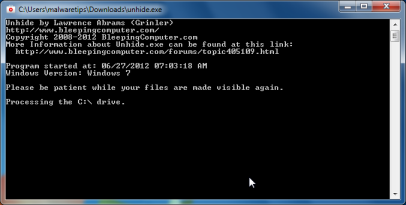
STEP 7 : Restore your shortcuts and remove any left over malicious registry keys
S.M.A.R.T virus has moved your shortcuts files in the Temporary Internet folder and added some malicious registry keys to your Windows installation , to restore your files we will need to perform a scan with RogueKiller.
- Please download the latest official version of RogueKiller.
- Double click on RogueKiller.exe to start this utility and then wait for the Prescan to complete.This should take only a few seconds and then you can click the Start button to perform a system scan.
![[Image: roguekiller-1.png]](//malwaretips.com/blogs/wp-content/uploads/2012/04/roguek-1.png "Click on the Start button to perform a system scan")
- After the scan has completed, press the Delete button to remove any malicious registry keys.
![[Image: roguekiller-2.png]](//malwaretips.com/blogs/wp-content/uploads/2012/04/roguek-2.png "Press Delete to remove the malicious registry keys")
- Next we will need to restore your shortcuts, so click on the ShortcutsFix button and allow the program to run.
![[Image: roguekiller-1.png]](//malwaretips.com/blogs/wp-content/uploads/2012/04/roguek-3.png "Click on the Start button to perform a system scan")
![[Image: roguekiller-1.png]](http://malwaretips.com/blogs/wp-content/uploads/2012/04/roguek-1.png "Click on the Start button to perform a system scan")
![[Image: roguekiller-2.png]](http://malwaretips.com/blogs/wp-content/uploads/2012/04/roguek-2.png "Press Delete to remove the malicious registry keys")
![[Image: roguekiller-1.png]](http://malwaretips.com/blogs/wp-content/uploads/2012/04/roguek-3.png "Click on the Start button to perform a system scan")
STEP 8: Get your desktop look back!
S.M.A.R.T virus changes your desktop background to a solid black color,to change it back to default one follow the below instruction.
- Windows XP : Click on the Start button and then select Control Panel. When the Control Panel opens, please click on the Display icon. From this screen you can now change your Theme and desktop background.
- Windows 7 and Vista : Click on the Start button and then select Control Panel. When the Control Panel opens, please click on the Appearance and Personalization category. Then select Change the Theme or Change Desktop Background to revert back to your original Theme and colors.
If you are still experiencing problems while trying to remove Smart HDD from your machine, please start a new thread in our Malware Removal Assistance forum.
What’s next? Join our amazing community and build up your malware defenses !









Thank you so much!!! Everything worked perfectly, so glad I found this before I got desperate and started formatting my drives!
Glad to find this thread helping with this dumb virus – I haven’t made it very far in removing….the first step has me opening IE to change Internet Options, but I can’t access IE? No IE icon or anything in my start menu. Please help!
Lets try this trick:
Hold down the WINDOWS key and press the R key,this should brind up the Run box…. In it, please type the below content…
iexplore.exe http://download.bleepingcomputer.com/grinler/WiNlOgOn.exeLet the program run,until a log its produced (5 – 10 minutes max)
Next, hold down the WINDOWS key and press the R key,this should brind up the Run box…. In it, please type the below content…
iexplore.exe http://www.malwarebytes.org/mbam-download-exe.phpUpdate and Run a full system scan with Malwarebytes as seen on the above guide.
Next,run the other tools (HitmanPro,RogueKiller and Unhide.exe from the guide)
Let me know how everything goes…
Holy moly! I’m back. I hope I NEVER have to do that again, but SO thankful that it worked ~ you are awesome. I wish I could kiss your face. Mwah mwah. Worked perfectly. Thank you.
A whopping ginormously big thanks for showing me just how to get the SMART A**E out of my computer. I was horrified by its effect. Still worried about reconnecting hard drives in case it got into those, but will have to. Any suggestions of safer ways to do this?
If you removed all the infected files you should be fine.
As an additional step I would recommend that you run a scan wit ESET Online Scanner:
ESET Online Scanner Download Link (This link will automatically download ESET Online Scanner on your computer.)
this didn’t work for me. log in with safe mode. nothing happens. I need help !
Hello Kate,
Lets try to fix your computer,please run the below tools while in Normal Mode;
STEP 1: Run a scan with Malwarebytes Anti-Malware in Chameleon Mode in Norman mode:
STEP 2: Run a scan with RogueKiller
RogueKiller Download Link (This link will automatically download RogueKiller on your computer)
STEP 3 Please perform a scan with HitmanPro as seen on the guide.
If you are having problems starting this program please use the ForceBreach mode as described in the guide.
STEP 4: Run a scan with ESET Online Scanner:
ESET Online Scanner Download Link (This link will automatically download ESET Online Scanner on your computer.)
Waiting for your reply to tell me how everything is running!
Good luck…
Thank you very much for your help! As everyone else has echoed here, your detailed plan to follow and get back to normal was truly a MasterCard moment-priceless! Your willingness to help those of us who were affected by this devious virus w/o asking for $ is a reflection of your good character and kindness-thank you! I did have the problem with HitMan Pro in that it wouldn’t allow me a 30 day trial, but I did as you said and manually deleted the Trojans it identified from the path shown and everything worked out great. I have run several scans with the various programs you have listed after following all the previous steps and my system is clean and back to proper working order. One thing for Window 7 users I found, that in order to enter safe mode I had to hit my F3 key and then got a menu for advanced options which listed F8 and safe mode w/network boot. Everything completed properly from there. The only thing I didn’t get back were the programs I had pinned to my taskbar originally. This is no big deal as I can simply pin them again. I’ll gladly take having to do that over the mess my computer was in before following your instructions. Thanks again Stelian!!!
Thank you thank you thank you!
These are really helpful instructions!
I’ve run into a hiccup though – seems that HitmanPro no longer offers a 30 day trial version! I’ve never used the program before and I don’t get the option :(
I can the exact screen shot as you – asks for product key, I see the ‘I do not have a product key option’ but the next line does not have anything there. Nowhere to click to activate 30 day trial. It’s also not listed anywhere on their site! I have found traces of the virus through this scan so I’m not sure what to do, I will try to manually delete the remnants that the scan found, hopefully that will help! Thanks :)
Hello,
I’ll report this problem to the HitmanPro developers.please run a scan with ESET Online Scanner and then try again to scan with HitmanPro.If there are stil malicious files found , we will remove them manually.
ESET Online Scanner Download Link (This link will automatically download ESET Online Scanner on your computer.)
If you are still experiencing problems , start a thread in our Malware Removal Support forum : http://malwaretips.com/Forum-Malware-Removal-Assistance
Fantastic step by step guidance, very pleased that my computer seems to work again, 5 hours later!
Oh my goodness after loosing all faith in humanity four hours and eight steps later you gave it back to me. Thank you for being so selfless. You are the only thing good on a very very rotten day. Thank you from the bottom of my computer illiterate heart.
Thank you VERY MUCH for writing this article.
Thank you so much for the detailed and easy to follow instructions. I came home to find this darn malware on my computer, and thanks to you, I fixed it! It worked! Thanks again.
Fantastic Tutorial, while I did spend a few hours going through it, saved me a ton of $$$ and time. Got virus this moring and back working this afternoon. I dont know how I got it, I was on Google, but surely this didnt come from there. Many Thanks Stelian!!!
Worked all except the restoring of all the file names.
What do you mean by “restoring files names”?
Really solid process that’s easy to follow. Saved me a ton of time, angst, money . . . not to mention making points with my wife how had gotten the virus on her home office machine! Many, many thanks!!
Thank you so much!!! You saved my computer!!! I had to go through the process a couple of times but Im back to normal! THANK YOU!!!!!!!!!
Thanks a whole lot! works just great! – had to create a new admin-user to make it work (to get access to internet explorer ++), but when I did that, and followed your steps, – fantastic. All credit to you!
Dear Stelian
I got this f*** virus as well. Your instructions are great and I have followed them precisely. The first time, after I rebooted my laptp after step 5 (HitmanPro), the virus was still active and produced the same fake alert messages.
I repeated the whole process, and now everything is just fine again!
Thank you SO much, I am really grateful for your time and effort you invested in this article!! :-)
Worked well. I walked my son through it over the phone and restored his laptop.
I have followed all of your instructions. My program files are back but they are empty. I assume that they are hidden. When I run UnHide it says it is processing my “C” Drive (I ran it in SafeMode) but it never seems to finish and I never get a report. Also I ran RKill and it gave me a log that included 2 items I am sure is part of the S.M.A.R.T. virus: C:\Documents and Settings\All Users\Application Data\SBCDGdoubA.exe and C:\Documents and Settings\All Users\Application Data\ee9ljItUHHWEO.exe. However Malware (in SafeMode) is not wiping these two out, even though I am running a FULL SCAN. Please advise. thank you. I picked up this virus from Amazon.com!!!
Did you perform the HitmanPro and Mawlarebytes scans??This 2 files are 100% related to malware……and if the above scan won’t remove them , we will kill them manually… :)
You can perform the below scans while in Normal mode…
STEP 1 : Perform a system scan with Emsisoft Anti-Malware:
Make sure that everything is Checked (ticked) and click on the ‘Quarantine selected objects’ button.
If during the removal process Emsisoft will display a message stating that it needs to reboot, please allow this request.
Run a scan with Dr.Web CureIt
ftp://ftp.drweb.com/pub/drweb/cureit/drweb-cureit.exe
NOTE. During the scan, pop-up window will open asking for full version purchase. Simply close the window by clicking on X in upper right corner.
STEP 3: Run a scan with ESET Online Scanner
Hold down Control and click on the following link to open ESET OnlineScan in a new window.
ESET OnlineScan
Next,please try to run again Unhide.exe….And then post back here:)
Hiya plz help ive got to the bit where I have to download malware bytes it gets to the bit where it says thank you for downloading but then nothing else happens what am I doing wrong?
Please try to use this direct download link for Malwarebytes – http://www.malwarebytes.org/mbam-download-exe.php
Next,follow the guide. :)
Have this darn virus and would love to start the removal process but it will not allow me to start in safe mode using F8 key or msconfig and will not allow me to access the internet using the iexplore.exe. Help, anyone!
STEP 1 : While in NORMAL MODE,download HitmanPro and then start this program in ForceBreach Mode
1.Here are the direct download links for HitmanPro,
– http://dl.surfright.nl/HitmanPro36.exe (For 32bit)
– http://dl.surfright.nl/HitmanPro36_x64.exe (For 64bit)
2.Hold down the left CTRL-key when you start HitmanPro and all non-essential processes are terminated, including this rogue malicious process
Here is a video that explains with graphic details how to do this : http://www.youtube.com/watch?v=m6eRWTv2STk
3. If it start ,let it scan and remove all the detected threats.
STEP 2: Download/Run Rkill and then run a scan with Malwarebytes.
1.Download a different named Rkill (direct download links bellow):
http://download.bleepingcomputer.com/grinler/WiNlOgOn.exe
http://download.bleepingcomputer.com/grinler/uSeRiNiT.exe
http://download.bleepingcomputer.com/grinler/rkill.scr
2.And then follow the guide starting with the Malwarebytes scan.
STEP3 : Perform a system scan with Emsisoft Anti-Malware:
Make sure that everything is Checked (ticked) and click on the ‘Quarantine selected objects’ button.
If during the removal process Emsisoft will display a message stating that it needs to reboot, please allow this request.
If you are still experiencing problems , start a thread in our Malware Removal Support forum : http://malwaretips.com/Forum-Malware-Removal-Assistance
Many thanks for your great guide, screenshots etc. Top stuff!
THANK YOU!!!
I followed all the instructions to remove the S.M.A.R.T virus and it worked perfectly. I will be for ever in your Debt.
Thank You
George Flynn
After RKill, Malwarebytes, Hitman Pro, Rogue Killer and Emsisoft, I still had The SMART virus. I went into Internet Options, Advanced tab, Http 1.1 settings and unchecked “Use HTTP 1.1 through Proxy connections.”
Then I re-did RKill and Malwarebytes. Looks like it’s fixed. Thanks for all the help.
Thank you so much for your website. You saved our computer, which was truly trashed by the S.M.A.R.T Repair virus. (Rotten bastards!!!) We picked up the virus while viewing a chamber of commerce website in Ennis, Montana. Bizarre! Anyway, thanks for your help!