

System Progressive Protection is a computer virus,which pretends to be a legitimate security program and after performing a quick scan, it will report that trojans,worms and other malware were detected on your machine. If you try to remove these infections, System Progressive Protection will state that you need to purchase the full version before being able to remove these threats.
Apart from the bogus scan results,System Progressive Protection will dispaly other fake security alerts in an attempt to scare you into buying this rogue antivirus.
System Progressive Protection Warning
Your PC is still infected with dangerous viruses. Activate antivirus protection to prevent data loss and avoid theft of your credit card details.Warning: Your computer is infected
Detected spyware infection!
Click this message to install the last update of security software…Spyware.IEMonster activity detected. This is spyware that attempts to steal passwords from Internet Explorer, Mozilla Firefox, Outlook and other programs.
Click here to remove it immediately with System Progressive Protection.
In reality, none of the reported issues are real, and are only used to scare you into buying System Progressive Protection and stealing your personal financial information.
As part of its self-defense mechanism,System Progressive Protection has disabled the Windows system utilities, including the Windows Task Manager and Registry Editor,and will block you from running certain programs that could lead to its removal.
Further more,this rogue antivirus has modified your Windows files associations and now,whenever you are trying to any programs that have a .exe extension ,System Progressive Protection it will display a bogus notification in which will report that the file is infected,in an attempt to scare you.
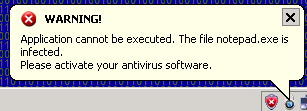
If your computer is infected with System Progressive Protection,then you are seeing this screens:
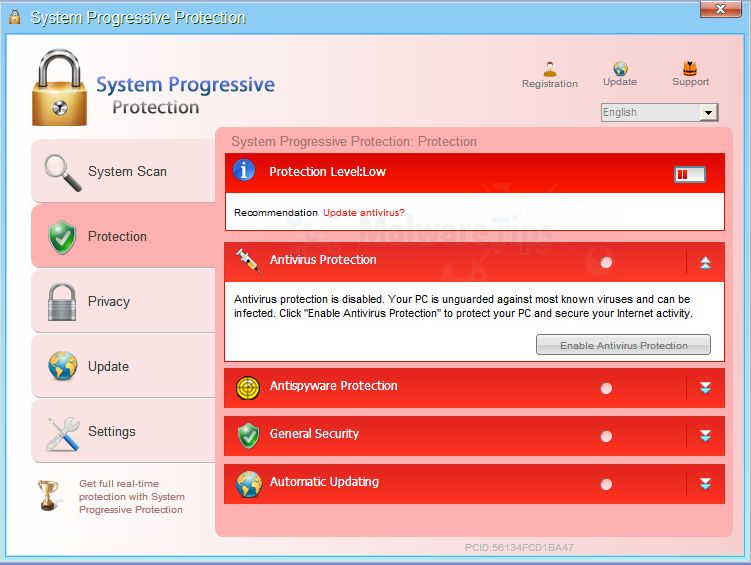
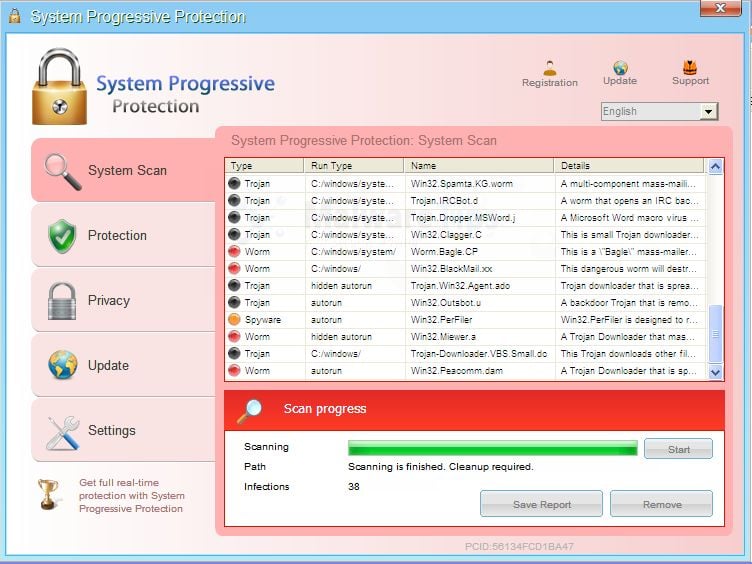
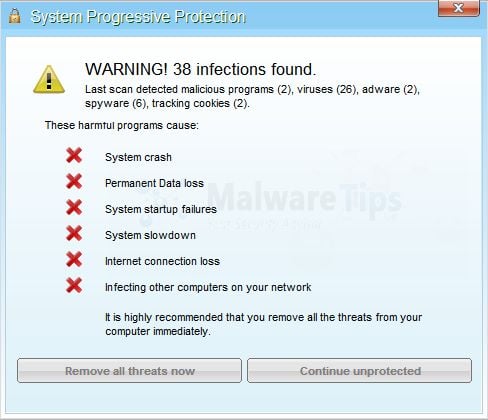
System Progressive Protection is a scam and you should ignore any alerts that this malicious software might generate.
Under no circumstance should you buy this rogue security software as this could lead to identity theft,and if you have, you should contact your bank and dispute the charge stating that the program is a scam and a computer virus.
Registration codes for System Progressive Protection
As an optional step,you can use the following license key to register System Progressive Protection and stop the fake alerts.
System Progressive Protection license key: AA39754E-715219CE
Please keep in mind that entering the above registration code will NOT remove System Progressive Protection from your computer , instead it will just stop the fake alerts so that you’ll be able to complete our removal guide more easily.
System Progressive Protection – Virus Removal Instructions
STEP 1 : Start your computer in Safe Mode with Networking
- Remove all floppy disks, CDs, and DVDs from your computer, and then restart your computer.
- Press and hold the F8 key as your computer restarts.Please keep in mind that you need to press the F8 key before the Windows start-up logo appears.
Note: With some computers, if you press and hold a key as the computer is booting you will get a stuck key message. If this occurs, instead of pressing and holding the “F8 key”, tap the “F8 key” continuously until you get the Advanced Boot Options screen. - On the Advanced Boot Options screen, use the arrow keys to highlight Safe Mode with Networking , and then press ENTER.
![[Image: Safe Mode with Networking]](https://malwaretips.com/blogs/wp-content/uploads/mwt-media/64/643bc8414681b9681a44bc5e4bcc1f262450adeb64e97cbe54283b2262685c25/ae66c9197205f3f8f621e96a0c6df6c869aef5cadff6897bb6645b9d1e24ca16-539.webp "Start your computer in Safe Mode with Networking")
STEP 2: Run RKill to terminate known malware processes associated with System Progressive Protection.
RKill is a program that will attempt to terminate all malicious processes associated with System Progressive Protection,so that we will be able to perform the next step without being interrupted by this malicious software.
Because this utility will only stop System Progressive Protection running process, and does not delete any files, after running it you should not reboot your computer as any malware processes that are configured to start automatically will just be started again.
- While your computer is in Safe Mode with Networking ,please download the latest official version of RKill.Please note that we will use a renamed version of RKILL so that System Progressive Protection won’t block this utility from running.
Download RKillYour download starts right away. - Double click on iExplore.exe to start RKill and stop any processes associated with System Progressive Protection.
![[Image: RKILL Program]](https://malwaretips.com/blogs/wp-content/uploads/mwt-media/9b/9bd1fbac76989b7f148eb40e991e002b0e4887b26e25c458d390ab4705d3dc8b/39d41c22e798310d31436d68661c8f617309a8cb3c05d88f181e3f751d1c2fbc-260.webp "Double Click on iExplore.exe")
- RKill will now start working in the background, please be patient while the program looks for various malware programs and tries to terminate them.
![[Image: RKILL stoping malware]](https://malwaretips.com/blogs/wp-content/uploads/mwt-media/ca/ca979c74dbe6bff4faf33e0c5053349a5d4975896374c2d0c17c530336b9ea7f/0eabeb4c9ce2a6868b13b70aad28caf43ef2ca647622ccd001ea17152f36d7fc-406.webp "RKill while killing System Progressive Protection malicious process")
IF you are having problems starting or running RKill, you can download any other renamed versions of RKill from here. - When Rkill has completed its task, it will generate a log. You can then proceed with the rest of the guide.
![[Image: RKill Report]](https://malwaretips.com/blogs/wp-content/uploads/mwt-media/80/80e68df66d7ad779151bb33dd0e1c8fb998dbe6c5f00c0fc9cb6af739548ec11/623ae30acb0f9aec36353929a96de806d7837397885fe8de2814711833c65269-414.webp "RKill Log")
WARNING: Do not reboot your computer after running RKill as the malware process will start again , preventing you from properly performing the next step.
STEP 3: Remove System Progressive Protection malicious files with Malwarebytes Anti-Malware FREE
Malwarebytes Anti-Malware is a powerfull on-demand scanner which will remove System Progressive Protection malicious files from your computer.
- You can download Malwarebytes Anti-Malware Free from the below link,then double click on it to install this program.
Download MalwarebytesFree official installer. Your download starts right away. - When the installation begins, keep following the prompts in order to continue with the setup process.
DO NOT make any changes to default settings and when the program has finished installing, make sure you leave both the Update Malwarebytes’ Anti-Malware and Launch Malwarebytes’ Anti-Malware checked,then click on the Finish button.
![[Image: Malwarebytes Anti-Malware final installation screen]](https://malwaretips.com/blogs/wp-content/uploads/mwt-media/47/471448d4dd5aa1d55ea545effccf0ac9c8ccb5a29622da4e38ac677b5d8c37b5/9f473303c15a00262451cc5a56b904de929157b59e19e3cfb2c03ec88f643390-402.webp "Malwarebytes Anti-Malware final installation screen")
- On the Scanner tab,select Perform quick scan and then click on the Scan button to start scanning your computer.
![[Image: Malwarebytes Anti-Malware Quick Scan]](https://malwaretips.com/blogs/wp-content/uploads/mwt-media/1e/1eb209597ca2f06e596fd060345ac7e3100355f1ec8fc8ea2d9dec7abbb05ea0/3afba9b0b97b56945ffc33817ac48f7433c799241a22e422966180b76473a906-521.webp "Run a Quick Scan with Malwarebytes Anti-Malware")
- Malwarebytes’ Anti-Malware will now start scanning your computer for System Progressive Protection malicious files as shown below.
![[Image: Malwarebytes Anti-Malware scanning for System Progressive Protection]](https://malwaretips.com/blogs/wp-content/uploads/mwt-media/f6/f6ecfba43df64204df40586070483f260cb91fa07d5cc90cb4c3a588d159ff30/5b6b2687853201a40d29fe27e142cc66b0852745bbad3900a21030a10399cb4c-521.webp "Malwarebytes Anti-Malware scanning for System Progressive Protection")
- When the Malwarebytes scan will be completed,click on Show Result.
![[Image: Malwarebytes Anti-Malware scan results]](https://malwaretips.com/blogs/wp-content/uploads/mwt-media/84/84c62dd46289424dbc686abc53672cb0810111920c8c0bbd69e973844d0a9ab0/a4c04aa700e641f47afec9965f79ff346740668e5952955ccbe5b4c3658b5897-521.webp "Malwarebytes when the system scan has completed")
- You will now be presented with a screen showing you the malware infections that Malwarebytes’ Anti-Malware has detected.Please note that the infections found may be different than what is shown in the image.Make sure that everything is Checked (ticked) and click on the Remove Selected button.
![[Image:Malwarebytes removing virus]](https://malwaretips.com/blogs/wp-content/uploads/mwt-media/d8/d86b6a8bac0e4ece9fd2d259a83db71487943f6b04b567edb0e9adcc3200f492/4eb94651b0e34cc99689c56dc71cd0a49444498ed05c5803ea55fda1cfee1b1f-521.webp "Click on Remove Selected to get rid of System Progressive Protection")
- After your computer will restart in Normal mode, open Malwarebytes Anti-Malware and perform a Full System scan to verify that there are no remaining threats
STEP 4: Remove System Progressive Protection rootkit with HitmanPro
In some cases,System Progressive Protection will also install a rootkit on victims computer.To remove this rootkit we will use HitmanPro.
- Download HitmanPro from the below link,then double click on it to start this program.
Download HitmanProOfficial Sophos download. Free scan, free 30-day trial to remove threats.
IF you are experiencing problems while trying to start HitmanPro, you can use the Force Breach mode.To start HitmanPro in Force Breach mode, hold down the left CTRL-key when you start HitmanPro and all non-essential processes are terminated, including the malware process. (How to start HitmanPro in Force Breach mode – Video) - HitmanPro will start and you’ll need to follow the prompts (by clicking on the Next button) to start a system scan with this program.
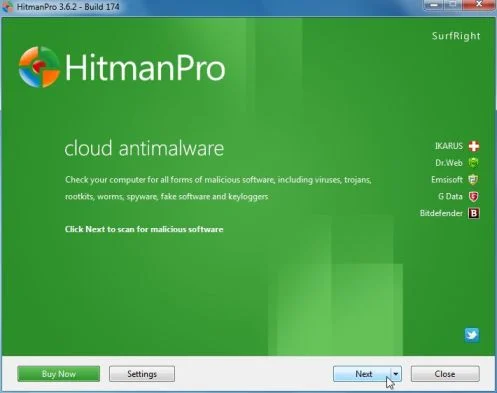
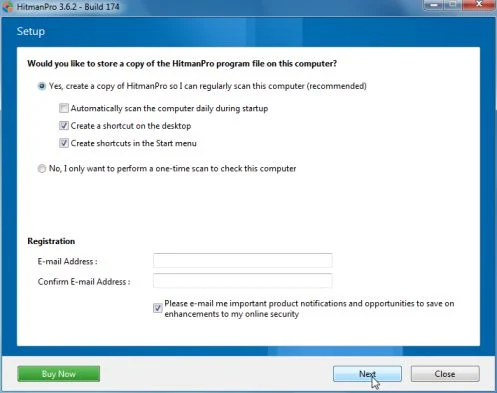
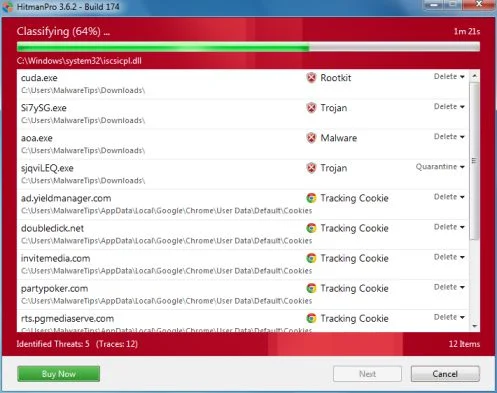
- HitmanPro will start scanning your computer for System Progressive Protection malicious files as seen in the image below.
- Once the scan is complete,you’ll see a screen which will display all the infected files that this utility has detected, and you’ll need to click on Next to remove this malicious files.
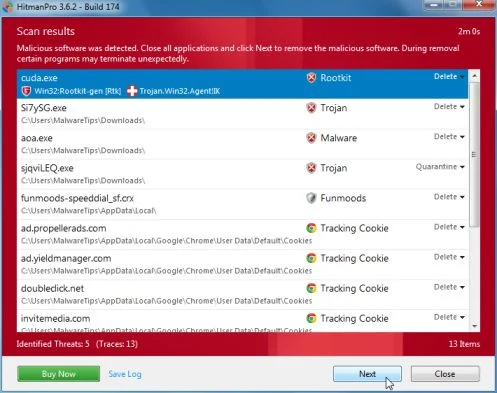
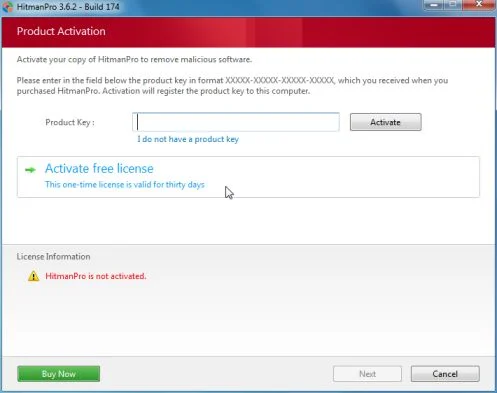
- Click Activate free license to start the free 30 days trial and remove all the malicious files from your computer.
That’s it, System Progressive Protection should be completely removed from your computer!
We strongly recommend that you build up your malware defenses by starting a new thread in Security Configuration Wizard forum and keep installed on your machine all the on-demand scanners that we’ve used in this article to perform regular scans with them.

Join the discussion
163 commentsShare your experience or ask a question about this article.
Your progress
Did these steps help?
Let us know how the guide worked for you.
Describe what you see and the step you reached. Keep passwords and other private information out.
Discussion
Thanks for the info
It worked !!!!!!!!!!
Keep up the good work
Brilliant! Very simple and effective. You may have to rename the Rkill file from iExplore.exe to something else as otherwise the virus will immediately shutdown and reboot.
Very good indeed.
Well I did all that and it seemed to work, I hope that it doesn’t pop up again randomly.
Thank you for the comprehensive solution to this problem. One thing I want to note is that upon rebooting my computer, I get this message “There was a problem starting C:\Users\NewUser\AppData\Roaming\nprtr.dll The specified module could not be found”
In addition, the whole layout of my desktop looks different and basic.
How will I be able to address these two? Thank you.
In reply to John
Hello John,
Can you please run a scan with the following tools:
STEP 1: Run a scan with RogueKiller
RogueKiller Download Link (This link will automatically download RogueKiller on your computer)
STEP 2: Run a scan with ESET Online Scanner:
ESET Online Scanner Download Link (This link will automatically download ESET Online Scanner on your computer.)
The nprtr.dll files is part of this infection, and is basically just a left over stat-up item, the file was removed however the registry key is still there and this is why you are seeing this prompt.To solve this ,you can use Malwarebytes StartupLite or Msconfig,to remove that startup entry.
As far as the theme goes, did you try to change your theme?Click on the Start button , and then clicking Control Panel. In the search box, type personalization, and then click Personalization.
thanks. the code for system progressive really helped. all fixed
Thank you so much!! This slipped past my normal virus & malware protection, & at a time when I need my computer more than ever. Thank you for the easy step by step!
Thank you so much for your assistance. I can not tell how much thankful i am to you. I was about to pay fees asked by this fraudulent software. Keep your good work ahead, buddy ! thanks !!
Another very happy surfer !!! Thank you so much for the very clear and concise video……it was really easy to understand …..Thank you again xx
Hihi, I’m now at Point 7 of Step 3, it took me more than an hour to run the full scan( still scanning now). May I know roughly how long it takes for the full scan? And scared me there is Objects Detected:1
oh no! How?
In reply to Carcar
Hello Carcar,
The scanning time depends on how many files you have on your computer… Usually should not take more than 1 hour or so… ;)
Stay safe!
i have this awful virus and cannot download the malwarebytes anti-malware program….what do i do now?
In reply to norma
Hello,
What exactly happens that it doesn’t allow you to download MBAM?Can you connect to the Internet?
O thanks so much ~!! You save my computer~!!!
Thank you so much!!!! though the process will take a long time but it is better that to reformat the laptop or try several antivirus!!!!!
Can’t believe this really worked!!!! I thought I was going to have to spend a whole lot of money to fix my computer. I was in a bad mood the whole afternoon. Then I got on my boyfriend’s computer and googled system progressive protection removal and up popped this site. All I have to say is thank you thank you thank you!! You really saved my day and my computer
Thanks – you guys saved my butt. I am not the greatest at computers but was able to follow your directions and saved me a call to my computer guy at 95 bucks an hour. You are the greatest – thanks.
Thank you soooo much for posting this here. You are a lifesaver!!! I was able to successfully remove this virus thanks to your help! I will definitely tell my friends about you! :)
Thanks for your help
I don’t know who you are but you are a freaking computer angel!
This was the best help I have ever received free onlne. Recommend for all if this situation happens to ou. In the past I always just wiped my drive and started over because I usually back up anything important. Recently I have not had the chance to keep my precious file backed up. I thought I had lost it all. But thanks to this computer GURU!, I was able to remove this virus and broought my computer back to normal w/o losing anything. Thank You Mr. Pilici. Your the best!!!
There are two types of people: hackers and helpers. You guys are the helpers and are the best.
In reply to Malcolm
Actually, some hackers can help ; but they’re mostly known for bad hacking – like you stated. im not being sum smartie, just clearing up stuff. Also THANK U SOOOOOOOOOOOOOOOOOO…(99 bl more O) MUCH!! I SWEAR I WOULD KILL THOSE SYSTEM PROGRESS PEOPLE X(
When this type of problem occurs, I used to reformat the hard drive and start over. Your instructions were extremely helpful and easy to follow. Thank you very much.