

Win 7 Defender is a computer virus,which pretends to be a legitimate security program and claims that malware has been detected on your computer,however if you try to remove these infections,it will state that you need to buy this product before being able to do so.
Apart from the bogus scan results,Win 7 Defender will display other fake security alerts that are designed to think that your data is at risk or that your computer is severely infected.These messages include:
System Security Alert
Vulnerabilities found
Background scan for security breaches was finished. Serious issues were detected. Safeguard your system against exploits, malware and viruses right now by activating Proactive Defense.
System Security Alert
Unknown program is scanning your system registry right now! Identity theft detected.
In reality, none of the reported issues are real, and are only used to scare you into buying Win 7 Defender and stealing your personal financial information.
As part of its self-defense mechanism,Win 7 Defender has disabled the Windows system utilities, including the Windows Task Manager and Registry Editor,and will block you from running certain programs that could lead to its removal.
Further more,this rogue antivirus has modified your Windows files associations and now,whenever you are trying to any programs that have a .exe extension ,Win 7 Defender it will display a bogus notification in which will report that the file is infected,in an attempt to scare you.The text of this alert is:
Win 7 Defender Firewall Alert
Firefox.exe is infected with Trojan-Clicker.Js.Agent.op. Private data can be stolen by third parties, including credit card details and passwords.
If your computer is infected with Win 7 Defender,then you are seeing this screens:
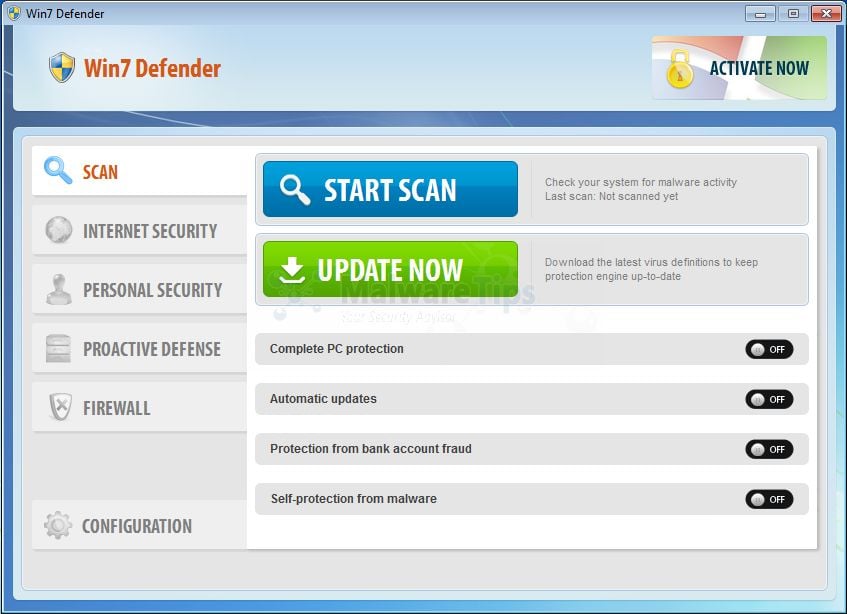
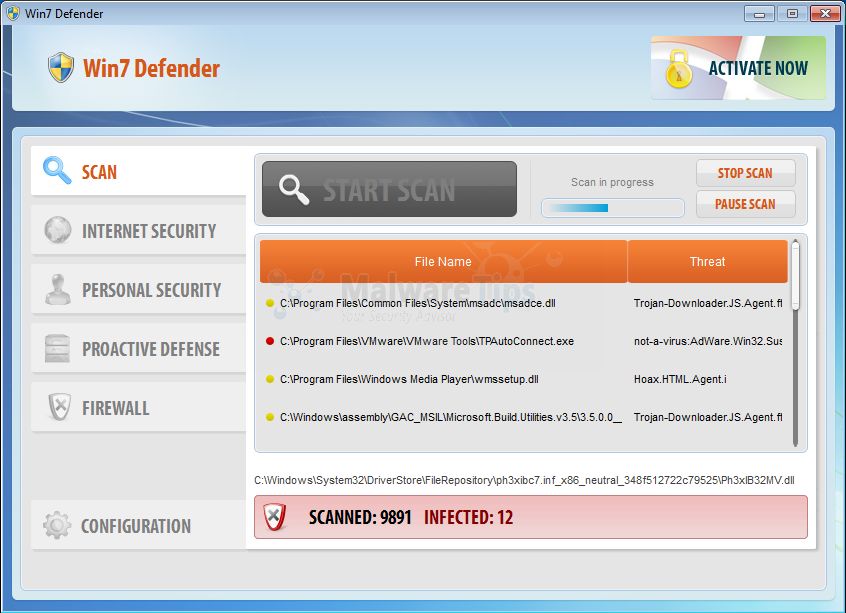
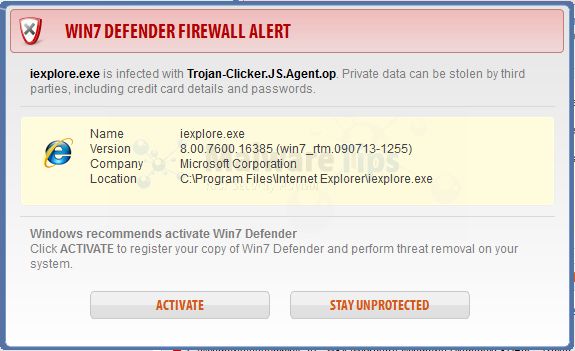
Win 7 Defender is a scam and you should ignore any alerts that this malicious software might generate.
Under no circumstance should you buy this rogue security software as this could lead to identity theft,and if you have, you should contact your bank and dispute the charge stating that the program is a scam and a computer virus.
Win 7 Defender – Virus Removal Instructions
STEP 1: Remove Win 7 Defender malicious files with Malwarebytes Anti-Malware
Malwarebytes Chameleon technologies will allow us to install and run a Malwarebytes Anti-Malware scan without being blocked by Win 7 Defender.
This infection will not allow you to open your web browser, so you’ll need to right click on the Internet Explorer’s icon or any other browser’s icon, and select Run As (Windows XP) or Run as Administrator (Windows Vista, 7 and 8).This should allow you to open your web browser, so that you’ll be able to download Malwarebytes from the below link.
If you still can’t open your web browser, you’ll need to download this registry fix on a clean computer and then transfer the program to the infected computer. You can transfer the files via a CD/DVD, external drive, or USB flash drive.
- Download Malwarebytes Chameleon from the below link, and extract it to a folder in a convenient location.
Download Malwarebytes ChameleonOpens the download page in a new tab.
![[Image: Extract Malwarebytes Chameleon utility]](https://malwaretips.com/blogs/wp-content/uploads/mwt-media/b2/b265e12a96e5ac88c372b34158e04f937bacfee747f63c719f50a4771b7048e8/9809c2be34df15eae377a9982d27eae3d60d2cc1b556e7f1f9fa6be62f380051-374.webp "Extract Malwarebytes Chameleon utility")
- Make certain that your infected computer is connected to the internet and then open the Malwarebytes Chameleon folder, and double-click on the svchost.exe file.
![[Image: Double click on svchost.exe]](https://malwaretips.com/blogs/wp-content/uploads/mwt-media/d6/d67768b1c785b16a82c92c81bcce063bb5b8ad9c8f1e7edb48a80040f7e803a3/b05e0bf111c8d18f1c641cfb91f746b45de4454ba605ef516ccfa0ed7cdc5c99-662.webp "Double click on svchost.exe")
IF Malwarebytes Anti-Malware will not start, double-click on the other renamed files until you find one will work, which will be indicated by a black DOS/command prompt window. - Follow the onscreen instructions to press a key to continue and Chameleon will proceed to download and install Malwarebytes Anti-Malware for you.
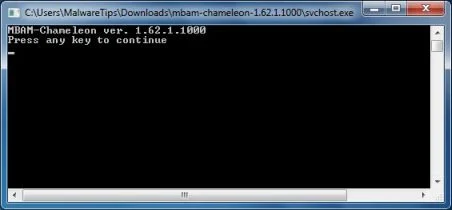
- Once it has done this, it will update Malwarebytes Anti-Malware, and you’ll need to click OK when it says that the database was updated successfully.
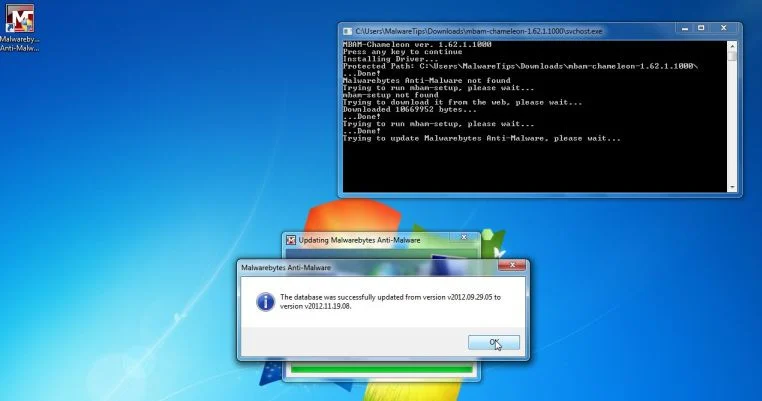
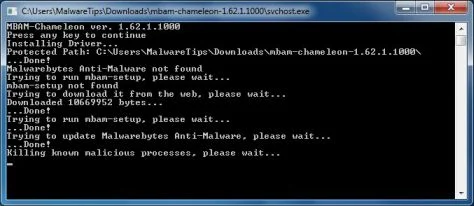
- Malwarebytes Anti-Malware will now attempt to kill all the malicious process associated with Win 7 Defender.Please keep in mind that this process can take up to 10 minutes, so please be patient.
- Next, Malwarebytes Anti-Malware will automatically open and perform a Quick scan for Win 7 Defender malicious files as shown below.
![[Image: Malwarebytes Anti-Malware scanning for Win 7 Defender]](https://malwaretips.com/blogs/wp-content/uploads/mwt-media/f6/f6ecfba43df64204df40586070483f260cb91fa07d5cc90cb4c3a588d159ff30/5b6b2687853201a40d29fe27e142cc66b0852745bbad3900a21030a10399cb4c-521.webp "Malwarebytes Anti-Malware scanning for Win 7 Defender")
- Upon completion of the scan, click on Show Result
![[Image: Malwarebytes Anti-Malware scan results]](https://malwaretips.com/blogs/wp-content/uploads/mwt-media/84/84c62dd46289424dbc686abc53672cb0810111920c8c0bbd69e973844d0a9ab0/a4c04aa700e641f47afec9965f79ff346740668e5952955ccbe5b4c3658b5897-521.webp "Malwarebytes when the system scan has completed")
- You will now be presented with a screen showing you the malware infections that Malwarebytes Anti-Malware has detected.
Make sure that everything is Checked (ticked),then click on the Remove Selected button.
![[Image:Malwarebytes removing virus]](https://malwaretips.com/blogs/wp-content/uploads/mwt-media/d8/d86b6a8bac0e4ece9fd2d259a83db71487943f6b04b567edb0e9adcc3200f492/4eb94651b0e34cc99689c56dc71cd0a49444498ed05c5803ea55fda1cfee1b1f-521.webp "Click on Remove Selected to get rid of Win 7 Defender")
- After your computer restarts, open Malwarebytes Anti-Malware and perform a Full System scan to verify that there are no remaining threats
STEP 2: Remove Win 7 Defender rootkit with HitmanPro
In some cases,Win 7 Defender will also install a rootkit on victims computer.To remove this rootkit we will use HitmanPro.
- Download HitmanPro from the below link,then double click on it to start this program.
Download HitmanProOfficial Sophos download. Free scan, free 30-day trial to remove threats.
IF you are experiencing problems while trying to start HitmanPro, you can use the Force Breach mode.To start HitmanPro in Force Breach mode, hold down the left CTRL-key when you start HitmanPro and all non-essential processes are terminated, including the malware process. (How to start HitmanPro in Force Breach mode – Video) - HitmanPro will start and you’ll need to follow the prompts (by clicking on the Next button) to start a system scan with this program.
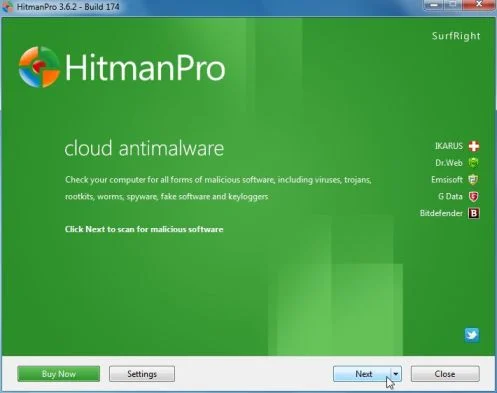
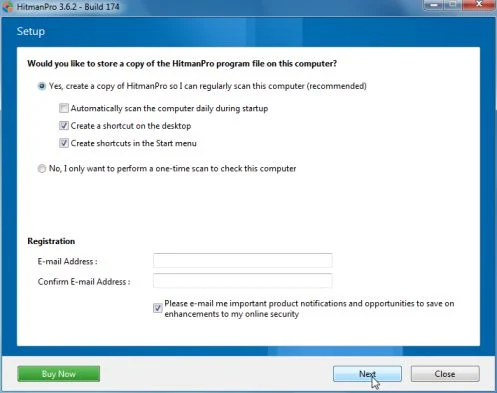
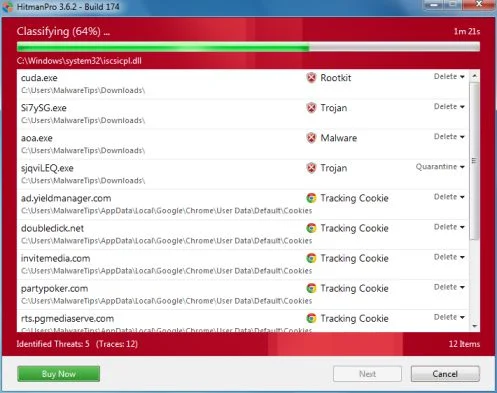
- HitmanPro will start scanning your computer for Win 7 Defender malicious files as seen in the image below.
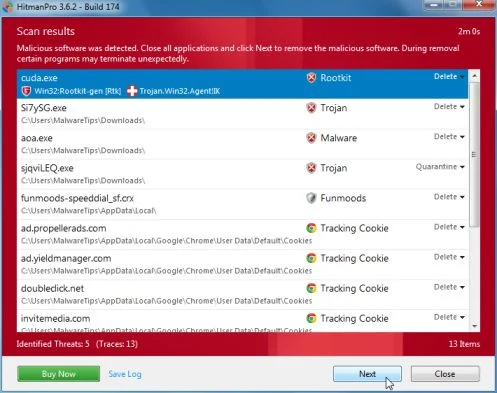
- Once the scan is complete,you’ll see a screen which will display all the infected files that this utility has detected, and you’ll need to click on Next to remove this malicious files.
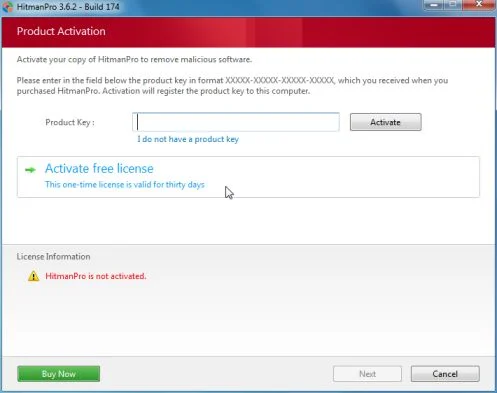
- Click Activate free license to start the free 30 days trial and remove all the malicious files from your computer.
STEP 3: Double check for any left over infections with Emsisoft Emergency Kit
- You can download Emsisoft Emergency Kit from the below link,then extract it to a folder in a convenient location.
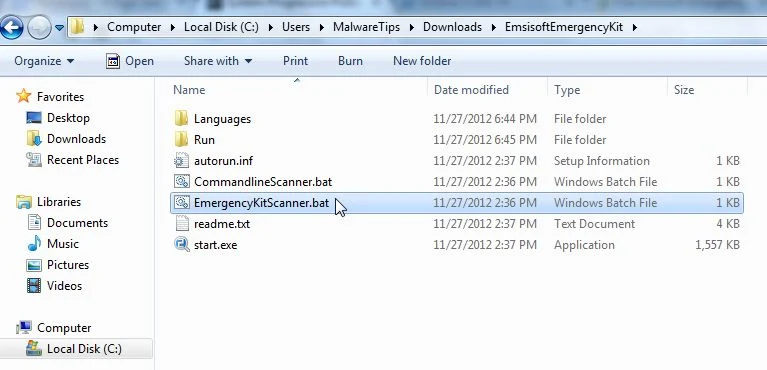
Download Emsisoft Emergency KitOpens the download page in a new tab. - Open the Emsisoft Emergency Kit folder and double click EmergencyKitScanner.bat, then allow this program to update itself.
- After the Emsisoft Emergency Kit has update has completed,click on the Menu tab,then select Scan PC.
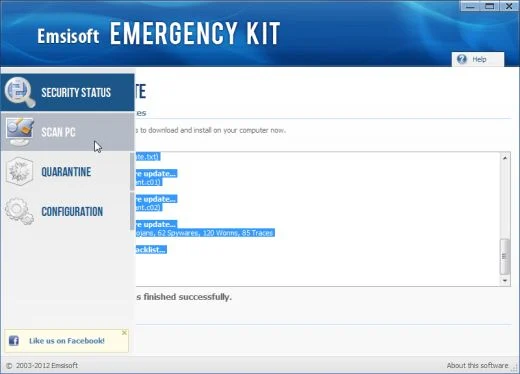
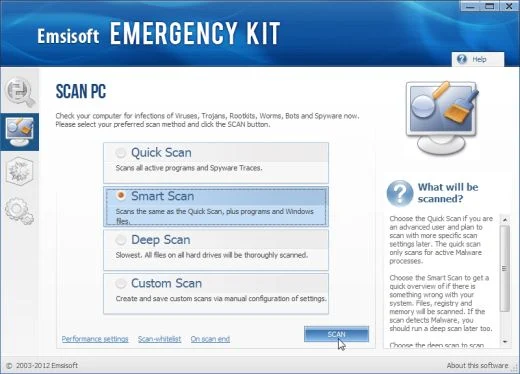
- Select Smart scan and click on the SCAN button to search for Win 7 Defender malicious files.
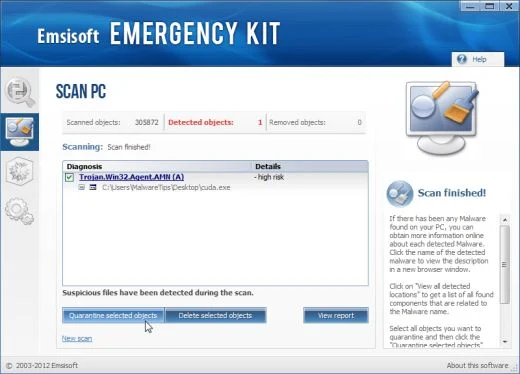
- When the scan will be completed,you will be presented with a screen reporting which malicious files has Emsisoft detected on your computer, and you’ll need to click on Quarantine selected objects to remove them.

Join the discussion
29 commentsShare your experience or ask a question about this article.
Your progress
Did these steps help?
Let us know how the guide worked for you.
Describe what you see and the step you reached. Keep passwords and other private information out.
Discussion
Thank you so much! I will let all my friends know about this great site!
Thank you so much. I think you just saved my marriage. haha This worked wonderfully and I will tell everyone about it Can’t thank you enough
Thank you!
Ik heb kan geen verbinding krijgen met internet want dan krijg ik de link van window 7 defeneder. Hoe kan ik dat oplossen? alvast bedankt
In reply to Manon
Hello Manon,
You’ll need to use a USB stick to transfer all the files on the infected computer.
when i download Rkill, i get the program 7zip but i dont see the icon explorer.exe and when i run 7zip its nothing like what you say i nee. ive tried to download it from both links youve posted. any ideas?
In reply to Carma
Hello Carma,
Lets try to remove this infection in another way.
STEP 1: Run a scan with Malwarebytes Anti-Malware in Chameleon Mode:
STEP 2: Run a scan with RogueKiller
RogueKiller Download Link (This link will automatically download RogueKiller on your computer)
STEP 3 Please perform a scan with HitmanPro as seen on the guide.
If you are having problems starting this program please use the ForceBreach mode as described in the guide.
STEP 4: Run a scan with ESET Online Scanner:
ESET Online Scanner Download Link (This link will automatically download ESET Online Scanner on your computer.)
Waiting for your reply to tell me how everything is running!
Good luck…
Yes, it worked. I’m actually crying of happiness. Thank you!
What A excellent job u done for us.!!!!
OMG….almost lost my money on this malware. I almost use my card to buy it
But suddenly my Asus laptop formats the whole HD. Now it’s a new laptop….argh……. why don’t i know this is a malware!!!??!?!?
Thanks for the info anyway, now I know what to do when some malware comes up
Thank you! This was extremely helpful!
amazing , thank you so much for your help :)
Hello Carol,
Please download the following registry fix: http://malwaretips.com/attachment.php?aid=1000 (right click and select Run as Administrator), then run a scan with RKill,Malwarebytes and HitmanPro.
Hello, not sure if my last comment posted. I am stuck on step 1. I have run the rkill but am not able to run anything else in .exe. Please help? Thanks
In reply to Gloria
Hello Gloria,
Please download and run the following registry fix: http://malwaretips.com/attachment.php?aid=1000 ,then run a scan with Malwarebytes and HitmanPro.
My Internet doesn’t work so how can I download the registry fix program and I am on my sisters computer is there any way I can use some thing on hers and then download it to mine? Thank you!
In reply to Kari
Hello Kari,
Download Rill and Malwarebytes onto a USB stick and then go to the infected computer and while in Safe Mode with Networking, run the previously downloaded programs.
Thank you my friend,.,
Hi Stelian,
I’m having issues downloading the RKill & Malwarebytes Programs, says, “Firefox can’t establish a connection to the server…” any suggestions?
In reply to Melanie
Hello Melanie,
Some variants of this virus won’t allow you to open your browser,can you transfer Rkill to the infected computer with a USB or CD ?
Waiting for your reply.
In reply to Stelian Pilici
i did with usb hard drive
In reply to Stelian Pilici
Thanks!!!! It worked :) woohoo. I didn’t do the Hitman part, hopefully it will still be fine without doing that. I might do it later.
Hello Barry,
You’ll need to download Rkill on a clean computer and then transfer the program to the infected computer. You can transfer the files via a CD/DVD, external drive, or USB flash drive.
Run it and then you’ll be able to download Malwarebytes to perform the removal guide.
Thank you thank you thank you to whomever posted this! It worked beautifully and the infected computer is back in action.
Thank you! Successfully removed virus using above programs in the sequence that is outlined. Also Found that it is important to delete the virus files from quarantine after scanning with malwarebytes to completely remove virus files. Finally, running HitmanPro right after malwarebytes (before restarting) is critical to completely remove virus files from root directory.
Had some problems while trying to run HitmanPro but I’ve manage to find a solution… Thank you!Your site is awesome!
Thank you so much Stelian! Got very scared when I saw that I couldn’t open any programs!
thanks!