

Free Robux for the price of a username. That’s how Rob9loc.blogspot.com sells itself, promising to drop the currency every Roblox player wants straight into your account.
At first glance, the page looks like a tool made for exactly that job. Press the button, though, and the story changes, ending far away from your Roblox balance.
Overview
What you’ll find on Rob9loc.blogspot.com
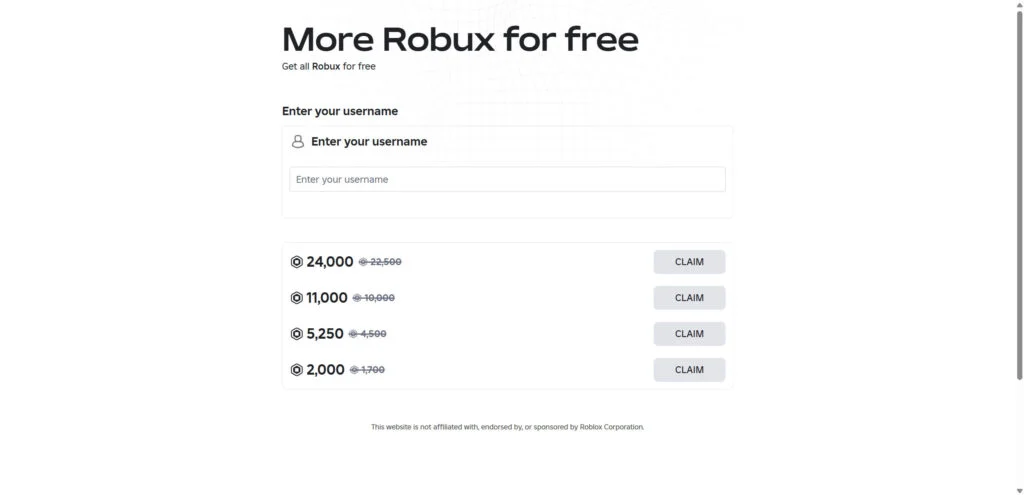
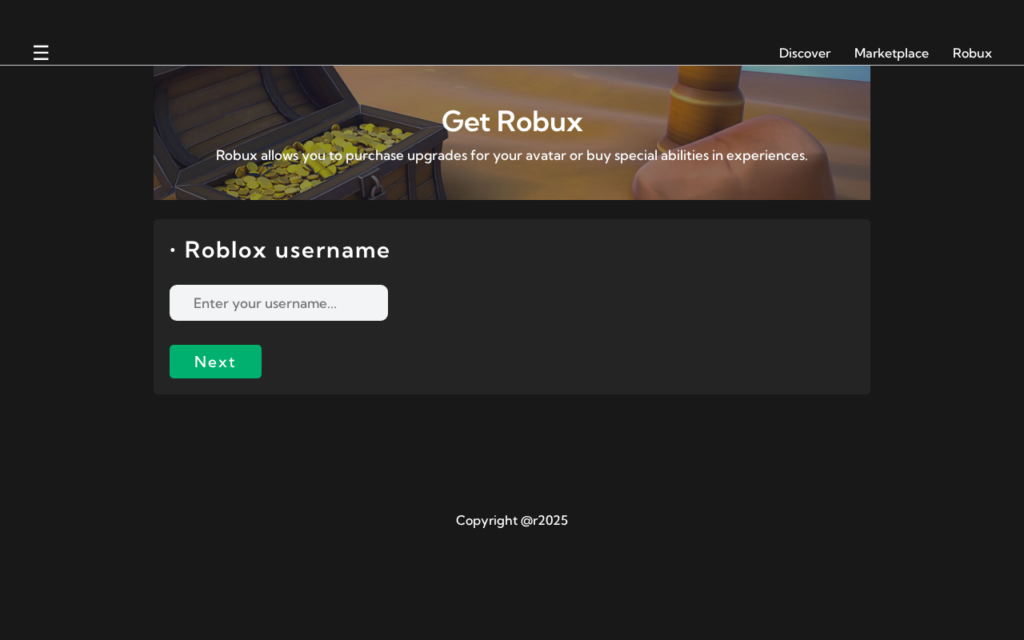
The promise on Rob9loc.blogspot.com is a free Robux generator. You fill in your Roblox username, choose an amount, often thousands of Robux, then hit the button to “send” it.
It’s a convincing act. Sites like this usually run a progress bar, scroll fake server messages and list players who supposedly just got paid, yet nothing on screen adds Robux.
Roblox didn’t build or back this
There’s no partnership here. Roblox doesn’t run or approve sites like Rob9loc.blogspot.com, and it tells players to stay away from them.
Only Roblox has the power to add Robux to an account. No website, even one that knows your username, can put currency in.
So where does the “free” Robux go?
Rather than handing anything over, the page insists on a “human verification.” It’s a content locker: apps, surveys and sign-ups stacked up to pay whoever runs the site.
This is what it means on your end:
- There is no point where enough offers unlock the Robux. It never arrives.
- Every offer you finish pays the operator a commission, usually through a cost-per-action (CPA) ad network.
- Certain offers ask you to type in your email, phone number or other personal details.
- Some lean on you to install apps or start subscriptions that can cost real money.
- Later on, some sites ask you to hand over your Roblox password or a login code.
Treat Rob9loc.blogspot.com as what it is, a free Robux scam. Leave your username out, ignore its “verification” offers and never share your password or a login code there.
What We Found on Rob9loc.blogspot.com
Here’s what stands out about Rob9loc.blogspot.com:
- The page’s title reads "Get Robux".
- It asks for a Roblox username, then locks the reward behind a wall of offers before anything is supposed to arrive.
- Rob9loc.blogspot.com is hosted on Blogger, Google’s free blogging platform, where anyone can put up a page in minutes.
How the Rob9loc.blogspot.com Scam Works
Behind the different names, free Robux sites share a few ready-made kits. That keeps the script almost identical from domain to domain. Here’s how it plays out.
Step 1: A free Robux link comes to you
Not many players go looking for sites like Rob9loc.blogspot.com. The links come to them, shared in YouTube comments, TikTok videos, Discord servers and messages inside Roblox.
The sales line is short and in your face: “Claim 10,000 free Robux,” “Working generator,” “No password needed.” Fake replies underneath swear it worked.
Free hosting does a lot of the work. Many of these pages run on Blogger (blogspot.com) or Netlify (netlify.app), cost nothing to build and are easy to replace once reported.
Step 2: You’re told to enter your Roblox username
First, the site asks for things that seem harmless. You give your username, choose an amount (often big, like 10,000 or 22,500 Robux) and click “Generate” or “Continue.”
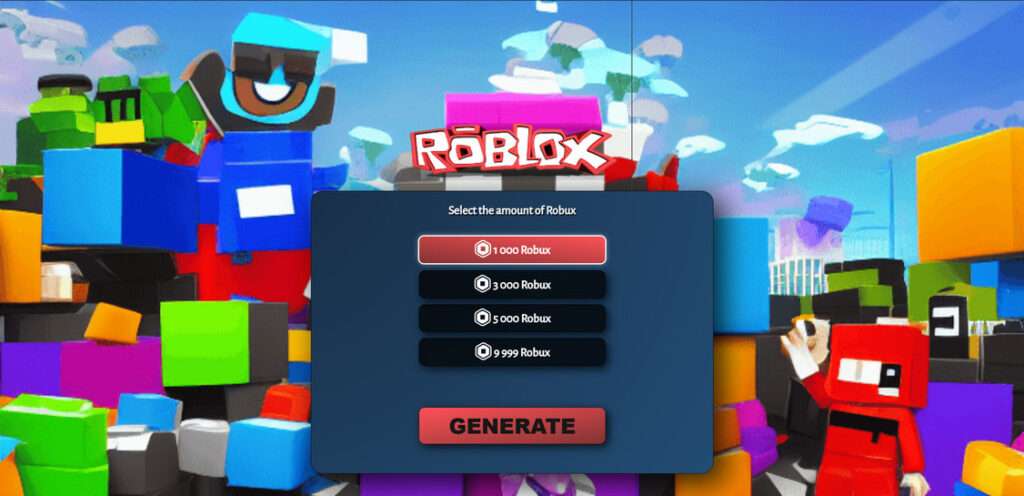
Your username turns a generic offer into something that feels personal, as if the Robux were already on the way. Some pages even show your avatar.
A username by itself gives a website no way to send you Robux. The site asks for it only so you stay invested in a delivery that will never come.
Step 3: The fake generator starts the show
A progress bar starts filling, and a console beside it prints lines such as “Connecting to Roblox servers” and “Injecting Robux into account.” The performance is underway.
The animation in that window follows a script, and every visitor sees it play the same way. Nothing reaches your Robux balance, and nothing is injected anywhere.
Then the show stops short of the finish, claiming the transfer is “almost complete.” That pause is there to set up the real ask.
Step 4: A “human verification” prompt freezes the transfer
The bot check works like this: a box opens with apps, games, surveys and sign-ups, and the site says finishing one or two offers will “prove you’re not a bot.”
CPA networks supply this kind of box to site operators. It’s called a content locker, and its job is to pay the operator per completed offer, not to deliver Robux.
Step 5: The offers fill someone else’s pockets
Every locker task puts money in the operator’s pocket. Commissions can come from an app install, a survey answer or a trial sign-up, adding up over thousands of visitors.
Some offers just test your patience. Others ask for a phone number that starts a paid text subscription, or push app downloads from outside the official app stores.
Those offers are riskier because the main audience here is children. A young player may agree to terms or charges they don’t actually understand.
Step 6: The Robux reward never lands
At the end of the offers, the page says verification “failed,” asks you to do one more task, or reloads. Your Roblox balance is exactly what it was before.
Meanwhile, the operator has already cashed in on your time and data.
Should the page later ask for your password or a login code to “finish the transfer,” that’s an attempt to take over your account.
Red Flags of Free Robux Sites Like Rob9loc.blogspot.com
These warning signs appear on almost every free Robux site, and any one of them is enough reason to close the page.
It offers Robux for free
The tool’s name doesn’t matter. Roblox doesn’t give Robux away through outside websites, so any site offering free Robux is running a scam.
It asks for your username so it can “send” currency
Don’t read the username box as a sign something is coming. Robux is added by Roblox, and a site asking for your name is only playing a part.
Loading bars and fake hacker output
The loading screens, “connecting to server” lines and “injection” messages aren’t connecting to anything. They’re animations. Real Roblox purchases stay on roblox.com or in the official app, minus the theatrics.
A “human verification” check full of offers
You’ll never be asked to install apps or fill in surveys by a real bot check. A CAPTCHA takes seconds. Verification that pays somebody else is a content locker.
Glowing comments and a parade of winners
Watch the names in that live feed. The same “winners” come back because the list is scripted, and the glowing comments are scripted or written by fake accounts.
Free hosting and names built to vanish
Here’s what a throwaway page’s address looks like: free hosting like blogspot.com or netlify.app, a random string of letters, or some mix of “rbx,” “free” and “robux.”
Why Free Robux Generators Can’t Work
A “generator” sounds technical, which can make it feel believable. The truth is simpler: an outside site has nothing to generate and nothing to hack.
Robux live in one place: Roblox’s servers. Roblox adds them to an account after a purchase, a Premium membership or a sale on its platform, and nobody else can.
Any offer of free Robux, memberships or valuable items is a scam, according to Roblox’s help pages. The people behind it are aiming for your account.
Even if a site found a way to break into Roblox, it would have no reason to give currency away for free. Ads are the only real thing on offer.
Same Kit, Different Domains
Rob9loc.blogspot.com is one of many free Robux pages that are close copies of each other. MalwareTips keeps finding new ones, and most are built on a handful of ready-made templates.
Under different content-locker accounts, you find the same page design. That suggests the templates are being sold or shared instead of run by one person.
Because of this, a takedown rarely closes the door for good. Copies with new names often surface within days, using the very same script.
Placed next to one another, the copies give themselves away with the same fingerprints:
- A headline built around “free Robux” or a “Robux generator”
- A username field with a Robux amount picker
- A progress display that’s entirely fake
- A “human verification” step that turns out to be a stack of offers
- Live feeds or comments claiming fresh payouts
A page that follows this pattern doesn’t need a test run. It’s the same scam under a different address.
The Real Risks for Your Account, Device and Data
Most visitors leave with nothing except lost time. The bigger risks come from the things the offers, and any later pop-ups or messages, ask for. Keep an eye on these:
- Your Roblox account. Some versions fish for your password, a 2-step verification code or a “login code.” Whoever has those can lock you out and strip your inventory.
- Your device. Offers that steer you to app files outside Google Play or the App Store can put adware, or something nastier, on your device.
- Your phone bill. A premium text subscription can start when you enter your number in some offers. It keeps charging every week until you cancel it.
- Your personal details. Marketing lists and spam campaigns are where your name, email, age and address end up once surveys and sign-ups collect them.
- Your browser. Allowing notifications on some offer pages is a mistake. The screen then fills with fake alerts and even more “free Robux” ads.
Roblox says a password request outside its official login page will never come from Roblox. Whatever such a site promises, treat it as an account thief.
How to Get Robux the Safe Way
Instead of chasing a free shortcut that doesn’t exist, use one of these safe ways to add Robux without risking your account:
- Make your Robux purchases on roblox.com itself or in the official Roblox app.
- Redeem a gift card on Roblox’s own redemption page, as long as you bought it from a real store.
- Sign up for Roblox Premium and receive the Robux it includes every month.
- Build items, passes or experiences, then earn Robux by selling them on Roblox itself.
Seen a promotion claiming to be from Roblox? Look it up on Roblox’s official website or social accounts. A real one won’t need your username on a stranger’s site.
A Note for Parents
Kids are the audience free Robux sites are chasing. They’re more likely to trust a page that looks exciting, and less likely to read the terms attached to an offer.
The most useful step isn’t a filter. It’s a short talk where your child learns free Robux offers are always fake and their Roblox password goes to a parent alone.
- Set up 2-step verification on the Roblox account your child uses.
- Set spending limits and review account activity with Roblox’s parental controls.
- Reach out to your mobile carrier and ask for a premium text subscription block on your child’s phone.
- Agree together that if a login request or charge appears out of nowhere, you see it first.
When your child has already used a site like Rob9loc.blogspot.com, the mistake isn’t something to punish. Start with the password and go through the steps below together.
What to Do If You Have Fallen Victim to This Scam
If you used Rob9loc.blogspot.com by entering your username, completing offers or sharing other details, these steps keep the damage small. Begin by protecting your account.
- Protect your Roblox account first. If your password went into any part of the site, change it on roblox.com immediately and sign out of every other session.
- Protect sign-ins with 2-step verification. With it turned on, a person who learns your password again still can’t get in without the code you’re sent.
- Don’t forget reused passwords. When your Roblox password also guards your email or other accounts, give those new passwords too. Your email comes first.
- Uninstall any offer apps. Get rid of whatever you installed to finish the offers. After that, run a Malwarebytes Free scan using the steps below.
- Stop subscriptions the offers started. Go over your phone bill and your app store subscriptions. For every charge you find, cancel it in the store settings or with your carrier.
- Turn off unwanted notifications. Your browser settings show which sites can notify you; remove the ones you don’t recognize. AdGuard can also block many ads that lead to these pages.
- Report what you saw. Flag the message or experience that shared the link with Roblox’s Report Abuse tools, then report the video, comment or post where it appeared.
- Say no to “recovery” deals. Anyone who wants a fee or your password to restore lost items or Robux is running a second scam.
Need your account back? Request recovery with Roblox’s official support form, and gather the username, email and any purchase receipts beforehand.
Is Your Device Infected? Run a Free Malware Scan
Slow performance, constant pop-ups, or strange behavior? These are classic signs of a malware infection. The fastest way to find out is to scan your device with Malwarebytes Free — one of the most trusted malware removal tools available.
The free version detects and removes the most common threats, including:
- Adware — the cause of those annoying pop-ups
- Browser hijackers — unwanted redirects and changed homepages
- Trojans and spyware — hidden programs stealing your data
- Potentially unwanted programs (PUPs) — software you never asked for
👉 Select your device below — Windows, Mac, or Android — then follow the simple steps to download Malwarebytes, scan your system, and remove any threats it finds. The scan usually takes 5 to 20 minutes.
Run a Malware Scan with Malwarebytes for Windows
Malwarebytes is one of the most popular and trusted anti-malware tools for Windows — and it’s completely free for removing infections. It catches threats that many antivirus programs miss, including adware, browser hijackers, and trojans. Follow the steps below to scan and clean your PC in just a few minutes.
Download Malwarebytes
Click the button below to download the latest version of Malwarebytes for Windows from the official source. The free version is all you need — it will scan your computer and remove adware, browser hijackers, and other malicious software at no cost.
Download MalwarebytesOfficial installer for Windows 11 and 10. Your download starts right away.Want real-time protection? See Malwarebytes Premium Malwarebytes Free for WindowsScans and removes malware at no cost
-
Install Malwarebytes
When the download finishes, open your Downloads folder and double-click the MBSetup file. If Windows shows a User Account Control pop-up, click “Yes” to allow the installation.

Follow the On-Screen Prompts to Install Malwarebytes
The setup wizard will walk you through a few quick screens:
-
Choose where you’re installing the program — “Personal Computer” or “Work Computer” — then click Next.

-
Malwarebytes will now install on your device. This usually takes under a minute.

-
When installation is complete, the “Welcome to Malwarebytes” screen will open automatically.

-
On the final screen, click Open Malwarebytes to launch the program.

-
Enable “Scan for Rootkits”
Before scanning, turn on rootkit detection so Malwarebytes can find even the most hidden threats. Click the Settings gear icon on the left side of the screen.

In the settings menu, find “Scan for rootkits” and click the toggle so it turns blue.

Done? Click “Dashboard” in the left pane to return to the main screen.
Start the Scan
Click the blue Scan button. Malwarebytes will automatically update its virus database and start checking your computer for malware.

-
Wait for the Scan to Finish
The scan checks your entire system for browser hijackers and other malicious programs, so it can take 5 to 20 minutes depending on your computer. Feel free to do something else — just check back occasionally to see the progress.

-
Quarantine the Detected Threats
When the scan is done, you’ll see a list of everything Malwarebytes found — malware, adware, and potentially unwanted programs. Click the “Quarantine” button to remove all of them at once.

Malwarebytes will now remove the malicious files and registry entries and move them safely into quarantine.

-
Restart Your Computer
Some threats can only be fully removed after a reboot. If Malwarebytes asks you to restart, click Yes. Once you’re logged back in, Malwarebytes has finished removing the threats it found.

That’s it — your Windows PC is now clean of trojans, adware, and other malware, and should be back to running smoothly.
If you are still having problems with your computer after completing these instructions, then please follow one of the steps:
- Run a computer scan with ESET Online Scanner
- Ask for help in our Windows Malware Removal Help & Support forum.
Run a Malware Scan with Malwarebytes for Mac
Malwarebytes for Mac is a free on-demand scanner that removes the malware other security software tends to miss — adware, browser hijackers, and unwanted programs included. Cleaning an infected Mac with Malwarebytes has always been completely free, and it’s our go-to recommendation. Follow the steps below to scan and clean your Mac in just a few minutes.
-
Download Malwarebytes for Mac
Click the button below to download the latest version of Malwarebytes for Mac.
Download MalwarebytesOfficial installer for macOS. Your download starts right away.Want real-time protection? See Malwarebytes PremiumMalwarebytes Free for MacScans and removes malware at no cost -
Open the Malwarebytes setup file
When the download finishes, open your Downloads folder and double-click the setup file to begin the installation.

-
Follow the On-Screen Prompts to Install Malwarebytes
The Malwarebytes for Mac Installer will guide you through a few quick screens. Click “Continue” and keep following the prompts until the installation completes.



When the installation is complete, Malwarebytes opens to the Welcome to Malwarebytes screen. Click “Get started“.
-
Select “Personal Computer” or “Work Computer”
Malwarebytes will ask what type of computer you’re installing it on. Click either Personal Computer or Work Computer, whichever applies.

-
Start the Scan
Click the “Scan” button. Malwarebytes will automatically update its detection database and begin checking your Mac for malware.

-
Wait for the Scan to Finish
Malwarebytes will scan your Mac for adware, browser hijackers, and other malicious programs. This can take a few minutes, so feel free to do something else — just check back occasionally to see the progress.

-
Quarantine the Detected Threats
When the scan is done, you’ll see a list of everything Malwarebytes found. Click the “Quarantine” button to remove all the threats at once.

-
Restart Your Mac
Malwarebytes will now remove all the malicious files it found. Some threats can only be fully removed after a reboot — if Malwarebytes asks you to restart, allow it. Once you’re logged back in, your Mac is clean.

That’s it — your Mac is now free of adware, rogue browser extensions, and other potentially harmful software.
If you are still experiencing problems while trying to remove a malicious program from your computer, please ask for help in our Mac Malware Removal Help & Support forum.
Run a Malware Scan with Malwarebytes for Android
Malwarebytes for Android automatically detects and removes dangerous threats like malware and ransomware so you don’t have to worry about your most-used device being compromised. Aggressive detection of adware and potentially unwanted programs keeps your Android phone or tablet running smooth.
-
Download Malwarebytes for Android.
You can download Malwarebytes for Android by clicking the link below.
Get Malwarebytes for AndroidOpens Google Play in a new tab.Want real-time protection? See Malwarebytes Premium for AndroidMalwarebytes for AndroidScans your phone and removes malware at no cost -
Install Malwarebytes for Android on your phone.
In the Google Play Store, tap “Install” to install Malwarebytes for Android on your device.

When the installation process has finished, tap “Open” to begin using Malwarebytes for Android. You can also open Malwarebytes by tapping on its icon in your phone menu or home screen.

-
Follow the on-screen prompts to complete the setup process
When Malwarebytes will open, you will see the Malwarebytes Setup Wizard which will guide you through a series of permissions and other setup options.
This is the first of two screens that explain the difference between the Premium and Free versions. Swipe this screen to continue.
Tap on “Got it” to proceed to the next step.
Malwarebytes for Android will now ask for a set of permissions that are required to scan your device and protect it from malware. Tap on “Give permission” to continue.
Tap on “Allow” to permit Malwarebytes to access the files on your phone.
-
Update database and run a scan with Malwarebytes for Android
You will now be prompted to update the Malwarebytes database and run a full system scan.

Click on “Update database” to update the Malwarebytes for Android definitions to the latest version, then click on “Run full scan” to perform a system scan.

-
Wait for the Malwarebytes scan to complete.
Malwarebytes will now start scanning your phone for adware and other malicious apps. This process can take a few minutes, so we suggest you do something else and periodically check on the status of the scan to see when it is finished.

-
Click on “Remove Selected”.
When the scan has been completed, you will be presented with a screen showing the malware infections that Malwarebytes for Android has detected. To remove the malicious apps that Malwarebytes has found, tap on the “Remove Selected” button.

-
Restart your phone.
Malwarebytes for Android will now remove all the malicious apps that it has found. To complete the malware removal process, Malwarebytes may ask you to restart your device.
That’s it — your Android phone is now clean — no more malicious apps, adware, or browser redirects.
If you are still having problems with your phone after completing these instructions, then please follow one of the steps:
- Restore your phone to factory settings by going to Settings > General management > Reset > Factory data reset.
- Ask for help in our Mobile Malware Removal Help & Support forum.
Stay Protected: Block Ads and Malicious Sites
Now that your device is clean, keep it that way. Most infections start with a malicious ad or a fake download button — so blocking them at the source is your best defense.
We recommend AdGuard, which blocks malicious ads, phishing pages, and dangerous redirects before they can reach you.
👉 Download AdGuard and browse safely
Frequently Asked Questions
Is Rob9loc.blogspot.com a real Robux generator?
No, Rob9loc.blogspot.com is a free Robux scam. You watch an animation pretend to be a generator, then a “verification” step sends you into offers that pay the operator, not you.
Can a website add Robux to my account with only my username?
No. Adding Robux is something only Roblox can do. A website that knows your username knows who you are, but it still has no way to send currency.
Why does Rob9loc.blogspot.com make me complete offers?
The operator earns from every offer you complete. App installs, surveys and sign-ups each bring in a commission through an ad network, and that’s the entire business.
Can I get banned for using a Robux generator?
The fake generator has no way into your account. Cheat tools, on the other hand, break Roblox’s rules and can get an account banned, without ever creating Robux.
I entered my username on Rob9loc.blogspot.com. Is my account in danger?
A username by itself won’t unlock your account. Did you also share your password or a login code? That’s where the danger begins, so change your password.
Is there any legitimate way to get free Robux?
Generators and websites don’t give free Robux. The way to earn Robux without spending money is creating on Roblox; the alternative is buying Robux, a gift card or Premium.
The Bottom Line
The generator on Rob9loc.blogspot.com is a show and its “human verification” is an ad wall. It’s a free Robux scam, and no Robux will ever reach your account.
Don’t hand over your username. Don’t do its offers. And don’t type your Roblox password anywhere but roblox.com or the official app, no matter what a page promises.
If you’ve already been through it, change your Roblox password first, then enable 2-step verification. Cancel any subscriptions the offers created, and report the link where you found it.

Join the discussion
0 commentsShare your experience or ask a question about this article.
Discussion
Start the conversation
Have a question or something useful to share? Add the first comment.