

If your Apple Mac OS X browser is locked, and you are seeing an “All activities of this computer have been recorded. All your files are encrypted. Don’t try to unlock your computer!” notification that pretends to be from the Royal Canadian Mounted Police, then your Safari web browser has been hijacked by malware.
For years, Windows users have been plagued by ransomware demanding several hundred dollars to unlock their computers.
The bad guys know there is a growing market of Apple consumers who, for the most part, feel pretty safe about browsing the Internet on a Mac without the need for any security product.
Cyber-criminals, well known for not re-inventing the wheel, have ‘ported’ the latest ransomware to MAC OS X, not by using some complicated exploit but rather leveraging the browser and its ‘restore from crash’ feature.
The Royal Canadian Mounted Police Mac OS X ransomware page is being pushed onto unsuspecting users browsing regular sites but in particular when searching for popular keywords.
The Royal Canadian Mounted Police Mac OS X Ukash virus will display a bogus notification that pretends to be from the Royal Canadian Mounted Police, and states that your computer has been blocked due to it being involved with the distribution of pornographic material, SPAM and copyrighted content.
The Royal Canadian Mounted Police Mac OS X virus will hijack your Safari browser, so whenever you’ll open this program, it will display instead a lock screen asking you to pay a non-existing fine of $300 in the form of a Ukash or Paysafecard voucher.
A quick look at the address bar shows an interesting URL: rcmp.gc.ca.id657546456-3999456674.i5843. com/?flow_id=2019&&453640=45513/case_id=39994, the bad guys are clearly trying to fool users.
If you choose to ignore the Royal Canadian Mounted Police Mac OS X ransomware message, you cannot get rid of the page, as you will see this notification:
Your web browser has been locked.
All PC data will be detained and criminal procedures will be initiated against you if the fine will not be paid.
Furthermore, to make this alert seem more authentic, this virus also has the ability to access your installed webcam, so that the bogus Royal Canadian Mounted Police Mac OS X notification shows what is happening in the room.
If your computer is infected with the Royal Canadian Mounted Police Mac OS X virus, this ransomware will display a localized webpage that covers your Safari window and demands payment for the supposed possession of illicit material.
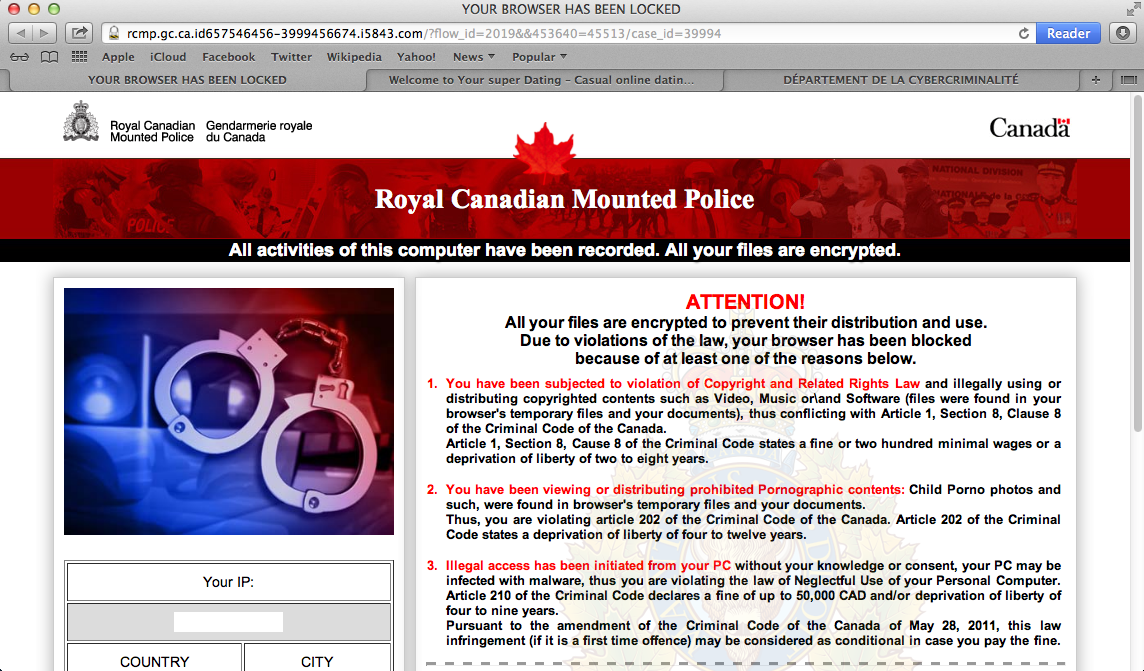
The message displayed by the threat can be localized depending on the user’s location, with text written in the appropriate language.
Royal Canadian Mounted Police
All activities of this computer have been recorded.All your files are encrypted. Don’t try to unlock your computer!
Your browser has been blocked due at least one of the reasons specified below.You have been subjected to violation of Copyright and Related Rights Law (Video, Music, Software) and illegally using or distributing copyrighted contents, thus infringing Article 1, Section 8, Clause 8, also known as the Copyright of the Criminal Code of Canda. Article 1, Section 8, Cause 8of the Criminal Code provides for a fine of two to five hundred minimal wages or a deprivation of liberty for two to eight years.
You have been viewing or distributing prohibited Pornographic content (Child Porno photos and etc were found on your computer). Thus violating article 202 of the Criminal Code of Canda, Article 202 of the Criminal Code provides for a deprivation of liberty for four to twelve years.
Illegal access has been initiated from your PC with ought your knowledge or consent, your PC may be infected by malware, thus you are violating the law on Neglectful Use of Personal Computer. Articles 210 of the Criminal Code provides for a fine up to 100,000 CAD and/or deprivation of liberty for four to nine years. Pursuant to the amendment of Criminal Code of Canda of May 28, 2011, this law infringement (if it is not repeated – first time) may be considered as conditional in case you pay the fine of the States.
To unlock your computer and to avoid other legal consequences, you are obligated to pay a release fee of $300. Payable through GUkash (you have to purchase Ukash or Paysafecard card. load it with $300 and enter the code). You can buy the code at any shop or gas station. Ukash is available at the stores nationwide.
When you pay the fine, your browser will be unblocked in 3 to 12 hours after the money is put into the States’s account. Please note: Fine may only be paid within 12 hours. As soon as 12 hours elapse, the possibility to pay the fine expires. All PC data will be detained and criminal procedures will be initiated against you if the fine is not paid.
Cyber criminals often updated the design of this lock screen, however you should always keep in mind that the Royal Canadian Mounted Police will never lock down your computer or monitor your online activities.
The Royal Canadian Mounted Police Mac OS X lock screen is a scam, and you should ignore any alerts that this malicious software might generate.
Under no circumstance should you send any Ukash code to these cyber criminals, and if you have, you can should request a refund, stating that you are the victim of a computer virus and scam.
Royal Canadian Mounted Police Mac OS X – Virus Removal Guide
This page is a comprehensive guide, which will remove the “Royal Canadian Mounted Police Mac OS X” infection from your your computer. Please perform all the steps in the correct order. If you have any questions or doubt at any point, STOP and ask for our assistance.
OPTION 1: Remove “Royal Canadian Mounted Police” Apple Mac OS X” virus by resetting Safari to its default settings
OPTION 2: Remove “Royal Canadian Mounted Police” Apple Mac OS X virus using Force Quit for your browser
OPTION 1: Remove “Royal Canadian Mounted Police” Apple Mac OS X” virus by resetting Safari to its default settings
To remove the Royal Canadian Mounted Police Mac OS X virus from Safari, we will need to reset your browser to its default settings.
- Click on the Safari menu and then choose Reset Safari
![[Image: Select Reset Safari from the menu]](//malwaretips.com/blogs/wp-content/uploads/2013/07/Reset-Safari.png "Select Reset Safari from the menu")
- In the new windows, ,ake sure all items are marked and click on the Reset button.
![[Image: Reset Safari to default settings]](//malwaretips.com/blogs/wp-content/uploads/2013/07/Reset-Safari-to-default-settings.png "Reset Safari to default settings")
![[Image: Select Reset Safari from the menu]](http://malwaretips.com/blogs/wp-content/uploads/2013/07/Reset-Safari.png "Select Reset Safari from the menu")
![[Image: Reset Safari to default settings]](http://malwaretips.com/blogs/wp-content/uploads/2013/07/Reset-Safari-to-default-settings.png "Reset Safari to default settings")
Alternatively, to remove the Royal Canadian Mounted Police MAC OS X virus from your Apple Safari you can follow the instructions from the video below:
OPTION 2: Remove “Royal Canadian Mounted Police” Apple Mac OS X virus using Force Quit for your browser
- Press Command + Option + Escape simultaneously. This will open the open the Force Quit Applications window.
![[Image: Press Command + Option + Escape to start Force Quit menu]](https://malwaretips.com/blogs/wp-content/uploads/mwt-media/ad/ad3ae72aed9a241a1afd187c6912b1b1f993aa3c2a3dc9a1ba533ec97272979f/717d7f6aa1f03bf15754f0923d3ef83b87f241ed96b0e53ff96c534b02023bed-844.webp "Press Command + Option + Escape to start Force Quit menu")
- Select Safari, Chrome, Firefox or any other browser in which your are seeing the Royal Canadian Mounted Police ransomware notification.
![[Image: Select Firefox, Chrome or Safari from Force Quit menu]](https://malwaretips.com/blogs/wp-content/uploads/mwt-media/3e/3e70d28886634769ab9021504c09ca06dfa1a3726a6360bee3f5c20db0a02fc3/f8d170f59b7aefebdbcab4b2aaed2ea00a613e933a53ae631820b6d959f9ff0a-346.webp "Select Firefox, Chrome or Safari from Force Quit menu")
- Click the button that says “Force Quit“. This will forcefully end your browser program, thus removing the Royal Canadian Mounted Police Apple Mac Os X virus.
![[Image: Click on the Force Quit button to remove Royal Canadian Mounted Police Apple Mac Os X virus]](https://malwaretips.com/blogs/wp-content/uploads/mwt-media/28/28749c6d21958cc3d5c1b89bb2df95e301e5fd68b993cd1fc47ce7a77c9113fd/9da9cfbfe447b3585babc48e1a8ec5c7c12706024c40b204f73e3e3a00ad3600-350.webp "Remove Royal Canadian Mounted Police Mac OS X virus (Removal Guide) 1")
If you cannot switch from the unresponsive app, press Command + Option + Shift + Esc for three seconds to force it to quit. This key combination tells OS X to force quit the frontmost app.
You can also watch this video on how to Force Quit a program on an Apple Mac OS X:
That’s it! Your Safari browser should now be free of the Royal Canadian Mounted Police Mac OS X infection. Stay safe!

Join the discussion
21 commentsShare your experience or ask a question about this article.
Your progress
Did these steps help?
Let us know how the guide worked for you.
Describe what you see and the step you reached. Keep passwords and other private information out.
Discussion
When I force quit it and reset it, every single time I open safari it still opens
In reply to Ayesha V.
Hello,
Lets try these steps:
1.Click on Safari in your browser menu, located at the top of your screen. When the drop-down menu appears, select the choice labeled Preferences…
Please note that you can use the following keyboard shortcut in lieu of the aforementioned menu item: COMMAND (APPLE) + COMMA
2. Safari’s Preferences dialog should now be displayed, overlaying your browser window. Click on the tab labeled Security.
3.Safari 5’s Security Preferences should now be displayed. In the third section from the top, labeled Web content, is an option titled Enable JavaScript. By default, this option is checked and therefore active. To disable JavaScript, simply uncheck the appropriate box.
Close your browser, then open it again. Go to google.com, then you can re-enable the JavaScript option.
Stay safe!
Oh my gosh! This helped me a whole lot! You are my saviour!
Thanks a lot!
You are a LEGEND!!! i was freaking out that my mac was gona need to be fixed again!!! thanks heaps
Even after all the resetting, is there a chance the cyber criminals will be able to monitor and steal your personal and financial details
In reply to random citizen
Hello,
No, there are no malicious files on your machine. Basically this infection is nothing more than a javascript code. If you are not seeing the malicious web page, then you are good to go! :)
Stay safe!
This happened to me. I was online clicked onto a site and my screen froze and a popup said that my files were encrypted and everything else. I forced it to close and rebooted my computer. Everything seems to be fine now.
Hello Dillon,
Did you manage to fix your Mac?
Hello Joe,
Have you tried to Force Quit the Safari web browser?
If this will not work, then follow this steps:
1.Click on Safari in your browser menu, located at the top of your screen. When the drop-down menu appears, select the choice labeled Preferences…
2.Safari’s Preferences dialog should now be displayed, overlaying your browser window. Click on the tab labeled Security.
3.Safari 5’s Security Preferences should now be displayed. In the third section from the top, labeled Web content, is an option titled Enable JavaScript. By default, this option is checked and therefore active. To disable JavaScript, simply uncheck the appropriate box.
After you have closed that ransom page, you can go ahead an re-enable the Javascript option. :)
Stay safe!
Hello,
Can you please try the following options:
Hold down Command-Shift-Option-Escape (OR
Command+Alt+Escape) for three seconds .
This should force quit your application, and make that annoying page disappear.
Let me know if it works…. Stay safe!
Hi,
I restarted my computer and everything seems fine, do I still need to reset everything?
In reply to NON
Hello,
If you are not experiencing any issues then you are good to go! :)
Stay safe!
Thanks . saved me ;)
Thanks my friend !
Hello,
You can try this instructions: http://en.kioskea.net/faq/1154-firefox-reset-to-default-settings#mac-os
Stay safe!
You advice worked thank you
Hello
I just had it reset on Chrome. I clicked chrome button, then clicked preferences, scroll down to advanced settings, then scroll down to reset default settings, then forced quit. When reopened chrome it was gone. Am I 100% certain I have no malicious software on my computer now?
Really Kind Regards
In reply to Blaze
Hello,
This infection is leveraging the browser and its ‘restore from crash’ feature, basically it has “sticked” that page on your Chrome, however there should not be malicious files on your computer. So resting the browser settings is enough to remove this ransoware.
Stay safe!
Hello,
To Reset Firefox do the following:
Go to Firefox > Help > Troubleshooting Information.
Click the “Reset Firefox” button.
Firefox will close and reset. After Firefox is done, it will show a window with the information that is imported. Click Finish.
Firefox will open with all factory defaults applied.
Hello,
1.Make sure all browser windows are closed (Safari should be closed).
2.In the Finder go to the Library folder.
3.In the Library folder go to the Preferences folder.
4.In the Preferences folder, click the file “com.apple.Safari.plist” to select it, then press Enter to edit the name.
5.Change the name of this file from “com.apple.Safari.plist” to “com.apple.Safari.plist2”.
Open Safari.
6.In the menu bar, click Safari > Empty Cache, then click Empty.
Stay safe!@
Hello,
This infection is leveraging the browser and its ‘restore from crash’ feature, basically it has “sticked” that page on your Safari, however there are no malicious files on your computer. So resting Safari settings is enough to remove this ransoware.