

A website called Snaptroid 2.0 (Snaptroid.vip) has been making the rounds on the internet, promising Snapchat users access to private account data like chat history, best friends lists, and “My Eyes Only” content. But is Snaptroid legit, or is it a scam? In this comprehensive guide, we’ll break down exactly how the Snaptroid website operates, what information it claims to provide, warning signs that indicate it’s a scam, steps for protecting your account if you’ve interacted with the site, and more.
With Snapchat’s strong privacy policies and encryption, the bold claims made by Snaptroid should raise immediate red flags for most users. By understanding the tactics used by sites like these, you can avoid falling victim to scams that put your personal data and privacy at risk.
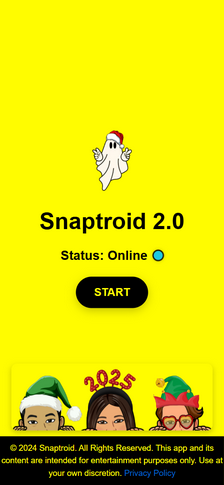
Overview of the Snaptroid Snapchat Scam
Snaptroid operates a website that promises to let users view private Snapchat data from any account, including:
- Snapchat Memories/Snap recap
- Best Friends lists
- My Eyes Only content
- Chat history
The site claims to do this by cracking Snapchat’s security and giving access to information Snapchat purposefully keeps private.
Of course, the idea that a simple online tool could bypass Snapchat’s encryption and privacy settings is highly unlikely. Snapchat’s security is robust, and any actual vulnerabilities would be patched immediately before being exploited by a random third-party website.

So how does Snaptroid operate, and is any of what it claims to offer real? Let’s take a closer look at what happens when you use the site.
The Snaptroid Website Appears Legitimate at First Glance
The Snaptroid website itself appears well-designed and professional at first glance. A homepage shows the Snaptroid logo and fields to enter a Snapchat username you want to lookup.
The site then takes users to a page with a menu of Snapchat data Snaptroid promises to reveal:
- Snapchat Memories/Snap recap
- Best Friends lists
- My Eyes Only content
- Chat History
Each menu item has an explanation of what data will be shown for the account. This gives the impression that Snaptroid has capabilities to actually access private Snapchat data.
So far, nothing overtly signals that Snaptroid is a scam. But things take a questionable turn when users try to unlock the promised Snapchat data.
How the Snaptroid Snapchat Scam Works
While Snaptroid promises access to private Snapchat account data, users never actually gain access to anything. Instead, Snaptroid uses deception and manipulative tactics to generate ad revenue, get users to download unrelated apps, steal personal information, and more.
Here’s a step-by-step look at what happens when using Snaptroid and why it’s a scam:
1. Users Are Prompted for “Human Verification”
After entering a username and choosing what Snapchat data to access, Snaptroid prompts for “human verification.” This involves completing a survey or downloading a separate app.
Ostensibly, this extra step is to “verify you are not a bot” before accessing the private data. But in reality, it’s a common scam tactic to generate ad revenue or malware downloads.
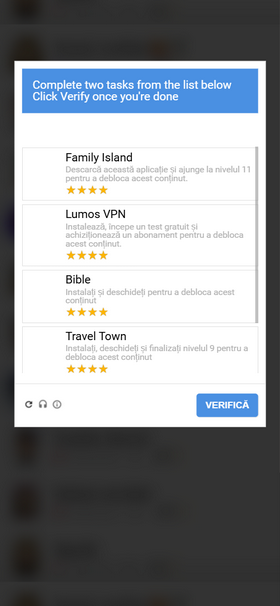
2. Downloading an App or Taking a Survey
To complete human verification, users have to:
- Download and open a separate app
- Complete a survey
- Share the Snaptroid service on social media
The apps tend to be junk free-to-play games or spammy services. The surveys ask for personal information or sign-ups for sketchy offers or subscriptions.
Users have to complete human verification before supposedly being able to view the promised Snapchat data.
3. No Snapchat Data is Ever Revealed
Here is the crux of the scam. Even after completing human verification steps, users NEVER gain access to any private Snapchat data.
The process simply loops back to asking for more app downloads or survey completions. Snaptroid has no actual capability to access Snapchat account info.
The apps and surveys generate affiliate revenue or harvest user data for the scammers behind the site. But users receive nothing they were promised.
4. Repeated Requests for Verification
If users continue trying to access the promised Snapchat data, Snaptroid will make endless requests for more human verifications.
This traps users in a loop of downloading apps, taking surveys, or sharing the link in hopes of getting the data they want. Each time, no data is revealed.
The repeated verifications maximize how many apps are downloaded or how much personal info is harvested before the user realizes it’s a scam.
5. Personal Info and Device Security Is Put at Risk
Throughout this process, users’ personal information, privacy, and device security face grave risks.
By downloading random apps and taking dubious surveys, users expose themselves to:
- Malware infections
- Personal info theft
- Unwanted subscriptions
- Account hacks
At best, Snaptroid results in wasted time and annoyance. But at worst, it can lead to identity theft or a compromised device.
In no case does Snaptroid ever deliver on its promise of accessing private Snapchat data. There are no actual capabilities behind its claims.
Recognizing the Red Flags of the Snaptroid Scam
For users unsure if a site like Snaptroid is legitimate or not, there are many red flags that indicate it’s a scam:
Outlandish Claims of Access to Secure Data
If an app or website claims it can access data that is meant to be private and secure, it’s almost certainly a scam. Snapchat goes to great lengths to protect user data.
Requests for Human Verification as a Gatekeeper
Legitimate services don’t put arbitrary human verification steps between you and your own data. These roadblocks force specific actions that benefit the scammers.
Repeated Requests to Download Apps or Take Surveys
A never-ending loop of human verifications that lead nowhere is a sure sign you’re being manipulated and will never get the data promised.
Being Unable to Access Promised Content
If there is no payoff after jumping through hoops like downloads and surveys, you’re not dealing with a legitimate service.
Sketchy Apps or Sites Being Promoted
Questionable apps that get promoted under the guise of “human verification” are a big red flag you’re being tricked into downloading malware or providing personal info.
Spammy Surveys Asking for Personal Info
Surveys that ask for sensitive info or have unclear purposes are highly suspect and often used to harvest data for identity theft.
If you encounter any of these warning signs, cease all engagement with the site immediately. You will not get what you were promised, and are putting your info and devices at risk.
What to Do If You’ve Fallen Victim to the Snaptroid Scam
If you’ve already interacted with the Snaptroid website, here are some steps to take right away to protect yourself:
1. Run Malware Scans on Your Device
If you downloaded any apps as part of the “human verification”, run full malware scans using trusted antivirus software like MalwareBytes or Norton. Delete anything flagged as malicious.
2. Change Snapchat Account Passwords
Even though Snaptroid cannot actually access Snapchat data, it’s smart to update your Snapchat password as a precaution. Enable two-factor authentication as well.
3. Monitor Accounts for Suspicious Activity
Keep an eye out for spikes in spam emails, unfamiliar login attempts, or other odd account behavior. Check back periodically for any signs your data was compromised.
4. Cancel Any Unwanted Subscriptions
If you signed up for something unwanted via surveys or offers, track down where to cancel the subscription. Remove payment info from any sites you don’t recognize.
5. Contact App Stores About Malicious Apps
If any apps you downloaded are clearly malicious, report them to Google Play or Apple’s App Store so they can be removed and no longer distributed.
6. Reset Your Advertising ID
On both iOS and Android, reset your advertising ID, which helps scrub your device of any tracking or targeting by sketchy advertisers.
Moving forward, exercise far more caution before downloading random apps or providing personal info. If something seems too good to be true online, it almost always is.
Is Your Device Infected? Run a Free Malware Scan
Slow performance, constant pop-ups, or strange behavior? These are classic signs of a malware infection. The fastest way to find out is to scan your device with Malwarebytes Free — one of the most trusted malware removal tools available.
The free version detects and removes the most common threats, including:
- Adware — the cause of those annoying pop-ups
- Browser hijackers — unwanted redirects and changed homepages
- Trojans and spyware — hidden programs stealing your data
- Potentially unwanted programs (PUPs) — software you never asked for
👉 Select your device below — Windows, Mac, or Android — then follow the simple steps to download Malwarebytes, scan your system, and remove any threats it finds. The scan usually takes 5 to 20 minutes.
Run a Malware Scan with Malwarebytes for Windows
Malwarebytes is one of the most popular and trusted anti-malware tools for Windows — and it’s completely free for removing infections. It catches threats that many antivirus programs miss, including adware, browser hijackers, and trojans. Follow the steps below to scan and clean your PC in just a few minutes.
Download Malwarebytes
Click the button below to download the latest version of Malwarebytes for Windows from the official source. The free version is all you need — it will scan your computer and remove adware, browser hijackers, and other malicious software at no cost.
Download MalwarebytesOfficial installer for Windows 11 and 10. Your download starts right away.Want real-time protection? See Malwarebytes Premium Malwarebytes Free for WindowsScans and removes malware at no cost
-
Install Malwarebytes
When the download finishes, open your Downloads folder and double-click the MBSetup file. If Windows shows a User Account Control pop-up, click “Yes” to allow the installation.

Follow the On-Screen Prompts to Install Malwarebytes
The setup wizard will walk you through a few quick screens:
-
Choose where you’re installing the program — “Personal Computer” or “Work Computer” — then click Next.

-
Malwarebytes will now install on your device. This usually takes under a minute.

-
When installation is complete, the “Welcome to Malwarebytes” screen will open automatically.

-
On the final screen, click Open Malwarebytes to launch the program.

-
Enable “Scan for Rootkits”
Before scanning, turn on rootkit detection so Malwarebytes can find even the most hidden threats. Click the Settings gear icon on the left side of the screen.

In the settings menu, find “Scan for rootkits” and click the toggle so it turns blue.

Done? Click “Dashboard” in the left pane to return to the main screen.
Start the Scan
Click the blue Scan button. Malwarebytes will automatically update its virus database and start checking your computer for malware.

-
Wait for the Scan to Finish
The scan checks your entire system for browser hijackers and other malicious programs, so it can take 5 to 20 minutes depending on your computer. Feel free to do something else — just check back occasionally to see the progress.

-
Quarantine the Detected Threats
When the scan is done, you’ll see a list of everything Malwarebytes found — malware, adware, and potentially unwanted programs. Click the “Quarantine” button to remove all of them at once.

Malwarebytes will now remove the malicious files and registry entries and move them safely into quarantine.

-
Restart Your Computer
Some threats can only be fully removed after a reboot. If Malwarebytes asks you to restart, click Yes. Once you’re logged back in, Malwarebytes has finished removing the threats it found.

That’s it — your Windows PC is now clean of trojans, adware, and other malware, and should be back to running smoothly.
If you are still having problems with your computer after completing these instructions, then please follow one of the steps:
- Run a computer scan with ESET Online Scanner
- Ask for help in our Windows Malware Removal Help & Support forum.
Run a Malware Scan with Malwarebytes for Mac
Malwarebytes for Mac is a free on-demand scanner that removes the malware other security software tends to miss — adware, browser hijackers, and unwanted programs included. Cleaning an infected Mac with Malwarebytes has always been completely free, and it’s our go-to recommendation. Follow the steps below to scan and clean your Mac in just a few minutes.
-
Download Malwarebytes for Mac
Click the button below to download the latest version of Malwarebytes for Mac.
Download MalwarebytesOfficial installer for macOS. Your download starts right away.Want real-time protection? See Malwarebytes PremiumMalwarebytes Free for MacScans and removes malware at no cost -
Open the Malwarebytes setup file
When the download finishes, open your Downloads folder and double-click the setup file to begin the installation.

-
Follow the On-Screen Prompts to Install Malwarebytes
The Malwarebytes for Mac Installer will guide you through a few quick screens. Click “Continue” and keep following the prompts until the installation completes.



When the installation is complete, Malwarebytes opens to the Welcome to Malwarebytes screen. Click “Get started“.
-
Select “Personal Computer” or “Work Computer”
Malwarebytes will ask what type of computer you’re installing it on. Click either Personal Computer or Work Computer, whichever applies.

-
Start the Scan
Click the “Scan” button. Malwarebytes will automatically update its detection database and begin checking your Mac for malware.

-
Wait for the Scan to Finish
Malwarebytes will scan your Mac for adware, browser hijackers, and other malicious programs. This can take a few minutes, so feel free to do something else — just check back occasionally to see the progress.

-
Quarantine the Detected Threats
When the scan is done, you’ll see a list of everything Malwarebytes found. Click the “Quarantine” button to remove all the threats at once.

-
Restart Your Mac
Malwarebytes will now remove all the malicious files it found. Some threats can only be fully removed after a reboot — if Malwarebytes asks you to restart, allow it. Once you’re logged back in, your Mac is clean.

That’s it — your Mac is now free of adware, rogue browser extensions, and other potentially harmful software.
If you are still experiencing problems while trying to remove a malicious program from your computer, please ask for help in our Mac Malware Removal Help & Support forum.
Run a Malware Scan with Malwarebytes for Android
Malwarebytes for Android automatically detects and removes dangerous threats like malware and ransomware so you don’t have to worry about your most-used device being compromised. Aggressive detection of adware and potentially unwanted programs keeps your Android phone or tablet running smooth.
-
Download Malwarebytes for Android.
You can download Malwarebytes for Android by clicking the link below.
Get Malwarebytes for AndroidOpens Google Play in a new tab.Want real-time protection? See Malwarebytes Premium for AndroidMalwarebytes for AndroidScans your phone and removes malware at no cost -
Install Malwarebytes for Android on your phone.
In the Google Play Store, tap “Install” to install Malwarebytes for Android on your device.

When the installation process has finished, tap “Open” to begin using Malwarebytes for Android. You can also open Malwarebytes by tapping on its icon in your phone menu or home screen.

-
Follow the on-screen prompts to complete the setup process
When Malwarebytes will open, you will see the Malwarebytes Setup Wizard which will guide you through a series of permissions and other setup options.
This is the first of two screens that explain the difference between the Premium and Free versions. Swipe this screen to continue.
Tap on “Got it” to proceed to the next step.
Malwarebytes for Android will now ask for a set of permissions that are required to scan your device and protect it from malware. Tap on “Give permission” to continue.
Tap on “Allow” to permit Malwarebytes to access the files on your phone.
-
Update database and run a scan with Malwarebytes for Android
You will now be prompted to update the Malwarebytes database and run a full system scan.

Click on “Update database” to update the Malwarebytes for Android definitions to the latest version, then click on “Run full scan” to perform a system scan.

-
Wait for the Malwarebytes scan to complete.
Malwarebytes will now start scanning your phone for adware and other malicious apps. This process can take a few minutes, so we suggest you do something else and periodically check on the status of the scan to see when it is finished.

-
Click on “Remove Selected”.
When the scan has been completed, you will be presented with a screen showing the malware infections that Malwarebytes for Android has detected. To remove the malicious apps that Malwarebytes has found, tap on the “Remove Selected” button.

-
Restart your phone.
Malwarebytes for Android will now remove all the malicious apps that it has found. To complete the malware removal process, Malwarebytes may ask you to restart your device.
That’s it — your Android phone is now clean — no more malicious apps, adware, or browser redirects.
If you are still having problems with your phone after completing these instructions, then please follow one of the steps:
- Restore your phone to factory settings by going to Settings > General management > Reset > Factory data reset.
- Ask for help in our Mobile Malware Removal Help & Support forum.
Stay Protected: Block Ads and Malicious Sites
Now that your device is clean, keep it that way. Most infections start with a malicious ad or a fake download button — so blocking them at the source is your best defense.
We recommend AdGuard, which blocks malicious ads, phishing pages, and dangerous redirects before they can reach you.
👉 Download AdGuard and browse safely
Frequently Asked Questions about the Snaptroid Snapchat Scam
1. What is the Snaptroid website/app?
Snaptroid (Snaptroid.vip) is a website that promises it can access private and deleted Snapchat data like chat logs, memories, best friends lists, and “My Eyes Only” content. It asks users to enter a Snapchat username to lookup and claims it will then display that user’s secret Snapchat information.
2. How does Snaptroid claim to access private Snapchat data?
Snaptroid claims it can crack Snapchat’s encryption and security measures to reveal deleted content, chat logs, memories, and other private user data. It offers no actual details on how it bypasses Snapchat’s protections. Of course, this is technologically impossible, which is an immediate red flag.
3. What happens when you use Snaptroid?
When users enter a Snapchat username, Snaptroid takes them to a menu promising different types of data it can reveal. But it then prompts for “human verification” involving surveys or sketchy app downloads. After completing these, no Snapchat data is displayed. The cycle simply repeats with more verification requests.
4. What is Snaptroid’s “human verification”?
Human verification typically involves completing spammy surveys with personal info or downloading junk apps. This generates money for scammers via affiliate services and harvested user data. But it never results in accessing the promised Snapchat account details.
5. Is Snaptroid a scam?
Yes, Snaptroid is 100% a scam. It lures users in with promises of accessing deleted Snapchat data, then manipulates them into taking actions that generate money or steal data. It never actually reveals any private account information.
6. Is Snaptroid safe to use?
No, Snaptroid is not safe. The app downloads and surveys pose huge threats of malware, identity theft, and other account breaches. Users receive none of the promised Snapchat data.
7. Can Snaptroid actually access my Snapchat data?
No. Snaptroid has no capability to bypass Snapchat’s privacy protections and access user data. Anything promising access to your private Snapchat account is a scam.
8. What are the risks of using Snaptroid?
Major risks include malware, stolen personal info, unwanted charges from shady subscriptions, and compromised online accounts. At minimum it wastes your time; at worst it leads to identity theft.
9. What should I do if I used Snaptroid?
If you entered info or downloaded apps from Snaptroid, change your Snapchat password immediately and scan your device for malware. Monitor your accounts closely and watch for any suspicious activity.
10. How can I protect myself from Snapchat scams?
Use unique passwords, enable 2FA, don’t download random apps or take sketchy surveys, monitor your accounts, and avoid sites offering access to private account data. Be cautious online and use common sense.
The Bottom Line on Snaptroid and Similar Scams
Third-party websites like Snaptroid use deceptive techniques to scam users out of their money, personal information, or both. No site can actually access the private data in your Snapchat account. Here are the key takeaways:
- Claims of accessing your private Snapchat data are completely false.
- “Human verification” steps force you into actions that benefit the scammers, not you.
- You never gain access to any exclusive Snapchat data, regardless of the hoops you jump through.
- Downloading apps and taking surveys puts you at huge risk of malware, identity theft, and account breaches.
- Snaptroid exploits the desire to view private or deleted data from social media accounts. No third party app can actually deliver that.
- Similar scams exist for other platforms like Instagram, Facebook, and TikTok. The methods are largely the same.
- Avoid entering personal info or downloading unverified apps to “unlock” data from your accounts. It will never actually work.
- Pay close attention to app permissions. Only allow what is absolutely necessary, like photos for a camera app.
- Use strong unique passwords, enable two-factor authentication, and monitor your accounts regularly for suspicious activity. This helps protect you when your info is compromised.
- Think twice before taking online surveys, even for brands you know. Many harvest data for unscrupulous purposes or contain malware.
- No quick online fix can help recover lost Snapchat memories or similar data. While painful, accept that certain things are gone for good. Don’t fall victim to scams offering false hope.
- If an app or site seems sketchy, report it to the appropriate platforms so others don’t fall victim. Snapchat, app stores, cybersecurity authorities, etc.
- Talk to friends and warn others who may be vulnerable to these Snapchat scams. Awareness and education are key to stopping these operations.
The bottom line is never trust any website offering access to secure account data that is supposed to be private. And avoid downloading random apps or taking shady surveys, no matter how convincing the pitch. With caution and vigilance, you can protect yourself online and avoid falling victim to scams.

Join the discussion
0 commentsShare your experience or ask a question about this article.
Discussion
Start the conversation
Have a question or something useful to share? Add the first comment.