

In recent years, scammers have been aggressively targeting Southwest Airlines customers through phishing scams that falsely promise rewards like gift cards worth up to $500. These sophisticated scams are delivered through emails, text messages, social media ads and other channels. They lure victims in with tantalizing claims and official looking Southwest branding. If recipients click on the provided links, they are redirected to convincing fake Southwest websites designed to steal their personal information.
This article will provide an in-depth examination of how the Southwest Airlines gift card phishing scam operates, how to identify fraudulent messages, what to do if you clicked on a scam link, and how to keep yourself protected going forward.
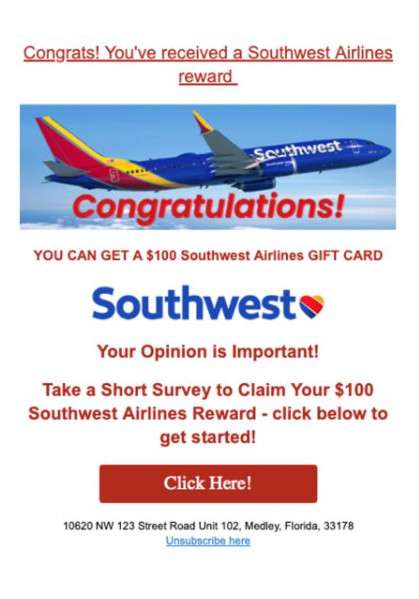
Overview of the Southwest Airlines Gift Card Scam
The Southwest Airlines gift card phishing scam is a form of attack known as phishing. Phishing employs social engineering techniques to manipulate users into providing sensitive data like login credentials or financial information. In this scam, attackers impersonate well-known brands like Southwest Airlines in order to appear trustworthy.
This phishing scam starts when potential victims receive an unsolicited email, text message, social media advertisement or other communication. The message claims the recipient has been selected to receive a free Southwest Airlines gift card worth up to $500. Often these messages include “Congratulations!” or “You’ve been selected for our loyalty program!” to make the offer seem more legitimate.
The message will provide a link, button or phone number to claim the supposed reward. If clicked, the link redirects to an elaborate fake website that mimics the real Southwest Airlines site. The scam page will claim you need to complete a customer survey or provide additional personal information before receiving your gift card.
In reality, the detailed survey is a way for scammers to stealthily capture your personal details, account credentials, credit card number or other sensitive data. The fake site might also download malware onto your device to harvest information. Once collected, your information can be used for identity theft or sold on the dark web.
Southwest Airlines does occasionally offer special deals or rewards to VIP customers. However, they will never send unsolicited messages asking you to fill out a survey or provide personal information through a link. Any such offer should be considered highly suspicious.
Why Southwest Airlines?
Southwest Airlines is one of the most widely recognized airline brands in the United States. The company has a large customer base across the country, with over 130 million passengers a year. The brand’s popularity and reputation for offering low fares and rewards programs make it an ideal target for scammers seeking to ensnare victims.
By impersonating such a well-known travel company, phishing scam artists are able to quickly build trust and get users to click on their links without asking too many questions. Even vigilant customers can be caught off guard by the Southwest Airlines branding and enticed by the prospect of a $500 gift card.
Increased Frequency of Scams
While gift card phishing scams have been around for years, recently there has been an uptick in Southwest Airlines-themed scams targeting customers across email, text, social media and other digital channels.
According to the cybersecurity firm Proofpoint, Southwest gift card phishing messages increased by 30% in 2022 alone. Likewise, the Better Business Bureau and Federal Trade Commission have issued warnings about the proliferance of the scam.
Experts cite a few reasons for the increased activity:
- Online shopping and ecommerce are at all time highs, making users more prone to click on links offering rewards or deals.
- Improved phishing tactics like more sophisticated messages and replica websites make the scams harder to detect.
- Increased holiday travel means scammers can target distracted travelers looking for deals.
- Ongoing Southwest Airlines flight cancellations and disruptions have left some customers vulnerable to clicking on links that claim to offer vouchers or compensation.
With more people online and increased disruptions in the travel sector, security experts expect Southwest Airlines phishing scams to continue growing in the coming year.
Step-by-Step: How the Southwest Gift Card Scam Works
Southwest Airlines gift card phishing scams can take many forms, but generally follow this process:
1. Scammers Send Bait Message
The first step involves the scammer sending out bait in the form of an email, SMS text message, social media ad or other digital communication. Often these messages are sent in bulk to thousands of potential victims.
The message claims the recipient has been selected to receive a gift card worth up to $500 for being a loyal Southwest customer. The amount can vary. $100, $200 and $500 are common gift card amounts promised.
Here are some examples of subject lines and messages scammers might use:
- Subject: Congratulations Southwest Airlines Customer! Claim your $500 Gift Card!
- Subject: Southwest Airlines Rewards – Claim your Gift Card Prize!
- Hello valued Southwest customer! You’ve been selected for our loyalty program to receive a $200 Southwest Airlines Gift Card! Please complete our customer satisfaction survey to claim your prize!
The messages incorporate Southwest logos, colors and fonts to appear legitimate. Some may include actual customer names and partial account numbers to seem more convincing.
2. Recipient Clicks on Link
If the message grabs their attention, the recipient will click on the link or button embedded in the message to claim their supposed gift card.
The link often uses a misspelled or slightly altered Southwest Airlines URL to avoid easy detection. For example:
- www.southwesstairlines.com (misspelled)
- www.southwestairlinessweepstakes.com (added words)
- http://surveys.southwestairlines.com (fake subdomain)
When clicked, the link uses a redirect to take users from the misspelled URL to an elaborate fake Southwest Airlines website.
3. Fake Southwest Website
Once redirected, victims land on a sophisticated fake website carefully designed to mimic the real Southwest Airlines website. The look and feel is convincingly similar including:
- Same color scheme, fonts and logos
- Fake menus, banners and search bars
- Images of Southwest planes and deals
To users, this site appears to be the legitimate Southwest domain. In reality, it is a clever facade hosted on scammer servers.
The fake site will make some claim about needing to complete a survey or provide additional personal information before receiving the gift card. Users are often asked to create an account if they don’t already have one.
4. User Completes Survey
On the fake site, the gift card reward requires filling out a customer satisfaction survey or questionnaire. The survey asks the victim for:
- Full name
- Home address
- Phone number
- Email address
- Southwest Rapid Rewards number
- Last flight details
- Credit card information
After entering information, the user clicks submit to finalize the gift card reward.
5. Scammers Steal Information
Instead of receiving a gift card, the victim unwittingly gave all their personal and account details directly to scammers. The fake website was just a front to harvest and collect sensitive user data.
With the provided details, scammers can now:
- Access and wipe out the victim’s Southwest Rapid Reward points
- Open fraudulent credit cards in the victim’s name
- Steal the identity and open accounts in the victim’s name
- Sell the victim’s information on the dark web
Even if no immediate fraud occurs, the scammers can keep and use the data in the future.
6. Scammers Disappear
After stealing personal information, the scammers disconnect the fake websites and disappear.
Victims who provided credit card information may see unauthorized charges start to appear. Those who notice something wrong and try to return to the fake Southwest site will find the URL no longer works.
At this point, the damage is done unless users take action to get ahead of identity theft and prevent further fraud.
Here is an SEO optimized section on how to identify Southwest Airlines gift card scam emails:
How to Detect Southwest Gift Card Scam Emails
Scammers rely heavily on fake Southwest Airlines emails to distribute phishing links. Be on the lookout for these common email scam characteristics:
- Subject lines like “Claim Your $500 Southwest Gift Card!” or “Congratulations, You’ve Won!” to entice clicking.
- Messages address you as a “Valued customer” or “Southwest traveler” to appear legitimate.
- Emails contain Southwest Airlines branding and images of planes or promotions.
- Links in the email direct to misspelled or suspicious URLs not affiliated with Southwest.
- Messages have poor spelling, grammar, or formatting errors.
- The senders address does not match an official @southwestairlines.com domain.
- Emails fail authentication checks or are marked as spam by email providers.
- There is verbiage about claiming gift cards by completing a survey urgently.
- Content is not personalized and appears mass-produced.
- There are inconsistencies in image sizes and fonts that expose a phishing attempt.
Scrutinize email sender addresses closely. Scammers rely on spoofed domains like @southwestairlinessurveys.com to avoid detection. Type the Southwest URL directly into your browser instead of clicking email links.
Never provide personal information just because an email contains Southwest branding. Phishers are masters at creating convincing email facades.
How to Spot Southwest Gift Card Scam Text Messages
In addition to email, scammers are also using SMS text messages to distribute links to fake Southwest websites for harvesting personal information. Here’s what to look out for.
Text message scams will also claim you need to fill out a survey to receive a free Southwest gift card. The amount offered is usually $100, $200 or $500.
The texts incorporate Southwest Airlines branding and language intended to look legitimate, such as:
- “Southwest Airlines: Congrats! You have been selected for a $500 gift card! Click here to claim it!”
- “You’re a valued Southwest customer. Please take our brief survey for a chance at a $200 Southwest Airlines gift card!”
- “Southwest Airlines rewards! Complete your customer satisfaction survey to redeem your $100 gift card prize!”
Other common traits of Southwest Airlines gift card text scams:
- Messages often start with “Southwest Airlines” or “Southwest Rewards” to appear official.
- They include links to complete the survey that lead to fake websites.
- Messages may be personalized with your name. Scammers purchase stolen customer data.
- The texts come from a 10-digit number and not a valid Southwest number.
- There are spelling and grammatical errors indicative of scammers.
- They encourage urgent action by claiming limited supplies or time limits.
As with email scams, remember legitimate companies don’t send unsolicited messages via text offering free rewards. Any such message should be considered highly suspicious. Don’t click on the link or provide any personal information to these fraudulent text scammers.
How to Detect Southwest Gift Card Pop-up Scams
In addition to email and texts, scammers are now using online pop-up ads and banner ads to distribute phishing links claiming free Southwest gift cards. Known as malvertising, these digital ads contain links to fake Southwest websites designed to steal your data.
Some common signs a Southwest Airlines gift card pop-up ad is malicious:
- The ad pops up whether you are on the Southwest site or completely unrelated sites.
- They prominently display the Southwest logo and brand imagery. This lends credibility.
- The ad claims you have been selected for a $100 or $200 Southwest gift card.
- They use persuasive language like “Click here to claim your free gift card now!”
- The pop-up will not close or keeps reappearing on your screen.
- The linked URL looks suspicious or misspelled if inspected closely.
- The ad triggers an urgent deadline or limited quantity to encourage fast clicks.
- Downloading a file or extension is required before collecting the “reward”.
Ads requiring personal information or downloads to receive a gift card are never legitimate. Close malvertising tabs or windows immediately by pressing Control + W on Windows. Running anti-malware scans frequently also helps detect these malicious ads before they are clicked. Avoid entering data into pop-up ads at all costs.
What To Do If You Fell for The Southwest Gift Card Scam
If you submitted any personal or financial information through a website you now realize was fraudulent, here are important steps to take right away:
Shut Down Accounts
If you provided your Southwest Rapid Rewards number or login credentials, contact Southwest immediately to lock down or close your Rapid Rewards account. Scammers can use this information to infiltrate your account and steal hard earned points.
Likewise, alert your credit card company if you entered your credit card number on the fake site. Request to shut down your current card and reissue a new one to prevent fraudulent charges.
Run Credit Reports
Even if no unauthorized activity shows up yet, request a copy of your credit report from Equifax, Experian and TransUnion. Review the report closely for any accounts or inquiries you don’t recognize. This is the first sign identity theft occurred.
Place a 90-day fraud alert on your credit file as well if identity theft is suspected. This alerts lenders to scrutinize your report for any suspicious activity.
Reset Passwords
Change the passwords on all your important accounts, especially financial, email, and travel accounts. Use strong unique passwords for each account. Reusing the same password makes you vulnerable if one account is compromised. Enable two-factor authentication where possible.
Monitor Accounts
Carefully monitor all your financial accounts and statements for any unauthorized or fraudulent activity. Report any suspicious transactions to your bank right away.
Many banks offer text or email alerts you can enable to monitor account activity in real time. This can help flag fraud quickly before major damage occurs.
Beware Follow Up Scams
Scammers will sometimes follow up a successful phishing scam with a secondary attack. For example, they may contact you posing as Southwest Airlines security asking you to verify your identity due to suspicious activity. Instead, they are just trying to collect more information from you. Ignore all unsolicited calls, emails or texts asking for your personal data.
Report the Scam
File a complaint with the Federal Trade Commission (FTC) about the Southwest Airlines gift card scam at ReportFraud.ftc.gov. Provide details on how you were targeted and what information was compromised. This helps authorities track and disrupt these scams.
You can also report gift card scams directly to Southwest Airlines via their customer service channels. Make them aware that scammers are falsely using their brand.
Is Your Device Infected? Run a Free Malware Scan
Slow performance, constant pop-ups, or strange behavior? These are classic signs of a malware infection. The fastest way to find out is to scan your device with Malwarebytes Free — one of the most trusted malware removal tools available.
The free version detects and removes the most common threats, including:
- Adware — the cause of those annoying pop-ups
- Browser hijackers — unwanted redirects and changed homepages
- Trojans and spyware — hidden programs stealing your data
- Potentially unwanted programs (PUPs) — software you never asked for
👉 Select your device below — Windows, Mac, or Android — then follow the simple steps to download Malwarebytes, scan your system, and remove any threats it finds. The scan usually takes 5 to 20 minutes.
Run a Malware Scan with Malwarebytes for Windows
Malwarebytes is one of the most popular and trusted anti-malware tools for Windows — and it’s completely free for removing infections. It catches threats that many antivirus programs miss, including adware, browser hijackers, and trojans. Follow the steps below to scan and clean your PC in just a few minutes.
Download Malwarebytes
Click the button below to download the latest version of Malwarebytes for Windows from the official source. The free version is all you need — it will scan your computer and remove adware, browser hijackers, and other malicious software at no cost.
Download MalwarebytesOfficial installer for Windows 11 and 10. Your download starts right away.Want real-time protection? See Malwarebytes Premium Malwarebytes Free for WindowsScans and removes malware at no cost
-
Install Malwarebytes
When the download finishes, open your Downloads folder and double-click the MBSetup file. If Windows shows a User Account Control pop-up, click “Yes” to allow the installation.

Follow the On-Screen Prompts to Install Malwarebytes
The setup wizard will walk you through a few quick screens:
-
Choose where you’re installing the program — “Personal Computer” or “Work Computer” — then click Next.

-
Malwarebytes will now install on your device. This usually takes under a minute.

-
When installation is complete, the “Welcome to Malwarebytes” screen will open automatically.

-
On the final screen, click Open Malwarebytes to launch the program.

-
Enable “Scan for Rootkits”
Before scanning, turn on rootkit detection so Malwarebytes can find even the most hidden threats. Click the Settings gear icon on the left side of the screen.

In the settings menu, find “Scan for rootkits” and click the toggle so it turns blue.

Done? Click “Dashboard” in the left pane to return to the main screen.
Start the Scan
Click the blue Scan button. Malwarebytes will automatically update its virus database and start checking your computer for malware.

-
Wait for the Scan to Finish
The scan checks your entire system for browser hijackers and other malicious programs, so it can take 5 to 20 minutes depending on your computer. Feel free to do something else — just check back occasionally to see the progress.

-
Quarantine the Detected Threats
When the scan is done, you’ll see a list of everything Malwarebytes found — malware, adware, and potentially unwanted programs. Click the “Quarantine” button to remove all of them at once.

Malwarebytes will now remove the malicious files and registry entries and move them safely into quarantine.

-
Restart Your Computer
Some threats can only be fully removed after a reboot. If Malwarebytes asks you to restart, click Yes. Once you’re logged back in, Malwarebytes has finished removing the threats it found.

That’s it — your Windows PC is now clean of trojans, adware, and other malware, and should be back to running smoothly.
If you are still having problems with your computer after completing these instructions, then please follow one of the steps:
- Run a computer scan with ESET Online Scanner
- Ask for help in our Windows Malware Removal Help & Support forum.
Run a Malware Scan with Malwarebytes for Mac
Malwarebytes for Mac is a free on-demand scanner that removes the malware other security software tends to miss — adware, browser hijackers, and unwanted programs included. Cleaning an infected Mac with Malwarebytes has always been completely free, and it’s our go-to recommendation. Follow the steps below to scan and clean your Mac in just a few minutes.
-
Download Malwarebytes for Mac
Click the button below to download the latest version of Malwarebytes for Mac.
Download MalwarebytesOfficial installer for macOS. Your download starts right away.Want real-time protection? See Malwarebytes PremiumMalwarebytes Free for MacScans and removes malware at no cost -
Open the Malwarebytes setup file
When the download finishes, open your Downloads folder and double-click the setup file to begin the installation.

-
Follow the On-Screen Prompts to Install Malwarebytes
The Malwarebytes for Mac Installer will guide you through a few quick screens. Click “Continue” and keep following the prompts until the installation completes.



When the installation is complete, Malwarebytes opens to the Welcome to Malwarebytes screen. Click “Get started“.
-
Select “Personal Computer” or “Work Computer”
Malwarebytes will ask what type of computer you’re installing it on. Click either Personal Computer or Work Computer, whichever applies.

-
Start the Scan
Click the “Scan” button. Malwarebytes will automatically update its detection database and begin checking your Mac for malware.

-
Wait for the Scan to Finish
Malwarebytes will scan your Mac for adware, browser hijackers, and other malicious programs. This can take a few minutes, so feel free to do something else — just check back occasionally to see the progress.

-
Quarantine the Detected Threats
When the scan is done, you’ll see a list of everything Malwarebytes found. Click the “Quarantine” button to remove all the threats at once.

-
Restart Your Mac
Malwarebytes will now remove all the malicious files it found. Some threats can only be fully removed after a reboot — if Malwarebytes asks you to restart, allow it. Once you’re logged back in, your Mac is clean.

That’s it — your Mac is now free of adware, rogue browser extensions, and other potentially harmful software.
If you are still experiencing problems while trying to remove a malicious program from your computer, please ask for help in our Mac Malware Removal Help & Support forum.
Run a Malware Scan with Malwarebytes for Android
Malwarebytes for Android automatically detects and removes dangerous threats like malware and ransomware so you don’t have to worry about your most-used device being compromised. Aggressive detection of adware and potentially unwanted programs keeps your Android phone or tablet running smooth.
-
Download Malwarebytes for Android.
You can download Malwarebytes for Android by clicking the link below.
Get Malwarebytes for AndroidOpens Google Play in a new tab.Want real-time protection? See Malwarebytes Premium for AndroidMalwarebytes for AndroidScans your phone and removes malware at no cost -
Install Malwarebytes for Android on your phone.
In the Google Play Store, tap “Install” to install Malwarebytes for Android on your device.

When the installation process has finished, tap “Open” to begin using Malwarebytes for Android. You can also open Malwarebytes by tapping on its icon in your phone menu or home screen.

-
Follow the on-screen prompts to complete the setup process
When Malwarebytes will open, you will see the Malwarebytes Setup Wizard which will guide you through a series of permissions and other setup options.
This is the first of two screens that explain the difference between the Premium and Free versions. Swipe this screen to continue.
Tap on “Got it” to proceed to the next step.
Malwarebytes for Android will now ask for a set of permissions that are required to scan your device and protect it from malware. Tap on “Give permission” to continue.
Tap on “Allow” to permit Malwarebytes to access the files on your phone.
-
Update database and run a scan with Malwarebytes for Android
You will now be prompted to update the Malwarebytes database and run a full system scan.

Click on “Update database” to update the Malwarebytes for Android definitions to the latest version, then click on “Run full scan” to perform a system scan.

-
Wait for the Malwarebytes scan to complete.
Malwarebytes will now start scanning your phone for adware and other malicious apps. This process can take a few minutes, so we suggest you do something else and periodically check on the status of the scan to see when it is finished.

-
Click on “Remove Selected”.
When the scan has been completed, you will be presented with a screen showing the malware infections that Malwarebytes for Android has detected. To remove the malicious apps that Malwarebytes has found, tap on the “Remove Selected” button.

-
Restart your phone.
Malwarebytes for Android will now remove all the malicious apps that it has found. To complete the malware removal process, Malwarebytes may ask you to restart your device.
That’s it — your Android phone is now clean — no more malicious apps, adware, or browser redirects.
If you are still having problems with your phone after completing these instructions, then please follow one of the steps:
- Restore your phone to factory settings by going to Settings > General management > Reset > Factory data reset.
- Ask for help in our Mobile Malware Removal Help & Support forum.
Stay Protected: Block Ads and Malicious Sites
Now that your device is clean, keep it that way. Most infections start with a malicious ad or a fake download button — so blocking them at the source is your best defense.
We recommend AdGuard, which blocks malicious ads, phishing pages, and dangerous redirects before they can reach you.
👉 Download AdGuard and browse safely
Frequently Asked Questions About the Southwest Gift Card Scam
The Southwest gift card phishing scam raises many questions for consumers who want to avoid being victimized. Here are answers to some frequently asked questions about identifying and responding to this prevalent scam.
How can I tell a Southwest gift card email is fake?
Inspect the sender’s email address, URLs in links, grammar/spelling errors, urgency conveyed, and if personal info is requested. Legitimate Southwest emails will come from a @southwest.com email and lead to southwest.com.
What are some common Southwest gift card scam subject lines?
Watch for subject lines like “Claim Your $500 Gift Card!”, “Congrats, you’ve won!”, “Reward for our valued customers!”, and “Complete survey for a $200 Southwest Gift Card!” Legitimate surveys don’t offer prizes.
Is there a legitimate Southwest Airlines rewards program?
Yes, Southwest Rapid Rewards is a real program where members can earn points on flights. But Southwest never asks members to fill out surveys or provide info for gift cards via unsolicited messages or ads. Communicate through your Rapid Rewards account.
How do scammers get my personal information like email or phone number?
Scammers buy stolen customer data on the dark web to make their messages appear more personalized and legitimate. Having some of your info does not mean the message is truly from Southwest.
Can I tell if a Southwest gift card text message is real?
Fake texts often start “Southwest Rewards” or “Southwest Airlines”. They include links instead of telling you to log into your Rapid Rewards account directly. Call Southwest to confirm legitimacy if unsure.
What are examples of fraudulent Southwest gift card phone calls?
Scammers may call claiming you must confirm personal information before receiving a promised gift card. Or they pose as Southwest tech support needing you to verify identity after suspicious activity on your account. Just hang up.
Can clicking on a Southwest gift card scam link infect my device?
Yes, fake Southwest Airlines websites may try to download malware onto your device to harvest more sensitive data. Never click unverified links. Install anti-virus software to improve protection.
Where can I report Southwest Airlines phishing scams?
Notify the Southwest Airlines customer service team so they can address misuse of their brand. You should also file a scam report with the FTC at ReportFraud.ftc.gov to help authorities combat phishing.
How can I recover or protect my identity if already scammed?
If you shared any information, immediately contact banks to halt payments and shut down compromised accounts. Run credit reports to catch fraudulent accounts. Reset all passwords and set up credit monitoring.
Staying vigilant against phishing and verifying messages is key to avoiding serious headaches from the Southwest gift card scam.
Conclusion
The Southwest Airlines gift card phishing scam is a crafty social engineering attack that allows scammers to steal massive amounts of personal data by impersonating a trusted airline brand. These scams rely on convincing spoofed websites and tantalizing gift card offers to dupe customers into handing over account logins, credit card info and other sensitive details unknowingly.
With increased online activity and travel in the past year, this scam has seen an uptick in activity and continues evolving to avoid detection. However, being aware of the step-by-step mechanics, major red flags, and post-scam best practices can help consumers avoid becoming victims.
Remember to always verify senders before clicking links, watch for misspelled or altered URLs, enable account alerts, and report any suspected phishing attempt. If a company contacts you claiming there is an urgent issue, take your time to confirm it is legitimate before providing information. Avoiding knee-jerk reactions to gift card offers and other unexpected requests for your personal data can keep you out of the clutches of these highly orchestrated phishing scams.

Join the discussion
0 commentsShare your experience or ask a question about this article.
Discussion
Start the conversation
Have a question or something useful to share? Add the first comment.