

Coinbase is one of the most popular cryptocurrency exchanges, with over 89 million verified users. This massive userbase makes Coinbase a prime target for phishing scams trying to steal account credentials and crypto funds. One common ruse is the “Unauthorized Access” scam emails and texts.
This article will break down how the Coinbase unauthorized access phishing scam operates, red flags to watch for, and best practices to keep your account secure. Arm yourself with knowledge to avoid becoming a victim.

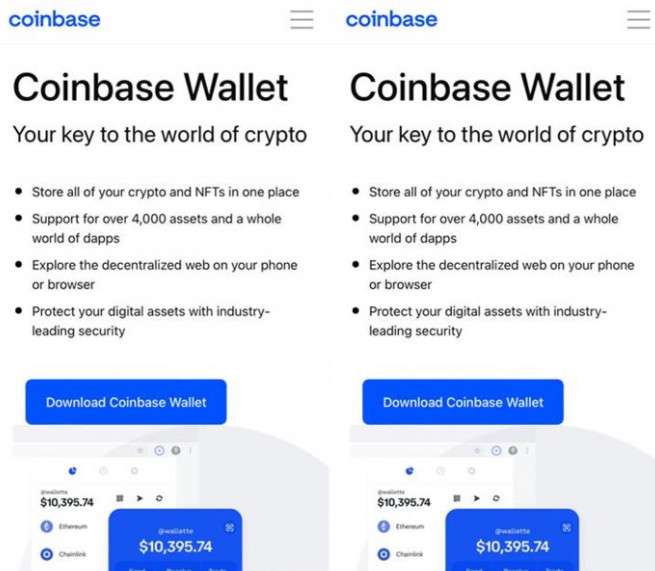
An Overview of the Coinbase “Unauthorized Access” Scam
The Coinbase “Unauthorized Access” scam sends phishing emails or texts pretending to be from Coinbase security teams. They alert the recipient that an unrecognized device was detected logging into their account, often from a suspicious foreign location.
You are provided links to “Secure Your Account” or “Review This Activity”, which actually redirect to convincing fake login pages operated by scammers. If you enter your Coinbase username and password, the scammers gain full access to drain your account of crypto.
This scam comes in many forms like:
- Emails about “Failed login attempts”
- Messages about new device logins
- Warnings of withdrawals you didn’t authorize
All aim to trick you into panicking and thoughtlessly clicking on links that compromise your account. In the sections below, we’ll break down exactly how this scam ensnares victims at each step.
Step-by-Step: How the Coinbase “Unauthorized Access” Scam Works
Here is an in-depth explanation of how the phishing campaign unfold:
1. Scammers Obtain Databases of Coinbase User Emails and Numbers
The first step is for scammers to acquire databases full of Coinbase user contact information. These are obtained through data leaks, social engineering, breaching sites, buying on the dark web, and other means.
2. Phishing Emails or Texts are Sent Pretending to be Coinbase Security Alerts
Using the acquired contact data, the scammers send emails and text messages posing as time-sensitive security alerts from Coinbase. The “From” addresses are forged to appear to come from Coinbase domains.
Subject lines warn of “Failed login attempts” or “New device detected”.
3. Messages Claim Suspicious Access to the Account
The phishing emails and texts inform victims that a new, unrecognized device was caught accessing their Coinbase account. Often a suspicious location like Russia or China is named as the source to create urgency and fear.
The recipient is told they must immediately secure their account before the “hackers” drain their cryptocurrency and other assets.
4. Links Provided Allegedly Go to Coinbase Account Security Pages
Convenient links are supplied in the scam emails and texts that supposedly direct the recipient to Coinbase account security pages. They are told to “Secure Your Account” or “Review This Activity”.
In reality, the links route through redirects to phishing login pages operated by the scammers impersonating Coinbase.
5. Victim Enters Coinbase Login Details on the Fake Site
Victims who hastily click the link without checking it are taken to the realistic-looking but fake Coinbase login portal. Alarmed about the account compromise, they enter their email/username and password.
All credentials entered on the phishing site are captured by the scammers. 2FA codes are sometimes also requested and input.
6. The Scammers Drain the Compromised Coinbase Account
Now possessing the stolen login credentials, the scammers swiftly access the victim’s real Coinbase account. They drain any USD balance along with converting all cryptocurrencies to BTC and sending them to their wallet.
If they collected 2FA codes, they may disable that protection entirely. The legitimate account owner is locked out.
7. Any Remaining Account Value is Liquidated and Sent to the Scammers
Scammers seek to wring every last dollar from compromised accounts. They will liquidate staking balances, sweep crypto dust, and withdraw any funds added after the initial drain. Without immediate intervention from Coinbase, the account is drained.
This is how a convincing phishing campaign results in thousands stolen within minutes. All it takes is a lapse in judgment when encountering an unknown login warning.
What to Do If You Entered Credentials Through the Scam
If you already submitted your Coinbase login details through a phishing email/text link, take these steps instantly:
- Step 1: Contact Coinbase Support – Alert them of the compromise and request they lock the account immediately before more is stolen.
- Step 2: Initiate Account Recovery – Start their recovery process providing proof of ID and account ownership information to try regaining access.
- Step 3: Reset Passwords – Change your email, Coinbase account, and financial account passwords. Enable 2FA everywhere.
- Step 4: Watch for Suspicious Activity – Monitor linked financial accounts and credit cards for unauthorized transactions in the coming weeks.
- Step 5: Scan Devices for Malware – Run malware scans in case clicking the phishing link infected your device.
- Step 6: Avoid Secondary Scams – Do not trust any new messages claiming they can recover lost funds, these are secondary scams.
If you regain access, immediately transfer any remaining funds to new wallet addresses unassociated with the account. Acting swiftly upon realizing credentials were compromised limits damage.
How to Spot Fake Coinbase Login Warnings
Here are red flags to identify phishing emails and texts related to unauthorized account access:
- Generic Greetings – Genuine Coinbase emails address you by name. Scams use generic terms like “Dear user”.
- Sense of Urgency – Language presses you to act quickly or risk further “unauthorized transactions”. Slow down and verify claims.
- Requests Secrets – Real Coinbase messages won’t ask for passwords, 2FA codes, or other secrets via email/text.
- Links Go Elsewhere – Hover over links to see the actual destination. They should go directly to coinbase.com only.
- Threatening Language – Aggressive warnings about hackers “draining your account” try to spur panic.
- Verify in Your Account – Check directly in Coinbase that no unauthorized transactions actually occurred.
Whenever contacted about account security outside of Coinbase’s website, critically analyze all elements before acting. Use unique complex passwords and enable 2FA.
How to Spot Fake Coinbase Texts About Account Compromise
In addition to emails, the “Unauthorized Access” scam also utilizes SMS text phishing targeting Coinbase users. Watch for these signs:
Texts Pretend to be Coinbase Security Alerts
Bogus texts appear as security warnings from Coinbase, often with threatening language:
- “ALERT: We have detected unauthorized access to your Coinbase account from a foreign IP address. Secure your account now – click here immediately.”
- “Coinbase Fraud Prevention – Do not ignore this message! Your account is being accessed by unrecognized devices right now. You must act fast to stop the hacker…”
Any texts stating your account is actively being compromised are deceptive.
Messages Provide Links to “Secure” Account
The fake texts provide convenient links for you to urgently “secure” or “recover” your account:
- “Act now to stop unauthorized access to your Coinbase account: [Malicious Link]”
- “Prevent irreversible loss of funds! Recover your compromised Coinbase account immediately: [Phishing URL]”
These malicious links route to credential harvesting sites.
Grammar, Branding, and Sender ID Red Flags
Phishing texts often have typos, bad grammar, low-quality copied logos, and suspicious sender IDs:
- Sender ID “Coinbas3Support” instead of official “Coinbase” name
- Misspellings like “unauthrized” instead of “unauthorized”
- Pixelated, blurry Coinbase logo graphics
Scrutinize all textual identifiers. Access your account only through the legitimate Coinbase website or mobile app.
How to Identify Fake Coinbase Emails About Account Compromise
In addition to texts, scammers send phishing emails pretending to be Coinbase security alerts. Watch for:
Subjects Warn of Unauthorized Access
Suspicious email subjects include:
- “Alert: Unauthorized transactions on your Coinbase account”
- “Coinbase: Account recovery required due to suspicious activity”
- “Critical security notification from Coinbase”
These urgency-inducing subjects aim to get users to hastily open the scam email.
Emails Threaten Account is Being Drained
The content uses fear by claiming account funds are actively being stolen:
- “Our security system has detected withdrawals you did not authorize. Your Coinbase account is being drained right now.”
- “Hackers have accessed your Coinbase account and are stealing your funds as you read this!”
Stirring anxiety makes users more prone to thoughtlessly click on links.
Links to Supposedly Review or Block Access
Phishing links within the emails allude to letting you review activity or stop the attack:
- “Click here immediately to review unauthorized transactions and prevent further withdrawal of funds.”
- “Regain access to your compromised Coinbase account now before the hackers take everything!”
These links redirect to fake login pages to steal credentials.
Analyze Email Details Thoroughly
Look for inconsistencies in the sender, headers, URL links, branding, grammar, and other details. Emails should come from @coinbase.com domains only.
Scrutinize all elements thoroughly before clicking on links or attachments related to unauthorized account activity warnings.
Protecting Yourself from the Coinbase “Unauthorized Access” Scam
Here are proactive measures to help avoid falling victim:
- Enable account protections – Use Coinbase two-factor and multi-factor authentication, whitelisting, cold storage, and vault features.
- Create unique complex passwords – Your Coinbase password should be unique and very strong. Use a password manager.
- Recognize social engineering – Note red flag phrasing aimed at manipulating emotions like fear and urgency. Don’t let guard down.
- Check sender details – For emails and texts, manually verify the sender address matches official Coinbase domains.
- Access via trusted networks – Only access your Coinbase account via known secure Wi-Fi. Public connections are risky.
- Use a secure device – Conduct Coinbase transactions on a non-compromised device protected by a firewall and security measures.
- Monitor account routinely – Log in frequently to check for any unauthorized activity. Detection of fraud is key.
- Report phishing attempts – Alert Coinbase Support about any suspicious scam emails/texts you receive.
Following security best practices makes your Coinbase account a much harder target for phishers. But caution is always warranted when contacted about financial accounts unexpectedly.
Is Your Device Infected? Run a Free Malware Scan
Slow performance, constant pop-ups, or strange behavior? These are classic signs of a malware infection. The fastest way to find out is to scan your device with Malwarebytes Free — one of the most trusted malware removal tools available.
The free version detects and removes the most common threats, including:
- Adware — the cause of those annoying pop-ups
- Browser hijackers — unwanted redirects and changed homepages
- Trojans and spyware — hidden programs stealing your data
- Potentially unwanted programs (PUPs) — software you never asked for
👉 Select your device below — Windows, Mac, or Android — then follow the simple steps to download Malwarebytes, scan your system, and remove any threats it finds. The scan usually takes 5 to 20 minutes.
Run a Malware Scan with Malwarebytes for Windows
Malwarebytes is one of the most popular and trusted anti-malware tools for Windows — and it’s completely free for removing infections. It catches threats that many antivirus programs miss, including adware, browser hijackers, and trojans. Follow the steps below to scan and clean your PC in just a few minutes.
Download Malwarebytes
Click the button below to download the latest version of Malwarebytes for Windows from the official source. The free version is all you need — it will scan your computer and remove adware, browser hijackers, and other malicious software at no cost.
Download MalwarebytesOfficial installer for Windows 11 and 10. Your download starts right away.Want real-time protection? See Malwarebytes Premium Malwarebytes Free for WindowsScans and removes malware at no cost
-
Install Malwarebytes
When the download finishes, open your Downloads folder and double-click the MBSetup file. If Windows shows a User Account Control pop-up, click “Yes” to allow the installation.

Follow the On-Screen Prompts to Install Malwarebytes
The setup wizard will walk you through a few quick screens:
-
Choose where you’re installing the program — “Personal Computer” or “Work Computer” — then click Next.

-
Malwarebytes will now install on your device. This usually takes under a minute.

-
When installation is complete, the “Welcome to Malwarebytes” screen will open automatically.

-
On the final screen, click Open Malwarebytes to launch the program.

-
Enable “Scan for Rootkits”
Before scanning, turn on rootkit detection so Malwarebytes can find even the most hidden threats. Click the Settings gear icon on the left side of the screen.

In the settings menu, find “Scan for rootkits” and click the toggle so it turns blue.

Done? Click “Dashboard” in the left pane to return to the main screen.
Start the Scan
Click the blue Scan button. Malwarebytes will automatically update its virus database and start checking your computer for malware.

-
Wait for the Scan to Finish
The scan checks your entire system for browser hijackers and other malicious programs, so it can take 5 to 20 minutes depending on your computer. Feel free to do something else — just check back occasionally to see the progress.

-
Quarantine the Detected Threats
When the scan is done, you’ll see a list of everything Malwarebytes found — malware, adware, and potentially unwanted programs. Click the “Quarantine” button to remove all of them at once.

Malwarebytes will now remove the malicious files and registry entries and move them safely into quarantine.

-
Restart Your Computer
Some threats can only be fully removed after a reboot. If Malwarebytes asks you to restart, click Yes. Once you’re logged back in, Malwarebytes has finished removing the threats it found.

That’s it — your Windows PC is now clean of trojans, adware, and other malware, and should be back to running smoothly.
If you are still having problems with your computer after completing these instructions, then please follow one of the steps:
- Run a computer scan with ESET Online Scanner
- Ask for help in our Windows Malware Removal Help & Support forum.
Run a Malware Scan with Malwarebytes for Mac
Malwarebytes for Mac is a free on-demand scanner that removes the malware other security software tends to miss — adware, browser hijackers, and unwanted programs included. Cleaning an infected Mac with Malwarebytes has always been completely free, and it’s our go-to recommendation. Follow the steps below to scan and clean your Mac in just a few minutes.
-
Download Malwarebytes for Mac
Click the button below to download the latest version of Malwarebytes for Mac.
Download MalwarebytesOfficial installer for macOS. Your download starts right away.Want real-time protection? See Malwarebytes PremiumMalwarebytes Free for MacScans and removes malware at no cost -
Open the Malwarebytes setup file
When the download finishes, open your Downloads folder and double-click the setup file to begin the installation.

-
Follow the On-Screen Prompts to Install Malwarebytes
The Malwarebytes for Mac Installer will guide you through a few quick screens. Click “Continue” and keep following the prompts until the installation completes.



When the installation is complete, Malwarebytes opens to the Welcome to Malwarebytes screen. Click “Get started“.
-
Select “Personal Computer” or “Work Computer”
Malwarebytes will ask what type of computer you’re installing it on. Click either Personal Computer or Work Computer, whichever applies.

-
Start the Scan
Click the “Scan” button. Malwarebytes will automatically update its detection database and begin checking your Mac for malware.

-
Wait for the Scan to Finish
Malwarebytes will scan your Mac for adware, browser hijackers, and other malicious programs. This can take a few minutes, so feel free to do something else — just check back occasionally to see the progress.

-
Quarantine the Detected Threats
When the scan is done, you’ll see a list of everything Malwarebytes found. Click the “Quarantine” button to remove all the threats at once.

-
Restart Your Mac
Malwarebytes will now remove all the malicious files it found. Some threats can only be fully removed after a reboot — if Malwarebytes asks you to restart, allow it. Once you’re logged back in, your Mac is clean.

That’s it — your Mac is now free of adware, rogue browser extensions, and other potentially harmful software.
If you are still experiencing problems while trying to remove a malicious program from your computer, please ask for help in our Mac Malware Removal Help & Support forum.
Run a Malware Scan with Malwarebytes for Android
Malwarebytes for Android automatically detects and removes dangerous threats like malware and ransomware so you don’t have to worry about your most-used device being compromised. Aggressive detection of adware and potentially unwanted programs keeps your Android phone or tablet running smooth.
-
Download Malwarebytes for Android.
You can download Malwarebytes for Android by clicking the link below.
Get Malwarebytes for AndroidOpens Google Play in a new tab.Want real-time protection? See Malwarebytes Premium for AndroidMalwarebytes for AndroidScans your phone and removes malware at no cost -
Install Malwarebytes for Android on your phone.
In the Google Play Store, tap “Install” to install Malwarebytes for Android on your device.

When the installation process has finished, tap “Open” to begin using Malwarebytes for Android. You can also open Malwarebytes by tapping on its icon in your phone menu or home screen.

-
Follow the on-screen prompts to complete the setup process
When Malwarebytes will open, you will see the Malwarebytes Setup Wizard which will guide you through a series of permissions and other setup options.
This is the first of two screens that explain the difference between the Premium and Free versions. Swipe this screen to continue.
Tap on “Got it” to proceed to the next step.
Malwarebytes for Android will now ask for a set of permissions that are required to scan your device and protect it from malware. Tap on “Give permission” to continue.
Tap on “Allow” to permit Malwarebytes to access the files on your phone.
-
Update database and run a scan with Malwarebytes for Android
You will now be prompted to update the Malwarebytes database and run a full system scan.

Click on “Update database” to update the Malwarebytes for Android definitions to the latest version, then click on “Run full scan” to perform a system scan.

-
Wait for the Malwarebytes scan to complete.
Malwarebytes will now start scanning your phone for adware and other malicious apps. This process can take a few minutes, so we suggest you do something else and periodically check on the status of the scan to see when it is finished.

-
Click on “Remove Selected”.
When the scan has been completed, you will be presented with a screen showing the malware infections that Malwarebytes for Android has detected. To remove the malicious apps that Malwarebytes has found, tap on the “Remove Selected” button.

-
Restart your phone.
Malwarebytes for Android will now remove all the malicious apps that it has found. To complete the malware removal process, Malwarebytes may ask you to restart your device.
That’s it — your Android phone is now clean — no more malicious apps, adware, or browser redirects.
If you are still having problems with your phone after completing these instructions, then please follow one of the steps:
- Restore your phone to factory settings by going to Settings > General management > Reset > Factory data reset.
- Ask for help in our Mobile Malware Removal Help & Support forum.
Stay Protected: Block Ads and Malicious Sites
Now that your device is clean, keep it that way. Most infections start with a malicious ad or a fake download button — so blocking them at the source is your best defense.
We recommend AdGuard, which blocks malicious ads, phishing pages, and dangerous redirects before they can reach you.
👉 Download AdGuard and browse safely
Frequently Asked Questions
What is the Coinbase “Unauthorized Access” phishing scam?
This scam sends fake emails and texts pretending to be from Coinbase security teams. They warn that an unrecognized device logged into your account, often from a suspicious foreign location. Links are provided to “secure your account” which actually direct to phishing sites to steal login credentials.
What are some examples of the phishing emails?
Subjects state things like “Alert: Unauthorized transactions” or “Critical security notification”. The body claims hackers are actively draining your account funds and provides links to supposedly stop the attack which actually harvest logins.
What do the phishing text messages say?
Fake texts pretend to be Coinbase security alerts about unauthorized access from odd IP addresses. They provide links to urgently “recover” your account which redirect to credential harvesting sites.
What is the goal of this scam?
By creating panic about account theft, scammers hope victims will hastily click their links without scrutiny. The phishing sites then capture entered usernames/passwords to drain cryptocurrency from the compromised Coinbase account.
How can I avoid becoming a victim?
Carefully analyze sender details in emails and texts. Verify claims directly by logging into your actual Coinbase account. Enable all security features offered by Coinbase. Never enter credentials outside of the real Coinbase website.
What should I do if I clicked their link?
If you entered your login information, immediately contact Coinbase Support and initiate account recovery. Reset your Coinbase password and enable 2FA. Monitor your financial accounts for unauthorized transactions in the coming weeks.
How can I report these phishing attempts?
Forward any scam emails to phishing@coinbase.com or report them within your Coinbase account. Report phishing texts to Coinbase and your mobile provider. This helps get fake domains taken down faster.
Are other crypto exchanges targeted similarly?
Yes, phishing scams impersonate security teams from Binance, Crypto.com, Gemini, and many other popular crypto platforms. Follow security best practices no matter what exchange you use.
Where can I learn more about crypto phishing scams?
Reputable resources like Coinbase’s security pages, CISA, and CryptoCompare provide helpful guides. Stay vigilant of new phishing tactics targeting the crypto community.
The Bottom Line – Verify Security Claims Directly with Coinbase
The Coinbase “Unauthorized Account Access” phishing scam highlights the need for vigilance and verification when using popular online crypto exchanges. Scammers are experts at social engineering to create urgency and fear.
But by slowing down and scrutinizing all communications thoroughly, most phishing attempts can be recognized. Use all account security features available and access Coinbase only through official channels on safe devices.
Keep an eye out for any unusual account activity and immediately report phishing attempts both to Coinbase and relevant authorities. Being proactive about security and verifying all claims makes you a far less lucrative target.
Practice caution so you can confidently use Coinbase and other reputable exchanges without unwittingly surrendering your hard-earned funds to crafty scammers. Stay educated on the latest phishing techniques so you can identify and avoid compromise.

Join the discussion
0 commentsShare your experience or ask a question about this article.
Discussion
Start the conversation
Have a question or something useful to share? Add the first comment.