

Your online banking supposedly needs an urgent security update. An email using Sparkasse’s name warns that pushTAN will stop working unless you act before the deadline.
If you rely on the app to approve payments, that is an uncomfortable message to receive. The Sparkasse pushTAN scam uses that concern to make its update link look necessary.
Overview
An update demand with a threat attached
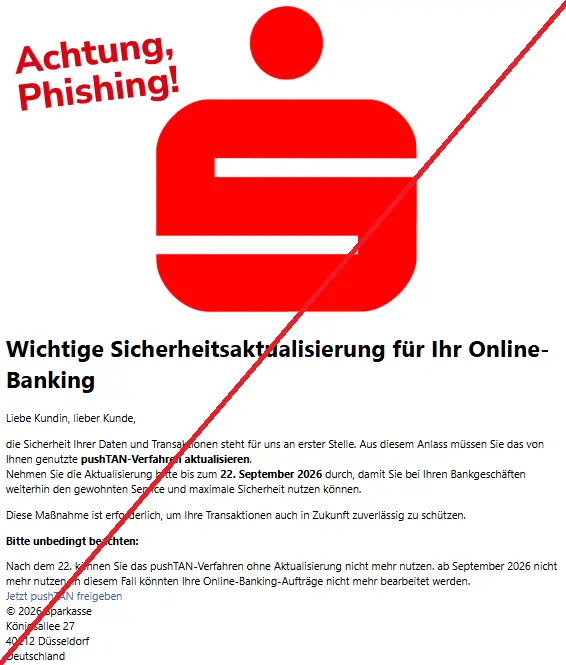
The email claims a security update is needed for online banking.
It warns that the recipient will lose use of the pushTAN process if the update is not completed in time.
The September 22, 2026 Phishing Radar warning documents this message, including its same-day deadline and pushTAN activation link. The screenshot above shows the fraudulent demand.
This is an impersonation campaign, not a notice that every Sparkasse customer must renew an app through email.
The sender is trying to turn a familiar banking feature into a reason to follow an unverified route.
The real app and the fake request are different things
Sparkasse’s official S-pushTAN information explains that the app is used to approve banking instructions. Genuine setup and maintenance should be handled through the bank’s verified process and official app distribution.
A scammer can refer to a real feature without having any authority over it.
The name pushTAN is not the problem; the problem is the unsolicited message choosing where you should enter information or authorize an action.
Do not assume the app is unsafe because someone imitated it.
Continue using your bank through trusted channels, and have the bank check any access or approval you may have exposed.
What identifies this particular trap
The email combines a maintenance story with the fear of losing access to everyday banking. Watch for these elements rather than relying on one exact subject line:
- A pushTAN update announced in an unexpected message.
- A short deadline for completing it.
- A threat that banking instructions will no longer be processed.
- A link offering to activate, release, or update pushTAN.
- An attempt to move you away from your usual banking or app-store route.
The captured version also contains awkward wording, but grammar is not the deciding test.
A corrected version would remain dangerous if it directed you to an untrusted page for banking credentials or approvals.
Why This Email Can Catch a Careful Customer
Keeping software updated is normally good advice. This email borrows that habit and attaches a banking consequence to it: update now, or lose a feature you need.
That creates a plausible reason to act even for someone who ignores prize emails and unexpected refunds. You are not being offered something extravagant.
You are being told to maintain a service you already use.
The technical name also makes the request feel specific. A recipient may think a message mentioning pushTAN must have come from someone who knows the account.
In fact, the feature is publicly described and can be named by anyone.
The safest response is not to ignore legitimate updates. It is to check them through the official app store and your own bank, independently of the email.
That separates sensible maintenance from an attacker-selected login page.
How the Sparkasse pushTAN Scam Works
Step 1: The message borrows the bank’s appearance
The captured email uses prominent Sparkasse branding and a formal security heading. These visual cues encourage the reader to treat it as account administration rather than an unsolicited request.
Anyone can copy a publicly visible symbol into an email. The presence of a logo, copyright line, or postal address does not show that the bank sent the message.
Before doing anything with the request, ask whether you can confirm it without using the contact details or links the message provides.
That simple separation breaks the sender’s control over the next step.
Step 2: A deadline turns maintenance into pressure
The email claims the current pushTAN process will become unusable without the update.
The concern is practical: you may imagine being unable to approve a bill payment or manage your account.
The deadline encourages a quick decision, not a careful check. It also makes the link seem helpful because the sender has supplied both the problem and the apparent solution.
Do not treat an expired date as an instruction to hurry even more. Old phishing emails remain phishing emails. Contact your bank if you have a genuine access problem.
Step 3: The link presents itself as an update path
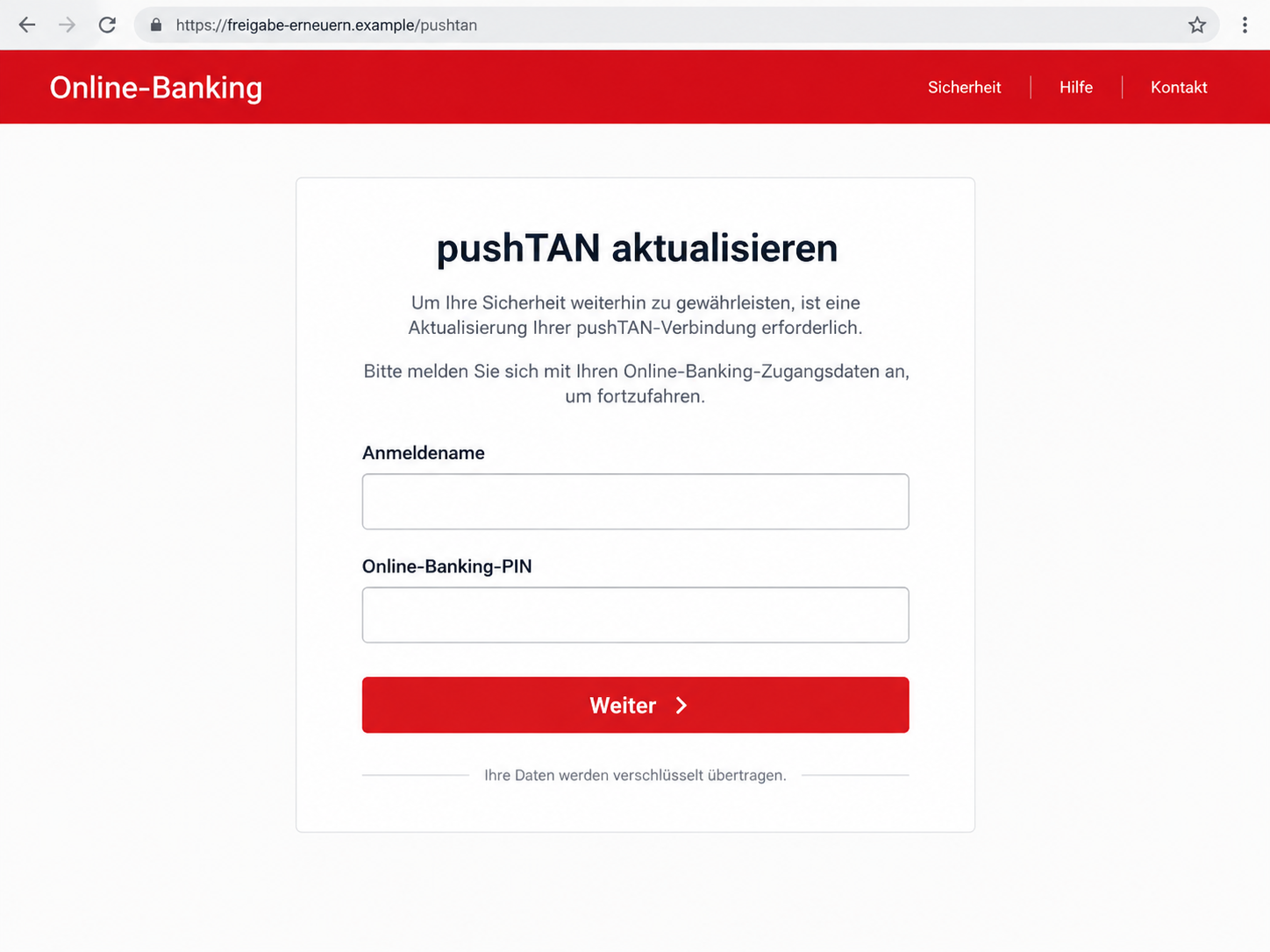
A fraudulent destination may imitate a banking login or verification screen. The page can collect information while appearing to help you preserve access to the real service.
The reconstruction below illustrates that risk with a fictional domain and a nonfunctional login form.
It is not a captured destination from this campaign, and it does not establish what every version asks the recipient to enter.
An update button is not evidence that software is being updated. Pay attention to the actual request.
A page asking for banking credentials is handling access information, regardless of what the email called the task.
Step 4: An approval request can change the stakes
If you entered credentials, be alert for subsequent prompts.
A request inside the real banking app can relate to an action you did not initiate, even if a separate website describes it as a security check.
Read the action and its details before approving anything.
An unfamiliar payment, recipient, or device request is not made safe by the email’s promise that it is necessary to keep pushTAN working.
We have not verified that every recipient of this email is shown an additional approval request.
The point is to avoid treating a possible later stage as a harmless continuation of the update story.
Step 5: The sender may try to keep you cooperating
A page that says the update failed may encourage another attempt. A caller may offer assistance. Neither event proves that you are dealing with the bank.
Do not share codes, add another device, or make a transfer to complete a supposedly stuck update.
Stop and contact your Sparkasse through a number or app route you already trust.
If anything was approved, tell the bank exactly what appeared on screen.
The word “update” in the email is less useful to the bank than the actual action, time, and details of the approval.
Who Sent the Email, and Where Does the Link Go?
A shared brand does not verify the sender
The email borrows Sparkasse’s identity. That does not identify its operator or demonstrate a relationship with your particular bank.
If the message is vague about your account or institution, do not fill in the gaps for it.
A generic banking request can feel personal simply because the recipient happens to use the named service.
A copied address is not a safe destination
A postal address in the footer and a website behind a button are different things.
Copying one does not authenticate the other, even if the address belongs to a real financial institution.
Use the banking address or bookmark you normally use.
Do not assume that an unfamiliar domain belongs to Sparkasse because it contains a familiar word, a red header, or a padlock.
Your own bank should handle the check
Contact your local Sparkasse independently. Use your established app, a number from trusted banking records, or the bank’s official website reached without the email.
If someone calls claiming to follow up on the update, you can end the call and contact the bank yourself.
A caller’s knowledge of your name does not establish authority to request a TAN or approval.
Trace an update to the official app process
For an ordinary app update, open the official app store yourself and inspect the installed app’s listing. For account-specific setup or reactivation, follow instructions confirmed by your own bank.
Do not sideload an attachment or install a remote-support program to update pushTAN.
The email has not established a legitimate reason to change the software or security configuration of your device.
Read the Banking Prompt, Not the Scammer’s Explanation
There is a useful distinction between receiving a notification and approving its contents. A notification may alert you to something that needs investigation. Approval can authorize an action.
Before touching an approval control, ask whether you initiated the request. Then compare the displayed details with your intention.
A different amount, unfamiliar recipient, or unexpected device is a reason to stop.
Do not approve something to “cancel” it because a caller or webpage tells you that is how the system works.
Get instructions from the bank through a separate, trusted contact route.
If a family member is worried, ask them to read out the kind of action shown, not their secret code.
You can help them contact the bank without collecting their credentials yourself.
It is also worth avoiding repeated attempts to troubleshoot the fake page. Trying another password or another device can expose more information.
Once the route is untrusted, the sensible next step is outside it.
What to Do if You Have Fallen Victim to This Scam
Act according to what happened, especially whether you entered banking credentials or approved an action.
Your bank can help more effectively when you give a clear account rather than simply saying you clicked an email.
-
Stop using the link and decline unexpected approvals. Close the page without retrying. Do not cooperate with a follow-up caller or send a code to fix the supposed update.
If you only read the message, use your provider’s phishing-report function. There is no need to assume an account takeover merely because the email reached your inbox.
-
Call your Sparkasse through a verified number. Explain whether you entered your online-banking name or PIN, shared a code, or approved a request.
Ask the bank to secure the affected access immediately.
Sparkasse’s official phishing advice also lists the German blocking hotline 116 116.
Tell the service exactly what needs protection; blocking a card and securing online-banking access are not automatically the same action.
-
Identify any transaction or device action. Give the bank the time and the details visible in your genuine account.
If money moved, request urgent assistance with the applicable recall or dispute process.
Be honest about an approval you were tricked into giving. Accurate information helps the bank investigate. Do not rely on an unsolicited promise that a transfer can definitely be recovered.
-
Follow the bank’s credential and access-recovery process. Use a trusted device and verified banking channels. Ask whether compromised access, connected devices, or authentication settings need to be reset.
If an exposed password was reused elsewhere, replace it at those services as well. Do not reuse the old password with a small change that would be easy to guess.
-
Preserve the evidence you already have. Keep the original email, screenshots of relevant prompts if available, and a timeline of what you did.
Note the suspicious web address without revisiting it unnecessarily.
Report financial loss or suspected identity misuse to the police and keep the incident number.
Send evidence to the bank through its instructed reporting channel, not a reply to the scam email.
-
Check software if the “update” installed anything. If you downloaded a file or added an app or extension, stop using the device for sensitive accounts until it has been assessed.
Malwarebytes can help detect malicious software. It cannot reverse an approved banking action, so the bank call comes first when account access or money is at risk.
Our Wealthsimple email-update scam report covers another account-maintenance impersonation lure.
-
Prepare for another convincing approach. A later message may claim to be the bank, police, or a recovery service.
Verify it independently, particularly if it asks for payment, remote access, or a code.
AdGuard can help block some known malicious sites and deceptive ads with its relevant protections enabled.
It does not replace reading banking approvals carefully, and newly created phishing sites may not yet be blocked.
Frequently Asked Questions
Is the urgent Sparkasse pushTAN update email real?
The message shown in this article is a documented phishing attempt. Do not update or activate anything through its link.
Check the app and any account requirements through your own Sparkasse.
How should I update the genuine S-pushTAN app?
Use its official listing in the Apple App Store or Google Play, opened independently.
If the issue concerns account setup rather than software updates, ask your Sparkasse for the correct process.
Does the fake email mean pushTAN is insecure?
No. An attacker referring to a security tool does not prove a flaw in that tool. The scam tries to misuse your trust and potentially your approvals.
Continue following the bank’s genuine security instructions.
What if I approved a request in the real app?
Contact your bank immediately and describe the request. An authentic app can display an action initiated by someone else.
Tell the bank whether the prompt concerned a payment, another device, or a different account change.
Will changing my PIN undo a transfer?
No. Securing credentials and addressing a transaction are separate tasks.
Report any unfamiliar transfer directly and ask the bank about its available response, even if you have already changed access details.
What if the email deadline has already passed?
Do not use the link to fix the supposedly overdue update. Check your real banking service independently.
A date printed in a fraudulent message does not establish that your legitimate access has expired.
The Bottom Line
The Sparkasse pushTAN scam disguises a risky banking request as sensible maintenance. The threat of losing access is designed to make the email’s link feel urgent.
Update software through official channels, verify account questions with your own bank, and never approve an unfamiliar action to satisfy an email.
If credentials or approvals were shared, contact the bank promptly with the details.

Join the discussion
0 commentsShare your experience or ask a question about this article.
Discussion
Start the conversation
Have a question or something useful to share? Add the first comment.