

Start.mysearchdial.com is a browser hijacker that is bundled with other free software that you download off of the Internet. When installed this browser hijacker it will set the homepage and search engine for your web browser to http://start.mysearchdial.com.
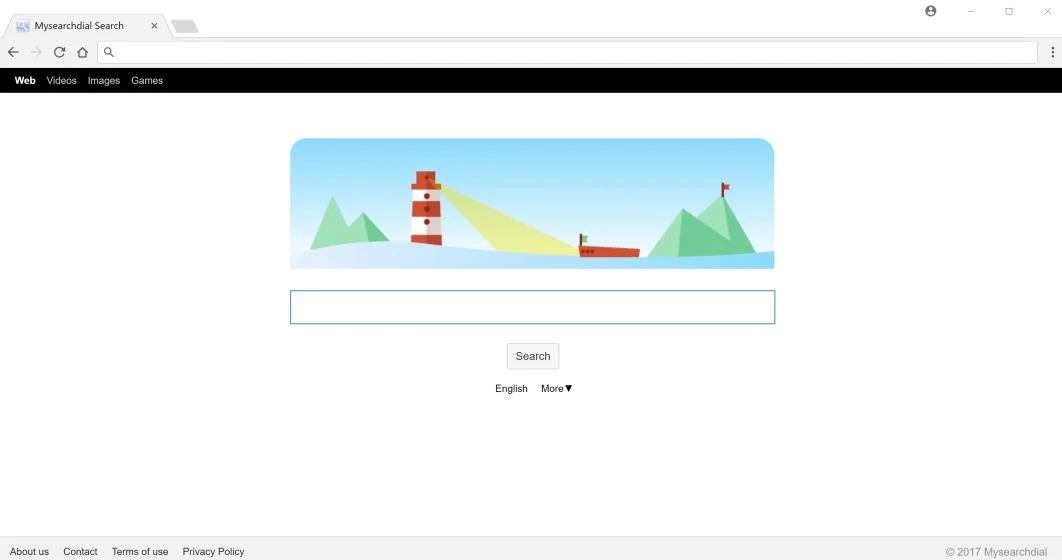
The Start.mysearchdial.com browser hijacker is commonly bundled with other free programs that you download off of the Internet. Unfortunately, some free downloads do not adequately disclose that other software will also be installed and you may find that you have installed Start.mysearchdial.com without your knowledge.
When the Start.mysearchdial.com browser hijacker is installed on a PC, common symptoms include:
- Changing the web browser’s default homepage to Start.mysearchdial.com
- Changing the browser’s search provider, built-in search box to http://Start.mysearchdial.com/
- Ability to modify the ‘new tab’ functionality to launch the modified search portal page
- Loads into the web browser via an extension or add-on
You may also see in the browser status bar the following messages: “Waiting for Start.mysearchdial.com”, “Transferring data from Start.mysearchdial.com”, “Looking up Start.mysearchdial.com”, “Read Start.mysearchdial.com”, “Connected to Start.mysearchdial.com”.
Always opt for the custom installation and deselect anything that is not familiar, especially optional software that you never wanted to download and install in the first place. It goes without saying that you should not install software that you don’t trust.
How to remove Start.mysearchdial.com Redirect (Removal Guide)
Please perform all the steps in the correct order. If you have any questions or doubt at any point, STOP and ask for our assistance.
- STEP 1: Uninstall Mysearchdial from Windows
- STEP 2: Use Zemana AntiMalware Portable to remove Start.mysearchdial.com Redirect
- STEP 3: Use Malwarebytes to Scan for Malware and Unwanted Programs
- STEP 4: Double-check for malicious programs with HitmanPro
- (OPTIONAL) STEP 5: Reset your browser to the default settings
STEP 1 : Uninstall Mysearchdial from Windows
In this first step, we will try to identify and remove any malicious program that might be installed on your computer.
- Go to the uninstall menu.
Windows 10 or Windows 8
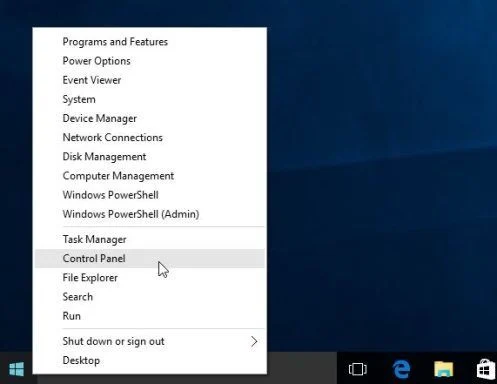
- To uninstall a program on Windows 10 or Windows 8, right-click on the Windows Start button and choose “Control Panel” from the pop-up menu.
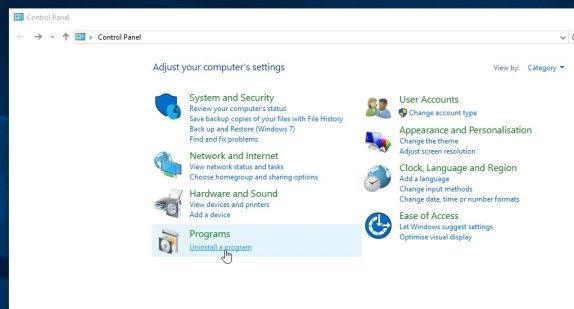
- When the “Control Panel” window opens click on the “Uninstall a program” option under “Programs” category.
Windows 7 or Windows Vista
- If you are using Windows XP, Windows Vista or Windows 7, click the “Start” button, then click on the “Control Panel” menu option.
![[Image: Control Panel in Windows Start Menu]](https://malwaretips.com/blogs/wp-content/uploads/mwt-media/56/56ac005bf149366d33075df70182d7933c19b066be2e500869e031cc9cac279b/273fcfd76a87bfc0fcd3b6b019be9066a9342174ed0b81f9002efcb804ca5be8-346.webp "Control Panel in Windows Start Menu")
- When the “Control Panel” window opens click on the “Uninstall a program” option under “Programs” category.
![[Image: Uninstall a program]](https://malwaretips.com/blogs/wp-content/uploads/mwt-media/2a/2a46a9e643eeeb764fb164177551c571817a8b4d4fe8141504dca801f8abc8cc/f2a64da5c9bbae588b1c04059e9f6a1e9a413554048666c6db3aa65196a7b99a-557.webp "Click on Uninstall a program")
- To uninstall a program on Windows 10 or Windows 8, right-click on the Windows Start button and choose “Control Panel” from the pop-up menu.
- When the “Programs and Features” screen is displayed, scroll through the list of currently installed programs and uninstall Mysearchdial.
The malicious program may have a different name on your computer. To view the most recently installed programs, you can click on the “Installed On” column to sort your program by the installation date. Scroll through the list, and uninstall any unwanted or unknown programs.
If you cannot find any unwanted programs on your computer, you can proceed with the next step.
If you are having issues while trying to uninstall a program, you can use Revo Uninstaller to completely remove this unwanted program from your machine.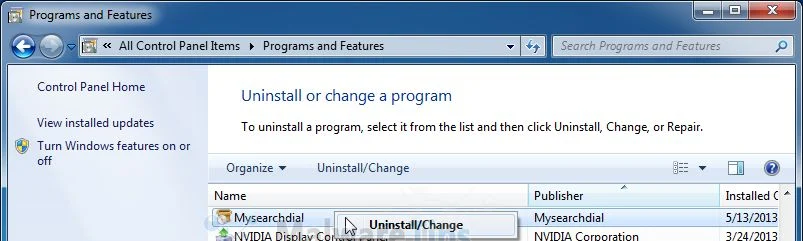
STEP 2: Use Zemana AntiMalware Portable to remove Start.mysearchdial.com redirect
Zemana AntiMalware Portable is a free malware scanner which can detect malicious programs that your antivirus has failed to find.
- You can download Zemana AntiMalware Portable from the below link:
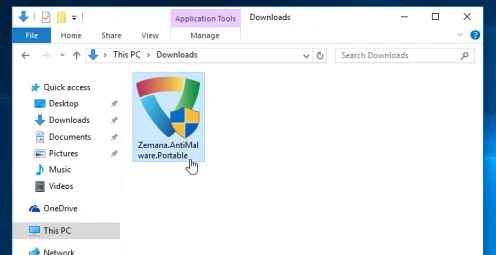
Download Zemana AntiMalwareOpens the download page in a new tab. - Double-click on the file named “Zemana.AntiMalware.Portable” to perform a system scan with Zemana AntiMalware.
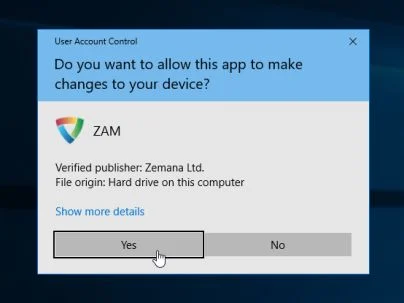
You may be presented with an User Account Control pop-up asking if you want to allow Zemana to make changes to your device. If this happens, you should click “Yes” to continue with the installation.
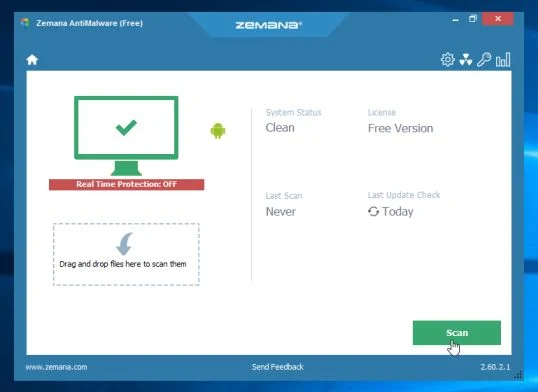
- When Zemana AntiMalware will start, click on the “Scan” button to perform a system scan.
- Zemana AntiMalware will now scan your computer for malicious programs. This process can take up to 10 minutes.
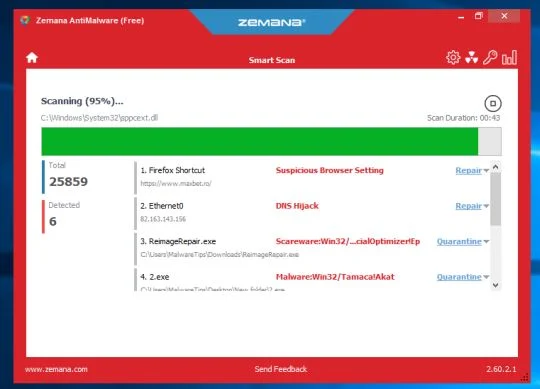
- When Zemana has finished finished scanning it will show a screen that displays any malware that has been detected. To remove all the malicious files, click on the “Next” button.
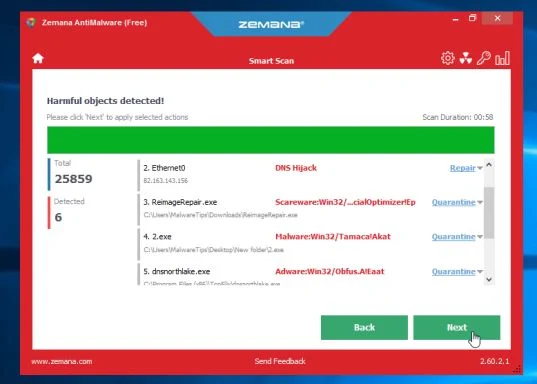
Zemana AntiMalware will now start to remove all the malicious programs from your computer.
STEP 3: Use Malwarebytes to Scan for Malware and Unwanted Programs
Malwarebytes is a powerful on-demand scanner which will remove the Start.mysearchdial.com redirect from your PC. It is important to note that Malwarebytes will run alongside antivirus software without conflicts.
- You can download download Malwarebytes from the below link.
Download MalwarebytesFree official installer. Your download starts right away. - When Malwarebytes has finished downloading, double-click on the “mb3-setup-consumer” file to install Malwarebytes on your computer.
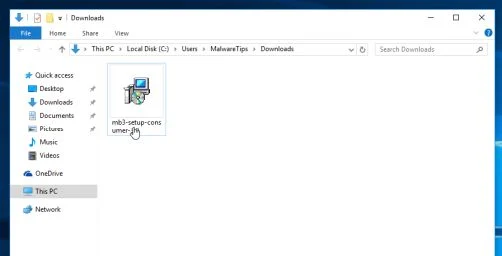
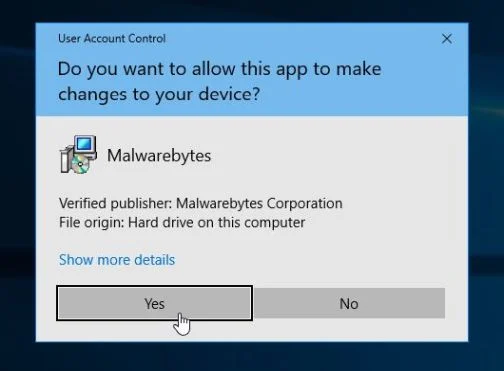
You may be presented with an User Account Control pop-up asking if you want to allow Malwarebytes to make changes to your device. If this happens, you should click “Yes” to continue with the installation.
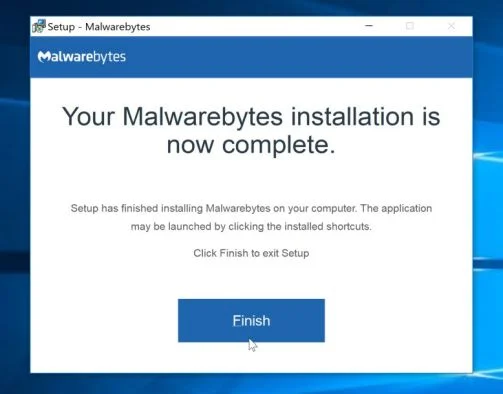
- When the Malwarebytes installation begins, you will see the Malwarebytes Setup Wizard which will guide you through the installation process.
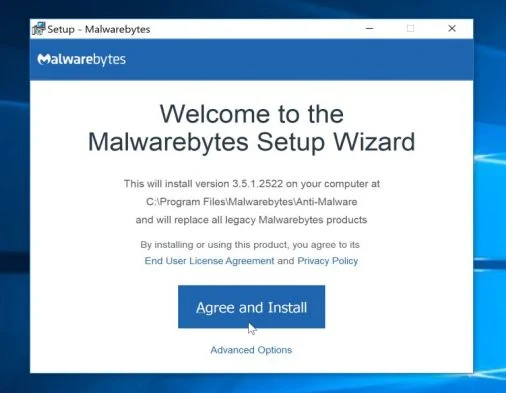
To install Malwarebytes on your machine, keep following the prompts by clicking the “Next” button.
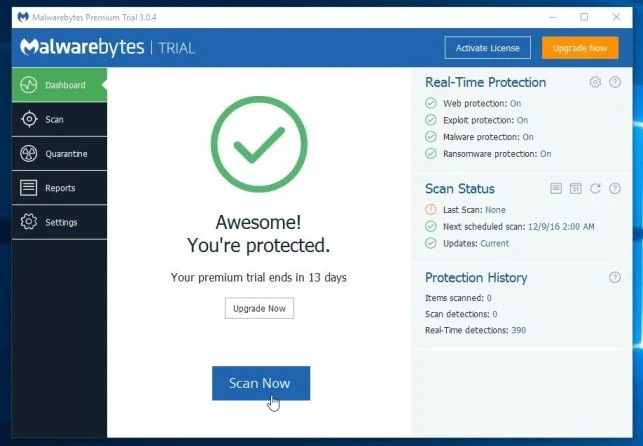
- Once installed, Malwarebytes will automatically start and update the antivirus database. To start a system scan you can click on the “Scan Now” button.
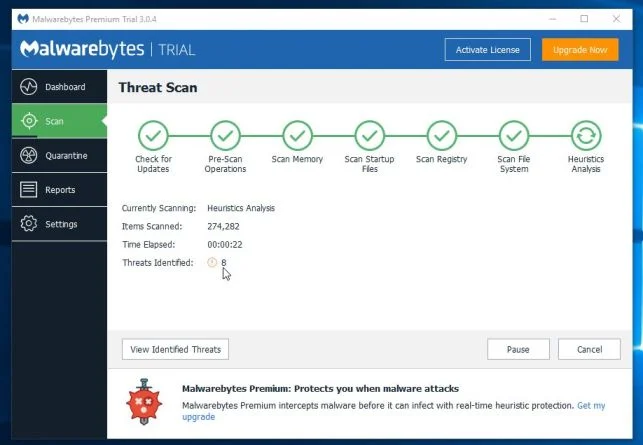
- Malwarebytes will now start scanning your computer for malicious programs.
This process can take a few minutes, so we suggest you do something else and periodically check on the status of the scan to see when it is finished.
- When the scan has completed, you will be presented with a screen showing the malware infections that Malwarebytes has detected.
To remove the malicious programs that Malwarebytes has found, click on the “Quarantine Selected” button.
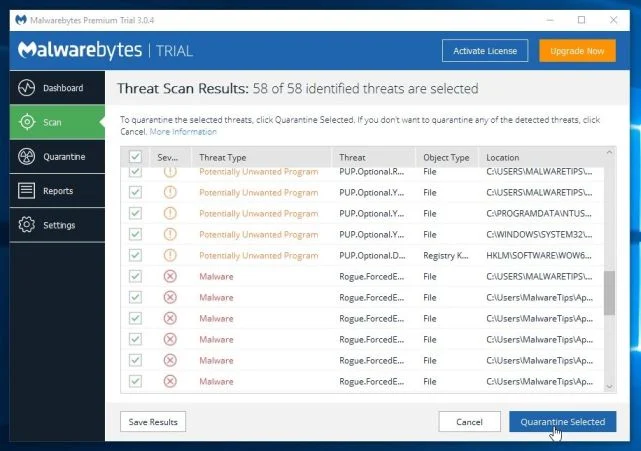
- Malwarebytes will now quarantine all the malicious files and registry keys that it has found.
To complete the malware removal process, Malwarebytes may ask you to restart your computer.
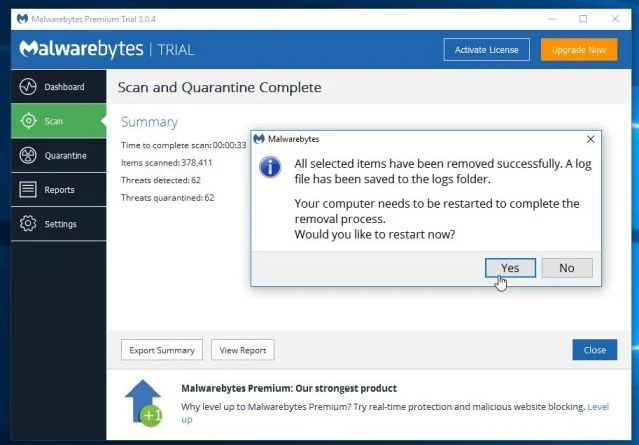
When the malware removal process is complete, you can close Malwarebytes and continue with the rest of the instructions.
STEP 4: Double-check for malicious programs with HitmanPro
HitmanPro finds and removes malware, adware, bots, and other threats that even the best antivirus suite can oftentimes miss. It’s designed to run alongside your antivirus suite, firewall, and other security tools.
- You can download HitmanPro from the below link:
Download HitmanProOfficial Sophos download. Free scan, free 30-day trial to remove threats. - When HitmanPro has finished downloading, double-click on the “hitmanpro” file to install this program on your computer.
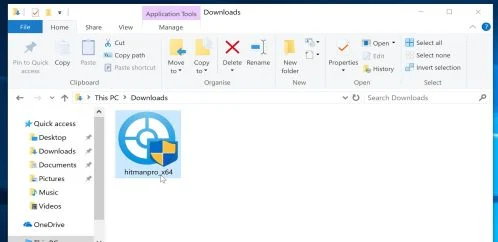
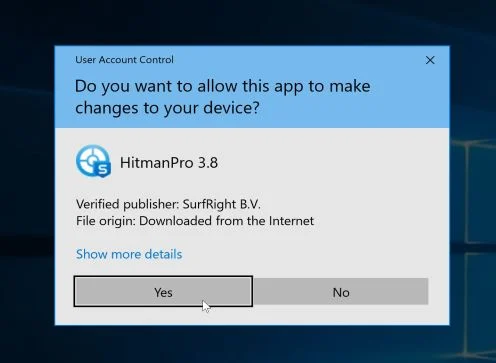
You may be presented with an User Account Control pop-up asking if you want to allow HitmanPro to make changes to your device. If this happens, you should click “Yes” to continue with the installation.
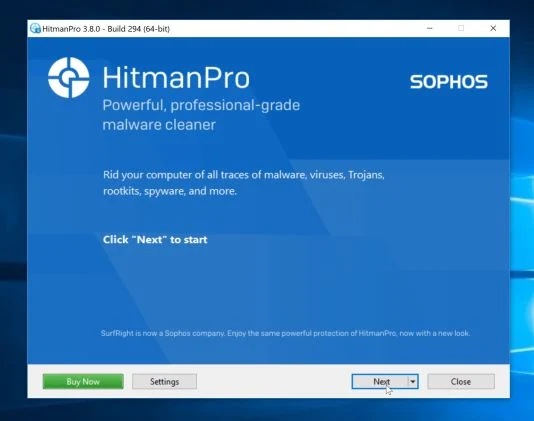
- When the program starts you will be presented with the start screen as shown below. Now click on the Next button to continue with the scan process.
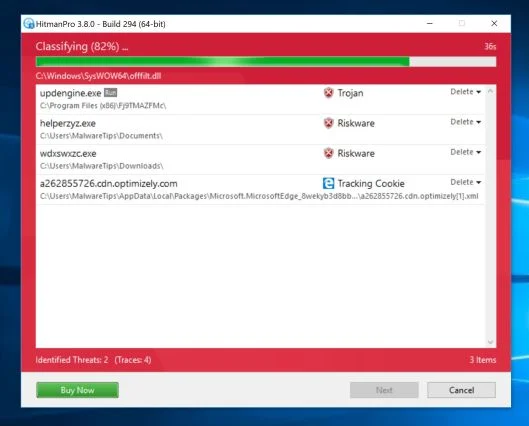
- HitmanPro will now begin to scan your computer for malware.
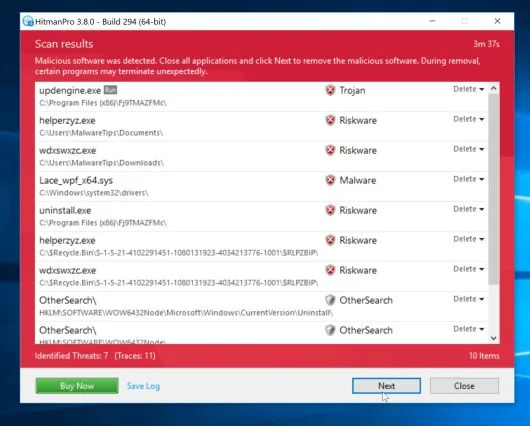
- When it has finished it will display a list of all the malware that the program found as shown in the image below. Click on the “Next” button, to remove malware.
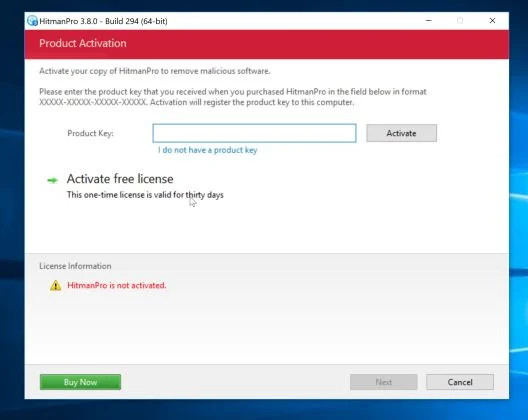
- Click on the “Activate free license” button to begin the free 30 days trial, and remove all the malicious files from your computer.
When the process is complete, you can close HitmanPro and continue with the rest of the instructions.
(Optional) STEP 5: Reset your browser to the default settings
This step needs to be performed only if your issues have not been solved by the previous steps.
Google Chrome
- Click on Chrome’s main menu button, represented by three horizontal lines. When the drop-down menu appears, select the option labeled Settings.
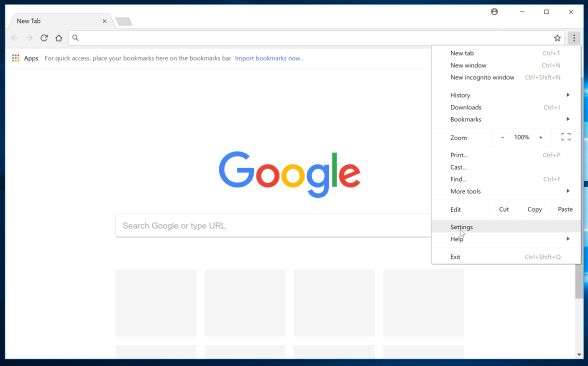
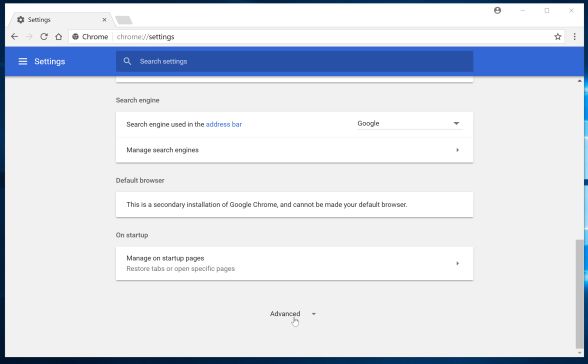
- Chrome’s Settings should now be displayed in a new tab or window, depending on your configuration. Next, scroll to the bottom of the page and click on the Advanced link (as seen in the below example).
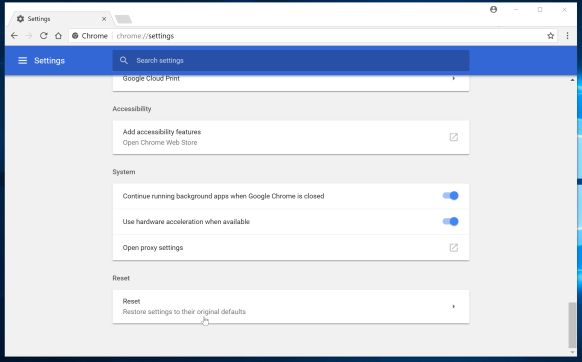
- Chrome’s advanced Settings should now be displayed. Scroll down until the Reset browser settings section is visible, as shown in the example below. Next, click on the Reset settings button.
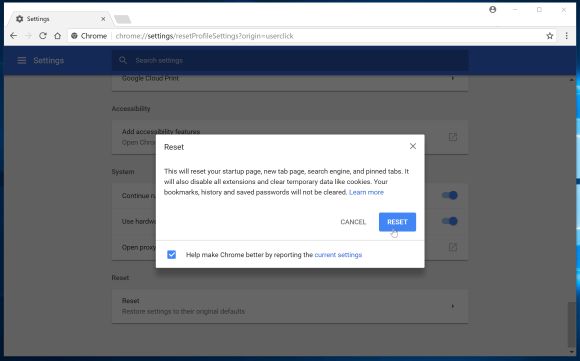
- A confirmation dialog should now be displayed, detailing the components that will be restored to their default state should you continue on with the reset process. To complete the restoration process, click on the Reset button.
Internet Explorer
- Open Internet Explorer, click on the “gear icon”
 in the upper right part of your browser, then click again on Internet Options.
![[Image: Internet Options in Internet Explorer]](https://malwaretips.com/blogs/wp-content/uploads/mwt-media/52/522e9c30de2b8b1009dec93b1735a5e5ec22f4d7d2e025c30c251ca96799dec2/45442bf30d44812b12c1d4152796bddfd0d05542d55e7c907b8edde3ac50c4d7-625.webp "Click on the Gear Icon then on Internet Options")
- In the “Internet Options” dialog box, click on the “Advanced” tab, then click on the “Reset” button.
![[Image: Reset Internet Explorer]](https://malwaretips.com/blogs/wp-content/uploads/mwt-media/89/89e96623f76134cd3bfd7a5579d40fefa7118a81811be6e9888bb8b92ac84adf/ca946d49c693e69239029b3c145713bf590c959486dc4af7bbae81db5ec5a627-613.webp "In the Advanced tab click on the Reset button")
- In the “Reset Internet Explorer settings” section, select the “Delete personal settings” check box, then click on “Reset” button.
![[Image: Reset Internet Explorer to its default settings]](https://malwaretips.com/blogs/wp-content/uploads/mwt-media/f2/f240d9aad8df73300edecc78c67f33cd5fccb1f5732245b8d5990b4524313abb/c2ef750ff5d9642431fc10968d9e8699c75c0b149affcf506387fa0c948e4874-626.webp "Click on the Reset button to revert IE to its default settings")
- When Internet Explorer has completed its task, click on the “Close” button in the confirmation dialogue box. You will now need to close your browser, and then you can open Internet Explorer again.
![[Image Reset Internet Explorer settings]](https://malwaretips.com/blogs/wp-content/uploads/mwt-media/22/22bcd4ddf7b1a0aac3fcb25d72a4d24b8d1748a2ee365e4f52181e6d57a4ef94/7d992d833ea0dbef9fbfdfbe664c145a6a794975aa5980dfbdde3369647953b4-621.webp "Click on the Close button")
Mozilla Firefox
- In the upper-right corner of the Firefox window, click the Firefox menu button (
![[Image: Firefox Menu button]](https://malwaretips.com/blogs/wp-content/uploads/mwt-media/6f/6f648cb445905efd8b48fc51022903baf5a0db5eb5c8478d587f29d3dc216d6c/03f95ff9f91ad81d0407ba6842827f193c40eb3d4b407eda9f698f330de02814-16.webp "Firefox Menu button") ), then click on the “Help” (
), then click on the “Help” (![[Image: Firefox Help button]](https://malwaretips.com/blogs/wp-content/uploads/mwt-media/da/dad9a8056176398d90be70e0b13e0181d2f95a3cd817a0f9bd296d3e00b47109/feab1435cad07dba7dbf1e08f210872708ea08865694c59cfbac294ba8583f2a-16.webp "Firefox Help button") ) button.
) button.
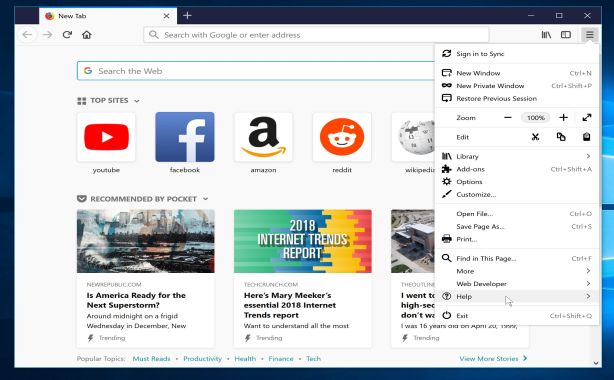
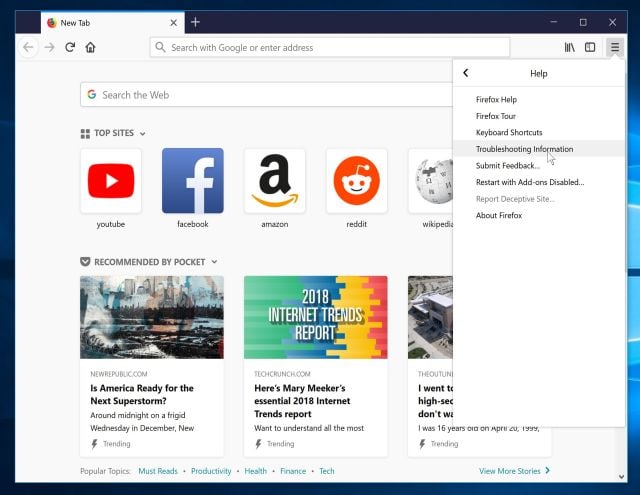
- From the Help menu, choose Troubleshooting Information.
If you’re unable to access the Help menu, type about:support in your address bar to bring up the Troubleshooting information page.
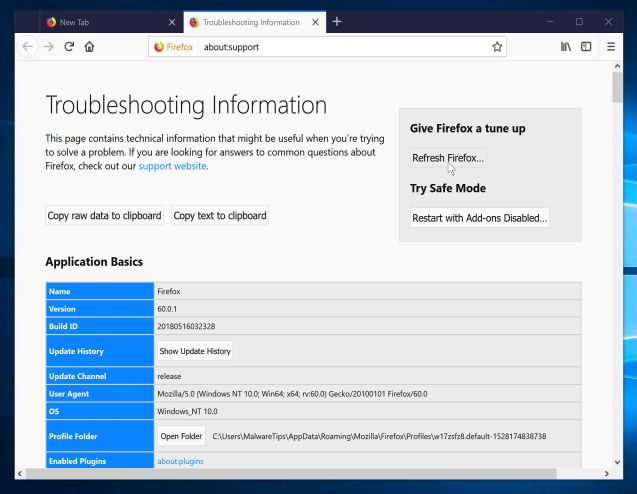
- Click the “Refresh Firefox” button in the upper-right corner of the “Troubleshooting Information” page.
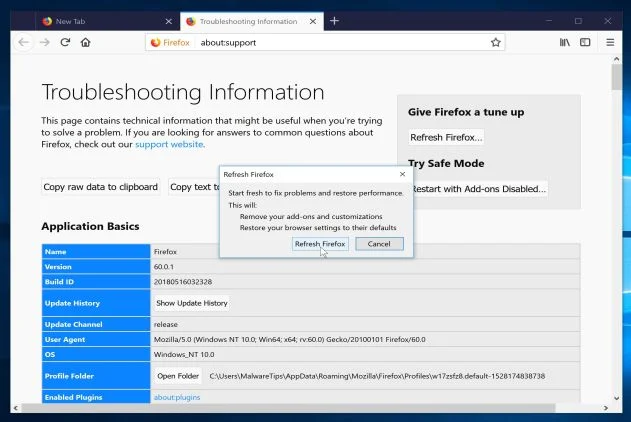
- To continue, click on the “Refresh Firefox” button in the new confirmation window that opens.
- Firefox will close itself and will revert to its default settings. When it’s done, a window will list the information that was imported. Click on the “Finish“.
If you are still experiencing problems while trying to remove Start.mysearchdial.com redirect from your PC, please do one of the following:
- Run a system scan with Emsisoft Emergency Kit
- Ask for help in our Malware Removal Assistance for Windows forum.

Join the discussion
78 commentsShare your experience or ask a question about this article.
Your progress
Did these steps help?
Let us know how the guide worked for you.
Describe what you see and the step you reached. Keep passwords and other private information out.
Discussion
THANK YOU SO MUCH.
dear stelian! thank you so much! you instruction is very good and helpful! thank you!
Outstanding!!!! Many thanks for your help…much appreciated! :)
Thank you, thank you, thank you!! My computer was FREAKING out and so I was freaking out, but not anymore :) My appreciations, good sir! :D
Thank you very much for your very thorough instructions!!!!
Thank you very much! I was trying to download a free you tube downloader and got hijacked. You saved my computer. Great wisdom and info. Are the programs you listed to use yours?
Thank you so very much! Your detailed instructions allowed me to get this bugger off my computer…and to better understand how it got there and how not to do it again!!
Thank you Sir. A very clear concise guide.
thanks fella
Thank you
thank you
thank you!!!!
Thank you Stelian! I picked up ‘myseachdial’ in a seemingly innocent update for Skype. Many insane ‘help’ pages out there got me nowhere. Your advice fixed the probem. Making a PayPal donation later today as a token of my appreciation. Thanks again!!!
Thank you! I spent a couple of hours troubleshooting but you had the answer.
You are a Godsend! Thank you so much for the help. I just purchased my first brand new laptop a month ago and picked up this crazy mysearchdial garbage attached to a seemingly harmless file viewer download. I am required to use Firefox for college and it was to a point where I could not accomplish ANYTHING online. Please keep doing what you do because you do it VERY WELL.
You are a Godsend…thank you! Just purchased my first brand new laptop a month ago and this crazy mysearchdial thing attached itself to a seemingly harmless file viewer…has haunted me ever since and got to a point where I could no longer do ANYTHING online using Firefox. I am required to use Firefox for college and I was about to lose my mind. Keep doing what you do because you do it VERY WELL.
Okay, firstly, thank you SOOOO much haha I couldn’t figure this out for the longest time. Secondly, hey look there’s another Kyle 3 comments down. Yup. Hahaha thanks!
Thank you Stelian, AdwCleaner removed MySearchDial perfectly. Donation imminent:) Can I uninstall AdwCleaner, or do I have to keep it because it’s quarantining this virus? I already have Webroot SecureAnywhere that I pay for monthly through my internet provider.
Can’t thank you enough. My laptop is back to fully operational. I used malware bytes.
I am soooooo grateful…..this was sending me crazy! Thank you. donation on it’s way.
Thank you! Your guide was clear and EFFECTIVE. Thank you for allowing me to eliminate this mysearchdial nuisance. Bitdefender didn’t catch it, but your instructions enpowered me to make it go away.
You did it! Thank you SO much. You saved my PC. Your directions were easy to follow and they worked perfectly.