

System Care Antivirus is a computer virus (Rogue.WinWebSec), which pretends to be a legitimate security program and claims that malware has been detected on your computer. If you try to remove these infections, System Care Antivirus will state that you need to buy its full version before being able to do so.
![[Image: System Care Antivirus virus]](https://malwaretips.com/blogs/wp-content/uploads/mwt-media/76/7698d0be69fbef863839406fb12f1f6a9a77cd20a610d45af2087cbc4ac8571c/1cdfc0cbdbc83c11f890d0749e8e1b2b02419fd2e290df5f4574bcf1309dd10f-752.webp "System Care Antivirus virus")
System Care Antivirus targets users browsing Internet websites, and rely on social engineering to deliver its payload. This infection is promoted through web sites that have been hacked with scripts that try to install the software by exploiting vulnerabilities on your computer. It is also promoted through Trojans that pretend to be legitimate programs that are required to view an online video, but instead install the infection.
Once installed, System Care Antivirus will display fake security alerts that are designed to think that your data is at risk or that your computer is severely infected.These messages may include:
Security Monitor: WARNING!
Attention! System detected a potential hazard (TrojanSPM/LX) on your computer that may infect executable files. Your private information and PC safety is at risk.
To get rid of unwanted spyware and keep your computer safe your need to update your current security software.
Click Yes to download official intrusion detection system (IDS software).Spyware.IEMonster activity detected. This is spyware that attempts to steal passwords from Internet Explorer, Mozilla Firefox, Outlook and other programs.
Click here to remove it immediately with System Care Antivirus.System Care Antivirus Firewall Alert
System Care Antivirus Firewall has blocked a program from accessing the Internet.
Internet Explorer Internet Browser is infected with worm SVCHOST.Stealth.Keyloger. This worm is trying to send your credit card details using Internet Explorer Internet Browser to connect to remote host.System Care Antivirus Warning
Your PC is still infected with dangerous viruses. Activate antivirus protection to prevent data loss and avoid theft of your credit card details.
Click here to activate protection.System Care Antivirus Warning
Your PC is still infected with dangerous viruses. Activate antivirus protection to prevent data loss and avoid theft of your credit card details.Warning: Your computer is infected
Detected spyware infection!
Click this message to install the last update of security software…System Care Antivirus Warning
Intercepting programs that may compromise your privacy and harm your system have been detected on your PC.
Click here to remove them immediately with System Care Antivirus.
In reality, none of the reported issues are real, and are only used to scare you into buying System Care Antivirus and stealing your personal financial information.
As part of its self-defense mechanism, System Care Antivirus has disabled the Windows system utilities, including the Windows Task Manager and Registry Editor, and will block you from running certain programs that could lead to its removal.
This rogue antivirus has also modified your Windows files associations, and now whenever you are trying to open a program, System Care Antivirus will block this operation and display a bogus notification in which will report that the file is infected.
Warning!
Application cannot be executed. The file taskmgr.exe infected.
Please activate your antivirus software.
If your computer is infected with System Care Antivirus virus, then you are seeing the following screens:
![[Image: System Care Antivirus 3.7.32 virus]](https://malwaretips.com/blogs/wp-content/uploads/mwt-media/fe/fe31fa84d99dda852f76324c9bb4fe627a5a8335c477f719adb28f2b1a93c20b/510f330bbd22625ccbe7c594fceacfbc88cba8341bcf7635023861dd2a77005e-752.webp "System Care Antivirus 3.7.32 virus")
![[Image: System Care Antivirus Firewall Alert]](https://malwaretips.com/blogs/wp-content/uploads/mwt-media/5b/5b5559c83ea3ad86cd1125a46c54f42bbf02a6eaefe5de97b00979cda77dacba/f51f661288772643c5658dba8c7c69621f76b9e66200d488878ab76ec99d0b49-440.webp "System Care Antivirus Firewall Alert")
![[Image: System Care Antivirus Warning]](https://malwaretips.com/blogs/wp-content/uploads/mwt-media/0a/0a0023134e6cb969a145ccfb3188daabd0739d0a45cb35135b9026d332ef4748/7c8a42918c48b3c67441fc64e2e9702cf2d70e1fc404e7d17ccad2e4260f2b95-497.webp "System Care Antivirus Warning")
System Care Antivirus is a scam, and you should ignore any alerts that this malicious software might generate.
Under no circumstance should you buy System Care Antivirus as this could lead to identity theft, and if you have, you should contact your bank and dispute the charge stating that the program is a scam and a computer virus.
Registration codes for System Care Antivirus
As an optional step,you can use any of the following license keys to register System Care Antivirus and stop the fake alerts.
System Care Antivirus Activation code: AA39754E-715219CE
Please keep in mind that entering the above registration code will NOT remove System Care Antivirus from your computer , instead it will just stop the fake alerts so that you’ll be able to complete our removal guide more easily.
System Care Antivirus – Virus Removal Guide
This page is a comprehensive guide, which will remove the System Care Antivirus infection from your your computer. Please perform all the steps in the correct order. If you have any questions or doubt at any point, STOP and ask for our assistance.
STEP 1: Start your computer in Safe Mode with Networking
STEP 2: Remove System Care Antivirus virus with Malwarebytes Anti-Malware Free
STEP 3: Remove System Care Antivirus rootkit with RogueKiller
STEP 4: Remove System Care Antivirus infection with HitmanPro
STEP 1 : Start your computer in Safe Mode with Networking
- Remove all floppy disks, CDs, and DVDs from your computer, and then restart your computer.
- When the computer starts you will see your computer’s hardware being listed. When you see this information start to gently tap the F8 key repeatedly until you are presented with the Windows XP, Vista or 7 Advanced Boot Options.
![[Image: F8 key]](https://malwaretips.com/blogs/wp-content/uploads/mwt-media/7b/7bfe81c611d48e45998c85234b21a111c419d163368a8828a4042c2c1d3cb431/7ca9c0c8c1c47c23e9c1581974ebb6a803ce5e47d7a875a2822fb33bd1da0e34-410.webp "Windows F8 key")
If you are using Windows 8, press the Windows key + C, and then click Settings. Click Power, hold down Shift on your keyboard and click Restart, then click on Troubleshoot and select Advanced options. In the Advanced Options screen, select Startup Settings, then click on Restart. - If you are using Windows XP, Vista or 7 in the Advanced Boot Options screen, use the arrow keys to highlight Safe Mode with Networking , and then press ENTER.
![[Image: Safemode.jpg]](//malwaretips.com/images/removalguide/safemode.jpg "Safe Mode with Networking screen") \
\
If you are using Windows 8, press 5 on your keyboard to Enable Safe Mode with Networking.
Windows will start in Safe Mode with Networking.
![[Image: Safemode.jpg]](http://malwaretips.com/images/removalguide/safemode.jpg "Safe Mode with Networking screen") \
\STEP 2: Remove System Care Antivirus virus with Malwarebytes Anti-Malware FREE
The Malwarebytes Chameleon utility will allow us to install and run a scan with Malwarebytes Anti-Malware Free without being blocked by System Care Antivirus.
- Right click on your browser icon, and select Run As or Run as Administrator. This should allow your browser to open so that we can then download Malwarebytes Chameleon.
![[Image: Starting web browse on infected computer]](https://malwaretips.com/blogs/wp-content/uploads/mwt-media/3f/3fcf153009c8e2a684d7a682fde59438d0b02a4a7623b0da69a0f29ffea07346/b2f96171a191577dc2def9529d146d37baf5a55f022fa1ea3ad5ee05d9f1d02f-264.webp "Right click on your Web Browser icon and click on Run As Administrator")
If you’ll see a “Warning! The site you are trying visit may harm your computer!” message in your web browser window, you can safely click on the Ignore warnings and visit that site in the current state (not recommended) link, because this a bogus alert from System Care Antivirus. - Download Malwarebytes Chameleon from the below link, and extract it to a folder in a convenient location.
Download Malwarebytes ChameleonOpens the download page in a new tab.
![[Image: Extract Malwarebytes Chameleon utility]](https://malwaretips.com/blogs/wp-content/uploads/mwt-media/b2/b265e12a96e5ac88c372b34158e04f937bacfee747f63c719f50a4771b7048e8/9809c2be34df15eae377a9982d27eae3d60d2cc1b556e7f1f9fa6be62f380051-374.webp "Extract Malwarebytes Chameleon utility")
- Make certain that your infected computer is connected to the internet and then open the Malwarebytes Chameleon folder, and double-click on the svchost.exe file.
![[Image: Double click on svchost.exe]](https://malwaretips.com/blogs/wp-content/uploads/mwt-media/d6/d67768b1c785b16a82c92c81bcce063bb5b8ad9c8f1e7edb48a80040f7e803a3/b05e0bf111c8d18f1c641cfb91f746b45de4454ba605ef516ccfa0ed7cdc5c99-662.webp "Double click on svchost.exe")
IF Malwarebytes Anti-Malware will not start, double-click on the other renamed files until you find one will work, which will be indicated by a black DOS/command prompt window. - Follow the onscreen instructions to press a key to continue and Chameleon will proceed to download and install Malwarebytes Anti-Malware for you.
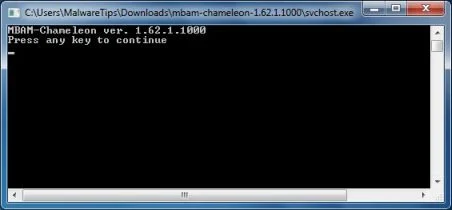
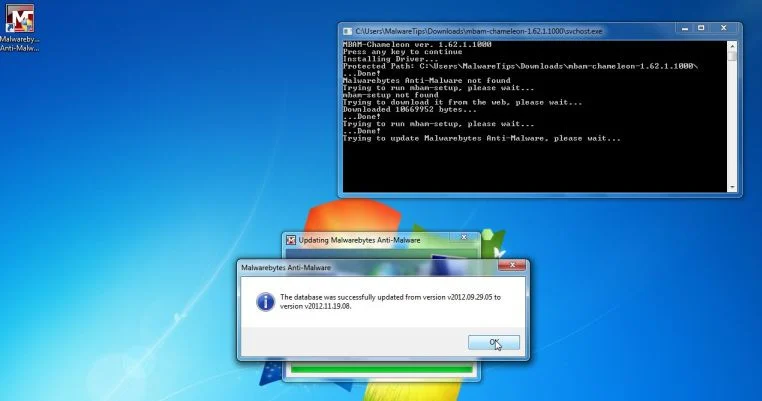
- Once it has done this, it will update Malwarebytes Anti-Malware, and you’ll need to click OK when it says that the database was updated successfully.
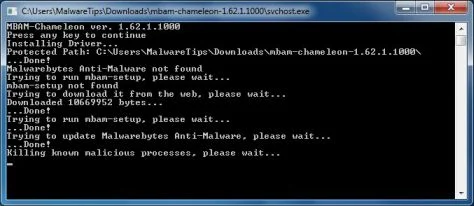
- Malwarebytes Anti-Malware will now attempt to kill all the malicious process associated with System Care Antivirus.Please keep in mind that this process can take up to 10 minutes, so please be patient.
- Next, Malwarebytes Anti-Malware will automatically open and perform a Quick scan for System Care Antivirus malicious files as shown below.
![[Image: Malwarebytes Anti-Malware scanning for System Care Antivirus]](https://malwaretips.com/blogs/wp-content/uploads/mwt-media/f6/f6ecfba43df64204df40586070483f260cb91fa07d5cc90cb4c3a588d159ff30/5b6b2687853201a40d29fe27e142cc66b0852745bbad3900a21030a10399cb4c-521.webp "Malwarebytes Anti-Malware scanning for System Care Antivirus")
- Upon completion of the scan, click on Show Result
![[Image: Malwarebytes Anti-Malware scan results]](https://malwaretips.com/blogs/wp-content/uploads/mwt-media/84/84c62dd46289424dbc686abc53672cb0810111920c8c0bbd69e973844d0a9ab0/a4c04aa700e641f47afec9965f79ff346740668e5952955ccbe5b4c3658b5897-521.webp "Malwarebytes when the system scan has completed")
- You will now be presented with a screen showing you the malware infections that Malwarebytes Anti-Malware has detected.
Make sure that everything is Checked (ticked),then click on the Remove Selected button.
![[Image:Malwarebytes removing virus]](https://malwaretips.com/blogs/wp-content/uploads/mwt-media/d8/d86b6a8bac0e4ece9fd2d259a83db71487943f6b04b567edb0e9adcc3200f492/4eb94651b0e34cc99689c56dc71cd0a49444498ed05c5803ea55fda1cfee1b1f-521.webp "Click on Remove Selected to get rid of System Care Antivirus")
- After your computer will start in Windows regular mode, open Malwarebytes Anti-Malware and perform a Full System scan to verify that there are no remaining threats
STEP 3: Remove System Care Antivirus rootkit with RogueKiller
RogueKiller is a utility that will scan for the System Care Antivirus rootkit, registry keys and any other malicious files on your computer.
- You can download the latest official version of RogueKiller from the below link.
Download RogueKillerOpens the download page in a new tab. - Double click on RogueKiller.exe to start this utility and then wait for the Prescan to complete.This should take only a few seconds, then click on the Scan button to perform a system scan.
![[Image: RogueKiller scaning for System Care Antivirus virus]](https://malwaretips.com/blogs/wp-content/uploads/mwt-media/69/69de1b02b1c29079c5f595c43ff489e90b26b2021baa2b0d1704b93ddd414395/e5bb79ff72ced202bac24c8b349e54b71c007e432c6cdd5b25b9315274047978-520.webp "Click on the Start button to perform a system scan")
- After the scan has completed, press the Delete button to remove System Care Antivirus malicious registry keys or files.
![[Image: RogueKiller Detele button]](https://malwaretips.com/blogs/wp-content/uploads/mwt-media/d0/d04ee432a91f8fcebf27c33388f7cbe82e8cd52c8bb9358affcda3179330c5f0/1902ad30fc60dfe4b2093826d636e475e58aa31f41a53715fd38f49578e69bb4-520.webp "Press Delete to remove System Care Antivirus")
STEP 4: Remove System Care Antivirus infection with HitmanPro
HitmanPro is a cloud on-demand scanner, which will scan your computer with 5 antivirus engines (Emsisoft, Bitdefender, Dr. Web, G-Data and Ikarus) for the System Care Antivirus infection.
- You can download HitmanPro from the below link:
Download HitmanProOfficial Sophos download. Free scan, free 30-day trial to remove threats. - Double-click on the file named HitmanPro.exe (for 32-bit versions of Windows) or HitmanPro_x64.exe (for 64-bit versions of Windows). When the program starts you will be presented with the start screen as shown below.
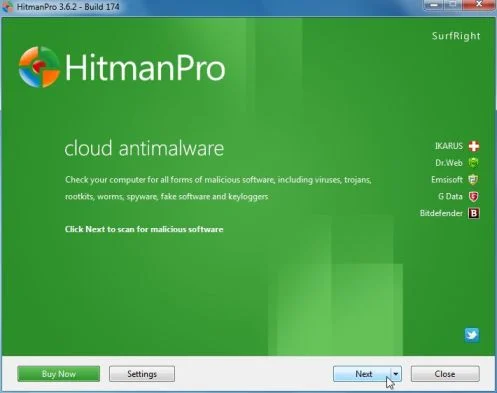
Click on the Next button, to install HitmanPro on your computer.
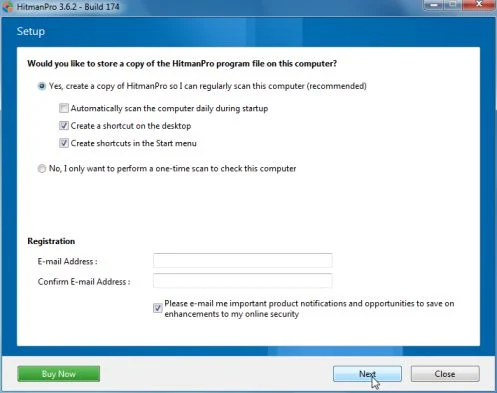
- HitmanPro will now begin to scan your computer for System Care Antivirus trojan.
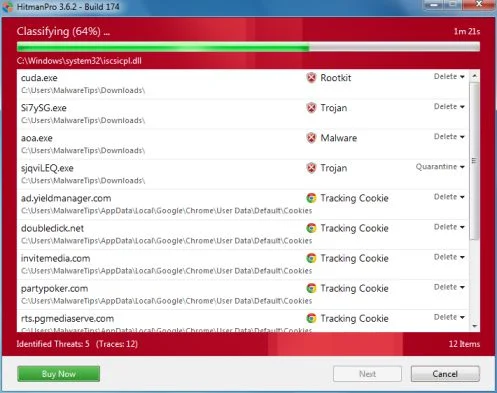
- When it has finished it will display a list of all the malware that the program found as shown in the image below. Click on the Next button, to remove System Care Antivirus virus.
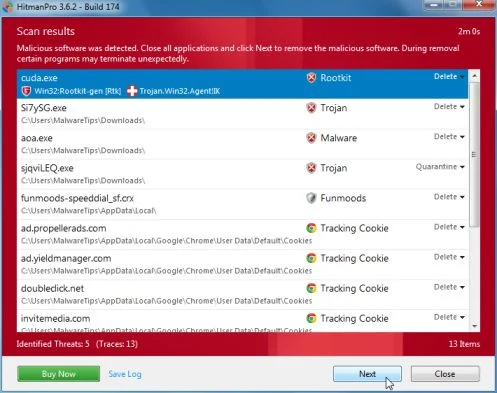
- Click on the Activate free license button to begin the free 30 days trial, and remove all the malicious files from your computer.
![[Image: HitmanPro 30 days activation button]](https://malwaretips.com/blogs/wp-content/uploads/mwt-media/7f/7f063c87fa029d8cd40df3f7faf43765ba1bb9e82c8d5a64c8a49de788018196/2a8400863f3c81fd7d6411e20166dfacdf0bc73e14522edea93a637003240dc1-497.webp "HitmanPro free 30 days trial")
Your computer should now be free of the System Care Antivirus infection. If your current anti-virus solution let this infection through, you may want to consider purchasing the PRO version of Malwarebytes Anti-Malware to protect against these types of threats in the future, and perform regular computer scans with HitmanPro.
If you are still experiencing problems while trying to remove System Care Antivirus from your machine, please start a new thread in our Malware Removal Assistance forum.

Join the discussion
116 commentsShare your experience or ask a question about this article.
Your progress
Did these steps help?
Let us know how the guide worked for you.
Describe what you see and the step you reached. Keep passwords and other private information out.
Discussion
Hello,
Avast Free Antivirus and COMODO Internet Security Free are both great free options, which will provide a high level of security for your computer.
I do recommend that you read this guide >> http://malwaretips.com/blogs/how-to-easily-avoid-pc-infections/ < < so that you'll learn how to avoid future infections!
Anyway ,you should really start a thread in our Security Configuration forum as you need to build a layered security config: http://malwaretips.com/Forum-Security-Configuration-Wizard
Hello! So glad you wrote this blog. Hit some bumps. Computer keeps turning off by itself durong Malware Quick Scan. What do I do? Thanks!!!!
Hello Steph,
You have some residual damage from the ZeroAccess rootkit.
Please run this ESET repair tool: http://kb.eset.com/library/ESET/KB%20Team%20Only/Malware/ServicesRepair.exe
Then, if you are still experiencing problems, start a thread in our Malware Removal Assistance forum, to check for additional malware: http://malwaretips.com/Forum-Malware-Removal-Assistance
Hi Stelian. Great tutorial and a relief that someone has managed to combat these terrible malware.
My only problem is that i still habe the “System Care Antivirus’ shortcut icon on my desktop. What is the best way to remove this?
Thanks,
Matt
In reply to Matt
Hello Matt,
That System Care Antivirus icon is just a left over shortcut, and basically it’s harmless, but right-click on it, and select Delete to remove it.
And for your peace of mind, you can run a scan with ESET Online Scanner:
1.Download ESET Online Scanner utility.
ESET Online Scanner Download Link : http://download.eset.com/special/eos/esetsmartinstaller_enu.exe
2. Double click on the Eset installer program (esetsmartinstaller_enu.exe).
3.Check Yes, I accept the Terms of Use, then click the Start button.
4.Check Scan archives and push the Start button.
5. ESET will then download updates for itself, install itself, and begin scanning your computer. Please be patient as this can take some time.
When the scan completes, click on the Finish button.
Stay safe!
In reply to Stelian Pilici
Hi Stelian
Fantastic support mate.
I have been using Avast internet security and this malware got past it because i opened a suspect file in an email (my own fault)
What would you recommend as good protection for a single ‘work from home’ PC?
Cheers,
Matt
In reply to Matt Jones
Hello Matt,
I’m currently using COMODO Internet Security, it’s a free and awesome program. However you should always keep in mind that computer security starts with YOU.
I have written awhile ago, a guide on how to stay safe online. If you have the time, I would suggest that you read it: http://malwaretips.com/blogs/how-to-easily-avoid-pc-infections/
Hello,
Those should be just some left over files, which you can delete. However for your peace of mind, you can run a scan with the below tools:
STEP 1: Run a scan with ESET Online Scanner
1.Download ESET Online Scanner utility.
ESET Online Scanner Download Link : http://download.eset.com/special/eos/esetsmartinstaller_enu.exe
2. Double click on the Eset installer program (esetsmartinstaller_enu.exe).
3.Check Yes, I accept the Terms of Use, then click the Start button.
4.Check Scan archives and push the Start button.
5. ESET will then download updates for itself, install itself, and begin scanning your computer. Please be patient as this can take some time.
6. When the scan completes, click on the Finish button.
STEP 2: Run a scan with Kaspersky Virus Removal Tool:
1. You can download from Kaspersky Virus Removal Tool from here : http://www.kaspersky.com/antivirus-removal-tool?form=1
2. Double click the setup file to run it, then follow the onscreen prompts until it is installed
Click the Options button (the ‘Gear’ icon), then make sure only the following are ticked:
System Memory
Hidden startup objects
Disk boot sectors
Local Disk (C:)
Also any other drives (Removable that you may have)
3. Then click on Actions on the left hand side
4. Click Select Action, then make sure both Disinfect and Delete if disinfection fails are ticked
5. Click on Automatic Scan, then click the Start Scanning button, to run the scan
Hello,
Most likely you have a ZeroAccess rootkit on your computer.
Can you please run a scan with Combofix and post the logs here so that I can get an idea on what’s going on:
You can download ComboFix from here: http://download.bleepingcomputer.com/sUBs/ComboFix.exe
VERY IMPORTANT !!! Save as Combo-Fix.exe during the download.ComboFix must be renamed before you download to your Desktop
Close any open browsers.
Very Important!!!> Temporarily disable your anti-virus, script blocking and any anti-malware real-time protection before performing a scan. They can interfere with ComboFix or remove some of its embedded files which may cause “unpredictable results”.
WARNING: Combofix will disconnect your machine from the Internet as soon as it starts
Please do not attempt to re-connect your machine back to the Internet until Combofix has completely finished.
If there is no internet connection after running Combofix, then restart your computer to restore back your connection.
1. Double click on ComboFix.exe & follow the prompts.
2. Accept the disclaimer and allow to update if it asks
3. When finished, it shall produce a log for you.
Notes:
Do not mouse-click Combofix’s window while it is running. That may cause it to stall.
Do not “re-run” Combofix. If you have a problem, reply back for further instructions.
If after the reboot you get errors about programs being marked for deletion then reboot, that will cure it.
Lets run the below scans:
Run a scan with RogueKiller
1. Please download the latest official version of RogueKiller.
RogueKiller Download Link : http://www.sur-la-toile.com/RogueKiller/RogueKiller.exe
2. Double click on RogueKiller.exe to start this utility and then wait for the Prescan to complete.This should take only a few seconds and then you can click the Scan button to perform a system scan.
3. After the scan has completed, press the Delete button to remove any malicious registry keys.
Run a scan with ESET Online Scanner
1.Download ESET Online Scanner utility.
ESET Online Scanner Download Link : http://download.eset.com/special/eos/esetsmartinstaller_enu.exe
2. Double click on the Eset installer program (esetsmartinstaller_enu.exe).
3.Check Yes, I accept the Terms of Use, then click the Start button.
4.Check Scan archives and push the Start button.
5. ESET will then download updates for itself, install itself, and begin scanning your computer. Please be patient as this can take some time.
6. When the scan completes, click on the Finish button.
Hello Mandie,
The scans time depend on the size of your hard drive, and on the specs of your machine. Usually a quick scan it should not take more than 10-15 minutes, but with an infected computer, you never know.
Lets run these two scans, to remove check for any other malware that may be present on your computer:
Run a scan with RogueKiller
1. Please download the latest official version of RogueKiller.
RogueKiller Download Link : http://www.sur-la-toile.com/RogueKiller/RogueKiller.exe
2. Double click on RogueKiller.exe to start this utility and then wait for the Prescan to complete.This should take only a few seconds and then you can click the Scan button to perform a system scan.
3. After the scan has completed, press the Delete button to remove any malicious registry keys.
Run a scan with ESET Online Scanner
1.Download ESET Online Scanner utility.
ESET Online Scanner Download Link : http://download.eset.com/special/eos/esetsmartinstaller_enu.exe
2. Double click on the Eset installer program (esetsmartinstaller_enu.exe).
3.Check Yes, I accept the Terms of Use, then click the Start button.
4.Check Scan archives and push the Start button.
5. ESET will then download updates for itself, install itself, and begin scanning your computer. Please be patient as this can take some time.
6. When the scan completes, click on the Finish button.
Waiting for your reply to see if you have managed to remove this infection!
Hello Dan,
It really looks like you have a nasty ZeroAccess rootkit, I would advise you to start a thread in our Malware Removal Assistance : http://malwaretips.com/Forum-Malware-Removal-Assistance : forum, as this infection is quite hard to remove.
Nevertheless, if you really want to try a quick fix, you can run a scan with RogueKiller:
1. Please download the latest official version of RogueKiller.
RogueKiller Download Link : http://www.sur-la-toile.com/RogueKiller/RogueKiller.exe
2. Double click on RogueKiller.exe to start this utility and then wait for the Prescan to complete.This should take only a few seconds and then you can click the Scan button to perform a system scan.
3. After the scan has completed, press the Delete button to remove any malicious registry keys.
Waiting for your reply to see if you have managed to remove this infection!
Hello KK,
Please close the Malwarebytes Chameleon window, the download RKILL (which will be renamed as iexplore.exe) from here: http://www.bleepingcomputer.com/download/rkill/dl/11/
This utility will kill all the System Care Antivirus malicious process, so that you’ll be able to perform a scan with Malwarebytes Anti-Malware.
Run the Malwarebytes scan, then please try to perform a scan with RogueKiller:
1. Please download the latest official version of RogueKiller.
RogueKiller Download Link : http://www.sur-la-toile.com/RogueKiller/RogueKiller.exe
2. Double click on RogueKiller.exe to start this utility and then wait for the Prescan to complete.This should take only a few seconds and then you can click the Scan button to perform a system scan.
3. After the scan has completed, press the Delete button to remove any malicious registry keys.
Waiting for your reply to see if you have managed to remove this infection!
Stelian–you saved my biscuits! I gladly make a donation and I hope your business prospers because of your willingness to help people.
Huge thanks for being the antidote to the malicious people who create viruses. Your instructions were clear enough for a theatre gal like me to follow without fear of screwing something up, and kind enough to be free! I’m so grateful. Cheers,
Katie
Hello Grant,
Can you please run a scan with Combofix and post the logs here so that I can get an idea on what’s going on:
You can download ComboFix from here: http://download.bleepingcomputer.com/sUBs/ComboFix.exe
VERY IMPORTANT !!! Save as Combo-Fix.exe during the download.
ComboFix must be renamed before you download to your Desktop
Close any open browsers.
Very Important!!!> Temporarily disable your anti-virus, script blocking and any anti-malware real-time protection before performing a scan. They can interfere with ComboFix or remove some of its embedded files which may cause “unpredictable results”.
WARNING: Combofix will disconnect your machine from the Internet as soon as it starts
Please do not attempt to re-connect your machine back to the Internet until Combofix has completely finished.
If there is no internet connection after running Combofix, then restart your computer to restore back your connection.
1. Double click on ComboFix.exe & follow the prompts.
2. Accept the disclaimer and allow to update if it asks
3. When finished, it shall produce a log for you.
Notes:
Do not mouse-click Combofix’s window while it is running. That may cause it to stall.
Do not “re-run” Combofix. If you have a problem, reply back for further instructions.
If after the reboot you get errors about programs being marked for deletion then reboot, that will cure it.
Hello Jn,
Even if you “uninstall” System Care Antivirus, the malicious files would still be on your computer. I do recommend that you run all the scan, so that all the removal malicious files are removed! Stay safe! :D
wao..thanx for given guideline…..thnk you so much
Hello,
Is this the same computer that got infected? What software or drivers did you recently installed? What’s the error code on the BSOD?
THANK YOU SO MUCH STELIAN, I JUST KNOW THE BASICS I THINK I HAVE THIS TROJAN FROM AN EMAIL! WHAT DO YOU THINK?THANK YOU GOD BLESS YOU!IRO FROM GREECE
In reply to IROGREECE
Hello,
Yes, email spam is a one way in which victims are infected with this rogue software. Basically, you’ll receive an email which looks like being from DHL, FedEX or a similar company, stating that attached to this email is a summary report for your order. Of course, there is no order, and the attachment is just an infected file.
Stay safe! :)
Will this work on 3.7.33 also?
In reply to John
Yes, System Care Antivirus 3.7.33 is basically the same infection as the previous builds. Just follow the steps from this guide, and if you need any help, you just ask! :)
Good luck!
Hi I have ran the malwarebytes program twice but the system care antivirus thing pops up after awhile. Any idea how to solve this issue?
In reply to Ben
Hello Ben,
Did you run the HitmanPro scan as see in the guide?
Can you please try to perform a scan with RogueKiller:
1. Please download the latest official version of RogueKiller.
RogueKiller Download Link : http://www.sur-la-toile.com/RogueKiller/RogueKiller.exe
2. Double click on RogueKiller.exe to start this utility and then wait for the Prescan to complete.This should take only a few seconds and then you can click the Scan button to perform a system scan.
3. After the scan has completed, press the Delete button to remove any malicious registry keys.
Waiting for your reply to see if you have managed to remove this infection! Good luck!
Thanks, I’m in the process of stage 2.
What program should I download to protect myself from further viruses entering my computer? I had AVG and it stopped working, so I’ve been using Avira – but that didn’t seem to save me!
In reply to Laura
Hello Laura,
Avast Free Antivirus and COMODO Internet Security Free are both great free options! If you are looking for a paid program, then ESET Smart Security or Avast Internet Security are good choices.
I do recommend that you read this guide >> http://malwaretips.com/blogs/how-to-easily-avoid-pc-infections/ < < so that you'll learn how to avoid future infections!
Anyway ,you should really start a thread in our Security Configuration forum as you need to build a layered security config: http://malwaretips.com/Forum-Security-Configuration-Wizard