

System Progressive Protection is a computer virus from the WinWebSec family of rogue anti-spyware programs.
Cyber criminals,spread System Progressive Protection via infected websites,malicious email attachments or Java exploits.Once installed on your computer System Progressive Protection will start a bogus security scan which will report that several trojans,rootkits and viruses were found on your machine.
As you have probably realized by now,this alerts are nothing just scam and are meant to scare you into buy System Progressive Protection.
Apart from this fake alerts,System Progressive Protection will also prevent you from starting certain programs that could lead to its removal and redirect your browser to websites from which the cyber criminals will get affiliate revenue.
If your computer is infected with System Progressive Protection,then you are seeing this screens:
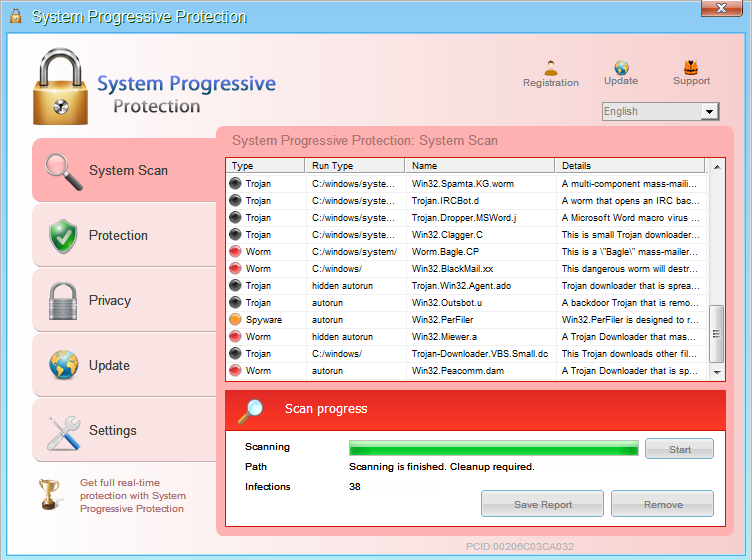
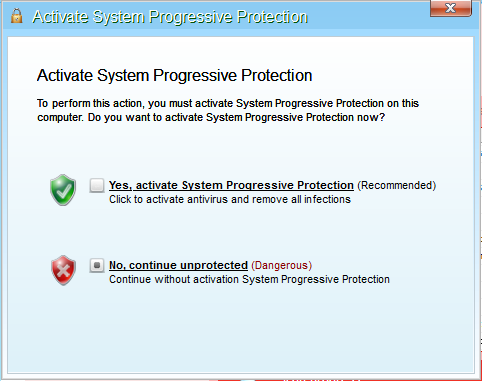
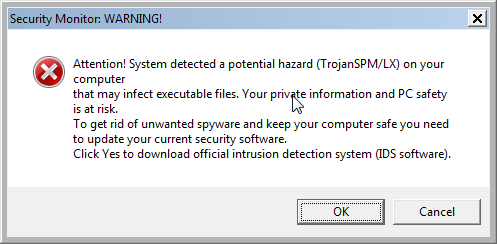
We strongly advise you to ignore any alerts that System Progressive Protection might generate and proceed with this removal guide as soon as possible.
Under no circumstance should you buy System Progressive Protection as this could lead to identity theft,and if you have, you should contact your credit card company and dispute the charge stating that the program is a scam and a computer virus.
Registration codes for System Progressive Protection
As an optional step,you can use the following license key to register System Progressive Protection and stop the fake alerts.
System Progressive Protection license key: AA39754E-715219CE
Please keep in mind that entering the above registration code will NOT remove System Progressive Protection from your computer , instead it will just stop the fake alerts so that you’ll be able to complete our removal guide more easily.
System Progressive Protection Removal Guide
STEP 1 : Start your computer in Safe Mode with Networking
- Remove all floppy disks, CDs, and DVDs from your computer, and then restart your computer.
- Press and hold the F8 key as your computer restarts.Please keep in mind that you need to press the F8 key before the Windows start-up logo appears.
Note: With some computers, if you press and hold a key as the computer is booting you will get a stuck key message. If this occurs, instead of pressing and holding the “F8 key”, tap the “F8 key” continuously until you get the Advanced Boot Options screen. - On the Advanced Boot Options screen, use the arrow keys to highlight Safe Mode with Networking , and then press ENTER.
![[Image: Safe Mode with Networking]](https://malwaretips.com/blogs/wp-content/uploads/mwt-media/64/643bc8414681b9681a44bc5e4bcc1f262450adeb64e97cbe54283b2262685c25/ae66c9197205f3f8f621e96a0c6df6c869aef5cadff6897bb6645b9d1e24ca16-539.webp "Start your computer in Safe Mode with Networking")
STEP 2: Run RKill to terminate known malware processes associated with System Progressive Protection.
RKill is a program that will attempt to terminate all malicious processes associated with System Progressive Protection,so that we will be able to perform the next step without being interrupted by this malicious software.
Because this utility will only stop System Progressive Protection running process, and does not delete any files, after running it you should not reboot your computer as any malware processes that are configured to start automatically will just be started again.
- While your computer is in Safe Mode with Networking ,please download the latest official version of RKill.Please note that we will use a renamed version of RKILL so that System Progressive Protection won’t block this utility from running.
Download RKillYour download starts right away. - Double click on iExplore.exe to start RKill and stop any processes associated with System Progressive Protection.
![[Image: RKILL Program]](https://malwaretips.com/blogs/wp-content/uploads/mwt-media/9b/9bd1fbac76989b7f148eb40e991e002b0e4887b26e25c458d390ab4705d3dc8b/39d41c22e798310d31436d68661c8f617309a8cb3c05d88f181e3f751d1c2fbc-260.webp "Double Click on iExplore.exe")
- RKill will now start working in the background, please be patient while the program looks for various malware programs and tries to terminate them.
![[Image: RKILL stoping malware]](https://malwaretips.com/blogs/wp-content/uploads/mwt-media/ca/ca979c74dbe6bff4faf33e0c5053349a5d4975896374c2d0c17c530336b9ea7f/0eabeb4c9ce2a6868b13b70aad28caf43ef2ca647622ccd001ea17152f36d7fc-406.webp "RKill while killing System Progressive Protection malicious process")
IF you are having problems starting or running RKill, you can download any other renamed versions of RKill from here. - When Rkill has completed its task, it will generate a log. You can then proceed with the rest of the guide.
![[Image: RKill Report]](https://malwaretips.com/blogs/wp-content/uploads/mwt-media/80/80e68df66d7ad779151bb33dd0e1c8fb998dbe6c5f00c0fc9cb6af739548ec11/623ae30acb0f9aec36353929a96de806d7837397885fe8de2814711833c65269-414.webp "RKill Log")
WARNING: Do not reboot your computer after running RKill as the malware process will start again , preventing you from properly performing the next step.
STEP 3: Remove System Progressive Protection malicious files with Malwarebytes Anti-Malware FREE
Malwarebytes Anti-Malware is a powerfull on-demand scanner which will remove System Progressive Protection malicious files from your computer.
- You can download Malwarebytes Anti-Malware Free from the below link,then double click on it to install this program.
Download MalwarebytesFree official installer. Your download starts right away. - When the installation begins, keep following the prompts in order to continue with the setup process.
DO NOT make any changes to default settings and when the program has finished installing, make sure you leave both the Update Malwarebytes’ Anti-Malware and Launch Malwarebytes’ Anti-Malware checked,then click on the Finish button.
![[Image: Malwarebytes Anti-Malware final installation screen]](https://malwaretips.com/blogs/wp-content/uploads/mwt-media/47/471448d4dd5aa1d55ea545effccf0ac9c8ccb5a29622da4e38ac677b5d8c37b5/9f473303c15a00262451cc5a56b904de929157b59e19e3cfb2c03ec88f643390-402.webp "Malwarebytes Anti-Malware final installation screen")
- On the Scanner tab,select Perform quick scan and then click on the Scan button to start scanning your computer.
![[Image: Malwarebytes Anti-Malware Quick Scan]](https://malwaretips.com/blogs/wp-content/uploads/mwt-media/1e/1eb209597ca2f06e596fd060345ac7e3100355f1ec8fc8ea2d9dec7abbb05ea0/3afba9b0b97b56945ffc33817ac48f7433c799241a22e422966180b76473a906-521.webp "Run a Quick Scan with Malwarebytes Anti-Malware")
- Malwarebytes’ Anti-Malware will now start scanning your computer for System Progressive Protection malicious files as shown below.
![[Image: Malwarebytes Anti-Malware scanning for System Progressive Protection]](https://malwaretips.com/blogs/wp-content/uploads/mwt-media/f6/f6ecfba43df64204df40586070483f260cb91fa07d5cc90cb4c3a588d159ff30/5b6b2687853201a40d29fe27e142cc66b0852745bbad3900a21030a10399cb4c-521.webp "Malwarebytes Anti-Malware scanning for System Progressive Protection")
- When the Malwarebytes scan will be completed,click on Show Result.
![[Image: Malwarebytes Anti-Malware scan results]](https://malwaretips.com/blogs/wp-content/uploads/mwt-media/84/84c62dd46289424dbc686abc53672cb0810111920c8c0bbd69e973844d0a9ab0/a4c04aa700e641f47afec9965f79ff346740668e5952955ccbe5b4c3658b5897-521.webp "Malwarebytes when the system scan has completed")
- You will now be presented with a screen showing you the malware infections that Malwarebytes’ Anti-Malware has detected.Please note that the infections found may be different than what is shown in the image.Make sure that everything is Checked (ticked) and click on the Remove Selected button.
![[Image:Malwarebytes removing virus]](https://malwaretips.com/blogs/wp-content/uploads/mwt-media/d8/d86b6a8bac0e4ece9fd2d259a83db71487943f6b04b567edb0e9adcc3200f492/4eb94651b0e34cc99689c56dc71cd0a49444498ed05c5803ea55fda1cfee1b1f-521.webp "Click on Remove Selected to get rid of System Progressive Protection")
- After your computer will restart in Normal mode, open Malwarebytes Anti-Malware and perform a Full System scan to verify that there are no remaining threats
STEP 4: Remove System Progressive Protection rootkit with HitmanPro
In some cases,System Progressive Protection will also install a rootkit on victims computer.To remove this rootkit we will use HitmanPro.
- Download HitmanPro from the below link,then double click on it to start this program.
Download HitmanProOfficial Sophos download. Free scan, free 30-day trial to remove threats.
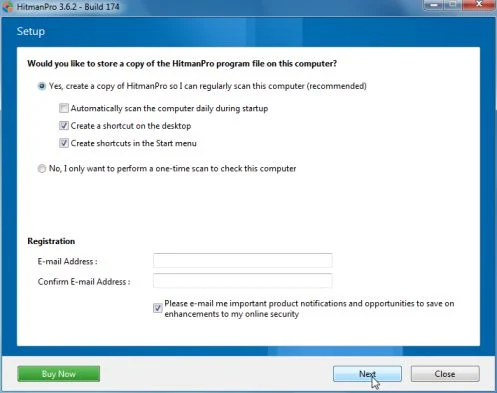
IF you are experiencing problems while trying to start HitmanPro, you can use the Force Breach mode.To start HitmanPro in Force Breach mode, hold down the left CTRL-key when you start HitmanPro and all non-essential processes are terminated, including the malware process. (How to start HitmanPro in Force Breach mode – Video) - HitmanPro will start and you’ll need to follow the prompts (by clicking on the Next button) to start a system scan with this program.
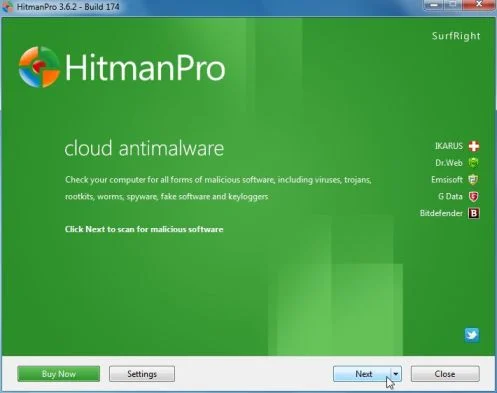
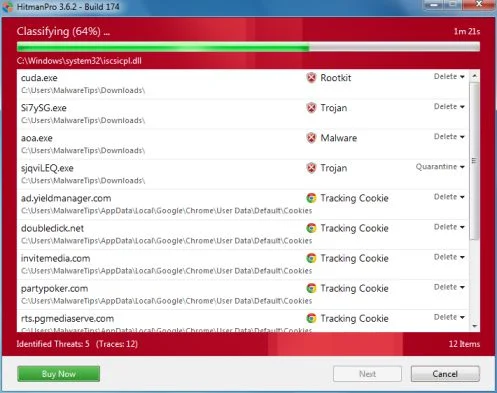
- HitmanPro will start scanning your computer for System Progressive Protection malicious files as seen in the image below.
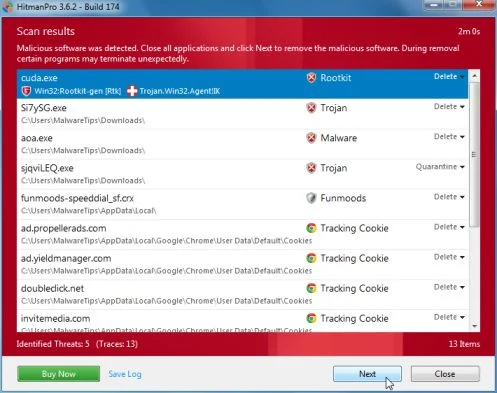
- Once the scan is complete,you’ll see a screen which will display all the infected files that this utility has detected, and you’ll need to click on Next to remove this malicious files.
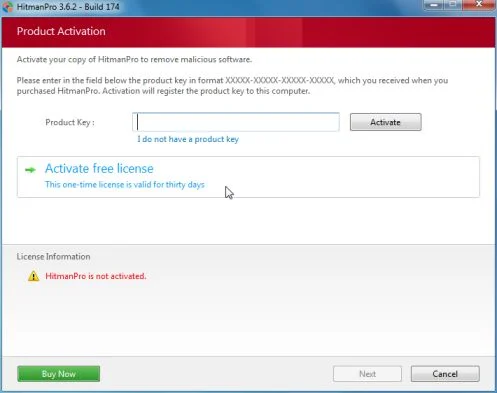
- Click Activate free license to start the free 30 days trial and remove all the malicious files from your computer.
That’s it, System Progressive Protection should be completely removed from your computer!
We strongly recommend that you build up your malware defenses by starting a new thread in Security Configuration Wizard forum and keep installed on your machine all the on-demand scanners that we’ve used in this article to perform regular scans with them.

Join the discussion
250 commentsShare your experience or ask a question about this article.
Your progress
Did these steps help?
Let us know how the guide worked for you.
Describe what you see and the step you reached. Keep passwords and other private information out.
Discussion
Thank you!!!!!!!!
In reply to Straos
It realy works,thank you….
Hi Stelian, I got through all these steps ok until RogueKiller, everytime I run it, during the prescan, my computer always crashes and reboots.
I tried downloading Roguekiller to my computer and running from the icon, but it crashes during prescan, so I then deleted RogueKiller and tried just running it straight from the download link without saving to computer. I disabled my Panda Anti-Virus, but it still does it every time.
Do you know why it might be crashing everytime?
Many thanks or your help, you are amazing!
In reply to Paul Stillwell
Hello Paul,
Can you please run a scan with Combofix, ESET online scanner and post the logs here so that I can get an idea on what’s going on:
STEP 1 : Run a scan with Combofix
Download ComboFix from one of the following locations:
COMBOFIX DOWNLOAD LINK #1 (This link will automatically download Combofix on your computer)
COMBOFIX DOWNLOAD LINK #2 (This link will automatically download Combofix on your computer)
VERY IMPORTANT !!! Save as Combo-Fix.exe during the download.ComboFix must be renamed before you download to your Desktop
Notes:
STEP 2: Run a scan with ESET Online Scanner:
ESET Online Scanner Download Link (This link will automatically download ESET Online Scanner on your computer.)
Waiting for your reply to tell me if your machine is ok and the logs.
In reply to Stelian Pilici
Hi Stelian, many thanks for your help, I had an idea of trying RogueKiller in Safe Mode with Networking and it worked fine!
Is it ok to just do it in Safe Mode or is it important to do it in Normal Mode?
Many thanks again for your briliant help
Paul
In reply to Paul Stillwell
Hello Paul,
If you run it in Safe Mode with Networking and everything is fine,then you don’t need to run this program in Normal Mode.
Stay safe!
The system progressive protection Trojan virus scared me to death, As it was on my lap top with very important files for work. I wasnt able to do anything. Thank you so much for your walk thru and expertise. You really know your stuff. Thanks a million
How do u get the registry fix link in step 2
In reply to jake
Hello Jake,
You just need it to click on the gree text on Step 2… :)
Here is the direct download link: http://malwaretips.com/attachment.php?aid=1000
THIS REALLY WORKS!!!!!! THANK YOU, YOU SAVED ME LOTS OF MONEY
Spot on. Brilliant!
Your a most wonderful genius, thank you sooooo much :)
Big thanks for the help.
This really worked. I was able to do it myself. Thank you so much! My system was not able to restore to an earlier point but thankfully I was able to access the internet in safe mode. Thanks again.
Thanks so much! Keep up with your good work and I appreciate that you put the effort create this blog to help others!
Thank you so much. What a relief!
It helped. Thank you a lot!
Thank you so much. Your instructions were clear and wonderfully illustrated. I was able to follow them precisely and remove this pesky stuff. Much better this way than paying the $180 the local computer repair shop would charge! Your assistance is much appreciated.
Perfectly done! Thank you!
As I am singing jubilee songs, thank you very much
Remove System Progressive Protection
Thank you so, so much…you are AMAZING!!!
Thanks! Followed the steps up to malwarebytes, ran a full scan, rebooted, and that vicious system progressive thing was gone. It had taken over my comp and I thought I was going to have to pay someone to get it out. Thanks so much! This really works!!
Thanks a lot, got infected with System Progressive Protection 3.7.10 Malware, took over security essenttials and shut my exe startup capabilities, including regedit, Thankfully I did a System restore to a pc version 3 days ago and sorted the pop and takeover out, however keys in the registry and embedded files in the system32 folder were still there after restoring my pc, your malware tool, and the rogue killer info really helped. Thank You very much
What a mission but it’s off :)
Thanks so much!!!
it’s really work.
Thank you so much….!