


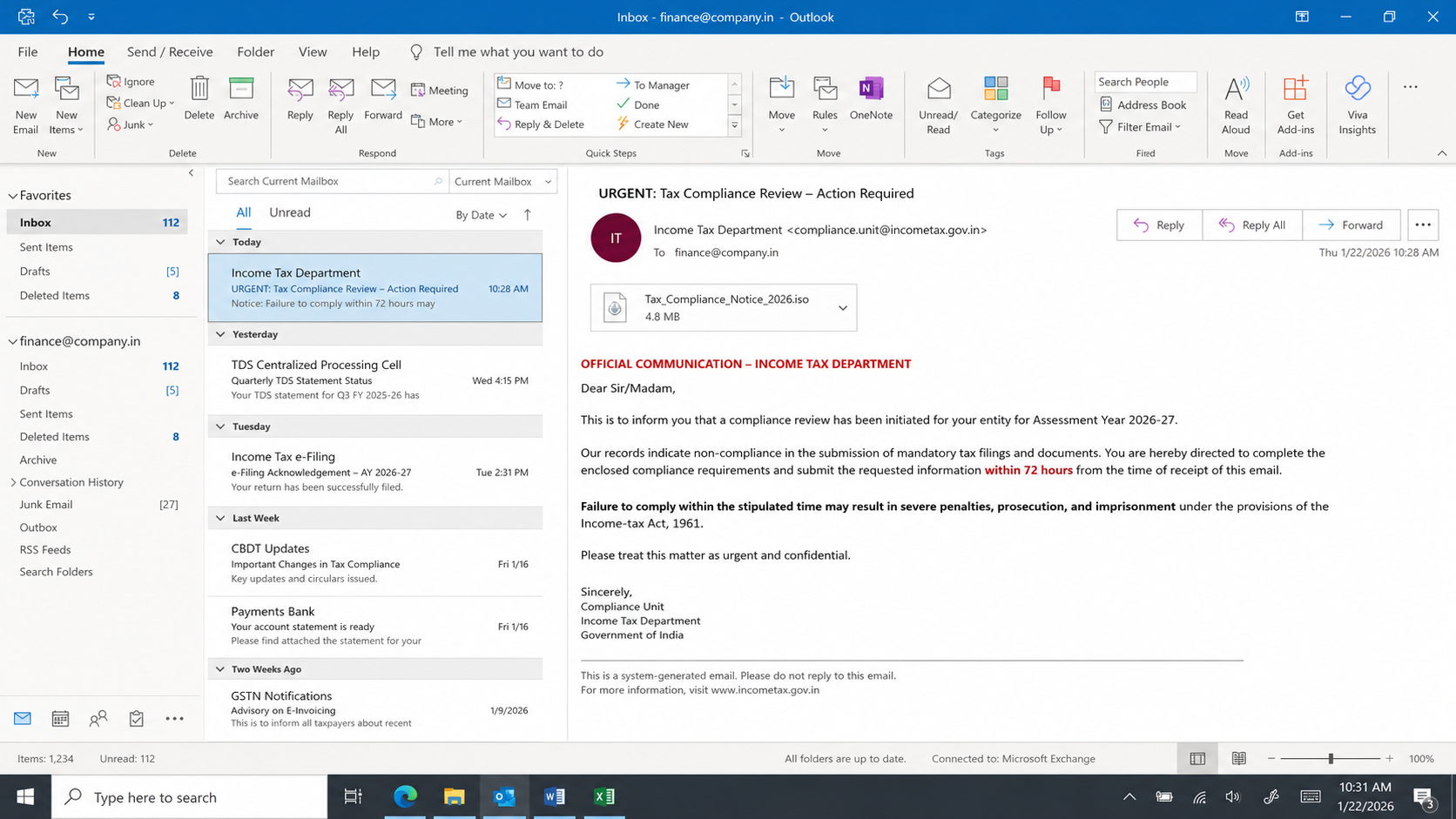
A tax notice lands in the finance inbox with a frightening deadline. It looks official enough to interrupt the workday and demand immediate attention.
The message mixes legal language, familiar government references, and a file that appears essential. Before opening anything, slow down and examine what actually arrived.
Overview
The campaign impersonates tax agencies to frighten organizations
The tax authority penalty email scam targets employees who handle accounting, payroll, compliance, or administrative correspondence.
Investigators observed related messages aimed at organizations in China and India. The language and agency names changed according to the intended audience.
Chinese lures referenced the Shandong Provincial Tax Bureau and a supposed stamp-tax inspection. Indian versions copied Income Tax Department themes and used Hindi.
The Indian email warned that failing to respond within 72 hours could bring financial penalties, prosecution, or imprisonment.
Those consequences are designed to overwhelm ordinary document-handling rules. A worried employee may open the enclosed archive before calling a manager or tax adviser.
The government agencies being imitated are not responsible for these messages. Criminals borrow recognizable names because institutional authority makes urgency feel credible.
The attachment is a delivery package, not a tax document
The dangerous material may arrive inside a ZIP archive or a disk-image file. Its name usually resembles a compliance notice, audit record, or requested response.
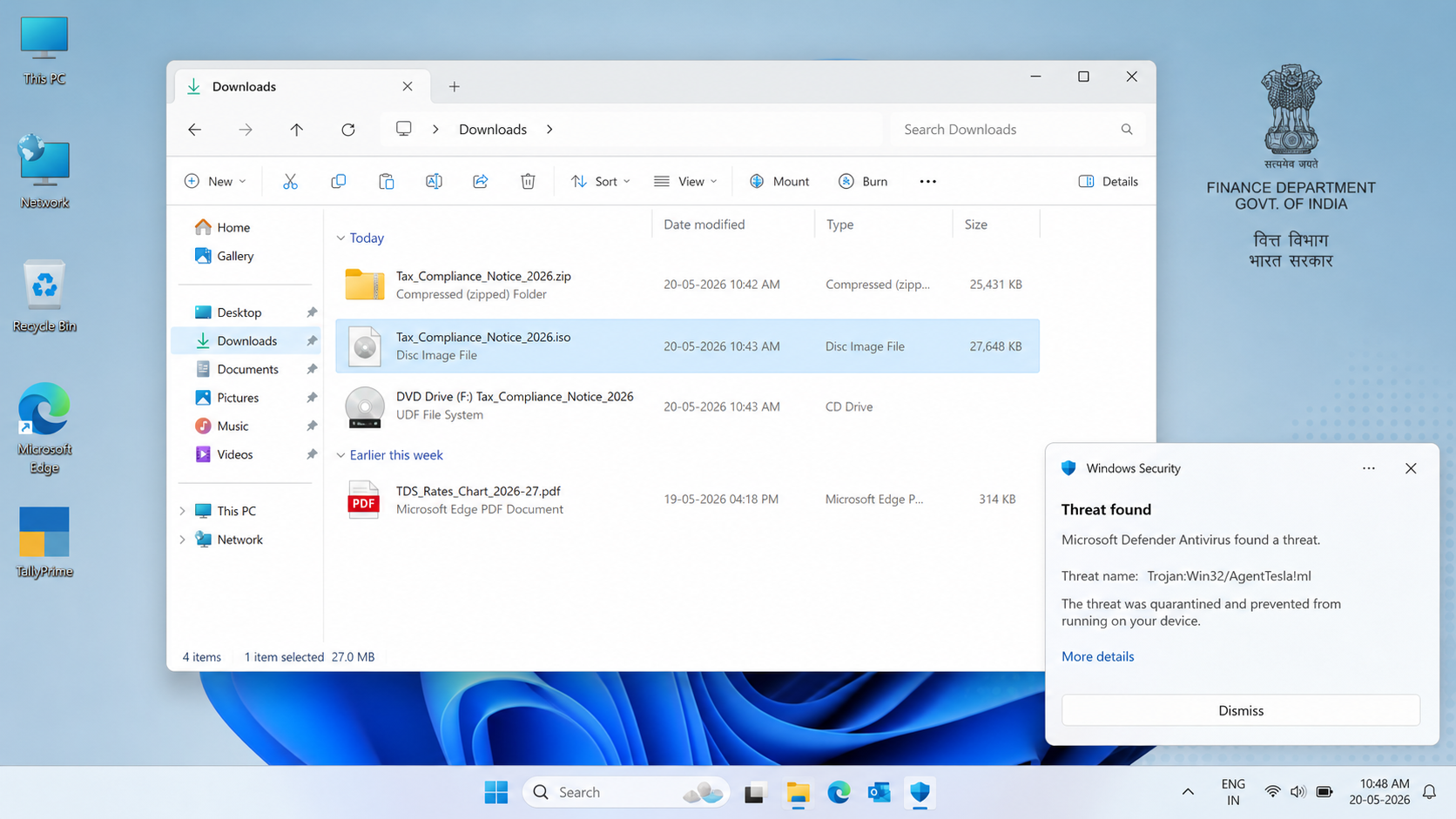
A disk image can appear as a mounted drive after opening. That extra layer helps conceal executable content behind an unfamiliar but official-looking container.
The observed infection uses four stages. Each component retrieves or prepares the next, reducing the information visible to a basic file inspection.
The final payload is PackClient, a remote access trojan marketed through Telegram and associated with a Chinese-speaking threat group tracked as TA4922.
PackClient is not a simple nuisance application. Its command set gives an operator broad control over the compromised computer and information stored there.
The malware can collect screenshots, keystrokes, clipboard contents, files, browser activity, camera footage, and data connected with Telegram Desktop.
A successful infection can expose an entire workplace
A finance workstation often contains invoices, banking instructions, tax identifiers, customer records, and correspondence with executives. That concentration makes one infected endpoint unusually valuable.
PackClient also supports a SOCKS5 proxy and an interactive command shell. Attackers can route traffic through the victim’s network or run additional commands remotely.
The most important warning signs include:
- An unexpected tax review sent only by email.
- Threats of punishment tied to a very short deadline.
- A ZIP, ISO, IMG, or similar container presented as paperwork.
- A sender domain that only resembles a government address.
- Instructions to open a file before contacting the agency.
- Unexpected programs launching after the archive is opened.
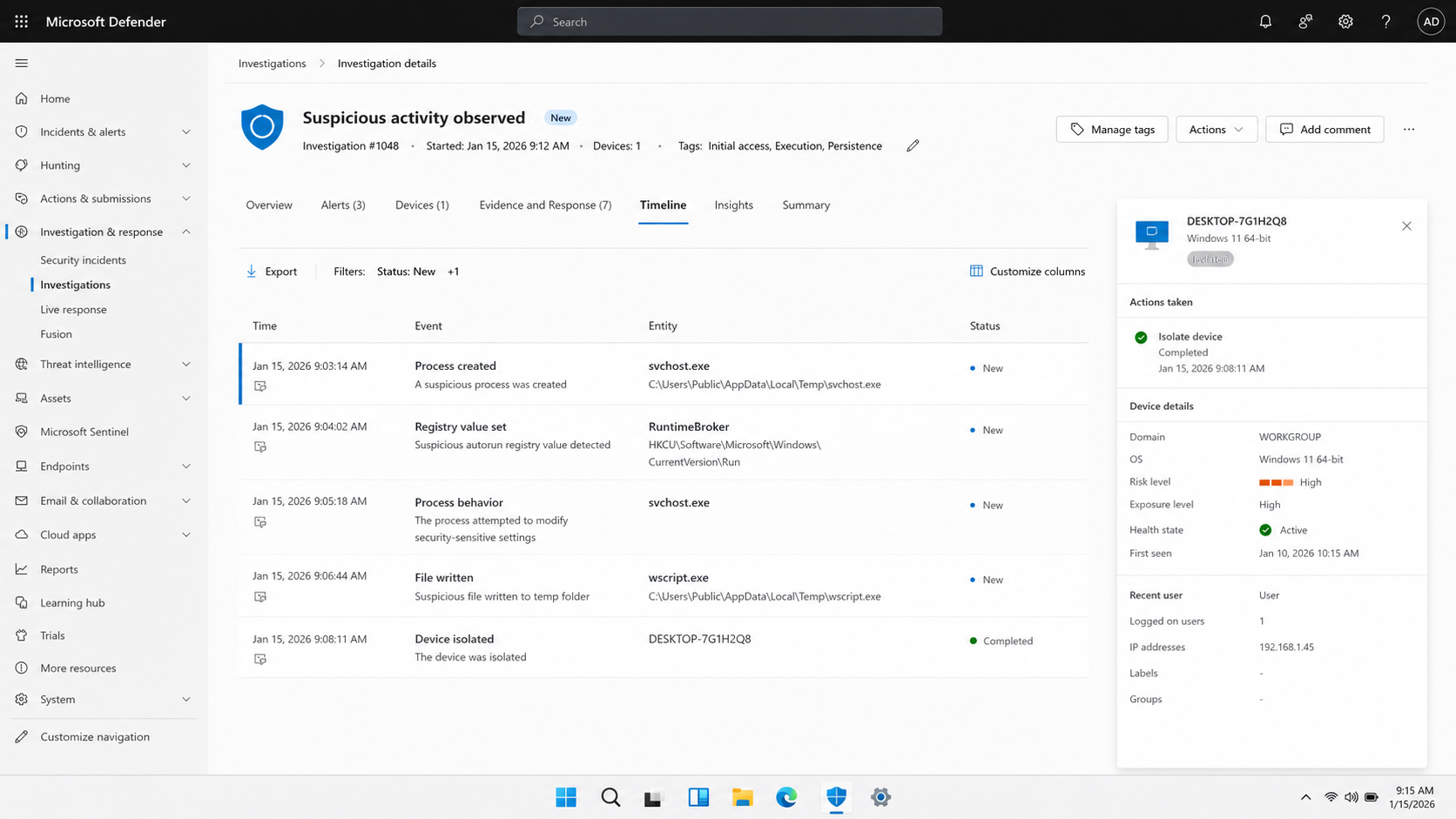
- Security alerts involving temporary folders or autorun entries.
Receipt alone does not infect the computer. The serious risk begins when the attached package is opened and its concealed launcher is allowed to run.
That distinction matters during triage. Someone who only read the message needs different steps from an employee who mounted the image and started a file.
Preserve the email and attachment without reopening them. Security staff can use those artifacts to search for matching activity across other corporate devices.
How The Scam Works
Step 1: Attackers choose staff who expect official paperwork
The campaign begins with business addresses belonging to finance teams, company officers, administrators, or employees whose roles appear in public directories.
Corporate websites, professional profiles, leaked databases, and earlier compromises can reveal who handles tax questions. A precise job title makes the lure more convincing.
The attackers do not need complete internal knowledge. They need only reach someone accustomed to opening formal documents from unfamiliar senders.
Seasonal filing periods create useful cover. Employees already expect unusual forms, revised rules, and questions from external authorities during those windows.
Messages can be localized with regional agency names, languages, tax terminology, and legal references. Localization turns a generic malware delivery into plausible business correspondence.
Some recipients may receive repeated attempts with different subjects. One version might mention compliance, while another describes an inspection or incomplete declaration.
Step 2: The email manufactures legal pressure
The body claims a violation, missing submission, or mandatory review has been recorded against the organization.
Instead of offering a normal verification path, the writer emphasizes fines, prosecution, or imprisonment. Fear becomes the substitute for a verifiable case number.
A 72-hour response window encourages action before the recipient checks official portals. Genuine agencies provide procedures, contacts, appeal rights, and traceable correspondence.
The email may contain polished seals, formal signatures, or copied disclaimers. Those elements are easy to reproduce and do not authenticate the sender.
Display names can say Income Tax Department while the underlying address belongs elsewhere. Always inspect the complete address, including every character after the @ symbol.
Even a convincing address should not settle the question. Compromised mailboxes and deceptive subdomains can survive a quick visual check.
Step 3: A compressed archive hides the first launcher
The supposed notice arrives as a ZIP archive, ISO image, or related container rather than an ordinary PDF.
Containers can bypass simple expectations because Windows may display them like folders or drives. The recipient sees document-like names after opening the outer file.
File extensions may be hidden by default. An item that appears to be a statement can actually be a shortcut, script, or executable launcher.
The operator relies on the employee to complete the initial execution. That may involve double-clicking a file or accepting a warning prompted by Windows.
Password-protected archives offer another advantage to criminals. Email scanners cannot easily examine their contents, while the password appears conveniently inside the message.
No legitimate deadline justifies disabling security controls. Stop if the notice asks you to ignore warnings, enable content, or install a viewer.
Step 4: The first stage checks access and retrieves more components
Once launched, the downloader examines its permission level and prepares the next part of the chain.
The observed sequence obtains an encrypted payload from attacker-controlled infrastructure. Encryption keeps the downloaded material less recognizable during transport and basic inspection.
The first component also establishes persistence through the Windows Registry. Persistence allows malicious code to return after rebooting or signing in again.
A suspicious autorun value may use a familiar name such as RuntimeBroker. The genuine-sounding label is intended to blend with normal Windows activity.
At this point, closing the original document is not enough. The infection has moved beyond the attachment and created a mechanism for continued execution.
Network monitoring may reveal uncommon outbound connections. Endpoint protection might flag scripts, unexpected registry changes, or executables appearing inside temporary locations.
Step 5: A launcher loads PackClient without an obvious installation
The next component, called PackClientLauncher, obtains the core remote access trojan and loads it into memory.
Memory-based loading reduces the number of conventional files left for a user to notice. It can also complicate detection by tools focused on stored executables.
A separate guard component watches the malware. If the core process stops, the guard can relaunch it and preserve attacker access.
The main executable may masquerade as svchost.exe while running from a temporary folder. Legitimate Windows service hosts normally run from trusted system locations.
Another technique involves DLL sideloading. A legitimate program loads a malicious library placed beside it because the search path favors the attacker-controlled copy.
These choices make process names alone unreliable. Investigators must examine paths, parent processes, signatures, loaded modules, and the timeline around the attachment.
Step 6: Plugins turn the computer into a surveillance platform
PackClient supports more than 60 remote commands and can add specialized plugins according to the operator’s goals.
The attacker can browse, upload, download, rename, and delete files. An interactive shell provides another route for running system commands.
Screenshot capture and keylogging reveal sensitive work even when documents are not stored permanently. Clipboard monitoring can expose copied passwords, account numbers, and payment details.
Camera access expands the intrusion into physical surveillance. Telegram Desktop monitoring can disclose conversations and provide additional targets for impersonation.
A SOCKS5 proxy lets criminals relay connections through the infected network. External services may then see the organization’s address instead of the attacker’s location.
Plugins create flexibility. One victim may be used for espionage, another for credential theft, and another as a stepping stone toward more systems.
Step 7: Stolen access supports follow-on fraud and deeper intrusion
Collected credentials may unlock email, cloud storage, accounting platforms, banking portals, or internal dashboards.
Mailbox access is particularly dangerous. Criminals can study real invoices, learn approval routines, and insert fraudulent payment instructions into an existing conversation.
Remote control also enables quiet reconnaissance. The attacker can identify shared drives, backup locations, administrators, and systems reachable from the original workstation.
Some operators maintain access for weeks before using it visibly. Absence of immediate fraud does not mean the infection failed.
Compromised contacts may receive believable tax messages from a trusted account. That turns one successful opening into a new distribution channel.
Containment must therefore cover the device, accounts, network sessions, and business transactions. Removing one file addresses only a small portion of the incident.
What PackClient Can Steal and Control
PackClient combines ordinary information theft with interactive remote administration. The operator can observe activity, search for valuable records, and change tactics without reinstalling malware.
Its breadth makes assumptions dangerous. A victim cannot safely conclude that only the tax document or one browser session was exposed.
Potentially affected information includes email credentials, saved passwords, copied data, financial documents, customer files, chat history, and anything entered while keylogging remained active.
Webcam capability does not prove the camera was used. It does mean investigators should review permissions, indicators, and the period when the computer was compromised.
The proxy feature also changes how incident scope is understood. Connections made through the device could affect external accounts without leaving an obvious application window.
Organizations should identify every account used from that endpoint. Password changes belong on a clean device after containment, not on the suspected computer.
Sender, Tax Notice, Attachment, and Device Checks
Examine the sender beyond the visible agency name
Expand the From field and compare the complete domain with the authority’s official website. Similar spelling and government words inside a longer domain prove nothing.
Review Reply-To separately because it can point somewhere different. Security teams should preserve headers containing routing, authentication, and originating-server information.
Do not reply for confirmation. Find the agency’s telephone number independently and ask about the alleged case through an established channel.
Validate the notice through official records
Search the organization’s legitimate tax portal for the case, deadline, or assessment reference. A real enforcement action should exist beyond one unsolicited attachment.
Ask internal finance leadership and the company’s tax adviser whether they expected contact. Scammers often rely on one employee acting before colleagues become involved.
Check whether names, dates, tax periods, and legal citations fit the organization. Vague threats and missing identifiers strongly weaken the message.
Treat archive formats as executable delivery mechanisms
A compliance record normally does not require a disk image, shortcut, installer, or script. Do not mount the file merely to see what it contains.
Submit the artifact to authorized security staff using the company’s approved process. Never upload confidential corporate documents to a public scanner without permission.
Enable visible file extensions and inspect properties from a safe environment. A misleading icon cannot change the file’s actual type.
Look for activity that outlived the email
Review endpoint alerts, process creation, registry autoruns, scheduled tasks, outbound connections, and new files under temporary directories.
A process named svchost.exe deserves scrutiny when its path is outside Windows system folders. Familiar labels frequently conceal abnormal locations.
Check adjacent workstations and mailboxes for matching subjects, attachment hashes, sender infrastructure, or network destinations. The campaign may have reached multiple employees.
What to Do if You Have Fallen Victim to This Scam
- Disconnect the affected computer. Unplug Ethernet and disable Wi-Fi without continuing to browse. Isolation limits remote commands, data theft, and movement toward other devices.
- Notify the security team immediately. Provide the email, attachment name, actions taken, and approximate time. Do not erase evidence or attempt an improvised cleanup.
- Run trusted security scans. From approved recovery procedures, update protection and scan with Malwarebytes. Corporate endpoints may require reimaging before they can be trusted again.
- Change exposed credentials safely. Use a separate clean device, begin with email and administrator accounts, then rotate banking, cloud, tax, and messaging passwords.
- Revoke active sessions and strengthen sign-ins. Sign out all sessions, remove unknown devices, reset recovery methods, and enable multifactor authentication wherever available.
- Review money and communications. Warn accounts-payable staff, inspect changed vendor instructions, confirm recent transfers, and alert banks about suspicious payment requests.
- Block follow-up infrastructure. Report the sender and domains internally. AdGuard can help block known malicious destinations, but it cannot replace endpoint remediation.
- Contact authorities and affected partners. Follow local breach-reporting rules, preserve a timeline, and notify customers or vendors if investigation confirms their data was exposed.
Is Your Device Infected? Run a Free Malware Scan
Slow performance, constant pop-ups, or strange behavior? These are classic signs of a malware infection. A quick way to check is to scan your device with Malwarebytes Free, one of the most trusted malware removal tools available. If you only visited a scam page and didn’t download or install anything, this scan is optional.
The free version detects and removes the most common threats, including:
- Adware — the cause of those annoying pop-ups
- Browser hijackers — unwanted redirects and changed homepages
- Trojans and spyware — hidden programs stealing your data
- Potentially unwanted programs (PUPs) — software you never asked for
👉 Select your device below — Windows, Mac, or Android — then follow the simple steps to download Malwarebytes, scan your system, and remove any threats it finds. The scan usually takes 5 to 20 minutes.
Run a Malware Scan with Malwarebytes for Windows
Malwarebytes is one of the most popular and trusted anti-malware tools for Windows — and it’s completely free for removing infections. It catches threats that many antivirus programs miss, including adware, browser hijackers, and trojans. Follow the steps below to scan your PC and remove what Malwarebytes finds.
Download Malwarebytes
Click the button below to download the latest version of Malwarebytes for Windows from the official source. The free version is all you need — it will scan your computer and remove adware, browser hijackers, and other malicious software at no cost.
Download MalwarebytesOfficial installer for Windows 11 and 10. Your download starts right away.Want real-time protection? See Malwarebytes Premium Malwarebytes Free for WindowsScans and removes malware at no cost
-
Install Malwarebytes
When the download finishes, open your Downloads folder and double-click the MBSetup file. If Windows shows a User Account Control pop-up, click “Yes” to allow the installation.

Follow the On-Screen Prompts to Install Malwarebytes
The setup wizard will walk you through a few quick screens:
-
Choose where you’re installing the program — “Personal Computer” or “Work Computer” — then click Next.

-
Malwarebytes will now install on your device. This usually takes under a minute.

-
When installation is complete, the “Welcome to Malwarebytes” screen will open automatically.

-
On the final screen, click Open Malwarebytes to launch the program.

-
Optional: Check for rootkits with a Custom Scan
You don’t need to change any settings for a normal scan. The standard Threat Scan in the next step is enough for most problems, so you can go straight to it.
If you also want to check for rootkits, use a Custom Scan. In current versions of Malwarebytes, rootkit scanning is only available there:
- On the Scanner tile, click the three-dot menu and select Advanced Scan.
- Choose Custom Scan. In its options, check Scan for rootkits.
- Select your system drive (usually C:\) as the location to scan, then start the scan. It takes longer than a Threat Scan.
- When it finishes, review and quarantine the results as described in the steps below.
Rootkit scanning isn’t available on Windows devices with ARM processors.
Start the Scan
Click the blue Scan button. Malwarebytes will automatically update its virus database and start checking your computer for malware.

-
Wait for the Scan to Finish
The scan checks your entire system for browser hijackers and other malicious programs, so it can take 5 to 20 minutes depending on your computer. Feel free to do something else — just check back occasionally to see the progress.

-
Quarantine the Detected Threats
When the scan is done, you’ll see a list of everything Malwarebytes found — malware, adware, and potentially unwanted programs. Click the “Quarantine” button to remove all of them at once.

Malwarebytes will now remove the malicious files and registry entries and move them safely into quarantine.

-
Restart Your Computer
Some threats can only be fully removed after a reboot. If Malwarebytes asks you to restart, click Yes. Once you’re logged back in, Malwarebytes has finished removing the threats it found.

When the scan is done, check whether the problems you noticed have stopped. If they continue, see the options below.
If you are still having problems with your computer after completing these instructions, then please follow one of the steps:
- Run a computer scan with ESET Online Scanner
- Ask for help in our Windows Malware Removal Help & Support forum.
Run a Malware Scan with Malwarebytes for Mac
Malwarebytes for Mac is a free on-demand scanner that removes the malware other security software tends to miss — adware, browser hijackers, and unwanted programs included. Cleaning an infected Mac with Malwarebytes has always been completely free, and it’s our go-to recommendation. Follow the steps below to scan your Mac and remove what Malwarebytes finds.
-
Download Malwarebytes for Mac
Click the button below to download the latest version of Malwarebytes for Mac.
Download MalwarebytesOfficial installer for macOS. Your download starts right away.Want real-time protection? See Malwarebytes PremiumMalwarebytes Free for MacScans and removes malware at no cost -
Open the Malwarebytes setup file
When the download finishes, open your Downloads folder and double-click the setup file to begin the installation.

-
Follow the On-Screen Prompts to Install Malwarebytes
The Malwarebytes for Mac Installer will guide you through a few quick screens. Click “Continue” and keep following the prompts until the installation completes.



When the installation is complete, Malwarebytes opens to the Welcome to Malwarebytes screen. Click “Get started“.
Malwarebytes needs Full Disk Access to check your whole Mac. When it asks, open System Settings > Privacy & Security > Full Disk Access, turn on Malwarebytes (it may be listed as Malwarebytes Protection), and confirm with your password or Touch ID. Then return to Malwarebytes. On macOS Monterey and earlier, this setting is in System Preferences > Security & Privacy > Privacy.
-
Select “Personal Computer” or “Work Computer”
Malwarebytes will ask what type of computer you’re installing it on. Click either Personal Computer or Work Computer, whichever applies.

-
Start the Scan
Click the “Scan” button. Malwarebytes will automatically update its detection database and begin checking your Mac for malware.

-
Wait for the Scan to Finish
Malwarebytes will scan your Mac for adware, browser hijackers, and other malicious programs. This can take a few minutes, so feel free to do something else — just check back occasionally to see the progress.

-
Quarantine the Detected Threats
When the scan is done, you’ll see a list of everything Malwarebytes found. Click the “Quarantine” button to remove all the threats at once.

-
Restart Your Mac
Malwarebytes will now remove all the malicious files it found. Some threats can only be fully removed after a reboot — if Malwarebytes asks you to restart, allow it. Once you’re logged back in, check whether the problems you noticed have stopped. If they come back, save the scan report and ask for help in our forum.

If the problems you noticed continue after the scan, see the options below.
If you are still experiencing problems while trying to remove a malicious program from your computer, please ask for help in our Mac Malware Removal Help & Support forum.
Run a Malware Scan with Malwarebytes for Android
Malwarebytes for Android scans your phone or tablet for malware, adware, and potentially unwanted apps. The free version scans only when you start a scan. Real-time protection, which checks apps automatically, is part of the paid Premium version.
-
Download Malwarebytes for Android.
You can download Malwarebytes for Android by clicking the link below.
Get Malwarebytes for AndroidOpens Google Play in a new tab.Want real-time protection? See Malwarebytes Premium for AndroidMalwarebytes for AndroidScans your phone and removes malware at no cost -
Install Malwarebytes for Android on your phone.
In the Google Play Store, tap “Install” to install Malwarebytes for Android on your device.

When the installation process has finished, tap “Open” to begin using Malwarebytes for Android. You can also open Malwarebytes by tapping on its icon in your phone menu or home screen.

-
Follow the on-screen prompts to complete the setup process
When Malwarebytes opens, it walks you through a short setup. Tap Get started and follow the prompts. If you see an offer for a trial or a paid plan, read it before you accept. You can skip it and keep using the free scanner.
Malwarebytes will ask for permission to access the files on your phone so it can scan them. Tap Allow, or turn on the permission in the Android screen that opens, then return to Malwarebytes.
-
Run a scan with Malwarebytes for Android
On the main screen, tap Scan now. In some versions, you open the menu, tap Scanner, and then tap Run a scan.
-
Wait for the Malwarebytes scan to complete.
Malwarebytes will now start scanning your phone for adware and other malicious apps. This process can take a few minutes, so we suggest you do something else and periodically check on the status of the scan to see when it is finished.

-
Remove the detected apps.
When the scan has been completed, you will see a list of the threats that Malwarebytes for Android has detected. Next to each detected item, tap the menu icon (three dots), then choose to uninstall the app or delete the file. Android then asks you to confirm. Tap OK or Uninstall to remove the app.
-
Restart your phone.
When the detected apps are removed, restart your phone if Malwarebytes asks you to. Then check whether the problems you noticed have stopped.
If the problems you noticed continue after the scan, see the options below.
If you are still having problems with your phone after completing these instructions, then please follow one of the steps:
- Ask for help in our Mobile Malware Removal Help & Support forum.
- Only as a last resort, reset your phone to factory settings. Read the warning below first.
- Back up your photos, videos, files, and messages, for example to your Google account or a computer.
- Make sure you know your Google account email and password. The phone asks for them after the reset. If you changed the password recently, Google recommends waiting 24 hours before you reset.
- On a Samsung phone, also make sure you know your Samsung account password.
- If you use an authenticator app for two-step verification, move your accounts to another device or save your backup codes first.
Stay Protected: Block Ads and Malicious Sites
No scan can prove a device is completely clean, so it helps to block threats before they reach you. Most infections start with a malicious ad or a fake download button — so blocking them at the source is your best defense.
We recommend AdGuard, which blocks malicious ads, phishing pages, and dangerous redirects before they can reach you.
👉 Download AdGuard and browse safely
Recovery should be coordinated, not rushed. A remote access trojan can leave persistence and stolen sessions behind even after the visible launcher disappears.
For business systems, a clean rebuild is often safer than trusting manual removal. Preserve forensic evidence before reimaging when legal or regulatory duties may apply.
Frequently Asked Questions
Is every unexpected tax email a scam?
No. Authorities use electronic communication in many regions, but important notices should be verifiable through official portals, published telephone numbers, and traceable case references.
Can simply reading the message install PackClient?
Usually not. The observed chain requires interaction with the enclosed package. Risk changes if a file was opened, mounted, or executed.
Why would criminals use an ISO file?
A disk image can conceal several files, appear as a mounted drive, and encourage users to launch content that looks like ordinary paperwork.
Does a government logo prove the notice is genuine?
No. Logos, seals, signatures, and disclaimers are public images or text. Authentication depends on domains, headers, official records, and independent confirmation.
Should I change passwords on the infected computer?
No. Use a clean device after isolating the suspect endpoint. Otherwise, keylogging or remote observation could capture the replacement passwords.
Can antivirus removal guarantee no information was stolen?
No. Removal stops detected components, but it cannot reverse earlier collection. Account, financial, and network reviews remain necessary after cleanup.
The Bottom Line
The tax authority penalty email turns official pressure into a pathway for PackClient. Its deadline and legal threats are meant to defeat careful verification.
Never open an unexpected tax archive because the wording sounds urgent. Confirm the case independently, preserve the message, and involve security professionals after any interaction.

Join the discussion
0 commentsShare your experience or ask a question about this article.
Discussion
Start the conversation
Have a question or something useful to share? Add the first comment.