


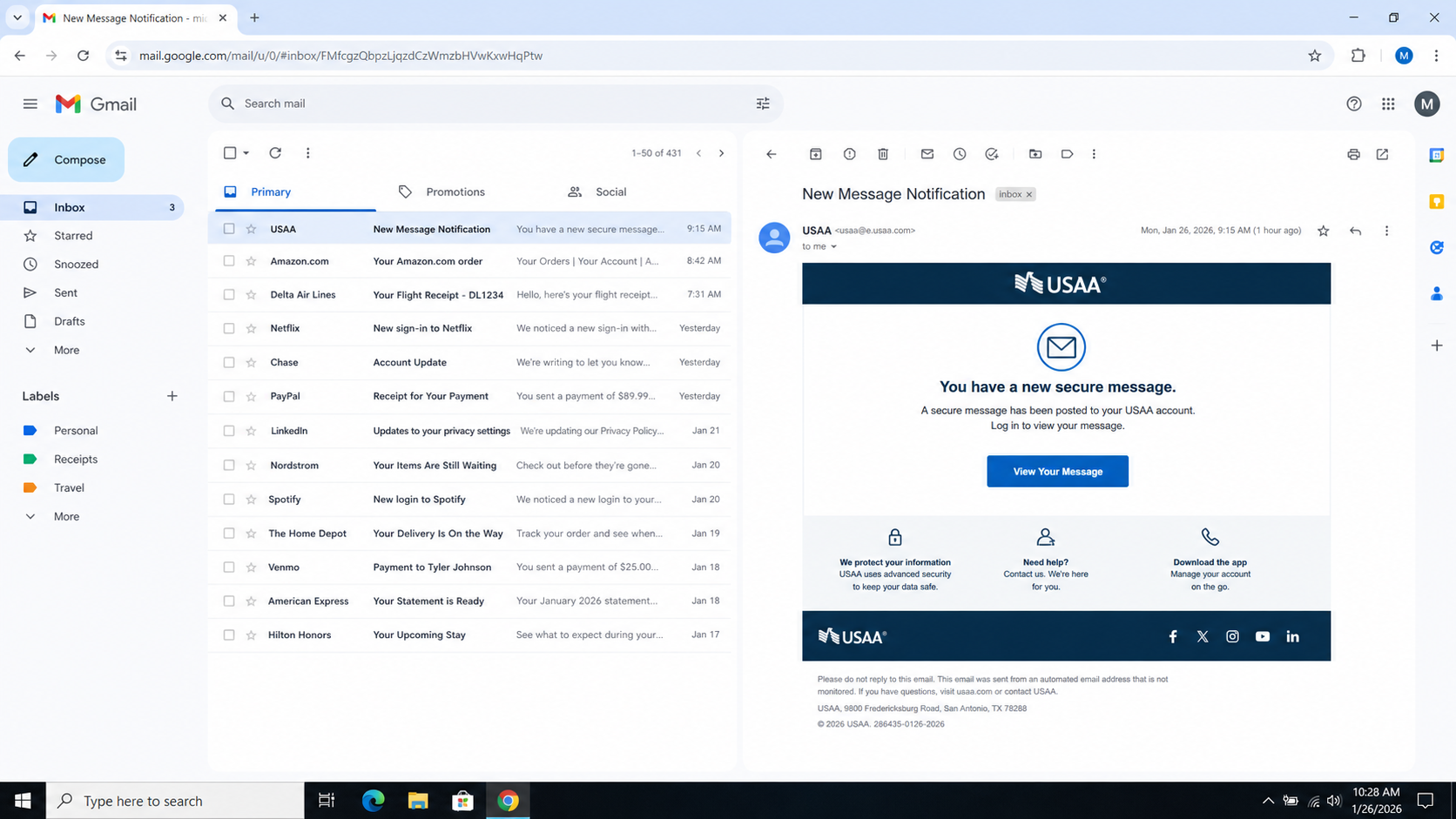
A familiar bank name appears beside the subject “New Message Notification.” The email says something important is waiting inside a protected communication center.
The button looks like the quickest way to learn what happened. A few quiet details, however, deserve attention before the account is opened.
Overview
The email copies the routine shape of a banking alert
The USAA New Secure Message email scam impersonates the financial services company and claims a new message was posted to the recipient’s account.
Its subject may read “New Message Notification,” while the body uses headings such as “USAA SECURITY ZONE” to create a protected, official atmosphere.
A blue “View Your Message” button promises direct access. That ordinary wording is effective because real banks also notify customers about secure correspondence.
The lure avoids explaining the message’s subject. Curiosity, concern about an account, and fear of missing an urgent request encourage the click.
USAA is a legitimate organization and has no connection with the fraudulent campaign. Its branding is being copied without authorization.
The analyzed email even repeated a genuine-sounding warning that USAA would not request sensitive information by email. Scammers use accurate advice to make surrounding deception believable.
The button leaves USAA and opens an unrelated domain
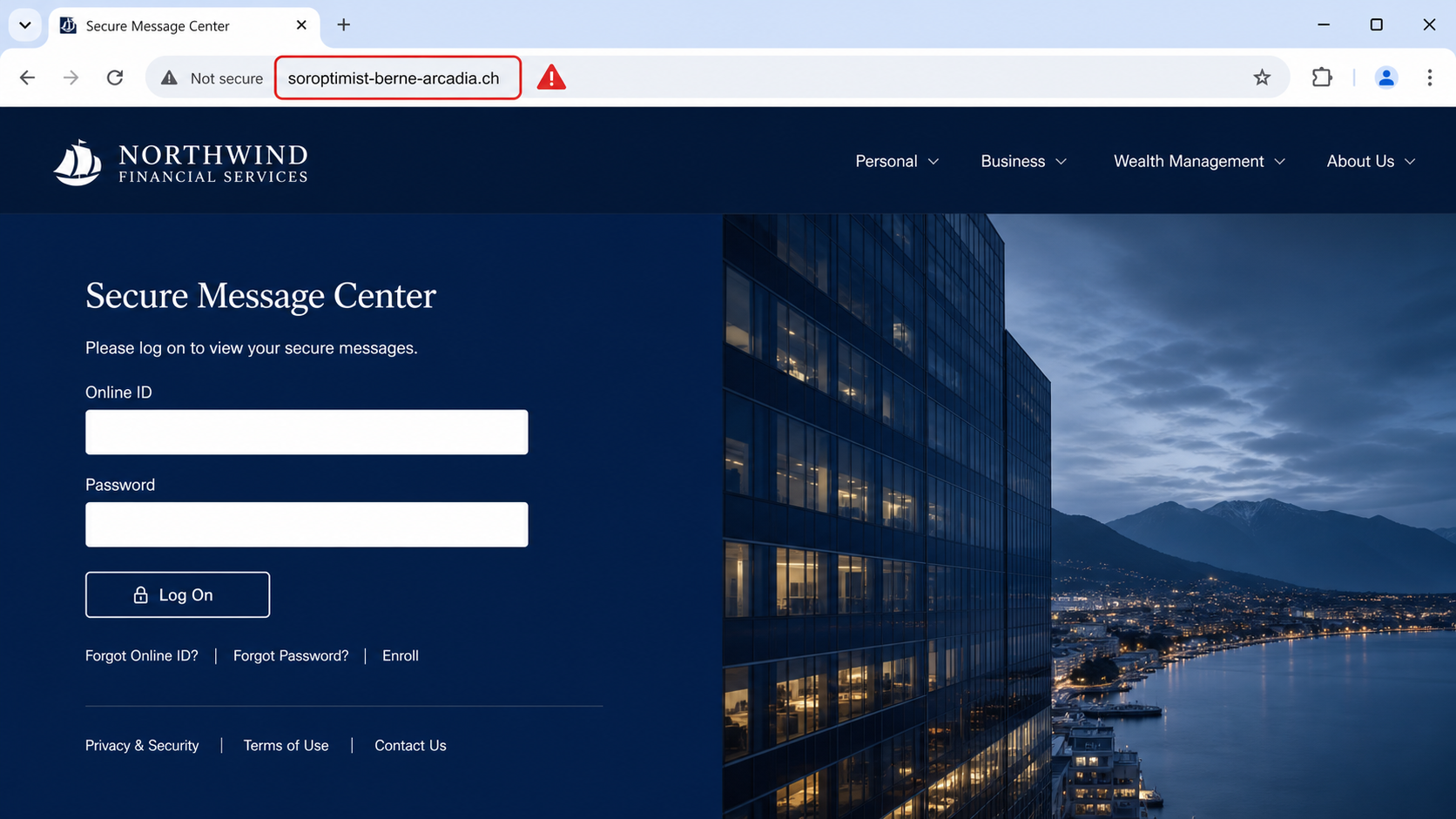
The link did not lead to usaa.com. It opened a phishing page hosted at soroptimist-berne-arcadia[.]ch.
That domain mismatch is decisive. A polished logo, matching colors, and familiar sign-in fields cannot transform an unrelated address into a bank website.
The counterfeit page asks for USAA account credentials. Anything submitted goes to the phishing operators rather than the genuine institution.
A victim may see a loading message or harmless error after entering information. That transition helps hide the collection and suggests a temporary portal problem.
The operator can test the captured details quickly. Banking accounts are valuable because they may expose money, personal records, cards, messages, and linked services.
If the password was reused, the danger extends beyond USAA. Criminals commonly try successful combinations against email, shopping, social, and financial accounts.
The message relies on recognition, not verifiable context
Important warning signs include:
- A vague secure message with no identifiable subject.
- A sender address that does not match official USAA mail.
- A button whose destination differs from usaa.com.
- A login page hosted on a foreign or unrelated domain.
- Pressure to use the email link instead of the mobile app.
- A request for credentials immediately after clicking.
- No matching message inside the independently opened account.
The safest check takes the email out of the process. Open the known USAA app or type usaa.com directly into a new browser window.
Once signed in independently, review the secure inbox. A genuine notification should correspond with an actual message inside the authenticated account.
Do not use telephone numbers printed in a suspicious email. Contact USAA through the number on your card, statement, app, or official website.
Reading the email alone does not reveal a password. The central risk is entering information on the destination page or approving follow-up authentication requests.
How The Scam Works
Step 1: Criminals assemble a banking-themed mailing list
Phishing operators gather addresses from breaches, marketing databases, scraped pages, prior campaigns, or compromised contact lists.
They do not need to know that every recipient uses USAA. Sending a credible alert widely can still reach enough real members to produce victims.
Additional details improve targeting. A name, military connection, location, or earlier financial reference can make the email feel intentionally delivered.
Some campaigns prioritize active addresses confirmed through earlier tracking or replies. An address that regularly opens mail becomes more valuable for repeated attempts.
The sender infrastructure can change quickly. Blocking one mailbox helps, but another address may deliver the same design hours later.
Recipients should judge the requested action, not the sender’s display name. “USAA” in an inbox column is text that anyone can type.
Step 2: A vague secure message creates concern
The email says confidential information awaits inside the account but avoids stating whether it concerns a card, payment, document, or security event.
That ambiguity encourages personal interpretation. Someone expecting a claim update imagines that, while another recipient worries about fraud or a missed payment.
Secure-message language also explains why details are absent. The scam turns secrecy into a reason to click rather than a reason to verify.
Logos, navy colors, footer links, and security statements reproduce the visual rhythm of institutional mail. None independently proves who sent it.
A real-looking postal address may appear at the bottom because public corporate information is easy to copy.
The recipient is steered toward one prominent button. Alternative paths, such as opening the official app, are intentionally not emphasized.
Step 3: The button conceals the actual destination
Button text can say “View Your Message” while the embedded hyperlink points anywhere selected by the sender.
On a computer, hovering over the button may reveal the destination. On mobile, holding the link can display a preview without opening it.
The observed address, soroptimist-berne-arcadia[.]ch, bears no relationship to usaa.com. That fact outweighs every copied graphic on the page.
Phishers use compromised websites, disposable hosts, redirection services, and newly registered domains. A valid padlock only shows encryption, not ownership by USAA.
Some links include the recipient’s email address or a tracking identifier. Those values can prefill the next page and report who clicked.
Never follow a suspicious link merely to investigate. Security teams can examine it safely without exposing a personal browser session.
Step 4: A counterfeit portal requests banking credentials
The landing page resembles a secure financial sign-in and presents fields for an Online ID and password.
Careful spacing, professional photography, and working navigation links can reduce suspicion. The criminals may copy public resources directly from legitimate websites.
The domain remains the strongest visible clue. Browser content is controlled by whoever operates that domain, regardless of the logo shown beneath the address bar.
Submitted credentials are sent to the phishing operator. The page may then request a PIN, security answer, one-time code, or card information.
A second screen can be especially persuasive because multi-step login resembles genuine banking security. Each additional prompt collects another barrier to account access.
Do not approve a push notification generated after an unexpected login. The request may be the criminal attempting to use the password in real time.
Step 5: The victim is redirected to reduce suspicion
After collection, the fake portal may display an error, claim maintenance, or transfer the browser to the genuine USAA website.
Arriving at the real site can make the earlier page seem legitimate. The victim may assume the password was mistyped or the secure message expired.
This handoff does not undo what was submitted. The information left the victim’s control when the counterfeit form was sent.
A fake loading spinner provides time for automated delivery to the operator. It also discourages the user from examining the address closely.
If the login fails afterward, the person may retry. Repeated entries give criminals current variations and greater confidence about the correct credential.
Anyone noticing the wrong domain should stop immediately. Close the page, preserve the email, and begin account checks through an independently opened session.
Step 6: Stolen credentials are tested against the real account
The operator can attempt a genuine USAA login while the victim remains on the false page.
If additional verification is triggered, the phishing site may ask for the current code or instruct the victim to approve a notification.
Successful access can expose statements, contact information, account numbers, card details, claims, and secure messages useful for identity theft.
Criminals may change the registered email, telephone number, or password. Altered recovery methods can lock the rightful owner out later.
Mailboxes are also targeted because they receive security alerts and reset links. A reused password can let the attacker suppress warnings before financial abuse begins.
Speed matters after submission. Calling the institution quickly gives fraud teams more opportunity to block sessions and protect linked products.
Step 7: Access is converted into fraud or resale
Compromised banking accounts may support unauthorized transfers, card purchases, person-to-person payments, or changes to legitimate payees.
Identity data can assist account openings elsewhere. Statements and profile records often contain details useful for impersonation and credit fraud.
Some operators sell working credentials instead of using them directly. A different criminal may access the account days after the original phishing event.
Contacts can receive more convincing messages if the associated email is breached. The victim’s name and genuine correspondence provide context for secondary scams.
Repeated password use multiplies the damage. Automated credential stuffing may test the same combination against many popular services.
Ongoing monitoring remains important after recovery. New cards and passwords help, but identity information already copied cannot simply be changed.
What Could Happen After Your Login Is Submitted
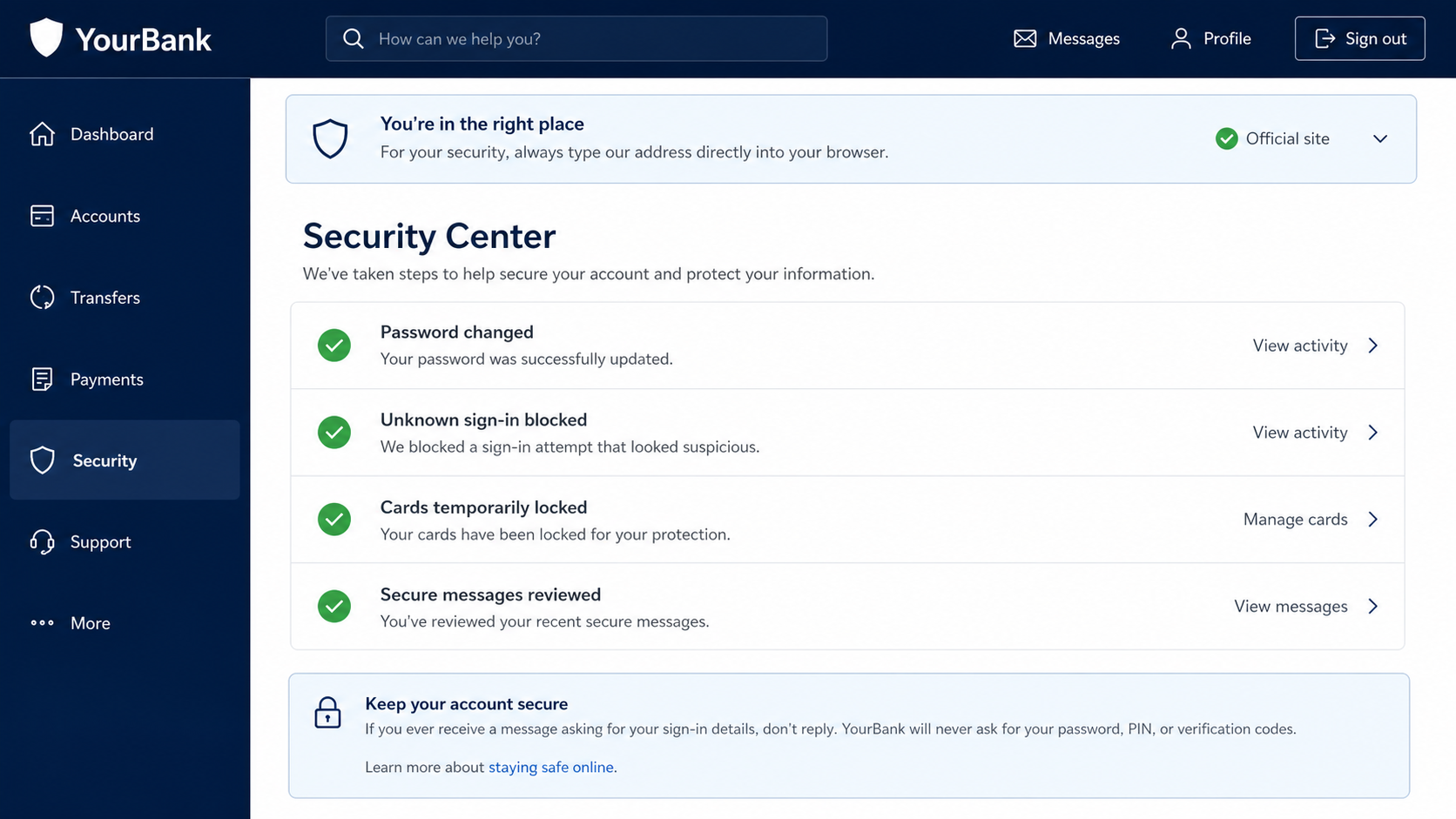
A stolen password does not guarantee the criminal entered the account. Strong multifactor authentication, risk controls, and rapid reporting can interrupt the attempt.
Still, victims should respond as though the details were immediately available. Phishing pages can transmit each field as it is entered.
An unexpected verification code suggests someone may be testing the credential. Never share that code with a caller, email sender, or website reached through the lure.
Watch for changes to contact information, new devices, card locks, transfer recipients, or secure-message activity. Small profile adjustments may prepare later theft.
Email security deserves equal attention when the same password was used there. Review forwarding rules, filters, recovery settings, and connected applications.
USAA members should follow the institution’s current fraud instructions through official channels. Explain that credentials were entered into a counterfeit page and provide the approximate time.
Sender, Message, Domain, and Account Checks
Read the complete sender and authentication details
Expand the sender field instead of trusting “USAA.” Compare its domain with addresses documented by the institution, but remember that display information can be forged.
Advanced users or support teams can review SPF, DKIM, DMARC, Reply-To, and routing headers. A failure adds evidence, although passing authentication does not validate the message’s claim.
Forward suspected mail through the bank’s published reporting channel when available. Do not reply to the person who sent it.
Look for the missing message context
Ask what the alert actually identifies. A subject, last four digits, case reference, or matching app notification should provide independently checkable context.
Open the USAA app without touching the email. If the secure inbox contains nothing corresponding to the alert, treat the discrepancy as significant.
Grammar alone is not a reliable test. Modern phishing can be polished, while legitimate automated mail occasionally contains awkward wording.
Judge the browser address, not the page design
The registered domain must be usaa.com for a genuine USAA web session. Words placed before or after that domain can belong to an attacker.
HTTPS does not certify that a page represents a bank. It only encrypts traffic between the browser and whoever controls the displayed domain.
Close any page on soroptimist-berne-arcadia[.]ch or another unrelated address. Do not test the form with fake information from a normal device.
Review the account from a clean, direct session
Check recent logins, messages, profile changes, cards, transfers, payees, and alerts. Record anything unfamiliar before removing it.
Confirm that telephone numbers, email addresses, and recovery options still belong to you. Attackers change these settings to preserve access.
Contact the fraud department using the card, official app, or typed website. State exactly what information was entered and whether any code was approved.
What to Do if You Have Fallen Victim to This Scam
- Call USAA through a verified number. Explain that credentials were submitted to a phishing page. Ask for session termination, account protection, and transaction review.
- Change the password from a trusted device. Choose a new, unique value. Update any other account where the exposed password was reused.
- Secure multifactor authentication. Remove unknown devices, regenerate recovery codes, verify contact methods, and reject every approval you did not initiate.
- Protect linked finances. Lock affected cards, examine transfers and payees, and follow the bank’s instructions for replacing compromised products.
- Harden the associated mailbox. Reset its password, sign out other sessions, delete unauthorized forwarding rules, and inspect recovery details.
- Scan the device if anything was downloaded. Run Malwarebytes and remove suspicious extensions or files. Credential phishing alone may not install software.
- Report and block the lure. Mark the email as phishing. AdGuard can stop some known deceptive domains, but direct account verification remains essential.
- Watch for identity misuse. Review statements and credit reports, retain incident records, and respond quickly to unfamiliar accounts or verification notices.
Is Your Device Infected? Run a Free Malware Scan
Slow performance, constant pop-ups, or strange behavior? These are classic signs of a malware infection. A quick way to check is to scan your device with Malwarebytes Free, one of the most trusted malware removal tools available. If you only visited a scam page and didn’t download or install anything, this scan is optional.
The free version detects and removes the most common threats, including:
- Adware — the cause of those annoying pop-ups
- Browser hijackers — unwanted redirects and changed homepages
- Trojans and spyware — hidden programs stealing your data
- Potentially unwanted programs (PUPs) — software you never asked for
👉 Select your device below — Windows, Mac, or Android — then follow the simple steps to download Malwarebytes, scan your system, and remove any threats it finds. The scan usually takes 5 to 20 minutes.
Run a Malware Scan with Malwarebytes for Windows
Malwarebytes is one of the most popular and trusted anti-malware tools for Windows — and it’s completely free for removing infections. It catches threats that many antivirus programs miss, including adware, browser hijackers, and trojans. Follow the steps below to scan your PC and remove what Malwarebytes finds.
Download Malwarebytes
Click the button below to download the latest version of Malwarebytes for Windows from the official source. The free version is all you need — it will scan your computer and remove adware, browser hijackers, and other malicious software at no cost.
Download MalwarebytesOfficial installer for Windows 11 and 10. Your download starts right away.Want real-time protection? See Malwarebytes Premium Malwarebytes Free for WindowsScans and removes malware at no cost
-
Install Malwarebytes
When the download finishes, open your Downloads folder and double-click the MBSetup file. If Windows shows a User Account Control pop-up, click “Yes” to allow the installation.

Follow the On-Screen Prompts to Install Malwarebytes
The setup wizard will walk you through a few quick screens:
-
Choose where you’re installing the program — “Personal Computer” or “Work Computer” — then click Next.

-
Malwarebytes will now install on your device. This usually takes under a minute.

-
When installation is complete, the “Welcome to Malwarebytes” screen will open automatically.

-
On the final screen, click Open Malwarebytes to launch the program.

-
Optional: Check for rootkits with a Custom Scan
You don’t need to change any settings for a normal scan. The standard Threat Scan in the next step is enough for most problems, so you can go straight to it.
If you also want to check for rootkits, use a Custom Scan. In current versions of Malwarebytes, rootkit scanning is only available there:
- On the Scanner tile, click the three-dot menu and select Advanced Scan.
- Choose Custom Scan. In its options, check Scan for rootkits.
- Select your system drive (usually C:\) as the location to scan, then start the scan. It takes longer than a Threat Scan.
- When it finishes, review and quarantine the results as described in the steps below.
Rootkit scanning isn’t available on Windows devices with ARM processors.
Start the Scan
Click the blue Scan button. Malwarebytes will automatically update its virus database and start checking your computer for malware.

-
Wait for the Scan to Finish
The scan checks your entire system for browser hijackers and other malicious programs, so it can take 5 to 20 minutes depending on your computer. Feel free to do something else — just check back occasionally to see the progress.

-
Quarantine the Detected Threats
When the scan is done, you’ll see a list of everything Malwarebytes found — malware, adware, and potentially unwanted programs. Click the “Quarantine” button to remove all of them at once.

Malwarebytes will now remove the malicious files and registry entries and move them safely into quarantine.

-
Restart Your Computer
Some threats can only be fully removed after a reboot. If Malwarebytes asks you to restart, click Yes. Once you’re logged back in, Malwarebytes has finished removing the threats it found.

When the scan is done, check whether the problems you noticed have stopped. If they continue, see the options below.
If you are still having problems with your computer after completing these instructions, then please follow one of the steps:
- Run a computer scan with ESET Online Scanner
- Ask for help in our Windows Malware Removal Help & Support forum.
Run a Malware Scan with Malwarebytes for Mac
Malwarebytes for Mac is a free on-demand scanner that removes the malware other security software tends to miss — adware, browser hijackers, and unwanted programs included. Cleaning an infected Mac with Malwarebytes has always been completely free, and it’s our go-to recommendation. Follow the steps below to scan your Mac and remove what Malwarebytes finds.
-
Download Malwarebytes for Mac
Click the button below to download the latest version of Malwarebytes for Mac.
Download MalwarebytesOfficial installer for macOS. Your download starts right away.Want real-time protection? See Malwarebytes PremiumMalwarebytes Free for MacScans and removes malware at no cost -
Open the Malwarebytes setup file
When the download finishes, open your Downloads folder and double-click the setup file to begin the installation.

-
Follow the On-Screen Prompts to Install Malwarebytes
The Malwarebytes for Mac Installer will guide you through a few quick screens. Click “Continue” and keep following the prompts until the installation completes.



When the installation is complete, Malwarebytes opens to the Welcome to Malwarebytes screen. Click “Get started“.
Malwarebytes needs Full Disk Access to check your whole Mac. When it asks, open System Settings > Privacy & Security > Full Disk Access, turn on Malwarebytes (it may be listed as Malwarebytes Protection), and confirm with your password or Touch ID. Then return to Malwarebytes. On macOS Monterey and earlier, this setting is in System Preferences > Security & Privacy > Privacy.
-
Select “Personal Computer” or “Work Computer”
Malwarebytes will ask what type of computer you’re installing it on. Click either Personal Computer or Work Computer, whichever applies.

-
Start the Scan
Click the “Scan” button. Malwarebytes will automatically update its detection database and begin checking your Mac for malware.

-
Wait for the Scan to Finish
Malwarebytes will scan your Mac for adware, browser hijackers, and other malicious programs. This can take a few minutes, so feel free to do something else — just check back occasionally to see the progress.

-
Quarantine the Detected Threats
When the scan is done, you’ll see a list of everything Malwarebytes found. Click the “Quarantine” button to remove all the threats at once.

-
Restart Your Mac
Malwarebytes will now remove all the malicious files it found. Some threats can only be fully removed after a reboot — if Malwarebytes asks you to restart, allow it. Once you’re logged back in, check whether the problems you noticed have stopped. If they come back, save the scan report and ask for help in our forum.

If the problems you noticed continue after the scan, see the options below.
If you are still experiencing problems while trying to remove a malicious program from your computer, please ask for help in our Mac Malware Removal Help & Support forum.
Run a Malware Scan with Malwarebytes for Android
Malwarebytes for Android scans your phone or tablet for malware, adware, and potentially unwanted apps. The free version scans only when you start a scan. Real-time protection, which checks apps automatically, is part of the paid Premium version.
-
Download Malwarebytes for Android.
You can download Malwarebytes for Android by clicking the link below.
Get Malwarebytes for AndroidOpens Google Play in a new tab.Want real-time protection? See Malwarebytes Premium for AndroidMalwarebytes for AndroidScans your phone and removes malware at no cost -
Install Malwarebytes for Android on your phone.
In the Google Play Store, tap “Install” to install Malwarebytes for Android on your device.

When the installation process has finished, tap “Open” to begin using Malwarebytes for Android. You can also open Malwarebytes by tapping on its icon in your phone menu or home screen.

-
Follow the on-screen prompts to complete the setup process
When Malwarebytes opens, it walks you through a short setup. Tap Get started and follow the prompts. If you see an offer for a trial or a paid plan, read it before you accept. You can skip it and keep using the free scanner.
Malwarebytes will ask for permission to access the files on your phone so it can scan them. Tap Allow, or turn on the permission in the Android screen that opens, then return to Malwarebytes.
-
Run a scan with Malwarebytes for Android
On the main screen, tap Scan now. In some versions, you open the menu, tap Scanner, and then tap Run a scan.
-
Wait for the Malwarebytes scan to complete.
Malwarebytes will now start scanning your phone for adware and other malicious apps. This process can take a few minutes, so we suggest you do something else and periodically check on the status of the scan to see when it is finished.

-
Remove the detected apps.
When the scan has been completed, you will see a list of the threats that Malwarebytes for Android has detected. Next to each detected item, tap the menu icon (three dots), then choose to uninstall the app or delete the file. Android then asks you to confirm. Tap OK or Uninstall to remove the app.
-
Restart your phone.
When the detected apps are removed, restart your phone if Malwarebytes asks you to. Then check whether the problems you noticed have stopped.
If the problems you noticed continue after the scan, see the options below.
If you are still having problems with your phone after completing these instructions, then please follow one of the steps:
- Ask for help in our Mobile Malware Removal Help & Support forum.
- Only as a last resort, reset your phone to factory settings. Read the warning below first.
- Back up your photos, videos, files, and messages, for example to your Google account or a computer.
- Make sure you know your Google account email and password. The phone asks for them after the reset. If you changed the password recently, Google recommends waiting 24 hours before you reset.
- On a Samsung phone, also make sure you know your Samsung account password.
- If you use an authenticator app for two-step verification, move your accounts to another device or save your backup codes first.
Stay Protected: Block Ads and Malicious Sites
No scan can prove a device is completely clean, so it helps to block threats before they reach you. Most infections start with a malicious ad or a fake download button — so blocking them at the source is your best defense.
We recommend AdGuard, which blocks malicious ads, phishing pages, and dangerous redirects before they can reach you.
👉 Download AdGuard and browse safely
Keep a written timeline of the email, click, data entered, calls, and account changes. Clear notes help fraud specialists understand what happened.
Do not keep revisiting the phishing page. Evidence inside the original email is sufficient for reporting, while repeated visits create unnecessary exposure.
Frequently Asked Questions
Is the New Message Notification really from USAA?
The analyzed campaign is fraudulent. Verify any similar notice by opening the official app or typing usaa.com yourself, never through the email button.
What domain did the fake button open?
The observed link led to soroptimist-berne-arcadia[.]ch. That address is unrelated to USAA and hosted the credential collection page.
Does the padlock mean the portal is safe?
No. A phishing website can use HTTPS. The padlock protects the connection to the wrong operator when the domain itself is deceptive.
What if I clicked but entered nothing?
Close the page and report the email. Risk is lower, though you should remove any downloaded file and inspect unexpected browser prompts.
What if I approved a login notification?
Contact USAA immediately, terminate sessions, change credentials, and explain that a multifactor request was approved after a phishing link.
Can the same password endanger other accounts?
Yes. Criminals test reused credentials elsewhere. Replace the password everywhere it appeared, starting with email, finance, and identity-sensitive services.
The Bottom Line
The USAA New Secure Message email turns a routine banking notification into a credential trap. The unrelated destination domain exposes what the polished design tries to hide.
Reach the account through the official app or a typed address. If information was submitted, involve USAA quickly and secure every account sharing those credentials.

Join the discussion
0 commentsShare your experience or ask a question about this article.
Discussion
Start the conversation
Have a question or something useful to share? Add the first comment.