


A new customer asks for help planning a honeymoon. The budget is sensible, the destination is flexible, and the warm message sounds like promising business.
An Excel-style card supposedly holds the couple’s preferences. For a busy travel professional, opening it can feel like the natural next step.
Overview
The inquiry is written to resemble a genuine sales lead
The honeymoon booking inquiry email scam approaches travel businesses as though a prospective client wants a customized romantic vacation.
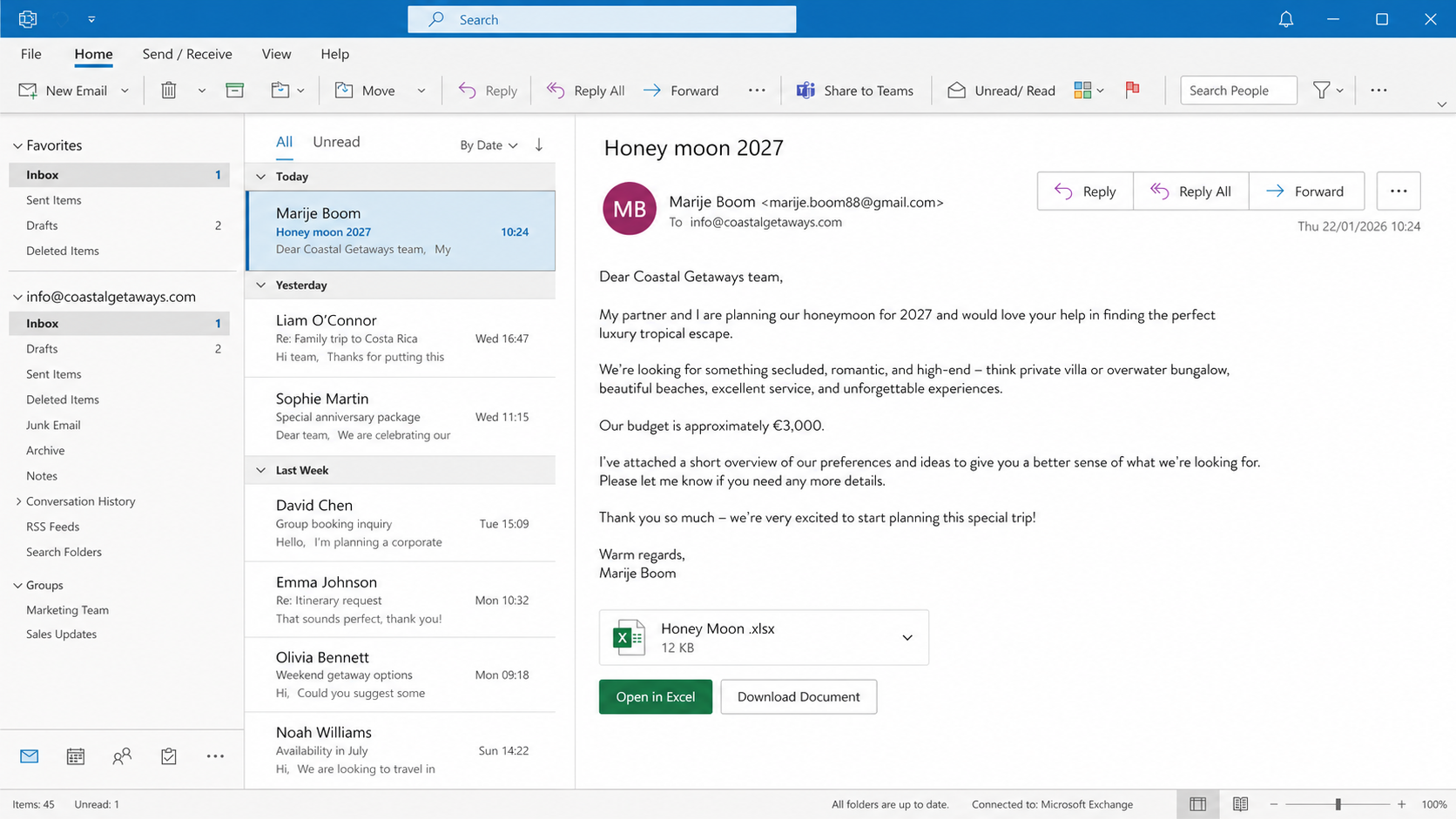
One observed message used the subject “Honey moon 2027” and the name Marije Boom, presented with a Dutch travel-related title and Netherlands address.
The writer described honeymoon clients seeking a tropical, secluded, or luxurious experience with a budget of approximately €3,000.
Nothing sounds extravagantly profitable or obviously impossible. That restraint helps the request blend with the ordinary inquiries handled by agencies, resorts, and tour operators.
The email invites a helpful response rather than confronting the recipient with a threat. Professional courtesy becomes the emotional lever.
Names, locations, dates, and budgets can be replaced easily. The important pattern is an unfamiliar lead directing staff toward an external document for trip details.
The visible spreadsheet is an image containing dangerous links
The message displays what looks like an attached spreadsheet named “Honey Moon .xlsx.” It is not necessarily a conventional file attachment.
The Excel-style card contains buttons labeled “Open in Excel” and “Download Document.” Both can be ordinary hyperlinks hidden behind graphics.
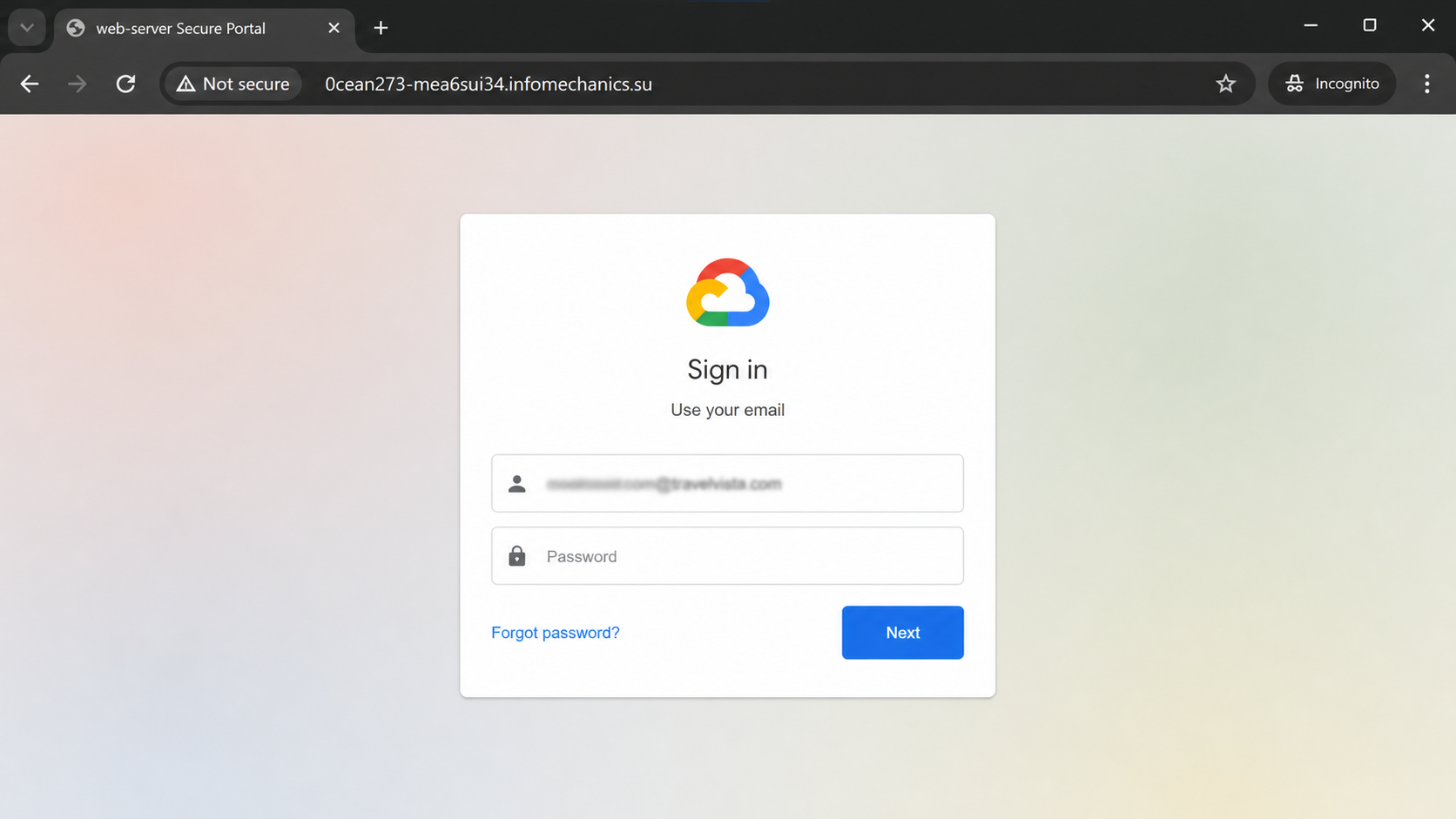
In the analyzed campaign, those controls led to 0cean273-mea6sui34[.]infomechanics[.]su, an address unrelated to Microsoft, Google, or a recognized file-sharing service.
This design defeats a quick attachment check. The inbox may show no paperclip because the document exists only as an embedded picture and link.
A person expects Excel but receives a web page. That unexplained change of format is a strong reason to stop.
The attackers rely on the recipient concentrating on the booking opportunity instead of asking why a simple preference list needs an unknown secure portal.
The destination steals a business email password
The link opens a counterfeit Google sign-in page. Its browser tab may say “web-server Secure Portal,” while the account address is already filled.
Prefilling the email makes the page appear connected with the inquiry. It also removes one step, leaving the victim only a password box to complete.
Common warning signs include:
- A new client who directs details into an external document.
- An Excel card that behaves like a website link.
- Two different buttons leading to the same unknown domain.
- A sign-in request unrelated to opening a simple itinerary.
- A prefilled work address on a foreign host.
- A browser tab with generic secure-portal wording.
- No independent way to confirm the supposed traveler.
Google has no connection with this fraudulent page. Familiar sign-in styling is copied to collect the mailbox password.
A travel mailbox offers more than email. It contains customer passports, itineraries, payment discussions, reservation records, supplier contacts, and years of believable conversation.
That information can support invoice fraud, customer impersonation, booking changes, and further phishing sent from a trusted company address.
How The Scam Works
Step 1: The sender identifies businesses that welcome inquiries
Travel agencies, wedding planners, hotels, villa managers, and tour companies publish contact addresses because new customers need an easy route for questions.
Criminals collect those addresses from websites, directories, social profiles, booking listings, or marketing databases.
The mailbox may be shared among several employees. Shared access increases the chance that someone opens the document before another person recognizes the pattern.
Website details help personalize the approach. A coastal agency may receive a beach request, while a safari operator receives an anniversary adventure proposal.
The criminal does not need to understand complex travel planning. A destination preference, date range, and budget create enough realism for the first exchange.
Public response promises such as “quotes within 24 hours” can add urgency. Staff feel pressure to engage quickly before the lead chooses a competitor.
Step 2: A friendly story lowers normal defenses
Unlike penalty or security scams, this message opens with opportunity. It asks for expertise and appears to value the recipient’s professional service.
A honeymoon is emotionally positive and naturally involves preferences, dates, budgets, and private planning. Those details explain why a separate document might exist.
The budget remains believable rather than enormous. Extreme sums would trigger suspicion, while €3,000 can fit an ordinary planning conversation.
A European name, postal details, and occupational title provide social texture. Such information can be invented, copied, or borrowed from an unrelated person.
Polite wording reduces the likelihood of confrontation. Staff may worry that requesting identity proof would offend a genuine customer.
Professional verification need not be rude. Asking the client to place essential details in the email body protects both the agency and legitimate travelers.
Step 3: An embedded image imitates an Excel attachment
The email body includes a rectangular spreadsheet card with an Excel icon, filename, and familiar action buttons.
What looks like a file can be one large image. Clicking anywhere on it may open the attacker’s webpage instead of downloading an XLSX document.
Button labels are cosmetic. “Open in Excel” does not prove that Microsoft Excel will handle the content.
Some mail clients reveal the deception when the cursor hovers over the graphic. The status preview shows a web address rather than a file service.
Mobile screens make link inspection harder. Employees reviewing leads on phones may tap the card before seeing where it points.
A genuine customer can paste a short preference list into the message. Refusal to use a safer format should increase caution.
Step 4: The link opens an attacker-controlled secure portal
Both visible actions direct the browser toward an unfamiliar host controlled or abused by the phishing operation.
The observed destination used a long subdomain under infomechanics[.]su. Its words did not identify Google, Microsoft, or the travel agency’s own systems.
A secure-looking tab title helps explain the detour. “web-server Secure Portal” sounds technical while saying nothing about who operates the page.
HTTPS may be present because certificates are easy to obtain. Encryption cannot make an unrelated domain an approved document provider.
The link may contain the recipient’s address as a parameter. The server uses that value to customize the next screen and track engagement.
Close the page if the document unexpectedly requires a login. Confirm the request through a fresh channel rather than continuing inside the browser flow.
Step 5: A counterfeit Google form collects the password
The page displays a cloud-style logo, the employee’s prefilled email address, and a password field resembling a familiar account login.
Because the address is already present, the victim may assume authentication began through a recognized single-sign-on process.
The form does not communicate with the genuine Google account system. Submitted text is delivered to the party operating the false portal.
Some pages reject the first entry and request another attempt. That tactic captures multiple password variations when the user believes a typo occurred.
A later prompt could ask for a verification code. Supplying it may let the criminal complete a real login while the code remains valid.
Never approve an account prompt caused by an unsolicited booking document. Legitimate document access should match a service and sender you can identify.
Step 6: The mailbox is explored and quietly modified
Once inside, the attacker can read booking conversations, search attachments, and learn how the business communicates with customers and suppliers.
Forwarding rules may send copies of selected messages outside the company. Filters can hide security alerts or move replies away from the visible inbox.
The criminal may register another recovery method, create an application password, or authorize a connected application for continued access.
Real quotations and signatures become templates for later impersonation. A fraudulent payment request looks stronger when placed inside an authentic reservation thread.
Passport scans and travel dates can expose customers to identity theft or targeted scams. Upcoming absences may also reveal when homes are unoccupied.
Mailbox review should cover sent, deleted, archived, and rule-controlled messages. Absence from the inbox does not mean no misuse occurred.
Step 7: Trusted conversations are turned into financial fraud
Attackers can tell a traveler that deposit instructions changed, then provide a bank account controlled by a money mule.
Suppliers may receive altered invoices or requests for refunds. Familiar language and a genuine sender address make those changes difficult to question.
Customers can also be targeted with fake itinerary links. The compromised agency relationship supplies names, destinations, and dates that random phishing lacks.
Another possibility is internal impersonation. The mailbox can ask accounting staff to pay a vendor or send sensitive records.
Operators may retain access and wait for a high-value booking. A quiet week after compromise does not eliminate future risk.
Recovery requires reviewing financial communications sent during the entire exposure period, not only messages created after the breach was discovered.
Why Travel Businesses Are Attractive Targets
Travel work naturally combines strangers, documents, deadlines, international communication, and payments. Phishing operators can hide inside that normal complexity.
Employees routinely receive passport scans, preference sheets, flight records, and supplier files. Rejecting every unfamiliar attachment is impractical, so verification procedures become essential.
Busy periods create divided attention. A consultant may move between calls, quotes, booking platforms, and email while trying to respond before a lead disappears.
Shared inboxes create accountability gaps. One person may assume a colleague already confirmed the client, while everyone sees only part of the conversation.
Compromised travel accounts also provide rich personal context. Dates, companions, destinations, payments, and identity documents support highly tailored secondary fraud.
A simple intake policy reduces exposure. New customers can submit text details first, while sensitive files use one approved portal reached through the company’s own website.
Sender, Booking, Document, and Mailbox Checks
Verify the person without using their document link
Search the name, agency, address, and telephone number independently. Inconsistencies do not prove fraud, but copied identities often collapse under basic comparison.
Reply only if company policy permits, and ask for the preferences in plain text. Do not quote or reopen the suspect link.
A genuine prospect can answer normal trip questions. Avoid requesting unnecessary identity documents before a commercial relationship exists.
Compare the request with ordinary booking behavior
Check whether the destination, budget, dates, and service requested make sense together. Scammers sometimes use generic text unrelated to the recipient’s actual business.
Look for a reason the traveler needs Excel. Short honeymoon preferences rarely require authentication through an external corporate portal.
Discuss unusual leads inside the team. A second reader often notices formatting, language, or process mismatches missed during a rushed first review.
Inspect the supposed document before touching it
Determine whether the message contains a real attachment or merely an image with hyperlinks. The mail client’s attachment list provides a useful clue.
Hover over each button from a desktop without opening it. Both actions leading to the same unrelated host show that the labels are decorative.
Approved security staff can analyze the destination safely. Ordinary users should not visit it for curiosity or enter test credentials.
Audit the mailbox for silent persistence
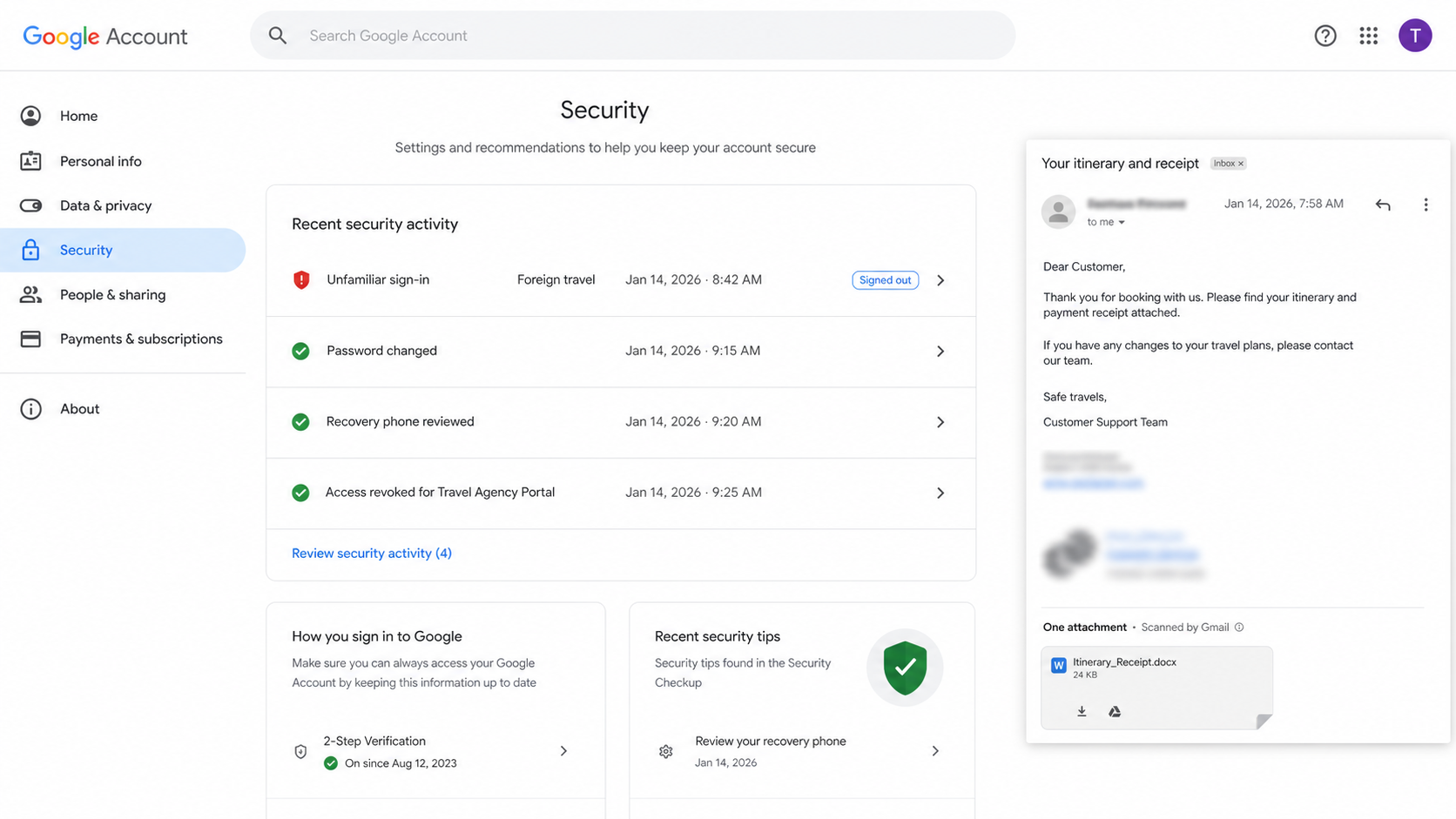
Review sign-in history, active sessions, forwarding addresses, inbox rules, delegated access, application passwords, OAuth grants, and recovery methods.
Search Sent and Deleted folders for unfamiliar replies, invoices, or booking messages. Criminals frequently clean visible traces after impersonating the account.
Contact customers and suppliers through known details when messages may have been altered. Direct confirmation can stop a fraudulent deposit before settlement.
What to Do if You Have Fallen Victim to This Scam
- Change the mailbox password from a clean device. Make it unique and revoke every active session so captured cookies lose usefulness.
- Reset account recovery controls. Remove unknown phones, emails, application passwords, connected apps, delegates, and multifactor devices.
- Inspect hidden mail behavior. Delete unauthorized forwarding and filtering rules, then review Sent, Deleted, Archive, and Trash for criminal activity.
- Alert coworkers and technology support. Share the subject, sender, destination, and click time. Other staff may have received the same inquiry.
- Review financial conversations. Confirm recent deposits, refunds, supplier changes, and payment instructions by telephone using trusted contact details.
- Check the computer. Run Malwarebytes, remove unapproved extensions, and investigate any file downloaded from the portal.
- Block the deceptive infrastructure. Report the email and domain. AdGuard can filter known phishing destinations, but account remediation remains necessary.
- Notify exposed people appropriately. If customer records were accessed, follow legal guidance and explain concrete protective steps without minimizing the incident.
Is Your Device Infected? Run a Free Malware Scan
Slow performance, constant pop-ups, or strange behavior? These are classic signs of a malware infection. A quick way to check is to scan your device with Malwarebytes Free, one of the most trusted malware removal tools available. If you only visited a scam page and didn’t download or install anything, this scan is optional.
The free version detects and removes the most common threats, including:
- Adware — the cause of those annoying pop-ups
- Browser hijackers — unwanted redirects and changed homepages
- Trojans and spyware — hidden programs stealing your data
- Potentially unwanted programs (PUPs) — software you never asked for
👉 Select your device below — Windows, Mac, or Android — then follow the simple steps to download Malwarebytes, scan your system, and remove any threats it finds. The scan usually takes 5 to 20 minutes.
Run a Malware Scan with Malwarebytes for Windows
Malwarebytes is one of the most popular and trusted anti-malware tools for Windows — and it’s completely free for removing infections. It catches threats that many antivirus programs miss, including adware, browser hijackers, and trojans. Follow the steps below to scan your PC and remove what Malwarebytes finds.
Download Malwarebytes
Click the button below to download the latest version of Malwarebytes for Windows from the official source. The free version is all you need — it will scan your computer and remove adware, browser hijackers, and other malicious software at no cost.
Download MalwarebytesOfficial installer for Windows 11 and 10. Your download starts right away.Want real-time protection? See Malwarebytes Premium Malwarebytes Free for WindowsScans and removes malware at no cost
-
Install Malwarebytes
When the download finishes, open your Downloads folder and double-click the MBSetup file. If Windows shows a User Account Control pop-up, click “Yes” to allow the installation.

Follow the On-Screen Prompts to Install Malwarebytes
The setup wizard will walk you through a few quick screens:
-
Choose where you’re installing the program — “Personal Computer” or “Work Computer” — then click Next.

-
Malwarebytes will now install on your device. This usually takes under a minute.

-
When installation is complete, the “Welcome to Malwarebytes” screen will open automatically.

-
On the final screen, click Open Malwarebytes to launch the program.

-
Optional: Check for rootkits with a Custom Scan
You don’t need to change any settings for a normal scan. The standard Threat Scan in the next step is enough for most problems, so you can go straight to it.
If you also want to check for rootkits, use a Custom Scan. In current versions of Malwarebytes, rootkit scanning is only available there:
- On the Scanner tile, click the three-dot menu and select Advanced Scan.
- Choose Custom Scan. In its options, check Scan for rootkits.
- Select your system drive (usually C:\) as the location to scan, then start the scan. It takes longer than a Threat Scan.
- When it finishes, review and quarantine the results as described in the steps below.
Rootkit scanning isn’t available on Windows devices with ARM processors.
Start the Scan
Click the blue Scan button. Malwarebytes will automatically update its virus database and start checking your computer for malware.

-
Wait for the Scan to Finish
The scan checks your entire system for browser hijackers and other malicious programs, so it can take 5 to 20 minutes depending on your computer. Feel free to do something else — just check back occasionally to see the progress.

-
Quarantine the Detected Threats
When the scan is done, you’ll see a list of everything Malwarebytes found — malware, adware, and potentially unwanted programs. Click the “Quarantine” button to remove all of them at once.

Malwarebytes will now remove the malicious files and registry entries and move them safely into quarantine.

-
Restart Your Computer
Some threats can only be fully removed after a reboot. If Malwarebytes asks you to restart, click Yes. Once you’re logged back in, Malwarebytes has finished removing the threats it found.

When the scan is done, check whether the problems you noticed have stopped. If they continue, see the options below.
If you are still having problems with your computer after completing these instructions, then please follow one of the steps:
- Run a computer scan with ESET Online Scanner
- Ask for help in our Windows Malware Removal Help & Support forum.
Run a Malware Scan with Malwarebytes for Mac
Malwarebytes for Mac is a free on-demand scanner that removes the malware other security software tends to miss — adware, browser hijackers, and unwanted programs included. Cleaning an infected Mac with Malwarebytes has always been completely free, and it’s our go-to recommendation. Follow the steps below to scan your Mac and remove what Malwarebytes finds.
-
Download Malwarebytes for Mac
Click the button below to download the latest version of Malwarebytes for Mac.
Download MalwarebytesOfficial installer for macOS. Your download starts right away.Want real-time protection? See Malwarebytes PremiumMalwarebytes Free for MacScans and removes malware at no cost -
Open the Malwarebytes setup file
When the download finishes, open your Downloads folder and double-click the setup file to begin the installation.

-
Follow the On-Screen Prompts to Install Malwarebytes
The Malwarebytes for Mac Installer will guide you through a few quick screens. Click “Continue” and keep following the prompts until the installation completes.



When the installation is complete, Malwarebytes opens to the Welcome to Malwarebytes screen. Click “Get started“.
Malwarebytes needs Full Disk Access to check your whole Mac. When it asks, open System Settings > Privacy & Security > Full Disk Access, turn on Malwarebytes (it may be listed as Malwarebytes Protection), and confirm with your password or Touch ID. Then return to Malwarebytes. On macOS Monterey and earlier, this setting is in System Preferences > Security & Privacy > Privacy.
-
Select “Personal Computer” or “Work Computer”
Malwarebytes will ask what type of computer you’re installing it on. Click either Personal Computer or Work Computer, whichever applies.

-
Start the Scan
Click the “Scan” button. Malwarebytes will automatically update its detection database and begin checking your Mac for malware.

-
Wait for the Scan to Finish
Malwarebytes will scan your Mac for adware, browser hijackers, and other malicious programs. This can take a few minutes, so feel free to do something else — just check back occasionally to see the progress.

-
Quarantine the Detected Threats
When the scan is done, you’ll see a list of everything Malwarebytes found. Click the “Quarantine” button to remove all the threats at once.

-
Restart Your Mac
Malwarebytes will now remove all the malicious files it found. Some threats can only be fully removed after a reboot — if Malwarebytes asks you to restart, allow it. Once you’re logged back in, check whether the problems you noticed have stopped. If they come back, save the scan report and ask for help in our forum.

If the problems you noticed continue after the scan, see the options below.
If you are still experiencing problems while trying to remove a malicious program from your computer, please ask for help in our Mac Malware Removal Help & Support forum.
Run a Malware Scan with Malwarebytes for Android
Malwarebytes for Android scans your phone or tablet for malware, adware, and potentially unwanted apps. The free version scans only when you start a scan. Real-time protection, which checks apps automatically, is part of the paid Premium version.
-
Download Malwarebytes for Android.
You can download Malwarebytes for Android by clicking the link below.
Get Malwarebytes for AndroidOpens Google Play in a new tab.Want real-time protection? See Malwarebytes Premium for AndroidMalwarebytes for AndroidScans your phone and removes malware at no cost -
Install Malwarebytes for Android on your phone.
In the Google Play Store, tap “Install” to install Malwarebytes for Android on your device.

When the installation process has finished, tap “Open” to begin using Malwarebytes for Android. You can also open Malwarebytes by tapping on its icon in your phone menu or home screen.

-
Follow the on-screen prompts to complete the setup process
When Malwarebytes opens, it walks you through a short setup. Tap Get started and follow the prompts. If you see an offer for a trial or a paid plan, read it before you accept. You can skip it and keep using the free scanner.
Malwarebytes will ask for permission to access the files on your phone so it can scan them. Tap Allow, or turn on the permission in the Android screen that opens, then return to Malwarebytes.
-
Run a scan with Malwarebytes for Android
On the main screen, tap Scan now. In some versions, you open the menu, tap Scanner, and then tap Run a scan.
-
Wait for the Malwarebytes scan to complete.
Malwarebytes will now start scanning your phone for adware and other malicious apps. This process can take a few minutes, so we suggest you do something else and periodically check on the status of the scan to see when it is finished.

-
Remove the detected apps.
When the scan has been completed, you will see a list of the threats that Malwarebytes for Android has detected. Next to each detected item, tap the menu icon (three dots), then choose to uninstall the app or delete the file. Android then asks you to confirm. Tap OK or Uninstall to remove the app.
-
Restart your phone.
When the detected apps are removed, restart your phone if Malwarebytes asks you to. Then check whether the problems you noticed have stopped.
If the problems you noticed continue after the scan, see the options below.
If you are still having problems with your phone after completing these instructions, then please follow one of the steps:
- Ask for help in our Mobile Malware Removal Help & Support forum.
- Only as a last resort, reset your phone to factory settings. Read the warning below first.
- Back up your photos, videos, files, and messages, for example to your Google account or a computer.
- Make sure you know your Google account email and password. The phone asks for them after the reset. If you changed the password recently, Google recommends waiting 24 hours before you reset.
- On a Samsung phone, also make sure you know your Samsung account password.
- If you use an authenticator app for two-step verification, move your accounts to another device or save your backup codes first.
Stay Protected: Block Ads and Malicious Sites
No scan can prove a device is completely clean, so it helps to block threats before they reach you. Most infections start with a malicious ad or a fake download button — so blocking them at the source is your best defense.
We recommend AdGuard, which blocks malicious ads, phishing pages, and dangerous redirects before they can reach you.
👉 Download AdGuard and browse safely
Customers appreciate honest, specific communication. Tell them which channel may have been misused and how genuine payment changes will be confirmed.
Keep the original message and security logs. They help establish the exposure window and distinguish legitimate bookings from attacker-created correspondence.
Frequently Asked Questions
Was Honey Moon .xlsx a real attachment?
In the analyzed email, the spreadsheet appearance was embedded in the message and linked outward. The buttons did not open a normal local Excel file.
Who is Marije Boom?
The name was used as the supposed sender. A displayed identity cannot confirm who controlled the mailbox or created the request.
What website received the click?
The observed buttons led to 0cean273-mea6sui34[.]infomechanics[.]su, an address unrelated to established Google or Microsoft document services.
Why was the employee’s email already filled in?
The link could carry the address as a parameter. Prefilling creates familiarity, shortens the form, and tells operators which recipient arrived.
What if I opened the page but entered no password?
Close it, report the lure, and review downloads. Account takeover risk is much lower when no credentials, codes, or approvals were provided.
Could customers receive scams from the compromised mailbox?
Yes. Criminals can reuse authentic conversations and signatures for altered deposits, fake itinerary links, refund fraud, or identity theft.
The Bottom Line
The honeymoon inquiry works because it feels like welcome business. Its fake Excel card quietly shifts a normal sales conversation toward an unrelated password form.
Keep new-client details inside plain email or an approved portal. When a document suddenly requests a login, stop and verify the traveler through another route.

Join the discussion
0 commentsShare your experience or ask a question about this article.
Discussion
Start the conversation
Have a question or something useful to share? Add the first comment.