

Getting paid to watch TikTok sounds like a side job you could fit around almost anything. A TikReview.com link makes the first step look easy.
But what exactly are you applying for, and where does that link take you now? Those two questions matter more than the promised weekly income.
Overview
TikReview.com is not currently a job application
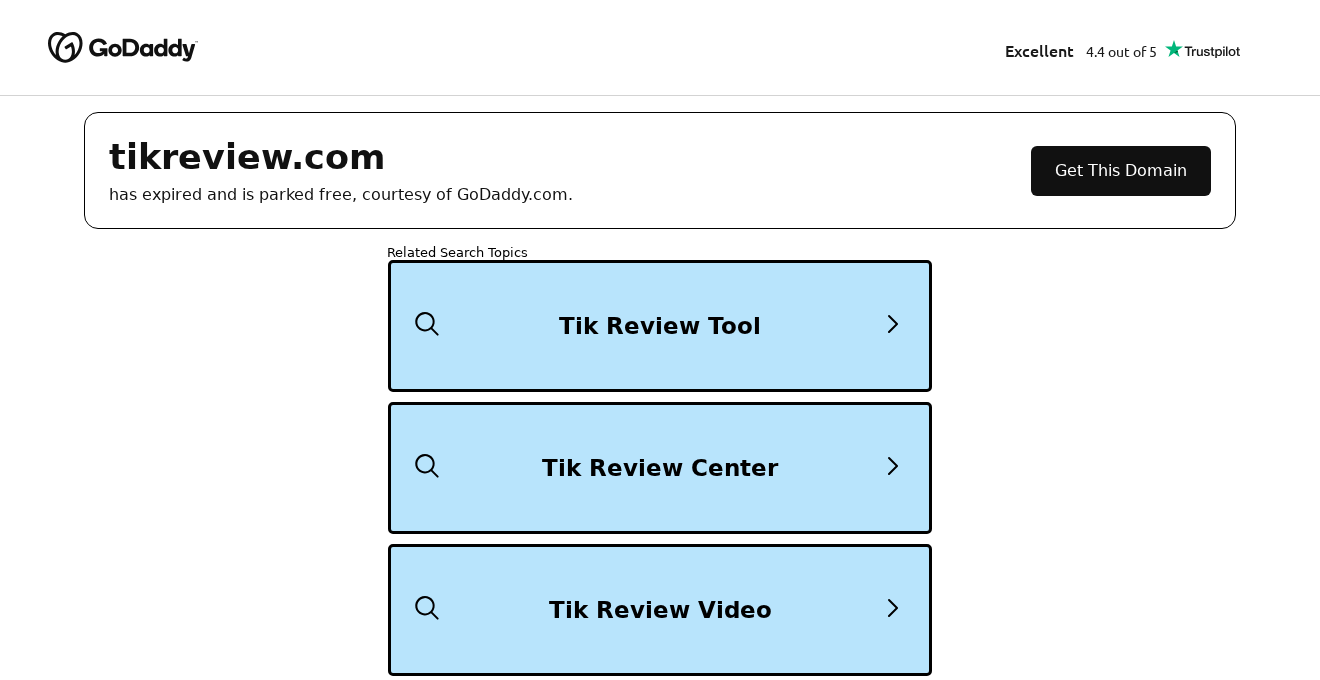
The current TikReview.com page identifies the domain as expired and parked through GoDaddy. It displays related search links, not a recruiter, vacancy, or application form.
The page’s own message says it “has expired and is parked free.” That is a very different destination from a paid TikTok reviewer position.
Don’t use those search links as the next stage of an application. They are not evidence that a hiring manager has accepted you.
The reviewer pitch is easy to confuse with real TikTok activity
A reviewer advertisement can borrow words associated with real platform work: evaluating content, checking videos, completing tasks, or testing features.
But a recognizable activity isn’t an employment agreement. Before treating any offer as a job, you should be able to identify:
- The actual employer and a specific position.
- The duties, requirements, location, and hiring process.
- Who pays you, for what work, and on what schedule.
- Why the application is being handled through that particular website.
The safe decision is to leave this route
Do not use TikReview.com to pursue a TikTok job. A parked domain and unrelated referral destinations are not a substitute for a verified employer.
If you already followed a reviewer offer, focus on the details you submitted, purchases you approved, and software you installed. Those determine the useful next steps.
A closed or changed website doesn’t automatically cancel a trial, reverse a payment, or erase information supplied to another service.
What Happened to TikReview.com?
Older advertisements and posts can keep circulating after their destination changes. Someone searching for the same opportunity later may see something entirely different.
TikReview.com now leads to a parked page. Its related searches have labels suggesting review tools, centers, videos, and forms.
Those labels may sound connected to the reason you came. They do not establish continuity with an earlier offer or identify the person who promoted it.
The parking page also carries GoDaddy branding. That identifies the parking service, not an endorsement of a supposed reviewer program.
Other routing can lead through an offer-tracking address rather than the parked page. A redirect still isn’t a job description, payroll arrangement, or proof of TikTok affiliation.
Keep the address from your own browser history and any confirmation email. Don’t replace it with a similarly named site when documenting a complaint.
The different destinations are a reason to stop, not a puzzle you need to solve before being allowed to leave.
Is the TikTok Reviewer Program Legit?
An advertisement offering easy income for watching or rating videos should not be accepted as an official TikTok hiring program.
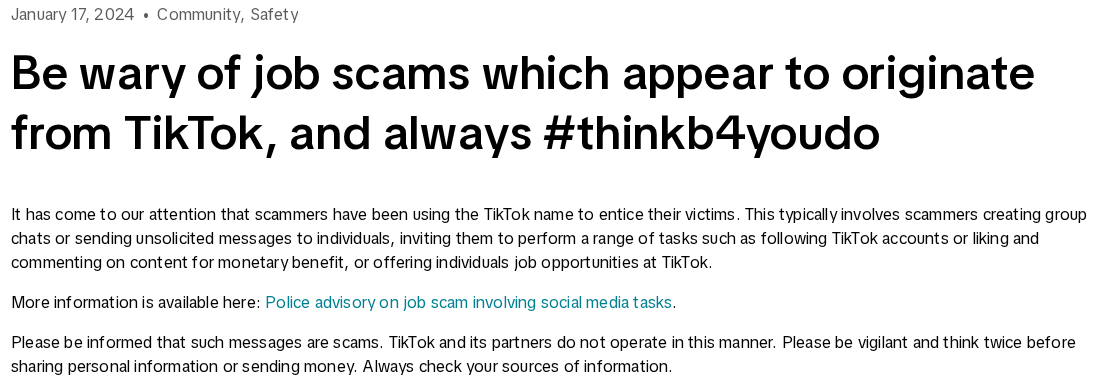
TikTok has issued a public warning about job scams using its name. It describes unsolicited messages and group chats offering money for social-media tasks.
The warning specifically covers activities such as following accounts, liking posts, and commenting. It says TikTok and its partners do not operate in that manner.
That doesn’t mean every job involving video review is fake. Content operations, moderation, research, and other professional roles can exist through real employers.
The difference is the hiring relationship. A real role should have an identifiable employer, defined responsibilities, and a process you can verify outside the advertisement.
Start from TikTok’s official careers website for roles at TikTok itself. Follow its vacancies rather than a stranger’s application shortcut.
If a third-party company is hiring, verify that company and the actual vacancy independently. A contractor’s existence doesn’t authenticate a message from somebody using its name.
What About the TikTok Evaluation Tab?
A screen recording showing an Evaluation tab, task panel, or balance is not proof that TikTok hired the person displaying it.
Start with the address or app providing that screen. Is it your official TikTok app, a web page styled to look similar, or an unfamiliar installation?
Then look at what the screen asks you to do. A request to deposit money, buy a package, or complete commercial offers changes the nature of the arrangement.
Don’t install a modified app to make a supposedly missing tab appear. Don’t send login codes to someone who says they can activate it.
TikTok also has genuine creator monetization features. Its Creator Rewards information concerns eligible original videos and creator performance, not purchasing trials to unlock a reviewing job.
Feature names and availability can differ by location and account. Verify a particular feature inside official support rather than trusting a tutorial’s promise of guaranteed earnings.
Is TikApply Legit or Connected to TikReview?
TikApply is another name people encounter while looking for reviewer opportunities. Its current route can lead through parking or advertising destinations rather than a clear application.
Do not treat a name beginning with Tik as proof of employment, partnership, or a connection to a particular earlier promotion.
The practical test remains the same: identify the employer and vacancy before submitting details. A redirect cannot answer those questions for you.
Similarly named sites may share a pitch without sharing ownership. If your receipt names another merchant, that merchant needs identifying separately when you seek cancellation.
Don’t assume a new page is an official replacement simply because an older link stopped working. That assumption can pull you into an entirely different offer.
How a Reviewer Pitch Can Lead Away From Real Work
Step 1: An easy-income promise sets the expectation
The offer starts with a familiar pastime and presents it as paid work. You already watch videos, so reviewing a few more seems plausible.
Specific income figures can make the opportunity feel more concrete. Yet a number in an advertisement does not explain the employer’s hiring or payment obligations.
Look for the work agreement before calculating how you would spend the earnings. Without one, you may be responding to marketing rather than recruitment.
Step 2: Branding stands in for an employer
A TikTok logo, polished dashboard, or word such as approved can make an outside page feel official.
The question is who controls the offer and can answer for it. A logo does not give an unrelated operator authority to recruit on TikTok’s behalf.
Check the full domain and independently locate the vacancy. Don’t use a contact number supplied by the same questionable message as your only verification.
Step 3: The application becomes another kind of signup
If the next page requests participation in deals, purchases, surveys, or trial memberships, stop and read it as a new transaction.
Those activities may have their own terms. Completing them does not create an employment contract or establish that the promised reviewer role exists.
Ask where the actual work is, who supervises it, and how payment is calculated. A requirement to keep buying things is not an answer.
Step 4: Progress makes stopping feel wasteful
A task counter or displayed balance can create the impression that you’ve already earned money. That makes another requirement seem like a small final hurdle.
Keep earned wages separate from a number inside a website. The ability to display a balance isn’t the ability or obligation to pay it.
Never send a deposit or release fee just to rescue that number. A demand for money before withdrawing supposed earnings is a reason to stop.
Step 5: The practical problem survives the original link
The first page can disappear while a merchant still bills a trial or an account still uses an exposed password.
Closing the browser only ends the browsing session. It does not automatically undo agreements or permissions you accepted elsewhere.
Build a short record of those separate actions. That is far more useful than repeatedly returning to a parked domain hoping the job will reappear.
What a Real Application Should Let You Check
You should know what position you are applying for before providing sensitive identity or financial information.
A role description should explain duties and qualifications. A recruiter should be able to identify the employer and explain where your application sits in its process.
Use an independently found careers page to check the vacancy. If it isn’t there, contact the employer through an established channel rather than the questionable message.
Be especially careful if a recruiter quickly moves you into a group chat and introduces a trainer who asks for payments.
The FTC’s job-scam guidance warns against paying for the promise of employment. Genuine work should not depend on buying unrelated consumer offers.
A request for identity documents deserves a separate check. Don’t send a passport or identification scan just because an online dashboard says you’re approved.
A recruiter can also imitate a real employee’s name. Look for the contact on an independently located company channel rather than trusting a profile photograph.
Pay attention to the reply address as well as the sender’s display name. A familiar name at the top of an email doesn’t establish who controls it.
What to Do If You Signed Up or Completed Offers
- Write down what actually happened.
Record the first advertisement, every relevant website, the email address you used, and any payment or download. Keep confirmation messages rather than relying on memory.
Separate the job promise from any later merchant. They may be different services with different support and cancellation channels.
- Stop further tasks and protect exposed accounts.
If you submitted a password, change it through the real service. Change it elsewhere if reused, and enable two-factor authentication where available.
Providing an email address alone is different from revealing its password. Watch for follow-up messages, but don’t assume every account needs recovery.
- Find and cancel any trial or subscription.
Check receipts, app-store subscriptions, and statements for the merchant’s name. Request cancellation directly and retain written confirmation.
Ask when cancellation takes effect and whether any charge remains due. Uninstalling an app or unsubscribing from marketing emails isn’t necessarily cancellation.
- Act on sensitive identity information you supplied.
If you uploaded identification or provided a government identification number, record which information went to which page. Keep the upload confirmation and the supposed recruiter’s messages.
US readers can use IdentityTheft.gov for a recovery plan if identity misuse is suspected. Elsewhere, contact the relevant identity-document issuer or national fraud service.
Tell your bank promptly if you provided financial login information. Use its official app or the number on your card, not instructions from the supposed recruiter.
- Contact the payment provider about disputed losses.
Use the number on your card or your payment app’s official help. Explain whether the charge was unauthorized, a trial renewal, or payment induced by a false job.
Provide receipts and the advertisement that influenced you. Ask about available recovery options and deadlines without assuming a reversal is guaranteed.
- Address a download or permission separately.
Remove an unfamiliar app or extension you installed through the offer. Revoke unwanted site notifications instead of following the notifications back to the page.
Malwarebytes can help check an affected computer or Android device after an installation. AdGuard can reduce unwanted advertising, but neither cancels a subscription or recovers lost money.
Do not factory-reset a device automatically. Preserve important data and obtain device-specific help if an unwanted app refuses removal or symptoms persist.
- Report the promotion and reject recovery fees.
Report the account, advertisement, or group through the platform where it appeared. US readers can submit a report to ReportFraud.ftc.gov.
Don’t pay a stranger who promises to unlock earnings or retrieve the money. Contact the bank or payment service yourself.
If you installed software and need a malware check, select the instructions for your actual device. Scan results do not establish whether an employment offer was genuine.
Is Your Device Infected? Run a Free Malware Scan
Slow performance, constant pop-ups, or strange behavior? These are classic signs of a malware infection. The fastest way to find out is to scan your device with Malwarebytes Free — one of the most trusted malware removal tools available.
The free version detects and removes the most common threats, including:
- Adware — the cause of those annoying pop-ups
- Browser hijackers — unwanted redirects and changed homepages
- Trojans and spyware — hidden programs stealing your data
- Potentially unwanted programs (PUPs) — software you never asked for
👉 Select your device below — Windows, Mac, or Android — then follow the simple steps to download Malwarebytes, scan your system, and remove any threats it finds. The scan usually takes 5 to 20 minutes.
Run a Malware Scan with Malwarebytes for Windows
Malwarebytes is one of the most popular and trusted anti-malware tools for Windows — and it’s completely free for removing infections. It catches threats that many antivirus programs miss, including adware, browser hijackers, and trojans. Follow the steps below to scan and clean your PC in just a few minutes.
Download Malwarebytes
Click the button below to download the latest version of Malwarebytes for Windows from the official source. The free version is all you need — it will scan your computer and remove adware, browser hijackers, and other malicious software at no cost.
Download MalwarebytesOfficial installer for Windows 11 and 10. Your download starts right away.Want real-time protection? See Malwarebytes Premium Malwarebytes Free for WindowsScans and removes malware at no cost
-
Install Malwarebytes
When the download finishes, open your Downloads folder and double-click the MBSetup file. If Windows shows a User Account Control pop-up, click “Yes” to allow the installation.

Follow the On-Screen Prompts to Install Malwarebytes
The setup wizard will walk you through a few quick screens:
-
Choose where you’re installing the program — “Personal Computer” or “Work Computer” — then click Next.

-
Malwarebytes will now install on your device. This usually takes under a minute.

-
When installation is complete, the “Welcome to Malwarebytes” screen will open automatically.

-
On the final screen, click Open Malwarebytes to launch the program.

-
Enable “Scan for Rootkits”
Before scanning, turn on rootkit detection so Malwarebytes can find even the most hidden threats. Click the Settings gear icon on the left side of the screen.

In the settings menu, find “Scan for rootkits” and click the toggle so it turns blue.

Done? Click “Dashboard” in the left pane to return to the main screen.
Start the Scan
Click the blue Scan button. Malwarebytes will automatically update its virus database and start checking your computer for malware.

-
Wait for the Scan to Finish
The scan checks your entire system for browser hijackers and other malicious programs, so it can take 5 to 20 minutes depending on your computer. Feel free to do something else — just check back occasionally to see the progress.

-
Quarantine the Detected Threats
When the scan is done, you’ll see a list of everything Malwarebytes found — malware, adware, and potentially unwanted programs. Click the “Quarantine” button to remove all of them at once.

Malwarebytes will now remove the malicious files and registry entries and move them safely into quarantine.

-
Restart Your Computer
Some threats can only be fully removed after a reboot. If Malwarebytes asks you to restart, click Yes. Once you’re logged back in, Malwarebytes has finished removing the threats it found.

That’s it — your Windows PC is now clean of trojans, adware, and other malware, and should be back to running smoothly.
If you are still having problems with your computer after completing these instructions, then please follow one of the steps:
- Run a computer scan with ESET Online Scanner
- Ask for help in our Windows Malware Removal Help & Support forum.
Run a Malware Scan with Malwarebytes for Mac
Malwarebytes for Mac is a free on-demand scanner that removes the malware other security software tends to miss — adware, browser hijackers, and unwanted programs included. Cleaning an infected Mac with Malwarebytes has always been completely free, and it’s our go-to recommendation. Follow the steps below to scan and clean your Mac in just a few minutes.
-
Download Malwarebytes for Mac
Click the button below to download the latest version of Malwarebytes for Mac.
Download MalwarebytesOfficial installer for macOS. Your download starts right away.Want real-time protection? See Malwarebytes PremiumMalwarebytes Free for MacScans and removes malware at no cost -
Open the Malwarebytes setup file
When the download finishes, open your Downloads folder and double-click the setup file to begin the installation.

-
Follow the On-Screen Prompts to Install Malwarebytes
The Malwarebytes for Mac Installer will guide you through a few quick screens. Click “Continue” and keep following the prompts until the installation completes.



When the installation is complete, Malwarebytes opens to the Welcome to Malwarebytes screen. Click “Get started“.
-
Select “Personal Computer” or “Work Computer”
Malwarebytes will ask what type of computer you’re installing it on. Click either Personal Computer or Work Computer, whichever applies.

-
Start the Scan
Click the “Scan” button. Malwarebytes will automatically update its detection database and begin checking your Mac for malware.

-
Wait for the Scan to Finish
Malwarebytes will scan your Mac for adware, browser hijackers, and other malicious programs. This can take a few minutes, so feel free to do something else — just check back occasionally to see the progress.

-
Quarantine the Detected Threats
When the scan is done, you’ll see a list of everything Malwarebytes found. Click the “Quarantine” button to remove all the threats at once.

-
Restart Your Mac
Malwarebytes will now remove all the malicious files it found. Some threats can only be fully removed after a reboot — if Malwarebytes asks you to restart, allow it. Once you’re logged back in, your Mac is clean.

That’s it — your Mac is now free of adware, rogue browser extensions, and other potentially harmful software.
If you are still experiencing problems while trying to remove a malicious program from your computer, please ask for help in our Mac Malware Removal Help & Support forum.
Run a Malware Scan with Malwarebytes for Android
Malwarebytes for Android automatically detects and removes dangerous threats like malware and ransomware so you don’t have to worry about your most-used device being compromised. Aggressive detection of adware and potentially unwanted programs keeps your Android phone or tablet running smooth.
-
Download Malwarebytes for Android.
You can download Malwarebytes for Android by clicking the link below.
Get Malwarebytes for AndroidOpens Google Play in a new tab.Want real-time protection? See Malwarebytes Premium for AndroidMalwarebytes for AndroidScans your phone and removes malware at no cost -
Install Malwarebytes for Android on your phone.
In the Google Play Store, tap “Install” to install Malwarebytes for Android on your device.

When the installation process has finished, tap “Open” to begin using Malwarebytes for Android. You can also open Malwarebytes by tapping on its icon in your phone menu or home screen.

-
Follow the on-screen prompts to complete the setup process
When Malwarebytes will open, you will see the Malwarebytes Setup Wizard which will guide you through a series of permissions and other setup options.
This is the first of two screens that explain the difference between the Premium and Free versions. Swipe this screen to continue.
Tap on “Got it” to proceed to the next step.
Malwarebytes for Android will now ask for a set of permissions that are required to scan your device and protect it from malware. Tap on “Give permission” to continue.
Tap on “Allow” to permit Malwarebytes to access the files on your phone.
-
Update database and run a scan with Malwarebytes for Android
You will now be prompted to update the Malwarebytes database and run a full system scan.

Click on “Update database” to update the Malwarebytes for Android definitions to the latest version, then click on “Run full scan” to perform a system scan.

-
Wait for the Malwarebytes scan to complete.
Malwarebytes will now start scanning your phone for adware and other malicious apps. This process can take a few minutes, so we suggest you do something else and periodically check on the status of the scan to see when it is finished.

-
Click on “Remove Selected”.
When the scan has been completed, you will be presented with a screen showing the malware infections that Malwarebytes for Android has detected. To remove the malicious apps that Malwarebytes has found, tap on the “Remove Selected” button.

-
Restart your phone.
Malwarebytes for Android will now remove all the malicious apps that it has found. To complete the malware removal process, Malwarebytes may ask you to restart your device.
That’s it — your Android phone is now clean — no more malicious apps, adware, or browser redirects.
If you are still having problems with your phone after completing these instructions, then please follow one of the steps:
- Restore your phone to factory settings by going to Settings > General management > Reset > Factory data reset.
- Ask for help in our Mobile Malware Removal Help & Support forum.
Stay Protected: Block Ads and Malicious Sites
Now that your device is clean, keep it that way. Most infections start with a malicious ad or a fake download button — so blocking them at the source is your best defense.
We recommend AdGuard, which blocks malicious ads, phishing pages, and dangerous redirects before they can reach you.
👉 Download AdGuard and browse safely
Related Offers Are Not a Substitute for Verification
The same easy-income idea appears under different labels. Compare the actual steps rather than assuming a new website fixes the original problem.
MalwareTips also covers the broader TikTok reviewer pitch, the trend-reviewer job hook, and fake TikTok app downloads.
Those are different routes and risks. Match the response to the message or transaction you encountered instead of assuming every case involves the same operator.
If you post a warning for others, remove your address, order identifiers, account numbers, and identity documents first. Public evidence should not create another privacy problem.
Frequently Asked Questions
Is the TikTok reviewer program legit?
Don’t treat an easy-income reviewer advertisement as an official job. Verify the employer and vacancy independently; TikReview.com currently displays a parked-domain page.
Is the TikTok evaluation tab legit?
A tab name or screen recording isn’t proof of employment. Verify the exact feature through your official TikTok app and support, especially before paying or installing anything.
Is TikApply legit?
Its current route does not establish a verified hiring opportunity. Don’t submit details until you can identify and independently confirm the actual employer and position.
Why does TikReview.com show unrelated search links?
The domain currently displays a parking page. Its related searches are not an application stage and do not confirm any earlier job promise.
Does completing deals qualify me for a reviewer job?
No purchase or consumer trial establishes a job by itself. Require a real employer and work agreement instead of treating marketing tasks as a hiring process.
What if I already entered my card details?
Find the merchant and any renewal terms, request cancellation, and contact your issuer about disputed charges. Keep the original promotion and payment records together.
The Bottom Line
Do not use TikReview.com or an unverified TikApply route to pursue a TikTok job. A parked page, task dashboard, or referral link isn’t employment.
For real opportunities, start with the employer’s verified hiring channels. If you already signed up elsewhere, secure exposed accounts and resolve each actual subscription or payment promptly.

Reviews & discussion
0 commentsShare a firsthand experience, or ask a question.
Community reviews
tikreview.com
Moderated reader experiences, not an editorial verdict.
Reviews
Be the first to review
Approved reviews for this site or product will appear here.