


A phone screen awards money for rating a five-second video. The balance climbs so quickly that the next click feels less like work and more like luck.
The page calls the opportunity TikTok Pay, Trend Reviewer, or Super VIP. Those changing names lead into the same carefully staged experience.

Overview
The offer promises unusually easy work
Ads claim selected users can earn $100 to $300 daily by watching short clips and choosing reactions such as viral, top, not bad, or flop.
No posting, audience, experience, or original content is supposedly required. That convenience is central to the pitch because it removes normal employment barriers.
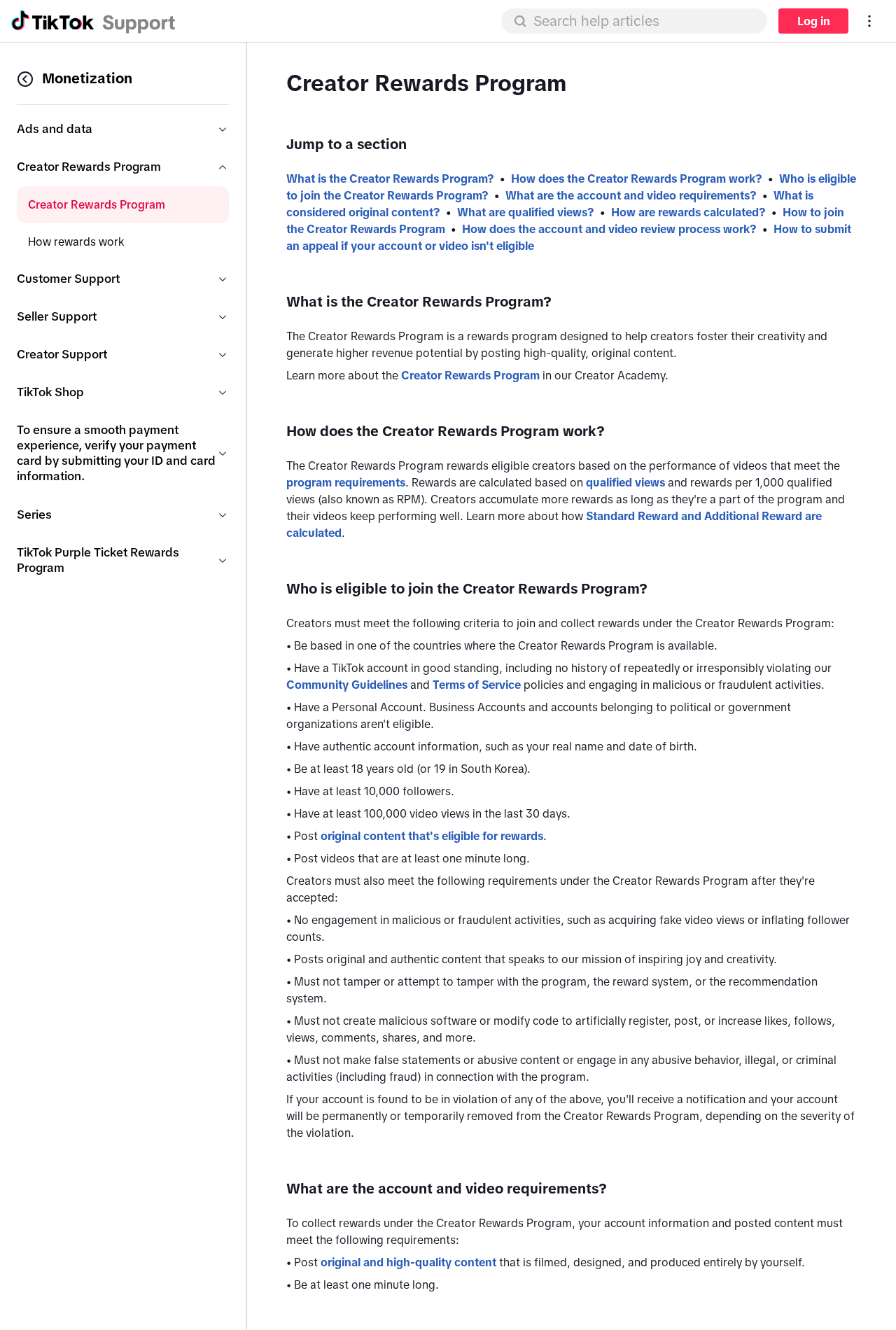
The offer is not the official TikTok Creator Rewards Program. TikTok’s real program rewards eligible creators for qualifying original videos, not casual reactions.
A game manufactures instant earnings
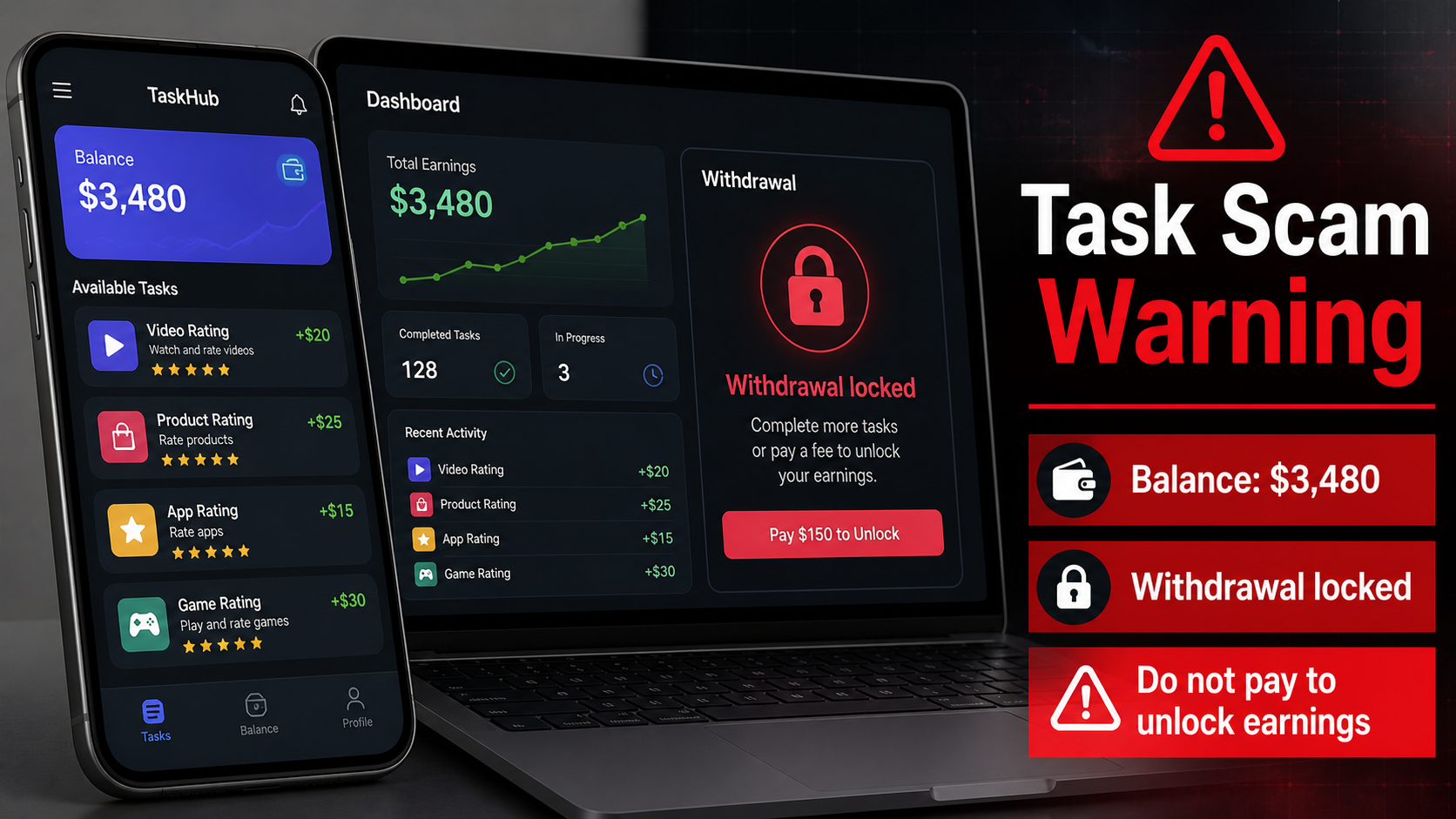
The landing page presents sample videos, a fake task dashboard, and a balance that rises after each click. A prize wheel may multiply the displayed total.
One observed flow showed $12.50 for a simple reaction, almost $50 within seconds, then a multiplier that pushed the fictional balance higher.
The numbers are interface elements controlled by the site. They are not bank funds, wages, or proof that anyone can withdraw money.
The real goal appears after commitment
The funnel can sell access, request payment, collect card details, or move victims into WhatsApp or another chat filled with staged success stories.
Task scams often let balances grow until withdrawal. Then victims are told to pay a deposit, tax, verification charge, or negative-balance amount.
Every payment is real, while every earning remains fictional. The FTC warns never to pay anyone to get paid or trust offers paying for likes and ratings.
- Rotating names: TikTok Pay, TikTok Super VIP, Trend Reviewer, and Trend Evaluator
- Promised earnings: commonly $100 to $300 daily for simple reactions
- Fake proof: balances, task counters, multipliers, and testimonials
- Impersonation: altered celebrity or influencer clips
- Observed domains: third-party pages unrelated to TikTok
- Likely payment routes: access fees, card collection, or task deposits
- Official difference: TikTok rewards eligible creators for qualifying original content
How The Scam Works
Step 1: An ad says your account was selected
The campaign begins on social media with a limited-access message. Viewers are told the invitation appeared because TikTok needs ordinary feedback.
Selection language makes the offer feel personal while preventing comparison. People fear that leaving the page will surrender a rare opportunity.
Altered influencer clips may describe the program as newly launched or quietly tested. The people shown did not provide reliable authorization within the ad.
The button leads to a third-party domain, not a verified TikTok employment or creator portal.
Step 2: The page assigns effortless sample tasks
Users watch a short clip and tap a reaction. The interface immediately credits an implausibly high amount for information platforms routinely collect without such payments.
A timer or progress bar makes the interaction feel like work. In reality, the site controls both the task and the displayed reward.
Early success is intentional. It gives the victim a personal experience to trust before any real money is requested.
A legitimate employer would explain the company, contract, pay cycle, taxes, role, eligibility, and privacy terms before simulating wages.
Step 3: Gamification inflates the fictional balance
A spin wheel, multiplier, bonus, or level upgrade increases the balance. The victim feels lucky and may believe quitting would waste money already earned.
The site can display any figure because no independent account holds those funds. A dashboard number is only text generated by software.
Testimonials and activity alerts suggest other reviewers are withdrawing successfully. Those identities and payments are not independently verified.
The FTC describes this pattern as a task scam that creates the illusion of earning commissions through simple repetitive actions.
Step 4: Deepfake endorsements normalize the offer
Observed promotions used celebrity and influencer likenesses to suggest that famous creators knew about TikTok Pay or had followers earning large amounts.
Synthetic voices and altered lip movements can make ordinary footage appear to discuss a program that did not exist when the footage was recorded.
The ad may also display an outdated year, revealing that the same presentation was recycled from an earlier campaign under a new name.
Verify every endorsement through the person’s official profile and TikTok’s official help center, not through clips embedded by the seller.
Step 5: A sales page or group chat takes control
After the demo, the user may be offered a tool, membership, training package, or activation. One observed checkout called the item Golden Tool.
Other versions may move the user into WhatsApp, Signal, or Telegram, where supposed members celebrate earnings and encourage larger participation.
Many participants can be bots or accounts controlled by the same group. Their purpose is social pressure, not independent support.
Do not install unknown apps or share identity documents to activate a job that was never verified through TikTok.
Step 6: Withdrawal creates the payment demand
The balance may be locked behind a minimum threshold. Once reached, the platform invents a deposit, tax, verification, upgrade, or negative task.
Victims pay because the requested amount seems small compared with the displayed balance. The payment does not unlock real earnings.
Additional demands follow, each explained as the final step. Scammers may insist that stopping now forfeits everything already completed.
No legitimate employer requires workers to send cryptocurrency or card payments to release wages.
Step 7: The campaign reuses the victim’s data
Card details, telephone numbers, email addresses, and chat profiles can support new charges, phishing, account takeover, or recovery scams.
Victims may receive another opportunity using a different platform name but the same task interface and withdrawal story.
The fake balance can remain visible after losses, encouraging one last payment. It has no relationship to money held for the victim.
Stop contact, notify the bank, secure accounts, and preserve the complete chat and transaction history.
What the Evidence Actually Shows
TikTok’s real rewards program works differently
Official TikTok information describes a creator monetization program with eligibility requirements and qualifying original videos lasting at least one minute.
It does not describe paying randomly selected viewers $30 for tapping a reaction on ordinary clips or joining Super VIP through an unrelated domain.
A similar name is not enough. Compare the exact official URL, eligibility, dashboard location, and payment documentation inside the genuine TikTok account.
The FTC identifies this as a task-scam pattern
The FTC warns that task scams show rising fictional commissions for liking videos or rating images, then request deposits to continue or withdraw.
It specifically advises people never to pay anyone to get paid and not to trust offers promising money for ratings or likes.
That guidance matches the central mechanism here: easy clicks, visible earnings, escalating commitment, and payment before withdrawal.
Third-party domains break the official connection
Observed pages used unrelated hosting and checkout domains rather than TikTok’s verified site. Branding can be copied onto any registered domain.
The complete hostname matters more than colors, icons, or a familiar word inside the path. Read it from right to left before the first slash.
Do not sign in with TikTok credentials on a page reached through the ad. Open the official application separately.
The earnings do not withstand basic economics
Paying hundreds daily for a handful of subjective reactions would cost vastly more than ordinary research, moderation, or advertising feedback programs.
If the reactions truly created that value, the operator could explain clients, contracts, quality controls, payroll, taxes, and worker classification.
Instead, the system relies on a private dashboard and anonymous testimonials. Those elements cost little to fabricate.
Company, Address, and Fulfillment Checks
TikTok branding does not make TikTok the employer
Trend Reviewer, Trend Evaluator, TikTok Pay, and TikTok Super VIP are campaign labels, not proof of a TikTok employment relationship.
The party requesting registration, payment, or identity data must name its legal entity and explain its authorization from TikTok.
If the receipt or checkout names an unrelated seller, the familiar logo on the first page cannot bridge that gap.
The domain trail exposes unrelated infrastructure
The observed journey moved through pages unrelated to TikTok, including a lovable.app site and a mycheckoutt.com purchase page.
Those addresses do not become official because a landing page displays a TikTok icon. Domain ownership should match the claimed employer.
Save the full route, including redirects. Operators often replace one page while keeping the messaging group and payment destination active.
A chat administrator is not payroll support
Task groups may assign a personal coach who explains spins, commissions, account levels, and withdrawal requirements through WhatsApp or Signal.
Ask for an employment contract, tax treatment, business registration, office address, and company email using the organization’s real domain.
Evasive replies, disappearing messages, or pressure to continue privately indicate recruitment theater rather than a documented job.
The Golden Tool checkout changes the transaction
A page promising paid reactions reportedly led to a checkout naming Golden Tool. Buying a product is not the same as accepting employment.
The seller must explain what the item is, why a worker needs it, whether billing repeats, and who provides a refund.
No legitimate employer hides required purchases behind a simulated earnings game. Workers receive wages instead of financing the task system.
What to Do if You Have Fallen Victim to This Scam
- Stop completing reviewer tasks
Do not perform another reaction, spin, combination task, recharge, or account upgrade, even if the dashboard says withdrawal is almost available.
Leave the messaging group without arguing with administrators. Continued conversation gives them more opportunities to create a new obstacle.
Ignore claims that an unfinished sequence creates debt. A screen controlled by the operator cannot establish a lawful obligation.
- Refuse every withdrawal payment
Do not send tax, verification, liquidity, insurance, negative-balance, or merchant-repair money to release displayed earnings.
Real wages are not unlocked by cryptocurrency deposits. A new fee after payment is evidence that the balance was never withdrawable.
Tell trusted contacts that any emergency request sent through the group is fraudulent, especially if your account was compromised.
- Contact each payment provider separately
Report card purchases, bank transfers, payment applications, and cryptocurrency transactions through their official support channels immediately.
For card charges, provide the unrelated checkout name and explain that it followed a deceptive TikTok employment offer.
Cryptocurrency transfers are difficult to reverse, but exchange fraud teams can preserve records and sometimes flag receiving wallets.
- Save the fake work history
Capture the ad, recruiter profile, task instructions, spin results, balances, group membership, checkout, receipts, wallet addresses, and withdrawal errors.
Export chats before blocking participants. Record telephone numbers and usernames because display names can change within seconds.
Write a chronological list of payments and promises. Investigators need the sequence, not only the last fee request.
- Secure TikTok, email, and messaging accounts
Change reused passwords and enable multi-factor authentication. Review TikTok sessions, linked applications, profile changes, and direct messages.
Check email forwarding rules and recovery addresses. A stolen inbox lets criminals intercept bank alerts and reset other accounts.
Warn contacts if your profile sent job invitations. Scammers may use a trusted friend’s account to recruit the next victim.
- Scan devices used for task software
Run Malwarebytes if you installed an application, browser extension, screen-sharing tool, or file supplied by the recruiter.
Remove detections, revoke accessibility and notification permissions, update the device, then repeat the scan.
Do not enter replacement banking credentials until the device and browser are clean and unfamiliar remote-access software is gone.
- Block the advertising path
AdGuard can reduce malicious redirects and repeat advertisements from domains used to promote fake reviewer opportunities.
Turn off browser notifications from the landing pages and remove saved payment information from any untrusted checkout account.
A blocklist may lag behind newly registered sites, so type tiktok.com directly whenever checking an alleged creator program.
- Report the task-scam network
Report the advertisement and impersonating account to TikTok, then file the payment story at ReportFraud.ftc.gov.
Give law enforcement or cybercrime authorities the wallet addresses, telephone numbers, payment identifiers, domains, and complete loss amount.
Decline recovery agents who promise to retrieve funds for an advance fee. They often obtain victim details from the original operation.
Is Your Device Infected? Run a Free Malware Scan
Slow performance, constant pop-ups, or strange behavior? These are classic signs of a malware infection. A quick way to check is to scan your device with Malwarebytes Free, one of the most trusted malware removal tools available. If you only visited a scam page and didn’t download or install anything, this scan is optional.
The free version detects and removes the most common threats, including:
- Adware — the cause of those annoying pop-ups
- Browser hijackers — unwanted redirects and changed homepages
- Trojans and spyware — hidden programs stealing your data
- Potentially unwanted programs (PUPs) — software you never asked for
👉 Select your device below — Windows, Mac, or Android — then follow the simple steps to download Malwarebytes, scan your system, and remove any threats it finds. The scan usually takes 5 to 20 minutes.
Run a Malware Scan with Malwarebytes for Windows
Malwarebytes is one of the most popular and trusted anti-malware tools for Windows — and it’s completely free for removing infections. It catches threats that many antivirus programs miss, including adware, browser hijackers, and trojans. Follow the steps below to scan your PC and remove what Malwarebytes finds.
Download Malwarebytes
Click the button below to download the latest version of Malwarebytes for Windows from the official source. The free version is all you need — it will scan your computer and remove adware, browser hijackers, and other malicious software at no cost.
Download MalwarebytesOfficial installer for Windows 11 and 10. Your download starts right away.Want real-time protection? See Malwarebytes Premium Malwarebytes Free for WindowsScans and removes malware at no cost
-
Install Malwarebytes
When the download finishes, open your Downloads folder and double-click the MBSetup file. If Windows shows a User Account Control pop-up, click “Yes” to allow the installation.

Follow the On-Screen Prompts to Install Malwarebytes
The setup wizard will walk you through a few quick screens:
-
Choose where you’re installing the program — “Personal Computer” or “Work Computer” — then click Next.

-
Malwarebytes will now install on your device. This usually takes under a minute.

-
When installation is complete, the “Welcome to Malwarebytes” screen will open automatically.

-
On the final screen, click Open Malwarebytes to launch the program.

-
Optional: Check for rootkits with a Custom Scan
You don’t need to change any settings for a normal scan. The standard Threat Scan in the next step is enough for most problems, so you can go straight to it.
If you also want to check for rootkits, use a Custom Scan. In current versions of Malwarebytes, rootkit scanning is only available there:
- On the Scanner tile, click the three-dot menu and select Advanced Scan.
- Choose Custom Scan. In its options, check Scan for rootkits.
- Select your system drive (usually C:\) as the location to scan, then start the scan. It takes longer than a Threat Scan.
- When it finishes, review and quarantine the results as described in the steps below.
Rootkit scanning isn’t available on Windows devices with ARM processors.
Start the Scan
Click the blue Scan button. Malwarebytes will automatically update its virus database and start checking your computer for malware.

-
Wait for the Scan to Finish
The scan checks your entire system for browser hijackers and other malicious programs, so it can take 5 to 20 minutes depending on your computer. Feel free to do something else — just check back occasionally to see the progress.

-
Quarantine the Detected Threats
When the scan is done, you’ll see a list of everything Malwarebytes found — malware, adware, and potentially unwanted programs. Click the “Quarantine” button to remove all of them at once.

Malwarebytes will now remove the malicious files and registry entries and move them safely into quarantine.

-
Restart Your Computer
Some threats can only be fully removed after a reboot. If Malwarebytes asks you to restart, click Yes. Once you’re logged back in, Malwarebytes has finished removing the threats it found.

When the scan is done, check whether the problems you noticed have stopped. If they continue, see the options below.
If you are still having problems with your computer after completing these instructions, then please follow one of the steps:
- Run a computer scan with ESET Online Scanner
- Ask for help in our Windows Malware Removal Help & Support forum.
Run a Malware Scan with Malwarebytes for Mac
Malwarebytes for Mac is a free on-demand scanner that removes the malware other security software tends to miss — adware, browser hijackers, and unwanted programs included. Cleaning an infected Mac with Malwarebytes has always been completely free, and it’s our go-to recommendation. Follow the steps below to scan your Mac and remove what Malwarebytes finds.
-
Download Malwarebytes for Mac
Click the button below to download the latest version of Malwarebytes for Mac.
Download MalwarebytesOfficial installer for macOS. Your download starts right away.Want real-time protection? See Malwarebytes PremiumMalwarebytes Free for MacScans and removes malware at no cost -
Open the Malwarebytes setup file
When the download finishes, open your Downloads folder and double-click the setup file to begin the installation.

-
Follow the On-Screen Prompts to Install Malwarebytes
The Malwarebytes for Mac Installer will guide you through a few quick screens. Click “Continue” and keep following the prompts until the installation completes.



When the installation is complete, Malwarebytes opens to the Welcome to Malwarebytes screen. Click “Get started“.
Malwarebytes needs Full Disk Access to check your whole Mac. When it asks, open System Settings > Privacy & Security > Full Disk Access, turn on Malwarebytes (it may be listed as Malwarebytes Protection), and confirm with your password or Touch ID. Then return to Malwarebytes. On macOS Monterey and earlier, this setting is in System Preferences > Security & Privacy > Privacy.
-
Select “Personal Computer” or “Work Computer”
Malwarebytes will ask what type of computer you’re installing it on. Click either Personal Computer or Work Computer, whichever applies.

-
Start the Scan
Click the “Scan” button. Malwarebytes will automatically update its detection database and begin checking your Mac for malware.

-
Wait for the Scan to Finish
Malwarebytes will scan your Mac for adware, browser hijackers, and other malicious programs. This can take a few minutes, so feel free to do something else — just check back occasionally to see the progress.

-
Quarantine the Detected Threats
When the scan is done, you’ll see a list of everything Malwarebytes found. Click the “Quarantine” button to remove all the threats at once.

-
Restart Your Mac
Malwarebytes will now remove all the malicious files it found. Some threats can only be fully removed after a reboot — if Malwarebytes asks you to restart, allow it. Once you’re logged back in, check whether the problems you noticed have stopped. If they come back, save the scan report and ask for help in our forum.

If the problems you noticed continue after the scan, see the options below.
If you are still experiencing problems while trying to remove a malicious program from your computer, please ask for help in our Mac Malware Removal Help & Support forum.
Run a Malware Scan with Malwarebytes for Android
Malwarebytes for Android scans your phone or tablet for malware, adware, and potentially unwanted apps. The free version scans only when you start a scan. Real-time protection, which checks apps automatically, is part of the paid Premium version.
-
Download Malwarebytes for Android.
You can download Malwarebytes for Android by clicking the link below.
Get Malwarebytes for AndroidOpens Google Play in a new tab.Want real-time protection? See Malwarebytes Premium for AndroidMalwarebytes for AndroidScans your phone and removes malware at no cost -
Install Malwarebytes for Android on your phone.
In the Google Play Store, tap “Install” to install Malwarebytes for Android on your device.

When the installation process has finished, tap “Open” to begin using Malwarebytes for Android. You can also open Malwarebytes by tapping on its icon in your phone menu or home screen.

-
Follow the on-screen prompts to complete the setup process
When Malwarebytes opens, it walks you through a short setup. Tap Get started and follow the prompts. If you see an offer for a trial or a paid plan, read it before you accept. You can skip it and keep using the free scanner.
Malwarebytes will ask for permission to access the files on your phone so it can scan them. Tap Allow, or turn on the permission in the Android screen that opens, then return to Malwarebytes.
-
Run a scan with Malwarebytes for Android
On the main screen, tap Scan now. In some versions, you open the menu, tap Scanner, and then tap Run a scan.
-
Wait for the Malwarebytes scan to complete.
Malwarebytes will now start scanning your phone for adware and other malicious apps. This process can take a few minutes, so we suggest you do something else and periodically check on the status of the scan to see when it is finished.

-
Remove the detected apps.
When the scan has been completed, you will see a list of the threats that Malwarebytes for Android has detected. Next to each detected item, tap the menu icon (three dots), then choose to uninstall the app or delete the file. Android then asks you to confirm. Tap OK or Uninstall to remove the app.
-
Restart your phone.
When the detected apps are removed, restart your phone if Malwarebytes asks you to. Then check whether the problems you noticed have stopped.
If the problems you noticed continue after the scan, see the options below.
If you are still having problems with your phone after completing these instructions, then please follow one of the steps:
- Ask for help in our Mobile Malware Removal Help & Support forum.
- Only as a last resort, reset your phone to factory settings. Read the warning below first.
- Back up your photos, videos, files, and messages, for example to your Google account or a computer.
- Make sure you know your Google account email and password. The phone asks for them after the reset. If you changed the password recently, Google recommends waiting 24 hours before you reset.
- On a Samsung phone, also make sure you know your Samsung account password.
- If you use an authenticator app for two-step verification, move your accounts to another device or save your backup codes first.
Stay Protected: Block Ads and Malicious Sites
No scan can prove a device is completely clean, so it helps to block threats before they reach you. Most infections start with a malicious ad or a fake download button — so blocking them at the source is your best defense.
We recommend AdGuard, which blocks malicious ads, phishing pages, and dangerous redirects before they can reach you.
👉 Download AdGuard and browse safely
Frequently Asked Questions
Does TikTok pay anyone to like random videos?
The reviewed offer does not match TikTok’s official Creator Rewards structure, which concerns eligible creators and qualifying original content.
A stranger promising daily wages for simple reactions cannot prove employment by displaying TikTok graphics.
Why did the first tasks show real earnings?
The operator controls every number on the dashboard. Early credits create confidence without representing money held in your name.
Some groups send a small initial withdrawal because that payment encourages victims to risk much larger amounts later.
What is a combination or negative-balance task?
It is a manufactured event claiming your task exceeded available funds and requires a deposit before the sequence can continue.
The deficit is not a market loss. It is a pressure device programmed by the same platform demanding payment.
Is my TikTok account at risk?
Risk increases if you entered credentials on the landing page, reused a password, installed software, or shared a verification code.
Change the password through the official application, enable multi-factor authentication, and remove unfamiliar sessions immediately.
Can cryptocurrency sent to the recruiter be recovered?
Recovery is uncertain and often impossible, but prompt reporting can help an exchange identify accounts connected to the receiving wallet.
Never pay a blockchain investigator or recovery service found through an unsolicited message. Advance-fee recovery is another common scam.
Where can legitimate TikTok earning rules be checked?
Use TikTok’s own Creator Academy, support pages, and in-application monetization area reached independently from any advertisement.
Official eligibility rules, regional availability, and content requirements will appear there without deposits, spins, or private-chat activation fees.
The Bottom Line
TikTok Trend Reviewer is a task-scam story built around familiar branding, effortless clicks, and a balance that exists only inside the operator’s page.
Official TikTok monetization has eligibility and content requirements. It does not pay selected viewers hundreds daily for tapping reactions on unrelated websites.
Never pay to release wages. Stop the chat, call the bank, secure exposed accounts, and report the advertisement and domains.

Join the discussion
0 commentsShare your experience or ask a question about this article.
Discussion
Start the conversation
Have a question or something useful to share? Add the first comment.