


The job sounds almost relaxing: listen to a song, choose a rating, and watch money appear. Famous singers seem to explain why Spotify needs ordinary listeners.
A closer look at the web address and withdrawal story changes the mood. The familiar green branding belongs to a very unfamiliar operation.
Overview
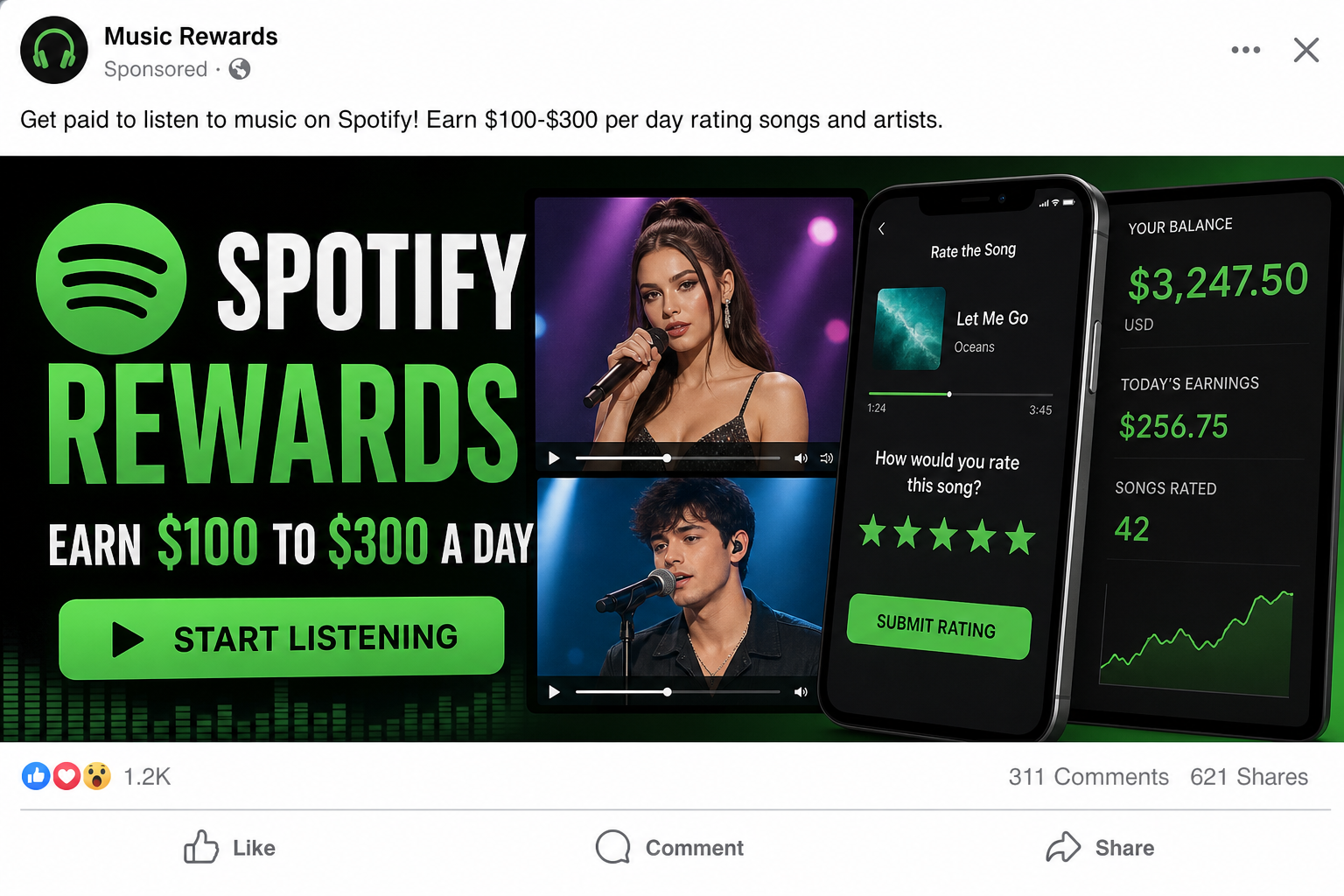
The pitch promises $100 to $300 daily
Ads claim users can rate short songs, influence playlists, and collect large daily payments without experience. The work is presented as free and open worldwide.
One observed page displayed a running payout total exceeding $1.8 million and claimed instant access without a credit card. Those figures were controlled by the page.
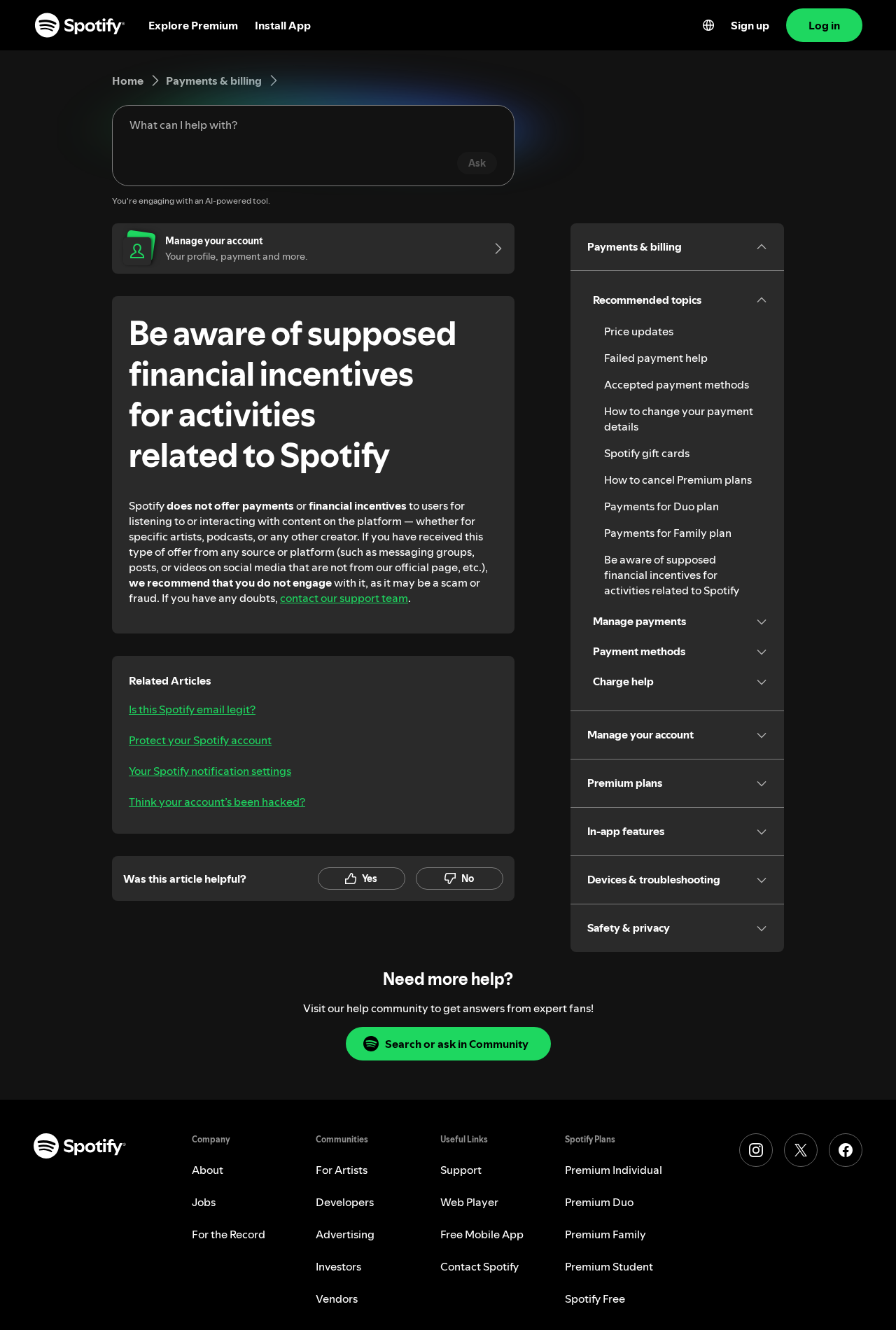
Spotify’s official support guidance directly says it does not offer users payments or financial incentives for listening to or interacting with content.
Celebrity clips make the fake launch feel real
Observed ads used altered depictions of well-known singers to discuss a new Spotify tool. Their faces and voices supplied recognition the unknown website lacked.
The campaign suggested that listeners could rate songs from famous artists and earn substantial money after passing simple verification steps.
No celebrity clip inside the funnel proves authorization. The safest confirmation is an announcement on Spotify’s official site and the artist’s verified channels.
A misspelled domain separates the scheme from Spotify
The captured campaign used `spotlfyrewards[.]live`, replacing the i in Spotify with a lowercase l. At a glance, the spelling can look correct.
The page copied colors, shapes, playlists, balances, and rating controls. Visual similarity cannot transfer ownership of a domain.
The likely destination is payment, identity collection, or a task scam where users must pay before fictional earnings can be withdrawn.
- Claim: earn $100 to $300 daily by listening to and rating music
- Impersonated brand: Spotify
- Impersonated people: famous singers shown through altered video
- Lookalike domain: spotlfyrewards.live, not an official spotify.com address
- Fake proof: payout counters, balances, song ratings, and testimonials
- Likely escalation: WhatsApp contact, activation payments, or withdrawal deposits
- Official fact: Spotify says it does not pay users for listening or interacting with content
How The Scam Works
Step 1: A social ad announces a quiet new program
The promotion claims Spotify recently launched a listener feedback tool but limited publicity to selected users. Scarcity explains why the viewer never heard of it.
A famous singer may appear to describe independent artists needing reviews. The altered clip makes the program sound connected to the music industry.
The promised work is intentionally simple. Anyone with headphones and a phone can imagine qualifying immediately.
The button opens a site outside Spotify’s official domain, where the advertiser controls every claim and displayed result.
Step 2: A lookalike page copies Spotify’s identity
Green branding, music tiles, familiar controls, and a prominent balance create the impression of an official product extension.
The domain spelling is the stronger signal. In the observed address, one character was substituted to imitate Spotify at reading speed.
Lookalike domains often use words such as rewards, careers, review, VIP, or official. Those additions do not make them company property.
Open Spotify independently and search its support center. Never use a sign-in button from the advertisement to verify the advertisement.
Step 3: The site displays enormous social proof
A public payout counter claims that participants already received a large total. Fake reviews and recent withdrawal notices create a busy community.
The operator can change those numbers automatically. No bank, payroll provider, tax document, or independently audited record supports them.
The page may say no card is required initially. That reassurance lowers resistance before later stages request payment or identity data.
A harmless first screen does not guarantee a harmless funnel. The final request matters more than the opening promise.
Step 4: Deepfake singers describe easy earnings
Altered celebrity videos claim ordinary listeners can rate songs and receive daily income. The words do not come from independently verified artist announcements.
Scammers choose recognizable performers because fans already trust their faces, voices, and relationship with Spotify.
Synthetic speech can preserve natural rhythm while changing the message. Minor mouth mismatches, flat emotion, or strange edits can reveal manipulation.
Even perfect video would require outside confirmation. Technology can now remove many visual clues.
Step 5: The user is moved toward private contact
A button may request registration, a messaging application, or access to a special reviewer group. Private chat separates victims from public warnings.
Group members can post earnings screenshots and congratulate new participants. Those accounts may be coordinated by the same operation.
The victim is encouraged to complete small tasks while a dashboard balance grows. Early actions build routine and trust.
Do not share Spotify credentials, banking data, tax information, or identity documents with an unverified chat administrator.
Step 6: Withdrawal reveals the real cost
The system may demand an activation, upgrade, tax, liquidity deposit, or cryptocurrency transfer before releasing the displayed balance.
Each fee is framed as temporary or refundable. After payment, a new obstacle appears because no real wages were reserved.
Scammers may allow a tiny early withdrawal to encourage larger deposits. One successful payment does not validate the platform.
Spotify’s official warning removes the central uncertainty: it does not offer payments for listening to or interacting with content.
Step 7: Account and payment risks continue
Reused passwords can expose the real Spotify account and email. Card details can support unauthorized charges or be sold to other fraud groups.
Victims may later receive fake support or recovery messages claiming to unlock the balance. Those contacts often request another payment.
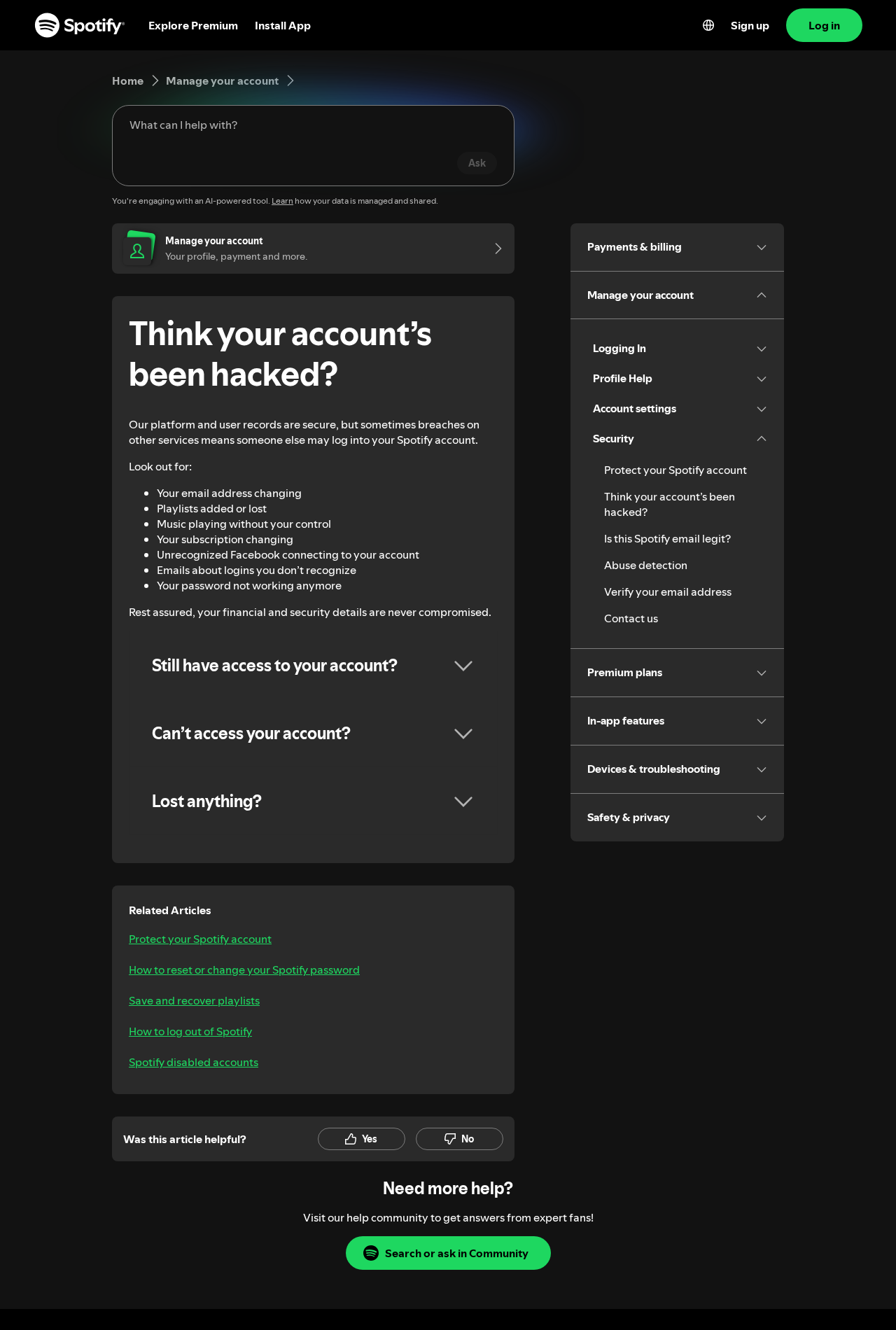
Secure the real Spotify account through spotify.com, sign out everywhere, review connected applications, and change reused passwords.
Contact the bank quickly and preserve the misspelled domain, ad, chats, receipts, and cryptocurrency transaction records.
What the Evidence Actually Shows
Spotify has issued a direct warning
Spotify’s support page says the company does not pay users for listening to or interacting with artists, podcasts, or other creator content.
It advises people not to engage with such offers from messaging groups, social posts, or videos outside official pages because they may be fraudulent.
That statement directly contradicts the campaign’s central promise of $100 to $300 daily for rating songs.
The domain is a deliberate visual imitation
The observed hostname uses spotlfy with a lowercase l where Spotify uses i. The substitution is easier to miss in some fonts and on small screens.
Official branding inside the page cannot repair that mismatch. Anyone can copy a logo and place it above a form.
Password managers can help because they will not recognize a lookalike domain as the saved Spotify site.
The flow resembles a documented task scam
FTC task-scam guidance describes simple ratings, fictional balances, and later deposits required to continue or withdraw. The structure closely matches this offer.
Real employers pay workers. They do not require workers to fund platform liquidity, repair task balances, or buy cryptocurrency to release wages.
A growing balance increases pressure, but it remains meaningless until money reaches an account the victim independently controls.
The celebrity claims lack official confirmation
No advertisement-controlled video can authenticate itself. Confirm artist partnerships through Spotify Newsroom, verified artist profiles, and reputable independent reporting.
The FTC warns that scammers use doctored celebrity video and audio to sell products and money-making opportunities.
The safest assumption is that a surprising celebrity endorsement is unverified until it appears through independent official channels.
Company, Address, and Fulfillment Checks
Spotify Rewards is not a verified Spotify division
The copied green palette and music interface create brand recognition, but they do not identify an authorized employer.
Spotify’s official guidance says it does not pay users for listening to or interacting with content. That directly contradicts this business story.
Any recruiter claiming otherwise should provide an official spotify.com announcement, corporate contact, employment agreement, and normal payroll documentation.
One letter in the web address changes everything
The observed spotlfyrewards.live hostname replaces Spotify’s i with a lowercase l, a substitution that can disappear in small mobile fonts.
Registration on that lookalike site sends information to an unknown operator, regardless of how accurately the page copies songs and logos.
Inspect the address character by character. Password managers also help because they will not recognize the imitation as the saved Spotify domain.
Private music coaches have no accountable workplace
A recruiter may move applicants into a messaging group where administrators celebrate withdrawals and assign batches of songs.
Request the employer’s registered name, jurisdiction, physical office, payroll contact, and written explanation of every possible worker expense.
An administrator using a mobile number and disappearing profile cannot provide the accountability expected from a global streaming company.
Digital delivery can still conceal a fulfillment problem
There may be no parcel, yet the operation still sells access, levels, credits, or activation rather than genuine employment.
Unknown payment pages can capture card data, identity records, or cryptocurrency while a fictional balance remains inside the dashboard.
The relevant fulfillment question is whether usable wages ever arrive. Screenshots and counters are not settlement into an account you control.
What to Do if You Have Fallen Victim to This Scam
- Stop rating songs on the fake platform
Close the lookalike dashboard and do not finish another playlist, premium task, optimization batch, or reviewer level.
The displayed balance can rise indefinitely because it is software, not proof that Spotify or an employer reserved wages.
Block the recruiter after saving evidence. Do not negotiate an exit payment from the same people who invented the obstacle.
- Do not fund a promised withdrawal
Refuse requests for activation, tax, insurance, account correction, cryptocurrency, or a temporary liquidity deposit.
Legitimate payroll deducts lawful items transparently or pays agreed wages. Employees do not recharge a balance to receive earnings.
A small earlier payout does not change this conclusion. That transfer may have been bait for a larger deposit.
- Report money through the correct channel
Contact the card issuer, bank, payment application, or cryptocurrency exchange using contact details obtained independently.
Explain that the transaction followed a fake Spotify listening job and provide the misspelled hostname and recruiter conversation.
Ask what can be reversed, blocked, or flagged. Save case numbers and continue watching for charges under unfamiliar merchant names.
- Lock down the genuine Spotify account
Change the Spotify password through spotify.com, then use the sign-out-everywhere option and review connected applications.
Change any other account using the same password, beginning with email. Enable multi-factor authentication wherever it is offered.
If login details were entered only on the imitation site, assume the criminals captured them even without an error message.
- Preserve the deceptive music interface
Screenshot the payout counter, song tasks, promised daily range, celebrity clips, withdrawal messages, domain spelling, and all requested fees.
Export chat histories and save wallet addresses, payment receipts, usernames, telephone numbers, and invitation links.
Spotify and investigators can act more effectively when the report shows the full impersonation rather than a cropped payment screen.
- Remove software supplied by the group
Run Malwarebytes after installing any reviewer application, browser add-on, remote-access tool, or configuration profile from the recruiter.
Check the device for unknown accessibility permissions and administrative applications. Remove detections before resetting financial passwords.
On a shared household computer, ask every user whether the program requested codes, screen access, or stored browser credentials.
- Silence the cloned campaign
AdGuard can filter many malicious ads and tracking links that lead back to counterfeit streaming rewards pages.
Revoke notification permission for the lookalike domain and remove its cookies, saved passwords, and stored payment data.
Always reopen Spotify from the official application or a typed bookmark. Do not use a recruiter’s verification button.
- Warn Spotify and fraud authorities
Forward suspicious Spotify email to spoof@spotify.com and report the copied website through Spotify’s official support routes.
Submit the task scam to the FTC and appropriate local cybercrime service, including the complete payment and domain trail.
Be cautious afterward. Recovery scammers may claim Spotify found your balance and request another fee to release it.
Is Your Device Infected? Run a Free Malware Scan
Slow performance, constant pop-ups, or strange behavior? These are classic signs of a malware infection. A quick way to check is to scan your device with Malwarebytes Free, one of the most trusted malware removal tools available. If you only visited a scam page and didn’t download or install anything, this scan is optional.
The free version detects and removes the most common threats, including:
- Adware — the cause of those annoying pop-ups
- Browser hijackers — unwanted redirects and changed homepages
- Trojans and spyware — hidden programs stealing your data
- Potentially unwanted programs (PUPs) — software you never asked for
👉 Select your device below — Windows, Mac, or Android — then follow the simple steps to download Malwarebytes, scan your system, and remove any threats it finds. The scan usually takes 5 to 20 minutes.
Run a Malware Scan with Malwarebytes for Windows
Malwarebytes is one of the most popular and trusted anti-malware tools for Windows — and it’s completely free for removing infections. It catches threats that many antivirus programs miss, including adware, browser hijackers, and trojans. Follow the steps below to scan your PC and remove what Malwarebytes finds.
Download Malwarebytes
Click the button below to download the latest version of Malwarebytes for Windows from the official source. The free version is all you need — it will scan your computer and remove adware, browser hijackers, and other malicious software at no cost.
Download MalwarebytesOfficial installer for Windows 11 and 10. Your download starts right away.Want real-time protection? See Malwarebytes Premium Malwarebytes Free for WindowsScans and removes malware at no cost
-
Install Malwarebytes
When the download finishes, open your Downloads folder and double-click the MBSetup file. If Windows shows a User Account Control pop-up, click “Yes” to allow the installation.

Follow the On-Screen Prompts to Install Malwarebytes
The setup wizard will walk you through a few quick screens:
-
Choose where you’re installing the program — “Personal Computer” or “Work Computer” — then click Next.

-
Malwarebytes will now install on your device. This usually takes under a minute.

-
When installation is complete, the “Welcome to Malwarebytes” screen will open automatically.

-
On the final screen, click Open Malwarebytes to launch the program.

-
Optional: Check for rootkits with a Custom Scan
You don’t need to change any settings for a normal scan. The standard Threat Scan in the next step is enough for most problems, so you can go straight to it.
If you also want to check for rootkits, use a Custom Scan. In current versions of Malwarebytes, rootkit scanning is only available there:
- On the Scanner tile, click the three-dot menu and select Advanced Scan.
- Choose Custom Scan. In its options, check Scan for rootkits.
- Select your system drive (usually C:\) as the location to scan, then start the scan. It takes longer than a Threat Scan.
- When it finishes, review and quarantine the results as described in the steps below.
Rootkit scanning isn’t available on Windows devices with ARM processors.
Start the Scan
Click the blue Scan button. Malwarebytes will automatically update its virus database and start checking your computer for malware.

-
Wait for the Scan to Finish
The scan checks your entire system for browser hijackers and other malicious programs, so it can take 5 to 20 minutes depending on your computer. Feel free to do something else — just check back occasionally to see the progress.

-
Quarantine the Detected Threats
When the scan is done, you’ll see a list of everything Malwarebytes found — malware, adware, and potentially unwanted programs. Click the “Quarantine” button to remove all of them at once.

Malwarebytes will now remove the malicious files and registry entries and move them safely into quarantine.

-
Restart Your Computer
Some threats can only be fully removed after a reboot. If Malwarebytes asks you to restart, click Yes. Once you’re logged back in, Malwarebytes has finished removing the threats it found.

When the scan is done, check whether the problems you noticed have stopped. If they continue, see the options below.
If you are still having problems with your computer after completing these instructions, then please follow one of the steps:
- Run a computer scan with ESET Online Scanner
- Ask for help in our Windows Malware Removal Help & Support forum.
Run a Malware Scan with Malwarebytes for Mac
Malwarebytes for Mac is a free on-demand scanner that removes the malware other security software tends to miss — adware, browser hijackers, and unwanted programs included. Cleaning an infected Mac with Malwarebytes has always been completely free, and it’s our go-to recommendation. Follow the steps below to scan your Mac and remove what Malwarebytes finds.
-
Download Malwarebytes for Mac
Click the button below to download the latest version of Malwarebytes for Mac.
Download MalwarebytesOfficial installer for macOS. Your download starts right away.Want real-time protection? See Malwarebytes PremiumMalwarebytes Free for MacScans and removes malware at no cost -
Open the Malwarebytes setup file
When the download finishes, open your Downloads folder and double-click the setup file to begin the installation.

-
Follow the On-Screen Prompts to Install Malwarebytes
The Malwarebytes for Mac Installer will guide you through a few quick screens. Click “Continue” and keep following the prompts until the installation completes.



When the installation is complete, Malwarebytes opens to the Welcome to Malwarebytes screen. Click “Get started“.
Malwarebytes needs Full Disk Access to check your whole Mac. When it asks, open System Settings > Privacy & Security > Full Disk Access, turn on Malwarebytes (it may be listed as Malwarebytes Protection), and confirm with your password or Touch ID. Then return to Malwarebytes. On macOS Monterey and earlier, this setting is in System Preferences > Security & Privacy > Privacy.
-
Select “Personal Computer” or “Work Computer”
Malwarebytes will ask what type of computer you’re installing it on. Click either Personal Computer or Work Computer, whichever applies.

-
Start the Scan
Click the “Scan” button. Malwarebytes will automatically update its detection database and begin checking your Mac for malware.

-
Wait for the Scan to Finish
Malwarebytes will scan your Mac for adware, browser hijackers, and other malicious programs. This can take a few minutes, so feel free to do something else — just check back occasionally to see the progress.

-
Quarantine the Detected Threats
When the scan is done, you’ll see a list of everything Malwarebytes found. Click the “Quarantine” button to remove all the threats at once.

-
Restart Your Mac
Malwarebytes will now remove all the malicious files it found. Some threats can only be fully removed after a reboot — if Malwarebytes asks you to restart, allow it. Once you’re logged back in, check whether the problems you noticed have stopped. If they come back, save the scan report and ask for help in our forum.

If the problems you noticed continue after the scan, see the options below.
If you are still experiencing problems while trying to remove a malicious program from your computer, please ask for help in our Mac Malware Removal Help & Support forum.
Run a Malware Scan with Malwarebytes for Android
Malwarebytes for Android scans your phone or tablet for malware, adware, and potentially unwanted apps. The free version scans only when you start a scan. Real-time protection, which checks apps automatically, is part of the paid Premium version.
-
Download Malwarebytes for Android.
You can download Malwarebytes for Android by clicking the link below.
Get Malwarebytes for AndroidOpens Google Play in a new tab.Want real-time protection? See Malwarebytes Premium for AndroidMalwarebytes for AndroidScans your phone and removes malware at no cost -
Install Malwarebytes for Android on your phone.
In the Google Play Store, tap “Install” to install Malwarebytes for Android on your device.

When the installation process has finished, tap “Open” to begin using Malwarebytes for Android. You can also open Malwarebytes by tapping on its icon in your phone menu or home screen.

-
Follow the on-screen prompts to complete the setup process
When Malwarebytes opens, it walks you through a short setup. Tap Get started and follow the prompts. If you see an offer for a trial or a paid plan, read it before you accept. You can skip it and keep using the free scanner.
Malwarebytes will ask for permission to access the files on your phone so it can scan them. Tap Allow, or turn on the permission in the Android screen that opens, then return to Malwarebytes.
-
Run a scan with Malwarebytes for Android
On the main screen, tap Scan now. In some versions, you open the menu, tap Scanner, and then tap Run a scan.
-
Wait for the Malwarebytes scan to complete.
Malwarebytes will now start scanning your phone for adware and other malicious apps. This process can take a few minutes, so we suggest you do something else and periodically check on the status of the scan to see when it is finished.

-
Remove the detected apps.
When the scan has been completed, you will see a list of the threats that Malwarebytes for Android has detected. Next to each detected item, tap the menu icon (three dots), then choose to uninstall the app or delete the file. Android then asks you to confirm. Tap OK or Uninstall to remove the app.
-
Restart your phone.
When the detected apps are removed, restart your phone if Malwarebytes asks you to. Then check whether the problems you noticed have stopped.
If the problems you noticed continue after the scan, see the options below.
If you are still having problems with your phone after completing these instructions, then please follow one of the steps:
- Ask for help in our Mobile Malware Removal Help & Support forum.
- Only as a last resort, reset your phone to factory settings. Read the warning below first.
- Back up your photos, videos, files, and messages, for example to your Google account or a computer.
- Make sure you know your Google account email and password. The phone asks for them after the reset. If you changed the password recently, Google recommends waiting 24 hours before you reset.
- On a Samsung phone, also make sure you know your Samsung account password.
- If you use an authenticator app for two-step verification, move your accounts to another device or save your backup codes first.
Stay Protected: Block Ads and Malicious Sites
No scan can prove a device is completely clean, so it helps to block threats before they reach you. Most infections start with a malicious ad or a fake download button — so blocking them at the source is your best defense.
We recommend AdGuard, which blocks malicious ads, phishing pages, and dangerous redirects before they can reach you.
👉 Download AdGuard and browse safely
Frequently Asked Questions
Does Spotify pay listeners to rate songs?
Spotify states that it does not offer payments for listening to or interacting with music, podcasts, or other creator content.
Programs marketed through unsolicited videos and private messaging groups should therefore be treated as impersonation attempts.
Is spotlfyrewards.live an official Spotify address?
No. The hostname uses a lowercase l where the genuine brand uses an i, and it is not spotify.com.
Copied logos and a valid security certificate do not transfer ownership or legitimacy to a lookalike domain.
Why does the page show a large payout total?
The site owner can program counters, testimonials, recent withdrawals, and song balances without sending any money.
Independent payroll records or completed transfers matter. Numbers displayed inside the seller’s own interface do not verify them.
Could a famous singer really promote the job?
Celebrity video can be dubbed, cut from another context, or generated with synthetic voice and face tools.
Confirm a surprising promotion through the artist’s verified accounts, Spotify Newsroom, and independent reporting before acting.
What if the group already paid me once?
Task scammers sometimes provide a modest payout to establish trust before introducing deposits, negative balances, or premium assignments.
Keep the received money documented, but do not return it or send a larger amount to unlock supposed earnings.
How should a compromised Spotify account be recovered?
Use Spotify’s official hacked-account guidance, reset the password, sign out everywhere, and remove unknown connected applications.
Secure the associated email too, because an attacker controlling that inbox can undo password changes.
The Bottom Line
Spotify Rewards copies a trusted music brand, adds altered celebrity clips, and turns song ratings into fictional wages displayed on a lookalike website.
Spotify’s own guidance is clear: it does not pay users for listening to or interacting with content. The $300-a-day promise is not an official program.
Do not deposit money to withdraw a balance. Secure the real account, notify the bank, and report the impersonating pages.

Join the discussion
0 commentsShare your experience or ask a question about this article.
Discussion
Start the conversation
Have a question or something useful to share? Add the first comment.