


Trader Joe’s die-hard fans know that scoring free groceries from the chain is an irresistible prospect. So when websites like TraderHaul.com and TJSummer.com promise $700 Trader Joe’s gift cards in exchange for easy “deals,” it certainly grabs attention. But in reality, these sites are fraudulent affiliate schemes tricking users into downloading unwanted apps and signing up for useless subscriptions. This comprehensive guide will uncover how this scam works on multiple fake reward websites so you can avoid manipulation.

Understanding the Trader Joe’s Gift Card Scam Network
With its affordable, unique groceries and cult following, Trader Joe’s has amassed devoted brand loyalty among customers. So when websites like TraderHaul.com and TJSummer.com promise $700 Trader Joe’s gift cards in exchange for easy “deals,” fans take notice. However, these websites are not rewards programs or giveaways – they are fraudulent affiliate marketing schemes using the Trader Joe’s brand to deceive.
Upon arriving at these sites, users see prominent use of Trader Joe’s logos, fonts, images, and branding throughout. The homepage makes bold claims like “Get a $700 Trader Joe’s Gift Card!” or “Apply to Become a Trader Joe’s Product Tester Today for a $700 Reward Card!”.
The website appears convincingly professional and legitimate at first glance. A sense of urgency and scarcity is created by language claiming “limited spots available” so users feel compelled to act fast.
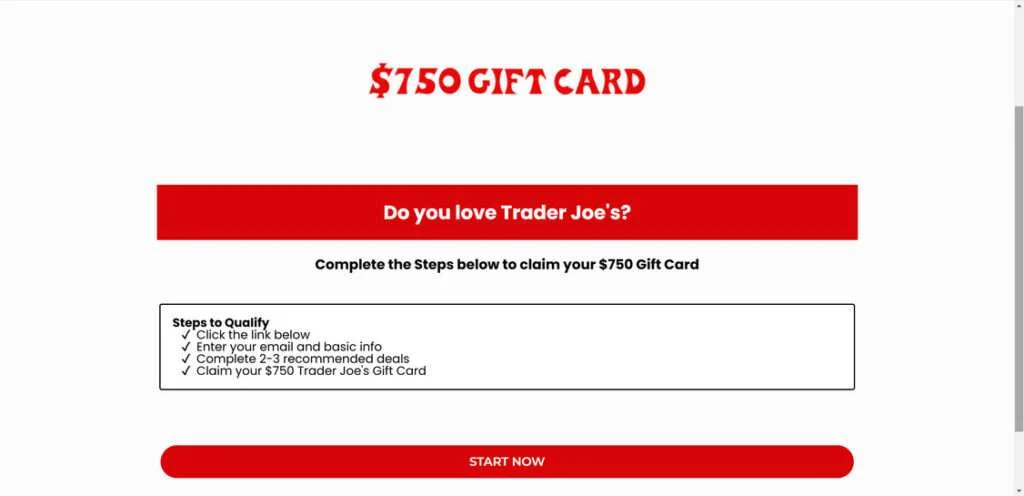
When visitors click call-to-action buttons to apply for the $700 card, they are asked to complete a short questionnaire collecting personal details like name, email address, phone number, and mailing address. Providing these details allows scammers to identify and target victims for the scam’s next steps.
After submitting information, users are redirected via affiliate links to secondary websites posing as rewards portals. These domains have names like Unlockrwrd.com, RewardBlastUSA.com, or RewardZoneUSA.com.
The scam websites claim users must complete just 2-3 more additional “deals” like app downloads, surveys, or purchases to claim their Trader Joe’s gift cards. In reality, these secondary websites solely exist to perpetrate affiliate marketing scams and never award any gift cards.
The required “deals” often involve:
- Downloading malware-infected apps that steal data
- Signing up for subscriptions that charge hidden fees
- Taking online surveys that gather personal information
- Making unnecessary purchases that only profit scammers
Completing these “deals” allows scammers to generate illicit affiliate commissions, steal identities, charge recurring fees, and further profit off users’ information. Meanwhile, victims are left with nothing after spending time and compromising privacy to finish the so-called deals.
These secondary sites have no affiliation with Trader Joe’s – they simply abuse the brand’s reputation to deceitfully lure fans. Despite appearing legitimate, neither the initial Trader Joe’s rewards websites or secondary deal websites intend to provide any real gift cards. The entire premise is an elaborate ruse to manipulate shoppers into enabling affiliate marketing scams.
By revealing the truth behind this deceptive network and their techniques, consumers can recognize the warning signs of such Trader Joe’s gift card scams. Validating legitimacy, protecting personal information, and using discretion when clicking unsolicited links will help users avoid enabling these schemes. Don’t let dreams of free groceries cause compromise. Stay diligent against those who would exploit your love of brands online.
How the Trader Joe’s Gift Card Scam Unfolds
While the domains change, here is how the scam universally unfolds across Trader Joe’s gift card websites:
1. You Encounter a Website Promising Trader Joe’s Gift Cards
Through social media ads, spam emails, or search results, users come across sites like TraderHaul.com, TJSummer.com, TraderGifted.com, and more.
These domains prominently use the Trader Joe’s logo and claim visitors can “become a product tester” to earn $700 in Trader Joe’s gift cards. The opportunity seems enticing given the brand’s popularity.
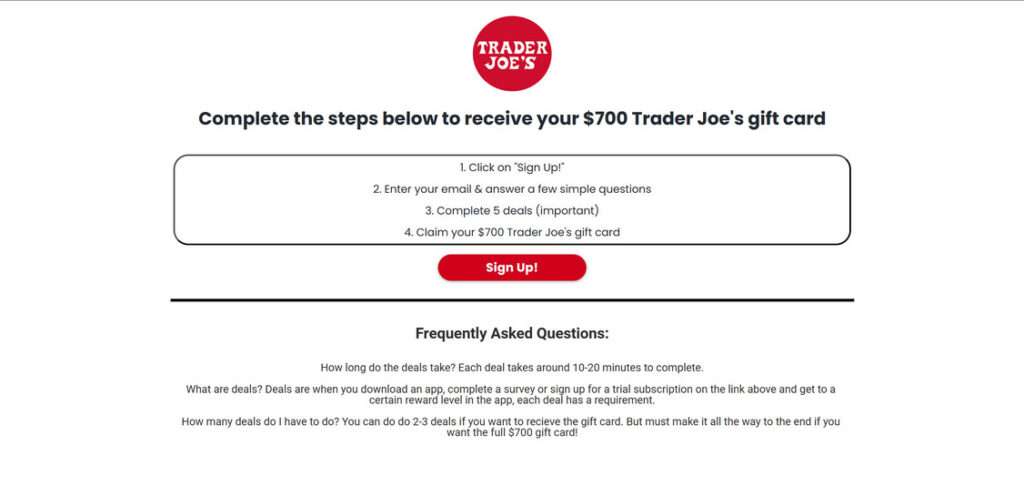
2. You Click “Apply Now” and Provide Basic Personal Details
Eager to claim their free gift cards, users click call-to-action buttons like “Apply Now” or “Get Started.” On the next page, a short questionnaire collects basic personal details like your email address, phone number, and name.
Providing this information allows scammers to identify and target potential victims for the scam’s next steps.
3. You are Redirected to Complete “Deals” on Secondary Sites
After submitting your details, users are redirected via affiliate links to secondary scam websites like Unlockrwrd.com or Rewardsgiantusa.com.
These sites pose as rewards portals, claiming users must complete 2-3 additional “deals” to earn their $700 Trader Joe’s gift code. In reality, they exist solely to perpetrate affiliate scams.

4. “Deals” Involve Downloading Malware Apps and Signing up for Subscriptions
The required “deals” typically include:
- Downloading and installing malware-infected apps
- Signing up for subscription or SMS services
- Taking online surveys
- Making unnecessary purchases
Completing these “deals” earns affiliate commissions for scammers while further scamming users.
5. You Provide Personal and Financial Details to Complete Deals
To download apps or purchase subscriptions, users must hand over personal and financial information. This includes credit card details, contact info, account passwords, and more.
Scammers can use this data for identity theft. It also allows them to charge hidden recurring fees for the low-quality services.
6. No Gift Card is Ever Sent After Completing Deals
Despite wasting time and compromising privacy to finish the “deals,” no $700 Trader Joe’s gift code ever materializes. These fake rewards websites have no connection to Trader Joe’s and never planned to provide gift cards.
7. You’re Left with Unwanted Charges and Malware Installs
In the end, victims are left with malware-infected devices, unwanted app downloads, useless subscriptions with recurring fees, and compromised personal information.
Meanwhile, scammers profit off illicit affiliate commissions and gain user data to perpetrate further fraud. Without caution, more scam websites can pop up exploiting the Trader Joe’s brand.
What to Do If You Are a Victim of These Scam Sites
If you suspect these fake Trader Joe’s rewards websites fooled you, act quickly to limit damages:
- Report It – File complaints about the scam websites with the FTC and notify Trader Joe’s about brand misuse.
- Cancel Services – If you signed up for subscriptions, cancel immediately to avoid recurring charges. Dispute any fraudulent charges.
- Clean Devices – Scan all devices for malware if you downloaded any apps and delete them. Change passwords as well in case of compromises.
- Monitor Accounts – Review credit reports and financial statements closely for signs of identity theft and freeze credit if needed.
- Warn Others – Help prevent further victims by warning friends, family, and social media connections about these fraudulent sites.
Remaining vigilant against unbelievable free offers and verifying legitimacy is crucial to avoid falling victim to such deceptive affiliate scams.
Is Your Device Infected? Run a Free Malware Scan
Slow performance, constant pop-ups, or strange behavior? These are classic signs of a malware infection. A quick way to check is to scan your device with Malwarebytes Free, one of the most trusted malware removal tools available. If you only visited a scam page and didn’t download or install anything, this scan is optional.
The free version detects and removes the most common threats, including:
- Adware — the cause of those annoying pop-ups
- Browser hijackers — unwanted redirects and changed homepages
- Trojans and spyware — hidden programs stealing your data
- Potentially unwanted programs (PUPs) — software you never asked for
👉 Select your device below — Windows, Mac, or Android — then follow the simple steps to download Malwarebytes, scan your system, and remove any threats it finds. The scan usually takes 5 to 20 minutes.
Run a Malware Scan with Malwarebytes for Windows
Malwarebytes is one of the most popular and trusted anti-malware tools for Windows — and it’s completely free for removing infections. It catches threats that many antivirus programs miss, including adware, browser hijackers, and trojans. Follow the steps below to scan your PC and remove what Malwarebytes finds.
Download Malwarebytes
Click the button below to download the latest version of Malwarebytes for Windows from the official source. The free version is all you need — it will scan your computer and remove adware, browser hijackers, and other malicious software at no cost.
Download MalwarebytesOfficial installer for Windows 11 and 10. Your download starts right away.Want real-time protection? See Malwarebytes Premium Malwarebytes Free for WindowsScans and removes malware at no cost
-
Install Malwarebytes
When the download finishes, open your Downloads folder and double-click the MBSetup file. If Windows shows a User Account Control pop-up, click “Yes” to allow the installation.

Follow the On-Screen Prompts to Install Malwarebytes
The setup wizard will walk you through a few quick screens:
-
Choose where you’re installing the program — “Personal Computer” or “Work Computer” — then click Next.

-
Malwarebytes will now install on your device. This usually takes under a minute.

-
When installation is complete, the “Welcome to Malwarebytes” screen will open automatically.

-
On the final screen, click Open Malwarebytes to launch the program.

-
Optional: Check for rootkits with a Custom Scan
You don’t need to change any settings for a normal scan. The standard Threat Scan in the next step is enough for most problems, so you can go straight to it.
If you also want to check for rootkits, use a Custom Scan. In current versions of Malwarebytes, rootkit scanning is only available there:
- On the Scanner tile, click the three-dot menu and select Advanced Scan.
- Choose Custom Scan. In its options, check Scan for rootkits.
- Select your system drive (usually C:\) as the location to scan, then start the scan. It takes longer than a Threat Scan.
- When it finishes, review and quarantine the results as described in the steps below.
Rootkit scanning isn’t available on Windows devices with ARM processors.
Start the Scan
Click the blue Scan button. Malwarebytes will automatically update its virus database and start checking your computer for malware.

-
Wait for the Scan to Finish
The scan checks your entire system for browser hijackers and other malicious programs, so it can take 5 to 20 minutes depending on your computer. Feel free to do something else — just check back occasionally to see the progress.

-
Quarantine the Detected Threats
When the scan is done, you’ll see a list of everything Malwarebytes found — malware, adware, and potentially unwanted programs. Click the “Quarantine” button to remove all of them at once.

Malwarebytes will now remove the malicious files and registry entries and move them safely into quarantine.

-
Restart Your Computer
Some threats can only be fully removed after a reboot. If Malwarebytes asks you to restart, click Yes. Once you’re logged back in, Malwarebytes has finished removing the threats it found.

When the scan is done, check whether the problems you noticed have stopped. If they continue, see the options below.
If you are still having problems with your computer after completing these instructions, then please follow one of the steps:
- Run a computer scan with ESET Online Scanner
- Ask for help in our Windows Malware Removal Help & Support forum.
Run a Malware Scan with Malwarebytes for Mac
Malwarebytes for Mac is a free on-demand scanner that removes the malware other security software tends to miss — adware, browser hijackers, and unwanted programs included. Cleaning an infected Mac with Malwarebytes has always been completely free, and it’s our go-to recommendation. Follow the steps below to scan your Mac and remove what Malwarebytes finds.
-
Download Malwarebytes for Mac
Click the button below to download the latest version of Malwarebytes for Mac.
Download MalwarebytesOfficial installer for macOS. Your download starts right away.Want real-time protection? See Malwarebytes PremiumMalwarebytes Free for MacScans and removes malware at no cost -
Open the Malwarebytes setup file
When the download finishes, open your Downloads folder and double-click the setup file to begin the installation.

-
Follow the On-Screen Prompts to Install Malwarebytes
The Malwarebytes for Mac Installer will guide you through a few quick screens. Click “Continue” and keep following the prompts until the installation completes.



When the installation is complete, Malwarebytes opens to the Welcome to Malwarebytes screen. Click “Get started“.
Malwarebytes needs Full Disk Access to check your whole Mac. When it asks, open System Settings > Privacy & Security > Full Disk Access, turn on Malwarebytes (it may be listed as Malwarebytes Protection), and confirm with your password or Touch ID. Then return to Malwarebytes. On macOS Monterey and earlier, this setting is in System Preferences > Security & Privacy > Privacy.
-
Select “Personal Computer” or “Work Computer”
Malwarebytes will ask what type of computer you’re installing it on. Click either Personal Computer or Work Computer, whichever applies.

-
Start the Scan
Click the “Scan” button. Malwarebytes will automatically update its detection database and begin checking your Mac for malware.

-
Wait for the Scan to Finish
Malwarebytes will scan your Mac for adware, browser hijackers, and other malicious programs. This can take a few minutes, so feel free to do something else — just check back occasionally to see the progress.

-
Quarantine the Detected Threats
When the scan is done, you’ll see a list of everything Malwarebytes found. Click the “Quarantine” button to remove all the threats at once.

-
Restart Your Mac
Malwarebytes will now remove all the malicious files it found. Some threats can only be fully removed after a reboot — if Malwarebytes asks you to restart, allow it. Once you’re logged back in, check whether the problems you noticed have stopped. If they come back, save the scan report and ask for help in our forum.

If the problems you noticed continue after the scan, see the options below.
If you are still experiencing problems while trying to remove a malicious program from your computer, please ask for help in our Mac Malware Removal Help & Support forum.
Run a Malware Scan with Malwarebytes for Android
Malwarebytes for Android scans your phone or tablet for malware, adware, and potentially unwanted apps. The free version scans only when you start a scan. Real-time protection, which checks apps automatically, is part of the paid Premium version.
-
Download Malwarebytes for Android.
You can download Malwarebytes for Android by clicking the link below.
Get Malwarebytes for AndroidOpens Google Play in a new tab.Want real-time protection? See Malwarebytes Premium for AndroidMalwarebytes for AndroidScans your phone and removes malware at no cost -
Install Malwarebytes for Android on your phone.
In the Google Play Store, tap “Install” to install Malwarebytes for Android on your device.

When the installation process has finished, tap “Open” to begin using Malwarebytes for Android. You can also open Malwarebytes by tapping on its icon in your phone menu or home screen.

-
Follow the on-screen prompts to complete the setup process
When Malwarebytes opens, it walks you through a short setup. Tap Get started and follow the prompts. If you see an offer for a trial or a paid plan, read it before you accept. You can skip it and keep using the free scanner.
Malwarebytes will ask for permission to access the files on your phone so it can scan them. Tap Allow, or turn on the permission in the Android screen that opens, then return to Malwarebytes.
-
Run a scan with Malwarebytes for Android
On the main screen, tap Scan now. In some versions, you open the menu, tap Scanner, and then tap Run a scan.
-
Wait for the Malwarebytes scan to complete.
Malwarebytes will now start scanning your phone for adware and other malicious apps. This process can take a few minutes, so we suggest you do something else and periodically check on the status of the scan to see when it is finished.

-
Remove the detected apps.
When the scan has been completed, you will see a list of the threats that Malwarebytes for Android has detected. Next to each detected item, tap the menu icon (three dots), then choose to uninstall the app or delete the file. Android then asks you to confirm. Tap OK or Uninstall to remove the app.
-
Restart your phone.
When the detected apps are removed, restart your phone if Malwarebytes asks you to. Then check whether the problems you noticed have stopped.
If the problems you noticed continue after the scan, see the options below.
If you are still having problems with your phone after completing these instructions, then please follow one of the steps:
- Ask for help in our Mobile Malware Removal Help & Support forum.
- Only as a last resort, reset your phone to factory settings. Read the warning below first.
- Back up your photos, videos, files, and messages, for example to your Google account or a computer.
- Make sure you know your Google account email and password. The phone asks for them after the reset. If you changed the password recently, Google recommends waiting 24 hours before you reset.
- On a Samsung phone, also make sure you know your Samsung account password.
- If you use an authenticator app for two-step verification, move your accounts to another device or save your backup codes first.
Stay Protected: Block Ads and Malicious Sites
No scan can prove a device is completely clean, so it helps to block threats before they reach you. Most infections start with a malicious ad or a fake download button — so blocking them at the source is your best defense.
We recommend AdGuard, which blocks malicious ads, phishing pages, and dangerous redirects before they can reach you.
👉 Download AdGuard and browse safely
Frequently Asked Questions About the $700 Trader Joe’s Gift Card Scam Sites
1. What are these Trader Joe’s gift card scam websites?
Websites like TraderHaul.com and TJSummer.com pretend to offer $700 Trader Joe’s gift cards but actually redirect users to complete affiliate “deals” earning scammers commissions.
2. How do the scam websites work?
These sites promise rewards for becoming a “product tester.” Users provide info then get redirected to offers. No gift cards are ever awarded.
3. What happens when you submit your details?
You are redirected to secondary scam sites via affiliate links to complete “deals” like downloads and surveys. These earn payouts for scammers.
4. What types of “deals” do they promote?
Typical deals include:
– Downloading malware apps
– Signing up for subscriptions
– Taking surveys that collect data
– Making unnecessary purchases
5. Do they really give Trader Joe’s gift cards?
No. These sites are completely unaffiliated with Trader Joe’s. No rewards are ever provided after completing deals.
6. What should I do if I encounter these sites?
Avoid entering any personal details or clicking links. Report the websites to Trader Joe’s for brand misuse. Use ad blockers and be vigilant against scams.
7. What are signs it’s a Trader Joe’s gift card scam?
Warning signs include:
– Too-good-to-be-true rewards
– Requests for personal info
– Redirects to questionable third-party sites
– Unauthorized use of brand assets
– Vague “deals” language
8. What if I already gave them information?
If you provided any financial details, contact your bank immediately. Monitor your accounts closely for fraud. Get security software to check your device for malware.
9. How can I avoid these scams in the future?
Be skeptical of unsolicited brand offers requiring upfront activity. Verify legitimacy through official channels before providing info or downloads.
10. Who is behind these Trader Joe’s affiliate scams?
They are created by fraudulent affiliate marketers seeking to profit on Trader Joe’s reputation. The sites often disappear quickly once exposed.
The Bottom Line on the Trader Joe’s Gift Card Scam
In summary, websites like TraderHaul.com and TJSummer.com are completely fraudulent affiliate marketing schemes unaffiliated with Trader Joe’s. By faking $700 Trader Joe’s gift card rewards, they manipulate users into completing “deals” earning illicit commissions through app downloads and subscription sign-ups.
When exposed, this scam network demonstrates why we must approach online brand offers critically. If unbelievable rewards require upfront activity, they are likely scams. Before providing any personal information or downloading mystery apps, verify the source is real.
By revealing the truth behind these fake rewards websites, consumers can recognize warning signs and make empowered decisions. Don’t let dreams of free groceries cause you to fall victim to such deceptive affiliate marketing ploys. Stay vigilant against those seeking to profit off your loyalty to beloved brands.

Join the discussion
0 commentsShare your experience or ask a question about this article.
Discussion
Start the conversation
Have a question or something useful to share? Add the first comment.