


The USB-C cable beside your bed looks just like the one behind your monitor. Shopping for a spare gets interesting when the listing offers six versions under one picture.
Maybe you need pictures on a bigger screen. Maybe you need tomorrow’s presentation copied before the train leaves. Those errands make surprisingly good shopping filters.
Overview
What you want the cable to do
Start with the thing you would miss if the cable couldn’t do it. A travel charger, a drive full of photographs, and a desk monitor present different choices.
- For charging, name the device and the power supply you plan to keep using.
- For files, decide whether an occasional small document or a regular large transfer matters most.
- For a display, write down the computer, the screen, and the picture you expect to see.
Give yourself permission to leave a feature off the list. Someone replacing a bedside charging lead doesn’t need to pay more just because a photographer would.
Two sockets and the space between them
Sketch the arrangement as it will actually sit. Put the computer on the left, the drive or monitor on the right, and the proposed cable between them.
Give each end a name more useful than “the USB port.” The left socket on a work laptop and the front socket on a monitor are identifiable starting points.
Include anything you intend to leave in between. If a dock stays on the desk, the cable you are buying may run to the dock, not the laptop.
Circle just that stretch on your sketch. Otherwise you can spend an evening comparing replacements for the perfectly good lead on the other side of the dock.
How much evidence a bargain needs
Put candidate offers in three piles: meets the job, misses a requirement, or needs one answer. A blank specification belongs in the third pile, not the first two.
A bargain with a definite mismatch is easy to dismiss. The interesting comparison is between a slightly dearer cable with a clear description and a cheaper one with a gap.
If the missing answer wouldn’t change what you buy, stop looking for it. If it separates a working desk from an expensive charging lead, resolve it before ordering.
How to read a USB-C cable listing
Step 1: Pin down the particular cable on offer
Choose the length and version you would actually order before reading the fine print. Note the manufacturer’s part number if the listing provides one.
Open the specifications for that selection, not just the first search result for the range. A family photograph may stay put when the selected product changes.
Here’s a useful way to spot a mixed description: could you hand the specification and the order line to somebody else and get the same item back?
Suppose the title offers a short or long version, but the only description names the short one. Keep the long version’s capabilities blank until its own documentation fills them.
A photographed package can help when the printed code and selected item agree. A tidy picture of two plugs against a white background won’t settle which length ships.
Step 2: Read the power number in context
Watts describe power, not minutes until a battery is full. For a replacement charging lead, start with the device maker’s recommended supply and cable for your intended use.
Imagine a work laptop whose instructions call for a 65W supply. A 45W travel adapter is the only source in your bag.
A 240W cable rating doesn’t promise 240W at your laptop. Check what the power supply provides and what the computer accepts.
The USB-IF cable certification program currently requires 60W or 240W markings on USB-C to USB-C cables submitted for testing.
Its data-rate marking requirement has an exception for High-Speed USB 2.0 cables. The power marking still applies there; a separate High-Speed marking is optional.
Current rules don’t make an older cable counterfeit because a mark isn’t visible in a photo.
Step 3: Find the line that describes your job
Apple’s 0.8 m Thunderbolt 3 (USB-C) Cable supports video and up to 100W.
Apple lists up to 40 Gbps with Thunderbolt 3, or 10 Gbps with USB 3.1 Gen 2.
The 2 m Apple USB-C Charge Cable in that comparison carries data at up to 480 Mbps but doesn’t support video.
If an offer says “fast” without a unit, ask which job the seller means. A quick answer about charging leaves a file-copy question entirely open.
Step 4: Match the ends before comparing prices
For a monitor, follow the picture from the computer’s documented video output to the screen’s documented video input. Read the entries for the particular ports you circled.
Look for a supported display mode as well as the connector name. If the screen must show a particular resolution and refresh rate, put both in your requirement.
“Can run my presentation” and “can run my editing monitor at its usual settings” aren’t equally demanding promises. A buyer who needs the second shouldn’t settle for the first.
When the two devices describe different connection options, pick one path that both document. Don’t borrow the computer’s best feature from one port and the monitor’s from another.
Three purchases you can settle on paper
The drive you need to pack in thirty seconds
Imagine a photographer copying one 6 GB file with thirty seconds available. The two quoted USB rates above give a quick way to cross one candidate off the list.
Use decimal units throughout this example. Each byte contains eight bits, so six gigabytes represent 48 gigabits, or 48,000 megabits, before counting anything else.
Check the letter after the unit when comparing the drive’s description with the cable’s. Uppercase B means bytes; lowercase b means bits. Compare the two figures in matching units.
At 480 megabits per second, dividing 48,000 by 480 gives 100 seconds. Even an ideal transfer would miss the departure time by seventy seconds.
At ten gigabits per second, divide 48 by ten instead. The result is 4.8 seconds under ideal conditions, not a promise about the photographer’s drive.
Turn the arithmetic around to see what matters. Moving 48 gigabits in thirty seconds requires an average of 1.6 gigabits of actual file data each second.
Does the thirty seconds include packing your things? Allow eight seconds for that and just twenty-two remain for the copy, raising the necessary average above two gigabits per second.
Suppose the drive’s own published maximum were one gigabit per second. The deadline would already be impossible, whatever the faster cable’s package said.
Storage read and write speeds, the computer’s connection and transfer overhead also take their share. Buy on the faster specification only if the rest of the setup supports the plan.
For a handful of small receipts with no deadline, the same shopper might keep the slower cable. The expensive feature solved a time constraint, not a universal problem.
The monitor with several similar sockets
Dell’s US page for the unavailable U2723QE monitor still makes a useful reading exercise.
One USB-C upstream port lists DisplayPort 1.4 Alt Mode and up to 90W. Dell separately lists another upstream port and a downstream USB-C port with up to 15W.
Suppose your notebook documents a compatible output. Match it to the named display input, not the most convenient opening.
Neither of those other entries identifies another video input.
Now change one fact: the laptop guide identifies its chosen socket for charging and files only. Spending more on the cable wouldn’t establish a video output at that socket.
Look for a documented display output elsewhere on the computer before putting another cable in the basket. If none fits this plan, change the planned connection, not the price ceiling.
For a one-cable desk, draw a second arrow in the opposite direction for charging the computer. Check that requirement separately before retiring the laptop’s existing charger.
Perhaps you don’t mind keeping that charger on the desk. In that case you can drop the one-cable requirement without giving up the screen you wanted.
The lead that reaches the screen but cannot drive it
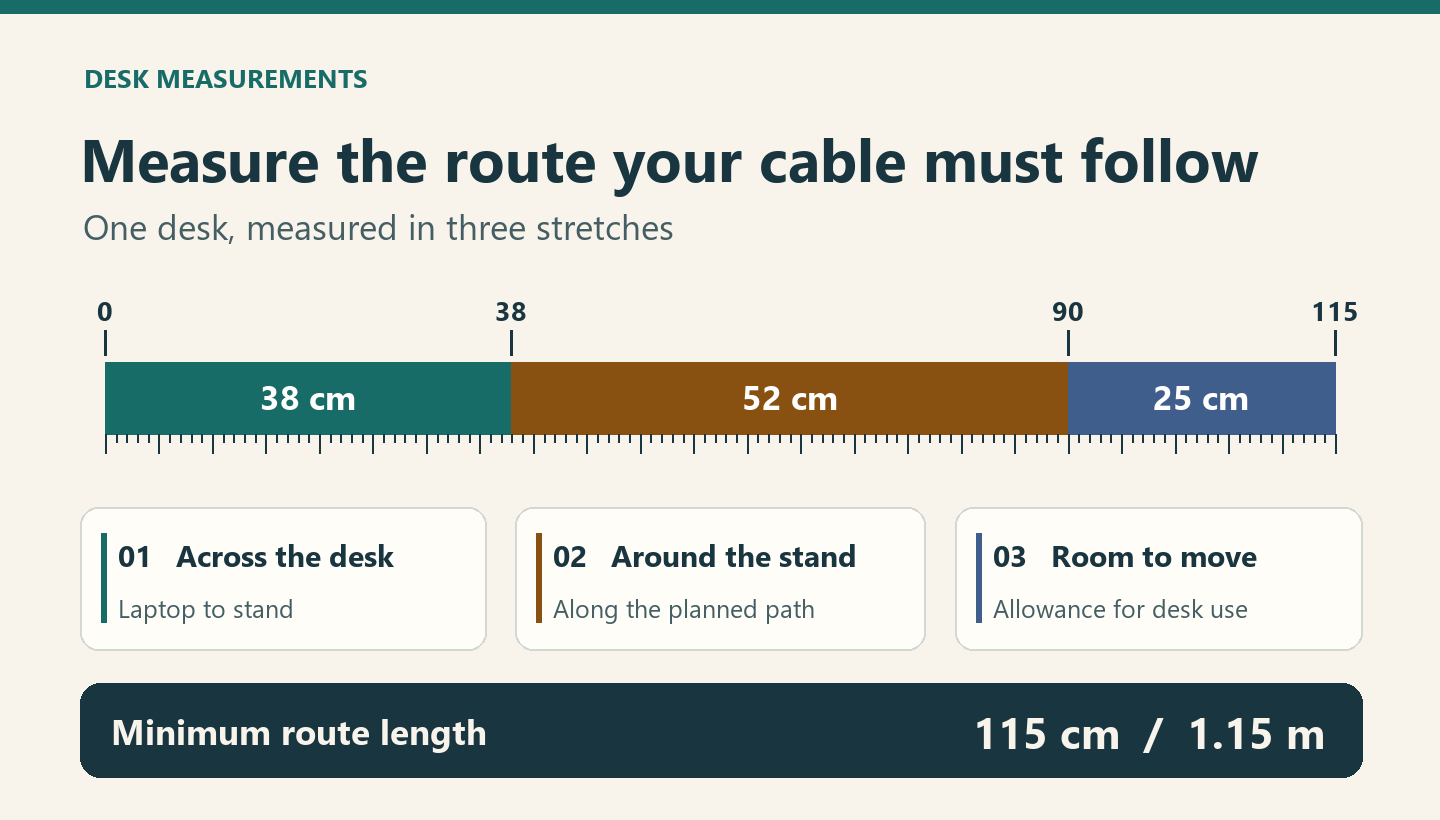
Imagine the laptop sits on a stand, with the monitor socket around the back. The route includes 38 centimeters across, 52 around the stand, and 25 for movement.
That’s 115 centimeters, or 1.15 meters. The short Apple option would fall short by 35 centimeters; the longer one would reach but fails this desk’s video requirement.
Neither is the right purchase for that desk. Ask about a third option long enough for this route with the required display support documented for that length.
Measure along the intended path with string, keeping equipment in its normal position. A ruler drawn diagonally between the two nearest corners measures a shortcut the cable can’t take.
Consider the position used when reading a paper or clearing space for lunch. A cable that fits only when the stand never moves may change how you use the desk.
Sometimes the layout is negotiable and the equipment isn’t. If relocating the stand gives you a shorter comfortable route, compare against that new measurement before rejecting a shorter option.
For a travel bag, measure both desks if you know them. A length chosen around the kitchen table may be awkwardly short at the office.
Compare offers when one specification is missing
Here’s a desk shopper’s short list. These are invented descriptions, not real listings. Assume the required display mode and available computer output have already been identified.
| Offer as described | What the shopper can decide |
|---|---|
| One meter with the required display mode | Pass on this length because the planned route is longer. |
| Two meters with no display specification | Request the mode supported by this exact two-meter version. |
| One and a half meters with the required mode | Keep this candidate if its documented charging capability also meets the desk plan. |
Notice why the middle offer survives the first cut. The description is incomplete, not contradictory. A useful answer could move that option into contention without changing the desk.
A question for the seller of the middle option
Which part number ships in the two-meter version, and where does its specification list the supported display mode for that length?
Don’t settle for a thumbs-up on an unrelated review. A useful reply identifies the version without asking you to guess which menu option its author selected.
A reply pointing to the one-meter product is still an answer about the wrong cable. If the seller supplies a matching document, compare its stated mode with your requirement.
Price becomes useful once two candidates meet the same brief. Compare the actual quantity and delivered cost; a two-pack of the wrong length leaves both desks short.
Consider a $20 single and a $30 pair, both matching the desk exactly. The pair costs $15 per lead, yet it takes $10 more from today’s budget.
If a second desk needs that same lead next week, the pair saves $10 against buying two singles. If the spare would sit unused, buy the single.
What to Do If You Already Ordered the Cable
-
Keep the selected part number, length and item description together. A bookmark to a family page may reopen with a different option selected.
-
Save the single line that settled a close call. For a monitor purchase that could be the written display specification beside the particular orderable version.
-
When the packet arrives, compare its code and length with the order before throwing away the sleeve. A different code is worth resolving before buying a second lead.
-
If the seller supplied a substitute, explain which ordered feature matters and ask about an exchange or return under the sale’s terms. Keep the reply with the order.
Frequently Asked Questions
Does a braided jacket tell me which cable to choose?
Choose the finish for handling or appearance if you like it. Treat those preferences as tie breakers after the documented capabilities and usable length meet your needs.
What if the computer belongs to my employer?
Ask whoever manages the equipment for the approved accessory or exact model and supported desk configuration. You need that information, not access to the computer’s settings.
Should I buy a spare for two different workspaces?
Write a short brief for each place. A shared spare makes sense if one item meets both briefs and will actually travel with you between them.
What if I need two screens instead of one?
Begin with documentation for that complete display arrangement. A listing describing a single monitor gives you no basis for budgeting the same arrangement twice.
Can I choose a gift without knowing the model?
Ask what the recipient wants to connect and how far apart the devices sit. When the setup is a surprise too, consider letting them choose the cable afterward.
Is the cable included with my equipment already enough?
Read the box contents alongside the specification for the supplied accessory. If that exact lead covers your planned job and route, you may not need another purchase.
The Bottom Line
Buy a USB-C cable that fits the route and the documented jobs of both ports. Skip the offer if an essential feature is still uncertain.
If you’ve already bought one, compare the item that arrived with your saved description. Resolve a missing feature or substituted version with the seller before replacing anything else.

Join the discussion
0 commentsShare your experience or ask a question about this article.
Community experiences
Did this happen to you?
Your experience could help someone recognize the same scam. Submit a private report for our team to review.
I experienced this tooReports are reviewed before publication. Sharing publicly is always your choice.
Discussion
Start the conversation
Have a question or something useful to share? Add the first comment.