


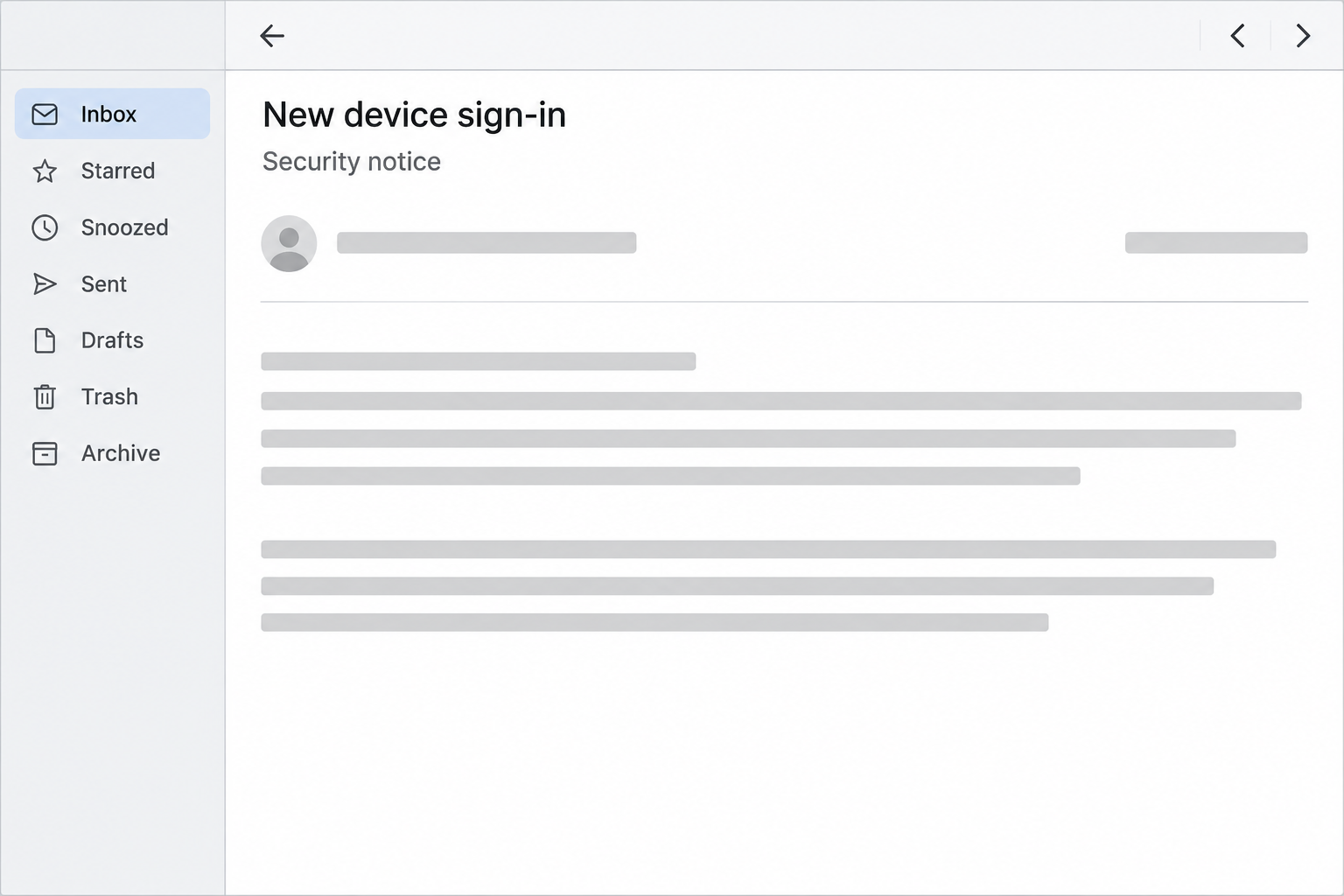
An email says somebody signed in to your X account from a device you’ve never used. The message offers to help you fix it before anything else happens.
You don’t have to decide whether the email is real just to check your account. There’s a safer way to find out what’s going on.
Overview
The visible advice sounds like something X would say
Changing a password and reviewing connected apps are sensible responses to an unfamiliar login. In this scam, the fraud is in the route the email gives you.
The Guardian documented an example that reported a new login from Arizona using Firefox on a Mac. The message invited the reader to secure the account.
The layout closely resembled an X notification. Some differences were visible in that example, including the lack of an account handle, but another version might not have those mistakes.
The safest response does not depend on catching a bad logo or an obvious typo. Open X separately and check the account from there.
There are two ways someone could gain access
A fake sign-in page can collect a password or one-time security code. It doesn’t have to look unusual to be dangerous.
A different version can try to persuade you to authorize an unfamiliar third-party app. That can give the app access without you telling anybody your X password.
X’s app and session guide explains that permissions vary. Depending on the grant, an app may be able to post for you or access certain information.
If you approved a grant, changing the password is not the only thing to check. Review connected apps and revoke those you don’t want taking actions on your behalf.
Keep these three account records separate
- Sessions show where your account is signed in and can help you spot a device or login you don’t recognize.
- Connected apps show services that have been given permission to use parts of your X account.
- Recovery details help determine who can regain access if the password or contact information is changed.
A message in your inbox tells you none of these records by itself. You can confirm them on the real service without following the email.
How the X New Device Login Scam Works
Step 1: The notification describes an event you don’t recognize
The notice may give a place, browser, and device type. Those specifics can make it feel like someone is showing you something X has already verified.
An unfamiliar location deserves a check, but not a rushed response. Network location may differ from your physical location, and an invented location can be chosen to frighten you.
If a message describes two different types of security action, you don’t have to take either one through its links. Open the account yourself and look for the underlying issue.
A familiar sender name is also not the same as a verified sender. The public name is what your email app shows first, and it can be copied.
Step 2: The message turns account protection into a link
The email might say you need to change your password immediately or audit the apps using your account. It may supply different links for each route.
Those links aren’t validated just because the advice is reasonable. The article’s reported example borrowed ordinary recovery language to make its next action seem like a safeguard.
On a small screen you may not see much of the destination before you tap. It’s simpler to use the app or a bookmark than to inspect an unfamiliar button.
If this is a work or organization account, follow its known support process. A colleague responsible for access may already have the real place to check.
Step 3: The next screen asks for information or permission
If the page is a fake sign-in, it may prompt for data that ordinarily belongs only on the real service. Stop once you recognize that the message led you there.
An approval screen deserves a different check. Read which service is asking for access and what it would be allowed to do, not simply whether the screen looks familiar.
A real platform can display a permission request for an app you don’t trust. A technically genuine screen still doesn’t establish that the app is a legitimate security tool.
Do not approve access to find out what happens next. A real account investigation starts in your own settings, without needing an unknown app to read or post anything.
Step 4: The account itself may become a source of new scams
Somebody with access could misuse your reputation to send links, publish posts, or contact people who recognize your account. The actions possible depend on the access obtained.
Don’t assume a missing login history entry means every app is safe. A connected app is a separate connection and should be reviewed as such.
Other people may hear from the account before you know anything is wrong. If friends mention unexpected posts or messages, ask what they saw and when.
If you see a promotion you didn’t publish, preserve enough information to report it and take it down after securing the account. Avoid resharing its link in a warning.
How to Check a Real Alert Without Using the Email
Compare the claimed sign-in with the account you actually use
Start the app from your usual icon or enter X through a bookmark you trust. Choose the account that the email is supposed to be about.
If you use more than one account, compare each relevant account separately. Fixing one profile doesn’t clear an unknown login on a different profile.
Review the device, date and time in the sessions list. Use several clues together instead of relying only on whether the city name is familiar.
If a session might be yours, think about where and when you signed in. You can still close an unfamiliar session if you don’t need it active.
Read the connected app list on its own terms
Find Apps and sessions from the account’s security settings, then review the registered connected apps. X’s guide explains how to view the access each app has.
A publisher, scheduler, or automation you use for work might have a name you don’t immediately recognize. Check with the account administrator before revoking an intended connection.
If you can tie an app to the suspicious email, remove its access. Don’t use a second link from the email to try to undo a grant.
Removing an app doesn’t necessarily erase data it already accessed. Check for unauthorized changes and tell people whose messages may have been affected where appropriate.
Check restoration options while you’re still signed in
Make sure the email and other recovery methods still belong to you. If you control the email inbox, review whether anything unusual has happened there as well.
Don’t send your password or sign-in codes to someone who offers to review the alert for you. Your support request should begin through a route you select independently.
X’s compromised account help explains what to do if resetting a password doesn’t restore access. Use that route instead of accounts promising paid recovery.
Update the authentication method on the real account if appropriate. Use an option supported by the platform and keep any backup codes in a private place.
The Right Response Depends on What You Did
If you only read the email, check the account directly and report the message as phishing. Reading a notification doesn’t give an app permission.
If you opened the link but didn’t enter or approve anything, close it and check for downloads you didn’t expect. Opening the page isn’t proof that your credentials were taken.
If you entered a password or provided a code, act quickly. Assume that information is no longer private, even if the site said the attempt failed.
If you clicked an approval control, verify the account’s app list. Think of that as a permission problem as well as a password problem.
If you have an organization account, ask who manages access and what was shared with the app. Don’t alter unrelated team accounts to see what changes the alert produces.
Check What Changed Before Telling People It’s Fixed
Start with the last action you recognize
Find the last post or message you remember sending before the warning. Comparing it with the account’s activity can help narrow the period you need to review.
Check your public profile for changes to its name, biography, or linked site. Somebody opening the profile may see an unfamiliar destination before they see your recent warning.
If a post was queued through a scheduler, check that service through the route you normally use. A scheduled post can appear later without an intrusion, so confirm its history.
Write down the changes you find and which accounts they affect. Keep this short enough that a support agent can distinguish an unexpected email from an actual change.
Keep help requests from exposing more information
When you request support, describe the prompt and whether you typed anything, approved anything, or lost access. You don’t need to send a password as proof.
If someone asks you to share a screenshot, remove private messages and login information unless the provider legitimately needs specific evidence through an official process.
An impostor may contact you after you mention the problem in public. A reply that uses the platform’s name is not automatically part of your support request.
Check accounts that share a recovery route
If several profiles receive resets in the same mailbox, review which ones the message involved and whether their settings actually changed. Don’t assume they all need recovery.
Before removing a recovery method, make sure you still have an approved way to sign in. Use the platform’s current instructions if an account belongs to a team.
Once you’ve dealt with the affected account, let collaborators know which normal channels to use again. Tell them directly if a message asking for payment wasn’t yours.
What to Do if You Have Fallen Victim to This Scam
Open X separately and secure the affected profile.
Use the genuine service to change a password you entered on a suspect page. Replace reused copies on other accounts, giving priority to your email and financial services.
If you can’t get in, use the platform’s actual recovery route. Do not pay a stranger to contact support on your behalf.
Check active sessions and connected apps one at a time.
End sessions you don’t recognize or no longer need. Review application permissions separately and revoke apps you didn’t intend to authorize.
Save enough detail to tell support what happened, but don’t keep a suspicious connection open just to document it.
Verify recovery information and check your email account.
Confirm that X still has your email and other recovery details. Look at your inbox’s recent sign-ins if you suspect somebody changed or accessed it.
If you discover unfamiliar forwarding or recovery changes, use your email provider’s support. Protect the place that receives password resets before assuming the issue is confined to X.
Warn the people who may have received messages.
Contact them through a known channel and say which messages or posts to ignore. Don’t link back to a suspect form while explaining it.
If someone sent money or shared credentials because of a message from your account, encourage them to contact the appropriate provider directly.
Report the email and check what the account did.
Save the time, displayed sender and subject. Use your mail service’s phishing report and the platform’s tools for unauthorized activity.
Check posts, profile changes, direct messages and any activity you have permission to review. Record what you found without claiming that every conversation was exposed.
Frequently Asked Questions
Can a fake alert arrive even when nobody signed in?
Yes, the message can invent a login to prompt you to act. Open the account independently and review its actual sessions rather than relying on the email.
Does a real permission screen make the app trustworthy?
No, a legitimate platform can display requests from third parties. If you don’t recognize the app and didn’t seek its service, don’t approve its access.
Is changing my password enough if I granted app access?
Check connected apps separately and revoke the grant if you did not mean to authorize it. Review sessions and recovery options too if you suspect wider account access.
Should I click the link to confirm it really goes to X?
No, you can verify the concern without opening the links. Start from your normal app or bookmark and use the account controls there.
Does an unusual city on the session list prove a breach?
An unfamiliar city is not conclusive because location estimates can vary. Review the associated device and time, and close sessions you can’t account for.
What if I manage more than one profile?
Check which account received the alert or was used for the approval. Review each affected profile separately and inform anyone who shares responsibility for it.
The Bottom Line
Don’t fix an unfamiliar X sign-in through the message that reported it. Open the real account and check the sessions, recovery details and apps yourself.
If you already entered details or granted permission, secure the account and remove the access you didn’t intend to give. Warn contacts if the profile sent anything suspicious.

Join the discussion
0 commentsShare your experience or ask a question about this article.
Community experiences
Did this happen to you?
Your experience could help someone recognize the same scam. Submit a private report for our team to review.
I experienced this tooReports are reviewed before publication. Sharing publicly is always your choice.
Discussion
Start the conversation
Have a question or something useful to share? Add the first comment.