

Have you ever encountered an error message related to the Xinput1_4.dll file while using your computer? If so, you’re not alone. Many users have come across this issue, and it can be quite frustrating. In this article, we will explore what the Xinput1_4.dll file is, common error messages associated with it, and how to fix those errors.
Understanding Xinput1_4.dll
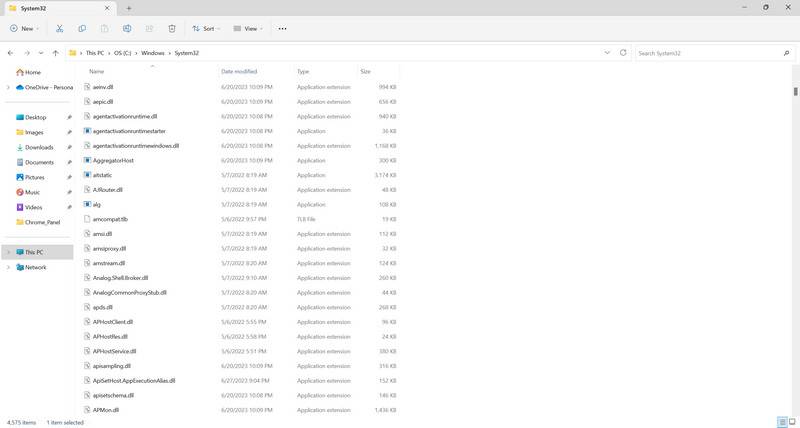
The Xinput1_4.dll file is a dynamic link library file that is part of the DirectX software package. DirectX is a collection of application programming interfaces (APIs) developed by Microsoft to handle multimedia-related tasks, such as graphics rendering and input processing, in Windows-based systems.
The Xinput1_4.dll file specifically relates to the XInput API, which is responsible for handling input from game controllers, such as Xbox controllers, on Windows systems. This file allows games and other applications to communicate with the controller and process user input effectively.
Common Error Messages
When there is an issue with the Xinput1_4.dll file or its associated components, you may encounter various error messages. Some of the most common error messages include:
- “Xinput1_4.dll not found”
- “The file Xinput1_4.dll is missing”
- “Xinput1_4.dll error loading”
- “Failed to initialize Xinput1_4.dll”
These error messages typically indicate that the Xinput1_4.dll file is either missing, corrupted, or incompatible with the application or game you are trying to run.
Causes of Xinput1_4.dll Errors
Several factors can contribute to Xinput1_4.dll errors. Here are some of the most common causes:
- Missing or Corrupted File: The Xinput1_4.dll file may be missing or corrupted due to improper installation, accidental deletion, or malware infection.
- Outdated DirectX Version: If you have an outdated version of DirectX installed on your system, it may not be compatible with the Xinput1_4.dll file required by certain applications or games.
- Driver Issues: Outdated or incompatible drivers for your game controller can also lead to Xinput1_4.dll errors.
How To Fix Xinput1_4.dll Errors
Now that we understand the causes of Xinput1_4.dll errors, let’s explore some solutions to fix them:
Solution 1: Reinstall DirectX
One of the first steps you can take to resolve Xinput1_4.dll errors is to reinstall DirectX. Follow these steps:
- Download the latest DirectX installer from the official Microsoft website.
- Run the installer and follow the on-screen instructions to complete the installation.
- Restart your computer and check if the Xinput1_4.dll errors persist.
Solution 2: Update Game Controller Drivers
If you are experiencing Xinput1_4.dll errors specifically when using a game controller, updating the drivers for your controller may help. Here’s how:
- Press Win + X on your keyboard and select Device Manager from the menu.
- Expand the Human Interface Devices category.
- Right-click on your game controller and select Update driver.
- Choose the option to Search automatically for updated driver software.
- Follow the on-screen instructions to complete the driver update process.
- Restart your computer and check if the Xinput1_4.dll errors are resolved.
Solution 3: Scan for Malware
Malware infections can also cause Xinput1_4.dll errors. It is essential to scan your system for malware regularly. We recommend using Malwarebytes Free, a reputable anti-malware software, to scan and remove any potential threats.
Summary
The Xinput1_4.dll file is a crucial component of the DirectX software package, responsible for handling input from game controllers on Windows systems. When encountering Xinput1_4.dll errors, it is essential to understand the causes and apply appropriate solutions.
In this article, we discussed the common error messages associated with Xinput1_4.dll, including “not found” and “missing” errors. We explored the causes of these errors, such as missing or corrupted files, outdated DirectX versions, and driver issues.
To fix Xinput1_4.dll errors, we recommended reinstalling DirectX, updating game controller drivers, and scanning for malware using Malwarebytes Free. By following these solutions, you can resolve Xinput1_4.dll errors and enjoy a seamless gaming experience on your Windows system.

Join the discussion
0 commentsShare your experience or ask a question about this article.
Your progress
Did these steps help?
Let us know how the guide worked for you.
Describe what you see and the step you reached. Keep passwords and other private information out.
Discussion
Start the conversation
Have a question or something useful to share? Add the first comment.