

Text Enhance is an adware program that will display their own ads on eBay, Amazon, Facebook and other websites that you are visiting.These advertisements will be shown as boxes containing various coupons that are available or as underlined keywords, which when clicked will display an advertisement that states it is brought to you by Text Enhance.
![[Image: Text Enhance advertisement]](http://malwaretips.com/blogs/wp-content/uploads/2013/02/text-enhance-ads.jpg "Text Enhance advertisement")
Text Enhance is an add-on for Internet Explorer, Firefox, and Chrome that is typically added when you install other free programs. When you install these free programs, they will also install Text Enhance as well. Some of the programs that are known to bundle Text Enhance include 1ClickDownload, Yontoo and FBPhotoZoom.
Once installed, whenever you will try to use a search form on Ebay,Google,Facebook or any other websites, Text Enhance will show in the right top part of your browser, a box containing related keyword suggestions,ads and sponsored links.
Furthermore, Text Enhance will display advertisement boxes on the websites that you are visiting, and may collect search terms and other keywords from your search queries.
You should always pay attention when installing software because often, a software installer includes optional installs, such as this Text Enhance browser hijacker. Be very careful what you agree to install. Always opt for the custom installation and deselect anything that is not familiar, especially optional software that you never wanted to download and install in the first place. It goes without saying that you should not install software that you don’t trust.
Text Enhance – Virus Removal Instructions
STEP 1 : Uninstall Text Enhance from your computer
Text Enhance has installed a program called Text Enhance on your computer which we will need to uninstall.
- To uninstall Text Enhance program from your computer, click the Start button, then select Control Panel, and click on Uninstall a program.
If you are a Windows 8 user, you can right-click on a bottom left hot corner (formerly known as the Start button) and select Control panel from there, then select Uninstall a program. - Search and uninstall Text Enhance from your computer.
![[Image: Uninstall Text Enhance program]](data:image/svg+xml,%3Csvg%20xmlns='http://www.w3.org/2000/svg'%20viewBox='0%200%20939%20194'%3E%3C/svg%3E "Uninstall Text Enhance program")
![[Image: Uninstall Text Enhance program]](http://malwaretips.com/blogs/wp-content/uploads/2013/02/uninstall-text-enhance.jpg "Uninstall Text Enhance program")
Please keep in mind that on some computers or missing, carefully look for any program developed by 215 apps or Excellent apps, and uninstall it from your computer.
STEP 2 : Remove the Text Enhance residual damage from your browser
Remove Text Enhance from Internet Explorer
- Open Internet Explorer,then click on the gear icon
![[Image: icongear.jpg]](data:image/svg+xml,%3Csvg%20xmlns='http://www.w3.org/2000/svg'%20viewBox='0%200%2016%2016'%3E%3C/svg%3E "Remove Text Enhance adware (Uninstall Guide) 1") (Tools for Windows XP users) at the top (far right), then select Manage add-ons.
(Tools for Windows XP users) at the top (far right), then select Manage add-ons.

- From the Toolbars and Extensions tab, select Text Enhance and click Disable.
![[Image: Text Enhance Internet Explorer add-on]](data:image/svg+xml,%3Csvg%20xmlns='http://www.w3.org/2000/svg'%20viewBox='0%200%20800%20225'%3E%3C/svg%3E "Text Enhance Internet Explorer add-on")
![[Image: icongear.jpg]](http://malwaretips.com/images/removalguide/icongear.jpg "Remove Text Enhance adware (Uninstall Guide) 1") (Tools for Windows XP users) at the top (far right), then select Manage add-ons.
(Tools for Windows XP users) at the top (far right), then select Manage add-ons.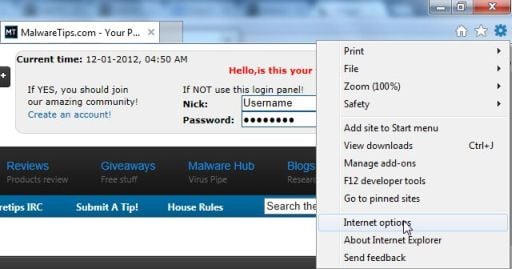
![[Image: Text Enhance Internet Explorer add-on]](http://malwaretips.com/blogs/wp-content/uploads/2013/02/Text-Enhance-Internet-Explorer-addon.jpg "Text Enhance Internet Explorer add-on")
Remove Text Enhance from Mozilla Firefox
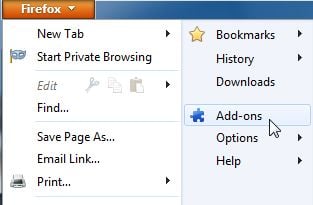
- At the top of the Firefox window, click the Firefox button, then select Add-ons.

- Select the Extensions tab, then remove Text Enhance extension from Mozilla Firefox.
![[Image: Text Enhance Firefox extension]](data:image/svg+xml,%3Csvg%20xmlns='http://www.w3.org/2000/svg'%20viewBox='0%200%20994%20252'%3E%3C/svg%3E "Text Enhance Firefox extension")
![[Image: Text Enhance Firefox extension]](http://malwaretips.com/blogs/wp-content/uploads/2013/02/Text-Enhance-Firefox-Extension.jpg "Text Enhance Firefox extension")
Remove Text Enhance from Google Chrome
- Click the Chrome menu
 button on the browser toolbar, select Tools and then click on Extensions.

- In the Extensions tab,remove the Text Enhance extension by clicking on the Recycle Bin next to the plugin.
![[Image: Text Enhance Chrome extension]](data:image/svg+xml,%3Csvg%20xmlns='http://www.w3.org/2000/svg'%20viewBox='0%200%20888%20234'%3E%3C/svg%3E "Text Enhance Chrome extension")
 button on the browser toolbar, select Tools and then click on Extensions.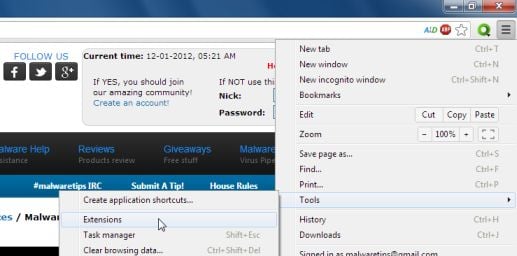
![[Image: Text Enhance Chrome extension]](http://malwaretips.com/blogs/wp-content/uploads/2013/02/Text-Enhance-Chrome-Extension.jpg "Text Enhance Chrome extension")
Please keep in mind that on some computers, the browser add-on might have a different name, if you can’t find Text Enhance on your list,then carefully look for any other extension developed by 215 apps or Excellent apps, and remove it from your browser.
STEP 3: Remove Text Enhance registry keys with Adwcleaner
- You can download AdwCleaner from the below link.
ADWCLEANER DOWNLOAD LINK (This link will automatically download AdwCleaner on your computer) - Before starting this utility,close all open programs and internet browsers.
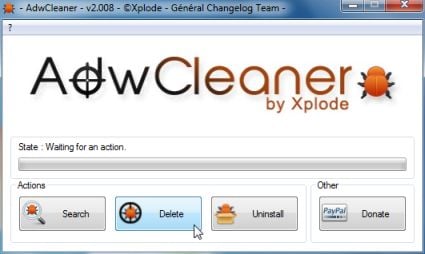
- Double click on adwcleaner.exe to run the tool.
- Click on Delete,then confirm each time with Ok.

- Your computer will be rebooted automatically. A text file will open after the restart.
- NEXT,double click on adwcleaner.exe to run the tool.
- Click on Uninstall,then confirm with yes to remove this utility from your computer.
STEP 4: Scan your computer for malware
Run a computer scan with Malwarebytes Anti-Malware
- You can download Malwarebytes Anti-Malware Free from the below link,then double click on it to install this program.
MALWAREBYTES ANTI-MALWARE DOWNLOAD LINK (This link will open a download page in a new window from where you can download Malwarebytes Anti-Malware Free) - When the installation begins, keep following the prompts in order to continue with the setup process.
DO NOT make any changes to default settings and when the program has finished installing, make sure you leave both the Update Malwarebytes’ Anti-Malware and Launch Malwarebytes’ Anti-Malware checked,then click on the Finish button.
![[Image: Malwarebytes Anti-Malware final installation screen]](data:image/svg+xml,%3Csvg%20xmlns='http://www.w3.org/2000/svg'%20viewBox='0%200%20402%20310'%3E%3C/svg%3E "Malwarebytes Anti-Malware final installation screen")
- On the Scanner tab,select Perform quick scan and then click on the Scan button to start scanning your computer.
![[Image: Malwarebytes Anti-Malware Quick Scan]](data:image/svg+xml,%3Csvg%20xmlns='http://www.w3.org/2000/svg'%20viewBox='0%200%20521%20397'%3E%3C/svg%3E "Run a Quick Scan with Malwarebytes Anti-Malware")
- Malwarebytes’ Anti-Malware will now start scanning your computer as shown below.
- When the Malwarebytes scan will be completed,click on Show Result.
- You will now be presented with a screen showing you the malware infections that Malwarebytes’ Anti-Malware has detected.Please note that the infections found may be different than what is shown in the image.Make sure that everything is Checked (ticked) and click on the Remove Selected button.
![[Image: Malwarebytes Anti-Malware final installation screen]](http://malwaretips.com/blogs/wp-content/uploads/2013/01/malwarebytes-installation.jpg "Malwarebytes Anti-Malware final installation screen")
![[Image: Malwarebytes Anti-Malware Quick Scan]](http://malwaretips.com/blogs/wp-content/uploads/2013/01/malwarebytes-quick-scan.jpg "Run a Quick Scan with Malwarebytes Anti-Malware")
![[Image: Malwarebytes Anti-Malware scanning for malware]](http://malwaretips.com/blogs/wp-content/uploads/2013/01/malwarebytes-scan.jpg "Malwarebytes Anti-Malware scanning for malware")
![[Image: Malwarebytes Anti-Malware scan results]](http://malwaretips.com/blogs/wp-content/uploads/2013/01/malwarebytes-scan-results.jpg "Malwarebytes when the system scan has completed")
![[Image:Malwarebytes removing malware]](http://malwaretips.com/blogs/wp-content/uploads/2013/01/malwarebytes-virus-removal.jpg "Click on Remove Selected to get rid of malware")
Run a computer scan with HitmanPro
- Download HitmanPro from the below link,then double click on it to start this program.
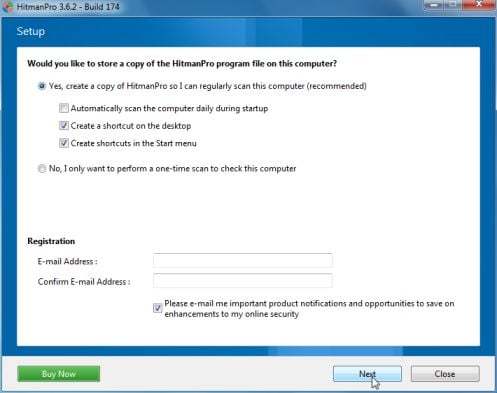
HITMANPRO DOWNLOAD LINK (This link will open a new web page from where you can download HitmanPro) - HitmanPro will start and you’ll need to follow the prompts (by clicking on the Next button) to start a system scan with this program.

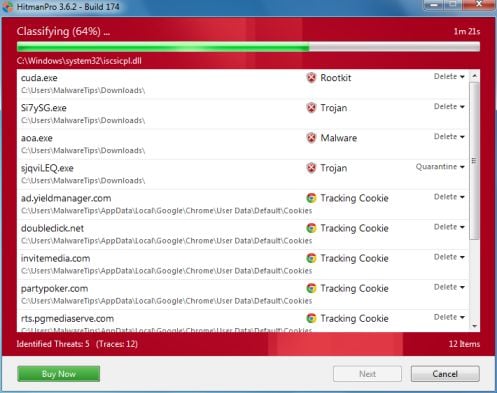
- HitmanPro will start scanning your computer for malware, as seen in the image below.
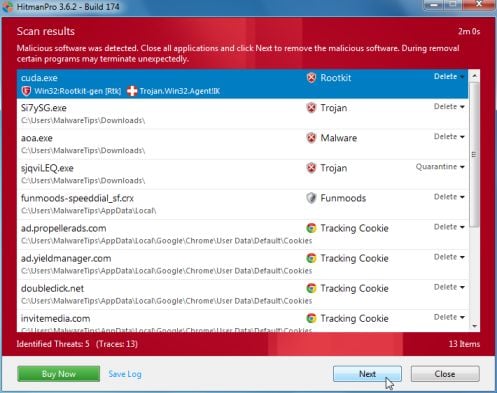
- Once the scan is complete,you’ll see a screen which will display all the infected files that this utility has detected, and you’ll need to click on Next to remove these malicious files.
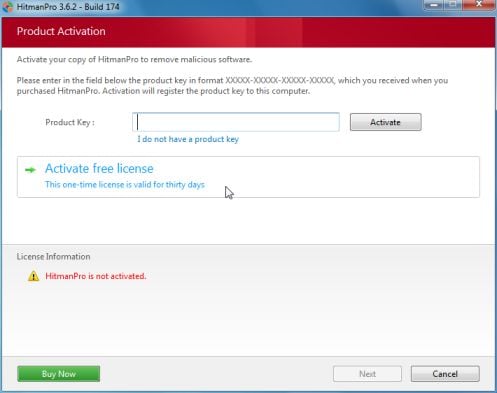
- Click Activate free license to start the free 30 days trial and remove all the malicious files from your computer.









Thank you so much for this! I got a new computer and in the first 10 mins I get malware while trying to install programs. Not sure how it got bundled in as I downloaded from all the original websites. Definitely need to keep a closer eye on what I’m downloading now.
Thank you very much for your information!
There is another add-on that causes these called Top Arcade Hits, check your add-ons for this as well as cookies and delete them. This was the cause for some of mine as well as Text Enhance
Hello,
Lets try to remove this program:
STEP 1: Run a scan with AdwCleaner
Please run AdwCleaner (as seen on STEP 3) to remove this infection!
STEP 2: Run a scan with Junkware Removal Tool
1.Download Junkware Removal Tool to your desktop from the below link:
JUNKWARE REMOVAL TOOL : http://thisisudax.org/download…
2. Double-click on the JRT.exe icon to start this utility.
3. The tool will open and start scanning your system. Please be patient as this can take a while to complete depending on your system’s specifications
Waiting for your reply to see how everything is running…
thank you… seems to be the trick..
I started getting Text Enhanced popups and keyword hyperlinks in Firefox less than a week ago – I see nothing in Remove Programs (Windows XP Pro) for either Text Enhance or the two app sources you mentioned; I tried running the Avast browser cleanup tool, but for Firefox there is no ‘unwanted or unknown extensions’ option available like there is for Chrome.
I’ve run scans by Avast!, Malwarebytes and Trend Micro’s HouseCall and nothing at all was found.
Is there anything else I can try for Firefox? (20.0.1)
Hello Don,
Did you run Adwcleaner? Lets reset Firefox to its default settings:
and select Troubleshooting Information.
The text enhance boxes started showing up about a week ago. However, I cannot find Text Enhance or anything by 215 Apps or Excellent Apps in my installed programs. I also can’t find it in my Google Chrome extensions. Is there somewhere else it could be hiding?
Hello KVK,
Can you download and run the avast! Browser Cleanup tool.
Go to the Google Chrome tab, and disable any unwanted or unknown extensions, then click on Reset to default settings button.
Thank You a lot for posting this!!! I got rid of the virus in twenty minutes!! Thank You so much!
Thank you!
Thank you for helping remove “Text Enhance” from my PC. Thank you