Receiving an email with the subject line “YOUR COMPUTER AND EMAIL HAS BEEN COMPROMISED. CHECK THIS MESSAGE NOW!” is terrifying. The message claims the sender has infected your devices with a Remote Access Trojan (RAT), recorded intimate activity, and will release those recordings unless you pay in Bitcoin. This type of sextortion email is now common, and it relies on fear and social engineering — not always on real access.
In this article you’ll get a detailed, realistic explanation of the scam, a step-by-step breakdown of how it works, concrete actions to take if you’ve received one (or paid), and practical steps to protect yourself going forward. Read on and follow the recovery checklist — staying calm and acting deliberately is the most effective defense.
Scam Overview
The “Your computer and email has been compromised” sextortion email is an extortion-style phishing message that aims to coerce the recipient into paying money (almost always in cryptocurrency) by threatening to publish supposedly compromising recordings, images, or chats. The email often claims the attacker installed a Remote Access Trojan (RAT) and captured webcam footage of the victim viewing adult sites or engaging in sexual activity. The scam message typically includes: a dramatic subject line, a short “what happened” narrative, claims about installing malware and exfiltrating files and contacts, an allegation of recorded sexual activity, a monetary demand (often listed in USD but payable in Bitcoin), a cryptocurrency wallet address, and a set of “don’ts” (don’t contact police, don’t reinstall your OS, don’t tell friends).
There are several reasons this scam remains effective:
Fear & shame: Threats to share sexual content trigger strong emotional reactions that scammers exploit.
Perceived technical competence: References to RATs, driver-based viruses, and remote control make the claim sound plausible.
Inclusion of personal data: Many emails include a password or other personal details obtained from prior data breaches — a small truth that increases credibility.
Cryptocurrency payments: Bitcoin is irreversible and hard to trace for most users, making it attractive to extortionists.
Mass targeting: These emails are cheap to send in bulk; scammers only need a tiny fraction of recipients to pay to make it profitable.
Scammers run this fraud in several variations:
Spoofed “from” addresses: The message may appear to be sent from your own email. That can happen because the attacker actually gained access to your account, or because they spoofed the “From” header to make the email look like it came from you.
Real passwords included: A password included in the email may be real, but it’s often an old password exposed in a previous breach. The attacker uses password lists from leaked databases to frighten recipients — not because they cracked the account in real time.
Webcam recordings vs bluffing: Most sextortion emails are bluffing. Recording webcam footage requires either prior access to the device, use of a RAT, or a convincing fake video. In many campaigns the attacker did not record anything — their leverage is fear.
Targeted attacks: Less common but more dangerous are targeted intrusions where the attacker actually installs malware, logs keystrokes, or exfiltrates files. These require more effort and often follow an earlier phishing compromise.
Why do attackers think this will work? Because many people reuse passwords, use weak security, and panic under the threat of public shaming. From the attacker’s economics perspective: a few successful bitcoin payments per day are enough to sustain large-scale campaigns. The emails are designed to maximize urgency: they demand immediate payment, threaten privacy exposure, and discourage contacting authorities or reinstalling devices. The language attempts to make victims feel completely overwhelmed so they’ll pay quickly.
Key technical concepts referenced in these emails:
Remote Access Trojan (RAT): Malware that gives a remote attacker control over an infected machine (webcam, mic, file system, remote desktop).
Driver-based rootkits: Malware installed at a very low level to evade detection; mentioning this raises the perceived sophistication of the attacker.
Data exfiltration: The claim that files, contacts, and browsing history were uploaded to the attacker’s servers.
Cryptocurrency: Bitcoin wallet addresses are included as the demanded payment method; attackers often also provide exchange help links to make payment easier for novices.
Importantly, while the threat is sometimes real, in most cases the “compromise” is a bluff or a combination of minor real facts plus false claims. That said, the response depends on the specifics: a bluff is handled differently than an actual malware infection. The steps below explain how to determine which you’re facing and how to remediate both scenarios.
How the Scam Works
This section breaks down precisely how these sextortion campaigns operate, from the attacker’s point of view and how the technical and social elements combine to produce a convincing threat.
1. Reconnaissance and data gathering
The attacker begins by collecting data. Sources include: public social media profiles, breached credential lists sold on criminal forums, scraped contact lists, and sometimes mass email list purchases. If they find an email-password pair from an old breach, the attacker can include that password in the extortion email — a key psychological lever. They may also obtain your name, workplace, or other personal details from social media to personalize messages and increase credibility.
2. Choosing the delivery method
Next, attackers select how to reach targets. Options include bulk email spam (cheap and scalable), compromised email accounts (if they bought access or discovered credentials), or targeted spear-phishing (for high-value victims). Mass campaigns favor spoofing and social engineering over actual device compromise — it’s faster and much less risky for the attacker.
3. Crafting the message
The message is carefully written to maximize fear and conduct a low-cost verification trick. Typical content elements:
Opening with drama: “YOUR COMPUTER AND EMAIL HAS BEEN COMPROMISED.”
Technical claims: Remote Access Trojan (RAT) installed; the virus is driver-based and hides from antivirus.
Scary specifics: “I have access to your messengers, social networks, emails, and contact list.”
Personalization: A password or detail from a prior breach to “prove” authenticity.
Sexual allegation: Claiming the attacker recorded explicit activity to trigger shame and panic.
Monetary demand: Usually a few hundred to a few thousand dollars in Bitcoin, with a wallet address included.
Instructions and threats: Don’t contact the police, don’t reinstall your OS, and don’t talk to friends.
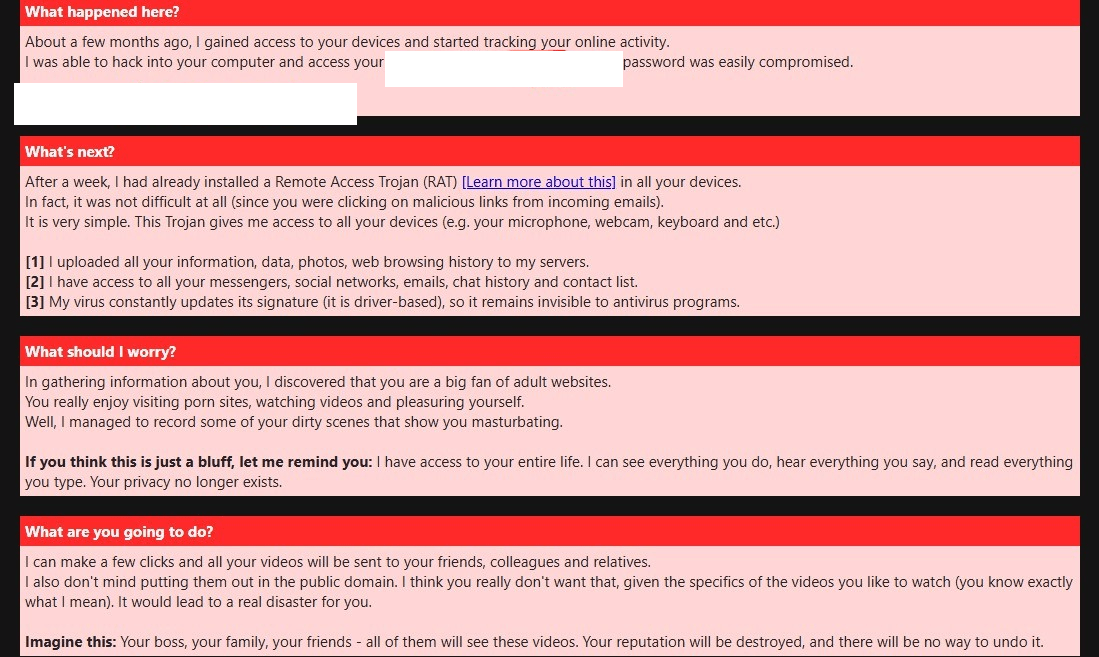
Here what a scam email says:
Subject: YOUR COMPUTER AND EMAIL HAS BEEN COMPROMISED. CHECK THIS MESSAGE NOW!
Hey, What happened here? About a few months ago, I gained access to your devices. I started tracking your online activity. I hacked into your computer and accessed your email I would like to point out that I was able to log into your email easily.
What’s next? After a week, I had already installed a Remote Access Trojan (RAT) [Learn more about this] in all your devices. In fact, it was not difficult at all (since you were clicking on malicious links from incoming emails). It is very simple. This Trojan gives me access to all your devices (e.g. your microphone, webcam, keyboard and etc.)
[1] I uploaded all your information, data, photos, web browsing history to my servers. [2] I have access to all your messengers, social networks, emails, chat history and contact list. [3] My virus constantly updates its signature (it is driver-based), so it remains invisible to antivirus programs.
What should I worry? In gathering information about you, I discovered that you are a big fan of adult websites You really enjoy visiting porn sites, watching videos and pleasuring yourself. Well, I managed to record some of your dirty scenes that show you masturbating and reaching orgasm.
What are you going to do? I can make a few clicks and all your videos will be sent to your friends, colleagues and relatives. I also don’t mind putting them out in the public domain. I think you really don’t want that, given the specifics of the videos you like to watch (you know exactly what I mean). It would lead to a real disaster for you.
Can we solve this problem? Let’s solve this problem this way:
You transfer me $500 (USD) (In Bitcoin equivalent at the exchange rate at the time of transfer), and as soon as the transfer is received, I will immediately delete all these records, your data from my servers. After that we will forget about each other. I also promise to deactivate and remove all malware from your devices.
It’s a fair deal, and the price is pretty low, considering that I’ve been recording all your actions and monitoring traffic for a long time. In case you don’t know how to buy and transfer Bitcoin, check out the section ‘How can I buy Bitcoin? There are some useful links there.
What you should avoid: [1] Do not try to email me (I sent this email from your mailbox. By the way, it allows you to make sure that I am really telling the truth). [2] Do not try to contact the police or other security services. Also, forget about telling your friends about it. If I discover this (as you can see, it’s not difficult, because I control all of your systems), your video will be immediately posted to the public. [3] Do not try to find me – it makes absolutely no sense. All cryptocurrency transactions are anonymous. [4] Do not try to reinstall the OS on your devices or reset it. It is also pointless because all video, data and contacts are already stored on my remote servers.
What you don’t have to worry about:
[1] That I will not be able to receive your money transfer. Don’t worry, I will immediately see the transaction as soon as you send it, because I constantly monitor all your actions (my Trojan has a remote control function, something like TeamViewer). [2] That I will share your videos anyway after you send the funds. Believe me, I don’t see the point in making trouble for you. It’s just business. If I really wanted to send your videos, I would have done it already.
4. The credibility trick
Attackers use small verifiable facts to sell the larger lie. If you’ve had an old password leaked, including that password gives the email an aura of truth. If they can spoof a “from” address or send from a compromised account, it looks even more convincing. Many victims interpret these signals as proof that the attacker really did hack into their devices.
5. Delivery and psychological pressure
Having sent the email, attackers rely on the victim’s emotional response. Panic leads to rushed decisions: victims may attempt to pay immediately rather than validate the claim or seek help. Scammers design messages to discourage rational steps: they explicitly warn against contacting police or reinstalling OS, and they emphasize the “irrevocability” of distributed content unless a ransom is paid.
6. Payment collection and follow-up
If the victim pays, the attacker may disappear. In many successful payments, nothing is ever deleted, and the attacker may attempt repeat extortion, sometimes asking for more money. If the victim refuses, attackers sometimes send follow-up messages or increase the pressure (fake screenshots of videos, invented distribution lists). A small fraction of attackers actually attempt deeper infiltration — installing malware, escalating access, or using stolen credentials to break into other accounts.
7. Technical delivery of a RAT (when it happens)
When the attacker really does install a RAT, the common infection paths are:
Phishing links: Emails contain links to pages that ask the user to download a “video player,” “PDF viewer,” or fake login page that harvests credentials.
Malicious attachments: Documents that run macros (e.g., Word/Excel with macros) or compressed files with executables disguised as harmless content.
Exploit kits: Compromised websites or malvertising that deliver drive-by downloads exploiting outdated browsers or plugins.
Credential reuse: Logging into an account elsewhere with a reused password can give attackers access to cloud storage, webmail, or collaboration tools without any malware.
8. Malware capabilities and potential evidence
A real RAT offers attackers the following capabilities (not all are used in every infection):
Webcam and microphone access: Capture video/audio.
Keylogging: Capture typed passwords and messages.
Screen capture: Periodic screenshots during browsing or app use.
File exfiltration: Upload photos, videos, documents to attacker servers.
Remote command execution: Move laterally, install additional tools, or set persistence mechanisms.
Attackers who genuinely control a machine may create real evidence of intrusion (log files, file timestamps, unusual network traffic). That is why victim response must include validating whether the claim is a bluff or actual compromise. Often, simple checks reveal whether a machine is infected or the email is a scare tactic.
9. Why many victims think it’s real when it’s not
There are several common misperceptions:
An old password equals a current compromise: Many people assume an old leaked password proves current control; it doesn’t necessarily.
Email “from” equals sent from the inbox: Email headers can be forged; seeing your own address in the “from” field doesn’t guarantee a mailbox was used.
Threats about law enforcement: Scammers tell victims not to call police to delay proper reporting and investigation.
10. The economics for attackers
From an economics perspective, sextortion emails are high-margin scams. They cost little to deploy (email lists and automation tools are cheap), and even a few successful payments daily can make the operation profitable. Scalability makes this crime attractive; attackers can rotate wallet addresses, send automated follow-ups, and reuse message templates. These operations are often performed by organized groups or at least automated scripts that target thousands of addresses.
What to Do If You Have Fallen Victim
If you received the sextortion email and you’re trying to decide what to do next — or if you suspect you’ve already been compromised — follow these numbered steps. Each step is written so you can follow it in sequence. Some steps can be done remotely or on another trusted device if your primary device may be compromised.
Stay calm and do not pay immediately Paying the ransom is not a guarantee of privacy and can encourage additional demands. Scammers often take the money and disappear or return asking for more. Paying also signals to criminal groups that you are willing to comply, which can increase your risk of further targeting.
Preserve the evidence Do not delete the extortion email. Save the entire raw message (source headers included) and take screenshots. Record the Bitcoin address displayed in the message, dates, and any follow-up messages. If you have messages sent to you by the attacker, archive them. This information will be useful for reporting to law enforcement and for any cybersecurity professionals investigating the incident.
Verify whether the email was spoofed or truly from your mailbox Open the raw email headers. If you’re unsure how, use help pages for your mail provider or ask a trusted tech-savvy person to check for SPF/DKIM/DMARC failures and suspicious “Received:” lines. If the email was sent from your account, that suggests account compromise; if spoofed, your mailbox is likely safe.
Change passwords from a secure device If you suspect account compromise, change the passwords for your email and other critical accounts immediately — but do this from a device and network you trust (for example, a different computer or your phone on the mobile network). Use long, unique passwords generated by a password manager. Do not reuse passwords across sites.
Enable strong two-factor authentication (2FA) Enable 2FA on every important account: email, social media, banking, cloud storage. Prefer authenticator apps (Google Authenticator, Authy, Microsoft Authenticator) or hardware security keys (YubiKey). Avoid SMS-based 2FA where possible because SIM swapping attacks are a real risk.
Check mail account settings and connected apps In your email settings, inspect:
Forwarding rules (remove unauthorized rules).
Delegated access (remove unrecognized delegates).
Connected applications and third-party access (revoke suspicious apps).
Recovery email and phone settings (verify they are correct).
Scan and clean your devices Run full antivirus and anti-malware scans on all devices. For Windows: run a full Windows Defender offline scan and a second opinion scanner (Malwarebytes). For macOS: use reputable anti-malware tools. For mobile devices: ensure OS is up-to-date and scan with a known scanner if available. If malware is detected, remove it and follow remediation guidance provided by the vendor.
Consider a clean reinstall if compromise is confirmed If evidence of a RAT or persistent malware exists, back up important files (photos, documents) to an external drive that you then scan carefully and wipe if necessary, and perform a full OS reinstall. Before restoring files, scan them on a clean system. Reinstalling will not recover data exfiltrated earlier — but it removes local persistence. Preserve forensic images if you plan to involve law enforcement.
Audit your online accounts for suspicious activity Review banking, social media, cloud storage, and other accounts for unauthorized transactions or messages. Notify your bank if you suspect financial information was exposed. If attackers had access to your email, they might have used it to reset passwords on other accounts — check and secure those as well.
Notify contacts if necessary If you find the attacker sent messages to your contacts or they received something suspicious from your account, notify those contacts about the breach and warn them not to click unexpected links. Transparent communication reduces the likelihood they will fall for follow-up scams sent from your identity.
Document the wallet address and any transactions Save the Bitcoin address from the extortion email and monitor blockchain explorers for incoming payments to that address. This is useful evidence for law enforcement. Do not attempt to trace or confront the attacker yourself — that can be dangerous and is usually ineffective.
Report to law enforcement and your email provider Report the extortion to your local police and any national cybercrime reporting center (for example, many countries have a national CERT or cybercrime unit). Forward the email to your email provider’s abuse or security team (Gmail, Outlook, etc.) and follow their remediation instructions. Reporting helps authorities identify large campaigns and may prevent future victims.
Report to anti-fraud and cybercrime platforms Report the incident to online fraud reporting portals (for example, in the U.S., the Internet Crime Complaint Center (IC3); in the EU, local police or CERT; other countries have equivalent services). Submit the evidence you preserved — headers, wallet address, email body, and screenshots.
Preserve digital evidence securely Make copies of logs, raw messages, and screenshots, and store them securely (external drive, encrypted container). If you plan to involve law enforcement, provide these records rather than altering or deleting anything.
Consider professional incident response If the attack appears targeted or you are a high-value victim (business owner, public figure), consider hiring an incident response firm or a professional security consultant. They can perform forensic analysis, identify the extent of intrusion, and recommend remediation steps beyond standard consumer guidance.
Change passwords for all accounts and re-check recovery options After cleaning devices, change passwords for all major accounts and remove any obsolete recovery email/phone entries. Update security questions and enable recovery codes for 2FA where supported.
Monitor your identity and credit (if sensitive data exposed) If personal documents or identity data were exposed (passport, tax info, social security numbers), consider a credit freeze or fraud alerts with credit bureaus and monitor for identity theft.
If you already paid: document and report If you paid the attacker, preserve transaction details and receipts. Report to law enforcement and your bank (if you used other financial instruments). Contact your local cybercrime reporting agency — some jurisdictions may be able to assist or at least record the offense for broader investigations.
Is Your Device Infected? Scan for Malware
If your computer or phone is slow, showing unwanted pop-ups, or acting strangely, malware could be the cause. Running a scan with Malwarebytes Anti-Malware Free is one of the most reliable ways to detect and remove harmful software. The free version can identify and clean common infections such as adware, browser hijackers, trojans, and other unwanted programs.
Malwarebytes works on Windows, Mac, and Android devices. Choose your operating system below and follow the steps to scan your device and remove any malware that might be slowing it down.
Malwarebytes for WindowsMalwarebytes for MacMalwarebytes for Android
Run a Malware Scan with Malwarebytes for Windows
Malwarebytes stands out as one of the leading and widely-used anti-malware solutions for Windows, and for good reason. It effectively eradicates various types of malware that other programs often overlook, all at no cost to you. When it comes to disinfecting an infected device, Malwarebytes has consistently been a free and indispensable tool in the battle against malware. We highly recommend it for maintaining a clean and secure system.
Download Malwarebytes
Download the latest version of Malwarebytes for Windows using the official link below. Malwarebytes will scan your computer and remove adware, browser hijackers, and other malicious software for free.
(The above link will open a new page from where you can download Malwarebytes)
Install Malwarebytes
After the download is complete, locate the MBSetup file, typically found in your Downloads folder. Double-click on the MBSetup file to begin the installation of Malwarebytes on your computer. If a User Account Control pop-up appears, click “Yes” to continue the Malwarebytes installation.
Follow the On-Screen Prompts to Install Malwarebytes
When the Malwarebytes installation begins, the setup wizard will guide you through the process.
You’ll first be prompted to choose the type of computer you’re installing the program on—select either “Personal Computer” or “Work Computer” as appropriate, then click on Next.
Malwarebytes will now begin the installation process on your device.
When the Malwarebytes installation is complete, the program will automatically open to the “Welcome to Malwarebytes” screen.
On the final screen, simply click on the Open Malwarebytes option to start the program.
Enable “Rootkit scanning”.
Malwarebytes Anti-Malware will now start, and you will see the main screen as shown below. To maximize Malwarebytes’ ability to detect malware and unwanted programs, we need to enable rootkit scanning. Click on the “Settings” gear icon located on the left of the screen to access the general settings section.
In the settings menu, enable the “Scan for rootkits” option by clicking the toggle switch until it turns blue.
Now that you have enabled rootkit scanning, click on the “Dashboard” button in the left pane to get back to the main screen.
Perform a Scan with Malwarebytes.
To start a scan, click the Scan button. Malwarebytes will automatically update its antivirus database and begin scanning your computer for malicious programs.
Wait for the Malwarebytes scan to complete.
Malwarebytes will now scan your computer for browser hijackers and other malicious programs. This process can take a few minutes, so we suggest you do something else and periodically check the status of the scan to see when it is finished.
Quarantine detected malware
Once the Malwarebytes scan is complete, it will display a list of detected malware, adware, and potentially unwanted programs. To effectively remove these threats, click the “Quarantine” button.
Malwarebytes will now delete all of the files and registry keys and add them to the program’s quarantine.
Restart your computer.
When removing files, Malwarebytes may require a reboot to fully eliminate some threats. If you see a message indicating that a reboot is needed, please allow it. Once your computer has restarted and you are logged back in, you can continue with the remaining steps.
Once the scan completes, remove all detected threats. Your Windows computer should now be clean and running smoothly again, free of trojans, adware, and other malware.
If your current antivirus allowed this malicious program on your computer, you may want to consider purchasing Malwarebytes Premium to protect against these types of threats in the future. If you are still having problems with your computer after completing these instructions, then please follow one of the steps:
Malwarebytes for Mac is an on-demand scanner that can destroy many types of malware that other software tends to miss without costing you absolutely anything. When it comes to cleaning up an infected device, Malwarebytes has always been free, and we recommend it as an essential tool in the fight against malware.
Download Malwarebytes for Mac.
You can download Malwarebytes for Mac by clicking the link below.
When Malwarebytes has finished downloading, double-click on the setup file to install Malwarebytes on your computer. In most cases, downloaded files are saved to the Downloads folder.
Follow the on-screen prompts to install Malwarebytes.
When the Malwarebytes installation begins, you will see the Malwarebytes for Mac Installer which will guide you through the installation process. Click “Continue“, then keep following the prompts to continue with the installation process.
When your Malwarebytes installation completes, the program opens to the Welcome to Malwarebytes screen. Click the “Get started” button.
Select “Personal Computer” or “Work Computer”.
The Malwarebytes Welcome screen will first ask you what type of computer are you installing this program, click either Personal Computer or Work Computer.
Click on “Scan”.
To scan your computer with Malwarebytes, click on the “Scan” button. Malwarebytes for Mac will automatically update the antivirus database and start scanning your computer for malware.
Wait for the Malwarebytes scan to complete.
Malwarebytes will scan your computer for adware, browser hijackers, and other malicious programs. This process can take a few minutes, so we suggest you do something else and periodically check on the status of the scan to see when it is finished.
Click on “Quarantine”.
When the scan has been completed, you will be presented with a screen showing the malware infections that Malwarebytes has detected. To remove the malware that Malwarebytes has found, click on the “Quarantine” button.
Restart computer.
Malwarebytes will now remove all the malicious files that it has found. To complete the malware removal process, Malwarebytes may ask you to restart your computer.
After scanning, delete any detected threats. Your Mac should now be free from adware, unwanted extensions, and other potentially harmful software.
If your current antivirus allowed a malicious program on your computer, you might want to consider purchasing the full-featured version of Malwarebytes Anti-Malware to protect against these types of threats in the future. If you are still experiencing problems while trying to remove a malicious program from your computer, please ask for help in our Mac Malware Removal Help & Support forum.
Run a Malware Scan with Malwarebytes for Android
Malwarebytes for Android automatically detects and removes dangerous threats like malware and ransomware so you don’t have to worry about your most-used device being compromised. Aggressive detection of adware and potentially unwanted programs keeps your Android phone or tablet running smooth.
Download Malwarebytes for Android.
You can download Malwarebytes for Android by clicking the link below.
In the Google Play Store, tap “Install” to install Malwarebytes for Android on your device.
When the installation process has finished, tap “Open” to begin using Malwarebytes for Android. You can also open Malwarebytes by tapping on its icon in your phone menu or home screen.
Follow the on-screen prompts to complete the setup process
When Malwarebytes will open, you will see the Malwarebytes Setup Wizard which will guide you through a series of permissions and other setup options. This is the first of two screens that explain the difference between the Premium and Free versions. Swipe this screen to continue. Tap on “Got it” to proceed to the next step. Malwarebytes for Android will now ask for a set of permissions that are required to scan your device and protect it from malware. Tap on “Give permission” to continue. Tap on “Allow” to permit Malwarebytes to access the files on your phone.
Update database and run a scan with Malwarebytes for Android
You will now be prompted to update the Malwarebytes database and run a full system scan.
Click on “Update database” to update the Malwarebytes for Android definitions to the latest version, then click on “Run full scan” to perform a system scan.
Wait for the Malwarebytes scan to complete.
Malwarebytes will now start scanning your phone for adware and other malicious apps. This process can take a few minutes, so we suggest you do something else and periodically check on the status of the scan to see when it is finished.
Click on “Remove Selected”.
When the scan has been completed, you will be presented with a screen showing the malware infections that Malwarebytes for Android has detected. To remove the malicious apps that Malwarebytes has found, tap on the “Remove Selected” button.
Restart your phone.
Malwarebytes for Android will now remove all the malicious apps that it has found. To complete the malware removal process, Malwarebytes may ask you to restart your device.
When the scan is finished, remove all detected threats. Your Android phone should now be free of malicious apps, adware, and unwanted browser redirects.
If your current antivirus allowed a malicious app on your phone, you may want to consider purchasing the full-featured version of Malwarebytes to protect against these types of threats in the future. If you are still having problems with your phone after completing these instructions, then please follow one of the steps:
Restore your phone to factory settings by going to Settings > General management > Reset > Factory data reset.
After cleaning your device, it’s important to protect it from future infections and annoying pop-ups. We recommend installing an ad blocker such as AdGuard. AdGuard blocks malicious ads, prevents phishing attempts, and stops dangerous redirects, helping you stay safe while browsing online.
FAQ: Your Computer and Email Has Been Compromised Email Scam
This detailed FAQ section addresses the most common questions about the “Your Computer and Email Has Been Compromised” sextortion scam. It is designed for improved readability and SEO optimization so readers searching for reliable answers can quickly find them.
What is the “Your Computer and Email Has Been Compromised” email scam?
This scam is a type of sextortion email where cybercriminals claim to have hacked your computer, email, webcam, or online accounts. They typically say they installed a Remote Access Trojan (RAT), recorded explicit videos of you, and will release these recordings to friends, colleagues, or the public unless you pay a ransom in Bitcoin. In reality, most of these emails are fake threats and the attackers do not have the access they claim.
How does the sextortion email scam work?
The scam relies on fear, shame, and urgency. Scammers send bulk phishing emails to thousands of recipients using stolen email lists. To make the threats believable, they may include an old leaked password or spoof your own email address. They then demand a ransom (usually $500–$2000 in Bitcoin) and threaten to expose fabricated webcam recordings if you don’t comply. In most cases, no malware is installed and no recordings exist — it is a psychological manipulation tactic designed to pressure victims into paying quickly.
Is the email real? Did hackers really compromise my computer?
In the vast majority of cases, no. These emails are usually sent in bulk and are not based on actual hacking. The scammers often use:
Old leaked passwords from data breaches to make the email seem convincing.
Email spoofing to make it look like the message came from your account.
Generic claims about visiting adult websites and using your webcam to scare you.
Unless you see clear signs of malware (strange programs, unauthorized logins, or abnormal webcam activity), it is almost certainly a bluff.
Why does the scam email include one of my real passwords?
Scammers often buy or download data breach databases that contain email addresses and passwords from past security breaches (such as LinkedIn, Adobe, MyFitnessPal, etc.). They include your old password in the scam email to increase credibility. This does not mean they currently have access to your account. However, if you are still using that password, you should change it immediately on all accounts where it was used and enable two-factor authentication.
What should I do if I receive one of these emails?
If you receive the “Your Computer and Email Has Been Compromised” scam email, follow these steps:
Do not panic — these emails are usually fake and automated.
Do not pay the ransom — paying does not guarantee safety and encourages more scams.
Change your passwords and make sure each account uses a strong, unique password.
Enable two-factor authentication (2FA) on your email and important accounts.
Run a malware scan on your devices to check for actual infections.
Report the email to your email provider (mark as phishing) and, if desired, to law enforcement or cybercrime authorities.
Should I pay the ransom in Bitcoin?
No. Paying the ransom is strongly discouraged. There is no guarantee the scammers will keep their word — many victims who pay are targeted again. Additionally, your payment funds criminal operations and encourages more scams. The safest course of action is to ignore the demands, secure your accounts, and report the scam.
What happens if I ignore the email?
In most cases, nothing happens. These scammers rarely have the capability or interest to follow through on their threats. Their business model is based on volume — sending thousands of emails and hoping a small percentage of recipients panic and pay. If you ignore the email and secure your accounts, the scammer will usually move on to other targets.
Can scammers really access my webcam and microphone?
Only if your device has been infected with actual malware or a Remote Access Trojan (RAT). However, most sextortion emails are scams and do not involve real malware. If you are concerned, cover your webcam when not in use, check your system for suspicious programs, and keep your antivirus and operating system updated. This will protect you against genuine intrusions.
How can I tell if my computer is really hacked?
Look for these warning signs of an actual compromise:
Unusual programs or processes running in the background.
Webcam light turning on without your permission.
Unexpected outgoing network traffic or high bandwidth usage.
Unrecognized logins on your email or social media accounts.
Password reset notifications you did not request.
If you see these signs, run a full system scan and consider reinstalling your operating system. Otherwise, the email is likely just a scare tactic.
How can I protect myself from sextortion scams in the future?
Follow these best practices to reduce your risk:
Use a password manager and unique passwords for each account.
Keep your operating system, browser, and antivirus software updated.
Be cautious about clicking links or downloading attachments in emails.
Regularly check your email address on sites like Have I Been Pwned to see if it appears in breach databases.
Educate yourself and family members about phishing and online scams.
Can I report the “Your Computer and Email Has Been Compromised” scam?
Yes. Reporting helps authorities track scam campaigns. You can:
Report it to your email provider (Gmail, Outlook, Yahoo all have “Report phishing” options).
Forward the email to your country’s cybercrime authority (for example, IC3.gov in the U.S. or Action Fraud in the U.K.).
Contact your local law enforcement agency if you feel threatened.
Will ignoring the scam put me at risk later?
No. As long as you take steps to change your passwords, enable 2FA, and scan your devices, ignoring the email poses no risk. The scammers rely on fear, not on actual evidence. If your security hygiene is good, you remain safe even if you delete or ignore the message.
Are these scams dangerous to children or less tech-savvy people?
Yes, these emails can be psychologically damaging, especially for teens, seniors, or individuals unfamiliar with cybersecurity. Scammers exploit shame and fear to manipulate victims. Families should discuss these scams openly so that younger or less technical relatives know not to panic or comply if they receive such an email.
Why You Should Not Pay Extortion Demands
Although panic can make paying seem like the fastest way to stop the threat, there are several reasons paying is a poor option:
Repeat extortion: Once you pay, attackers may target you again or share evidence of your payment on marketplaces to pressure others.
Legal and ethical issues: Paying funds to criminals supports criminal activity.
Traceability is limited: While blockchain analysis can sometimes trace flows, conversions to fiat often go through intermediaries or mixers, and law enforcement must do the heavy lifting.
Red Flags That Indicate a Bluff
Not every sextortion email is backed by a real attack. Look for these indicators that the message is most likely a bluff:
Generic greetings such as “Hey” rather than your name.
Use of an old password that you no longer use (this likely came from a leaked database).
No proof of actual videos (no unique filenames, no specific times/dates tied to recorded activity).
Instructions that make unrealistic claims: “I installed a driver-based virus that can’t be removed” — this is a scare tactic.
Demands that are identical across thousands of recipients (copy/paste campaigns).
How to Verify Whether the Threat Is Real
When you receive a sextortion email, do not react immediately. Instead, perform a series of verification steps to determine whether the attacker actually gained access to your device or is bluffing.
Check the email headers
View the full raw email headers (Gmail, Outlook, and most providers allow you to view “original message” or “view source”). Look for the originating IP and the authenticated sender. Common signs of spoofing include suspicious “Received:” paths or missing authentication signatures (SPF/DKIM/DMARC failures). If the message truly came from your own mailbox, you may see internal mail server entries indicating a legitimate login. If the message is spoofed, the headers will usually show an external IP or failing authentication checks.
Confirm whether the included password is current
If the attacker included a password, verify whether that password is in use on your active accounts. If it’s an old password you no longer use, that statement is likely from a past data breach. Use a password manager and check each account for unique, strong passwords.
Inspect your mail account for unauthorized access
Check the “recent activity” or “last account access” logs available in services like Gmail or Outlook. Look for unfamiliar IP addresses, geolocations, or devices. Also check mailbox rules and forwarding settings; attackers sometimes add a hidden forwarding rule so they receive a copy of incoming email. If you find suspicious settings, remove them, change the password, and enable 2FA.
Search for evidence on your device
Run a full system scan with an up-to-date anti-malware tool (Windows Defender, Malwarebytes, etc.).
Check running processes and installed programs for unfamiliar entries.
Look at Webcam/microphone indicator lights or logs (some webcams include firmware logging) and check timestamps on sensitive files.
Use a network monitor (e.g., netstat) to identify unusual connections if you are comfortable doing so or seek technical help.
Look for abnormal social behavior
Check whether messages were sent from your accounts, or whether contacts report unusual activity from you. If attackers have access to your social networks, you may notice posts or messages you didn’t send.
When in doubt, seek professional help
If you find signs of a real intrusion — unfamiliar devices connected to your account, unknown programs installed, or persistent strange network activity — consult a professional IT/security expert. It may be necessary to isolate the device, preserve logs for law enforcement, and conduct a full forensic analysis.
The Bottom Line
Sextortion emails that claim “YOUR COMPUTER AND EMAIL HAS BEEN COMPROMISED” are frightening and rely on emotional pressure. Most of these campaigns are bluffing, leveraging recycled data from past breaches and email spoofing. However, some attacks are real and require careful remediation. The right approach is methodical: preserve evidence, verify whether a compromise actually occurred, secure accounts using strong unique passwords and 2FA, scan and clean devices, report the incident to providers and law enforcement, and avoid paying the ransom. Prevention (strong passwords, 2FA, cautious email behavior, and up-to-date software) dramatically reduces your risk. If you suspect a real intrusion or you are unsure how to proceed, consult a professional incident response firm or your local cybercrime unit.
Stelian leverages over a decade of cybersecurity expertise to lead malware analysis and removal, uncover scams, and educate people. His experience provides insightful analysis and valuable perspective.