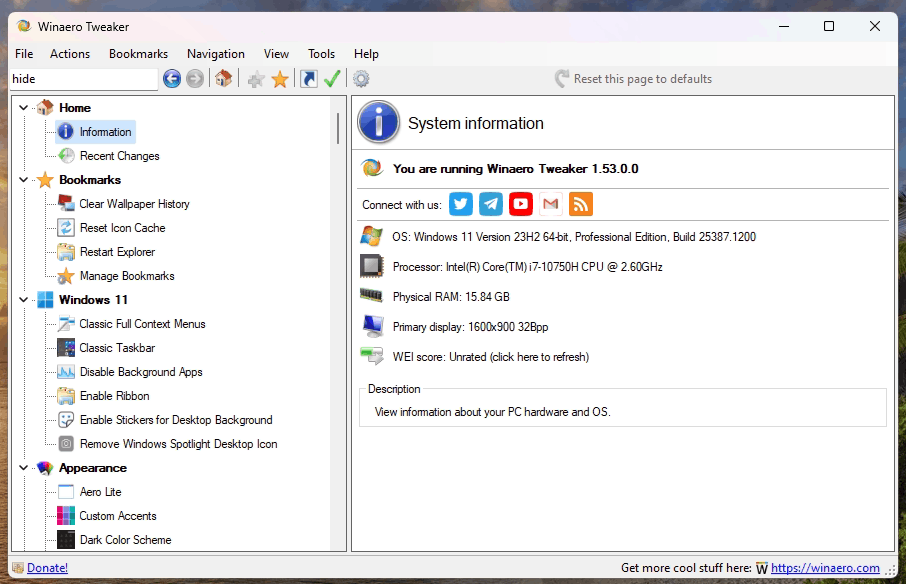
New Update Winaero Tweaker

silversurfer

Super Moderator
Thread author
Verified
Top Poster
Staff Member
Malware Hunter
Forum Veteran
Aug 17, 2014
12,726
123,827
8,399
Homepage: Winaero Tweaker
Download: https://winaerotweaker.com/download/winaerotweaker.zip

What's new in Winaero Tweaker 1.40​

  • The app now properly detects Windows 11 version 22H2.
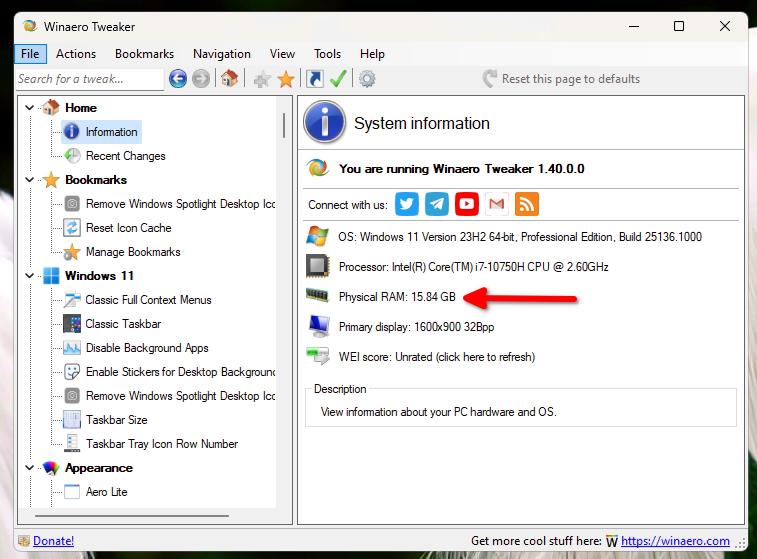
  • I've changed how it shows the available memory size.
    Tweaker 1.40 Ram Info


  • You can now use it to remove the Add to favorites item from the context menu.
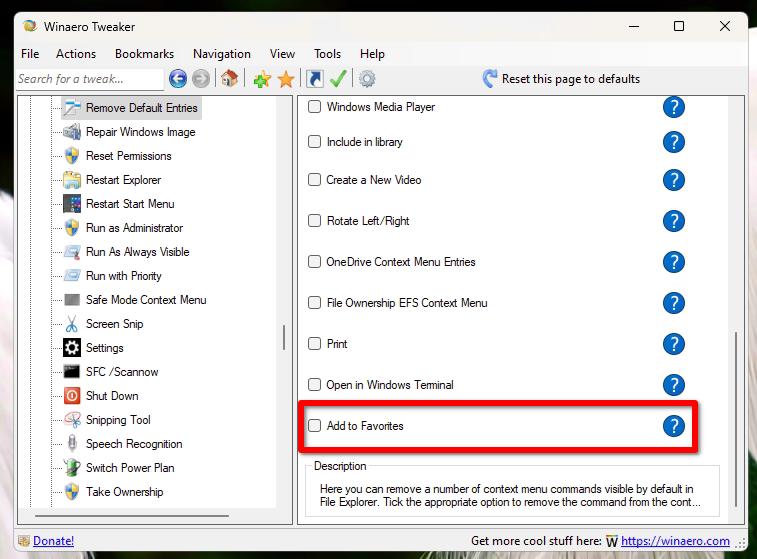
    Tweaker 1.40 Remove Add To Favorites


  • Also, when you remove "Open in Terminal" from the context menu using Winaero Tweaker, it now also removes the "Open in Terminal Preview" command if you have the latter installed.
  • If you set Windows Spotlight as your desktop background, you can remove its icon from the desktop.
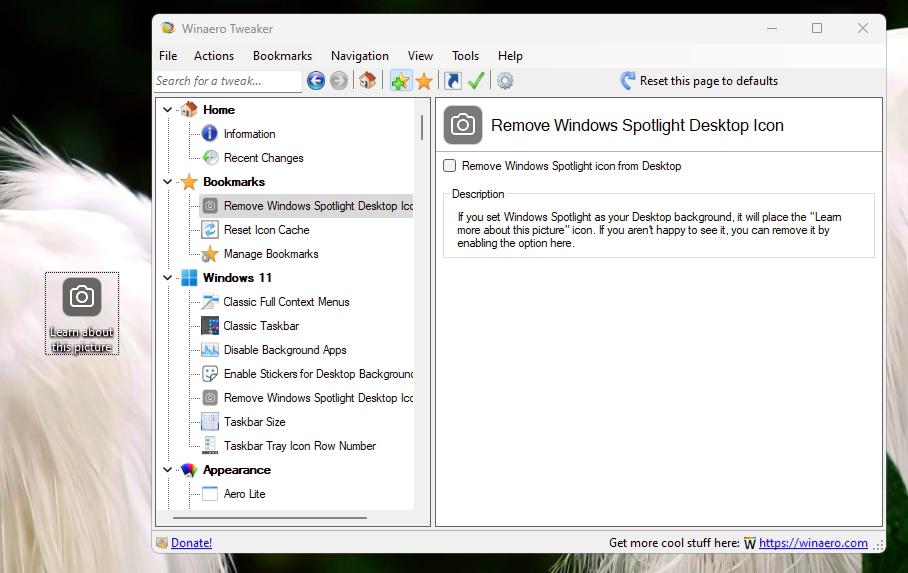
    Tweaker 1.40 Remove Spotlight Icon


  • Using Winaero Tweaker 1.40, you can make the taskbar show tray icons in two or three rows.
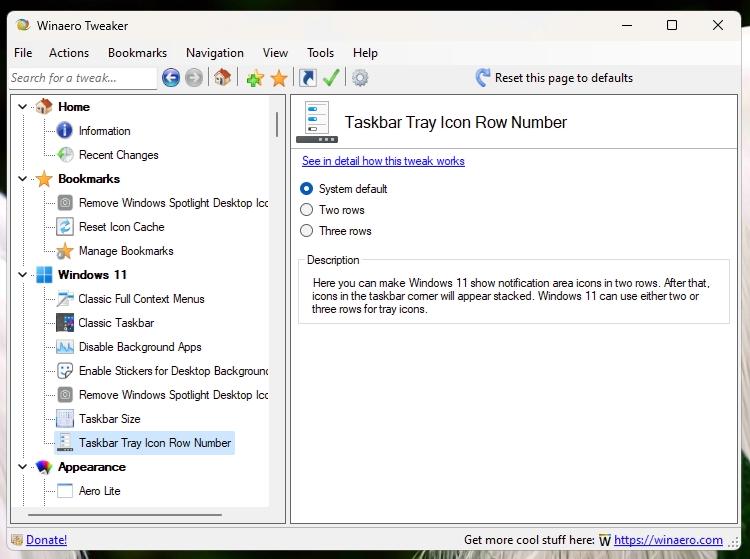
    Tweaker 1.40 Tray Icon Rows


  • I have updated the "Disable SmartScreen" to disable it for Store apps.
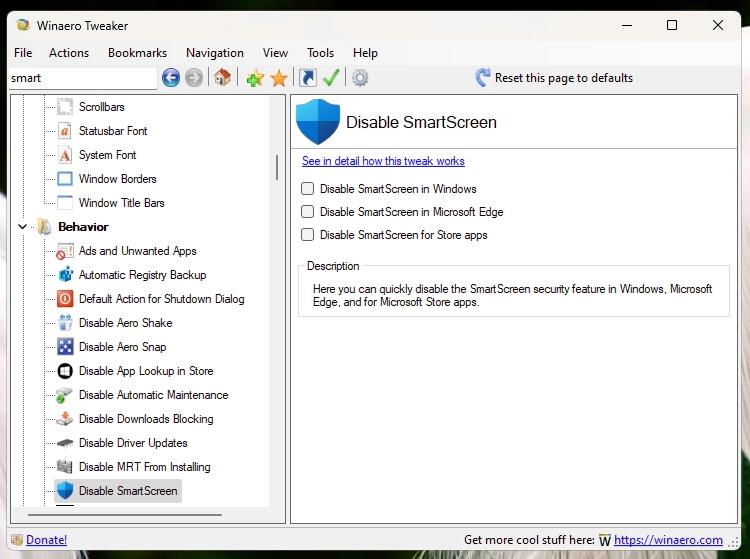
    Tweaker 1.40 Disable Smartscreen


  • You can now enable the "Desktop Stickers" hidden feature in Windows 11 22H2+.
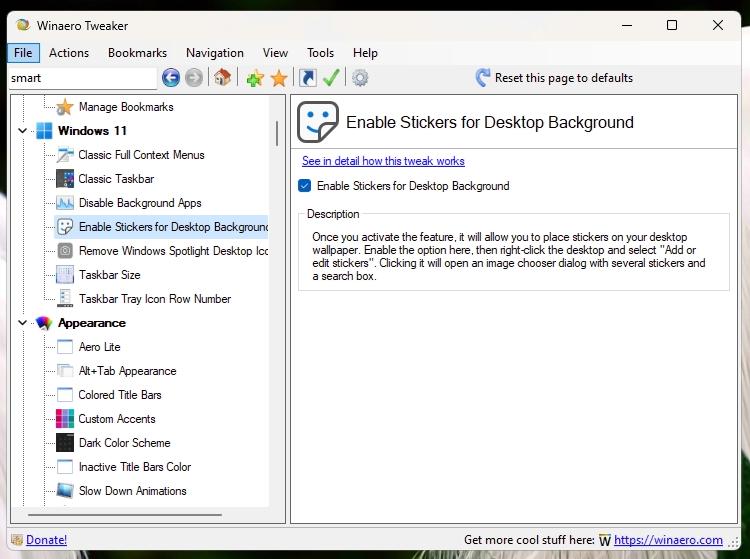
    Tweaker 1.40 Enable Stickers


  • There is an option to enable Recycle Bin for removable drives.
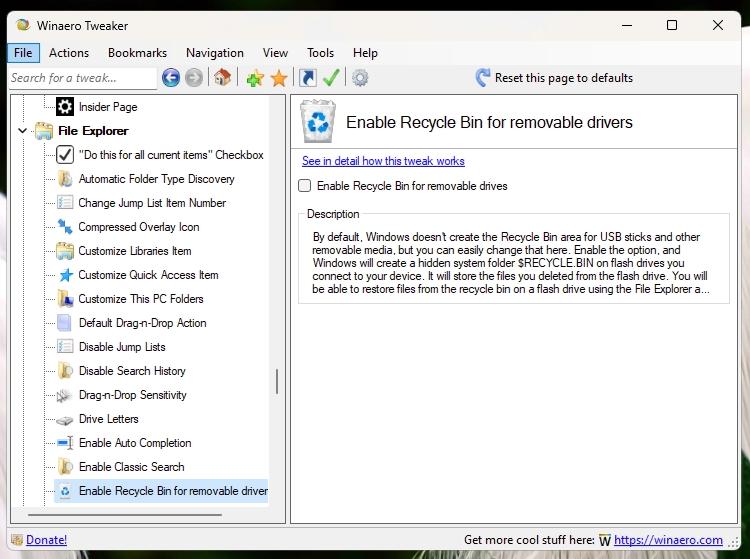
    Tweaker 1.40 Enable Recycle Bin For Removable Drives


  • The option to disable Windows ads has been updated to work properly in Windows 11.
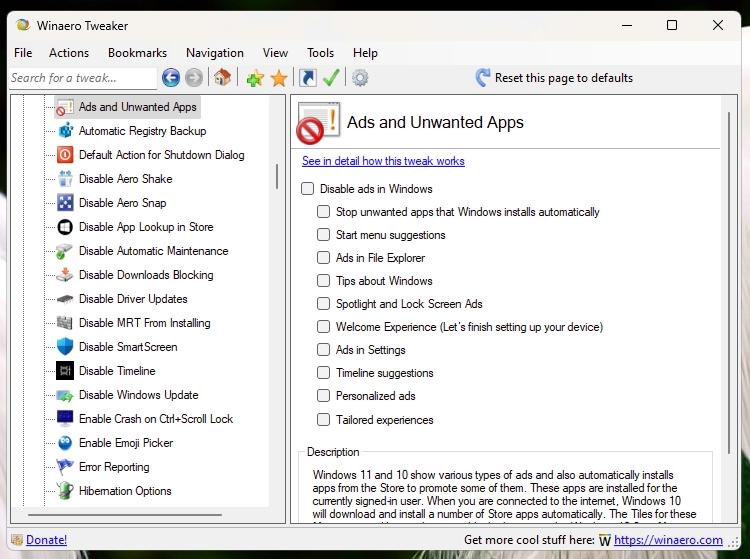
    Tweaker 1.40 Disable Ads


  • I have added the "Restart Explorer" option to Tools in Winaero Tweaker. Sometimes I need to restart it quickly. Maybe some of you will also find the new option useful.
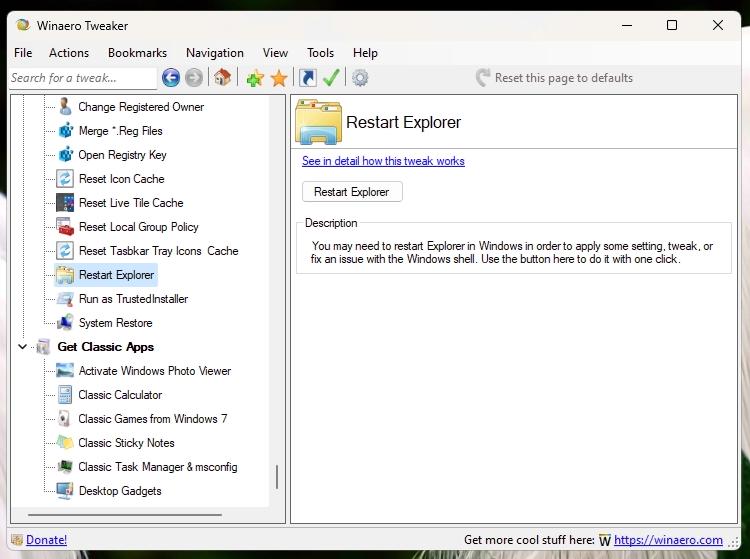
    Tweaker 1.40 Restart Explorer Tool

Other changes​

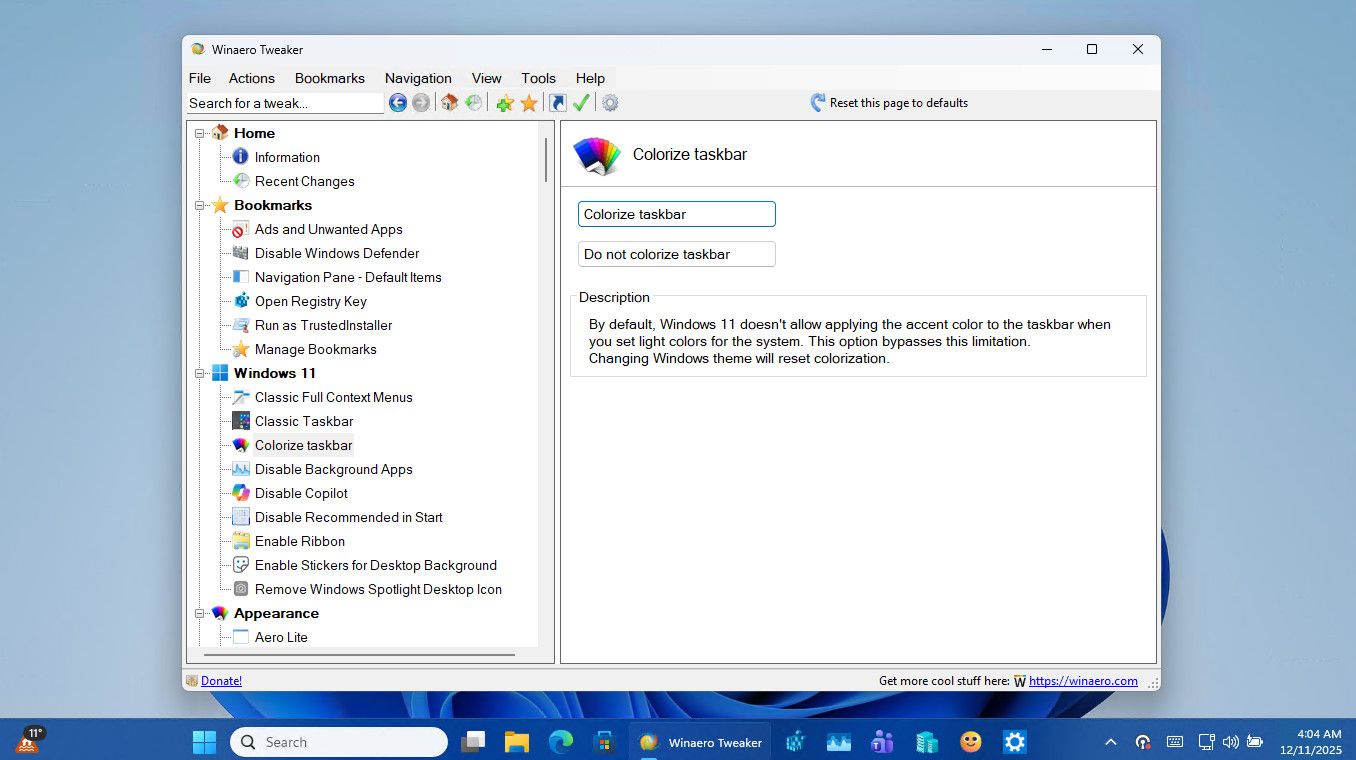
In Windows 11 version 22H2 the ability to re-enable the ribbon UI in File Explorer has gone. Also in this version, Microsoft doesn't allow to move the newer taskbar from the bottom. So I am hiding these options on 22H2+.

Finally, I have done general fixes and improvements which doesn't change anything in the UI of the app. For example, "Disable Web Search" requires you to sign out from your user account, but Tweaker didn't show the request.
 
Last edited:
What's new in Winaero Tweaker 1.53​


New features​

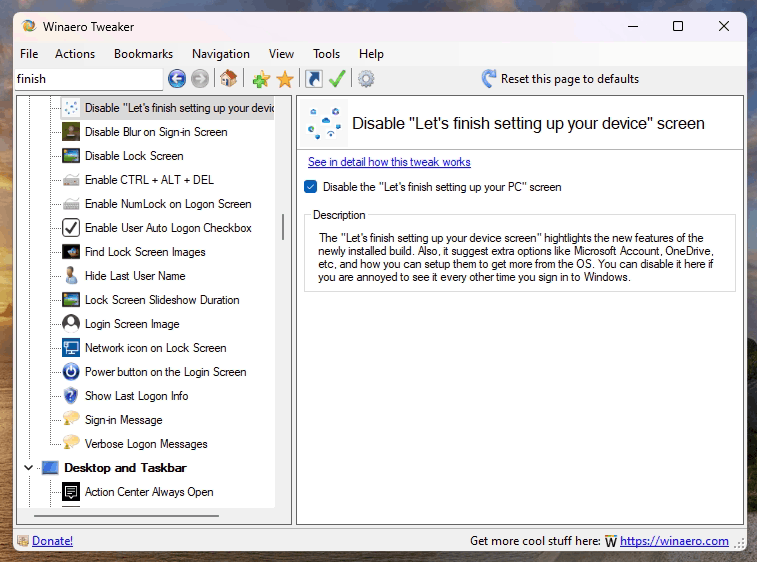
  • Added the ability to disable the "Let's finish setting up this PC" screen.
    Finish Setting Up This PC

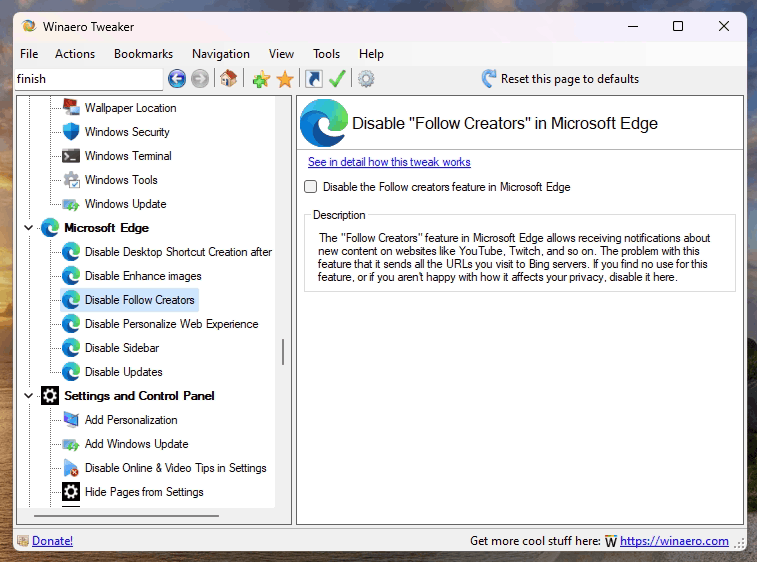
  • Added the option to disable "Follow creators" in Edge that can leak your data.
    Follow

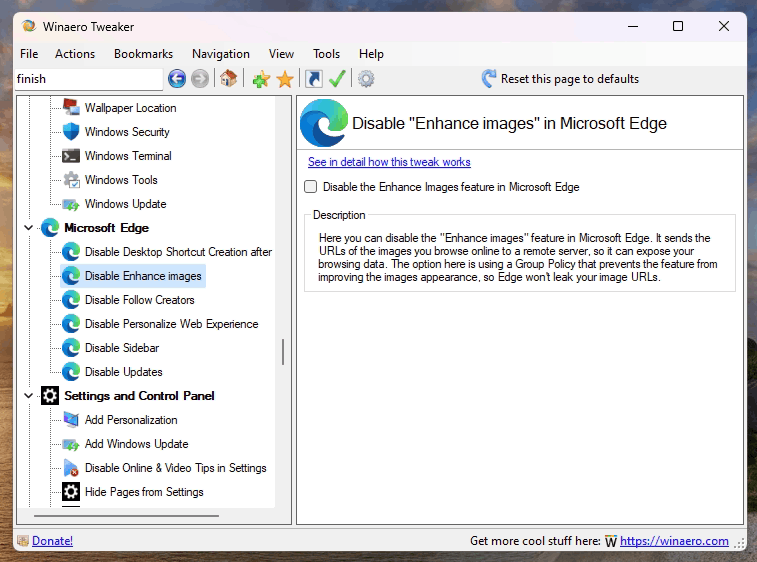
  • Added the option to disable "Enhance images" in Edge that can leak your data.
    Enhance

  • Added extra checks to the "Disable Edge Updates" option.
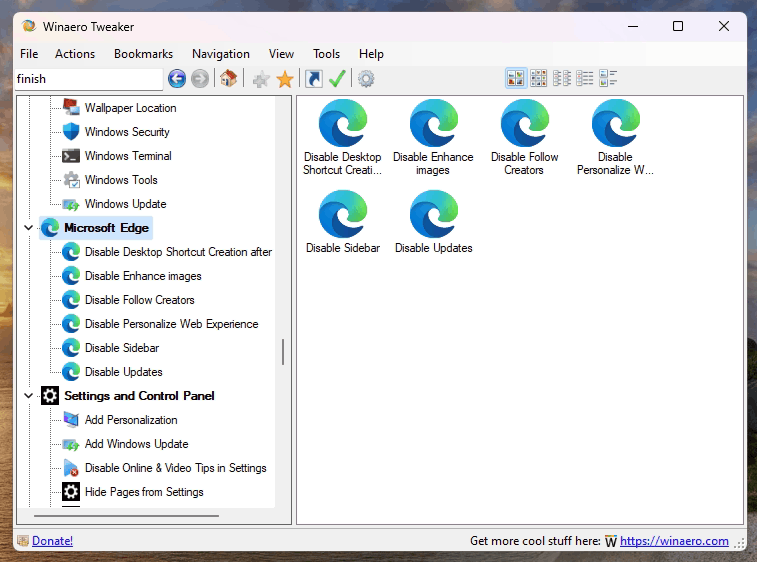
  • Moved all Edge Chromium options to a new dedicated category.
    Edge Category

Fixes​

  • Fixed a few bugs in the Hide Settings Page option. Actualized its ms-settings list.
  • Fixed a bunch of typos and wrong tweak descriptions.
  • Fixed the "take ownership" context menu for non-English locales, e.g. for Spanish & German users.
  • Under a limited account, the app no longer tries to use the Administrator's Desktop folder path when creating shortcuts.
  • Fixed a bug in the "Select visible tweaks" that rarely causes some of the "root" categories disappear from the list.

Download Winaero Tweaker 1.53​

You can download Winaero Tweaker using the following links.
 
Last edited:
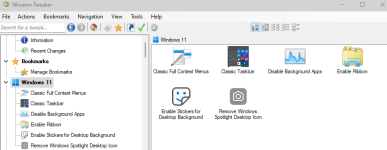
Uhh great program, but what killer feature did you (@silversurfer) enable with Winaero tweaker in Windows 11?
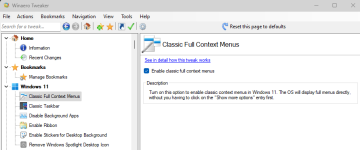
Well, no killer feature to tweak with this software, for me it's useful for simple things like the "Classic Full Context Menu" what we know from Windows 10...

WAT.pngwat#2.png
 
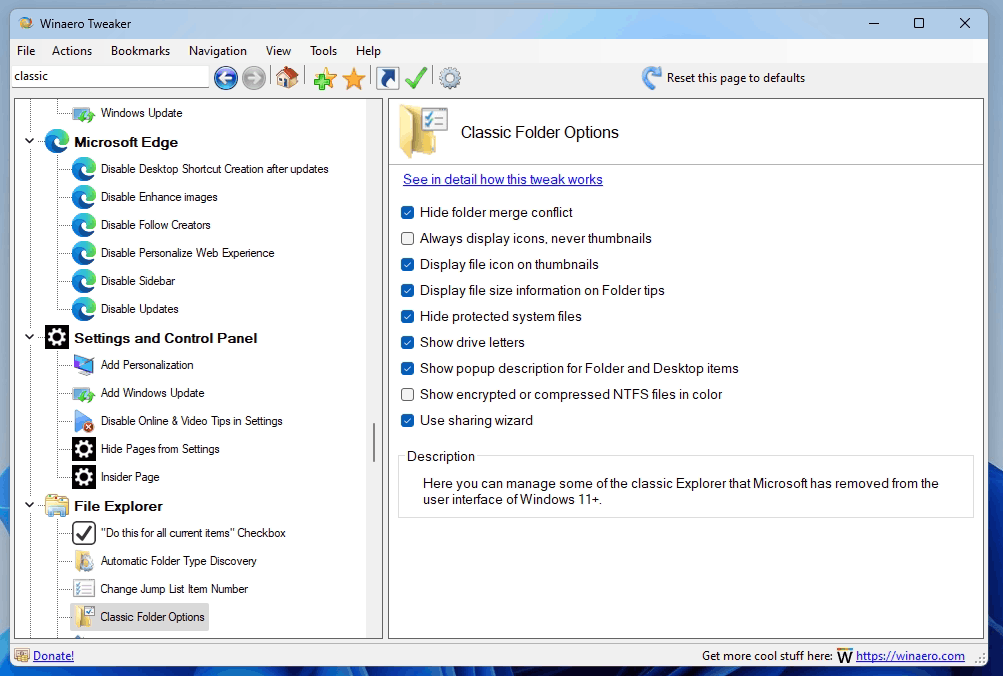
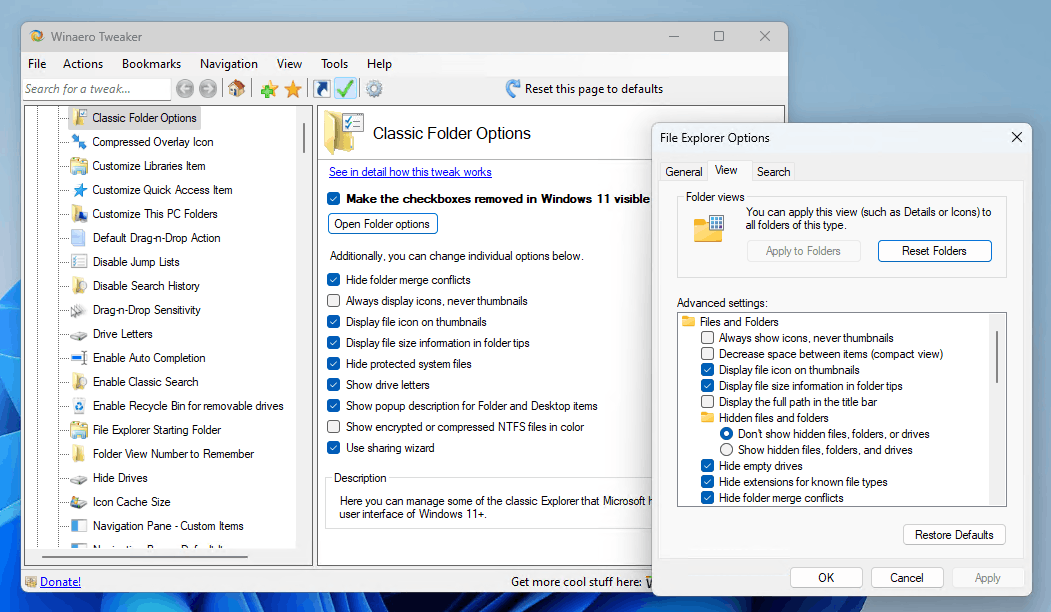
Here's a quick update of Winaero Tweaker. Version 1.54 includes a new "Classic Folder Options" page under the File Explorer category. It allows you to manage all the settings that Microsoft has removed in Windows 11 Build 23481. Also, it includes two fixes.

What's new in Winaero Tweaker 1.54​

  • Added the UI for File Explorer options Microsoft has removed starting in Build 23481, so you can now manage them without editing the Registry.
  • The options are:
    • Hide Folder Merge conflict.
    • Always show icons, never thumbnails.
    • Display file icon on thumbnails.
    • Display file size information on Folder tips.
    • Hide protected OS files.
    • Show drive letters.
    • Show popup description for Folder and Desktop items.
    • Show encrypted or compressed NTFS files in color.
    • Use sharing wizard.
  • Fixed a bug in "Hide Settings Pages". On Windows 10, it was not processing the "Mouse Pointer" page in the "Ease of Access" section.
  • Made the Startup sound play asynchronously when you preview it. The app should not hang any longer.
Winaero-Tweaker-Classic-Folder-Options.png
 

What's new in Winaero Tweaker 1.55​

  • Added the option to restore the removed checkboxes back to Folder Options in Windows 11.
  • Fixed a typo in the registry value for the Icon max cache size tweak.
  • Fixed a memory leak in the Icon max cache size tweak.
  • Fixed a crash when you preview the startup sound in the "Change Startup Sound" tweak.
 
Last edited:

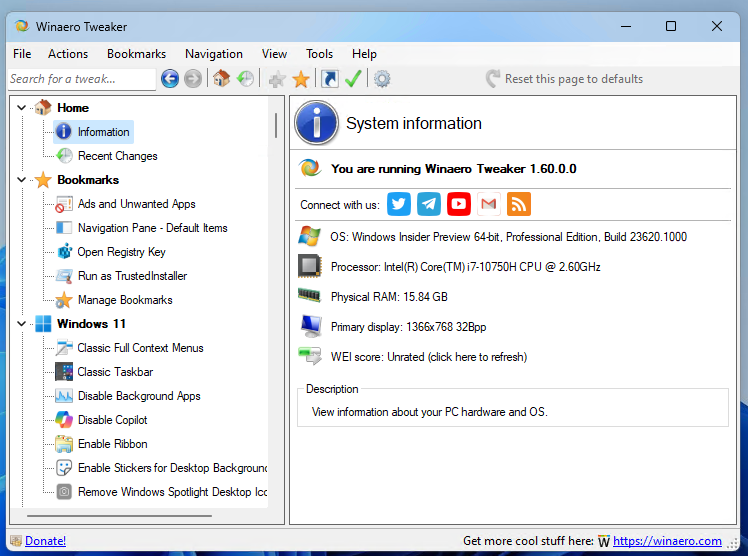
Winaero Tweaker 1.60 is here [Updated to 1.60.1]​

What's new in Winaero Tweaker 1.60.1​

  • Version 1.60.1 fixed a crash in Terminal profiles context menu introduced in version 1.60.
  • Proper Windows 11 23H2 detection.
  • The Startup sound checkbox now reflects the actual status (enabled or disabled) in recent Windows versions.
  • The Hide Pages in Settings option now allows hiding the Home page on Windows 11.
  • You can now disable Copilot on both Windows 10 and Windows 11.

New and improved context menu features:
  • Remove the "Edit in Notepad" context menu entry on Windows 11.
  • Add Copilot to the desktop context menu.
  • On Windows 11, you can now restore the "Edit" entry for images, and set it to any app of your choice!
  • Terminal Profiles context menu has been reworked. It now shows profiles available in the JSON config file, and allows adding any of them to the right-click menu of folders. There are also little improvements here and there in this option.
  • I have updated the Navigation Pane - default items option. It can now properly differentiate the Home and Quick Access folders, and also allows removing the Gallery item. Finally, the classic Favorites folder is no longer part of "Default items". But if you want, you can add it via the "Custom items" option for the Navigation pane.
  • The Show BSOD details setting has got a dedicated option to disable the "Smiley" thing.
  • It is now possible to add Classic User Accounts to the Control Panel (control.exe).
  • Under Tools on the left, you will find a new option to reset preview thumbnail cache. It is useful if you see corrupted or missing folder or file previews in File Explorer. This works in all Windows versions supported by the app (Windows 7+).
  • You can now set any desired folder to be File Explorer's start folder instead of Home or Quick Access.
  • Finally, in Winaero Tweaker, the Recent changes page can now be opened with a shortcut, from the menu, and via a new toolbar button.

Download: https://winaerotweaker.com/download/winaerotweaker.zip
 

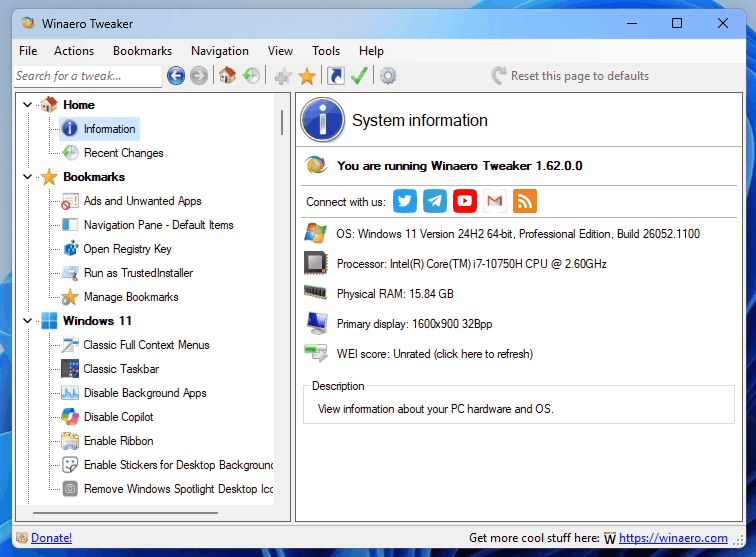
Winaero Tweaker 1.62 is available with fixes and one new feature​

Winaero Tweaker 1.62 is here. It is a minor release that aims at fixing bugs and inconveniences introduced in the previous version.
  • Fixed invalid version report for Windows 11 22H2/23H2. It should now also recognize 24H2.
  • The option to hide the 'Home' page in Settings is now visible in Windows 11 22H2.
  • Fixed a crash in import/export.
  • Fixed a crash in File Explorer classic options
  • New feature: Lock with BitLocker drive context menu option to lock an unlocked drive with ease.
 
1.62.1 is available now.

Winaero Tweaker 1.62.1, specifically "Elevator.exe", gets flagged by MS Defender as "Trojan: Win32\ScarletFlash.A". (Likely a false positive: I haven't had any problems with it before)
 

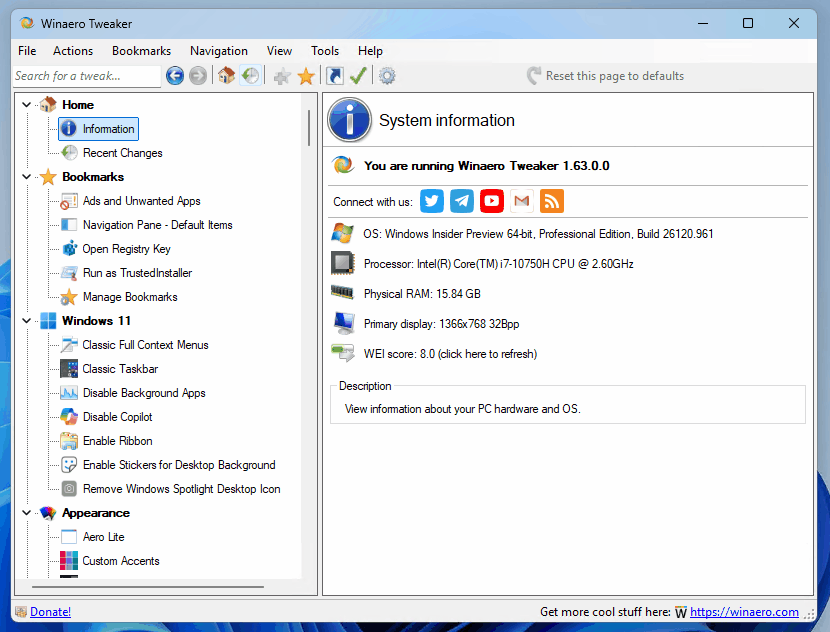
Winaero Tweaker 1.63​

  • The app should now properly detect the Windows version, including Windows 11 24H2.
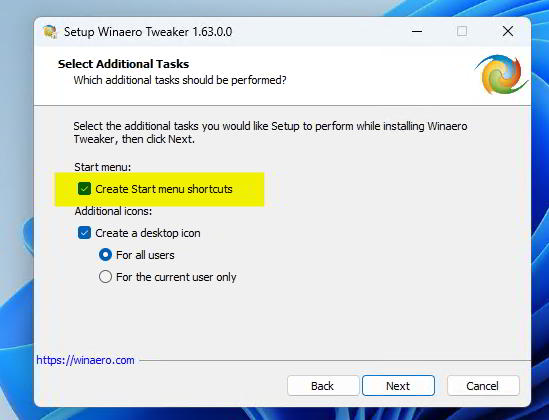
  • The installer allows you to skip the addition of the Start menu folder.
    Installer Allows Skipping The Start Menu Icons
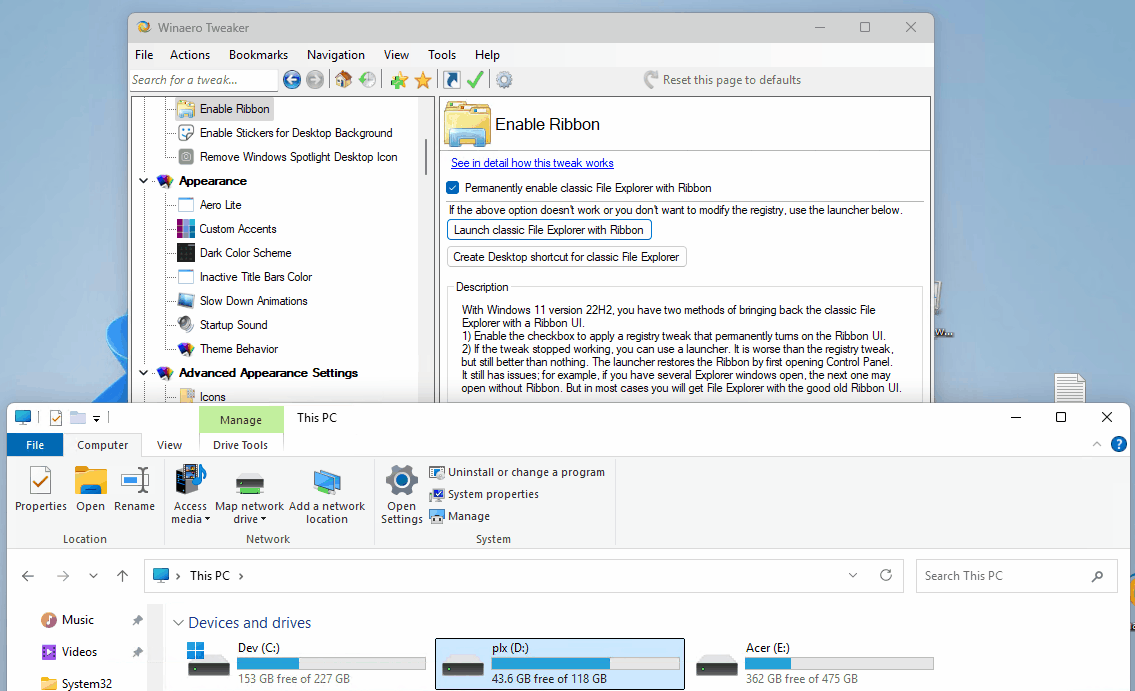
  • Added the option to permanently enable the Ribbon UI in File Explorer on Windows 11.
    Winaero Tweaker Enable Ribbon Permanently
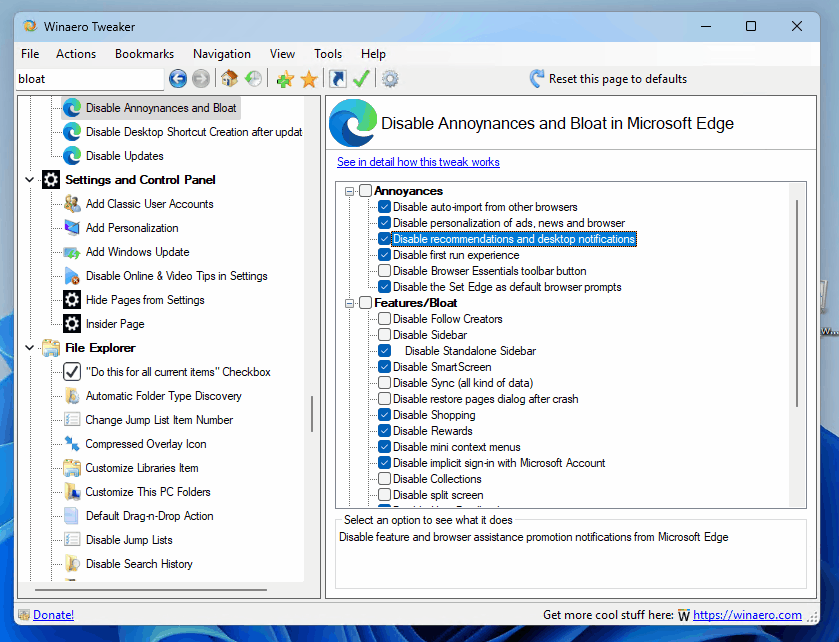
  • Individual Edge tweaking options are now live on a new page, and they are greatly expanded. Check out Microsoft Edge > Disable Annoyances and Bloat. There, you will find settings to disable sidebar, tips and promotions on desktop, prompts to set Edge as your default browser, floating Bing bar on desktop, remove news and "quick links" from the New tab page, and much, much more.
    Winaero Tweaker Edge Disable Annoyances And Bloat
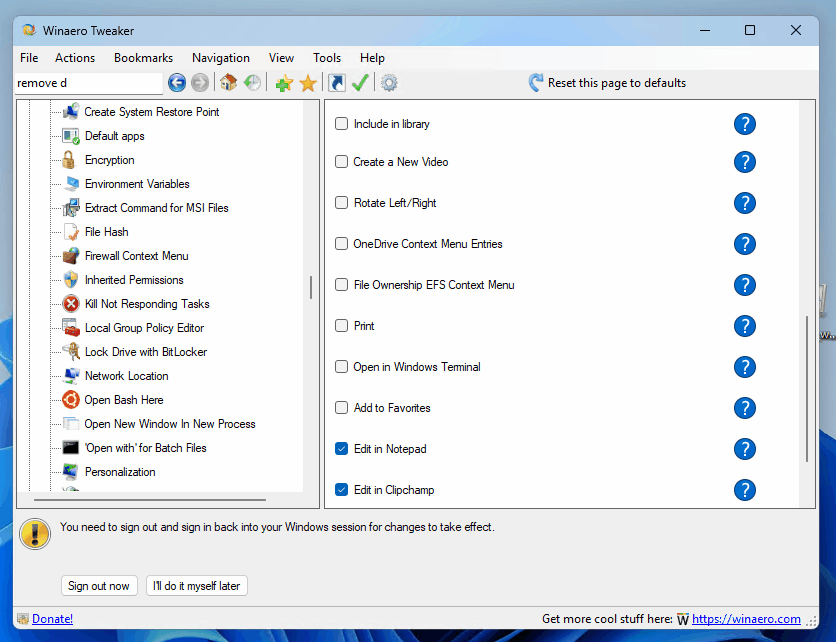
  • You can now remove the "Edit with Clipchamp" context menu entry.
    Winaero Tweaker Remove Edit With Clipchamp
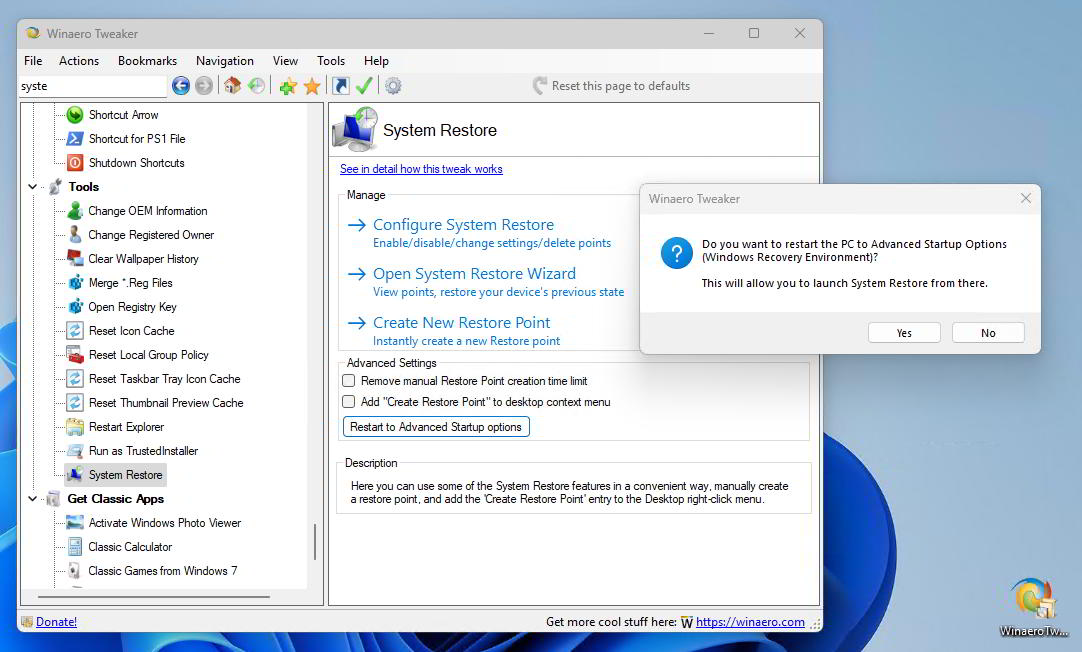
  • The Tools \ System Restore page now has an option to quickly restart the device to Windows Recovery Environment.
    Winaero Tweaker Restart To Winre
  • I have fixed a few tweaks that stopped working in 24H2, such as add/remove This PC folders.
  • I have removed the "Folder options" page as Microsoft is no longer going to remove those.
  • Removed the "test" message from the Hide Settings pages option (I use MessageBox debugging, yeah-yeah).
  • There are a few small bugfixes.

Download: https://winaerotweaker.com/download/winaerotweaker.zip
 
Last edited:
Winaero Tweaker 1.64.1
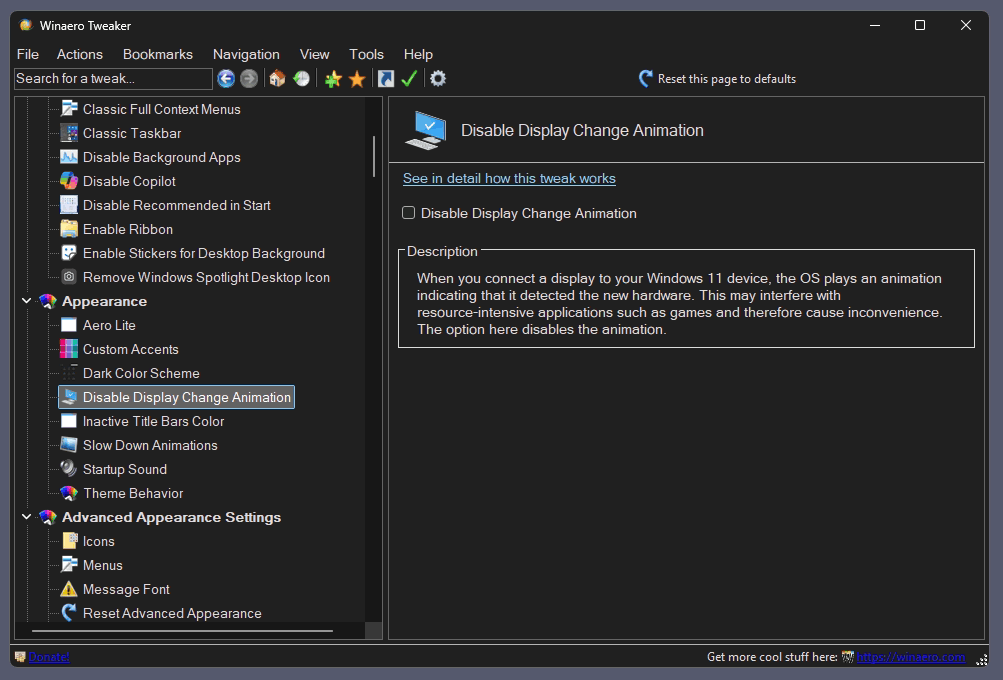
I am releasing Winaero Tweaker 1.64.1 to address some issues revealed since the last version. First of all, I have improved dark mode support in the app. Now all the dialogs are properly skinned. Second, I have fixed a couple of bugs and added a new feature that allows you to disable animation that plays on Windows 11 when you connect a new display to the computer. Here are the details.
 

You may also like...