In recent years, cybercriminals have increasingly turned to cryptocurrency scams as a way to extort money from unsuspecting victims. One such scam that has become prevalent is the 1KRjnCvcibAPRgbKn49AtfAHBDvSLep5AR Bitcoin scam email.
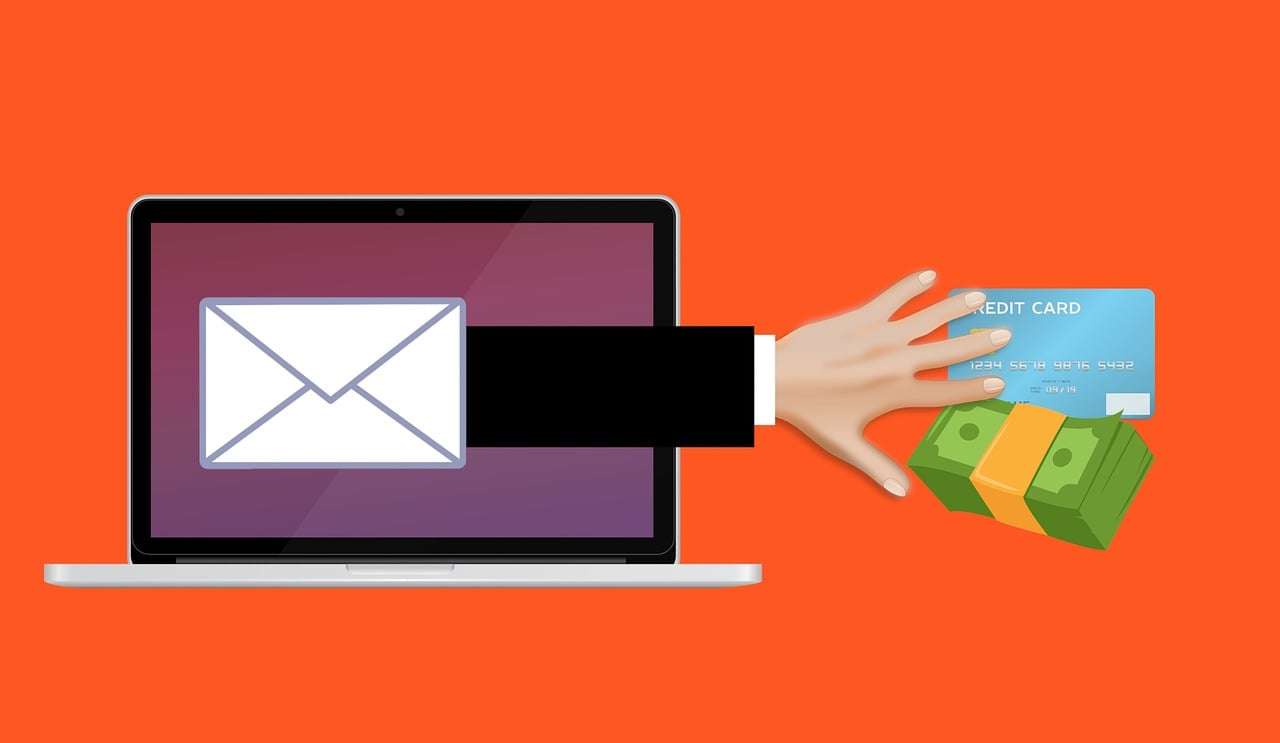
This fraudulent email threatens victims that their computer has been hacked, their online activities recorded, and demands payment in Bitcoin to prevent the release of compromising material. While frightening, it is important to know that this is nothing more than an underhanded ploy to scam people out of money.
In this comprehensive guide, we will break down exactly how the 1KRjnCvcibAPRgbKn49AtfAHBDvSLep5AR scam works, provide steps you can take if you have fallen victim, and outline key things you need to know to protect yourself going forward.
Overview of the 1KRjnCvcibAPRgbKn49AtfAHBDvSLep5AR Scam
The 1KRjnCvcibAPRgbKn49AtfAHBDvSLep5AR scam email has been circulating since around 2018, with cybercriminals sending out millions of messages to unsuspecting email account holders.
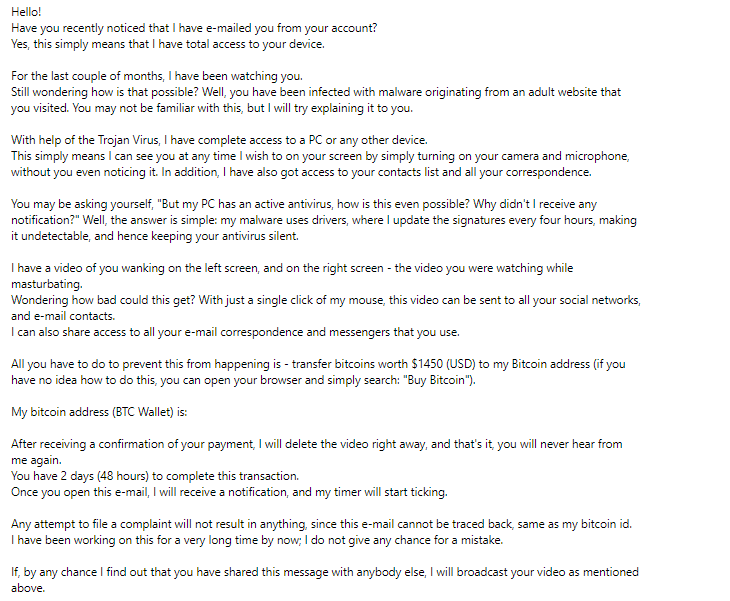
The email claims that hackers have compromised your computer and other devices, gained complete access to your files, emails, microphone, and webcam. It goes on to say that they have put spyware on your system and have been monitoring your online activities for months.
According to the scam email, this has allowed them to record you visiting adult websites and secretly film you in compromising positions through your webcam. The email will often include one of your passwords as “proof” that your account has been breached.
The scammers threaten that if you do not pay a ransom in Bitcoin (usually around $500 – $1000) to the specified Bitcoin wallet address 1KRjnCvcibAPRgbKn49AtfAHBDvSLep5AR, they will send the explicit videos and your browsing history to all your contacts.
To ramp up the pressure, the email sets a short deadline of 24-48 hours to pay up before they release the damaging materials. The scam email is carefully crafted to frighten victims into immediate action before they have time to think rationally.
Of course, the claims made in the 1KRjnCvcibAPRgbKn49AtfAHBDvSLep5AR email are complete fabrications. The reality is that the scammers do not have any compromising videos of you, have not hacked your devices, and are simply trying to extort money through baseless threats and deception.
Tactics Used in the Scam
The 1KRjnCvcibAPRgbKn49AtfAHBDvSLep5AR scam utilizes several underhanded tactics to increase fear and pressure victims into paying the ransom:
Sense of Urgency – The short 24-48 hour deadline creates urgency to act fast before the supposed videos get released. This inhibits rational thinking.
Shame and Embarrassment – The threat of sending adult content to your contacts aims to shame targets into complying to avoid humiliation.
Password Inclusion – Featuring one of your passwords makes the email appear more credible, even though passwords are readily available online from data breaches.
Baseless Technical Jargon – References to spyware, keyloggers, and other technical sounding tools aims to convince victims their computer has been compromised.
Intimidation – Aggressive demands and threats of ruining your reputation or relationships strike fear in recipients.
Anonymity – The scammers use untraceable and disposable Bitcoin wallets to avoid detection.
Do not let these bullying scare tactics fool you. The 1KRjnCvcibAPRgbKn49AtfAHBDvSLep5AR email is 100% fraudulent. We will explore exactly how cybercriminals orchestrate this scam next.
How the 1KRjnCvcibAPRgbKn49AtfAHBDvSLep5AR Scam Works
The 1KRjnCvcibAPRgbKn49AtfAHBDvSLep5AR scam is essentially a modern twist on traditional extortion scams, adapted to capitalize on new technologies like cryptocurrency and the prevalence of adult content online.
Let’s break down step-by-step how scammers carry out this nefarious scheme:
1. Scammers Obtain Leaked Password Databases
Due to far too many data breaches, cybercriminals have access to billions of compromised usernames, email addresses, and passwords that have been leaked online. There are even dark web sites that sell huge databases of credentials harvested from breached sites.
The scammers behind the 1KRjnCvcibAPRgbKn49AtfAHBDvSLep5AR scam likely obtain leaked credentials from the dark web to find potential victims.
2. Emails are Crafted with Stolen Passwords
Once scammers have your email address and an associated password, they will fabricate a personalized extortion email including your compromised password as apparent “proof” your account is hacked.
Even if the password is old, seeing it in the email makes it seem more credible. The scam emails often are made to look like they come from your own email via spoofing techniques.
3. Millions of Fraudulent Emails Are Sent Out
Automated software allows scammers to send out millions of fraudulent 1KRjnCvcibAPRgbKn49AtfAHBDvSLep5AR emails to compromised accounts across the world in dozens of languages.
Only a tiny fraction of recipients may take the bait, but that still translates to huge profits for almost zero effort. This shotgun style scam approach requires minimal work to reach a massive scale.
4. Recipients are Pressured to Send Bitcoin
If you receive the email, the scammers want you to panic and impulsively pay the ransom in Bitcoin before thinking it through. The short deadline adds pressure while the Bitcoin payment method provides pseudo-anonymity.
Once you send Bitcoin to the wallet 1KRjnCvcibAPRgbKn49AtfAHBDvSLep5AR, it is essentially untraceable and irreversible. Victims who comply often feel too embarrassed to go to authorities after realizing it was a scam.
5. Scammers Disappear with the Bitcoin
After receiving ransom payments in their Bitcoin wallet, the scammers simply walk away with the money. They do not actually have any compromising videos of you – that was just fiction to trick you.
The disposable Bitcoin wallets used make it easy for scammers to remain anonymous and get away scot-free. They will keep any Bitcoin sent to 1KRjnCvcibAPRgbKn49AtfAHBDvSLep5AR.
The Devastating Aftermath
For victims who submitted to the payment demands, the consequences can be serious:
Financial loss from the ransom payment, often $500 to $1000 worth of Bitcoin.
Lingering embarrassment and anxiety over the fake threats of exposing videos.
Fear of being targeted again in the future or having information leaked.
Sense of violation from having personal information like passwords exposed.
Technical hassle and expense of scanning devices for potential malware if links were clicked.
By understanding the deceitful techniques used in this scam, you can avoid falling prey and protect yourself.
What to Do If You Are Targeted by the 1KRjnCvcibAPRgbKn49AtfAHBDvSLep5AR Scam
If you have received an email demanding Bitcoin payment to 1KRjnCvcibAPRgbKn49AtfAHBDvSLep5AR, stay calm and do the following:
1. Do Not Panic or Pay
Take a deep breath and slow down. The threats made in the email are false and paying the ransom will not stop some non-existent video from being leaked. Do not let fear overpower your critical thinking.
Also keep in mind that even if you pay, scammers may still come back asking for more money in the future. Ignoring the scam email is the best course of action.
2. Check If Your Password Was Compromised
Go to the website HaveIBeenPwned.com and enter the password that appeared in the scam email. This will let you know if the password has been compromised in a past data breach.
If it has, immediately change it for the site in question and anywhere else you may use it. Avoid password reuse going forward. Enable two-factor authentication wherever possible.
3. Scan Devices for Malware
If you clicked on any links or attachments in the scam email, your devices may have malware. Download a respected antivirus program like Malwarebytes and do a full system scan looking for infections.
Also check for any unknown programs and browser extensions that may have been installed without your knowledge. Removing malware may require professional assistance if the infection is advanced.
4. Report the Scam Email
Forward the 1KRjnCvcibAPRgbKn49AtfAHBDvSLep5AR email to your email provider as a phishing scam. You can also report it to the Anti-Phishing Working Group online fraud reporting tool.
The more people report the scam, the more likely the perpetrators’ domain and infrastructure will be shut down. This stops the scam from spreading further.
5. Monitor Accounts Closely
Carefully check bank, credit, and other online accounts for any signs of unauthorized access over the next few weeks. Cybercriminals sometimes use phishing emails to trick people into providing login credentials they can use to access accounts.
Enable login alerts so you are notified of any suspicious activity by text or email. Ramp up security measures wherever feasible.
6. Warn Contacts About Scam
Let your friends and family know about the fraudulent 1KRjnCvcibAPRgbKn49AtfAHBDvSLep5AR email in case they also receive it. Share key details from this guide so they know it is an outright scam and avoid becoming victims themselves.
7. Seek Emotional Support If Needed
Being targeted by such a manipulative scam can be stressful. The threats prey on feelings like fear, shame, and embarrassment. Know that you are not alone.
Confide in trusted friends and family for moral support. Consider contacting professionals like counselors and local victim support resources if you need help overcoming anxiety over the scam.
8. Boost Security Moving Forward
Take time to improve your cybersecurity practices so you are better protected from phishing scams going forward:
Use strong unique passwords for each account and enable two-factor authentication when possible.
Be wary of suspicious links and attachments, erring on the side of caution. Verify the sender’s identity.
Keep software updated and run regular antivirus scans.
Back up important data securely offline.
Clear browsing history, cookies, cache files on devices regularly.
With greater vigilance, the risks from deceptive scams like 1KRjnCvcibAPRgbKn49AtfAHBDvSLep5AR will diminish substantially.
Is Your Device Infected? Scan for Malware
If your computer or phone is slow, showing unwanted pop-ups, or acting strangely, malware could be the cause. Running a scan with Malwarebytes Anti-Malware Free is one of the most reliable ways to detect and remove harmful software. The free version can identify and clean common infections such as adware, browser hijackers, trojans, and other unwanted programs.
Malwarebytes works on Windows, Mac, and Android devices. Choose your operating system below and follow the steps to scan your device and remove any malware that might be slowing it down.
Malwarebytes for WindowsMalwarebytes for MacMalwarebytes for Android
Run a Malware Scan with Malwarebytes for Windows
Malwarebytes stands out as one of the leading and widely-used anti-malware solutions for Windows, and for good reason. It effectively eradicates various types of malware that other programs often overlook, all at no cost to you. When it comes to disinfecting an infected device, Malwarebytes has consistently been a free and indispensable tool in the battle against malware. We highly recommend it for maintaining a clean and secure system.
Download Malwarebytes
Download the latest version of Malwarebytes for Windows using the official link below. Malwarebytes will scan your computer and remove adware, browser hijackers, and other malicious software for free.
(The above link will open a new page from where you can download Malwarebytes)
Install Malwarebytes
After the download is complete, locate the MBSetup file, typically found in your Downloads folder. Double-click on the MBSetup file to begin the installation of Malwarebytes on your computer. If a User Account Control pop-up appears, click “Yes” to continue the Malwarebytes installation.
Follow the On-Screen Prompts to Install Malwarebytes
When the Malwarebytes installation begins, the setup wizard will guide you through the process.
You’ll first be prompted to choose the type of computer you’re installing the program on—select either “Personal Computer” or “Work Computer” as appropriate, then click on Next.
Malwarebytes will now begin the installation process on your device.
When the Malwarebytes installation is complete, the program will automatically open to the “Welcome to Malwarebytes” screen.
On the final screen, simply click on the Open Malwarebytes option to start the program.
Enable “Rootkit scanning”.
Malwarebytes Anti-Malware will now start, and you will see the main screen as shown below. To maximize Malwarebytes’ ability to detect malware and unwanted programs, we need to enable rootkit scanning. Click on the “Settings” gear icon located on the left of the screen to access the general settings section.
In the settings menu, enable the “Scan for rootkits” option by clicking the toggle switch until it turns blue.
Now that you have enabled rootkit scanning, click on the “Dashboard” button in the left pane to get back to the main screen.
Perform a Scan with Malwarebytes.
To start a scan, click the Scan button. Malwarebytes will automatically update its antivirus database and begin scanning your computer for malicious programs.
Wait for the Malwarebytes scan to complete.
Malwarebytes will now scan your computer for browser hijackers and other malicious programs. This process can take a few minutes, so we suggest you do something else and periodically check the status of the scan to see when it is finished.
Quarantine detected malware
Once the Malwarebytes scan is complete, it will display a list of detected malware, adware, and potentially unwanted programs. To effectively remove these threats, click the “Quarantine” button.
Malwarebytes will now delete all of the files and registry keys and add them to the program’s quarantine.
Restart your computer.
When removing files, Malwarebytes may require a reboot to fully eliminate some threats. If you see a message indicating that a reboot is needed, please allow it. Once your computer has restarted and you are logged back in, you can continue with the remaining steps.
Once the scan completes, remove all detected threats. Your Windows computer should now be clean and running smoothly again, free of trojans, adware, and other malware.
If your current antivirus allowed this malicious program on your computer, you may want to consider purchasing Malwarebytes Premium to protect against these types of threats in the future. If you are still having problems with your computer after completing these instructions, then please follow one of the steps:
Malwarebytes for Mac is an on-demand scanner that can destroy many types of malware that other software tends to miss without costing you absolutely anything. When it comes to cleaning up an infected device, Malwarebytes has always been free, and we recommend it as an essential tool in the fight against malware.
Download Malwarebytes for Mac.
You can download Malwarebytes for Mac by clicking the link below.
When Malwarebytes has finished downloading, double-click on the setup file to install Malwarebytes on your computer. In most cases, downloaded files are saved to the Downloads folder.
Follow the on-screen prompts to install Malwarebytes.
When the Malwarebytes installation begins, you will see the Malwarebytes for Mac Installer which will guide you through the installation process. Click “Continue“, then keep following the prompts to continue with the installation process.
When your Malwarebytes installation completes, the program opens to the Welcome to Malwarebytes screen. Click the “Get started” button.
Select “Personal Computer” or “Work Computer”.
The Malwarebytes Welcome screen will first ask you what type of computer are you installing this program, click either Personal Computer or Work Computer.
Click on “Scan”.
To scan your computer with Malwarebytes, click on the “Scan” button. Malwarebytes for Mac will automatically update the antivirus database and start scanning your computer for malware.
Wait for the Malwarebytes scan to complete.
Malwarebytes will scan your computer for adware, browser hijackers, and other malicious programs. This process can take a few minutes, so we suggest you do something else and periodically check on the status of the scan to see when it is finished.
Click on “Quarantine”.
When the scan has been completed, you will be presented with a screen showing the malware infections that Malwarebytes has detected. To remove the malware that Malwarebytes has found, click on the “Quarantine” button.
Restart computer.
Malwarebytes will now remove all the malicious files that it has found. To complete the malware removal process, Malwarebytes may ask you to restart your computer.
After scanning, delete any detected threats. Your Mac should now be free from adware, unwanted extensions, and other potentially harmful software.
If your current antivirus allowed a malicious program on your computer, you might want to consider purchasing the full-featured version of Malwarebytes Anti-Malware to protect against these types of threats in the future. If you are still experiencing problems while trying to remove a malicious program from your computer, please ask for help in our Mac Malware Removal Help & Support forum.
Run a Malware Scan with Malwarebytes for Android
Malwarebytes for Android automatically detects and removes dangerous threats like malware and ransomware so you don’t have to worry about your most-used device being compromised. Aggressive detection of adware and potentially unwanted programs keeps your Android phone or tablet running smooth.
Download Malwarebytes for Android.
You can download Malwarebytes for Android by clicking the link below.
In the Google Play Store, tap “Install” to install Malwarebytes for Android on your device.
When the installation process has finished, tap “Open” to begin using Malwarebytes for Android. You can also open Malwarebytes by tapping on its icon in your phone menu or home screen.
Follow the on-screen prompts to complete the setup process
When Malwarebytes will open, you will see the Malwarebytes Setup Wizard which will guide you through a series of permissions and other setup options. This is the first of two screens that explain the difference between the Premium and Free versions. Swipe this screen to continue. Tap on “Got it” to proceed to the next step. Malwarebytes for Android will now ask for a set of permissions that are required to scan your device and protect it from malware. Tap on “Give permission” to continue. Tap on “Allow” to permit Malwarebytes to access the files on your phone.
Update database and run a scan with Malwarebytes for Android
You will now be prompted to update the Malwarebytes database and run a full system scan.
Click on “Update database” to update the Malwarebytes for Android definitions to the latest version, then click on “Run full scan” to perform a system scan.
Wait for the Malwarebytes scan to complete.
Malwarebytes will now start scanning your phone for adware and other malicious apps. This process can take a few minutes, so we suggest you do something else and periodically check on the status of the scan to see when it is finished.
Click on “Remove Selected”.
When the scan has been completed, you will be presented with a screen showing the malware infections that Malwarebytes for Android has detected. To remove the malicious apps that Malwarebytes has found, tap on the “Remove Selected” button.
Restart your phone.
Malwarebytes for Android will now remove all the malicious apps that it has found. To complete the malware removal process, Malwarebytes may ask you to restart your device.
When the scan is finished, remove all detected threats. Your Android phone should now be free of malicious apps, adware, and unwanted browser redirects.
If your current antivirus allowed a malicious app on your phone, you may want to consider purchasing the full-featured version of Malwarebytes to protect against these types of threats in the future. If you are still having problems with your phone after completing these instructions, then please follow one of the steps:
Restore your phone to factory settings by going to Settings > General management > Reset > Factory data reset.
After cleaning your device, it’s important to protect it from future infections and annoying pop-ups. We recommend installing an ad blocker such as AdGuard. AdGuard blocks malicious ads, prevents phishing attempts, and stops dangerous redirects, helping you stay safe while browsing online.
Frequently Asked Questions
Why would scammers ask for payment in Bitcoin?
Bitcoin provides scammers two major advantages. First, Bitcoin transactions are essentially anonymous, making payments almost impossible to trace back to the scammers. Second, Bitcoin payments are irreversible once sent, so victims have no way to get their money back.
How do scammers get access to my password?
Scammers likely obtained your password from one of the many large data breaches that have occurred over the years. Never reuse passwords across accounts and enable two-factor authentication when available.
What if I already paid the ransom?
Unfortunately, if you already paid, the chances of recovering your money are slim. Bitcoin transactions are not reversible. You can report the scam to authorities, but the anonymous nature of Bitcoin will make it difficult for them to investigate.
Could the scammers really send video/images to my contacts?
No, the scammers cannot send compromising material to your contacts because they do not actually have any such content. The threats are a bluff intended to extort money. Paying the ransom will not stop anything from being sent.
What are some other examples of crypto scams?
Some other cryptocurrency scams include fake investment platforms, fraudulent initial coin offerings (ICOs), fake ransomware, giveaway scams, fake cryptocurrency exchanges and wallet services. Always research before investing in anything involving crypto.
How can I remove malware if my device was infected?
Run a scan with legitimate antivirus software like Malwarebytes or Bitdefender, and also check for unknown extensions and programs manually installed without your approval. Reverting to a system restore point can also eliminate malware.
Should I report the scam email anywhere?
Yes, you can report phishing scam emails to your email provider, the Anti-Phishing Working Group, and the FBI’s Internet Crime Complaint Center to help get fraudulent accounts shut down.
What steps can I take to improve my online security?
Use strong unique passwords, enable two-factor authentication, avoid clicking suspicious links/attachments, keep software updated, use antivirus, back up data offline, and exercise caution when contacted unexpectedly about financial matters.
The Bottom Line
Being targeted by the disturbing 1KRjnCvcibAPRgbKn49AtfAHBDvSLep5AR Bitcoin scam can be unsettling. However, knowledge is power when it comes to defeating these fraudsters.
Remember, the content of the email is fabricated to frighten and manipulate you. Paying the ransom will only lead to financial loss with no actual benefit. Maintain perspective and refuse to give in to demands.
With a few precautionary steps, you can protect your money, data, and peace of mind. Share details of this scam to help raise public awareness and prevent more innocent victims.
Cyber threats are growing more sophisticated every day, but we can fight back with vigilance, security precautions, and by looking out for one another. Stay safe!
Thomas is an expert at uncovering scams and providing in-depth reporting on cyber threats and online fraud. As an editor, he is dedicated to keeping readers informed on the latest developments in cybersecurity and tech.