Beware These 10 Email Scams So You Don’t Get Ripped Off
Written by: Stelian
Published on:
Email continues to be a primary communication medium for both business and personal use despite social media’s growth. However, the ubiquity of email has also made it a prime attack vector for scammers executing malicious cons.
This comprehensive guide will provide an in-depth examination of the most insidious email scams reported to be circulating widely today, how they work, and expert advice to help you spot and stop them. Learning to identify the latest techniques fraudsters use can help you keep your data and money protected.
An Overview of Email Scamming
Email’s inherent vulnerabilities make it an ideal channel for scammers to deploy a variety of deceptive tactics. Some of the most common ploys seen include:
Phishing – Fraudulent emails aim to trick recipients into revealing sensitive information through spoofing, urgent calls to action, and embedded malicious links and attachments. Data is used for identity theft.
Malware Distribution – Malicious email attachments when downloaded infect devices with viruses, ransomware, keyloggers, and trojans designed to steal financial account credentials or encrypt files for ransom.
Business Email Compromise – Scammers hack or spoof employee email accounts to request unauthorized wire transfers to their accounts from finance departments and payroll managers.
Romance Scams – Scammers build online relationships through dating sites before eventually asking targets to send money for supposed emergencies through repeated sob stories.
Fake Invoices – Emails with PDF invoices attached or embedded links to view invoices aim to trick recipients into paying for items they never purchased or ordered.
Bogus Job Offers – Scammers advertise fake job offers through email promising generous compensation but first requiring an application fee or handing over personal information.
With so much legitimate correspondence also taking place over email, it can be tricky for the average user to identify signs of malicious messages. But awareness of common red flags can help individuals and companies steer clear of email schemes aiming to steal credentials, data, and money.
Breaking Down the Top 10 Email Scams
Let’s dive into the prevalent email scams that all users should stay vigilant against in order to detect and avoid them.
1. Phishing Scams
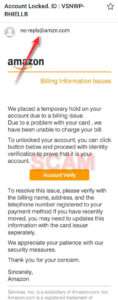
Phishing emails aim to steal sensitive data like login credentials and financial information through deception. Scammers typically spoof trusted brands like banks, retailers, and social media platforms to appear legitimate.
Emails claim there is a problem with your account that requires urgent action through an embedded link. However, clicking the link directs victims to a fake website controlled by scammers designed to steal entered data.
How to Spot This Scam
Urgent threats demanding immediate action or account suspension.
Requests sensitive information like passwords or SSN.
Email addressing you generically rather than by name.
How to Avoid It
Check sender email domains carefully for spoofing.
Never click links in unexpected emails. Navigate to sites manually.
Use unique secure passwords for each account. Enable two-factor authentication.
2. Malware Downloads
Scammers send emails with dangerous files attached or embedded links to download files containing malicious software. Once downloaded, malware installs itself covertly with administrator privileges. It can secretly steal data, encrypt files for ransom, allow remote computer control, and infect networks.
Malware payloads include info-stealing trojans, password-harvesting keyloggers, and file-encrypting ransomware. Users may be completely unaware of infections for months before credentials and data are stolen.
How to Spot This Scam
Attachments ending in .exe, .zip, .iso are suspicious.
Emails warning attachments are “protected” should raise red flags.
Links lead to non-matching destination URLs.
How to Avoid It
Never open email attachments or click links if source is questionable.
Ensure comprehensive antivirus software is installed and fully updated.
Check email file extensions carefully before downloading. JPEGs can be .exe files.
3. Business Email Compromise
Cybercriminals target businesses by hacking or spoofing executive email accounts to request unauthorized payments or sensitive data from employees. Emails appear to come from within the company, increasing chances of success.
Once scam emails are sent, employees may wire large sums of money or send tax forms to scammer accounts. Data breaches also occur by returning requested info. Losses can total millions before companies realize they’ve been scammed.
How to Spot This Scam
Requests come from outside normal company procedures or chains of command.
Emails have odd tones, wording, signatures, or domains compared to normal.
Urgency and secrecy demanded around unusual payment orders or data requests.
How to Avoid It
Verify unusual payment or data requests through secondary communication channels like phone.
Educate employees on cybersecurity and potential business email scams.
4. Romance Scams
Romance scammers meet daters on matchmaking platforms before shifting communications to email. After building affection over weeks and months, they fabricate emergencies requiring money like medical troubles, travel issues, legal problems, etc.
Victims trust their online romantic interests and feel compelled to provide financial assistance repeatedly once scammers play on their emotions with fabricated sad stories and hardships.
How to Spot This Scam
Refusal or excuses to meet in person after extended online interaction.
Profiles using stolen photos or modeling imagery.
Sudden requests for money using gift cards, wire transfers, etc.
How to Avoid It
Don’t send money to online-only romantic partners claiming emergencies.
Conduct reverse image searches on photos to uncover fakes.
Insist on video chatting before growing attached to online daters.
5. Fake Invoices
Scammers send emails disguised as unpaid invoices from well-known retailers and service providers. They may include links to view the fake invoice or have PDFs attached.
If recipients aren’t carefully inspecting senders and details, they may be tricked into paying the invoice to avoid late fees or disruption of services. Invoices often appear overdue and threatening to be highly coercive of fast payment.
How to Spot This Scam
Businesses requesting payment for services you don’t recall signing up for.
Links lead to sketchy domains rather than official business sites.
Requests for unusual payment methods like gift cards.
How to Avoid It
Verify invoices directly through official account dashboards rather than links or attachments.
Confirm business names match exactly rather than slight misspellings.
Don’t be pressured into paying suspicious invoices quickly under duress.
6. Bogus Job Offer Scams
Scammers advertise fake remote jobs through email promising generous salaries, flexible hours, and requiring little effort. When applicants inquire, they are “hired” contingent on paying an application fee or taxes upfront via wire transfer.
Once sent, the “employer” ceases contact or may request more payments for equipment and training that never materializes before disappearing.
How to Spot This Scam
Jobs sound too good to be true with inflated salaries for easy remote work.
Interviews conducted via email raise red flags. Real recruiters will call.
Requests for payments upfront before formal hiring procedures.
How to Avoid It
Research companies hiring independently before applying to ensure legitimacy.
Never pay any fees or taxes before being formally employed with paperwork finalized.
Don’t provide sensitive personal information to unfamiliar people contacting you by email.
7. Fake Political Groups
Scammers impersonate political parties and advocacy groups from both sides of the political spectrum when election cycles ramp up. Emails spread disinformation and propaganda while soliciting donations to fake PACs and causes.
Rather than supporting real candidates and policies, scammers pocket contribution payments from loyal followers not double-checking group legitimacy in fervor to support the partisan cause.
How to Spot This Scam
Group names mimic real organizations with slight misspellings or variations.
Emails make inflammatory requests for immediate financial contributions.
Links lead to dubious domains rather than real non-profit sites.
How to Avoid It
Watch for exaggerated partisan rhetoric aiming to provoke emotions without facts.
Verify real names of advocacy groups and political action committees before donating.
Check Charity Navigator and IRS databases to confirm non-profit status.
8. Fake Password Reset Requests
Scammers send spoofed emails pretending to be from major sites like Facebook, Google, or Amazon. Emails claim you requested a password reset requiring confirmation by clicking a link to avoid account suspension.
However, clicking just directs victims to sophisticated phishing sites designed to steal login credentials and personal information once entered. Rather than resetting real passwords, users hand over account access.
How to Spot This Scam
Links lead to odd URLs unrelated to the legitimate site.
Threats of immediate account deletion pending confirmation.
Lack of personal identifiers like your name or username.
How to Avoid It
Manually navigate to real sites if you requested a password reset. Avoid clicking any links.
Hover over links to preview destinations in emails rather than assuming valid.
Setup account alerts to notify you if any changes like password resets occur.
9. Fake Bank Warnings
Scammers impersonate large national banks and send customers emails warning that their accounts are locked, compromised, or need to be immediately verified to avoid suspension.
Urgency is created through threats of permanent account closure within days if no action is taken. Embedded links direct recipients to fake banking portals gathering login credentials, account info, and social security numbers once entered.
How to Spot This Scam
Messages state you must act quickly to avoid account closure.
Links lead to mismatched domains that are not the official bank’s website.
Lack personalized identifiers like your name and account number.
How to Avoid It
Disregard generalized warnings about account issues. Banks will call you directly if real concerns arise.
Visit your bank’s official website and login rather than through links if you wish to check your account.
Setup account alerts to notify you directly of any status changes or password resets.
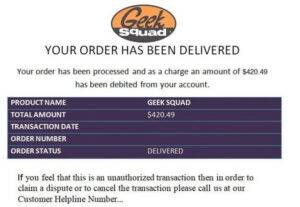
10. Fake Shipping Notifications
Scammers disguise malicious links as tracking updates from delivery companies about an on-the-way package. Curiosity about what is coming gets recipients to click on a link to fill out delivery preferences disguising phishing sites that steal account credentials once entered.
The emails spoof major shippers like USPS, FedEx, and UPS to appear authentic. However, the embedded “tracking links” hide efforts to harvest login information for data theft rather than real package tracking.
How to Spot This Scam
You aren’t actually expecting a delivery from the company emailing you.
Links go to mismatched domains that are subtle variations of real shipping sites.
Limited tracking information is provided about the shipment.
How to Avoid It
Do not click direct links if you are not expecting a delivery that matches the carrier emailing you.
Manually navigate to delivery company sites if you wish to check tracking rather than using links.
Enter tracking numbers directly on carrier sites rather than relying on bare email links.
What to Do If You’ve Been Scammed via Email
If you’ve been victimized by an email scam leading to identity theft or financial fraud, take these steps to secure accounts and recover losses:
Report Phishing Emails
Forward phishing scam messages to spam@uce.gov and to the FTC at spam@uce.gov. You can also report phishing email addresses directly to Gmail and Outlook for investigation. Reporting fraudulent emails helps get them blacklisted.
Reset Passwords
Immediately change passwords on any accounts potentially compromised by phishing scams. Enable two-factor authentication for banking, email, and social media logins requiring extra login confirmation when possible.
Contact Banks
Notify your bank fraud departments regarding any financial theft, compromised accounts, or unauthorized charges resulting from emailed scams. Dispute unauthorized charges and request new account numbers to prevent additional losses.
Monitor Credit
Check your credit reports frequently through Equifax, Experian, and TransUnion after falling victim to identity theft scams for signs of fraudulent new accounts opened in your name. Enroll in dark web monitoring to be alerted if your details appear for sale online.
Scan Devices
Run complete antivirus scans to check for malware or spyware that may have infected your computer through downloaded scam email attachments. Uninstall suspicious programs manually through your control panel if not flagged automatically.
Hire a Lawyer
For high losses, hiring a lawyer can potentially facilitate negotiations, asset seizure, or court actions to pursue financial restitution and aid criminal investigations into sophisticated scammers. They may identify additional recovery options.
Spread Awareness
Let your personal and work connections know about the scam tactic used on you so they can be aware. Knowledge spreading makes people less likely to fall for the same scheme but requires warning them first.
How to Protect Yourself from Email Scams
Here are key tips and best practices to help individuals and businesses prevent damaging email scams:
Never click direct links in unexpected emails – Always navigate to sites manually.
Check sender email addresses for misspellings or typos indicating spoofing.
Double check recipient names used match your name or company name.
Be skeptical of urgent threats demanding immediate action.
Enable multi-factor authentication on email accounts when available.
Carefully inspect email attachments before downloading.
Hover over links to preview destinations which may not match content.
Turn on spam filters to autoblock suspected malicious messages.
Report phishing emails and messages to email providers for investigation.
Educate employees on cybersecurity and common business email scams.
Require secondary confirmation for large or unusual wire transfers.
Keeping software patched and updated, security protections enabled, and being wary of unsolicited attachments goes a long way in preventing successful email scams. Report scam emails to providers when identified to help warn others and get fraudulent accounts shut down.
Is Your Device Infected? Run a Free Malware Scan
Slow performance, constant pop-ups, or strange behavior? These are classic signs of a malware infection. The fastest way to find out is to scan your device with Malwarebytes Anti-Malware Free — one of the most trusted malware removal tools available.
The free version detects and removes the most common threats, including:
Adware — the cause of those annoying pop-ups
Browser hijackers — unwanted redirects and changed homepages
Trojans and spyware — hidden programs stealing your data
Potentially unwanted programs (PUPs) — software you never asked for
👉 Select your device below — Windows, Mac, or Android — then follow the simple steps to download Malwarebytes, scan your system, and remove any threats it finds. The whole process takes about 5 minutes.
Malwarebytes for WindowsMalwarebytes for MacMalwarebytes for Android
Run a Malware Scan with Malwarebytes for Windows
Malwarebytes is one of the most popular and trusted anti-malware tools for Windows — and it’s completely free for removing infections. It catches threats that many antivirus programs miss, including adware, browser hijackers, and trojans. Follow the steps below to scan and clean your PC in just a few minutes.
Download Malwarebytes
Click the button below to download the latest version of Malwarebytes for Windows from the official source. The free version is all you need — it will scan your computer and remove adware, browser hijackers, and other malicious software at no cost.
(The link opens in a new page where your download will start)
Install Malwarebytes
When the download finishes, open your Downloads folder and double-click the MBSetup file. If Windows shows a User Account Control pop-up, click “Yes” to allow the installation.
Follow the On-Screen Prompts to Install Malwarebytes
The setup wizard will walk you through a few quick screens:
Choose where you’re installing the program — “Personal Computer” or “Work Computer” — then click Next.
Malwarebytes will now install on your device. This usually takes under a minute.
When installation is complete, the “Welcome to Malwarebytes” screen will open automatically.
On the final screen, click Open Malwarebytes to launch the program.
Enable “Scan for Rootkits”
Before scanning, turn on rootkit detection so Malwarebytes can find even the most hidden threats. Click the Settings gear icon on the left side of the screen.
In the settings menu, find “Scan for rootkits” and click the toggle so it turns blue.
Done? Click “Dashboard” in the left pane to return to the main screen.
Start the Scan
Click the blue Scan button. Malwarebytes will automatically update its virus database and start checking your computer for malware.
Wait for the Scan to Finish
The scan checks your entire system for browser hijackers and other malicious programs, so it can take several minutes. Feel free to do something else — just check back occasionally to see the progress.
Quarantine the Detected Threats
When the scan is done, you’ll see a list of everything Malwarebytes found — malware, adware, and potentially unwanted programs. Click the “Quarantine” button to remove all of them at once.
Malwarebytes will now remove the malicious files and registry entries and move them safely into quarantine.
Restart Your Computer
Some threats can only be fully removed after a reboot. If Malwarebytes asks you to restart, click Yes. Once you’re logged back in, your PC is clean and you can continue with the next steps in this guide.
When the scan finishes, click Quarantine to remove everything Malwarebytes found. That’s it — your Windows PC is now clean of trojans, adware, and other malware, and should be back to running smoothly.
If your current antivirus allowed this malicious program on your computer, you may want to consider purchasing Malwarebytes Premium to protect against these types of threats in the future. If you are still having problems with your computer after completing these instructions, then please follow one of the steps:
Malwarebytes for Mac is a free on-demand scanner that removes the malware other security software tends to miss — adware, browser hijackers, and unwanted programs included. Cleaning an infected Mac with Malwarebytes has always been completely free, and it’s our go-to recommendation. Follow the steps below to scan and clean your Mac in just a few minutes.
Download Malwarebytes for Mac
Click the button below to download the latest version of Malwarebytes for Mac.
When the download finishes, open your Downloads folder and double-click the setup file to begin the installation.
Follow the On-Screen Prompts to Install Malwarebytes
The Malwarebytes for Mac Installer will guide you through a few quick screens. Click “Continue” and keep following the prompts until the installation completes.
When the installation is complete, Malwarebytes opens to the Welcome to Malwarebytes screen. Click “Get started“.
Select “Personal Computer” or “Work Computer”
Malwarebytes will ask what type of computer you’re installing it on. Click either Personal Computer or Work Computer, whichever applies.
Start the Scan
Click the “Scan” button. Malwarebytes will automatically update its detection database and begin checking your Mac for malware.
Wait for the Scan to Finish
Malwarebytes will scan your Mac for adware, browser hijackers, and other malicious programs. This can take a few minutes, so feel free to do something else — just check back occasionally to see the progress.
Quarantine the Detected Threats
When the scan is done, you’ll see a list of everything Malwarebytes found. Click the “Quarantine” button to remove all the threats at once.
Restart Your Mac
Malwarebytes will now remove all the malicious files it found. Some threats can only be fully removed after a reboot — if Malwarebytes asks you to restart, allow it. Once you’re logged back in, your Mac is clean.
Once the scan is done, remove every threat it detected. Your Mac is now free of adware, rogue browser extensions, and other potentially harmful software.
If your current antivirus allowed a malicious program on your computer, you might want to consider purchasing the full-featured version of Malwarebytes Anti-Malware to protect against these types of threats in the future. If you are still experiencing problems while trying to remove a malicious program from your computer, please ask for help in our Mac Malware Removal Help & Support forum.
Run a Malware Scan with Malwarebytes for Android
Malwarebytes for Android automatically detects and removes dangerous threats like malware and ransomware so you don’t have to worry about your most-used device being compromised. Aggressive detection of adware and potentially unwanted programs keeps your Android phone or tablet running smooth.
Download Malwarebytes for Android.
You can download Malwarebytes for Android by clicking the link below.
In the Google Play Store, tap “Install” to install Malwarebytes for Android on your device.
When the installation process has finished, tap “Open” to begin using Malwarebytes for Android. You can also open Malwarebytes by tapping on its icon in your phone menu or home screen.
Follow the on-screen prompts to complete the setup process
When Malwarebytes will open, you will see the Malwarebytes Setup Wizard which will guide you through a series of permissions and other setup options. This is the first of two screens that explain the difference between the Premium and Free versions. Swipe this screen to continue. Tap on “Got it” to proceed to the next step. Malwarebytes for Android will now ask for a set of permissions that are required to scan your device and protect it from malware. Tap on “Give permission” to continue. Tap on “Allow” to permit Malwarebytes to access the files on your phone.
Update database and run a scan with Malwarebytes for Android
You will now be prompted to update the Malwarebytes database and run a full system scan.
Click on “Update database” to update the Malwarebytes for Android definitions to the latest version, then click on “Run full scan” to perform a system scan.
Wait for the Malwarebytes scan to complete.
Malwarebytes will now start scanning your phone for adware and other malicious apps. This process can take a few minutes, so we suggest you do something else and periodically check on the status of the scan to see when it is finished.
Click on “Remove Selected”.
When the scan has been completed, you will be presented with a screen showing the malware infections that Malwarebytes for Android has detected. To remove the malicious apps that Malwarebytes has found, tap on the “Remove Selected” button.
Restart your phone.
Malwarebytes for Android will now remove all the malicious apps that it has found. To complete the malware removal process, Malwarebytes may ask you to restart your device.
After the scan, tap Remove Selected to delete all detected threats. Your Android phone is now clean — no more malicious apps, adware, or browser redirects.
If your current antivirus allowed a malicious app on your phone, you may want to consider purchasing the full-featured version of Malwarebytes to protect against these types of threats in the future. If you are still having problems with your phone after completing these instructions, then please follow one of the steps:
Restore your phone to factory settings by going to Settings > General management > Reset > Factory data reset.
Now that your device is clean, keep it that way. Most infections start with a malicious ad or a fake download button — so blocking them at the source is your best defense.
We recommend AdGuard, which blocks malicious ads, phishing pages, and dangerous redirects before they can reach you.
Phishing emails often have mismatched links, spoofed domains, generic greetings, urgent threats demanding action, and requests for sensitive information. Inspect sender addresses carefully.
What should I do if I clicked a link in a suspicious email?
If you clicked a shady link, change your account passwords immediately for any sites affected. Scan your device for malware and enable login protections like two-factor authentication to prevent access in case of credential theft.
Is it safe to ever open email attachments?
It’s best to avoid opening email attachments you weren’t expecting, even from contacts you know. They may unknowingly be spreading infected files. Scan attachments with antivirus software before opening if necessary.
How can I avoid romance scams by email?
Conduct reverse image searches on photos of anyone you meet online to uncover fakes. Video chat before becoming too attached. Never send money to rescue online-only romantic partners claiming temporary hardship or emergencies.
Are job offers sent by email legitimate?
It’s risky to accept job offers in unsolicited emails before verifying the company’s legitimacy. Research the hiring company independently through trusted directories and never pay any supposed registration fees upfront before formal hiring is complete.
What should I do if I receive a suspicious invoice by email?
Contact the company directly through their official customer service lines or your account dashboard to verify any emailed invoices before paying. Avoid email links claiming to view unpaid bills.
How can I prevent business email compromise scams?
Implement strong email security controls like mandatory secondary confirmation of unusual payments and data requests. Educate employees on cyber threats like business email compromise schemes targeting companies.
Is it safe to donate to political groups emailing fundraising appeals?
Vet any advocacy groups and PACs requesting donations thoroughly before contributing any money. Scammers impersonate real organizations to steal from supporters.
How do I recover losses from an email wire transfer scam?
Contact your bank immediately and report unauthorized wire transfers due to email scams. You may be able to reverse the latest fraudulent transaction only if noticed fast enough. Legal action may help for large losses.
Can I get hacked just by opening emails?
Simply opening or previewing emails in your inbox won’t infect your device or compromise accounts. Clicking links and downloading attachments in malicious messages poses the real risk. Keep security protections updated to catch threats.
Be wary of any unsolicited messages and do not provide sensitive information by email to unverified parties. Look for scam warning signs and report malicious emails to providers when spotted. Your vigilance will help protect against email schemes.
Conclusion
As email continues to be a primary digital communication tool for all demographics, scammers have ramped up attacks aiming to capitalize on users letting their guard down. This guide provided an overview of the top 10 email scams exploiting vulnerabilities through phishing attempts, malware downloads, invoice fraud, romance cons, bogus job offers, and more.
Knowing common red flags like mismatched links, spoofed domains, urgent threats demanding action, and shady attachments can help recipients identify malicious messages. Following best practices like avoiding direct clicks, reporting phishing attempts, enabling account security, and verifying legitimacy before payments can stop most email scams in their tracks.
Spread awareness on the latest email fraud tactics to help protect your organization and personal connections. Everyone should stay vigilant in assessing risks when reviewing unexpected messages, critically analyzing links before clicking, and refraining from opening dangerous attachments. Keeping your defenses attuned by adopting secure email habits is key to sidestepping devastating email scams in the modern era.
10 Rules to Avoid Online Scams
Here are 10 practical safety rules to help you avoid malware, online shopping scams, crypto scams, and other online fraud. Each tip includes a quick “if you already got hit” action.
Stop and verify before you click, log in, download, or pay.
Most scams win by creating urgency. Verify using a trusted method: type the website address yourself, use the official app, or call a known number (not the one in the message).
If you already clicked: close the page, do not enter passwords, and run a malware scan.
Keep your operating system, browser, and apps updated.
Updates patch security holes used by malware and malicious ads. Turn on automatic updates where possible.
If you saw a scary “update now” pop-up: close it and update only through your device settings or the official app store.
Use layered protection: antivirus plus an ad blocker.
Antivirus helps block malware. An ad blocker reduces scam redirects, phishing pages, and malvertising.
If your browser is acting weird: remove unknown extensions, reset the browser, then run a full scan.
Install apps, software, and extensions only from official sources.
Avoid cracked software, “keygens,” and random downloads. During installs, choose Custom/Advanced and decline bundled offers you do not recognize.
If you already installed something suspicious: uninstall it, restart, and scan again.
Treat links and attachments as untrusted by default.
Phishing often impersonates delivery services, banks, and popular brands. If it is unexpected, do not open attachments or log in through the message.
If you entered credentials: change the password immediately and enable 2FA.
Shop safely: research the store, then pay with protection.
Be cautious with brand-new stores, “closing sale” stories, and prices that make no sense. Prefer credit cards or PayPal for dispute options. Avoid wire transfers, gift cards, and crypto payments.
If you already paid: contact your card issuer or PayPal quickly to dispute the transaction.
Crypto rule: never pay a “fee” to withdraw or recover money.
Common patterns include fake profits, then “tax,” “gas,” or “verification” fees. Another is a “recovery agent” who demands upfront crypto.
If you already sent crypto: stop paying, save evidence (wallet addresses, TXIDs, chats), and report the scam to the platform used.
Secure your accounts with unique passwords and 2FA (start with email).
Use a password manager and unique passwords for every account. Enable 2FA using an authenticator app when possible.
If you suspect an account takeover: change passwords, sign out of all devices, and review recent logins and recovery settings.
Back up important files and keep one backup offline.
Backups protect you from ransomware and device failure. Keep at least one backup on an external drive that is not always connected.
If you suspect infection: do not connect backup drives until the system is clean.
If you think you are a victim: stop losses, document evidence, and escalate fast.
Move quickly. Speed matters for disputes, account recovery, and limiting damage.
Stop payments and contact: do not send more money or respond to the scammer.
Call your bank or card issuer: block transactions, replace the card if needed, and start a dispute or chargeback.
Secure your email first: change the email password, enable 2FA, and remove unfamiliar recovery options.
Secure other accounts: change passwords, enable 2FA, and log out of all sessions.
Scan your device: remove suspicious apps or extensions, then run a full malware scan.
Save evidence: screenshots, emails, order pages, tracking pages, wallet addresses, TXIDs, and chat logs.
Report it: to the payment provider, marketplace, social platform, exchange, or wallet service involved.
These rules are intentionally simple. Most online losses happen when decisions are rushed. Slow down, verify independently, and use payment methods and account controls that give you recourse.
Stelian leverages over a decade of cybersecurity expertise to lead malware analysis and removal, uncover scams, and educate people. His experience provides insightful analysis and valuable perspective.