

Fraudsters are constantly inventing new scams and techniques to try to steal your personal information and money. One common tactic is to send fake fraud or identity verification alerts pretending to be from major banks like Bank of America.
These scam messages are designed to lure unsuspecting recipients to provide sensitive information on fake websites. Unfortunately, they often appear convincing at first glance.
By understanding how this scam works and what to watch out for, you can avoid falling victim. This comprehensive guide will equip you to spot and report fake Bank of America fraud alerts.
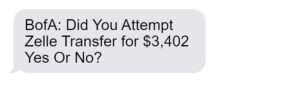
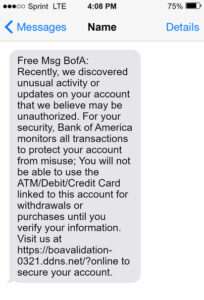
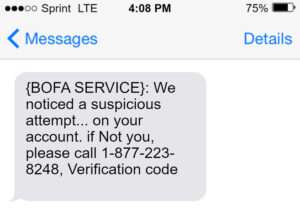
Overview of the Bank of America Fake Fraud Alert Scam
This scam typically begins with an SMS text or email alert stating there is suspicious activity on your Bank of America account. The message urgently prompts you to “verify” your identity to regain access before your account is locked or closed.
Of course, the alert is not really from Bank of America at all. It’s from scammers trying to steal your personal and financial information.
Here are some examples of fake alert messages scammers may send:
- “Alert: Unusual activity on your account has been detected. Please verify account ownership by clicking here {malicious link}. Failure to comply may result in restricted access.”
- “Attention BofA customer: Temporary block on your account due to suspicious transactions. Please confirm identity immediately at {fake site URL} or your account will be frozen.”
- “BofA Fraud Alert – Immediate action required: Click here {malicious link} to verify recent transactions on your account and avoid suspension.”
The messages are designed to create urgency and panic so that recipients act before thinking it through. The scam banks on people not taking the time to check whether the message is real.
If you click the link, it takes you to a fake Bank of America login page that steals any information you enter. In other cases, it goes to an “account verification” page asking for personal details like your full name, SSN, account numbers, etc.
Armed with this info, scammers can steal your identity and drain your accounts. They may also sell your information on the dark web to other cybercriminals.
How the Bank of America Fake Fraud Alert Scam Works
Let’s break down how scammers carry out this scam from start to finish:
Step 1: Scammers Obtain Recipients’ Contact Information
The first thing fraudsters need to launch this scam is your phone number or email address. There are a few ways they can obtain this info:
- Data breaches – Your contact info may have been exposed in a previous company data breach. Scammers can buy huge databases of people’s info on the dark web.
- Phishing sites – You may have entered your phone/email on a fake website previously without realizing it was a scam.
- Social engineering – Scammers may call pretending to be from your bank and trick you into providing your info.
- Guessing – Some scammers send out mass texts or emails to random numbers/addresses hoping some belong to real BofA customers.
Step 2: Craft a Convincing (but Fake) Fraud Alert
Next, scammers need to create a message that looks legit enough to fool people. They often closely mimic the style of real Bank of America alerts.
Some techniques they use include:
- Using Bank of America’s name/logo – This makes the message appear to come from a real @bankofamerica.com email address or recognized number.
- Urgent wording – Phrases like “immediate action required” give the impression your account is at risk if you don’t act quickly.
- Threats of account suspension – Scammers know recipients want to avoid disruption to their banking access.
- Requests to “verify” identity – This sounds like a normal security measure banks take against unauthorized activity.
- Official-looking links – The fake site URLs look convincing, often including BofA’s name or acronyms like “secure” or “protect.”
Step 3: Send Out Mass Alerts and Wait for Responses
Once scammers compile contact info and create fake alerts, they blast out mass messages. The more people they reach, the more potential victims they hook.
Low-tech scammers may manually call or text numbers. Those more sophisticated use bot programs to automatically spam thousands of numbers/emails at once.
Then scammers wait to see who takes the bait by clicking the link or calling the number included. People who respond become targets.
Step 4: Direct Victims to Fake Bank of America Websites
When someone clicks the link in the alert, it sends them to a fake website instead of the real Bank of America login page.
The sites are designed to precisely mimic the look and feel of actual BofA sites to trick people into entering their credentials.
In other cases, the link goes to an “account verification” page asking the user to enter a wealth of personal information – SSN, account number, address, full name, etc. – to “confirm their identity.”
Either way, any details entered end up in the hands of scammers.
Step 5: Steal Victims’ Personal and Financial Information
Once scammers have your sensitive info, they can use it in various damaging ways:
- Drain your accounts – With account usernames/passwords, they can log in and initiate transfers or withdrawals.
- Open new accounts – Armed with your SSN and other details, scammers can open fraudulent credit cards or loans in your name.
- Sell your information – Scammers frequently sell identity theft victims’ information on the dark web for other crooks to use.
- Commit tax fraud – Stolen SSNs can be used to file fake tax returns and steal refunds.
- Access medical records – Scammers can obtain medical ID numbers and birthdates to illegally access health records.
As you can see, this scam can have far-reaching financial and identity theft consequences if you fall for it.
What to Do If You Get a Fake Bank of America Fraud Alert
If you receive an SMS, email, or call claiming to be a fraud alert from Bank of America, here are the steps to take:
Double Check the Message Source
Take a close look at where the message came from before acting on anything it says.
- For texts: Check that the originating number matches Bank of America’s real fraud text alert system. The legitimate number is always 908-762-5998.
- For emails: Carefully examine the sender address. If it’s not an @bankofamerica.com or @bofaml.com address, it’s fake.
- For calls: Ask for the person’s name/employee ID number. Look up BofA’s fraud department number independently and call back to verify if they really tried to reach you.
If anything looks fishy, assume the message is a scam attempt.
Avoid Clicking Links or Calling Numbers
Never click links or call phone numbers provided in suspected scam messages. This risks exposing your device or information to scammers.
Instead, independently look up and dial Bank of America’s official customer service line if you want to check on possible account issues.
For text messages, forward them to Bank of America’s spam reporting number 7726 before deleting.
Log In Through Official Channels Only
Go directly to the Bank of America website or mobile app. Do not attempt to log in through any links sent to you.
Check your account for any messages from BofA noting suspicious activity – if the fraud alert was real, you’ll see the same warnings when securely logged in.
Contact Bank of America Immediately
If there are signs of unauthorized transactions or fraud, call Bank of America’s 24/7 customer service at 800-432-1000.
Also contact them if your account credentials may have been compromised at any point from a data breach, phishing scam, or other source. They can implement enhanced security measures.
You can also notify BofA of any scam texts or calls by forwarding details to abuse@bankofamerica.com.
Check Credit Reports and Account Statements Routinely
Keep a close eye on your credit reports and bank/card statements for any signs of misuse of your information. Immediately report any unknown accounts or charges to the company’s fraud department.
Consider setting up transaction alerts for real-time notifications as well. This allows quick action against any suspicious activity.
Beware of Follow Up Scam Calls
The initial fake alert may be followed by scam calls claiming there is an urgent issue that needs your cooperation to resolve.
If you get calls about preventing account suspension, fraud investigation, unpaid taxes, or any other pushy demands, hang up. Call back on Bank of America’s official line if concerned.
Update Passwords and Enable Extra Security
If there is any chance your Bank of America account credentials were compromised, change your username and password immediately. Make them long and complex.
Also set up two-factor authentication if available, which adds an extra layer of account security.
Avoiding Bank of America Scams in the Future
Once you know how to recognize and handle fake Bank of America alerts, you can avoid being fooled in the future by:
- Never clicking links or calling numbers in unsolicited messages. Always log in directly.
- Using security software that blocks spam texts/calls and alerts to risky links.
- Enabling transaction alerts/notifications through your real BofA account.
- Periodically changing account passwords and not reusing passwords between sites.
- Checking your credit reports regularly and setting up transaction monitoring through your bank.
- Educating family members, especially elderly relatives, on identifying common bank scams.
Staying vigilant will reduce the chances of falling victim to the endless array of scams aimed at Bank of America customers and tricking them into giving up valuable personal data.
Frequently Asked Questions about Fake Bank of America Fraud Alerts
How can I tell if a fraud alert text or email is really from Bank of America?
Legitimate Bank of America texts will always come from 908-762-5998. Emails should come from a @bankofamerica.com or @bofaml.com address. If the source looks different, it’s a scam.
What details should I avoid providing if I suspect a fake alert message?
Never give out your SSN, account numbers, online banking credentials, or other personal information in response to unsolicited requests. Real Bank of America fraud alerts will never ask for sensitive data over text or email.
What if I already clicked the link or called the number in a potential scam message?
If you may have already provided any sensitive personal or account information, contact Bank of America immediately to report it and have new account credentials issued. Monitor your accounts extremely closely for signs of misuse.
Is there a way to stop or block these fake Bank of America alerts?
You can report scam texts to 7726 and emails to abuse@bankofamerica.com. However, scammers constantly change numbers and addresses, so there’s no foolproof way to avoid them completely. Staying alert is your best defense.
Could a fake fraud alert message signal my device is infected with malware?
Possibly. If scammers have infected your phone or computer, they can more easily send messages that look like they’re coming from a legitimate source. Run security scans to check for malware or viruses just in case.
What should I do if I receive a follow up call related to a fake alert I got?
Scammers may call pretending to be BofA fraud agents to try to get your information over the phone. Hang up immediately and call Bank of America directly if you have any account security concerns.
Can these scammers really steal my identity just from getting some personal information?
Unfortunately yes. With just a few key details like your SSN and birthdate, criminals can open fraudulent accounts or access medical records. Protect your info from scammers at all costs.
Is Your Device Infected? Run a Free Malware Scan
Slow performance, constant pop-ups, or strange behavior? These are classic signs of a malware infection. The fastest way to find out is to scan your device with Malwarebytes Free — one of the most trusted malware removal tools available.
The free version detects and removes the most common threats, including:
- Adware — the cause of those annoying pop-ups
- Browser hijackers — unwanted redirects and changed homepages
- Trojans and spyware — hidden programs stealing your data
- Potentially unwanted programs (PUPs) — software you never asked for
👉 Select your device below — Windows, Mac, or Android — then follow the simple steps to download Malwarebytes, scan your system, and remove any threats it finds. The scan usually takes 5 to 20 minutes.
Run a Malware Scan with Malwarebytes for Windows
Malwarebytes is one of the most popular and trusted anti-malware tools for Windows — and it’s completely free for removing infections. It catches threats that many antivirus programs miss, including adware, browser hijackers, and trojans. Follow the steps below to scan and clean your PC in just a few minutes.
Download Malwarebytes
Click the button below to download the latest version of Malwarebytes for Windows from the official source. The free version is all you need — it will scan your computer and remove adware, browser hijackers, and other malicious software at no cost.
Download MalwarebytesOfficial installer for Windows 11 and 10. Your download starts right away.Want real-time protection? See Malwarebytes Premium Malwarebytes Free for WindowsScans and removes malware at no cost
-
Install Malwarebytes
When the download finishes, open your Downloads folder and double-click the MBSetup file. If Windows shows a User Account Control pop-up, click “Yes” to allow the installation.

Follow the On-Screen Prompts to Install Malwarebytes
The setup wizard will walk you through a few quick screens:
-
Choose where you’re installing the program — “Personal Computer” or “Work Computer” — then click Next.

-
Malwarebytes will now install on your device. This usually takes under a minute.

-
When installation is complete, the “Welcome to Malwarebytes” screen will open automatically.

-
On the final screen, click Open Malwarebytes to launch the program.

-
Enable “Scan for Rootkits”
Before scanning, turn on rootkit detection so Malwarebytes can find even the most hidden threats. Click the Settings gear icon on the left side of the screen.

In the settings menu, find “Scan for rootkits” and click the toggle so it turns blue.

Done? Click “Dashboard” in the left pane to return to the main screen.
Start the Scan
Click the blue Scan button. Malwarebytes will automatically update its virus database and start checking your computer for malware.

-
Wait for the Scan to Finish
The scan checks your entire system for browser hijackers and other malicious programs, so it can take 5 to 20 minutes depending on your computer. Feel free to do something else — just check back occasionally to see the progress.

-
Quarantine the Detected Threats
When the scan is done, you’ll see a list of everything Malwarebytes found — malware, adware, and potentially unwanted programs. Click the “Quarantine” button to remove all of them at once.

Malwarebytes will now remove the malicious files and registry entries and move them safely into quarantine.

-
Restart Your Computer
Some threats can only be fully removed after a reboot. If Malwarebytes asks you to restart, click Yes. Once you’re logged back in, Malwarebytes has finished removing the threats it found.

That’s it — your Windows PC is now clean of trojans, adware, and other malware, and should be back to running smoothly.
If you are still having problems with your computer after completing these instructions, then please follow one of the steps:
- Run a computer scan with ESET Online Scanner
- Ask for help in our Windows Malware Removal Help & Support forum.
Run a Malware Scan with Malwarebytes for Mac
Malwarebytes for Mac is a free on-demand scanner that removes the malware other security software tends to miss — adware, browser hijackers, and unwanted programs included. Cleaning an infected Mac with Malwarebytes has always been completely free, and it’s our go-to recommendation. Follow the steps below to scan and clean your Mac in just a few minutes.
-
Download Malwarebytes for Mac
Click the button below to download the latest version of Malwarebytes for Mac.
Download MalwarebytesOfficial installer for macOS. Your download starts right away.Want real-time protection? See Malwarebytes PremiumMalwarebytes Free for MacScans and removes malware at no cost -
Open the Malwarebytes setup file
When the download finishes, open your Downloads folder and double-click the setup file to begin the installation.

-
Follow the On-Screen Prompts to Install Malwarebytes
The Malwarebytes for Mac Installer will guide you through a few quick screens. Click “Continue” and keep following the prompts until the installation completes.



When the installation is complete, Malwarebytes opens to the Welcome to Malwarebytes screen. Click “Get started“.
-
Select “Personal Computer” or “Work Computer”
Malwarebytes will ask what type of computer you’re installing it on. Click either Personal Computer or Work Computer, whichever applies.

-
Start the Scan
Click the “Scan” button. Malwarebytes will automatically update its detection database and begin checking your Mac for malware.

-
Wait for the Scan to Finish
Malwarebytes will scan your Mac for adware, browser hijackers, and other malicious programs. This can take a few minutes, so feel free to do something else — just check back occasionally to see the progress.

-
Quarantine the Detected Threats
When the scan is done, you’ll see a list of everything Malwarebytes found. Click the “Quarantine” button to remove all the threats at once.

-
Restart Your Mac
Malwarebytes will now remove all the malicious files it found. Some threats can only be fully removed after a reboot — if Malwarebytes asks you to restart, allow it. Once you’re logged back in, your Mac is clean.

That’s it — your Mac is now free of adware, rogue browser extensions, and other potentially harmful software.
If you are still experiencing problems while trying to remove a malicious program from your computer, please ask for help in our Mac Malware Removal Help & Support forum.
Run a Malware Scan with Malwarebytes for Android
Malwarebytes for Android automatically detects and removes dangerous threats like malware and ransomware so you don’t have to worry about your most-used device being compromised. Aggressive detection of adware and potentially unwanted programs keeps your Android phone or tablet running smooth.
-
Download Malwarebytes for Android.
You can download Malwarebytes for Android by clicking the link below.
Get Malwarebytes for AndroidOpens Google Play in a new tab.Want real-time protection? See Malwarebytes Premium for AndroidMalwarebytes for AndroidScans your phone and removes malware at no cost -
Install Malwarebytes for Android on your phone.
In the Google Play Store, tap “Install” to install Malwarebytes for Android on your device.

When the installation process has finished, tap “Open” to begin using Malwarebytes for Android. You can also open Malwarebytes by tapping on its icon in your phone menu or home screen.

-
Follow the on-screen prompts to complete the setup process
When Malwarebytes will open, you will see the Malwarebytes Setup Wizard which will guide you through a series of permissions and other setup options.
This is the first of two screens that explain the difference between the Premium and Free versions. Swipe this screen to continue.
Tap on “Got it” to proceed to the next step.
Malwarebytes for Android will now ask for a set of permissions that are required to scan your device and protect it from malware. Tap on “Give permission” to continue.
Tap on “Allow” to permit Malwarebytes to access the files on your phone.
-
Update database and run a scan with Malwarebytes for Android
You will now be prompted to update the Malwarebytes database and run a full system scan.

Click on “Update database” to update the Malwarebytes for Android definitions to the latest version, then click on “Run full scan” to perform a system scan.

-
Wait for the Malwarebytes scan to complete.
Malwarebytes will now start scanning your phone for adware and other malicious apps. This process can take a few minutes, so we suggest you do something else and periodically check on the status of the scan to see when it is finished.

-
Click on “Remove Selected”.
When the scan has been completed, you will be presented with a screen showing the malware infections that Malwarebytes for Android has detected. To remove the malicious apps that Malwarebytes has found, tap on the “Remove Selected” button.

-
Restart your phone.
Malwarebytes for Android will now remove all the malicious apps that it has found. To complete the malware removal process, Malwarebytes may ask you to restart your device.
That’s it — your Android phone is now clean — no more malicious apps, adware, or browser redirects.
If you are still having problems with your phone after completing these instructions, then please follow one of the steps:
- Restore your phone to factory settings by going to Settings > General management > Reset > Factory data reset.
- Ask for help in our Mobile Malware Removal Help & Support forum.
Stay Protected: Block Ads and Malicious Sites
Now that your device is clean, keep it that way. Most infections start with a malicious ad or a fake download button — so blocking them at the source is your best defense.
We recommend AdGuard, which blocks malicious ads, phishing pages, and dangerous redirects before they can reach you.
👉 Download AdGuard and browse safely
Conclusion
Bank of America fake fraud alerts can seem legitimate and convincing at first glance. But as shown, they are an attempt by scammers to capture your information by impersonating a trusted institution.
Now that you know the detailed workings of this scam, telltale signs to spot, and steps to take if targeted, you can keep your accounts and identity secure. Don’t let scammers rush or panic you into clicking suspicious links.
Whenever contacted out of the blue regarding your accounts, take time to independently verify the communication before providing information or access. Putting scammers on mute by flagging their texts and emails helps shut down their shady operations too.
Staying calm and informed is your best defense against the nonstop barrage of scams targeting bank customers.

Join the discussion
0 commentsShare your experience or ask a question about this article.
Discussion
Start the conversation
Have a question or something useful to share? Add the first comment.