


Phishing scams attempting to steal personal information have become increasingly common in the digital age. One such phishing tactic that has recently emerged involves emails that falsely claim a new Windows device has signed in to the recipient’s account. This compelling social engineering technique exploits most people’s inclination to secure their accounts, luring victims to input credentials on fake login pages.
This extensive article will provide an in-depth look at the “A New Sign-in On Windows” phishing scam, unraveling how it ensnares users and the far-reaching implications of falling for it. We will closely analyze the scam email’s contents, the deception tactics it utilizes, and the technical mechanisms powering its operation. Additionally, step-by-step guidance is provided on protecting yourself if you unfortunately got deceived by this scam.

Overview of the Scam
The “A New Sign-in On Windows” phishing scam is designed to steal recipients’ login credentials to their email accounts and other online services. It starts with an unsolicited email seemingly sent from the email provider, such as Gmail, Yahoo, or Outlook, alerting the recipient about a new sign-in to their account from a Windows device.
The email expresses concern, suggesting the sign-in could be unauthorized and asking the recipient to verify if it was them. This immediately triggers a sense of urgency and worry about account security in the victim. The email then provides a “Check activity” button or link to a fake login page imitating the legitimate website for the recipient’s email service.
If the user clicks the link, they are taken to the convincing replica login page. As they attempt to sign in, the entered credentials are captured by the scammers who can now access the victim’s email account and contacts. The criminals can leverage this to perpetrate identity theft, send more phishing emails, or breach additional accounts.
This scam is essentially a form of phishing, which employs social engineering techniques to manipulate users into volunteering personal data. In this case, the email prompts feelings of account security fears, which most people will instinctively want to alleviate. This natural reaction to secure one’s account is exploited to lower the victim’s guard and rational thinking.
Some hallmark characteristics of the scam include:
- Arrives unsolicited in the email inbox
- Uses urgent language suggesting account compromise
- Addresses the recipient as if sent from their email provider
- Links to a fake login page mimicking the real website
- Collects entered credentials during sign-in on the phony page
This scam is quite problematic, given it can allow the perpetrators to gain access to people’s inboxes containing sensitive information, contacts, and account login details for other services. The consequences of being deceived can involve identity theft, damaged relationships if contacts are spammed, or financial loss if connected accounts are breached.
Now that we have outlined the nature of this phishing tactic, let’s delve into the intricate details of how the “A New Sign-in On Windows” scam operates to better understand its deceptive ways.
How the Scam Works
The “A New Sign-in On Windows” phishing scam leverages various psychological and technical techniques to trick unwary email users. By learning how it functions behind the scenes, you will be equipped to recognize this scam and avoid being manipulated. Here is a step-by-step breakdown of how the scam unfolds:
1. Recipients Receive the Phishing Email
The first step involves the perpetrators acquiring or compiling a list of target email addresses and sending the phishing message to those inboxes. The scam emails are dispatched in mass, hoping to ensnare as many unsuspecting users as possible.
The sender name, email address, and subject line are forged to impersonate the recipient’s email service provider, such as Gmail or Outlook. This lends perceived legitimacy to the scam message in the eyes of victims.
2. Email Content Tricks Users
The body of the phishing email is crafted to trigger panic about account security to lower rational thinking. It starts by claiming a new Windows device has signed into the recipient’s account, raising suspicion of unauthorized access.
Appearing as the email provider, it recommends verifying whether this was the recipient’s activity. The wording implies that ignoring the notification could allow an intruder further access. These elements combine to greatly unsettle readers.
Formatting, logos, and language closely imitates official emails from the genuine email provider. This adds plausibility that the alert is authentic.
A “Check activity” button or text hyperlink is prominently displayed, promised to help the recipient confirm and secure their account if the sign-in was not theirs. This cultivates a sense of urgency to take corrective action, overruling caution.
3. Victims Are Directed to the Phony Login Page
Once the user is anxiety-ridden about their account security, they are psychologically primed to click the “Check activity” link without thinking. The link leads to a fake login page mimicking the design of the real website for the recipient’s email platform.
For example, if the target uses a Gmail account, they will be directed to a counterfeit Gmail login page. The website is carefully designed to look authentic, leveraging logos, colors, fonts, terminology, and layout mimicking the official service.
The fraudulent pages are typically hosted on compromised servers or domains under the phisher’s control to facilitate access and conceal their identity. This cloaks the scam site as legitimate.
4. Credentials are Harvested on the Fake Page
As the victim arrives on the imitation login page, they are prompted to enter their email address and password to sign in, thinking they are on the real website. However, the page is merely an elaborate ruse to steal login credentials.
When the recipient inputs their details and tries signing in, the entered information is secretly captured by the scammers. The user is shown a fake error message that login failed, or claiming the account is locked for security reasons.
This aims to explain away why the victim cannot access their account after inputting credentials, deflecting suspicions of phishing. The user is sometimes asked to try entering details again or contact account support.
5. Criminals Access and Abuse the Stolen Account
With theusername and password in hand, the perpetrators can now directly access thevictim’s real email account, contacts, and sensitive information containedwithin. This foothold in the account can have devastating consequences.
Thecybercriminals may first quietly enable forwarding rules to send copies ofall emails to an account under their control without the victim noticing. Thisallows them to continually monitor incoming messages for exploitable details.
They willharvest personal data from the emails and inbox to facilitate identity theftand account hijacking. Email conversations can reveal details like full names,addresses, phone numbers, date of birth, answers to security questions, andpasswords for other services.
If credentialsfor online shopping, social media, or financial accounts are found, theattacker will separately log into these platforms posing as the victim forfinancial gain or to extract more data.
The hacked emailaccount also provides access to contact lists. This allows the perpetrator tosend fresh “A New Sign-in” scam emails to more potential victims, propagatingthe phishing scheme. The account takeover can quickly spiral out of control.
Now that you comprehend the step-by-step functionality powering this phishing scam and its grave implications, let’s move on to crucial prevention and recovery steps if you unfortunately got deceived.
How to Spot This Scam Email
Being able to recognize key indicators in the “A New Sign-in On Windows” scam email is crucial to avoiding becoming ensnared. Watch for these telltale signs:
- Appears from your own email provider – The email address and sender name will be spoofed to appear it was sent from your service like Gmail, Yahoo, Microsoft, etc.
- Urgent subject lines – Phrases like “Alert: New Windows sign-in to your account” create urgency to open the email.
- Unknown sender address – While masked as your provider, hovering over the actual address should reveal an unknown sender.
- Sense of urgency in content – The email content conveys suspicion and doubt, urging you to immediately verify the activity.
- Threat of account lockout – Scare tactics like account suspension threats if you don’t rapidly confirm the login.
- Odd details – Vague claims of “a Windows device” you don’t own signing in rather than naming the device type.
- Links to login pages – Buttons or links prompting you to “secure your account” or “check activity” by signing in.
- Spelling and formatting errors – Poor grammar, spelling mistakes, and inconsistent formatting hint at phishing.
- No personalized details – Phishing emails won’t contain custom account details like order numbers that a real provider would have.
Equipped with this knowledge of common scam indicators, you can carefully inspect questionable emails and avoid being deceived into visiting fake login pages and surrendering your account credentials. The more skilled you become at identifying phishing attempts, the safer your data will remain.
What to Do If You Have Fallen Victim
If you suspect you mistakenly input credentials into a fake “A New Sign-in On Windows” login page, prompt action is required to secure your accounts and minimize damage. Follow these steps:
1. Change the Compromised Account Password
The very first step is to immediately change your password for the email or online account that you entered details into the phishing site. Do this even before assessing any potential misuse.
Rapidly changing credentials locks the scammer out and prevents further abuse. Reset the password to something completely new that you have never previously used elsewhere. Enable two-factor authentication if available for an added layer of security.
2. Check for Suspicious Activity
Carefully check your email inbox and connected accounts for any signs of unauthorized access or abuse. Look for:
- Unfamiliar incoming emails referencing password changes or account activity alerts.
- Unusual sent emails you did not send yourself.
- New forwarding rules redirecting your emails.
- Unknown contacts or attachments in your email account.
- Changed account and password recovery details.
- Password reset notifications from other websites.
- Purchases, bank transfers, or social media posts you did not make.
Thoroughly comb through all account activity and settings to identify any misuse. Keep records of anything suspicious you find. Sign out of all remotely accessible accounts on devices you do not recognize.
3. Scan Devices for Malware
If you entered login credentials into a fake website, it’s possible your device was infected with malware that may continue harvesting information. Scan your computer or mobile device using updated antivirus software to check for malicious programs.
Also change passwords using a different, uncompromised device if this one appears infected. Reformat infected hardware and reinstall the operating system for an extra layer of security.
4. Enable Extra Login Protections
For accounts you frequently access online, enable additional login protections such as multifactor or two-step authentication and activity logs.
Multifactor authentication requires you enter a unique code from your phone when logging in from an unrecognized device, thwarting unauthorized logins even with your password in hand. Activity logs help highlight any unusual IP addresses accessing the account.
Also consider using a password manager, which generates and stores strong, unique passwords for each account to further prevent exploitation of reused credentials.
5. Monitor Accounts Closely
Carefully monitor online accounts, bank statements, and credit reports for any emerging signs of misuse over the next few weeks to months. Cybercriminals sometimes delay illicit account activity to avoid tipping off victims.
Log in frequently, scrutinize transactions, and watch for suspicious emails aiming to steal more data. Report any concerning findings to the involved companies. This helps counter delayed attacks.
6. Reset All Account Passwords
If the phishing site captured your primary account password, hackers may attempt accessing other accounts where you reused the same credentials. To thwart this, completely reset passwords for all your online accounts as a precaution.
Prioritize accounts containing sensitive information or those tied to financial institutions or government services for the password resets to limit fallout. Avoid reusing the same new password across multiple accounts.
7. Contact Relevant Institutions
If account misuse is confirmed, immediately contact affected companies like your email provider, bank, social networks, or e-commerce sites regarding the compromise. Ask what can be done to secure accounts, recover lost funds, or revert fraudulent transactions.
Consider reporting serious identity theft to the FTC or police. File an identity theft report if someone opens financial accounts in your name. These can help unwind major fraud.
8. Strengthen Email Defenses
Since phishing scams leverage email to target victims, bolster your email defenses to avoid future attacks. Use security-focused email providers like ProtonMail that employ end-to-end encryption and authentication safeguards.
Enable spam filtering, block obvious phishing sender addresses, avoid clicking links from unverified senders, and use a separate email for online accounts. Treat emails alarming about account security with skepticism.
9. Educate Yourself on Phishing
Take time to learn how to identify and handle phishing scams, given cybercriminals constantly refine tactics. Resources like the FTC’s webpage on phishing provide sound advice. Understand common tricks like urgency, impersonation, and fake pages.
Learning the hallmarks of phishing equips you to carefully analyze questionable emails and websites to discern malicious intent before inputting information. Share knowledge within your family and community.
Is Your Device Infected? Run a Free Malware Scan
Slow performance, constant pop-ups, or strange behavior? These are classic signs of a malware infection. The fastest way to find out is to scan your device with Malwarebytes Free — one of the most trusted malware removal tools available.
The free version detects and removes the most common threats, including:
- Adware — the cause of those annoying pop-ups
- Browser hijackers — unwanted redirects and changed homepages
- Trojans and spyware — hidden programs stealing your data
- Potentially unwanted programs (PUPs) — software you never asked for
👉 Select your device below — Windows, Mac, or Android — then follow the simple steps to download Malwarebytes, scan your system, and remove any threats it finds. The scan usually takes 5 to 20 minutes.
Run a Malware Scan with Malwarebytes for Windows
Malwarebytes is one of the most popular and trusted anti-malware tools for Windows — and it’s completely free for removing infections. It catches threats that many antivirus programs miss, including adware, browser hijackers, and trojans. Follow the steps below to scan and clean your PC in just a few minutes.
Download Malwarebytes
Click the button below to download the latest version of Malwarebytes for Windows from the official source. The free version is all you need — it will scan your computer and remove adware, browser hijackers, and other malicious software at no cost.
Download MalwarebytesOfficial installer for Windows 11 and 10. Your download starts right away.Want real-time protection? See Malwarebytes Premium Malwarebytes Free for WindowsScans and removes malware at no cost
-
Install Malwarebytes
When the download finishes, open your Downloads folder and double-click the MBSetup file. If Windows shows a User Account Control pop-up, click “Yes” to allow the installation.

Follow the On-Screen Prompts to Install Malwarebytes
The setup wizard will walk you through a few quick screens:
-
Choose where you’re installing the program — “Personal Computer” or “Work Computer” — then click Next.

-
Malwarebytes will now install on your device. This usually takes under a minute.

-
When installation is complete, the “Welcome to Malwarebytes” screen will open automatically.

-
On the final screen, click Open Malwarebytes to launch the program.

-
Enable “Scan for Rootkits”
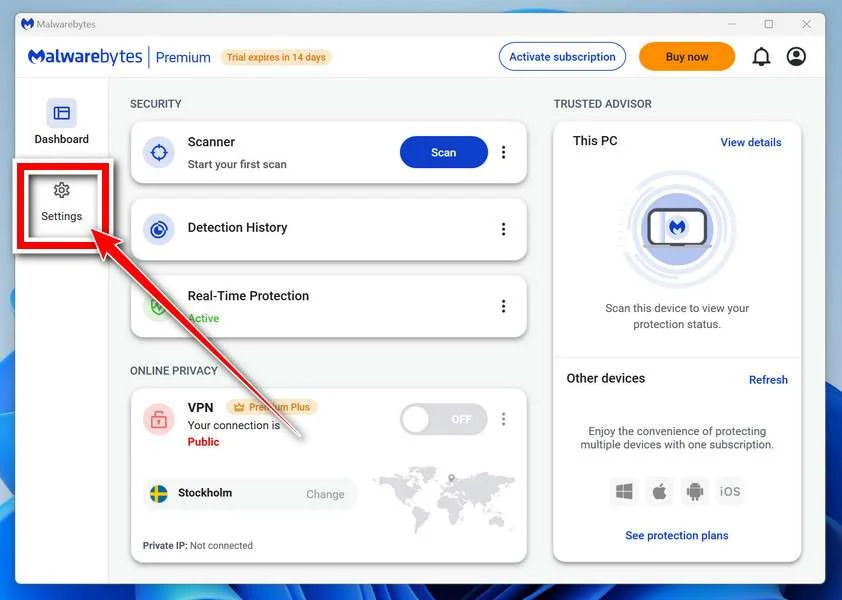
Before scanning, turn on rootkit detection so Malwarebytes can find even the most hidden threats. Click the Settings gear icon on the left side of the screen.
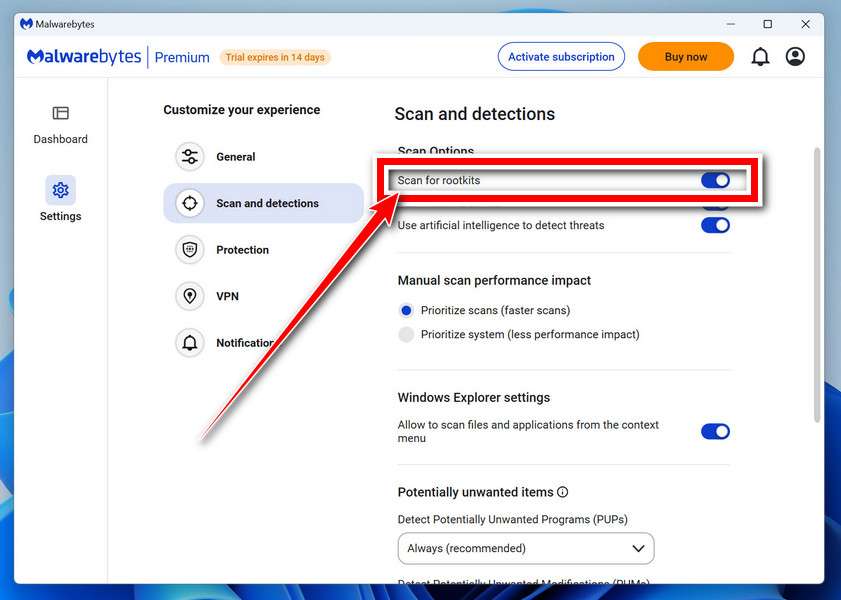
In the settings menu, find “Scan for rootkits” and click the toggle so it turns blue.
Done? Click “Dashboard” in the left pane to return to the main screen.
Start the Scan
Click the blue Scan button. Malwarebytes will automatically update its virus database and start checking your computer for malware.

-
Wait for the Scan to Finish
The scan checks your entire system for browser hijackers and other malicious programs, so it can take 5 to 20 minutes depending on your computer. Feel free to do something else — just check back occasionally to see the progress.

-
Quarantine the Detected Threats
When the scan is done, you’ll see a list of everything Malwarebytes found — malware, adware, and potentially unwanted programs. Click the “Quarantine” button to remove all of them at once.

Malwarebytes will now remove the malicious files and registry entries and move them safely into quarantine.

-
Restart Your Computer
Some threats can only be fully removed after a reboot. If Malwarebytes asks you to restart, click Yes. Once you’re logged back in, Malwarebytes has finished removing the threats it found.

That’s it — your Windows PC is now clean of trojans, adware, and other malware, and should be back to running smoothly.
If you are still having problems with your computer after completing these instructions, then please follow one of the steps:
- Run a computer scan with ESET Online Scanner
- Ask for help in our Windows Malware Removal Help & Support forum.
Run a Malware Scan with Malwarebytes for Mac
Malwarebytes for Mac is a free on-demand scanner that removes the malware other security software tends to miss — adware, browser hijackers, and unwanted programs included. Cleaning an infected Mac with Malwarebytes has always been completely free, and it’s our go-to recommendation. Follow the steps below to scan and clean your Mac in just a few minutes.
-
Download Malwarebytes for Mac
Click the button below to download the latest version of Malwarebytes for Mac.
Download MalwarebytesOfficial installer for macOS. Your download starts right away.Want real-time protection? See Malwarebytes PremiumMalwarebytes Free for MacScans and removes malware at no cost -
Open the Malwarebytes setup file
When the download finishes, open your Downloads folder and double-click the setup file to begin the installation.

-
Follow the On-Screen Prompts to Install Malwarebytes
The Malwarebytes for Mac Installer will guide you through a few quick screens. Click “Continue” and keep following the prompts until the installation completes.



When the installation is complete, Malwarebytes opens to the Welcome to Malwarebytes screen. Click “Get started“.
-
Select “Personal Computer” or “Work Computer”
Malwarebytes will ask what type of computer you’re installing it on. Click either Personal Computer or Work Computer, whichever applies.

-
Start the Scan
Click the “Scan” button. Malwarebytes will automatically update its detection database and begin checking your Mac for malware.

-
Wait for the Scan to Finish
Malwarebytes will scan your Mac for adware, browser hijackers, and other malicious programs. This can take a few minutes, so feel free to do something else — just check back occasionally to see the progress.

-
Quarantine the Detected Threats
When the scan is done, you’ll see a list of everything Malwarebytes found. Click the “Quarantine” button to remove all the threats at once.

-
Restart Your Mac
Malwarebytes will now remove all the malicious files it found. Some threats can only be fully removed after a reboot — if Malwarebytes asks you to restart, allow it. Once you’re logged back in, your Mac is clean.

That’s it — your Mac is now free of adware, rogue browser extensions, and other potentially harmful software.
If you are still experiencing problems while trying to remove a malicious program from your computer, please ask for help in our Mac Malware Removal Help & Support forum.
Run a Malware Scan with Malwarebytes for Android
Malwarebytes for Android automatically detects and removes dangerous threats like malware and ransomware so you don’t have to worry about your most-used device being compromised. Aggressive detection of adware and potentially unwanted programs keeps your Android phone or tablet running smooth.
-
Download Malwarebytes for Android.
You can download Malwarebytes for Android by clicking the link below.
Get Malwarebytes for AndroidOpens Google Play in a new tab.Want real-time protection? See Malwarebytes Premium for AndroidMalwarebytes for AndroidScans your phone and removes malware at no cost -
Install Malwarebytes for Android on your phone.
In the Google Play Store, tap “Install” to install Malwarebytes for Android on your device.

When the installation process has finished, tap “Open” to begin using Malwarebytes for Android. You can also open Malwarebytes by tapping on its icon in your phone menu or home screen.

-
Follow the on-screen prompts to complete the setup process
When Malwarebytes will open, you will see the Malwarebytes Setup Wizard which will guide you through a series of permissions and other setup options.
This is the first of two screens that explain the difference between the Premium and Free versions. Swipe this screen to continue.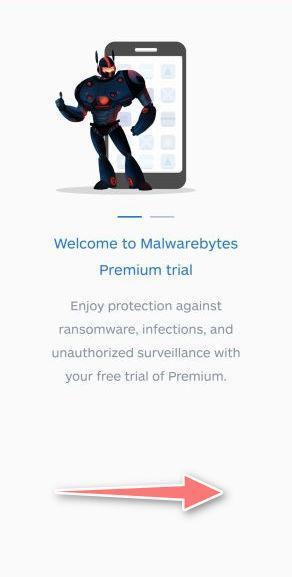
Tap on “Got it” to proceed to the next step.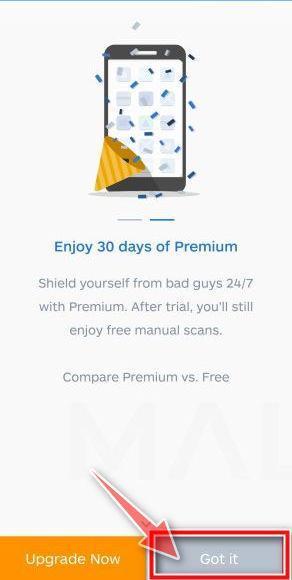
Malwarebytes for Android will now ask for a set of permissions that are required to scan your device and protect it from malware. Tap on “Give permission” to continue.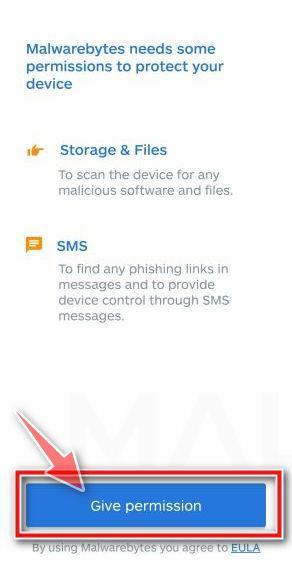
Tap on “Allow” to permit Malwarebytes to access the files on your phone.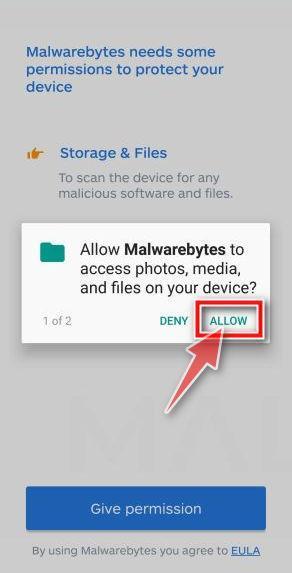
-
Update database and run a scan with Malwarebytes for Android
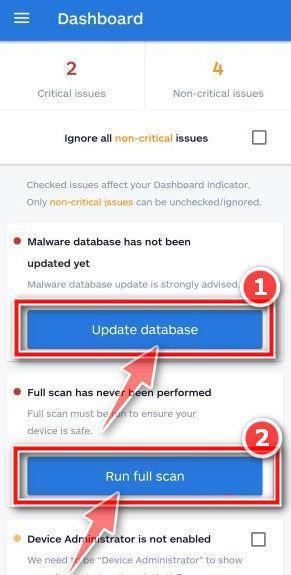
You will now be prompted to update the Malwarebytes database and run a full system scan.
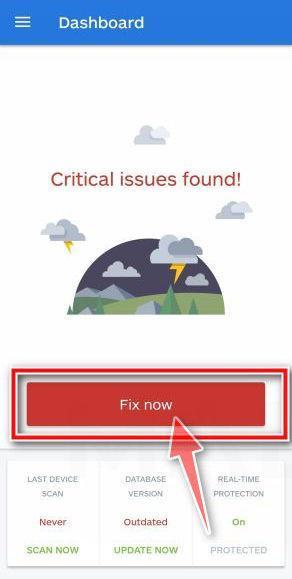
Click on “Update database” to update the Malwarebytes for Android definitions to the latest version, then click on “Run full scan” to perform a system scan.
-
Wait for the Malwarebytes scan to complete.
Malwarebytes will now start scanning your phone for adware and other malicious apps. This process can take a few minutes, so we suggest you do something else and periodically check on the status of the scan to see when it is finished.

-
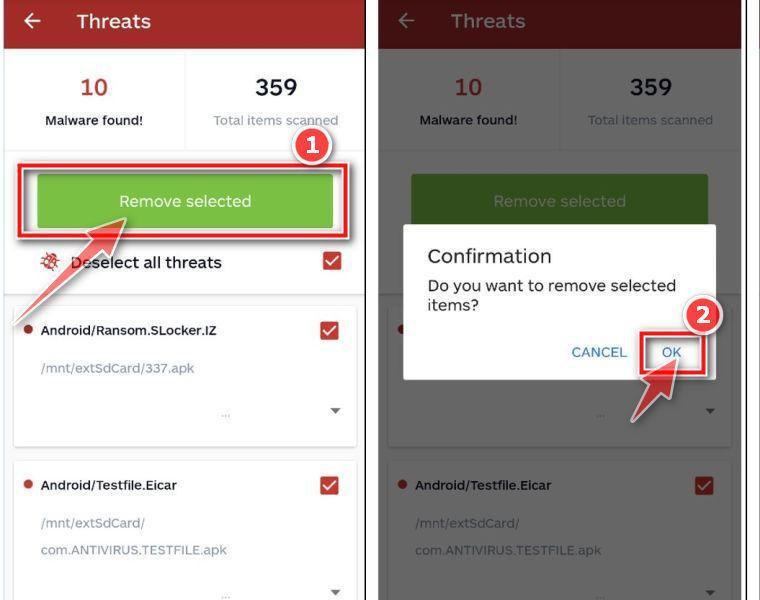
Click on “Remove Selected”.
When the scan has been completed, you will be presented with a screen showing the malware infections that Malwarebytes for Android has detected. To remove the malicious apps that Malwarebytes has found, tap on the “Remove Selected” button.
-
Restart your phone.
Malwarebytes for Android will now remove all the malicious apps that it has found. To complete the malware removal process, Malwarebytes may ask you to restart your device.
That’s it — your Android phone is now clean — no more malicious apps, adware, or browser redirects.
If you are still having problems with your phone after completing these instructions, then please follow one of the steps:
- Restore your phone to factory settings by going to Settings > General management > Reset > Factory data reset.
- Ask for help in our Mobile Malware Removal Help & Support forum.
Stay Protected: Block Ads and Malicious Sites
Now that your device is clean, keep it that way. Most infections start with a malicious ad or a fake download button — so blocking them at the source is your best defense.
We recommend AdGuard, which blocks malicious ads, phishing pages, and dangerous redirects before they can reach you.
👉 Download AdGuard and browse safely
Frequently Asked Questions
What is the “A New Sign-in On Windows” phishing scam?
This is a phishing scam where targets receive an unsolicited email claiming a new Windows device has logged into their email or online account. It urges the recipient to verify if this was them, and provides a fake login page link to harvest credentials.
What are some telltale signs of this scam email?
Watch for emails about account activity from your own service provider, urgent warnings about a new Windows sign-in, prompts to check or confirm the activity, links to login sites, and threats of account lockout if action isn’t taken.
How are the fake login pages designed?
The phishing pages mimic legitimate account login sites using copied branding, logos, web addresses, and page layouts of the real service. This fools users into entering their credentials, which are stolen.
What happens after a victim enters credentials into the fake login page?
The entered username and password are captured by scammers, who then access the victim’s actual account to steal data, send more phishing emails, take over additional accounts, and enable email forwarding to themselves.
What steps should be taken if someone falls for this scam?
Immediately change your account password, check for suspicious activity across online accounts, scan devices for malware, enable extra login protections like MFA, monitor credit reports for identity theft, contact companies about compromised accounts, and learn how to spot similar phishing attacks.
How can someone better protect themselves from this phishing technique?
Be skeptical of alarming emails demanding account action, manually type in web addresses, use password managers, turn on multifactor authentication, check sender addresses, avoid opening attachments or clicking links from unverified senders, and learn common phishing warning signs.
Who is typically behind these types of phishing scams?
They are often perpetrated by organized cybercriminal groups who use the stolen information for identity theft or resell it on dark web marketplaces. The attacks are automated using phishing toolkits and botnets to launch mass scam emails.
Are there laws against phishing scams and account hacking?
Yes, phishing scams and gaining unauthorized access to someone’s online account may violate cybercrime and identity theft laws at both the federal and state levels. Victims should report the scam to the FTC and police.
Conclusion
The “A New Sign-in On Windows” phishing scam offers an urgent warning about account security to dupe unwary recipients into surrendering credentials. By exploiting fear, impersonation, deception pages, and technical subterfuge, it can completely compromise email accounts and associated online services.
However, armed with extensive knowledge of how this scam operates, from its mass distribution to social engineering techniques to password harvesting, you are now equipped to identify and combat such phishing tactics. Although evolving schemes will arise, by remembering telltale signs like urgent calls to action, official impersonation, and fake login pages, you can avoid becoming a victim.
Vigilantly monitoring online accounts, using password managers, enabling two-factor authentication, and learning how to spot scams are key preventative steps. If you unfortunately fell prey already, time is of the essence. Rapidly change passwords, look for misuse across accounts, report suspicious activity to companies, and implement stronger account security to mitigate damages.
By serving as an informed ambassador for digital security among friends and family, we can work together to build resilience against “A New Sign-in” and other phishing scams perpetually threatening online safety. Just remember – any email suddenly appearing from a service provider demanding quick account action signals likely phishing. Verify urgently before proceeding. With increased public understanding of social engineering, we can dismantle these attacks at their roots.

Join the discussion
0 commentsShare your experience or ask a question about this article.
Discussion
Start the conversation
Have a question or something useful to share? Add the first comment.