


A mailbox notice says a request is pending, but you don’t remember making one. The message offers a button to keep everything working as usual.
It even includes your own domain in the footer. Before treating that familiar detail as reassurance, check what the notice is asking you to trust.
Overview
A supposed mailbox request with a seven-day consequence
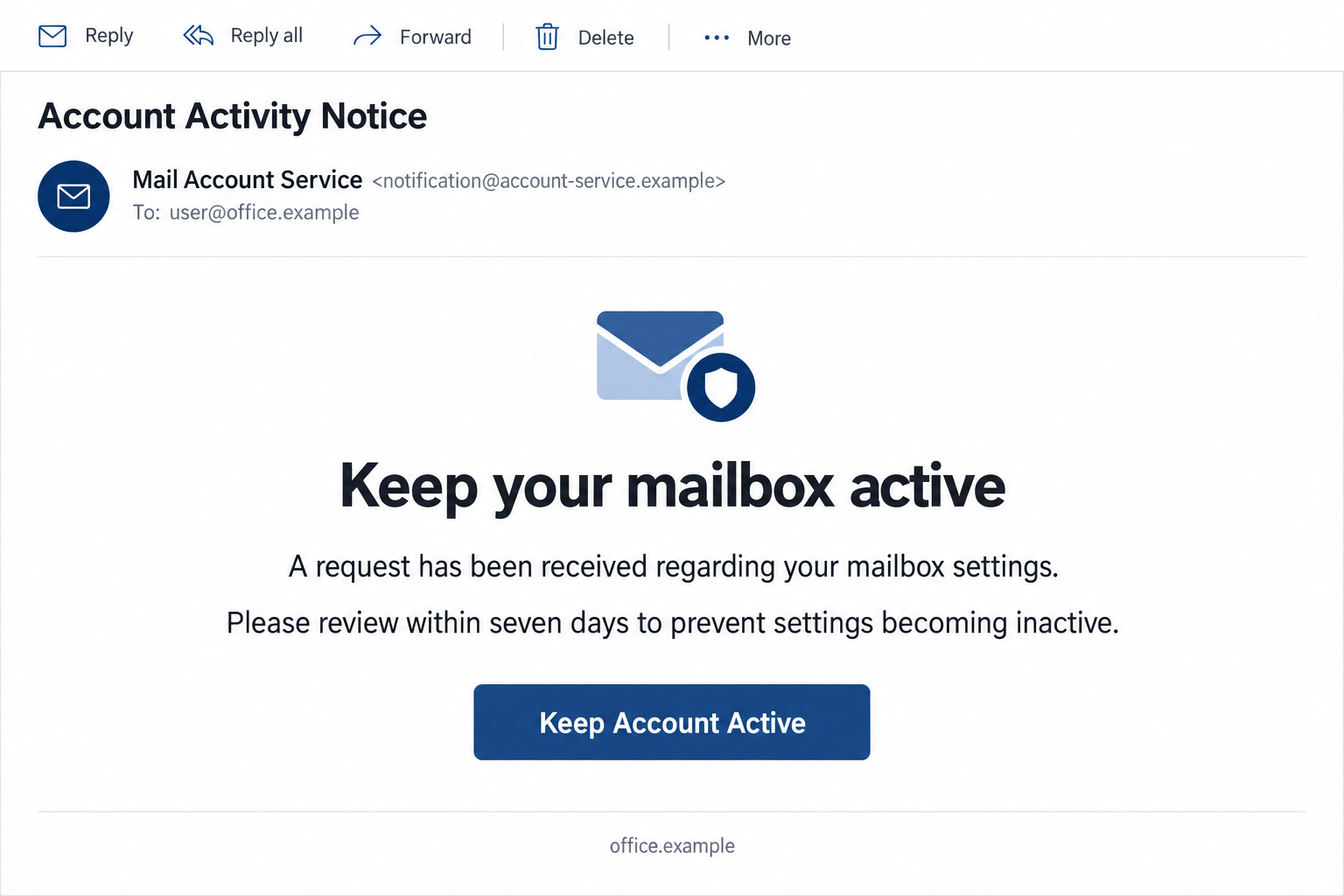
The account activity notice email scam claims a request has been made concerning the recipient’s mailbox. It says settings may become inactive within seven days.
A Keep Account Active button is offered as the way to prevent that outcome. The notice leaves the reader to worry about what inactivity would mean.
The message does not establish that a real request exists. Nor does it demonstrate that the email provider has scheduled a change to the account.
A familiar footer leads to an unrelated login
The reported campaign copies the recipient’s domain into its footer. Its button leads to worksy[.]cc, where the page imitates an email-provider sign-in.
The form can change appearance according to the provider being targeted. A Gmail-looking example requests an email address and password.
This is credential phishing. The provider’s design and the personalized footer help the page feel connected to an account relationship they do not authenticate.
Keeping an account active should not require trusting this route
Real providers can send security, account, and inactivity notices. The issue is the specific request and destination, not the existence of account notifications generally.
- A vaguely described request is treated as already pending.
- Seven days sounds like a manageable but pressing deadline.
- The footer repeats information available from the recipient’s email address.
- A preservation-themed button redirects to an unverified authentication page.
- The form seeks the password protecting the actual inbox.
The illustration uses invented addresses and a matching example-domain footer. It demonstrates personalization without claiming to show an authentic notice from your provider.
Your Domain in the Footer Is Not Private Account Knowledge
If someone knows your email address, they already know the text after the @ symbol. Placing it inside a template does not require access to the mailbox.
That simple detail can still be persuasive. A message bearing your company’s domain may feel more relevant than a generic warning signed by an unfamiliar support team.
It can also distract from the actual destination. Readers see a familiar name at the bottom and assume the button belongs to the same organization.
Check those identities separately. A domain written in the message body is not the website collecting a password after a click.
The difference matters especially for custom business mail. Your public email domain may not identify the separate company operating its hosting or identity service.
You do not need to solve that arrangement from the suspicious email. Use the account route your organization supplied or ask the person who manages mail.
Seeing your domain in this footer is no reason to assume the sender has been inside your inbox. They may simply be repeating your address.
How the Account Activity Notice Email Scam Works
Step 1: An unexplained request creates a reason to investigate
The email begins with a claimed account event rather than a demand for payment. Something supposedly happened, and the recipient is invited to react.
If you did not make the request, that may increase curiosity instead of reducing trust. You may click precisely because you want to prevent an unauthorized change.
This reverses the instinct to protect the account. The message presents interaction with an unverified sender as the way to stop someone else’s supposed action.
Pause before accepting that arrangement. An unexplained request should be checked in the real account, not investigated by handing a new page the account password.
Step 2: Seven days makes the warning easy to fit into a routine
A week is less dramatic than an immediate shutdown. That can make the notice sound like an ordinary administrative reminder rather than an obvious emergency.
At the same time, it is short enough to become a task you want cleared. The reader may decide to finish before a weekend or busy workday.
The email concerns allegedly inactive settings. Do not expand that wording into a verified promise that all messages will be erased or a domain will be deleted.
Find out what the genuine account says. The sender’s chosen deadline should not decide where you authenticate or which security instructions you follow.
Step 3: Keep Account Active changes a protective intention into a sign-in
The button names a reassuring outcome rather than the action behind it. Keeping something active sounds safer than approving an unfamiliar account request.
The reported destination is worksy[.]cc. The transition matters because the sender has not established that this site is authorized to manage your mailbox.
Once there, provider-specific presentation can make the page resemble a normal sign-in. Familiar colors and field labels preserve the impression that the original notice was legitimate.
The appropriate alternative is to open the account through a trusted entry point. Any genuine setting requiring attention should be assessed from that context.
Step 4: The real mailbox credential becomes the useful result
The form seeks an email address and password. If the user supplies a usable secret, the operator can attempt access at the actual provider.
The outcome is not automatic. Authentication factors, account controls, and any subsequent approvals affect whether an unauthorized sign-in succeeds.
If the inbox is accessed, messages can reveal contacts and services the owner uses. Those details may support further impersonation or attempts at other account recovery.
However, mailbox access does not automatically defeat every linked service’s protections. Investigate affected accounts according to the information and access actually exposed.
How to Check a Mailbox Request You Don’t Recognize
Open the genuine account without the preservation button
Use the mail app or saved Webmail address you normally trust. Check account notifications and security activity through the service itself.
If it is a workplace account, ask the administrator whether any relevant request exists. A real change may have been initiated by an authorized team.
Do not cancel legitimate settings blindly. First distinguish the fraudulent email from any actual onboarding, access-management, or offboarding work your organization is performing.
This gives you a useful answer either way. You can reject the imitation notice while handling a separately confirmed account matter through the proper process.
Ask what “inactive” actually means for your service
Providers use different rules for account inactivity, storage, subscription status, and access. A generic seven-day email cannot define those policies for every mailbox.
Look up the policy within the genuine service or ask its established support. Avoid instructions copied into the warning as if they were independent documentation.
If you recently changed a subscription or left an organization, there may be a real access question to resolve. Use that known context rather than the email’s shortcut.
For a shared inbox, identify who manages the account before making changes. Several users receiving similar warnings does not make the notice authorized.
Clarify whether the address is a full mailbox, an alias, or a group receiving forwarded mail. The sender may use the same warning for all of them.
An alias may not have its own password or independent inactivity setting. Do not supply another account’s credentials simply because the notice makes that seem necessary.
If you are unsure which arrangement applies, ask the administrator. They can identify the service without asking you to test a credential on the linked page.
Keep that account map for future genuine support questions. Knowing who manages an address makes a vague administrative warning much easier to assess next time.
Use sender details as evidence, not a final verdict
Expand the actual From and Reply-To information if available. Save the original message for someone who can examine its technical details.
A familiar display name or footer can be copied. Even successful message authentication for an unrelated sending domain does not turn that sender into your provider.
There is no need to reply asking whether the request is genuine. That lets the sender provide another unsupported reassurance.
Google’s phishing guidance recommends going directly to the relevant service rather than entering a password after an untrusted message link.
If the Email Arrived at a Mailbox You Rarely Use
An inactivity warning can feel especially plausible when the address is old or seldom checked. The sender may benefit from that coincidence without knowing your habits.
First decide whether you still need the real account. If so, sign in through its legitimate route and review its actual status and recovery details.
If you want to close it, use the provider’s official closure process. Do not use a stranger’s link to preserve or delete an identity.
Before closing any genuine account, consider services that still depend on its email address. Change important recovery contacts through those services themselves.
For an old work address, ask the former employer’s appropriate contact about access. Do not attempt to bypass organizational restrictions because the notice suggests an urgent workaround.
These decisions concern the account you own or are authorized to use. They are separate from the false request introduced by this phishing email.
A Page Error Does Not Resolve a Password Disclosure
A current capture of the reported root returned a server error instead of the imitation login. That does not reveal what an earlier form collected.
If you entered credentials when the page worked, respond to that exposure. Do not conclude the incident is over because the website later stopped responding.
Conversely, receiving the email or seeing an error does not prove account takeover. Identify whether you typed credentials, accepted a prompt, or installed something.
The available campaign details establish the account-preservation pretext and password target. They do not establish a malware family or a completed intrusion into every recipient’s account.
What to Do If You Fell Victim
Stop using the account-preservation link. Leave the form and ignore follow-up requests to complete, reverse, or validate the supposed mailbox request.
If nothing was supplied, report the notice and check the genuine account separately. Do not expose a password just to find out whether the warning is true.
Replace an exposed password at the actual provider. Use a familiar app or independently opened account page. Protect other services sharing the same secret.
For a managed mailbox, tell the administrator promptly. For personal Google accounts, use Google’s compromised-account guidance if sign-in or recovery details have changed.
Have continuing account access checked. Review unfamiliar sessions and devices, recovery settings, forwarding, rules, and connected access where your provider supports those controls.
Tell support about any code or approval provided after the password. A complete description is more useful than assuming the password change ended every session.
Assess the messages an intruder could have used. Check unfamiliar sent items and important recent conversations. Warn affected contacts through a separate trusted route when necessary.
If the mailbox handles payments, have relevant staff independently confirm changed instructions. A forged message can remain dangerous after the intruder loses access.
Confirm the account’s real administrative status. Ask about actual pending requests, subscriptions, or access changes. Resolve genuine requirements through the responsible provider or organization.
Do not remove approved workplace settings merely because the phishing notice mentioned them. Let the administrator separate authorized work from suspicious changes.
Check software exposure only when applicable. Malwarebytes can help investigate suspicious files, extensions, or unwanted programs used during the interaction.
AdGuard may limit malicious advertising and known unsafe destinations. Neither tool keeps an online mailbox active, revokes an unauthorized session, or replaces recovery at the provider.
Report the original notice and keep a useful record. Use the provider’s phishing feature or your organization’s established reporting channel, preserving the original when requested.
Do not circulate the live button while warning others. Explain the seven-day preservation story and remind them to check accounts independently.
Is Your Device Infected? Run a Free Malware Scan
Slow performance, constant pop-ups, or strange behavior? These are classic signs of a malware infection. The fastest way to find out is to scan your device with Malwarebytes Free — one of the most trusted malware removal tools available.
The free version detects and removes the most common threats, including:
- Adware — the cause of those annoying pop-ups
- Browser hijackers — unwanted redirects and changed homepages
- Trojans and spyware — hidden programs stealing your data
- Potentially unwanted programs (PUPs) — software you never asked for
👉 Select your device below — Windows, Mac, or Android — then follow the simple steps to download Malwarebytes, scan your system, and remove any threats it finds. The scan usually takes 5 to 20 minutes.
Run a Malware Scan with Malwarebytes for Windows
Malwarebytes is one of the most popular and trusted anti-malware tools for Windows — and it’s completely free for removing infections. It catches threats that many antivirus programs miss, including adware, browser hijackers, and trojans. Follow the steps below to scan and clean your PC in just a few minutes.
Download Malwarebytes
Click the button below to download the latest version of Malwarebytes for Windows from the official source. The free version is all you need — it will scan your computer and remove adware, browser hijackers, and other malicious software at no cost.
Download MalwarebytesOfficial installer for Windows 11 and 10. Your download starts right away.Want real-time protection? See Malwarebytes Premium Malwarebytes Free for WindowsScans and removes malware at no cost
-
Install Malwarebytes
When the download finishes, open your Downloads folder and double-click the MBSetup file. If Windows shows a User Account Control pop-up, click “Yes” to allow the installation.

Follow the On-Screen Prompts to Install Malwarebytes
The setup wizard will walk you through a few quick screens:
-
Choose where you’re installing the program — “Personal Computer” or “Work Computer” — then click Next.

-
Malwarebytes will now install on your device. This usually takes under a minute.

-
When installation is complete, the “Welcome to Malwarebytes” screen will open automatically.

-
On the final screen, click Open Malwarebytes to launch the program.

-
Enable “Scan for Rootkits”
Before scanning, turn on rootkit detection so Malwarebytes can find even the most hidden threats. Click the Settings gear icon on the left side of the screen.

In the settings menu, find “Scan for rootkits” and click the toggle so it turns blue.

Done? Click “Dashboard” in the left pane to return to the main screen.
Start the Scan
Click the blue Scan button. Malwarebytes will automatically update its virus database and start checking your computer for malware.

-
Wait for the Scan to Finish
The scan checks your entire system for browser hijackers and other malicious programs, so it can take 5 to 20 minutes depending on your computer. Feel free to do something else — just check back occasionally to see the progress.

-
Quarantine the Detected Threats
When the scan is done, you’ll see a list of everything Malwarebytes found — malware, adware, and potentially unwanted programs. Click the “Quarantine” button to remove all of them at once.

Malwarebytes will now remove the malicious files and registry entries and move them safely into quarantine.

-
Restart Your Computer
Some threats can only be fully removed after a reboot. If Malwarebytes asks you to restart, click Yes. Once you’re logged back in, Malwarebytes has finished removing the threats it found.

That’s it — your Windows PC is now clean of trojans, adware, and other malware, and should be back to running smoothly.
If you are still having problems with your computer after completing these instructions, then please follow one of the steps:
- Run a computer scan with ESET Online Scanner
- Ask for help in our Windows Malware Removal Help & Support forum.
Run a Malware Scan with Malwarebytes for Mac
Malwarebytes for Mac is a free on-demand scanner that removes the malware other security software tends to miss — adware, browser hijackers, and unwanted programs included. Cleaning an infected Mac with Malwarebytes has always been completely free, and it’s our go-to recommendation. Follow the steps below to scan and clean your Mac in just a few minutes.
-
Download Malwarebytes for Mac
Click the button below to download the latest version of Malwarebytes for Mac.
Download MalwarebytesOfficial installer for macOS. Your download starts right away.Want real-time protection? See Malwarebytes PremiumMalwarebytes Free for MacScans and removes malware at no cost -
Open the Malwarebytes setup file
When the download finishes, open your Downloads folder and double-click the setup file to begin the installation.

-
Follow the On-Screen Prompts to Install Malwarebytes
The Malwarebytes for Mac Installer will guide you through a few quick screens. Click “Continue” and keep following the prompts until the installation completes.



When the installation is complete, Malwarebytes opens to the Welcome to Malwarebytes screen. Click “Get started“.
-
Select “Personal Computer” or “Work Computer”
Malwarebytes will ask what type of computer you’re installing it on. Click either Personal Computer or Work Computer, whichever applies.

-
Start the Scan
Click the “Scan” button. Malwarebytes will automatically update its detection database and begin checking your Mac for malware.

-
Wait for the Scan to Finish
Malwarebytes will scan your Mac for adware, browser hijackers, and other malicious programs. This can take a few minutes, so feel free to do something else — just check back occasionally to see the progress.

-
Quarantine the Detected Threats
When the scan is done, you’ll see a list of everything Malwarebytes found. Click the “Quarantine” button to remove all the threats at once.

-
Restart Your Mac
Malwarebytes will now remove all the malicious files it found. Some threats can only be fully removed after a reboot — if Malwarebytes asks you to restart, allow it. Once you’re logged back in, your Mac is clean.

That’s it — your Mac is now free of adware, rogue browser extensions, and other potentially harmful software.
If you are still experiencing problems while trying to remove a malicious program from your computer, please ask for help in our Mac Malware Removal Help & Support forum.
Run a Malware Scan with Malwarebytes for Android
Malwarebytes for Android automatically detects and removes dangerous threats like malware and ransomware so you don’t have to worry about your most-used device being compromised. Aggressive detection of adware and potentially unwanted programs keeps your Android phone or tablet running smooth.
-
Download Malwarebytes for Android.
You can download Malwarebytes for Android by clicking the link below.
Get Malwarebytes for AndroidOpens Google Play in a new tab.Want real-time protection? See Malwarebytes Premium for AndroidMalwarebytes for AndroidScans your phone and removes malware at no cost -
Install Malwarebytes for Android on your phone.
In the Google Play Store, tap “Install” to install Malwarebytes for Android on your device.

When the installation process has finished, tap “Open” to begin using Malwarebytes for Android. You can also open Malwarebytes by tapping on its icon in your phone menu or home screen.

-
Follow the on-screen prompts to complete the setup process
When Malwarebytes will open, you will see the Malwarebytes Setup Wizard which will guide you through a series of permissions and other setup options.
This is the first of two screens that explain the difference between the Premium and Free versions. Swipe this screen to continue.
Tap on “Got it” to proceed to the next step.
Malwarebytes for Android will now ask for a set of permissions that are required to scan your device and protect it from malware. Tap on “Give permission” to continue.
Tap on “Allow” to permit Malwarebytes to access the files on your phone.
-
Update database and run a scan with Malwarebytes for Android
You will now be prompted to update the Malwarebytes database and run a full system scan.

Click on “Update database” to update the Malwarebytes for Android definitions to the latest version, then click on “Run full scan” to perform a system scan.

-
Wait for the Malwarebytes scan to complete.
Malwarebytes will now start scanning your phone for adware and other malicious apps. This process can take a few minutes, so we suggest you do something else and periodically check on the status of the scan to see when it is finished.

-
Click on “Remove Selected”.
When the scan has been completed, you will be presented with a screen showing the malware infections that Malwarebytes for Android has detected. To remove the malicious apps that Malwarebytes has found, tap on the “Remove Selected” button.

-
Restart your phone.
Malwarebytes for Android will now remove all the malicious apps that it has found. To complete the malware removal process, Malwarebytes may ask you to restart your device.
That’s it — your Android phone is now clean — no more malicious apps, adware, or browser redirects.
If you are still having problems with your phone after completing these instructions, then please follow one of the steps:
- Restore your phone to factory settings by going to Settings > General management > Reset > Factory data reset.
- Ask for help in our Mobile Malware Removal Help & Support forum.
Stay Protected: Block Ads and Malicious Sites
Now that your device is clean, keep it that way. Most infections start with a malicious ad or a fake download button — so blocking them at the source is your best defense.
We recommend AdGuard, which blocks malicious ads, phishing pages, and dangerous redirects before they can reach you.
👉 Download AdGuard and browse safely
Frequently Asked Questions
Is a real request pending on my mailbox?
The notice does not establish one. Check the actual account or ask its administrator before accepting the email’s description of an account change.
Why does the footer include my domain?
That information can be taken from the recipient’s email address. Repeating it in a template does not require mailbox access or prove the sender’s authority.
Will the account stop working after seven days?
The deadline is part of the lure. Real account policies vary, so verify any actual requirement through the genuine provider rather than this preservation button.
Does a Gmail-looking form mean Google is involved?
No. A page can imitate provider branding without being operated or authorized by that provider. Check the authentication route, not just the design.
What if I never use that address anymore?
Make any decision about maintaining or closing the real account through its official service. An unused address does not make the unsolicited link safe.
Can I ignore recovery because the phishing page now fails?
No, not after credential exposure. A later error says nothing dependable about information entered earlier. Secure the real account and review its access.
The Bottom Line
Do not use this Account Activity Notice to keep your mailbox active. Its seven-day claim and personalized footer lead toward an unverified password request.
Check any real account issue through your provider. If you supplied credentials, recover the genuine mailbox and inspect continuing access before considering the matter resolved.

Join the discussion
0 commentsShare your experience or ask a question about this article.
Discussion
Start the conversation
Have a question or something useful to share? Add the first comment.