

Receiving an email stating you owe money for a McAfee subscription can be jarring, especially if you don’t recall signing up for one. Unfortunately, these “Payment for McAfee Subscription” emails are part of an elaborate scam designed to extort money and personal information from unsuspecting victims.
This scam has been circulating for years and continues to dupe internet users worldwide. The emails appear credible, often using official McAfee branding and logos. But they are sent by scammers operating fake support centers to access devices and steal financial information.
This guide will uncover everything you need to know about this prevalent tech support scam. We’ll outline how the scam works, provide examples of the emails, and most importantly, equip you with the knowledge to protect yourself. Forewarned is forearmed against this insidious cyberthreat.
Scam Overview
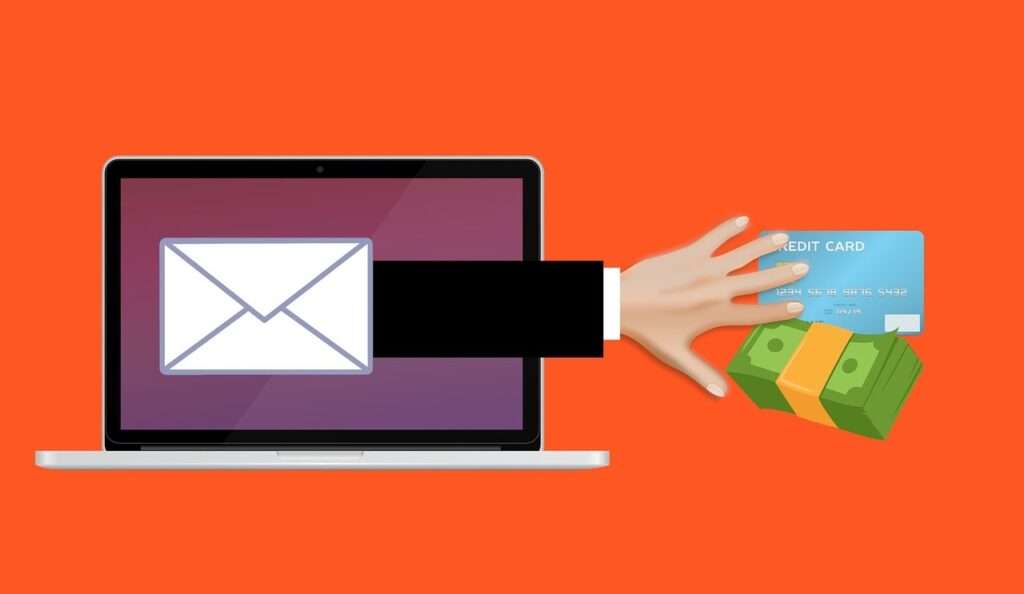
The “Payment for McAfee Subscription” scam involves emails sent to victims stating they owe money for a McAfee subscription purchase. The emails appear to come from McAfee and contain fake invoices with various threats if victims don’t pay.
Scammers use two main strategies with this scam:
- Demanding payment for a nonexistent subscription purchase. The emails claim you bought McAfee AntiVirus or another product and must pay an outstanding invoice.
- Threatening to cancel your current McAfee subscription if you don’t update your billing details. These emails say there’s an issue processing your McAfee renewal payment.
In both versions, the emails contain a customer support phone number or link to call about the supposed subscription. But the numbers connect to elaborate overseas scam call centers instead of legitimate McAfee support.
Once scammers get victims on the phone, they pivot to more sophisticated social engineering tactics. Using clever psychlogical tricks, they manipulate targets into handing over remote access to their devices. From there, scammers can install malware, steal personal data, and gain access to financial accounts.
Some key facts about the “Payment for McAfee Subscription” scam:
- Long running scam – Has been active since at least 2016, with newer iterations each year. Scammers constantly shift their tactics.
- Preys on the elderly – Senior citizens are disproportionately targeted by tech support scams like this. Their lack of tech knowledge makes them more vulnerable.
- Overseas criminal gangs – Large cybercrime rings in India are behind most of these scams. They operate extensive fake call center networks.
- Heavy financial losses – The Internet Crime Complaint Center reported $56 million lost to tech support fraud in 2020. Average individual victim loss was $1,200.
- Difficult to prosecute – Foreign locations of most scam centers make legal action extremely difficult. Some arrests have been made in the U.S. and India though.
- Black market trade – Email and contact lists of potential victims are traded on black market sites to fuel these scams.
This convoluted scam starts with a simple email but quickly escalates through social engineering tactics. Awareness of their devious methods is crucial to avoid becoming a victim.
How the Scam Works
The “Payment for McAfee Subscription” scam begins with an email designed to trick recipients into believing they owe money to McAfee. Let’s break down the deceptive tactics used in these emails step-by-step:
1. You Receive an Email About Owing McAfee Money
The scam starts with an email arriving in your inbox that claims you owe money to McAfee for an unpaid subscription. The messages can take various forms:
- Fake invoice for a McAfee purchase you never made
- Notice your McAfee subscription is expiring
- Alert there is an issue processing your McAfee renewal payment
Some examples:
“Your McAfee subscription expired yesterday. Update your billing details immediately to renew and avoid service interruption.”
“Our records indicate you have an outstanding payment of $499.99 for McAfee AntiVirus. Settle this invoice within 48 hours to avoid subscription cancellation.”
“We were unable to process your annual McAfee renewal payment of $299.99. Kindly update your billing details to continue your subscription uninterrupted.”
The emails appear credible, featuring official McAfee branding and logos. But they are sent from spoofed email addresses and really originate from scammers.
2. Threats of Service Cancellation or Legal Action
To create urgency, the scam emails contain threats of negative consequences if you don’t pay immediately. Common intimidation tactics include:
- Cancelling your McAfee subscription resulting in loss of protection
- Permanently deleting your McAfee user account
- Turning unpaid invoices over to collections agencies
- Pursuing legal action and lawsuits over unpaid balances
Example threat language:
“If the outstanding payment is not settled within 24 hours, we will have no choice but to cancel your McAfee subscription permanently.”
“Failure to update your billing details will result in your account being closed. This may also affect your credit score.”
“Unless this invoice is paid promptly, we will turn over your account to collections and pursue legal action.”
By scaring recipients with threats of service cancellation, account closure, and legal action, the scammers create a sense of urgency to contact them right away.
3. Phone Number or Link Provided to Resolve Issue
The scam emails include customer support phone numbers or payment links, seemingly allowing you to easily clear up the subscription issues.
Examples:
“If you did not authorize this charge, please contact our billing department immediately at 1-855-123-4567”
“Click here to update your payment details and renew your McAfee subscription”
“Call our customer service at +91-912-345-6789 to continue your McAfee protection uninterrupted”
But in reality, the phone numbers and links connect directly to elaborate overseas scam call centers rather than genuine McAfee support. This brings victims one step closer into the scammers’ trap.
4. Fake Call Center Scare Tactics to Access Devices
When victims contact the provided phone numbers or links, they are connected to elaborate fake call centers. Operated out of India, these centers run highly sophisticated social engineering scams.
Once on the phone, scammers pivot from the fake subscription issue that lured victims in. Their new goal is gaining remote access to the target’s computer and other devices.
Common manipulation tactics include:
- Pretending to run diagnostic tests that show nonexistent viruses, malware or other system issues.
- Warning victims that hackers are actively trying to steal their identity and access financial accounts.
- Claiming only immediate remote access to devices can protect and fix the problems.
- Citing urgent fake emergencies that require account and personal info to keep safe.
These lies frighten and confuse victims into granting scammers remote access and control of their devices. With this access, scammers can steal personal data, install malware like keyloggers, and infiltrate financial accounts.
5. Demands for Money Through Various Means
With access to a victim’s computer and accounts, scammers leverage multiple ways to demand payments, including:
- Fake services or software – Charging exorbitant fees for unnecessary “security” software, antivirus, and tech support services to fix nonexistent issues.
- Credit card payments – Overtly stealing credit card numbers entered on compromised devices to make fraudulent purchases.
- Wire transfers – Tricking victims into making wire transfers from their bank account directly to scammer accounts.
- Gift cards – Demanding victims purchase iTunes, Google Play, or other gift cards to pay alleged “fees” and then providing gift card codes.
- Clicking ads – Installing malware that clicks online ads in the background, generating illicit ad revenue.
Persuading victims they require services, software, or must pay non-existent fees is the end goal. Scammers receive payments while providing nothing of value in return.
This scam can result in thousands of dollars lost by a single victim. And downloaded malware provides scammers with backdoor access even after the initial call ends.
What To Do If You Are Targeted by This Scam
If you receive a suspicious “Payment for McAfee Subscription” email, here are important steps to protect yourself:
- Do not call – Never call the phone number or click any links in the email. Realize they all lead to overseas scam call centers.
- Forward the email – Forward the scam email to spoof@mcafee.com. This allows McAee to review new iterations of the scam.
- Report the email – Report the scam email as phishing to your email provider. This helps block the scam from spreading.
- Contact your bank – If you did provide financial information, immediately contact your bank and monitor for unauthorized charges. Cancel any compromised cards.
- Scan devices – Run a full system scan using Malwarebytes to check for any malware installed during a scam call. Also change all account passwords accessed from compromised devices.
- Close accounts – If scammers gained access to any financial or email accounts, close them immediately. Open new secure accounts to avoid continued access.
- Investigate payments – If you paid scammers with wire transfers or gift cards, work with those companies to investigate options for blocking or reversing the transactions.
- Report the scam – File a complaint with the FTC at ReportFraud.ftc.gov and IC3 at ic3.gov. These help authorities track and prosecute scammers.
- Spread awareness – Educate family and friends about this scam so they don’t fall victim. Share news articles and FTC scam alerts.
Being vigilant against scams and using caution when contacted about supposed subscription issues are your best defenses. Avoid becoming another victim by following security best practices. Don’t give scammers the opportunity to manipulate you.
Is Your Device Infected? Run a Free Malware Scan
Slow performance, constant pop-ups, or strange behavior? These are classic signs of a malware infection. The fastest way to find out is to scan your device with Malwarebytes Free — one of the most trusted malware removal tools available.
The free version detects and removes the most common threats, including:
- Adware — the cause of those annoying pop-ups
- Browser hijackers — unwanted redirects and changed homepages
- Trojans and spyware — hidden programs stealing your data
- Potentially unwanted programs (PUPs) — software you never asked for
👉 Select your device below — Windows, Mac, or Android — then follow the simple steps to download Malwarebytes, scan your system, and remove any threats it finds. The scan usually takes 5 to 20 minutes.
Run a Malware Scan with Malwarebytes for Windows
Malwarebytes is one of the most popular and trusted anti-malware tools for Windows — and it’s completely free for removing infections. It catches threats that many antivirus programs miss, including adware, browser hijackers, and trojans. Follow the steps below to scan and clean your PC in just a few minutes.
Download Malwarebytes
Click the button below to download the latest version of Malwarebytes for Windows from the official source. The free version is all you need — it will scan your computer and remove adware, browser hijackers, and other malicious software at no cost.
Download MalwarebytesOfficial installer for Windows 11 and 10. Your download starts right away.Want real-time protection? See Malwarebytes Premium Malwarebytes Free for WindowsScans and removes malware at no cost
-
Install Malwarebytes
When the download finishes, open your Downloads folder and double-click the MBSetup file. If Windows shows a User Account Control pop-up, click “Yes” to allow the installation.

Follow the On-Screen Prompts to Install Malwarebytes
The setup wizard will walk you through a few quick screens:
-
Choose where you’re installing the program — “Personal Computer” or “Work Computer” — then click Next.

-
Malwarebytes will now install on your device. This usually takes under a minute.

-
When installation is complete, the “Welcome to Malwarebytes” screen will open automatically.

-
On the final screen, click Open Malwarebytes to launch the program.

-
Enable “Scan for Rootkits”
Before scanning, turn on rootkit detection so Malwarebytes can find even the most hidden threats. Click the Settings gear icon on the left side of the screen.

In the settings menu, find “Scan for rootkits” and click the toggle so it turns blue.

Done? Click “Dashboard” in the left pane to return to the main screen.
Start the Scan
Click the blue Scan button. Malwarebytes will automatically update its virus database and start checking your computer for malware.

-
Wait for the Scan to Finish
The scan checks your entire system for browser hijackers and other malicious programs, so it can take 5 to 20 minutes depending on your computer. Feel free to do something else — just check back occasionally to see the progress.

-
Quarantine the Detected Threats
When the scan is done, you’ll see a list of everything Malwarebytes found — malware, adware, and potentially unwanted programs. Click the “Quarantine” button to remove all of them at once.

Malwarebytes will now remove the malicious files and registry entries and move them safely into quarantine.

-
Restart Your Computer
Some threats can only be fully removed after a reboot. If Malwarebytes asks you to restart, click Yes. Once you’re logged back in, Malwarebytes has finished removing the threats it found.

That’s it — your Windows PC is now clean of trojans, adware, and other malware, and should be back to running smoothly.
If you are still having problems with your computer after completing these instructions, then please follow one of the steps:
- Run a computer scan with ESET Online Scanner
- Ask for help in our Windows Malware Removal Help & Support forum.
Run a Malware Scan with Malwarebytes for Mac
Malwarebytes for Mac is a free on-demand scanner that removes the malware other security software tends to miss — adware, browser hijackers, and unwanted programs included. Cleaning an infected Mac with Malwarebytes has always been completely free, and it’s our go-to recommendation. Follow the steps below to scan and clean your Mac in just a few minutes.
-
Download Malwarebytes for Mac
Click the button below to download the latest version of Malwarebytes for Mac.
Download MalwarebytesOfficial installer for macOS. Your download starts right away.Want real-time protection? See Malwarebytes PremiumMalwarebytes Free for MacScans and removes malware at no cost -
Open the Malwarebytes setup file
When the download finishes, open your Downloads folder and double-click the setup file to begin the installation.

-
Follow the On-Screen Prompts to Install Malwarebytes
The Malwarebytes for Mac Installer will guide you through a few quick screens. Click “Continue” and keep following the prompts until the installation completes.



When the installation is complete, Malwarebytes opens to the Welcome to Malwarebytes screen. Click “Get started“.
-
Select “Personal Computer” or “Work Computer”
Malwarebytes will ask what type of computer you’re installing it on. Click either Personal Computer or Work Computer, whichever applies.

-
Start the Scan
Click the “Scan” button. Malwarebytes will automatically update its detection database and begin checking your Mac for malware.

-
Wait for the Scan to Finish
Malwarebytes will scan your Mac for adware, browser hijackers, and other malicious programs. This can take a few minutes, so feel free to do something else — just check back occasionally to see the progress.

-
Quarantine the Detected Threats
When the scan is done, you’ll see a list of everything Malwarebytes found. Click the “Quarantine” button to remove all the threats at once.

-
Restart Your Mac
Malwarebytes will now remove all the malicious files it found. Some threats can only be fully removed after a reboot — if Malwarebytes asks you to restart, allow it. Once you’re logged back in, your Mac is clean.

That’s it — your Mac is now free of adware, rogue browser extensions, and other potentially harmful software.
If you are still experiencing problems while trying to remove a malicious program from your computer, please ask for help in our Mac Malware Removal Help & Support forum.
Run a Malware Scan with Malwarebytes for Android
Malwarebytes for Android automatically detects and removes dangerous threats like malware and ransomware so you don’t have to worry about your most-used device being compromised. Aggressive detection of adware and potentially unwanted programs keeps your Android phone or tablet running smooth.
-
Download Malwarebytes for Android.
You can download Malwarebytes for Android by clicking the link below.
Get Malwarebytes for AndroidOpens Google Play in a new tab.Want real-time protection? See Malwarebytes Premium for AndroidMalwarebytes for AndroidScans your phone and removes malware at no cost -
Install Malwarebytes for Android on your phone.
In the Google Play Store, tap “Install” to install Malwarebytes for Android on your device.

When the installation process has finished, tap “Open” to begin using Malwarebytes for Android. You can also open Malwarebytes by tapping on its icon in your phone menu or home screen.

-
Follow the on-screen prompts to complete the setup process
When Malwarebytes will open, you will see the Malwarebytes Setup Wizard which will guide you through a series of permissions and other setup options.
This is the first of two screens that explain the difference between the Premium and Free versions. Swipe this screen to continue.
Tap on “Got it” to proceed to the next step.
Malwarebytes for Android will now ask for a set of permissions that are required to scan your device and protect it from malware. Tap on “Give permission” to continue.
Tap on “Allow” to permit Malwarebytes to access the files on your phone.
-
Update database and run a scan with Malwarebytes for Android
You will now be prompted to update the Malwarebytes database and run a full system scan.

Click on “Update database” to update the Malwarebytes for Android definitions to the latest version, then click on “Run full scan” to perform a system scan.

-
Wait for the Malwarebytes scan to complete.
Malwarebytes will now start scanning your phone for adware and other malicious apps. This process can take a few minutes, so we suggest you do something else and periodically check on the status of the scan to see when it is finished.

-
Click on “Remove Selected”.
When the scan has been completed, you will be presented with a screen showing the malware infections that Malwarebytes for Android has detected. To remove the malicious apps that Malwarebytes has found, tap on the “Remove Selected” button.

-
Restart your phone.
Malwarebytes for Android will now remove all the malicious apps that it has found. To complete the malware removal process, Malwarebytes may ask you to restart your device.
That’s it — your Android phone is now clean — no more malicious apps, adware, or browser redirects.
If you are still having problems with your phone after completing these instructions, then please follow one of the steps:
- Restore your phone to factory settings by going to Settings > General management > Reset > Factory data reset.
- Ask for help in our Mobile Malware Removal Help & Support forum.
Stay Protected: Block Ads and Malicious Sites
Now that your device is clean, keep it that way. Most infections start with a malicious ad or a fake download button — so blocking them at the source is your best defense.
We recommend AdGuard, which blocks malicious ads, phishing pages, and dangerous redirects before they can reach you.
👉 Download AdGuard and browse safely
Frequently Asked Questions about the Payment For McAfee Subscription Scam
1. How do I know if an email about owing McAfee money is a scam?
Legitimate messages from McAfee will never threaten you, demand immediate payment by unusual methods like gift cards, or use high-pressure scare tactics. Verify any payment notices directly through McAfee’s official website before taking any action. Emails with poor grammar/spelling, or not addressed with your name are red flags.
2. I called the phone number in a McAfee invoice email. What should I do?
Immediately hang up and do not provide any personal or financial information. Run anti-malware scans on any device used to call the number. Change account passwords and enable two-factor authentication where possible. Monitor financial accounts closely for fraudulent charges.
3. Can McAfee really cancel my subscription or delete my account if I don’t pay?
No, McAfee will never threaten account cancellation or legal action through unsolicited emails. Verify any payment or renewal notices through your official McAfee account. If emails contain these threats, it is certainly a scam attempt.
4. What’s the goal behind the fake McAfee subscription scam?
The scammers aim to trick you into allowing remote access to your computer and other devices. From there, they can steal personal information, install malware, take over accounts, and demand fraudulent payments through various means.
5. If I paid a scam call center with gift cards, can I get my money back?
Unfortunately gift cards allow anonymous transfers making reimbursement very difficult. But immediately report the scam to the FTC and gift card provider. Supply gift card numbers, transaction details, and information on the scammer. They may be able to block usage.
6. How can I spot a fake call center scamming people with the McAfee subscription scam?
Warning signs of a scam call center include upfront fees, threats about your devices, high-pressure sales tactics, unusual payment methods, avoiding direct questions, remote access requests, and refusal to provide company identification.
7. What information should I never provide to someone calling about a McAfee subscription?
Never give out your social security number, login credentials, bank account/routing details, or credit card numbers. Also never provide remote access to your devices or approve software installations.
8. Is there a way to get the stolen money back if I wired it to scammers?
Contact your bank immediately and report the fraudulent wire transfer. Provide the transfer details and scam call center information. The bank may be able to recall the wire depending on the circumstances.
9. What can I do to protect my elderly parents from the McAfee scam?
Educate them on the scam tactics and urge them to hang up on any suspicious calls. Set up call blocking, monitor their accounts, and ensure robust security software is installed. Check in regularly to help spot any signs of fraud.
10. Where can I report the McAfee subscription scam to help warn others?
Report it to the FTC at ReportFraud.ftc.gov and FBI IC3 at ic3.gov. Share your experience through scam reporting sites like 800notes.com. The more reports received, the higher the visibility.
The Bottom Line
The “Payment for McAfee Subscription” scam is a prevalent threat impacting unsuspecting internet users worldwide. These fraudulent emails lure victims with claims of unpaid McAfee invoices, expiring subscriptions, and other stories.
But the phone numbers and links provided connect to sophisticated overseas fake call centers instead of legitimate McAfee support. Using social engineering and scare tactics, scammers then gain remote access to devices to steal financial information and install malware.
If targeted by this scam, never call the provided numbers or click included links. Report the phishing emails to your provider and McAfee. Monitor accounts closely for fraud and scan all devices used to contact scammers.
Being aware of the deceptive tactics used in this prevalent scam is key. No legitimate company will demand immediate payment via unusual means like gift cards. Verify any supposed subscription issues directly through the company’s official website only.
Stay vigilant against tech support scams to keep your devices, identity, and finances protected. Carefully scrutinize any unsolicited calls, emails, or messages about your accounts. Don’t let scammers fool you with social engineering meant to exploit fear and confusion.

Join the discussion
0 commentsShare your experience or ask a question about this article.
Discussion
Start the conversation
Have a question or something useful to share? Add the first comment.