

If you’ve received an email claiming to be from Hogan Lovells with a Google Drive file—don’t open it. It’s a phishing scam designed to steal your information. These fraudulent emails are not from the legitimate law firm Hogan Lovells. They are part of a widespread phishing campaign targeting various communities, including the 3D printing community.
In this article, we’ll provide a detailed overview of the Hogan Lovells email scam, explain how it works, and offer guidance on what to do if you’ve fallen victim to it.
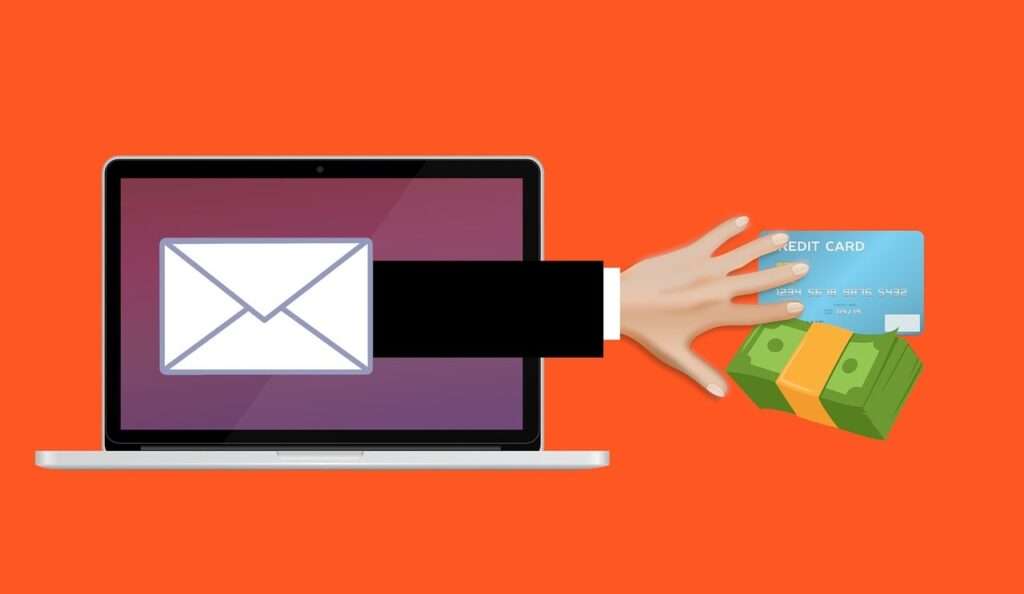
Scam Overview
The Hogan Lovells email scam is a phishing campaign where scammers impersonate the international law firm Hogan Lovells to trick recipients into opening malicious Google Drive files. These emails often claim to contain urgent legal documents or notifications, prompting the recipient to click on a link or download a file.
How Widespread Is the Scam?
Reports indicate that the scam is not limited to a specific group. While some believe it targets the 3D printing community, others who have no connection to 3D printing have also received these emails. This suggests that the scam is part of a broader phishing campaign affecting various individuals and organizations.
What Are the Characteristics of the Scam Emails?
The scam emails often use domain names that are similar to Hogan Lovells’ official domain. However, genuine business emails from Hogan Lovells only use the domains “@hoganlovells.com” and “@ehoganlovells.com” for some marketing emails. They do not use Gmail, Hotmail, Yahoo, or other email addresses. The fraudulent emails may include a copy of the Hogan Lovells logo, false telephone numbers, and describe in detail fictional circumstances with the intent to defraud the recipient.
What Has Hogan Lovells Said About the Scam?
Hogan Lovells has acknowledged the existence of these fraudulent emails and has issued warnings to the public. They recommend that recipients delete scam emails and messages and not reply to them. If you are unsure whether you have received a genuine communication from Hogan Lovells, you can report suspicious communications and scams to their dedicated email inbox: informationsecurity@hoganlovells.com.
How the Scam Works
Step 1: The Initial Email
The scam begins with an unsolicited email that appears to come from Hogan Lovells. The email may claim to contain important legal documents or notifications and includes a link to a Google Drive file. The sender’s email address may look similar to Hogan Lovells’ official email addresses but will differ slightly, such as using “@hogannlovells.co” instead of “@hoganlovells.com”.
Step 2: The Google Drive File
When the recipient clicks on the link, they are directed to a Google Drive file that may appear legitimate. The file may be labeled as a legal document or contain urgent information. Opening the file may prompt the recipient to enter personal information or login credentials, which are then captured by the scammers.
Step 3: Data Harvesting
Once the recipient provides their information, the scammers can use it for various malicious purposes, such as identity theft, unauthorized access to accounts, or further phishing attacks. The scammers may also use the compromised account to send additional phishing emails to the victim’s contacts.
Step 4: Continued Exploitation
The scammers may continue to exploit the victim’s information for financial gain or to perpetrate additional scams. They may also sell the harvested data on the dark web, leading to further security breaches and identity theft.
What to Do If You’ve Fallen Victim to This Scam
- Do Not Interact Further: If you suspect you’ve received a fraudulent email, do not click on any links, download any files, or reply to the email.
- Report the Email: Forward the suspicious email to Hogan Lovells’ information security team at informationsecurity@hoganlovells.com. You can also report the scam to your local cybersecurity authority or law enforcement agency.
- Change Your Passwords: If you clicked on the link or provided any personal information, immediately change your passwords for all accounts that may be affected. Use strong, unique passwords for each account.
- Enable Two-Factor Authentication: Where possible, enable two-factor authentication on your accounts to add an extra layer of security.
- Monitor Your Accounts: Regularly check your bank accounts, credit reports, and other sensitive accounts for any unauthorized activity.
- Educate Others: Inform your colleagues, friends, and family about the scam to prevent them from falling victim to similar phishing attempts.
Is Your Device Infected? Run a Free Malware Scan
Slow performance, constant pop-ups, or strange behavior? These are classic signs of a malware infection. The fastest way to find out is to scan your device with Malwarebytes Free — one of the most trusted malware removal tools available.
The free version detects and removes the most common threats, including:
- Adware — the cause of those annoying pop-ups
- Browser hijackers — unwanted redirects and changed homepages
- Trojans and spyware — hidden programs stealing your data
- Potentially unwanted programs (PUPs) — software you never asked for
👉 Select your device below — Windows, Mac, or Android — then follow the simple steps to download Malwarebytes, scan your system, and remove any threats it finds. The scan usually takes 5 to 20 minutes.
Run a Malware Scan with Malwarebytes for Windows
Malwarebytes is one of the most popular and trusted anti-malware tools for Windows — and it’s completely free for removing infections. It catches threats that many antivirus programs miss, including adware, browser hijackers, and trojans. Follow the steps below to scan and clean your PC in just a few minutes.
Download Malwarebytes
Click the button below to download the latest version of Malwarebytes for Windows from the official source. The free version is all you need — it will scan your computer and remove adware, browser hijackers, and other malicious software at no cost.
Download MalwarebytesOfficial installer for Windows 11 and 10. Your download starts right away.Want real-time protection? See Malwarebytes Premium Malwarebytes Free for WindowsScans and removes malware at no cost
-
Install Malwarebytes
When the download finishes, open your Downloads folder and double-click the MBSetup file. If Windows shows a User Account Control pop-up, click “Yes” to allow the installation.

Follow the On-Screen Prompts to Install Malwarebytes
The setup wizard will walk you through a few quick screens:
-
Choose where you’re installing the program — “Personal Computer” or “Work Computer” — then click Next.

-
Malwarebytes will now install on your device. This usually takes under a minute.

-
When installation is complete, the “Welcome to Malwarebytes” screen will open automatically.

-
On the final screen, click Open Malwarebytes to launch the program.

-
Enable “Scan for Rootkits”
Before scanning, turn on rootkit detection so Malwarebytes can find even the most hidden threats. Click the Settings gear icon on the left side of the screen.

In the settings menu, find “Scan for rootkits” and click the toggle so it turns blue.

Done? Click “Dashboard” in the left pane to return to the main screen.
Start the Scan
Click the blue Scan button. Malwarebytes will automatically update its virus database and start checking your computer for malware.

-
Wait for the Scan to Finish
The scan checks your entire system for browser hijackers and other malicious programs, so it can take 5 to 20 minutes depending on your computer. Feel free to do something else — just check back occasionally to see the progress.

-
Quarantine the Detected Threats
When the scan is done, you’ll see a list of everything Malwarebytes found — malware, adware, and potentially unwanted programs. Click the “Quarantine” button to remove all of them at once.

Malwarebytes will now remove the malicious files and registry entries and move them safely into quarantine.

-
Restart Your Computer
Some threats can only be fully removed after a reboot. If Malwarebytes asks you to restart, click Yes. Once you’re logged back in, Malwarebytes has finished removing the threats it found.

That’s it — your Windows PC is now clean of trojans, adware, and other malware, and should be back to running smoothly.
If you are still having problems with your computer after completing these instructions, then please follow one of the steps:
- Run a computer scan with ESET Online Scanner
- Ask for help in our Windows Malware Removal Help & Support forum.
Run a Malware Scan with Malwarebytes for Mac
Malwarebytes for Mac is a free on-demand scanner that removes the malware other security software tends to miss — adware, browser hijackers, and unwanted programs included. Cleaning an infected Mac with Malwarebytes has always been completely free, and it’s our go-to recommendation. Follow the steps below to scan and clean your Mac in just a few minutes.
-
Download Malwarebytes for Mac
Click the button below to download the latest version of Malwarebytes for Mac.
Download MalwarebytesOfficial installer for macOS. Your download starts right away.Want real-time protection? See Malwarebytes PremiumMalwarebytes Free for MacScans and removes malware at no cost -
Open the Malwarebytes setup file
When the download finishes, open your Downloads folder and double-click the setup file to begin the installation.

-
Follow the On-Screen Prompts to Install Malwarebytes
The Malwarebytes for Mac Installer will guide you through a few quick screens. Click “Continue” and keep following the prompts until the installation completes.



When the installation is complete, Malwarebytes opens to the Welcome to Malwarebytes screen. Click “Get started“.
-
Select “Personal Computer” or “Work Computer”
Malwarebytes will ask what type of computer you’re installing it on. Click either Personal Computer or Work Computer, whichever applies.

-
Start the Scan
Click the “Scan” button. Malwarebytes will automatically update its detection database and begin checking your Mac for malware.

-
Wait for the Scan to Finish
Malwarebytes will scan your Mac for adware, browser hijackers, and other malicious programs. This can take a few minutes, so feel free to do something else — just check back occasionally to see the progress.

-
Quarantine the Detected Threats
When the scan is done, you’ll see a list of everything Malwarebytes found. Click the “Quarantine” button to remove all the threats at once.

-
Restart Your Mac
Malwarebytes will now remove all the malicious files it found. Some threats can only be fully removed after a reboot — if Malwarebytes asks you to restart, allow it. Once you’re logged back in, your Mac is clean.

That’s it — your Mac is now free of adware, rogue browser extensions, and other potentially harmful software.
If you are still experiencing problems while trying to remove a malicious program from your computer, please ask for help in our Mac Malware Removal Help & Support forum.
Run a Malware Scan with Malwarebytes for Android
Malwarebytes for Android automatically detects and removes dangerous threats like malware and ransomware so you don’t have to worry about your most-used device being compromised. Aggressive detection of adware and potentially unwanted programs keeps your Android phone or tablet running smooth.
-
Download Malwarebytes for Android.
You can download Malwarebytes for Android by clicking the link below.
Get Malwarebytes for AndroidOpens Google Play in a new tab.Want real-time protection? See Malwarebytes Premium for AndroidMalwarebytes for AndroidScans your phone and removes malware at no cost -
Install Malwarebytes for Android on your phone.
In the Google Play Store, tap “Install” to install Malwarebytes for Android on your device.

When the installation process has finished, tap “Open” to begin using Malwarebytes for Android. You can also open Malwarebytes by tapping on its icon in your phone menu or home screen.

-
Follow the on-screen prompts to complete the setup process
When Malwarebytes will open, you will see the Malwarebytes Setup Wizard which will guide you through a series of permissions and other setup options.
This is the first of two screens that explain the difference between the Premium and Free versions. Swipe this screen to continue.
Tap on “Got it” to proceed to the next step.
Malwarebytes for Android will now ask for a set of permissions that are required to scan your device and protect it from malware. Tap on “Give permission” to continue.
Tap on “Allow” to permit Malwarebytes to access the files on your phone.
-
Update database and run a scan with Malwarebytes for Android
You will now be prompted to update the Malwarebytes database and run a full system scan.

Click on “Update database” to update the Malwarebytes for Android definitions to the latest version, then click on “Run full scan” to perform a system scan.

-
Wait for the Malwarebytes scan to complete.
Malwarebytes will now start scanning your phone for adware and other malicious apps. This process can take a few minutes, so we suggest you do something else and periodically check on the status of the scan to see when it is finished.

-
Click on “Remove Selected”.
When the scan has been completed, you will be presented with a screen showing the malware infections that Malwarebytes for Android has detected. To remove the malicious apps that Malwarebytes has found, tap on the “Remove Selected” button.

-
Restart your phone.
Malwarebytes for Android will now remove all the malicious apps that it has found. To complete the malware removal process, Malwarebytes may ask you to restart your device.
That’s it — your Android phone is now clean — no more malicious apps, adware, or browser redirects.
If you are still having problems with your phone after completing these instructions, then please follow one of the steps:
- Restore your phone to factory settings by going to Settings > General management > Reset > Factory data reset.
- Ask for help in our Mobile Malware Removal Help & Support forum.
Stay Protected: Block Ads and Malicious Sites
Now that your device is clean, keep it that way. Most infections start with a malicious ad or a fake download button — so blocking them at the source is your best defense.
We recommend AdGuard, which blocks malicious ads, phishing pages, and dangerous redirects before they can reach you.
👉 Download AdGuard and browse safely
FAQ: Hogan Lovells Email Scam
What is the Hogan Lovells email scam?
The Hogan Lovells email scam is a phishing scheme in which scammers impersonate the law firm Hogan Lovells. Victims receive emails claiming to contain urgent legal documents via Google Drive. These messages are fake and designed to steal your personal or login information.
How can I tell if an email from Hogan Lovells is legitimate?
Only trust emails sent from domains ending in @hoganlovells.com or @ehoganlovells.com. Any message from free email providers like Gmail, Yahoo, or Hotmail claiming to be from Hogan Lovells is a red flag.
What should I do if I received one of these emails?
Do not click on any links or download any attachments. Delete the message immediately. If you’ve already interacted with it, change your passwords and monitor your accounts. Report the email to informationsecurity@hoganlovells.com.
Is this scam only targeting the 3D printing community?
No. While some reports suggest the scam may have started with the 3D printing community, it has since broadened to affect a wide range of individuals and industries.
What happens if I click the Google Drive link?
Clicking the link may lead you to a fake document or login page designed to trick you into entering sensitive information. Doing so can give scammers access to your email, files, or other accounts.
Can Hogan Lovells help me if I’ve been scammed?
While Hogan Lovells is not responsible for the scam, they do offer a reporting channel via informationsecurity@hoganlovells.com. They may be able to verify the authenticity of any messages claiming to be from their firm.
What are the risks of interacting with these phishing emails?
Risks include identity theft, compromised email and financial accounts, installation of malware, and unauthorized access to sensitive or personal information.
How can I protect myself from similar scams in the future?
- Always verify sender email addresses
- Never click on unexpected links or attachments
- Use two-factor authentication for your accounts
- Keep your software and antivirus tools updated
- Educate yourself on common phishing tactics
I shared the email with colleagues—what should they do?
Advise them not to interact with the message and to delete it. If any of them clicked a link or entered personal information, they should follow the same recovery steps and report the incident immediately.
Why do scammers impersonate law firms like Hogan Lovells?
Scammers often use the names of well-known and trusted organizations to make their messages seem legitimate. Law firms, due to their association with sensitive and confidential matters, are particularly attractive targets for impersonation.
The Bottom Line
The Hogan Lovells email scam is a sophisticated phishing attack that exploits the reputation of a reputable law firm to deceive recipients. By understanding how the scam operates and taking proactive measures, you can protect yourself and others from falling victim to such fraudulent schemes. Always verify the authenticity of unsolicited emails, especially those claiming to be from well-known organizations, and report any suspicious activity to the appropriate authorities.

Join the discussion
0 commentsShare your experience or ask a question about this article.
Discussion
Start the conversation
Have a question or something useful to share? Add the first comment.