

A security email says your account was recovered successfully, but also warns that unauthorized changes may have locked you out. The mixed message is deliberately confusing.
The Login now button leads to a phishing kit that can copy the appearance of your email provider and steal the password you submit.
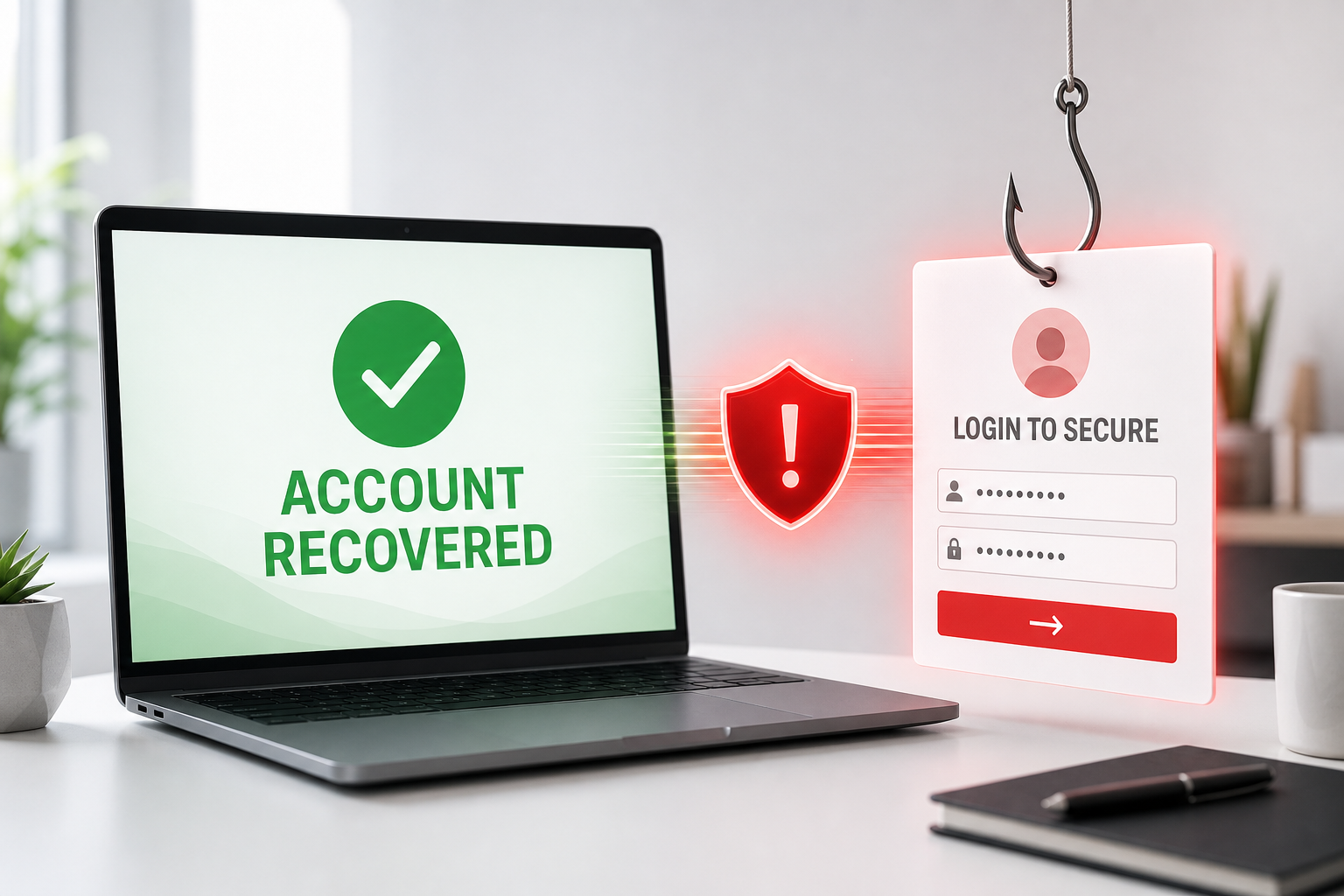
Account Recovered Successfully Email Scam Overview
The message impersonates an automated alert from the recipient’s email provider. Its subject may say Your account was recovered successfully, while the body claims the notice was also sent to a recovery address. A large Login now to secure your account button is paired with a warning that unauthorized changes may have caused a lockout.
This combination of reassurance and danger is intentional. The word recovered suggests a completed security process, but the mention of account changes creates uncertainty: Was someone else inside the account? Is access about to be lost again? The recipient is pushed toward the button to resolve a situation they never initiated.
The linked phishing page can identify the provider associated with the email address and load a matching counterfeit sign-in. A Gmail user may see Gmail-style branding, while Yahoo, Microsoft or corporate addresses receive another design. The personalization is generated by the phishing kit and does not mean the provider sent the message.
Any credentials entered into the form are transmitted to the criminals. The page may request the password twice, claim the first entry was incorrect or redirect to the genuine provider. Attackers use these behaviors to collect more data and prevent the victim from realizing that a theft occurred.
A compromised mailbox gives attackers access to private correspondence and password-reset links. They can take over linked accounts, impersonate the owner and search for financial or identity information. Stolen credentials may also be tested against other services or sold to additional criminals, especially when the same password was reused.
The technology-company address and branding copied into the footer are decorative impersonation. The legitimate company is not involved. Treat the message as confirmed phishing and check account security only through the provider’s official application or a trusted address entered independently.
How the Account Recovered Successfully Scam Works
Step 1: A surprising recovery notice reaches the inbox
The recipient is told that an account recovery completed even though no recovery was requested. This immediately creates uncertainty about unauthorized access.
Masked account details and an official-looking footer make the generic campaign appear personal.
Step 2: A lockout warning adds urgency
The email suggests that suspicious changes may have removed access and that the account should be protected now.
The wording discourages the recipient from slowing down and checking the provider independently.
Step 3: The link identifies the email provider
The recipient’s address or domain can be included in the URL. The phishing kit uses it to decide which brand and login layout to display.
Personalized branding is a technical trick, not proof that the page belongs to the provider.
Step 4: A counterfeit login asks for the password
The form looks familiar and claims that signing in will secure or review the recovered account.
The address bar exposes the deception because the page is not on the provider’s verified domain.
Step 5: Submitted credentials reach the criminals
The operator receives the email address and password and can begin attempting account access immediately.
A fake error or redirect to the real provider may conceal the successful theft.
Step 6: The mailbox becomes an entry point
Attackers can reset other passwords, create forwarding rules and send scams to trusted contacts.
Password reuse can turn one phishing submission into compromises across several services.
Red Flags in the Fake Recovery Alert
- You did not start an account recovery process.
- The message says recovery succeeded but still demands an urgent login.
- The sender domain does not match the claimed provider.
- The destination changes branding based on the recipient’s address.
- The login form is hosted outside the provider’s verified domain.
- The footer copies a famous company address without identifying a real support case.
- No corresponding security event appears inside the official account.
Why the Account Recovery Story Feels Convincing
Real providers do send recovery and security notifications, so the basic scenario is familiar. The scam carefully avoids explaining who requested recovery, which device was involved or when the action began. That missing context encourages the recipient to click for answers instead of recognizing that the email has supplied no verifiable event.
The campaign also uses two conflicting emotions. Recovery sounds reassuring, while the warning about unauthorized changes creates fear. This tension makes the Login now button feel like a sensible precaution even though the recipient did not initiate a recovery and is already reading the mailbox successfully.
A legitimate alert can be confirmed without the email link. Open the provider’s security dashboard, review recent sign-ins and examine recovery methods from inside the authenticated account. If the event is real, it will appear there. If no event exists, the urgent button has no legitimate purpose.
Users should also compare the timestamp, recovery address and devices shown by the real provider with their own activity. This direct evidence is far more useful than a masked address or copied company footer inside an unsolicited email.
What to Do If You Entered Information on the Fake Page
- Open the real service directly. Close the phishing page and use an official app, a trusted bookmark or an address you type yourself.
- Change the exposed password immediately. Create a unique password that has never protected another account.
- Revoke active sessions. Sign out unknown devices and remove unfamiliar app passwords, recovery methods and connected applications.
- Enable strong multi-factor authentication. Prefer a passkey, hardware security key or authenticator app where available.
- Inspect the mailbox. Delete unknown forwarding addresses, inbox rules, delegates and filters that could preserve attacker access.
- Change reused passwords. Prioritize banking, cloud storage, workplace, shopping and social media accounts.
- Warn contacts and workplace IT. Attackers may use the compromised mailbox to send believable requests in the victim’s name.
- Review recent activity. Look for unfamiliar sign-ins, sent messages, password resets, purchases and changes to security settings.
How to Verify an Unexpected Email Safely
Do not use the message’s button, telephone number or reply address. Open the claimed service independently and look for the same notification inside the authenticated account. A genuine document, reservation or security event should be visible there without requiring a visit to an unrelated domain.
Hover over links without clicking and identify the registered domain immediately before the first slash. A familiar company name in a subdomain, page title or URL parameter is not proof of ownership. HTTPS only encrypts the connection to the page; phishing sites can also use HTTPS.
If the request involves work, payment or account administration, verify it through a second channel. Call the sender using a number already stored in your records, contact the company through its official website or ask an administrator through an established internal system.
Frequently Asked Questions
Can opening the email alone steal my password?
Usually not. The credential theft occurs when the recipient follows the link and submits information. However, do not download attachments, grant permissions or run files supplied by the message.
Is the page legitimate because it matches my email provider?
No. Phishing kits can read the email address embedded in a link and display matching Gmail, Microsoft, Yahoo or corporate webmail branding. The domain in the address bar is the decisive check.
The Bottom Line
The Account Recovered Successfully email is confirmed credential phishing. The recovery claim and provider-matched sign-in page are designed to make the victim submit a mailbox password.
Ignore the button and open the real account directly. If credentials were entered, change the password, revoke sessions, inspect forwarding rules and secure reused passwords immediately.
Here are signs that this email is a scam, even though it looks like it comes from a company you know — and even uses the company’s logo in the header:- A generic greeting is used in place of a name (eg. “customer,” “account holder,” or “dear”).
- The sender’s email address is not associated with a legitimate domain name
- The email invites you to click on a link to resolve an issue. Most reputable organizations will not ask users to disclose sensitive information (e.g. credit card numbers) by clicking on a link.
- There is a time limit or uncharacteristic sense of urgency
- Poor grammar, spelling, and sentence structure may hint that an email is not from a reputable source.








