

An automated-looking message says three documents, including overdue invoices, are waiting in your organization’s secure approval portal. The task sounds routine and time-sensitive.
There is no real portal notification. The Check documents button opens a provider-matched phishing login that sends your email password to criminals.
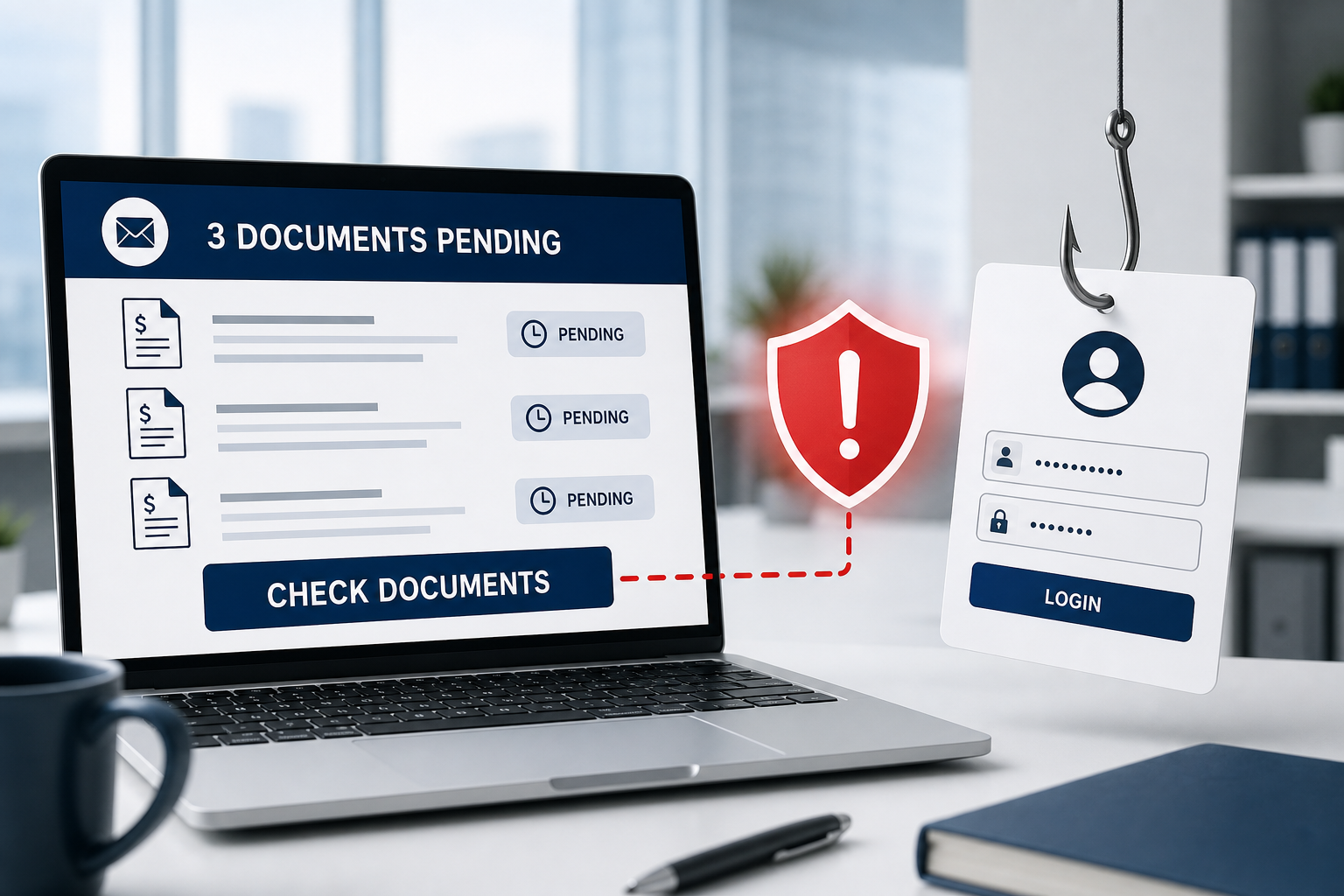
Documents Waiting for Approval Email Scam Overview
The email may arrive with the subject Updated SOA for your review and approval and present itself as an automated message from a document-management system. It claims that three new files are waiting in a secure organizational portal and specifically mentions overdue invoices. A Check documents button promises immediate access.
The wording is designed for workplaces where statements of account, invoices and approvals are ordinary. The sender does not need to know the recipient’s exact job. An employee may assume the task came from finance, procurement or another department, while a manager may fear that overdue items are waiting on their approval.
The button directs the recipient to phishing content hosted through a cloud-storage service rather than an internal document platform. One campaign used a Contabo storage address. Contabo is a legitimate infrastructure provider and is not participating in the scam; the criminals are abusing hosted content to make delivery easier and the URL less obviously malicious.
The page can examine the email address in the link and display a matching counterfeit login. Gmail addresses receive a Gmail-style prompt, while Microsoft, Yahoo or corporate users may see another provider. The form says authentication is required to view the documents, but any password entered is collected by the attacker.
Stolen email access lets criminals read confidential correspondence, reset linked accounts and impersonate the victim. A business mailbox can reveal payment schedules, vendor relationships and internal approval chains. Attackers may wait for a real invoice discussion, alter payment instructions or send new phishing messages to colleagues from the compromised account.
The confidentiality notice and automated-footer language do not make the email genuine. These are copied decorations. Treat the message as confirmed phishing. Open the organization’s real document system independently and check its task list; if the three documents do not exist there, the email has established nothing.
How the Documents Waiting for Approval Scam Works
Step 1: A routine office task is invented
The email claims that three documents and overdue invoices require action. The numbers make the notification feel connected to a real workflow.
Because approval requests are often unexpected, the lure can work without naming a known colleague.
Step 2: Business urgency pushes the recipient to click
Overdue invoices imply financial delay or professional responsibility. The Check documents button appears to be the fastest way to resolve it.
The generic message avoids details that a legitimate internal system would normally provide, such as document owners or project names.
Step 3: The link loads cloud-hosted phishing content
The destination uses a storage or hosting domain rather than the organization’s authenticated document portal.
A legitimate infrastructure provider can still contain malicious customer-uploaded pages.
Step 4: The page adapts to the recipient’s provider
The phishing kit reads the address or domain and displays familiar email branding. This makes one campaign effective against many organizations.
The page’s visual match does not overcome the unrelated domain shown in the address bar.
Step 5: The fake form captures the password
The victim is told to authenticate before viewing the documents. Submitted credentials are sent to the criminals.
The page may ask twice or redirect elsewhere so the theft resembles a temporary sign-in problem.
Step 6: The inbox is used for business fraud
Attackers can monitor invoices, create forwarding rules and impersonate the employee in conversations already under way.
Contacts may trust a malicious document or payment request sent from the real compromised mailbox.
Red Flags in the Fake Approval Notification
- The sender does not identify the document owners, project or internal system.
- Three documents and overdue invoices are claimed without verifiable references.
- The button leads to a cloud-storage domain instead of the organization’s portal.
- The destination asks for an email password before revealing any file.
- The login branding changes based on the recipient’s email provider.
- A generic confidentiality notice is used as decoration rather than real context.
- No matching approval tasks appear when the legitimate system is opened independently.
Why Invoice Approval Lures Work in Business Inboxes
Approval requests often arrive from automated systems, and recipients may not personally know the document owner. Attackers exploit that expectation. References to overdue invoices introduce professional pressure: ignoring the message can feel like delaying a supplier payment or creating a problem for finance.
A generic confidentiality footer further imitates ordinary corporate email, but it does not authenticate the sender. Real approval systems normally identify the organization, document owner, workflow and account context. They also show the same task when the employee opens the internal portal independently.
Businesses should require a second check for unexpected approval links. Employees can search the task inside the official platform or contact finance through an established directory. If the document exists only behind an email link that requests a mailbox password, the workflow has already failed its authenticity test.
Reporting the message quickly can protect other recipients before they submit credentials.
What to Do If You Entered Information on the Fake Page
- Open the real service directly. Close the phishing page and use an official app, a trusted bookmark or an address you type yourself.
- Change the exposed password immediately. Create a unique password that has never protected another account.
- Revoke active sessions. Sign out unknown devices and remove unfamiliar app passwords, recovery methods and connected applications.
- Enable strong multi-factor authentication. Prefer a passkey, hardware security key or authenticator app where available.
- Inspect the mailbox. Delete unknown forwarding addresses, inbox rules, delegates and filters that could preserve attacker access.
- Change reused passwords. Prioritize banking, cloud storage, workplace, shopping and social media accounts.
- Warn contacts and workplace IT. Attackers may use the compromised mailbox to send believable requests in the victim’s name.
- Review recent activity. Look for unfamiliar sign-ins, sent messages, password resets, purchases and changes to security settings.
How to Verify an Unexpected Email Safely
Do not use the message’s button, telephone number or reply address. Open the claimed service independently and look for the same notification inside the authenticated account. A genuine document, reservation or security event should be visible there without requiring a visit to an unrelated domain.
Hover over links without clicking and identify the registered domain immediately before the first slash. A familiar company name in a subdomain, page title or URL parameter is not proof of ownership. HTTPS only encrypts the connection to the page; phishing sites can also use HTTPS.
If the request involves work, payment or account administration, verify it through a second channel. Call the sender using a number already stored in your records, contact the company through its official website or ask an administrator through an established internal system.
Frequently Asked Questions
Can opening the email alone steal my password?
Usually not. The credential theft occurs when the recipient follows the link and submits information. However, do not download attachments, grant permissions or run files supplied by the message.
Is the page legitimate because it matches my email provider?
No. Phishing kits can read the email address embedded in a link and display matching Gmail, Microsoft, Yahoo or corporate webmail branding. The domain in the address bar is the decisive check.
The Bottom Line
The Documents Waiting for Approval email is confirmed phishing. Its three files, overdue invoices and secure-portal language are invented to deliver a provider-matched credential form.
Delete the message and verify approvals inside the real organizational system. If a password was submitted, change it, revoke sessions, inspect mailbox rules and notify IT immediately.
Here are signs that this email is a scam, even though it looks like it comes from a company you know — and even uses the company’s logo in the header:- A generic greeting is used in place of a name (eg. “customer,” “account holder,” or “dear”).
- The sender’s email address is not associated with a legitimate domain name
- The email invites you to click on a link to resolve an issue. Most reputable organizations will not ask users to disclose sensitive information (e.g. credit card numbers) by clicking on a link.
- There is a time limit or uncharacteristic sense of urgency
- Poor grammar, spelling, and sentence structure may hint that an email is not from a reputable source.

Join the discussion
0 commentsShare your experience or ask a question about this article.
Discussion
Start the conversation
Have a question or something useful to share? Add the first comment.