

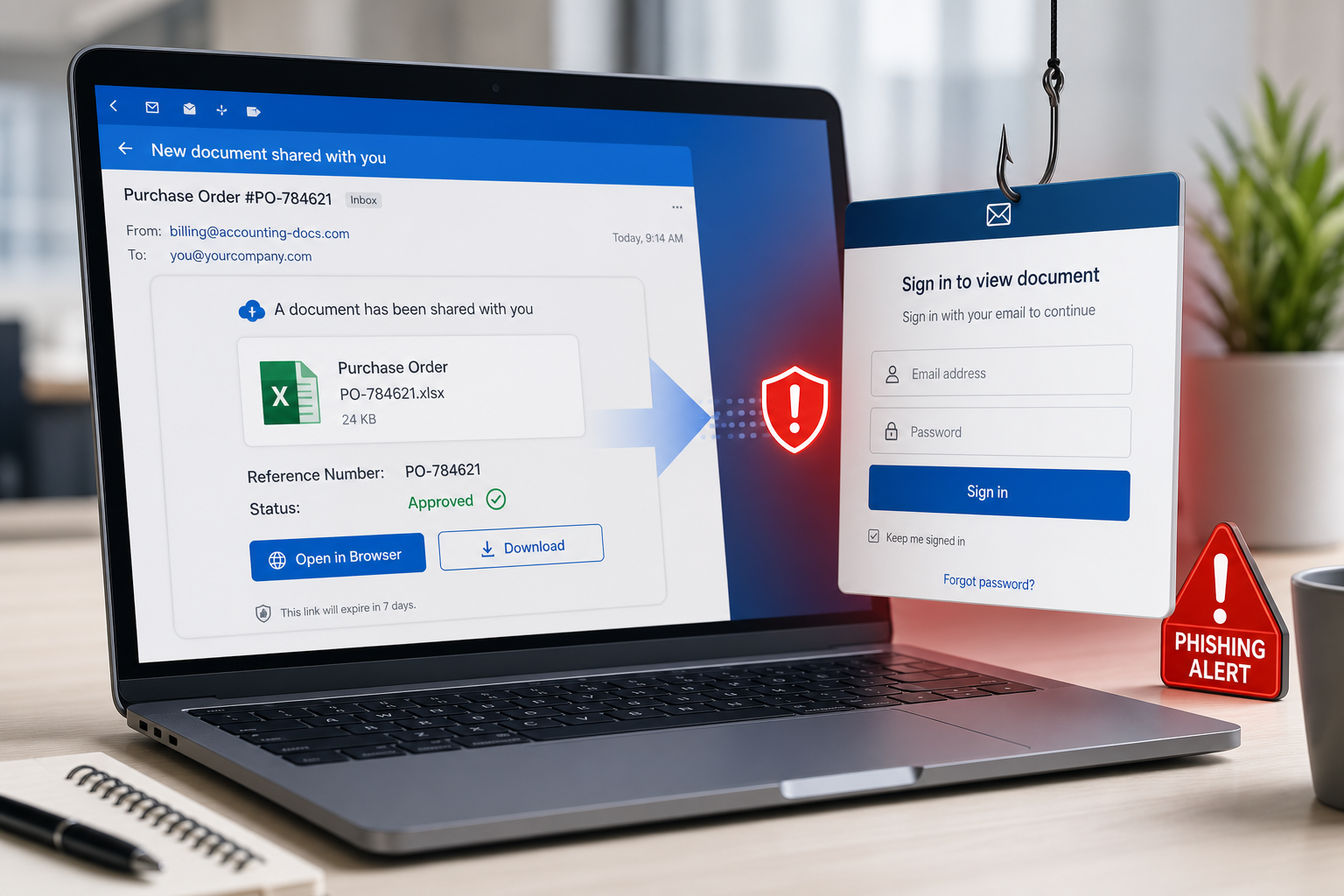
An unexpected purchase order arrives through what looks like a Dropbox sharing notification. The reference number, spreadsheet name and Pending Approval status make it feel like ordinary business paperwork.
The document is fake. Both the Open Document and Download buttons lead away from Dropbox and into a phishing flow built to steal an email or cloud-account password.
Purchase Order Shared Via Dropbox Email Scam Overview
The message pretends that a procurement team shared an Excel purchase order through Dropbox. It may use a subject such as Purchase Order PO-2026-05389 has been shared via Dropbox and display a convincing file card for Purchase_Order_PO-2026-05389.xlsx. The card can include a 643 KB file size, a vendor field, USD currency, a date and a Pending Approval label.
Those details do not come from a real order. They are generic business props that make the recipient wonder whether a customer, supplier or colleague is waiting. Purchase orders are effective lures because employees are expected to process them quickly, and an unfamiliar vendor is not automatically unusual in procurement, sales or accounting.
The email offers Open Document and Download buttons, but both serve the same purpose: moving the victim to a fraudulent website. That page may imitate Dropbox, Microsoft 365 or the recipient’s email provider. Some phishing kits examine the email address included in the link and load matching branding for Gmail, Outlook or a corporate webmail system.
The fake page asks the recipient to sign in before the order can be viewed. Any email address and password entered there are delivered to the criminals, not Dropbox. The page may reject the first password, request it again or redirect to a legitimate service afterward. These tricks make the failure look like an ordinary login problem while giving the attackers more than one password candidate.
A stolen mailbox can be used to reset other passwords, read invoices and impersonate the victim. In a business account, criminals may monitor conversations until a real payment is due, then replace bank details or send a fraudulent invoice from a trusted address. They can also target colleagues and suppliers with follow-up messages that are harder to detect.
Dropbox is a legitimate service and is not responsible for this campaign. The recognizable name is being impersonated to make the message feel routine. Treat the email as confirmed phishing: do not use either button, and verify unexpected purchase orders with the supposed sender through a known telephone number or established business channel.
How the Fake Dropbox Purchase Order Scam Works
Step 1: A business-themed email reaches the target
The campaign is sent broadly to company addresses and individuals whose inboxes may receive invoices or orders. The subject combines Dropbox with a realistic-looking PO number.
The message does not need to identify a real relationship. Curiosity and fear of delaying a transaction are enough to encourage a click.
Step 2: Detailed document metadata builds credibility
A spreadsheet icon, file size, date, vendor field, currency and Pending Approval status imitate a real document-sharing card.
Specific-looking numbers are easy for criminals to generate. They are not evidence that the sender has access to a real procurement system.
Step 3: Both document buttons open the phishing site
Open Document and Download appear to offer different actions, but each link directs the recipient away from the legitimate Dropbox domain.
The destination may pass through redirects or cloud-hosted pages so a quick glance at the first address does not reveal the final login form.
Step 4: The page imitates a familiar login portal
The counterfeit portal may show Dropbox branding or adapt to the recipient’s email provider. Logos, colors and a familiar layout create recognition, not authenticity.
The address bar remains the most reliable warning. A Dropbox or Microsoft login must remain on a domain controlled by that company.
Step 5: Credentials are transmitted to the attackers
Submitting the form sends the username and password to the phishing operator. Repeated password prompts can collect multiple candidates.
A later redirect to a genuine page cannot undo the theft. It only hides what happened.
Step 6: The compromised inbox supports further fraud
Attackers can search for invoices, password-reset links and sensitive attachments. Hidden forwarding rules may copy future correspondence.
Business victims also face invoice fraud, supplier impersonation and attacks sent from the trusted account to coworkers and customers.
Red Flags in the Fake Purchase Order Email
- The purchase order was not expected and the sender is not independently verified.
- The message uses Dropbox branding but its buttons lead to another domain.
- A generic notification supplies a PO number without naming a known buyer or project.
- The document cannot be viewed from the recipient’s normal Dropbox account.
- The destination asks for an email password before showing a spreadsheet.
- The login page changes branding based on the recipient’s email address.
- Urgency comes from a Pending Approval label rather than a verifiable business deadline.
Why Purchase Orders Make Effective Phishing Lures
Purchase orders cross departmental and company boundaries, so the recipient may not immediately recognize every vendor or reference. Criminals exploit that normal uncertainty. A fabricated spreadsheet can look plausible even when the attacker knows nothing about the target’s real suppliers.
The safest process separates notification from authentication. Staff should locate the order inside the procurement platform or contact the supposed sender through existing records. No business deadline justifies entering a mailbox password on a page reached through an unexpected document email.
What to Do If You Entered Information on the Fake Page
- Open the real service directly. Close the phishing page and use an official app, a trusted bookmark or an address you type yourself.
- Change the exposed password immediately. Create a unique password that has never protected another account.
- Revoke active sessions. Sign out unknown devices and remove unfamiliar app passwords, recovery methods and connected applications.
- Enable strong multi-factor authentication. Prefer a passkey, hardware security key or authenticator app where available.
- Inspect the mailbox. Delete unknown forwarding addresses, inbox rules, delegates and filters that could preserve attacker access.
- Change reused passwords. Prioritize banking, cloud storage, workplace, shopping and social media accounts.
- Warn contacts and workplace IT. Attackers may use the compromised mailbox to send believable requests in the victim’s name.
- Review recent activity. Look for unfamiliar sign-ins, sent messages, password resets, purchases and changes to security settings.
How to Verify an Unexpected Email Safely
Do not use the message’s button, telephone number or reply address. Open the claimed service independently and look for the same notification inside the authenticated account. A genuine document, reservation or security event should be visible there without requiring a visit to an unrelated domain.
Hover over links without clicking and identify the registered domain immediately before the first slash. A familiar company name in a subdomain, page title or URL parameter is not proof of ownership. HTTPS only encrypts the connection to the page; phishing sites can also use HTTPS.
If the request involves work, payment or account administration, verify it through a second channel. Call the sender using a number already stored in your records, contact the company through its official website or ask an administrator through an established internal system.
Frequently Asked Questions
Can opening the email alone steal my password?
Usually not. The credential theft occurs when the recipient follows the link and submits information. However, do not download attachments, grant permissions or run files supplied by the message.
Is the page legitimate because it matches my email provider?
No. Phishing kits can read the email address embedded in a link and display matching Gmail, Microsoft, Yahoo or corporate webmail branding. The domain in the address bar is the decisive check.
The Bottom Line
The Purchase Order Shared Via Dropbox email is a confirmed credential-stealing campaign. Its PO number, spreadsheet metadata and approval label are fabricated to make a counterfeit login feel like a normal work task.
Delete the message and verify any real order through the supplier or colleague directly. If credentials were submitted, change the password, revoke sessions, inspect mailbox rules and alert the organization immediately.
Here are signs that this email is a scam, even though it looks like it comes from a company you know — and even uses the company’s logo in the header:- A generic greeting is used in place of a name (eg. “customer,” “account holder,” or “dear”).
- The sender’s email address is not associated with a legitimate domain name
- The email invites you to click on a link to resolve an issue. Most reputable organizations will not ask users to disclose sensitive information (e.g. credit card numbers) by clicking on a link.
- There is a time limit or uncharacteristic sense of urgency
- Poor grammar, spelling, and sentence structure may hint that an email is not from a reputable source.

Join the discussion
0 commentsShare your experience or ask a question about this article.
Discussion
Start the conversation
Have a question or something useful to share? Add the first comment.