

A new buyer wants prices on several products and sounds ready to pay once the quote is approved.
For a busy sales team, that message looks like an opportunity, not a security test, which makes the attached order story effective.
Overview
The message impersonates a prospective customer
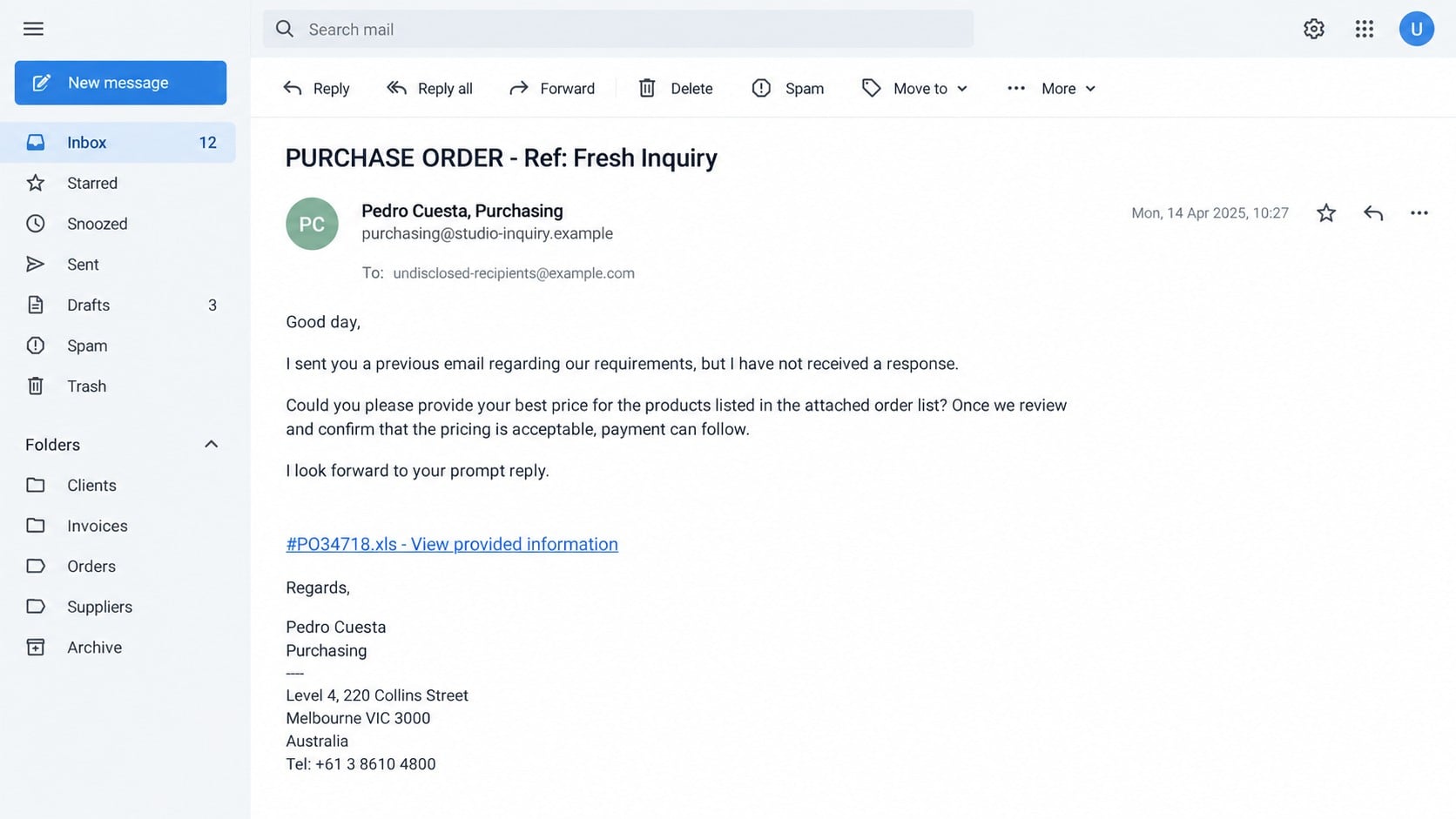
The Attached Order List email is framed as a follow-up from a purchasing representative.
It claims an earlier business inquiry received no response and asks for the best price on every listed product.
The sender suggests payment can proceed if the quotation is profitable or acceptable.
That commercial promise gives the recipient a reason to prioritize the email.
The order list is a link, not a real spreadsheet
A filename such as #PO34718.xls appears inside the message as though a purchase order were attached.
In the observed campaign, selecting it led to an unrelated website rather than an Excel file.
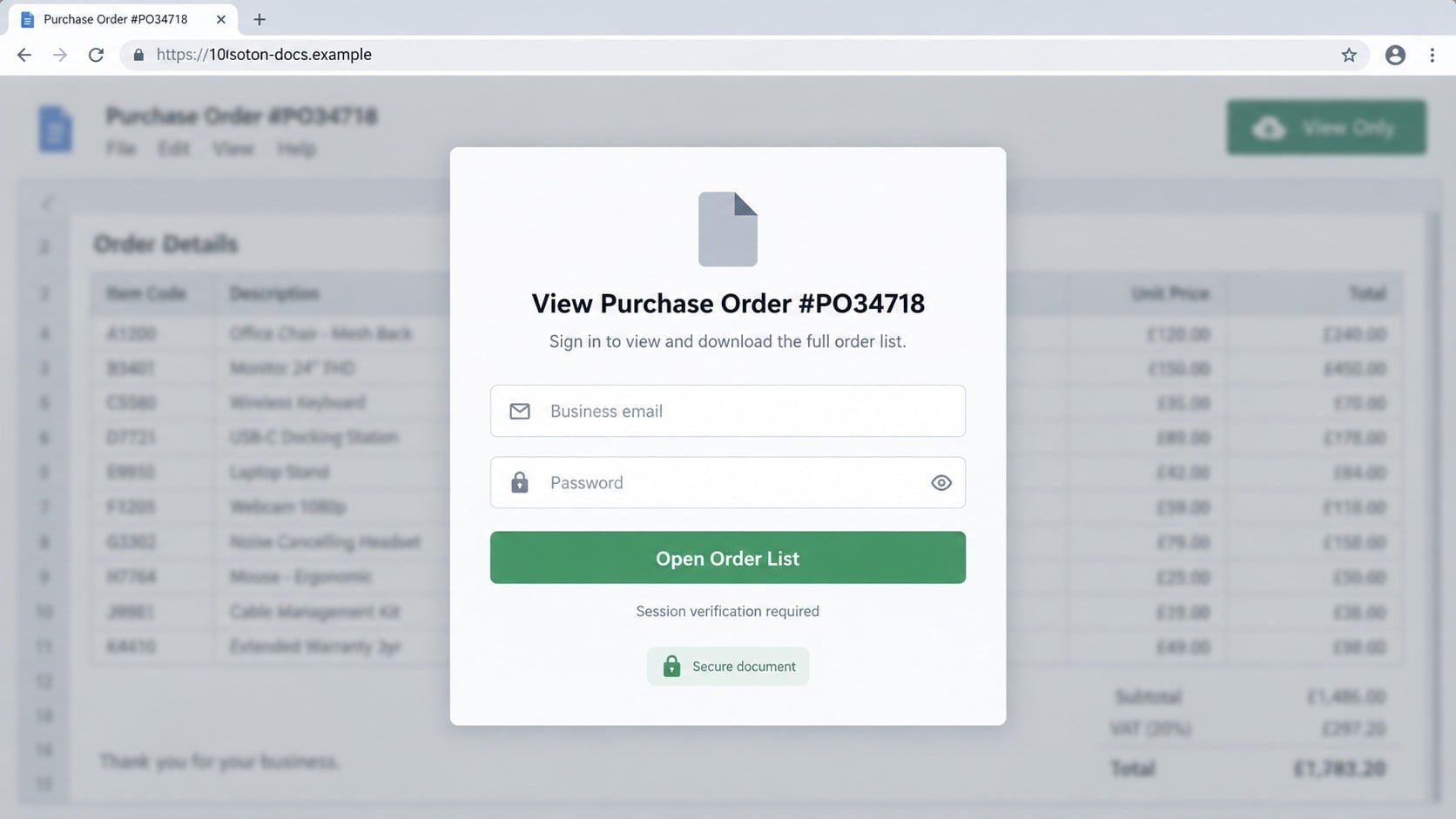
The destination displayed a counterfeit login form styled around a document preview.
Email credentials entered there were captured by the operators behind the page.
The bigger risk is business email compromise
A company mailbox contains relationships, invoices, signatures, quotations, purchase orders, and payment history.
That material helps criminals craft messages that fit real conversations and established suppliers.
They may request changed bank details, redirect invoice payments, or target another employee with stronger authority.
Warning signs include:
- A supposed buyer says you ignored an earlier message that never arrived.
- The email asks for prices on products it never identifies in plain text.
- The “attachment” is actually a clickable link.
- The sender uses a domain unrelated to the signature.
- Multiple addresses and phone numbers create authority without proving identity.
- The order portal asks for your mailbox password.
- The linked hostname has no relationship to the buyer or your provider.
- The message pressures a prompt reply before normal customer checks.
Why Purchase Order Phishing Works
Sales staff are trained to respond quickly to interested buyers, especially when the inquiry suggests a sizable order.
The email turns that positive instinct into leverage.
Unlike a threatening account alert, the lure offers revenue and professional recognition.
The recipient may overlook unusual wording because international inquiries often contain imperfect English.
The “second attempt” creates responsibility
Claiming that a previous message went unanswered subtly blames the recipient for a possible missed sale.
A conscientious employee may rush to correct that imagined service failure.
The story also explains why the buyer wants an immediate response without needing a genuine conversation history.
Checking the mailbox reveals whether any first inquiry actually existed.
A detailed signature substitutes for verification
The message can include a representative name, department, phone number, showroom address, factory address, and postal box.
Quantity creates an impression of legitimacy, but copied or unrelated details remain easy to assemble.
A real street address does not prove the sender works there.
Every important detail must agree across the sender domain, company records, telephone greeting, and independent website.
The fake spreadsheet fits everyday workflow
Purchase orders commonly arrive as spreadsheets, PDFs, or links to procurement platforms.
Scammers exploit that expectation by making the call to action resemble a familiar filename.
The next login page feels like document access rather than disclosure of a company credential.
No outside customer needs your email password to let you read its order list.
How the Attached Order List Email Scam Works
Step 1: Criminals identify business-facing mailboxes
Addresses for sales, quotations, orders, customer service, exports, and accounts are often published openly.
Automated tools can collect them from websites, directories, trade listings, and breached marketing databases.
The campaign does not need to know the employee’s name when a role mailbox accepts new inquiries.
Public product information helps the purchase story fit the target company.
Step 2: A buyer requests a profitable quotation
The message says a list of desired products is ready and asks for the recipient’s best prices.
It implies the order will advance toward payment after the quote is reviewed.
The potential sale motivates the employee to open the list before completing ordinary onboarding checks.
A prompt-reply request adds gentle time pressure without sounding overtly threatening.
Step 3: The order filename conceals a web link
The text resembles an attached spreadsheet, but selecting it sends the browser to a remote site.
The observed campaign used the unrelated 100soton[.]com domain to host or redirect the phishing experience.
The visible “.xls” wording is merely a label placed over the link.
Hovering before clicking would reveal that the destination is not a spreadsheet attachment.
Step 4: A document preview requests email access
The phishing page places a sign-in card over a blurred purchase order or generic cloud document interface.
It asks for a business email and password to open the supposed list.
The design may change according to the address entered, imitating different providers.
Submitting the form hands the credential pair to the phisher.
Step 5: The mailbox is tested and mapped
Criminals try the password against the real email service and note whether additional authentication is required.
Once inside, they study sent items, suppliers, invoice schedules, approval chains, and writing style.
Searches for payment, bank, transfer, overdue, quotation, and invoice quickly locate valuable threads.
The reconnaissance can be quiet, with no immediate outward message.
Step 6: Persistence hides inside mail settings
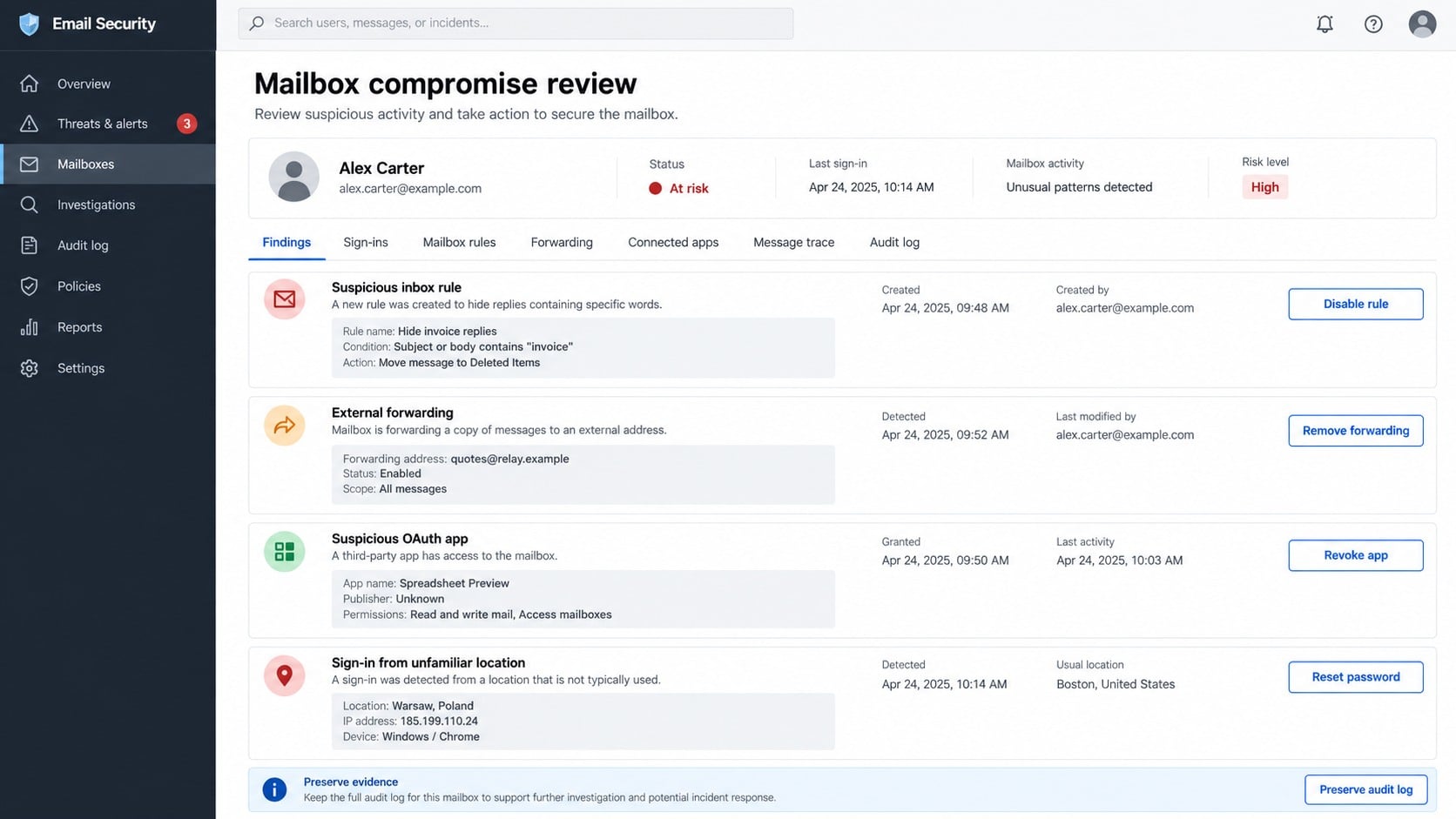
An intruder may create forwarding to copy future conversations outside the company.
Rules can move security warnings, replies, or invoices into hidden folders.
Connected applications and app passwords may preserve access after the user changes the main password.
Recovery details or delegates can also be altered when the provider permits it.
Step 7: Genuine payment conversations are manipulated
The criminal can reply from the compromised account inside an existing customer or supplier thread.
A later message may announce new banking details or attach a modified invoice.
Because the address and conversation history are real, the request can bypass ordinary suspicion.
The financial loss may occur long after the original order-list email disappears.
Buyer, Order, and Business Identity Verification Checks
The named representative must exist independently
Search the alleged company website and professional records without using links supplied in the email.
Call a published switchboard and ask whether the representative, department, and inquiry reference are genuine.
A name alone can be invented or borrowed from a real employee.
The addresses may be borrowed or unrelated
Look up each office, showroom, factory, and postal address separately.
A location can belong to another company, a shared workspace, a residence, or an innocent business.
Including several real places does not establish a relationship between them and the sender.
The phone number should survive an independent call
Compare the signature number with a trusted public listing rather than calling it immediately.
Ask specific questions about products, quantities, delivery terms, and the employee who supposedly contacted you.
Generic answers, pressure to return to the link, or a mismatched greeting are serious concerns.
The procurement process should make commercial sense
Real buyers can identify products, quantities, destination, company details, and purchasing requirements without requesting your mailbox password.
Verify tax information, delivery location, credit terms, and payment method before investing time or shipping goods.
Unusually large first orders deserve stronger checks, not faster exceptions.
From Password Theft to Invoice Fraud
The first stolen item is an email credential, but the operation may be aiming at future payments.
Business email compromise succeeds by understanding who pays whom, when invoices arrive, and which wording employees trust.
A compromised sales mailbox can reveal customer names, current quotes, discounts, delivery dates, and purchase expectations.
An accounts mailbox may expose remittance records, banking instructions, and unpaid invoices.
The attacker can choose the conversation with the highest value and weakest verification process.
Modified bank details may be inserted just before a legitimate payment is due.
Some criminals register a lookalike domain and copy both sides of a conversation to keep the fraud going.
Others remain inside one mailbox and use hidden rules to suppress objections or warnings.
The original recipient may never send money personally yet still enable a later organizational loss.
That is why incident review must include coworkers, partners, and customers contacted after compromise.
Red Flags for Sales and Accounts Teams
Not every unexpected purchase inquiry is fraudulent, so decisions should rest on multiple verifiable details.
These signals justify pausing the conversation and checking the buyer through another channel:
- The buyer references an earlier email that cannot be found.
- No products or quantities appear outside a protected link.
- The visible spreadsheet name opens a website instead.
- The website asks for the recipient’s email password.
- The sender domain and signature company do not align.
- The inquiry uses copied addresses without a verifiable business identity.
- The order is unusually large for a first transaction.
- The buyer avoids telephone verification or detailed product questions.
- Payment is promised quickly after the recipient opens the list.
- The final destination has no connection to any procurement platform.
A legitimate prospect may tolerate careful verification. A credential-harvesting campaign needs the employee to skip it.
What to Do if You Have Fallen Victim to This Scam
- Reset the business mailbox password. Use a trusted device and the genuine provider portal, then replace reused credentials on every other service.
- Terminate active access. Sign out all sessions and revoke remembered browsers, mobile devices, application passwords, and connected applications.
- Remove hidden mailbox changes. Inspect forwarding, delegates, inbox rules, transport rules, recovery details, and automatic replies for unauthorized entries.
- Escalate to the security team. Administrators should preserve audit logs, trace messages, identify downloads, and determine which contacts received follow-up mail.
- Alert finance and sales colleagues. Pause bank-detail changes and verify outstanding invoices with known contacts through a second communication channel.
- Contact affected customers or suppliers. Explain which account was compromised and provide a safe method to confirm genuine payment instructions.
- Scan the device using Malwarebytes. Malwarebytes can detect unwanted files or malware if the phishing page also initiated a download.
- Review financial activity. Examine recent transfers, beneficiary changes, invoices, card activity, and payment approvals linked to exposed conversations.
- Use AdGuard against repeat lures. AdGuard can block many known phishing destinations, malicious redirects, and advertising networks used to seed future attacks.
- Report and document the incident. Preserve headers, screenshots, domains, and timestamps for the provider, insurer, bank, and authorities where appropriate.
Is Your Device Infected? Run a Free Malware Scan
Slow performance, constant pop-ups, or strange behavior? These are classic signs of a malware infection. The fastest way to find out is to scan your device with Malwarebytes Free — one of the most trusted malware removal tools available.
The free version detects and removes the most common threats, including:
- Adware — the cause of those annoying pop-ups
- Browser hijackers — unwanted redirects and changed homepages
- Trojans and spyware — hidden programs stealing your data
- Potentially unwanted programs (PUPs) — software you never asked for
👉 Select your device below — Windows, Mac, or Android — then follow the simple steps to download Malwarebytes, scan your system, and remove any threats it finds. The scan usually takes 5 to 20 minutes.
Run a Malware Scan with Malwarebytes for Windows
Malwarebytes is one of the most popular and trusted anti-malware tools for Windows — and it’s completely free for removing infections. It catches threats that many antivirus programs miss, including adware, browser hijackers, and trojans. Follow the steps below to scan and clean your PC in just a few minutes.
Download Malwarebytes
Click the button below to download the latest version of Malwarebytes for Windows from the official source. The free version is all you need — it will scan your computer and remove adware, browser hijackers, and other malicious software at no cost.
Download MalwarebytesOfficial installer for Windows 11 and 10. Your download starts right away.Want real-time protection? See Malwarebytes Premium Malwarebytes Free for WindowsScans and removes malware at no cost
-
Install Malwarebytes
When the download finishes, open your Downloads folder and double-click the MBSetup file. If Windows shows a User Account Control pop-up, click “Yes” to allow the installation.

Follow the On-Screen Prompts to Install Malwarebytes
The setup wizard will walk you through a few quick screens:
-
Choose where you’re installing the program — “Personal Computer” or “Work Computer” — then click Next.

-
Malwarebytes will now install on your device. This usually takes under a minute.

-
When installation is complete, the “Welcome to Malwarebytes” screen will open automatically.

-
On the final screen, click Open Malwarebytes to launch the program.

-
Enable “Scan for Rootkits”
Before scanning, turn on rootkit detection so Malwarebytes can find even the most hidden threats. Click the Settings gear icon on the left side of the screen.

In the settings menu, find “Scan for rootkits” and click the toggle so it turns blue.

Done? Click “Dashboard” in the left pane to return to the main screen.
Start the Scan
Click the blue Scan button. Malwarebytes will automatically update its virus database and start checking your computer for malware.

-
Wait for the Scan to Finish
The scan checks your entire system for browser hijackers and other malicious programs, so it can take 5 to 20 minutes depending on your computer. Feel free to do something else — just check back occasionally to see the progress.

-
Quarantine the Detected Threats
When the scan is done, you’ll see a list of everything Malwarebytes found — malware, adware, and potentially unwanted programs. Click the “Quarantine” button to remove all of them at once.

Malwarebytes will now remove the malicious files and registry entries and move them safely into quarantine.

-
Restart Your Computer
Some threats can only be fully removed after a reboot. If Malwarebytes asks you to restart, click Yes. Once you’re logged back in, Malwarebytes has finished removing the threats it found.

That’s it — your Windows PC is now clean of trojans, adware, and other malware, and should be back to running smoothly.
If you are still having problems with your computer after completing these instructions, then please follow one of the steps:
- Run a computer scan with ESET Online Scanner
- Ask for help in our Windows Malware Removal Help & Support forum.
Run a Malware Scan with Malwarebytes for Mac
Malwarebytes for Mac is a free on-demand scanner that removes the malware other security software tends to miss — adware, browser hijackers, and unwanted programs included. Cleaning an infected Mac with Malwarebytes has always been completely free, and it’s our go-to recommendation. Follow the steps below to scan and clean your Mac in just a few minutes.
-
Download Malwarebytes for Mac
Click the button below to download the latest version of Malwarebytes for Mac.
Download MalwarebytesOfficial installer for macOS. Your download starts right away.Want real-time protection? See Malwarebytes PremiumMalwarebytes Free for MacScans and removes malware at no cost -
Open the Malwarebytes setup file
When the download finishes, open your Downloads folder and double-click the setup file to begin the installation.

-
Follow the On-Screen Prompts to Install Malwarebytes
The Malwarebytes for Mac Installer will guide you through a few quick screens. Click “Continue” and keep following the prompts until the installation completes.



When the installation is complete, Malwarebytes opens to the Welcome to Malwarebytes screen. Click “Get started“.
-
Select “Personal Computer” or “Work Computer”
Malwarebytes will ask what type of computer you’re installing it on. Click either Personal Computer or Work Computer, whichever applies.

-
Start the Scan
Click the “Scan” button. Malwarebytes will automatically update its detection database and begin checking your Mac for malware.

-
Wait for the Scan to Finish
Malwarebytes will scan your Mac for adware, browser hijackers, and other malicious programs. This can take a few minutes, so feel free to do something else — just check back occasionally to see the progress.

-
Quarantine the Detected Threats
When the scan is done, you’ll see a list of everything Malwarebytes found. Click the “Quarantine” button to remove all the threats at once.

-
Restart Your Mac
Malwarebytes will now remove all the malicious files it found. Some threats can only be fully removed after a reboot — if Malwarebytes asks you to restart, allow it. Once you’re logged back in, your Mac is clean.

That’s it — your Mac is now free of adware, rogue browser extensions, and other potentially harmful software.
If you are still experiencing problems while trying to remove a malicious program from your computer, please ask for help in our Mac Malware Removal Help & Support forum.
Run a Malware Scan with Malwarebytes for Android
Malwarebytes for Android automatically detects and removes dangerous threats like malware and ransomware so you don’t have to worry about your most-used device being compromised. Aggressive detection of adware and potentially unwanted programs keeps your Android phone or tablet running smooth.
-
Download Malwarebytes for Android.
You can download Malwarebytes for Android by clicking the link below.
Get Malwarebytes for AndroidOpens Google Play in a new tab.Want real-time protection? See Malwarebytes Premium for AndroidMalwarebytes for AndroidScans your phone and removes malware at no cost -
Install Malwarebytes for Android on your phone.
In the Google Play Store, tap “Install” to install Malwarebytes for Android on your device.

When the installation process has finished, tap “Open” to begin using Malwarebytes for Android. You can also open Malwarebytes by tapping on its icon in your phone menu or home screen.

-
Follow the on-screen prompts to complete the setup process
When Malwarebytes will open, you will see the Malwarebytes Setup Wizard which will guide you through a series of permissions and other setup options.
This is the first of two screens that explain the difference between the Premium and Free versions. Swipe this screen to continue.
Tap on “Got it” to proceed to the next step.
Malwarebytes for Android will now ask for a set of permissions that are required to scan your device and protect it from malware. Tap on “Give permission” to continue.
Tap on “Allow” to permit Malwarebytes to access the files on your phone.
-
Update database and run a scan with Malwarebytes for Android
You will now be prompted to update the Malwarebytes database and run a full system scan.

Click on “Update database” to update the Malwarebytes for Android definitions to the latest version, then click on “Run full scan” to perform a system scan.

-
Wait for the Malwarebytes scan to complete.
Malwarebytes will now start scanning your phone for adware and other malicious apps. This process can take a few minutes, so we suggest you do something else and periodically check on the status of the scan to see when it is finished.

-
Click on “Remove Selected”.
When the scan has been completed, you will be presented with a screen showing the malware infections that Malwarebytes for Android has detected. To remove the malicious apps that Malwarebytes has found, tap on the “Remove Selected” button.

-
Restart your phone.
Malwarebytes for Android will now remove all the malicious apps that it has found. To complete the malware removal process, Malwarebytes may ask you to restart your device.
That’s it — your Android phone is now clean — no more malicious apps, adware, or browser redirects.
If you are still having problems with your phone after completing these instructions, then please follow one of the steps:
- Restore your phone to factory settings by going to Settings > General management > Reset > Factory data reset.
- Ask for help in our Mobile Malware Removal Help & Support forum.
Stay Protected: Block Ads and Malicious Sites
Now that your device is clean, keep it that way. Most infections start with a malicious ad or a fake download button — so blocking them at the source is your best defense.
We recommend AdGuard, which blocks malicious ads, phishing pages, and dangerous redirects before they can reach you.
👉 Download AdGuard and browse safely
How Businesses Can Reduce Purchase Order Phishing
Publish contact addresses when necessary, but protect role mailboxes with strong filtering and multifactor authentication.
Teach staff that linked filenames can be webpages rather than attachments.
Require independent verification for new buyers, high-value orders, credit requests, and banking-detail changes.
Use a known telephone number, not contact information introduced inside the same email requesting payment.
Configure warning banners for messages arriving from outside the organization.
Block newly registered or low-reputation domains where business requirements allow.
Limit automatic external forwarding and alert administrators when new rules or delegates appear.
Use phishing-resistant multifactor methods for finance, executives, sales leaders, and shared mailboxes.
Separate quotation review from payment approval so one compromised employee cannot complete the full fraud chain.
Practice incident drills that include suppliers and customers, because rapid communication can stop a fraudulent transfer.
Payment Controls After a Mailbox Breach
Temporarily freeze requested bank-detail changes linked to conversations that passed through the affected account.
Confirm every pending payment using a telephone number already stored in trusted supplier records.
Compare beneficiary names, account numbers, invoice copies, approval timestamps, and message headers against earlier verified transactions.
Ask the bank whether recent transfers can be recalled or flagged before funds move through additional accounts.
Document who approved each payment and what independent confirmation they obtained.
Notify insurers and legal advisers according to contractual deadlines when financial or personal data may be involved.
Keep enhanced verification in place after password recovery because attackers may exploit information learned before access was removed.
Update suppliers through a known channel so future payment changes receive stronger scrutiny.
Small verification delays are inexpensive compared with recovering a misdirected commercial payment.
Frequently Asked Questions
Is #PO34718.xls a real attached spreadsheet?
In this campaign, the spreadsheet-looking text functions as a link to a phishing page rather than a genuine Excel attachment.
Can a real address in the signature prove the buyer exists?
No. Scammers can copy public addresses. Verify the company’s relationship to that location using independent records and direct contact.
Why does the fake order page ask for email credentials?
The order is a pretext. The page wants mailbox access that can support account takeover and later invoice fraud.
What if my company uses portals requiring login?
Reach the known portal separately, confirm the invitation with the buyer, and never authenticate through an unexplained unrelated domain.
Could the sender’s business be innocent?
Yes. Names, addresses, and telephone numbers can be copied. Do not accuse a real organization without proving its involvement.
Should customers be notified after a compromise?
Notify contacts who may have received malicious mail or changed-payment instructions, following your incident and legal response process.
The Bottom Line
The Attached Order List email turns the promise of a new sale into a fake document login designed to capture business mailbox credentials.
Verify buyers independently, treat linked filenames cautiously, and investigate payment conversations quickly if anyone entered a password.

Join the discussion
0 commentsShare your experience or ask a question about this article.
Discussion
Start the conversation
Have a question or something useful to share? Add the first comment.